

Supervision webserver
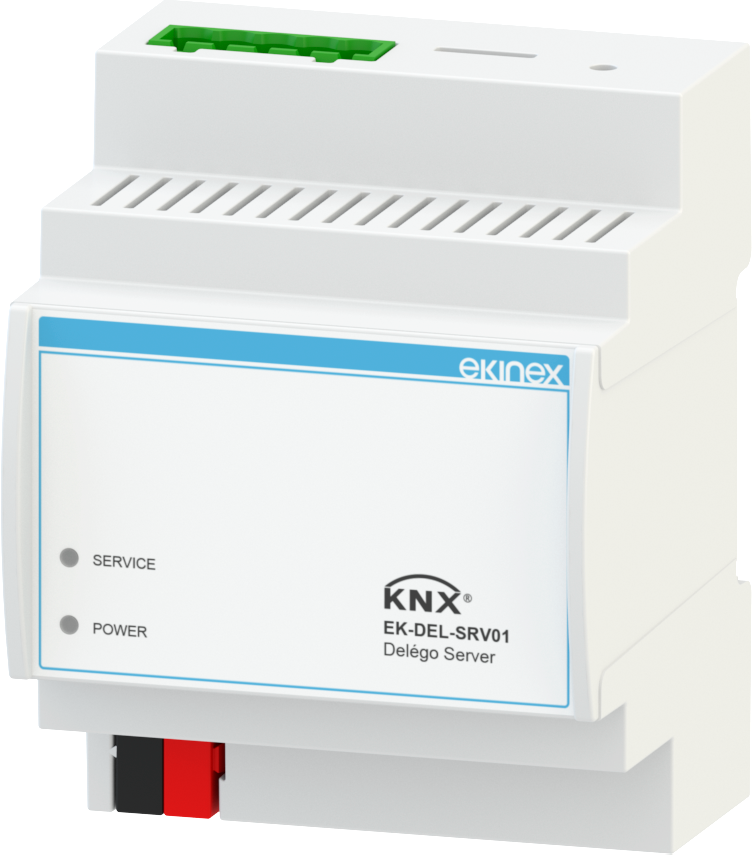
EK-DEL-SRV01 · EK-DEL-SRV01-M
Documentation plan
Introduction
This chapter presents how the contents of the DELÉGO SERVER manual are organized, so that a reader can go straight to the part that covers the technology or the function at hand.
List of chapters
This manual gathers the whole DELÉGO SERVER application manual suite into a single document. The contents are organized in the following chapters:
System configuration
Field technologies
Integrations
Automations
Applications
Abbreviations and Acronyms
| Acronym | Definition |
|---|---|
| AC | Air Conditioning |
| API | Application Programming Interface |
| BMS | Building Management System |
| CPU | Central Processing Unit |
| CSV | Comma Separated Values |
| DALI | Digital Addressable Lighting Interface |
| DHCP | Dynamic Host Configuration Protocol |
| DNS | Domain Name System |
| DPT | DataPoint Type |
| DST | Daylight Saving Time |
| EMC | ElectroMagnetic Compatibility |
| ETS | Engineering Tool Software |
| FDSK | Factory Default Setup Key |
| FIAS | Fidelio Interface Application Specification |
| GNU | GNU is Not Unix |
| GPL | General Public License |
| GUI | Graphical User Interface |
| HTTP | HyperText Transfer Protocol |
| HVAC | Heating Ventilation and Air Conditioning |
| HW | Hardware |
| IFTTT | IF This Then That |
| IP | Internet Protocol |
| JSON | JavaScript Object Notation |
| KNX | KoNneX |
| LAN | Local Area Network |
| LGPL | Lesser General Public License |
| MBUS | Meter BUS |
| NTP | Network Time Protocol |
| PC | Personal Computer |
| PIN | Personal Identification Number |
| PMS | Property Management System |
| POE | Power Over Ethernet |
| QR Code | Quick Response Code |
| RFID | Radio Frequency IDentification |
| RTSP | Real Time Streaming Protocol |
| SD | Secure Digital |
| SIP | Session Initiation Protocol |
| SSL | Secure Sockets Layer |
| SW | SoftWare |
| TCP | Transmission Control Protocol |
| TLS | Transport Layer Security |
| UDP | User Datagram Protocol |
| UI | User Interface |
| URL | Uniform Resource Locator |
| USB | Universal Serial Bus |
| VOC | Volatile Organic Compound |
| VOIP | Voice Over IP |
| VPN | Virtual Private Network |
| VRF | Variable Refrigerant Flow |
| VRV | Variable Refrigerant Volume |
| XML | eXtensible Markup Language |
Conventions
The following conventions are used in this manual:
| [KEY] | The keyboard keys that the installer must press are shown in square brackets |
| Courier | Software messages generated by the DELÉGO SERVER configuration software are reported in the “courier” font |
| Function name | Names of fields, options, groups, panels, tabs and columns of the user interface are shown in bold; the buttons and actions the reader has to press are shown as SAVE; navigation paths are shown in italics, with an arrow: Project → Date/Time |
Safety information
DELÉGO SERVER is a product intended for trained and specialized personnel only; before interacting with this device you must first read this user manual, in particular this safety information. This document supplements and does not replace any legislation or legal directives on safety.
The device has been developed following the safety regulations currently in force; however, it is not possible to exclude with certainty possible damage or interactions with other devices during its operation. The device complies with EMC guidelines and harmonized European standards; any modification to the device may affect its electromagnetic compatibility.
The supply voltage must be strictly within the range indicated in the General Functions chapter and on the device; risk of fire or explosion if powered outside this range. The CE declaration of conformity of the device can be requested from EKINEX®, at the references on the site www.ekinex-delego.com.
In compliance with Directive 2002/96/EC the DELÉGO SERVER electronic device must be disposed of in the appropriate facilities and not in the collection of solid urban waste.
Warnings
- This application manual is aimed at installers, system integrators and designers.
- The assembly, electrical connection, configuration and commissioning of the appliance can only be carried out by specialized personnel in compliance with the applicable technical standards and the laws in force in the respective countries
- Opening the appliance case causes the immediate interruption of the warranty period
- In the event of tampering, compliance with the essential requirements of the applicable directives for which the appliance has been certified is no longer guaranteed.
- EKINEX defective appliances must be returned to the manufacturer at the following address: Ekinex S.p.A. Via Novara 37, 28010 Vaprio d'Agogna (NO)
Copyright
© Ekinex S.p.A. 2026. This application manual, the DELÉGO SERVER software and the DELÉGO iOS and Android apps are subject to copyright; all rights are reserved. Copying, reproduction, translation and/or modification, even partial, are expressly prohibited unless approved in writing by EKINEX®.
Open Source Licenses
DELÉGO SERVER contains open source software, such as the Linux operating system and its kernel. These software components are subject to various open-source licenses, including:
- GNU General Public License (GPL), https://www.gnu.org/licenses/gpl-2.0.html
- GNU Lesser General Public License (LGPL), https://www.gnu.org/licenses/lgpl-2.0.en.html
If you own a product, for a period of 3 years from the last production date, you can request from EKINEX the source code of the software components licensed under the GNU General Public License (GPL) or the GNU Lesser General Public License (LGPL), and use, distribute and modify them in accordance with the respective licenses. EKINEX cannot be considered responsible in any way for the source code thus distributed, which is provided without guarantees. Nor can EKINEX be held responsible for any damage or consequence resulting from modifications (additions / removals) made to this software by third parties, unless specifically authorized.
More information
- For further information on the product, you can contact EKINEX® technical support to the e-mail address: support@ekinex.com or consult the website www.ekinex.com
- EKINEX® is a registered trademark of Ekinex S.p.A.
- KNX® and ETS® are registered trademarks of KNX Association cvba, Brussels
- MATTER is a registered trademark of CSA Connectivity Standards Alliance, Davis CA (United States)
The company reserves the right to make changes to this documentation without notice.
Revision history
The following table gathers, chapter by chapter, the most relevant changes introduced by the DELÉGO SERVER software releases:
| VERSION | CHAPTER | CHANGES | DATE |
|---|---|---|---|
| 2.9.0 | Documentation plan | Adapted to the reorganized Administration | 05/09/2026 |
| General Functions | Reorganized Administration: the vertical tree menu is replaced by a horizontal bar of sections, with a constant three-panel layout (context tree, workspace, source panel). The SETUP section no longer exists: its pages are distributed between the project card and the settings workspace, which is opened from the Configuration menu. Global search replaced by a keyword filter in the side panels. LICENSES AND MODULES renamed VOUCHERS. New objects are created with the Add action of the node in the context tree, and no longer from a toolbar | ||
| Cloud | The EKINEX cloud services are gathered in the Cloud section of the bar. OBJECTS SYNC renamed VOICE CONTROL | ||
| KNX | Introduced the KNX DEVICES WATCHDOG, which monitors the KNX devices of the installation and updates their firmware from an .ekboot file | ||
| Guest Room Management | Part rewritten for the new Guest room management view of the Administration, reached from the Project button, with the sections Structure, Rooms and gates, Guests, Timetables, Access log and FIAS. New FIAS interface towards the PMS and new Print message | ||
| 2.8.2 | MATTER | MATTER CONTROLLER: Added support for MATTER THREAD, window/door sensors and smart locks | 23/06/2026 |
| 2.8.0 | Documentation plan | Introduction of the MATTER BRIDGE | 15/04/2026 |
| General Functions | Added the MATTER BRIDGE functionality | ||
| Scripting | Introduced the MODELS for the definition of the input and output nodes of the runners associated to a script | ||
| KNX | Added the options for the KNX IP SECURE in the KNX configuration page | ||
| MODBUS | Introduced the optimization for the reading of contiguous registers | ||
| MATTER | Added support for the MATTER BRIDGE functionality | ||
| Guest Room Management | Introduced the support for the DECENTRALIZED (WHITELIST) AUTHENTICATION for the KNX BADGE READER and HOLDER, having this impact on several sections of the guest room management | ||
| VoIP Intercom | Introduced reference to the new software EKINEX STUDIO which makes a SIP server no longer necessary for intercom applications with DICO and the DELÉGO PANELS. Removed specific instructions for the configuration of DICO and 3rd party devices, by referring to the specific technical documentation instead | ||
| Philips Hue | Added support for new lamps: LCZ001 / LWA028 / MEC MODULE | ||
| Guest Room Management | Added compatibility with 5STELLE, PROTEL, PODCAMP | ||
| 2.7.1 | KNX | Introduced the thermostat with seasonal setpoint in the “HVAC” category for the KNX widgets section. Introduced the KNX scenario template in the “OTHER” category for the KNX widgets section | 16/01/2026 |
| 2.7.0 | Documentation plan | Added MATTER and PMS / CHANNEL MANAGER manuals | 11/09/2025 |
| General Functions | Adjusted the manual according to the new organization of the Administration | ||
| Cloud | Added section for ETS remoting. Updated Telegram service. General adaptations to the new software version | ||
| Automations | Minor changes. Removed LUA code section | ||
| Scripting | Added JSON library | ||
| KNX | Introduced automatic widgets creation for KNXPROJ imports containing Ekinex KNX products. Added KNX telegram recorder | ||
| MATTER | First release supporting the MATTER standard | ||
| Energy | Added new energy diagrams section. Revised section dedicated to the load control | ||
| Guest Room Management | Added Ekinex KNX badge readers and holders management. Moved PMS and CHANNEL MANAGERs to a dedicated integration manual. Introduced the BOOKINGS view. Adapted the manual to the changes introduced in the software release 2.7.0 | ||
| Video surveillance | Added the camera proxy function | ||
| VoIP Intercom | New organization of the chapters and adaptation to the new software release | ||
| Guest Room Management | First revision of the document |
The table starts from software release 2.7. Before that release the DELÉGO SERVER application manuals were organized differently, and an exact correspondence with the previous versions of the documents is not possible.
General Functions
Introduction
This chapter is the guide to the main application of DELÉGO SERVER, and contains all the necessary information for its configuration and use.
General overview
What is Delégo Server
DELÉGO SERVER is a powerful visualization server for connected buildings; it natively supports KNX, MODBUS and other communication protocols.
DELÉGO SERVER is not only a visualization tool, but offers a rich set of automations to installers and system integrators. Being a webserver, it can be configured and used entirely with a web browser; end users are encouraged to interact with it by means of DELÉGO mobile app, available free of charge on the Apple App Store for iOS and Google Play Store for Android-powered mobile devices.
DELÉGO SERVER is designed to be installed in an electrical cabinet and physically connected to the field buses (KNX, MODBUS…) and the local network. Although it can operate (and can be used via the app) locally, if connected to the internet it can be extended by the Ekinex cloud with additional functions and services, like the voice control (with Alexa and Google) or the remote programming not only of the webserver, but also of the KNX and other devices.
System architecture
DELÉGO SERVER must be connected to the local network and the other technologies which require a physical connection, like the KNX bus, a MODBUS RTU line etc.
Thanks to the integrated support for several protocols, DELÉGO SERVER can interact and coordinate multiple technological systems, and present a unique interface for the control of the building, to the mobile app, PC/Mac with a web browser, and one or more DELÉGO PANEL.
Technical data
| Power supply | 12 Vdc / 24 Vdc via separate power supply, not supplied. Alternatively, PoE power supply |
| Consumption | Max 10 W |
| Communication ports | 1x KNX TP (twisted pair), 1x RS485, 1x RS232, 1x USB 2.0 |
| Ethernet connection | RJ45 |
| LED | POWER green · SERVICE red |
| Operating temperature | 0…+40 °C |
| Storage temperature | -10…+70 °C |
| Dimensions | 72 x 90.5 x 62 mm (LxWxH), 4 DIN modules (1 module = 18 mm) |
| Material | Plastic case |
| Assembly | Designed for mounting on a 35 mm DIN rail |
| Certifications | CE: the product complies with the Low Voltage Directive (2014/35/EU) and the Electromagnetic Compatibility Directive (2014/30/EU). Tests carried out in accordance with EN 50491-5-1:2010, EN 50491-5-3:2010. |
Licenses and vouchers
After purchasing DELÉGO SERVER, most of the functions are already available in the product, but some of them require activation with a license voucher, as does extending the number of KNX addresses beyond the default limit. To redeem a voucher, log in to the technical portal on EKINEX's website
https://voucher.ekinex.com
In the Redeem voucher section it is possible to:
- enter the voucher code;
- enter the unique serial number of the DELÉGO webserver;
- specify which license is to be activated. If the voucher covers several options, a third drop-down menu appears for the choice.
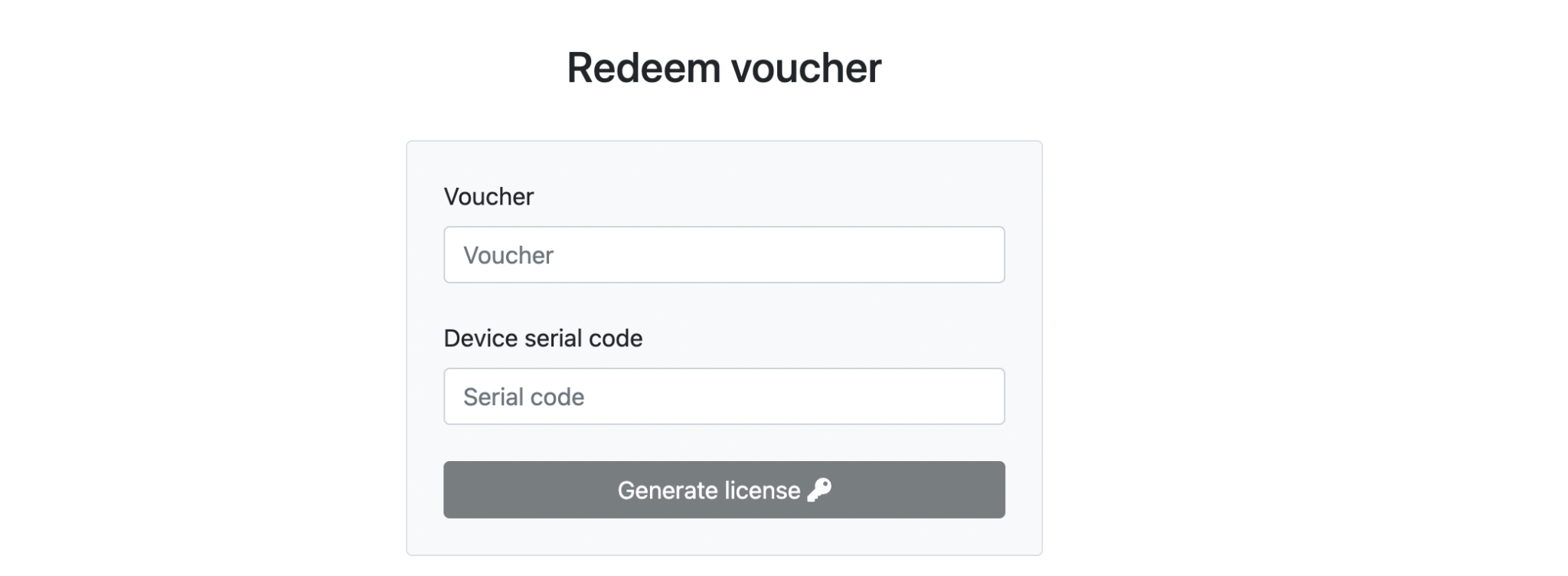
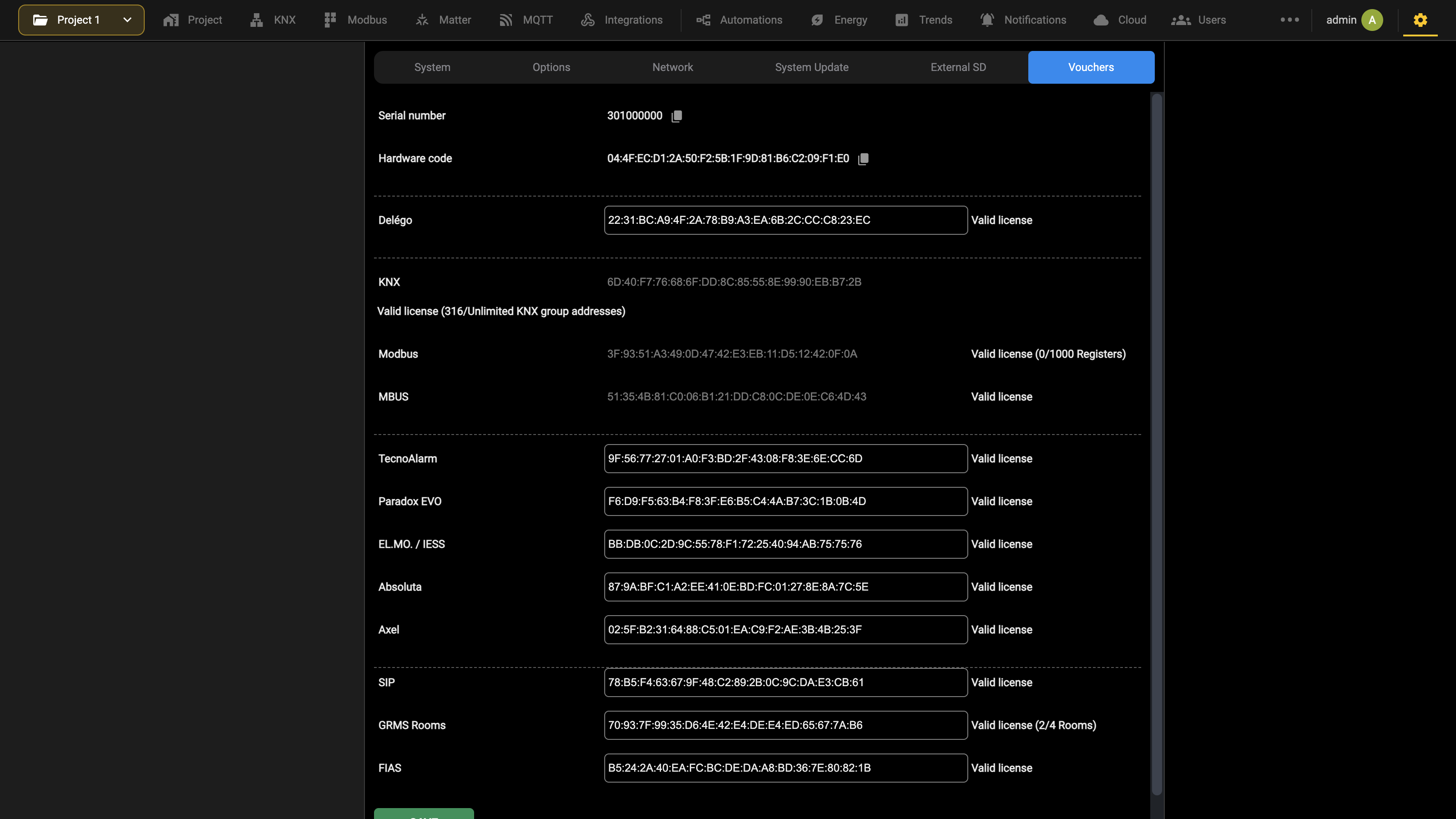
The serial number of the webserver is printed on the label on the side of the product. If the device is not physically at hand, it can also be read from the Administration, by opening
Settings → Vouchers
where it is the first entry of the page. Once the license has been generated, proceed as follows:
- for KNX point upgrades, paste the code in the field of the product itself, the one labeled Delégo;
- to enable an additional module (a proprietary alarm system, for instance) paste the code in the field of that module further down the page.
Once the licenses have been entered, confirm with the SAVE button and wait for the page to reload. At the end of the procedure, check that limits and modules have been applied:
The list of systems compatible with DELÉGO SERVER keeps growing. For an up-to-date list, see www.ekinex.com.
Preliminary setup
Overview
DELÉGO SERVER is equipped with 2 status LEDs, terminals for connecting the power supply, the KNX bus line, the Ethernet network, the RS485 bus line and a USB port.
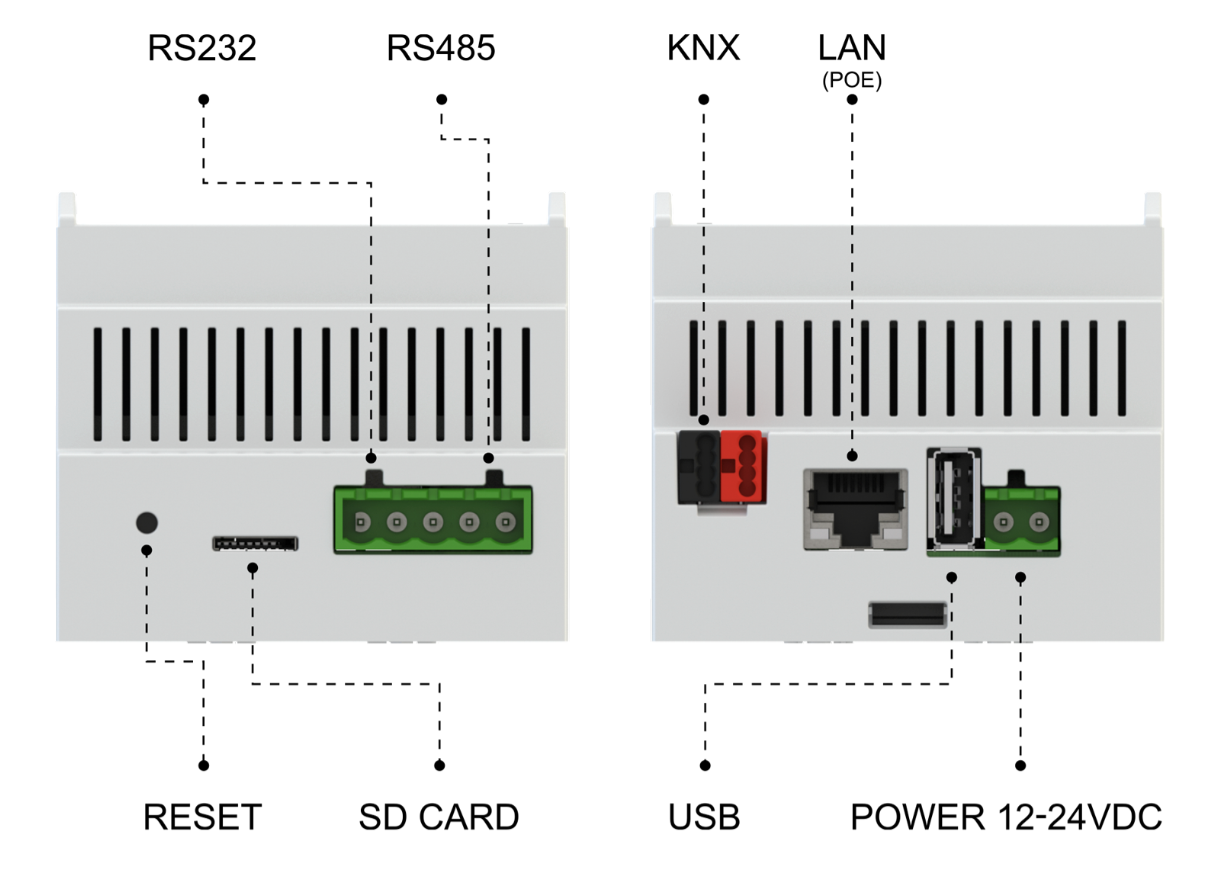
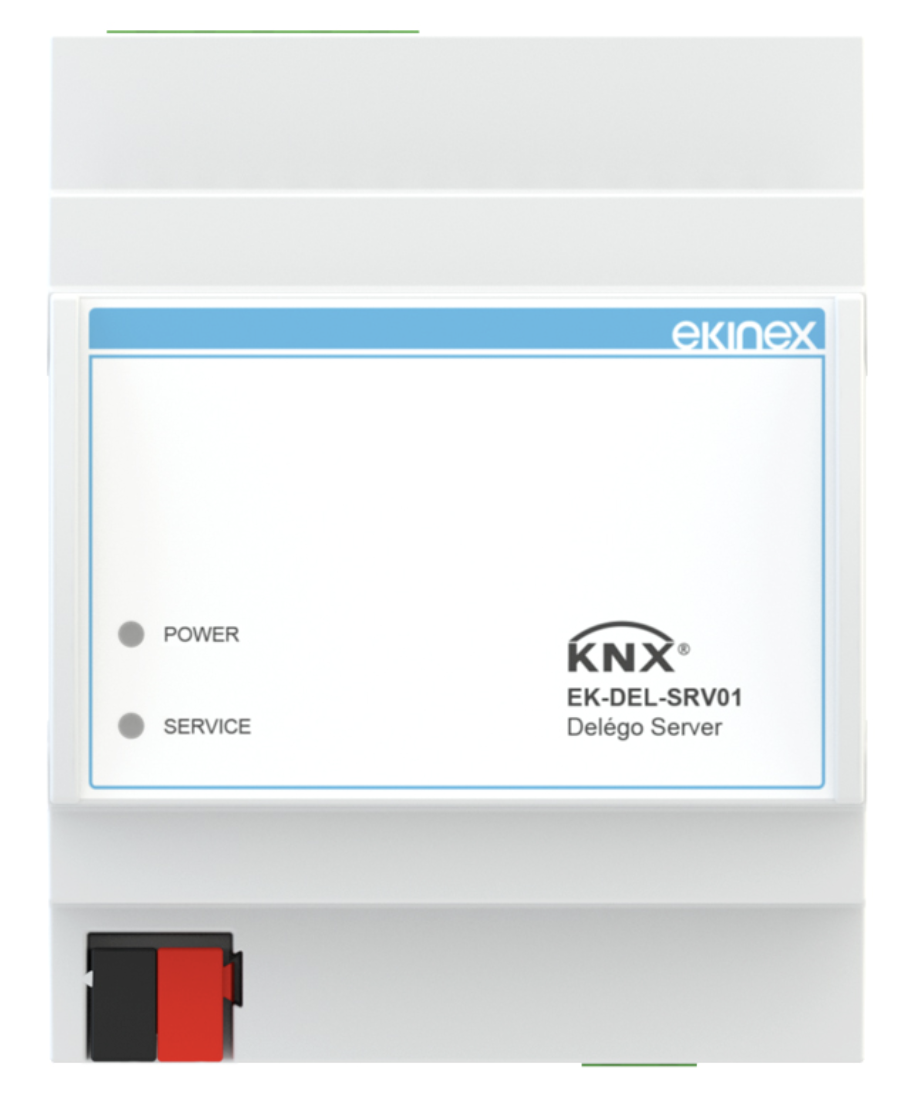
The front panel offers two LED indicators:
- POWER LED: indicates the presence of 12-24 Vdc power at the terminals
- SERVICE LED: normally off, it activates in steady or flashing mode during IP address or factory configuration restoration sequences
The RESET button is used for the recovery operations described later in this chapter.
Connection to the KNX bus
The connection to the KNX system is made with an ordinary KNX certified cable, plugged directly into the server through the standard red and black connector supplied with it.
The KNX system can also be supervised over the network, if an IP router is present: in that case a physical connection of the server to the bus is not needed, and a specific communication setting is required instead, described in Communication settings.
The bus connection is not strictly necessary in order to configure the server. Without it, however, there is no way to verify that the project is correct, nor to try out the automation functions that have been configured.
Network connection
The configuration and use of the DELÉGO SERVER requires a connection to the home or company network.
From software version 2.6.0 DELÉGO SERVER provides full support for DHCP addressing. Servers produced with this version preinstalled ship with DHCP as their default configuration.; in the previous versions of the servers the IP was statically managed.
Please refer to the instruction sheets inside the packaging, to determine in which of the two conditions your server falls, and follow the corresponding instructions below.
Connect the server to a network with a DHCP server (normally the local networks have it) and perform one of the following actions to discover its IP address:
- If your PC is in the same network, enter the following address in a web browser:
http://delego.local
- Look for DELÉGO SERVER in the client list of the DHCP server, or run an IP scan (or ask the network administrator).
If more than one server is connected to the same network, each of them may be reachable at one of the following addresses: delego.local, delego-2.local, delego-3.local and so on. To assign a different IP address to the server, follow the instructions given under Settings → Network; see Network. In the past DELÉGO SERVER had a static IP address by default; refer to the quick start guide printed on the packaging to identify the address of your unit.
First access
For an optimal browsing experience, we recommend using the GOOGLE CHROME browser.
By opening the browser at the default address, as explained in the previous section, the following login screen is displayed:
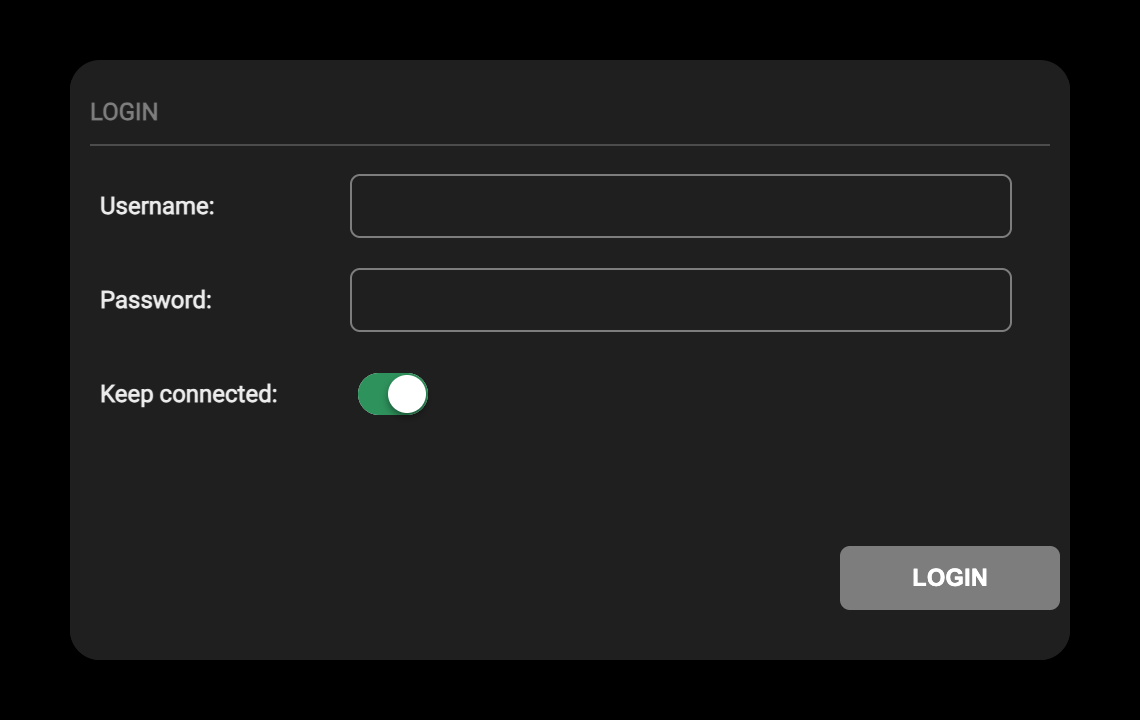
DELÉGO SERVER comes with the following factory-set users:
| User | Password | Description |
|---|---|---|
| admin | admin | Administrator user of the automation system. It has the rights to create users, manage their rights and configure the supervision. |
| user | user | Basic user. Has the rights to view the status of the system, navigate the supervision pages and carry out basic commands on the automation system. |
Enter admin as username and password and confirm. The Visualization opens on its homepage; from there, the Configuration entry of the navigation menu leads to the Administration.
Manual IP address restore
If necessary, it is possible to assign the predefined STATIC IP ADDRESS 192.168.0.110 to DELÉGO SERVER using the RESET button:
- Locate the RESET button on the rear side of the device.
- Press the button for at least 10 seconds, until the SERVICE LED on the front of the device starts flashing.
- Within the next 5 seconds, press the button for 1 second and release; after one or two seconds the front LED lights up steadily for about two seconds.
- When the LED turns off, the device is reachable at the factory IP address (192.168.0.110)
If the LED turns off after the first step, repeat the entire procedure. This procedure resets the IP address and maintains all the data relating to the previously carried out configuration of the automation system.
In the older 2-module DIN-rail hardware version, it was necessary to remove the front panel in order to access the reset button.
Database reset
If the configuration in the database makes it impossible to access the DELÉGO SERVER or its correct use, it is possible to restore the server to its factory state (empty project database) by restoring the empty database with the RESET button.
Starting from software version 2.6.0 the following procedure does not change the IP address. In previous versions, the static IP address 192.168.0.110 was also set.
- Locate the RESET button on the rear side of the device
- Press the RESET button for at least 10 seconds, until the SERVICE LED on the front side of the device starts flashing, then release the button.
- Within the next 5 seconds, press and hold the button for at least 10 seconds.
- When the LED lights up steadily, release the button and wait for it to switch off.
- When the LED turns off, restart the server.
- Wait 1 minute and log in to the server with its last IP address (or the predefined static IP address 192.168.0.110 if the server is equipped with a software version older than 2.6.0).
In the old 2-DIN rail module size hardware version, it was necessary to remove the front panel in order to access the reset button.
Graphical interface and navigation
Spaces
DELÉGO SERVER offers two different graphical SPACES: the Visualization, used by the end user through the browser or the app, and the Administration, used by installers and system integrators to configure the system.
Both are served by the same address. Opening the server address leads straight to the Visualization; the Administration is reached by authenticating as a user belonging to an administration group.
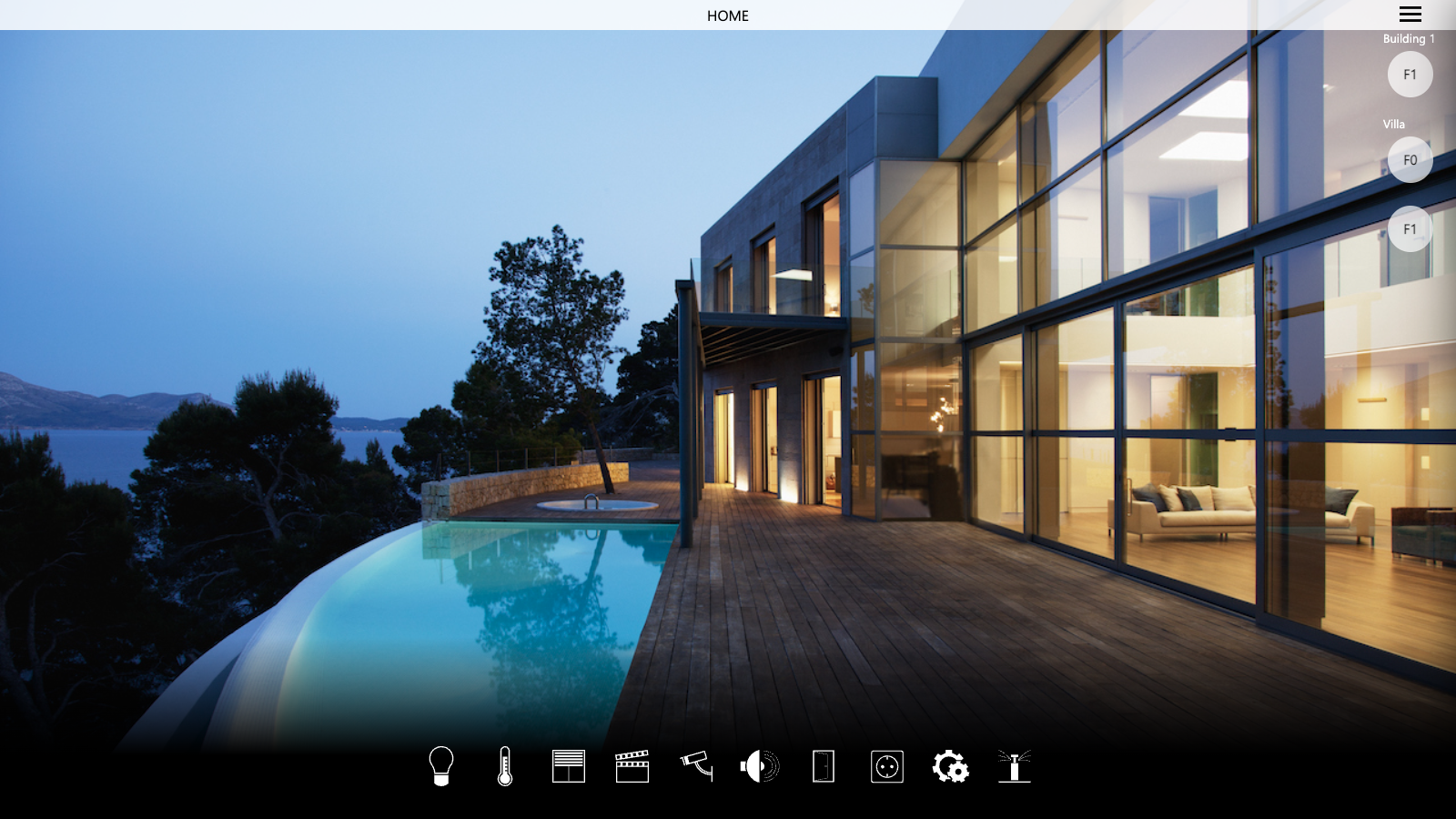
From the Administration you return to the Visualization at any time with Frontend, in the Configuration menu at the top right, so you can check the result of the configuration you have just performed.
Administration
The Administration is the space where installers and system integrators configure the Visualization and all the home automation functions the server supervises. It is organized as a bar of sections across the top and, below it, a constant three-panel layout. The same arrangement is reused in every section, so once you have learned one section you can find your way in all the others.
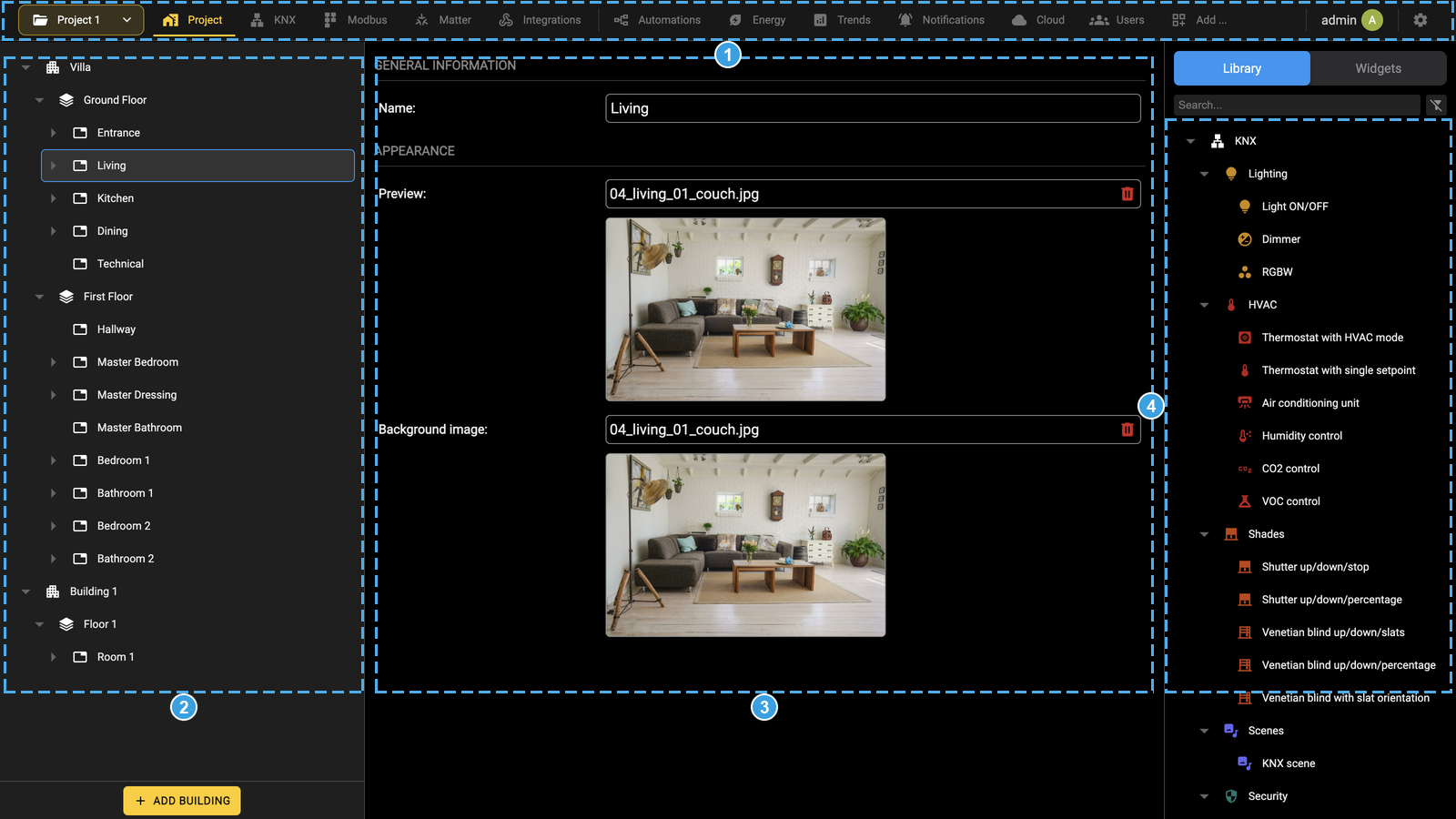
- Navigation bar: the Project button, the sections of the Administration, the user menu and the Configuration menu. It is described in the following sections.
- Context tree: the elements of the current section, that is the building with its floors and rooms in Project, or the objects grouped by category in the field technology sections.
- Workspace: the card of the element selected in the tree. When the element has several pages, they appear as tabs across the top of the workspace.
- Source panel: the Library of object models that can be inserted, alternating with Widgets, Discovered or ETS depending on the section. New objects are created by dragging a model from here into the tree or into the workspace.
The workspace stays empty until you select an element in the tree: this is the normal state of a section you have just opened, not an error.
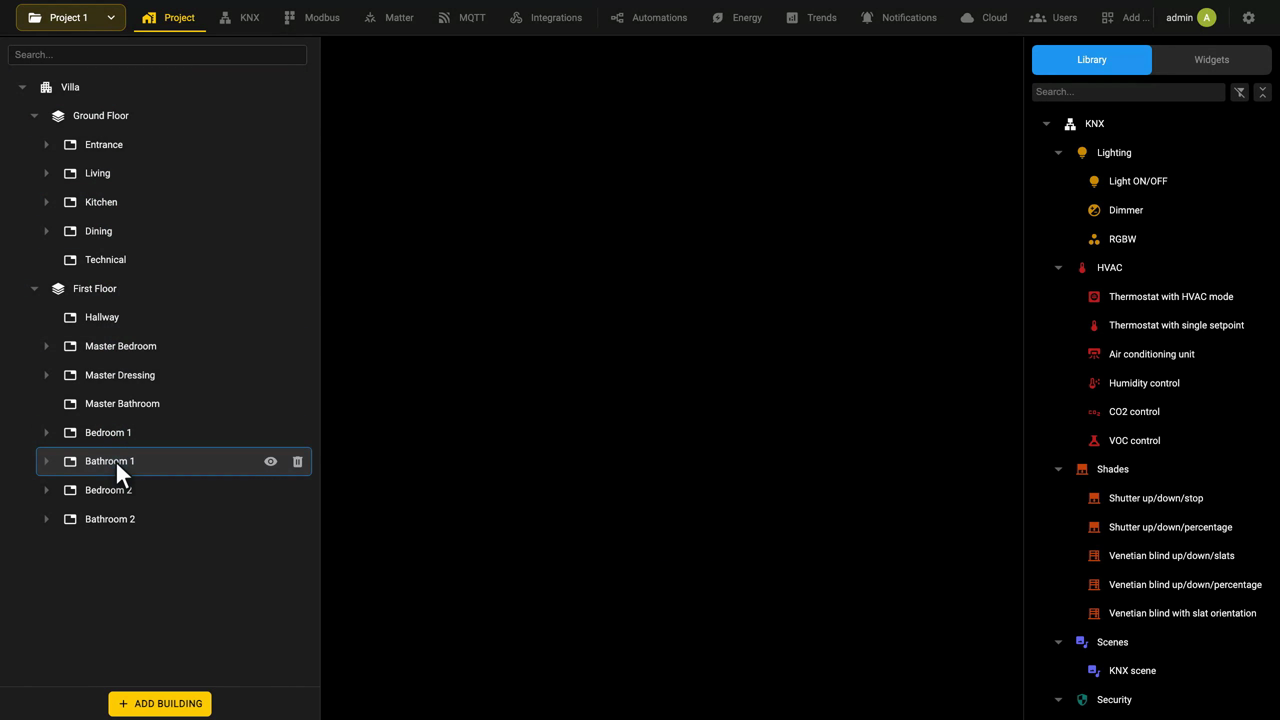
Navigation bar
The bar across the top of the Administration gives access to every part of the server. From left to right it holds the Project button, the sections, the user menu and the Configuration menu.
| Project | The project card, with the tabs Project info (name, location, language, addresses), Functions (the global switches of the functional categories), Homepage, Navigation menu, Backup/Restore and Date/Time. The same section also holds the building tree (building, floors and rooms) and the widgets placed in each room. |
| KNX | A single page holding the ETS project import, the KNX physical address and the communication interface. The tree lists the KNX objects grouped by category and the KNX Devices Watchdog, which monitors the physical devices by individual address. |
| Modbus | The Modbus master and the lines under it, each line being the gateway towards the field, with the objects read and written on it. |
| Matter | Matter Controller, to commission third-party Matter devices, and Matter Bridge, to expose Delégo objects to other Matter ecosystems. |
| Integrations | Third-party systems, each on its own tab: MBUS, Philips HUE, Sonos, Sentio, Security and SIP. |
| Automations | The tabs Connections, Logics and Scripting. Connections is a graphical editor in which objects are linked to each other and to the logic blocks of the library. |
| Energy | The energy manager, load control and consumption monitor, fed by the energy meters of the field technologies. |
| Trends | The graphs offered to the end user: style, data type and the series dragged in from the library. |
| Notifications | The notification channels (push, email, Telegram and Delégo Panel), with the message content and the objects that trigger them. |
| Cloud | Cloud Services, to register or log in to an EKINEX cloud account, and Voice control. |
| Users | Users and user groups, with the predefined groups Administrators, User and Access manager. |
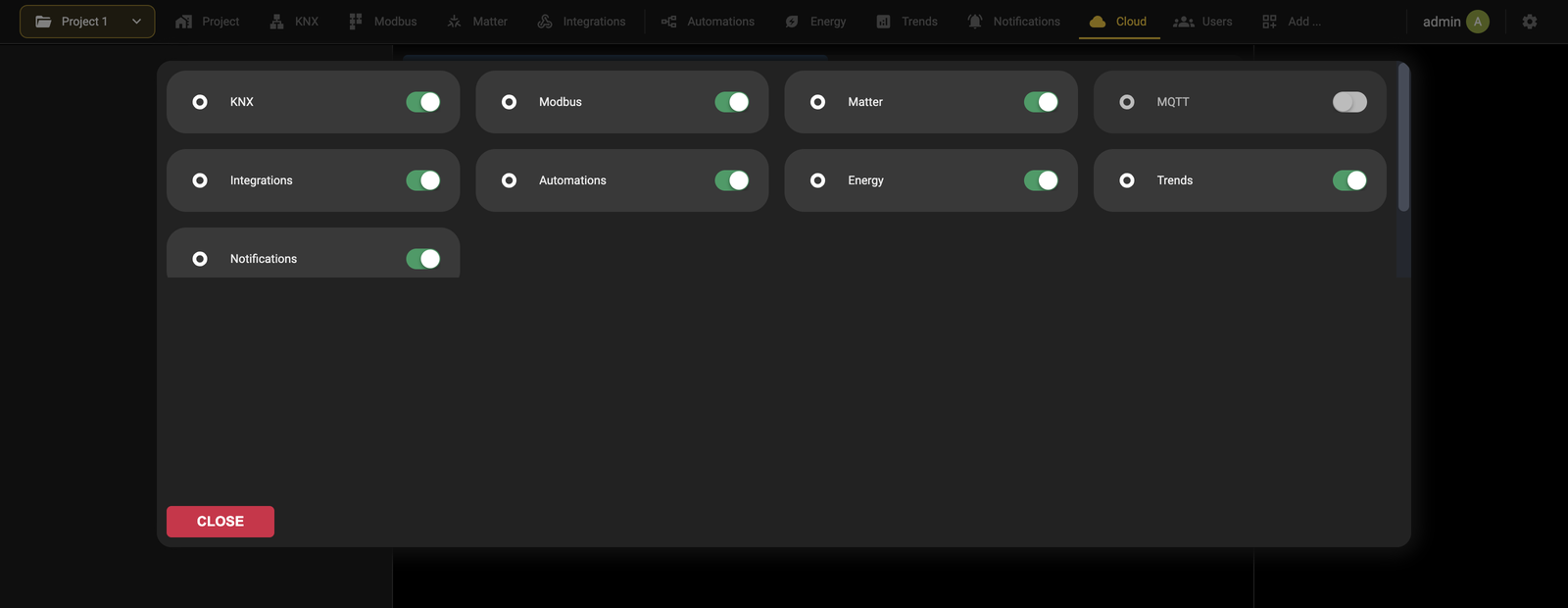
Only the enabled sections appear. Add …, at the end of the bar, opens a panel of switches that shows or hides the optional modules; MQTT is off by default and does not appear in the bar until it is enabled here.
Pressing the Project button on the left opens the settings of the project, the project card described in Project card; the arrow next to it opens the views of the project, to switch between Project view and Guest room management view.

Guest room management view replaces the sections of the bar with those of the access control module: Structure, Rooms and gates, Guests, Timetables, Access log and FIAS. It is described in Guest room management view; Project view brings back the sections listed above.
This topic is shown in the Administration environment and Search video tutorials.
Search
Search is a way of working offered by the side panels, to filter their content quickly by keyword. A search field sits above the project tree in the left panel, and at the top of the source panel on the right, under the Library and Widgets tabs. Typing one or more keywords filters the tree below the field, leaving only the entries whose name matches; clearing the field restores the whole list. In the source panel, the button beside the field narrows the filter to a specific category.
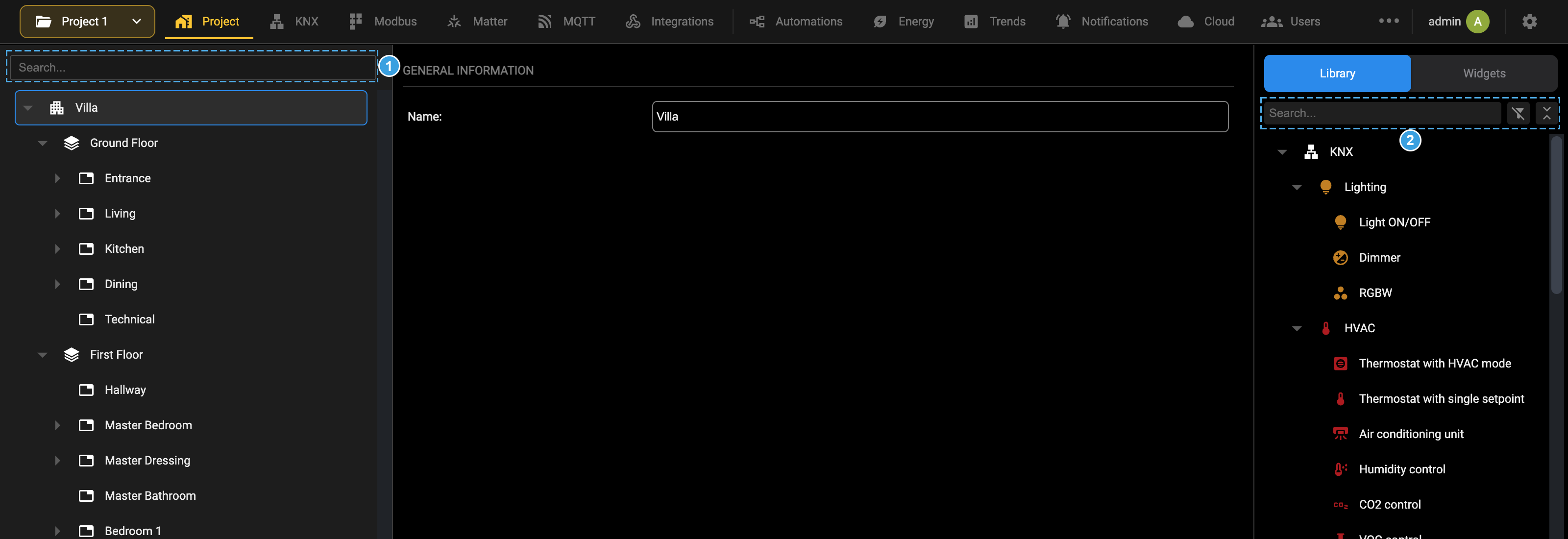
- Search above the project tree, in the left panel.
- Search in the source panel, with the button that narrows the filter to a category.
The filter applies to the panel where it appears, and therefore to the section you are working in: searching in KNX looks through the KNX library, searching in Modbus through the Modbus one.
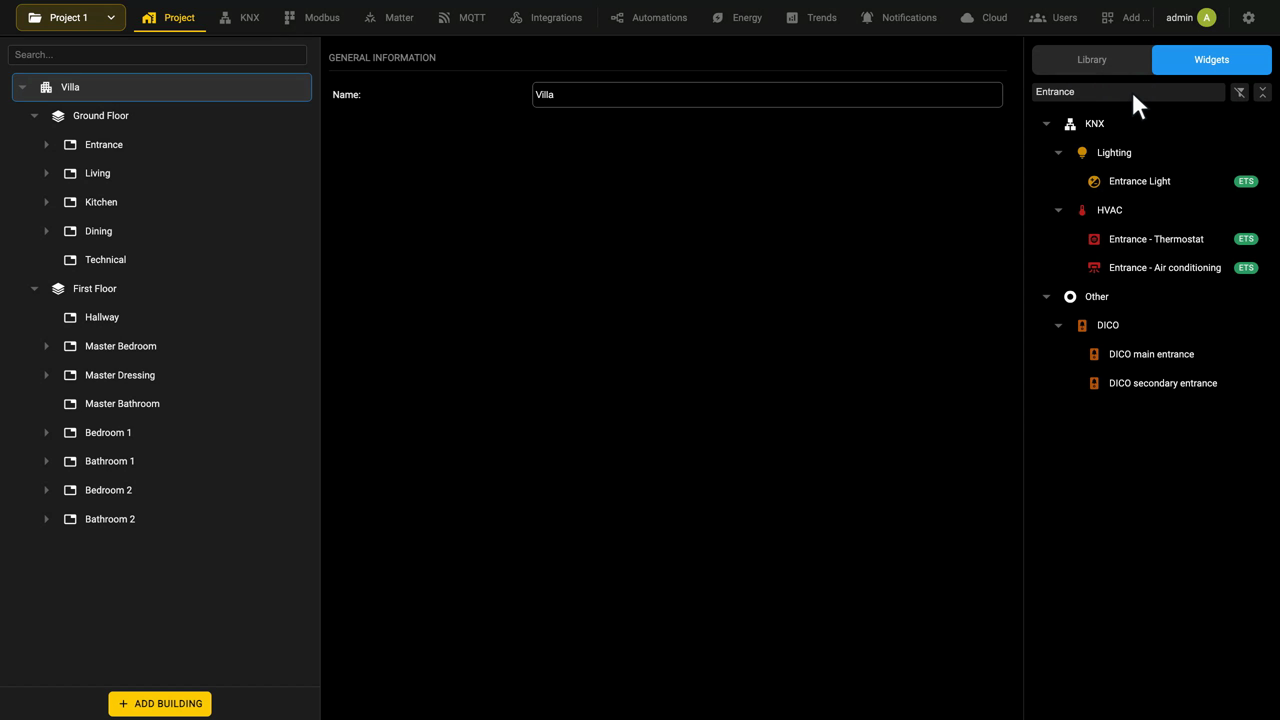
This topic is also covered in the Administration environment and Widget association video tutorials.
Workspace
The workspace is the central panel and shows the card of the element selected in the context tree. When the element has more than one page of settings, the pages appear as tabs across the top of the workspace, and you move between them by clicking the tab.
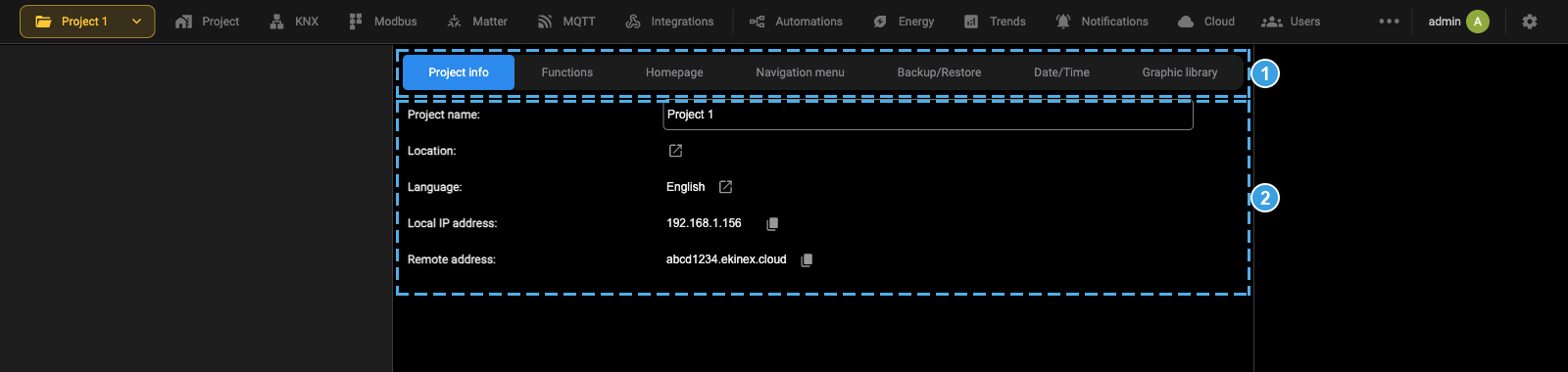
- Tabs: the pages of the selected element. Click a tab to move to that page.
- Body: the fields of the page currently open, here Project info.
Changes are applied with the button at the bottom of the card, where the card provides one. Selecting another element in the tree replaces the content of the workspace.
Status bar
The cards of the elements that run a communication process of their own have a status bar across the top of the workspace, above the first group of fields.
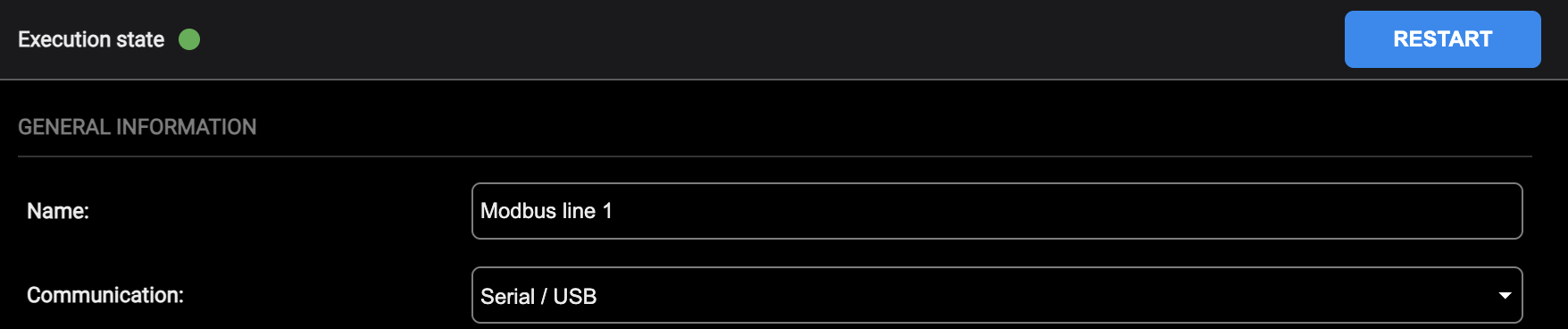
On the left, Execution state is shown as a coloured dot:
| Grey | State unknown: the process has not been initialised yet. |
| Red | The process is stopped. |
| Yellow | The process is running with a warning. |
| Green | The process is running. |
On the right, RESTART stops the process and starts it again with the settings currently on the card.
The cards without a process of their own, such as a widget or a security panel, have no status bar.
System messages
Messages generated by the server appear as a band at the bottom of the workspace, with a button on the right to dismiss them. They report the outcome of an operation, or a condition that needs attention: for example the reminder that one or more predefined users still have their default password.
These messages are transient: they are shown when the event occurs and disappear once dismissed or once the page is reloaded.
Notifications addressed to the end user are a different matter: they are configured in the Notifications section and delivered through the channels set up there, not shown in this band.
Visualization
Navigation
The Visualization opens on the home page. Its background image is chosen in the Administration, in the Homepage tab of the project card, and around it three areas give access to the whole project.
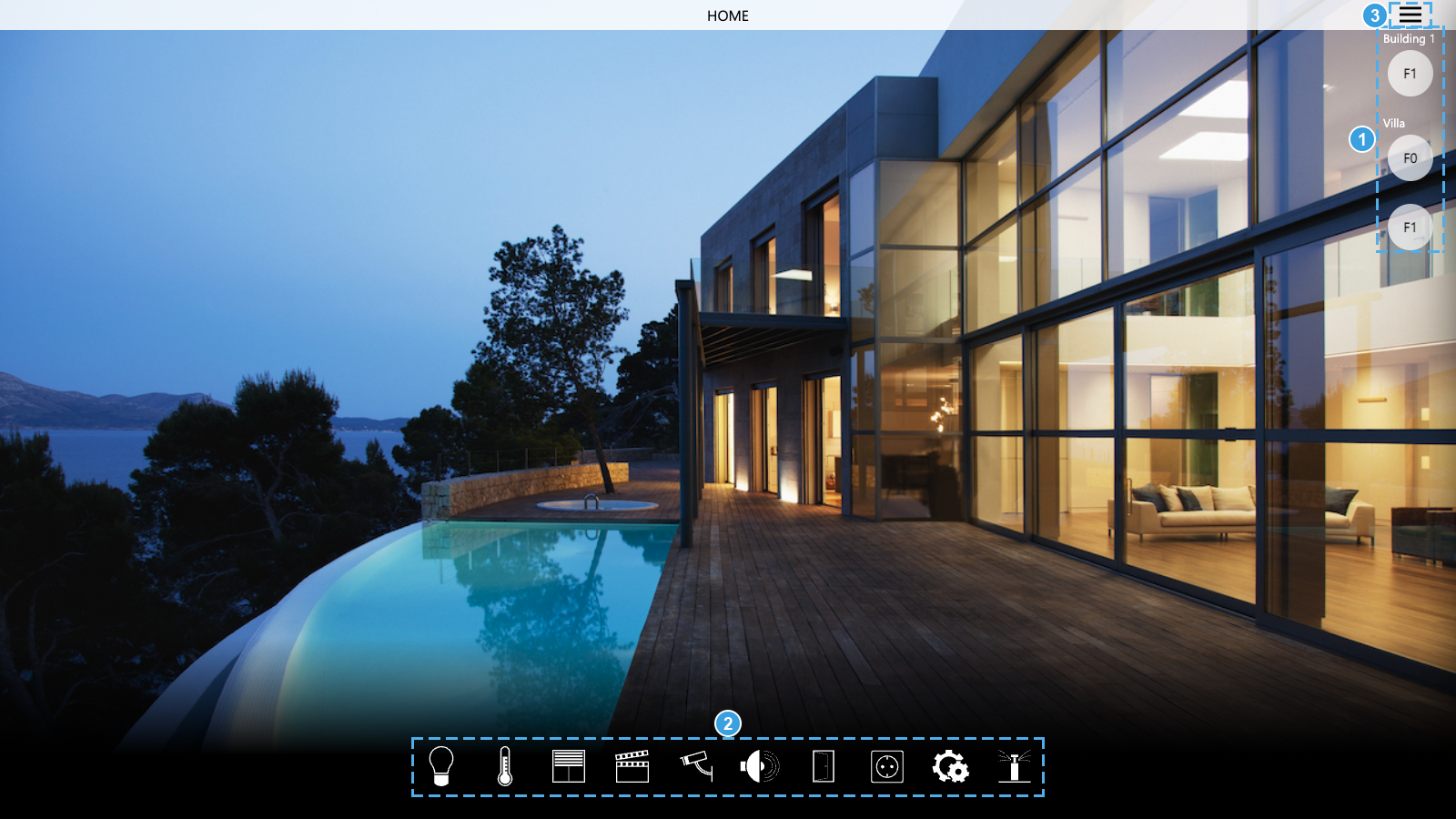
- Buildings and floors: the floors of each building, one round button each, grouped under the name of the building they belong to. Pressing one opens its rooms.
- Functions: one icon per function present in the project, lighting, HVAC, shades, scenes, security, multimedia, gates, sockets, technologic, irrigation. The bar filters the widgets shown on the page you are on.
- Navigation menu: the services that are not tied to a room, favorites, security, energy, notifications, weather, scenes, schedules and the configuration of the Visualization.
The navigation menu opens as a panel on the right-hand side.
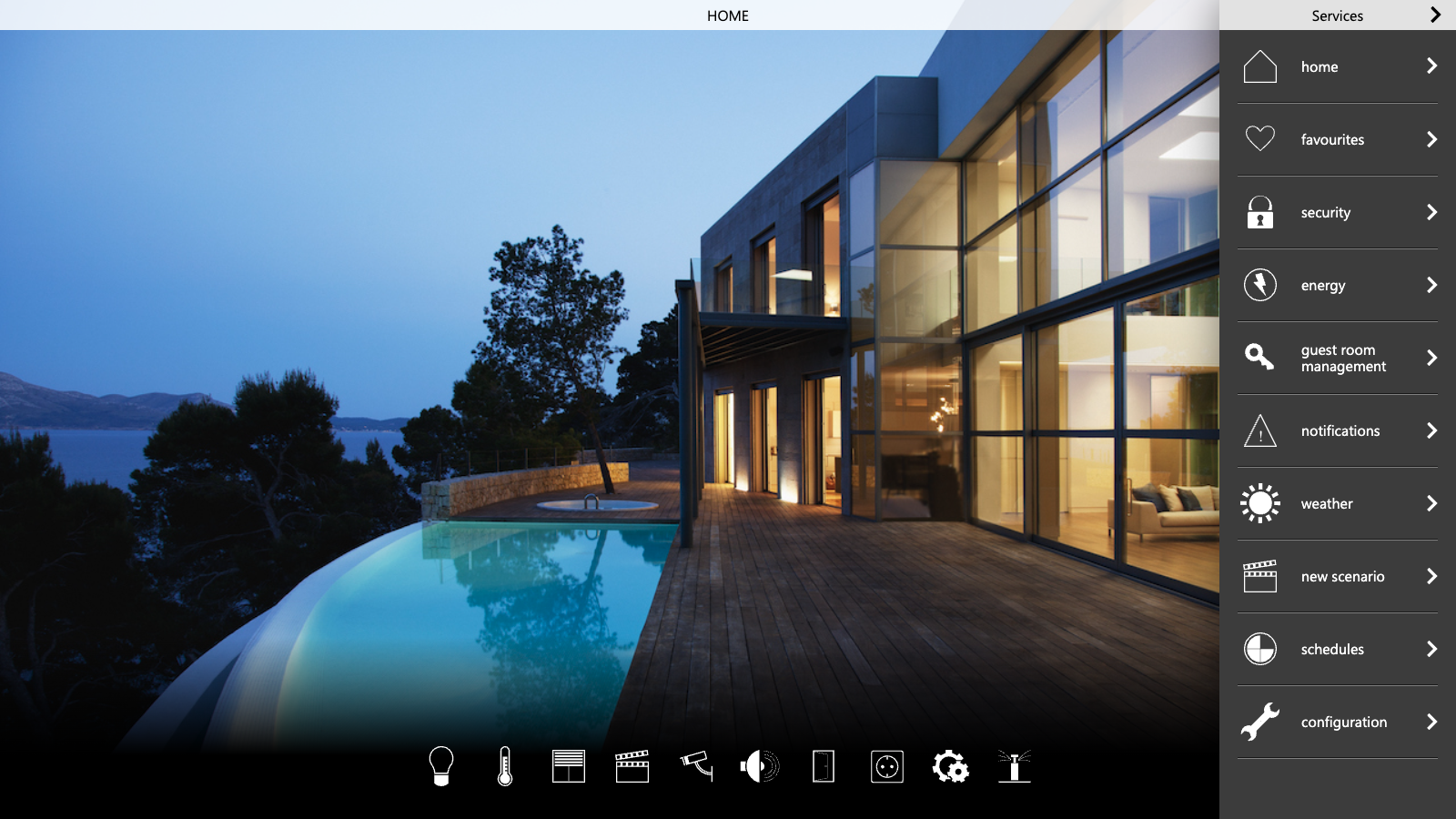
From any page or popup you go back one step with the arrow in the top-left corner, and reach the home page again with the home entry of the menu.
Building structure
The project can be organized on the following levels:
- Buildings, each of them a set of floors.
- Floors, each of them a physical story of a building, seen as a set of rooms.
- Rooms, each of them a physical space, seen as a set of widgets.
- Widgets, the building functions themselves: a light, a thermostat, a shutter, and so on.
- Rooms, each of them a physical space, seen as a set of widgets.
- Floors, each of them a physical story of a building, seen as a set of rooms.
Normally a single building is used, and the home page shows its floors directly. With the ADD BUILDING button further buildings can be created; new in version 2.9, the home page then shows the building level too, as in the Visualization home with two buildings shown in Navigation and at the end of this chapter.
Pressing a floor on the home page opens its rooms, each one shown as a tile carrying the picture set as its preview in the Administration.
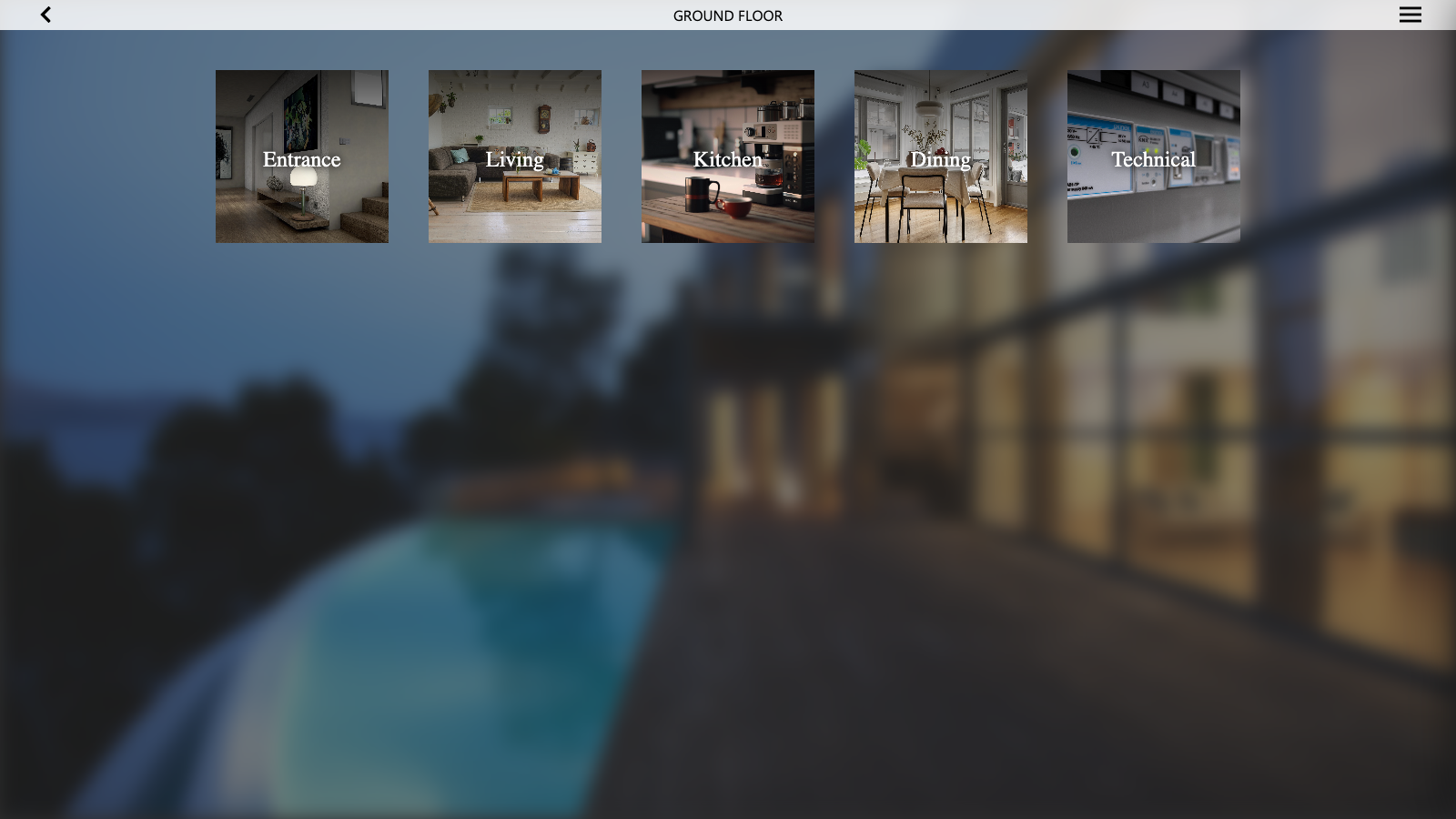
Buildings are added in the Project section of the Administration, with ADD BUILDING at the bottom of the project tree. Each building appears on the home page as an entry with its name, above the symbols of its floors, so that the floors are grouped by building.
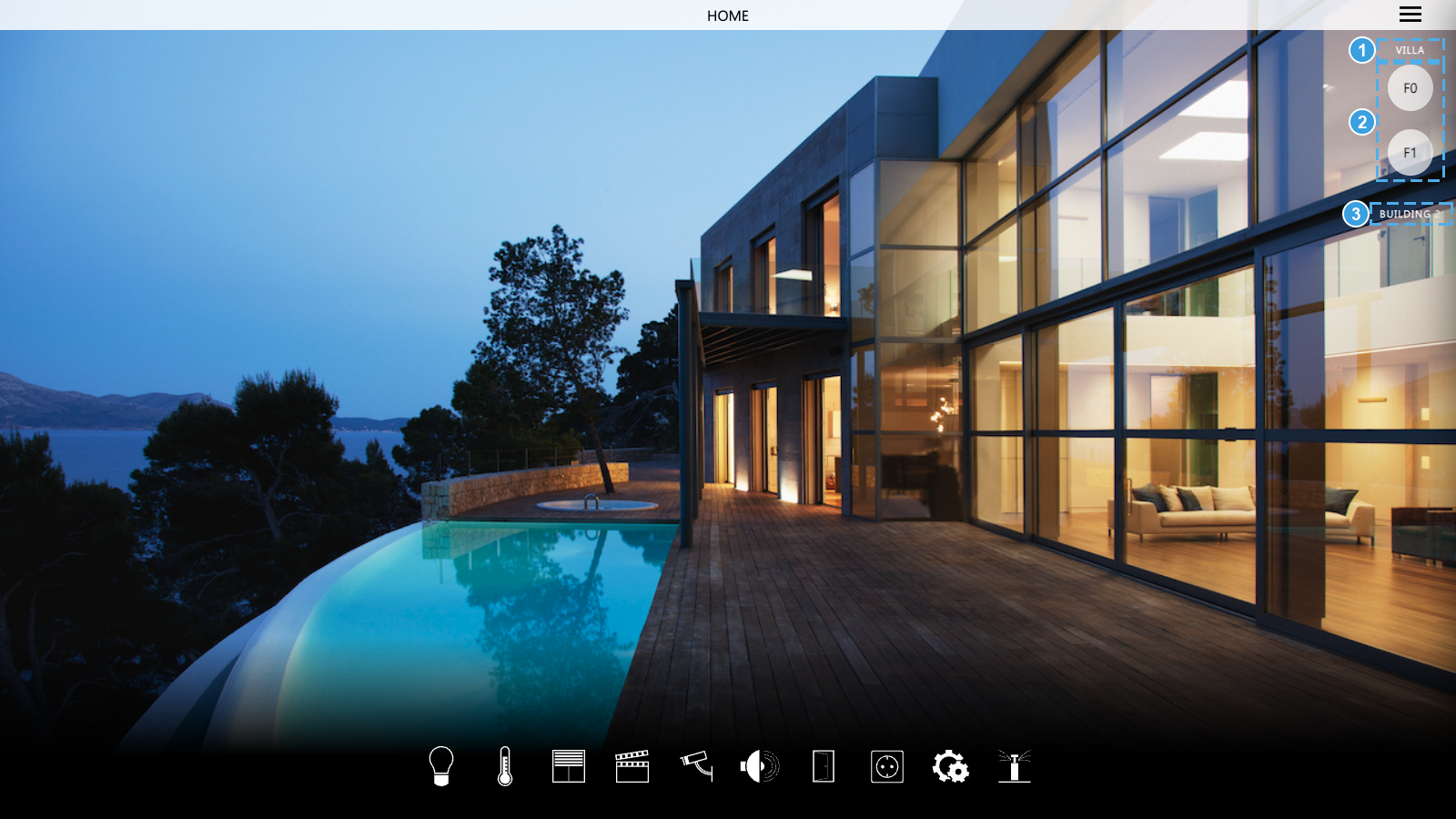
- Name of the first building, Villa.
- Its floors, F0 and F1: pressing one opens its rooms.
- Second building, Building 2, just added and still without floors.
Widgets
The functions of the systems are normally represented in the Visualization as widgets. A widget is a graphical element tied to a specific technology (KNX, MODBUS and so on) that carries the state of a device of the installation and the commands for it. Widgets appear as rows inside a room or inside a function page: each row gives a synthesis of the state and offers a quick command, the switching on and off of a light for instance.
When the function supports it, pressing the name or the symbol on the left of the row opens a popup with all the details and all the commands of that device.
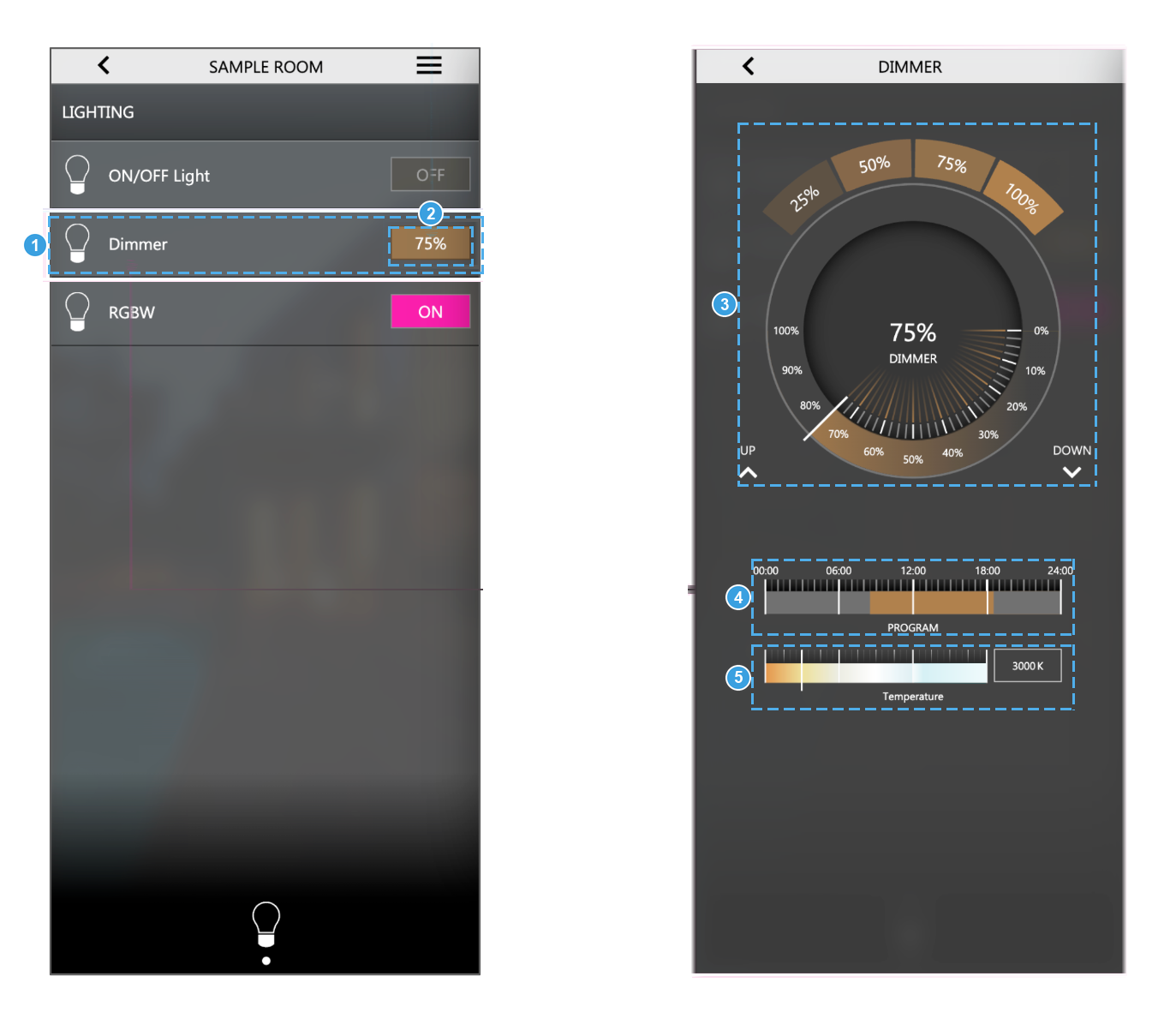
- The widget in the list: symbol, name and, on the right, the synthesis of the state.
- Quick command: acts directly from the list, without opening anything.
- Main commands of the popup: the dial that sets the brightness, the preset arcs and the UP and DOWN buttons.
- Schedule of the day, when the object has one; see Preview in widgets popup.
- Further commands offered by that particular device, here the color temperature.
Functions
Every widget belongs to a category, called a function. Functions organize the widgets inside a room: they appear as blocks, each one gathering the widgets with a similar purpose.
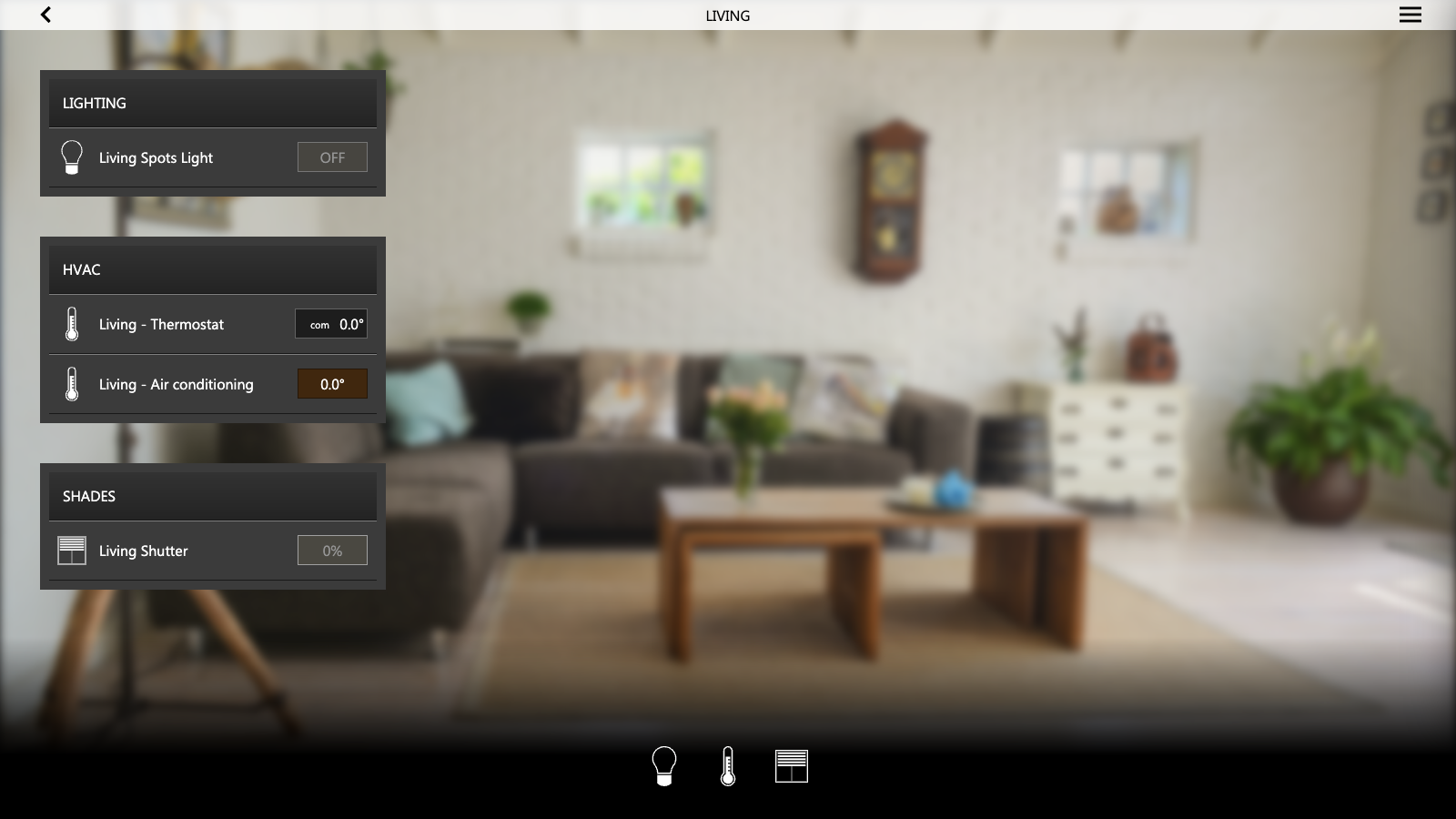
Pressing an icon of that bar restricts the page to a single function, which is convenient in rooms with many widgets.
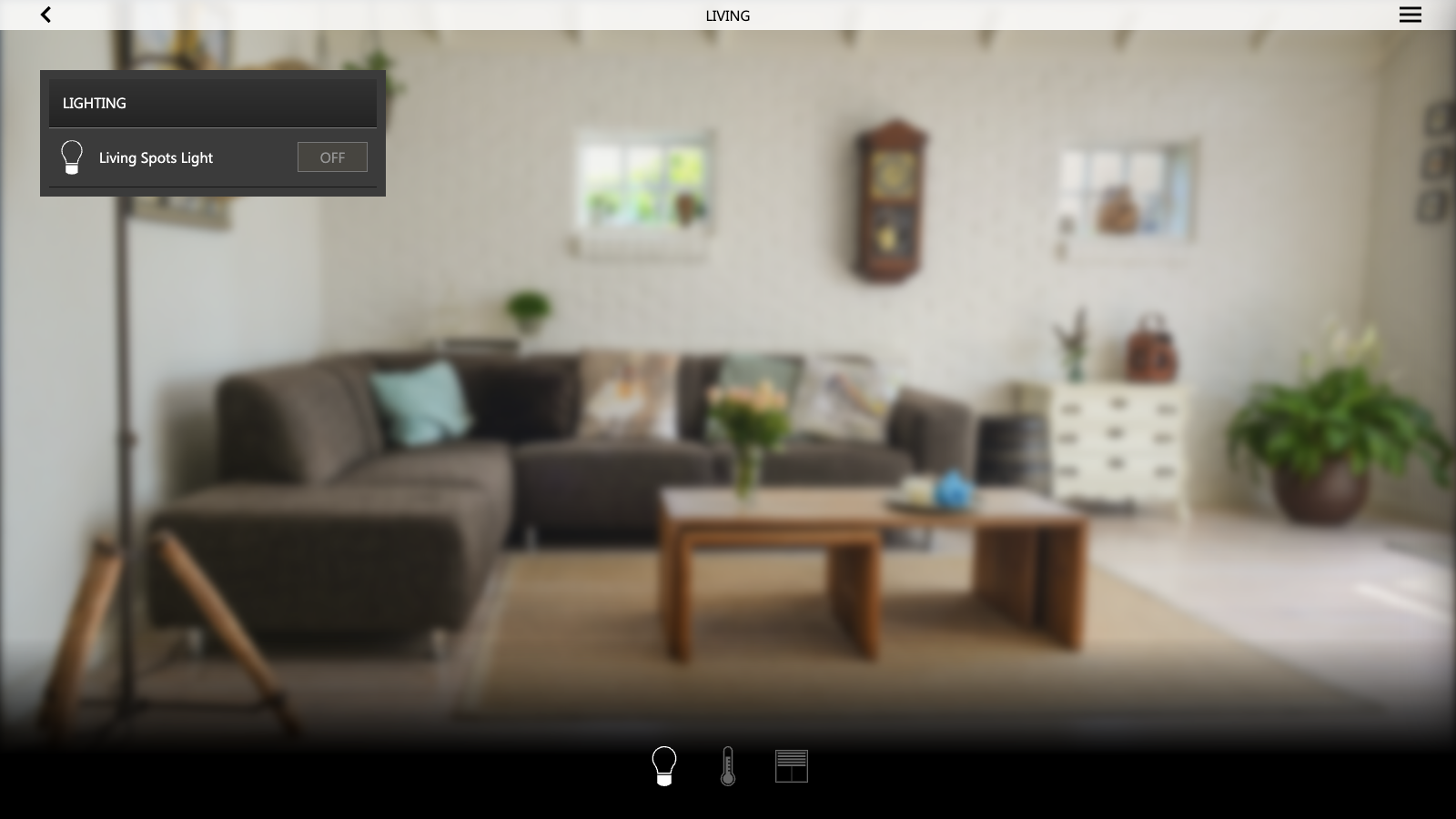
Which functions are in use is set in the Administration, in the Functions tab of the project card, and each room card can enable them one by one; a function with no widget in a room does not appear in that room.
Favourites
The favourites page, reached from the navigation menu of the Visualization, is filled by the end user with the widgets, the scenes and the schedules used most often, so that they are all in one place instead of one room away.
To add an element to the favourites:
- find it in its room;
- press and hold it for a couple of seconds, until the edit popup opens;
- in the popup, select ADD TO FAVOURITES.
The same long press is used to remove an element that is already among the favourites. Several widgets can be added in one go, long-pressing each of them.
The page is per user: each account has its own favourites, and what one user adds does not appear to the others.
Project
The Project section of the bar holds everything that describes the installation as the end user will see it: the project card, with the name, position and language of the installation, the home page and the navigation menu; the building, with its floors and rooms; and the widgets placed in each room, together with the map and the links offered in the Visualization.
Each server holds a single project, created with the server itself: the Project button at the left end of the bar opens its card and switches between Project view and Guest room management view, and has no command to create a further project. A project is replaced as a whole by restoring a backup, from the Backup/Restore tab of the project card.
The settings of the server itself, which apply whatever project is configured, are described in Settings; users, groups and their permissions in Users.
Project card
The settings of the project are gathered in the project card, opened from the Project button at the top left of the bar. It has seven tabs:
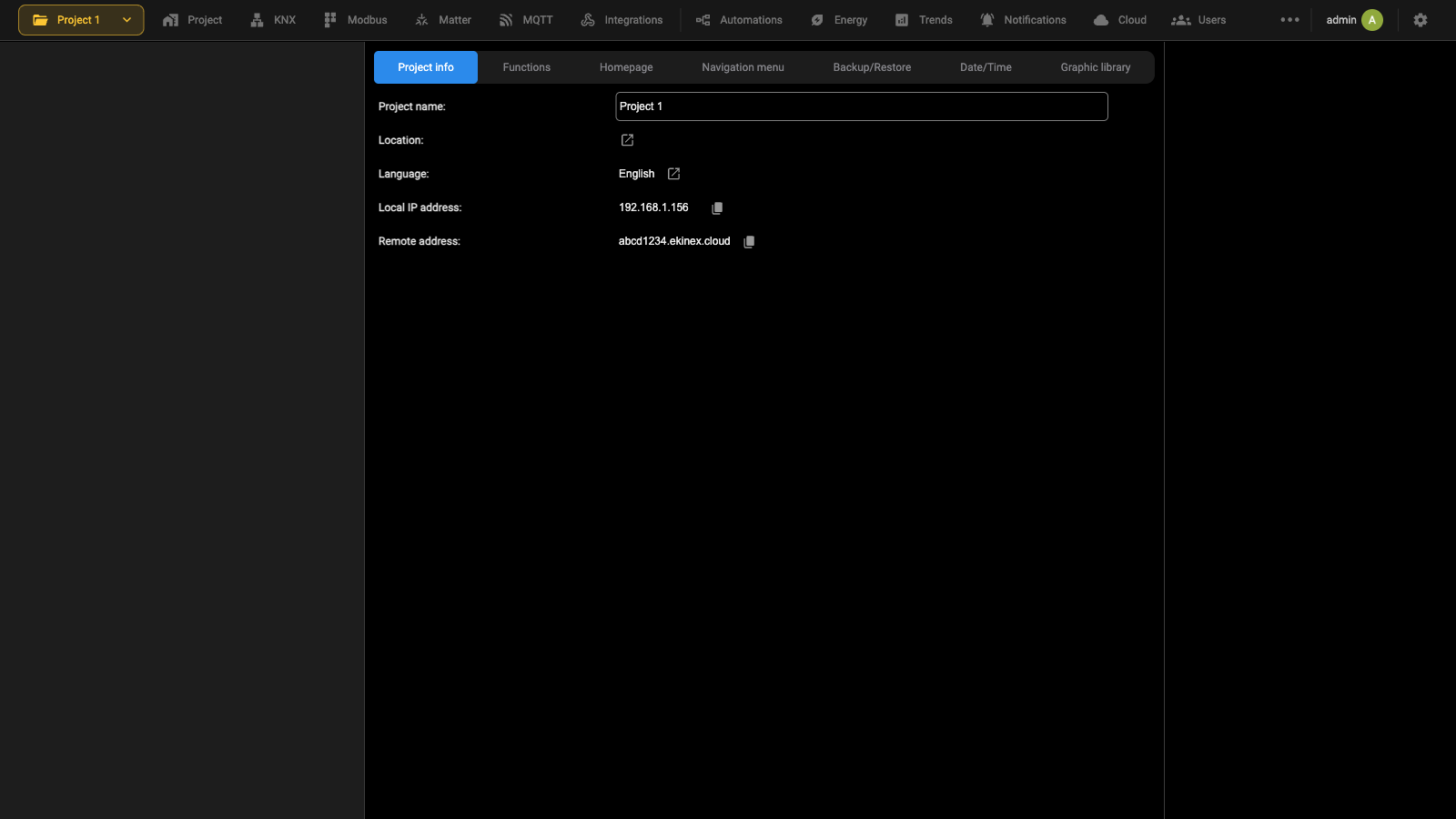
| Project info | Name, location and language of the project, and the addresses at which the server is reached. |
| Functions | The functional categories enabled in the Visualization. |
| Homepage | Background and automatic return to the homepage. |
| Navigation menu | The entries of the side menu of the Visualization. |
| Backup/Restore | Export and import of the project, of the recorded data, of the background images, of the scripts, of the ETS project and of the Matter keys. |
| Date/Time | Date, time and time zone of the server. |
| Graphic library | The renderings that give the objects their appearance in the Visualization. |
Project info holds the following fields:
| Project name | Name of the project, shown in the Project button. |
| Location | Place where the installation is. It is set in a popup, opened from the icon beside the field, and is used by the astronomical clock and by the weather service to work out the geographic coordinates. |
| Language | Language of the Administration and of the Visualization. |
| Local IP address | Address at which the server answers on the local network. Read only. |
| Remote address | Address at which the server answers from outside, when the remote access service is active. Read only. |
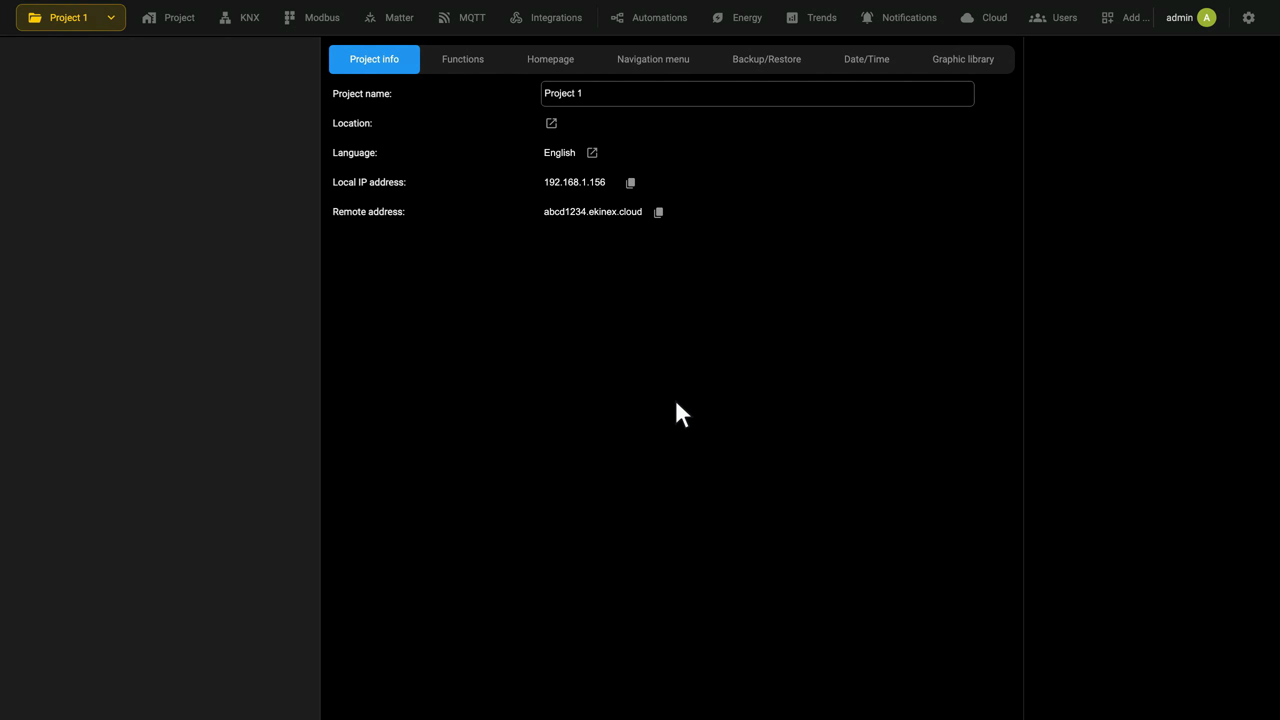
Name and Location
In the Project info tab of the project card, press the icon next to Location: a popup opens in which you set the place where DELÉGO SERVER is installed. From that place the server automatically sets:
- the geographic coordinates of the astronomical clock, which computes sunrise and sunset from them;
- the references of the online weather forecast;
- any other information related to the geolocation of the installation.
Project name, in the same tab, is the name of the project, shown in the Project button.
Language
The Language field of Project → Project info sets the language of both the Administration and the Visualization of DELÉGO SERVER.
The supported languages are English, Italian, French and German.
Functions
Functions, in the project card, enables or disables the functional categories of the home automation system, according to the customer's needs. Each category is a switch.
Project → Functions
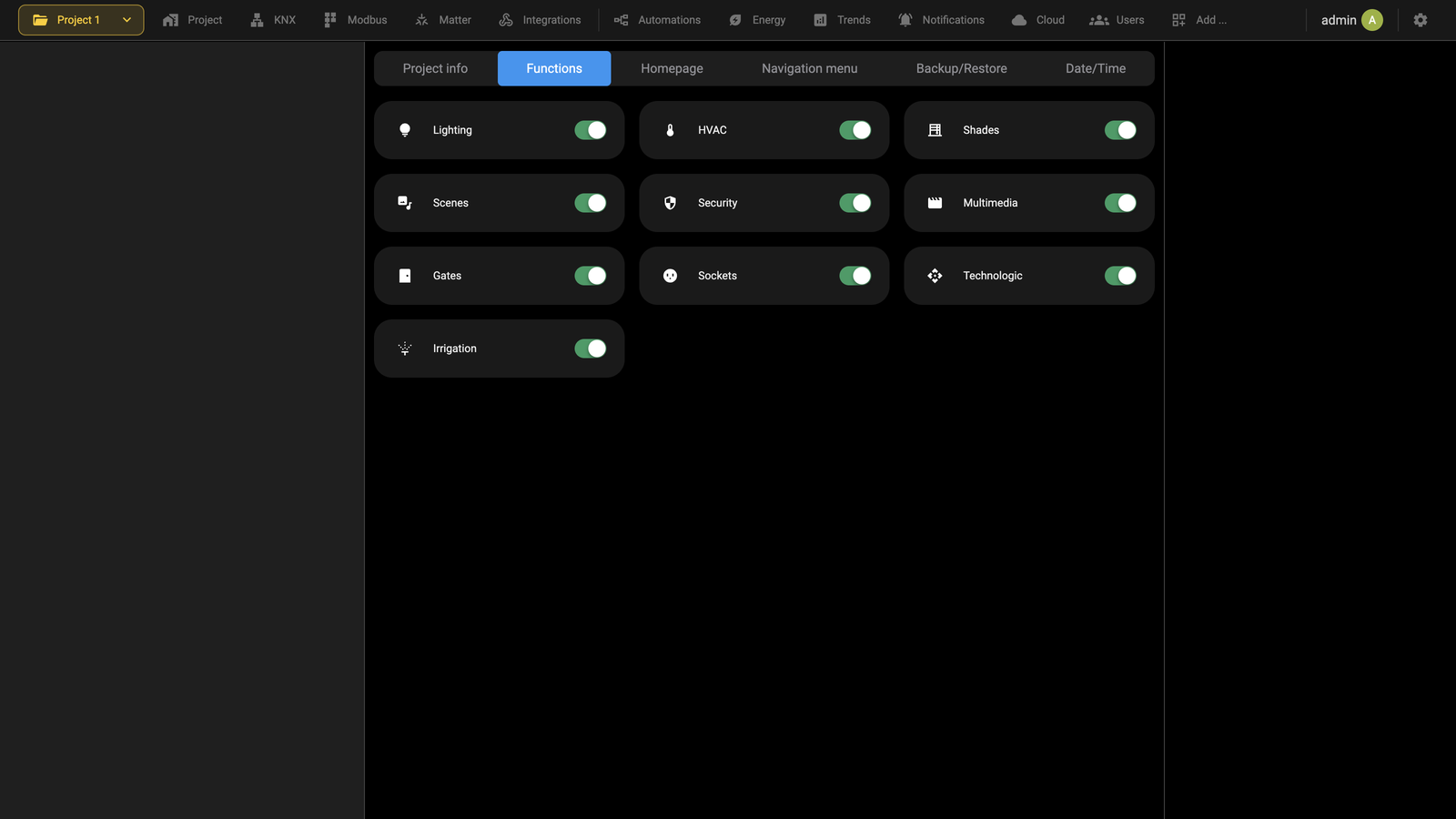
The categories are Lighting, HVAC, Shades, Scenes, Security, Multimedia, Gates, Sockets, Technologic and Irrigation. By default all of them are enabled. If a customer's installation only includes lighting, climate control and motorization, for example, you can leave only Lighting, HVAC and Shades.
The choice is reflected in the Visualization: the row of function symbols at the bottom of the homepage contains only the categories that are still enabled.
A category can also be enabled room by room, with the FUNCTIONS group that appears on the room card when Expert mode is active.
Homepage
Homepage, in the project card, customizes the page the end user sees first in the Visualization. The project card is opened from the Project button at the top left of the bar.
Project → Homepage
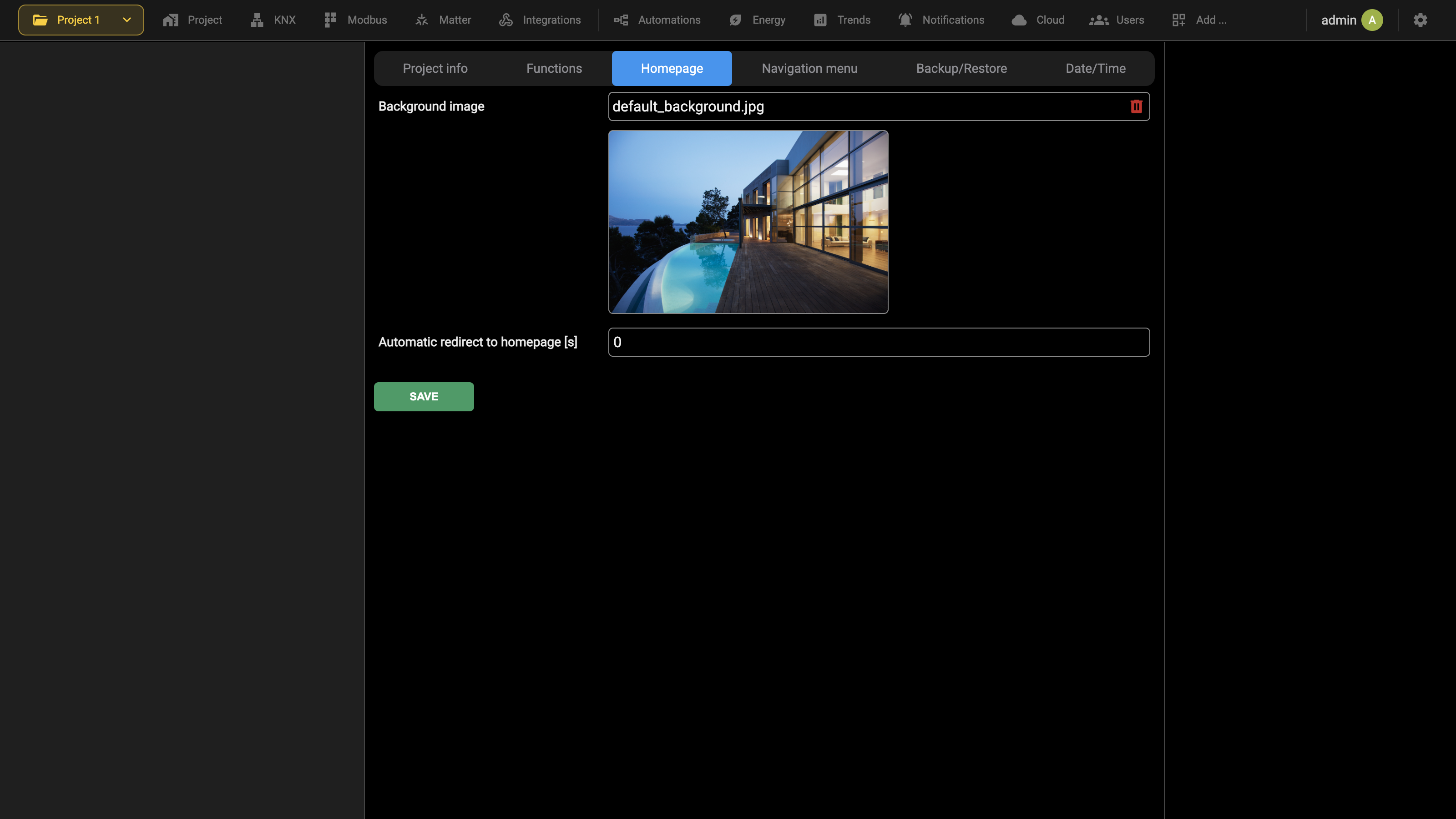
| Background image | The image behind the homepage: choose one of the pictures already available or upload a new one, for example a photograph of the building you are configuring. The bin icon beside the field removes it. |
| Automatic redirect to homepage [s] | Seconds of inactivity after which the Visualization returns to the homepage on its own. Leave it at 0 to disable the automatic return. |
Confirm with SAVE.
This topic is shown in the Project card video tutorial.
Navigation menu
Navigation menu, in the project card, enables or disables the entries listed in the side navigation menu of the Visualization, according to the customer's needs. Each entry is a switch.
Project → Navigation menu
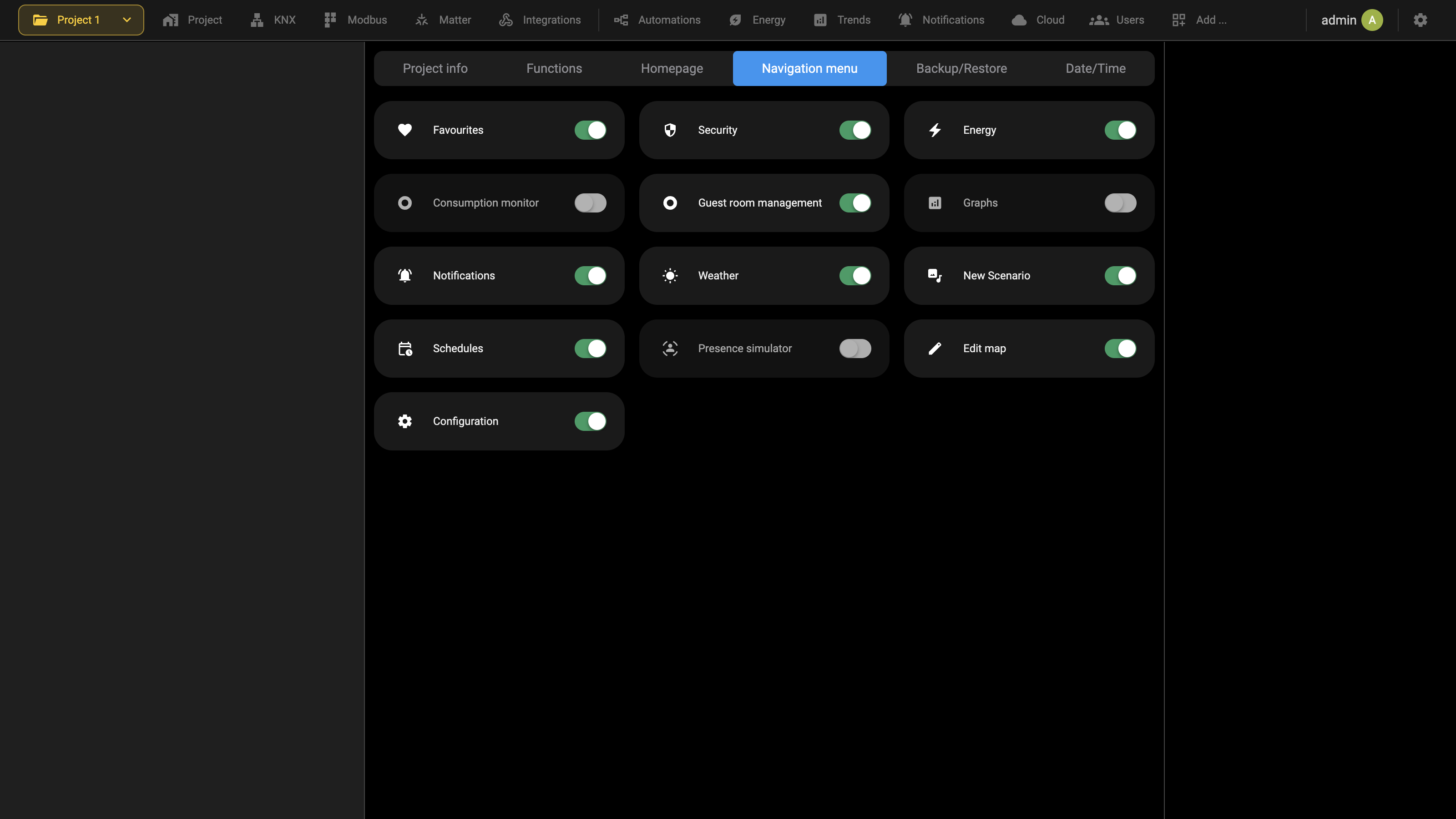
The entries available are Favourites, Security, Energy, Consumption monitor, Guest room management, Graphs, Notifications, Weather, New Scenario, Schedules, Presence simulator, Edit map and Configuration.
In a hospitality building, for example, you can leave only the entries a hotel manager actually uses, so that the navigation menu of the Visualization shows just those pages.
Edit map is the entry that gives access to the customization of a room over its background image, described in the chapter on map customization: if it is disabled, that editor cannot be reached from the Visualization.
It is advisable to keep the Configuration entry always enabled.
Backup/Restore
Backup/Restore, in the project card, exports and imports the project, and restores the factory settings. The project card is opened from the Project button at the top left.
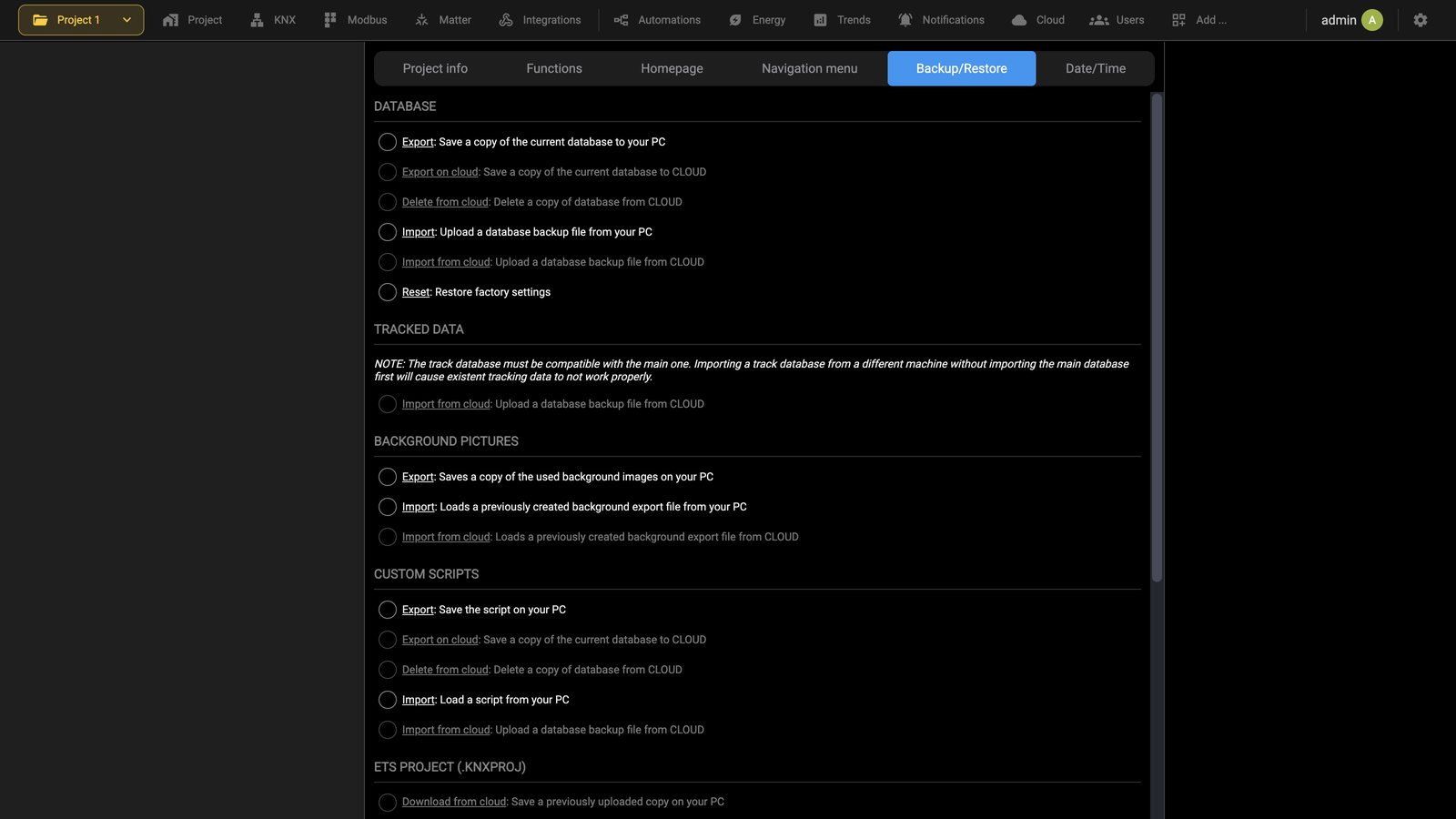
The page is divided by the kind of content each operation acts on.
| DATABASE | Exports a copy of the current database to the PC or to the cloud, imports a backup file, deletes a copy held on the cloud, or resets the unit to factory settings. The reset keeps the network configuration. |
| TRACKED DATA | Imports the database of the recorded data. It must be compatible with the main one: importing a tracked database taken from a different unit, without also importing its main database, leaves the tracking inconsistent and it will not work correctly. |
| BACKGROUND PICTURES | Exports and imports the images used as backgrounds and previews of the Visualization. |
| CUSTOM SCRIPTS | Exports and imports the scripts of the project. |
| ETS PROJECT (.KNXPROJ) | Downloads from the cloud the copy of the ETS project previously uploaded, or deletes it. |
| MATTER CONTROLLER, MATTER BRIDGE | Export and import the archive of the Matter keys, from the PC or from the cloud. Without that archive a paired Matter installation cannot be restored, so it is worth saving it together with the database. |
Choose the operation and wait for the message that reports the outcome.
The operations marked as acting on the cloud require the unit to be logged in to a cloud account, which is done in the Cloud section.
This topic is shown in the Project card video tutorial.
Date/Time
The clock of the server is set in the Date/Time tab of the project card:
Project → Date/Time
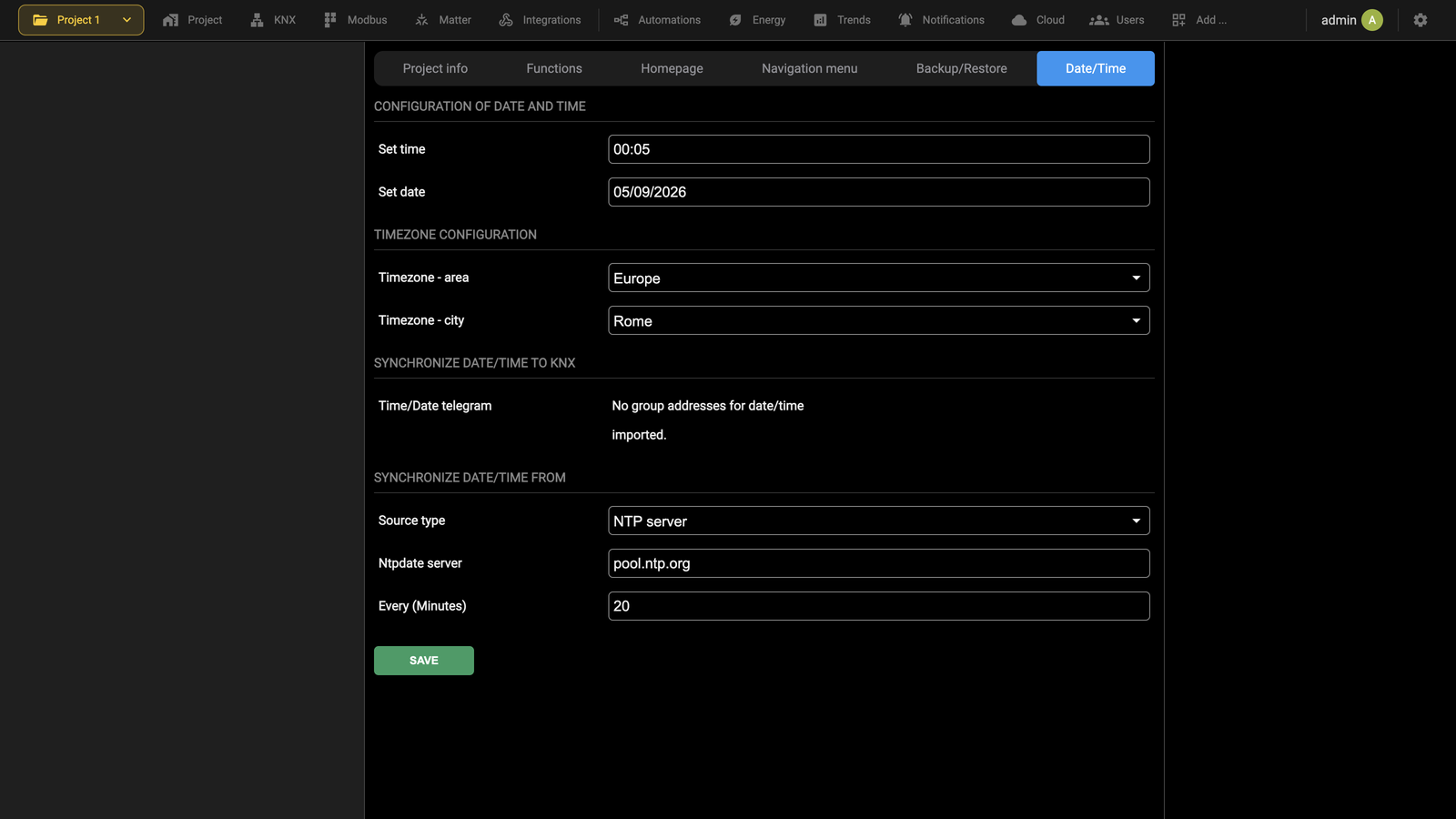
CONFIGURATION OF DATE AND TIME sets the date and the time of the system by hand, with Set time and Set date. After entering them, press SAVE. A warning page appears; see the note below.
TIMEZONE CONFIGURATION sets the time zone the server works in, with Timezone - area and Timezone - city.
SYNCHRONIZE DATE/TIME TO KNX associates two KNX communication objects with the date and the time held by the server, whether set by hand or taken from an Internet service. The two objects can be sent on the bus periodically, so that every device carrying a clock stays aligned.
Setting this up takes a manual procedure, because the two objects have to exist before the tab can offer them:
- Leave the Date/Time tab.
- Open the KNX section in the bar, select Other in the context tree and create a Single value component.
- Open its card and set ETS encoding to a Date (3 bytes) type, then enter the group address in Command and in Feedback.
- In the same way create a second Single value component for the time, with ETS encoding set to a Time (3 bytes) type.
- Press UPDATE on the card of the component, so that bus communication starts working with the objects just created.
- Go back to the Date/Time tab: if everything was done correctly, the group addresses of the two components are now associated automatically.
Once the two objects are in place, the group offers the choice between never sending the telegram and sending it at system start, whenever the date or the time changes, and periodically, with the period expressed in minutes.
SYNCHRONIZE DATE/TIME FROM keeps the clock of the server aligned through an Internet service: Source type chooses the kind of source, Ntpdate server the time server to use, when it has to be different from the default one, and Every (Minutes) how often to synchronize.
This topic is shown in the Project card video tutorial.
Graphic library
Project → project card, Graphic library tab
Renderings are the sets of icons and attributes that give the objects their appearance in the Visualization. The server ships with a system library covering the supported object types, and each widget takes its rendering from that library. The Graphic library tab of the project card lists them all.
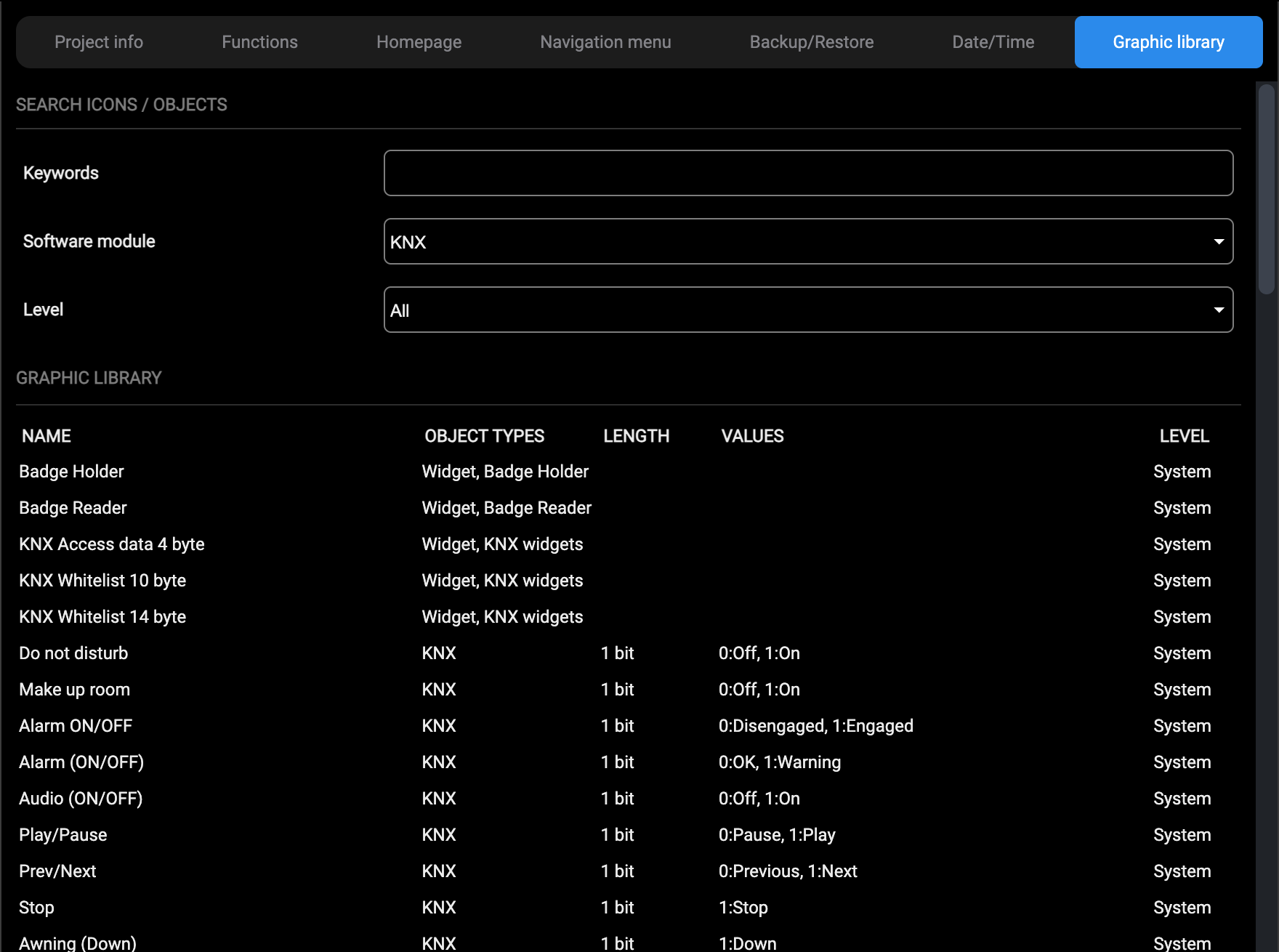
The SEARCH ICONS / OBJECTS group filters the list:
| Keywords | Words contained in the name of the rendering. |
| Software module | The technology or function the renderings belong to, for example KNX, Sonos, Matter or Scenes. |
| Level | All, User or System: the renderings supplied with the server, those created in the project, or both. |
The GRAPHIC LIBRARY group lists the renderings found, with their NAME, the OBJECT TYPES that can use them, the LENGTH of the value and the VALUES they represent (for example 0:Off, 1:On), and their LEVEL. Each row has three commands, Edit, Copy and Delete, whose icons appear when the mouse pointer rests on the row. The renderings of level System can be neither edited nor deleted: to customize one, copy it and edit the copy, which has level User.
A custom rendering is therefore always obtained by duplicating an existing one and editing the copy, never by building one from nothing. Keep the copy as close as possible to the original, changing only what has to differ, so that the object keeps behaving as the system expects.
Edit on a rendering of level User opens its card.
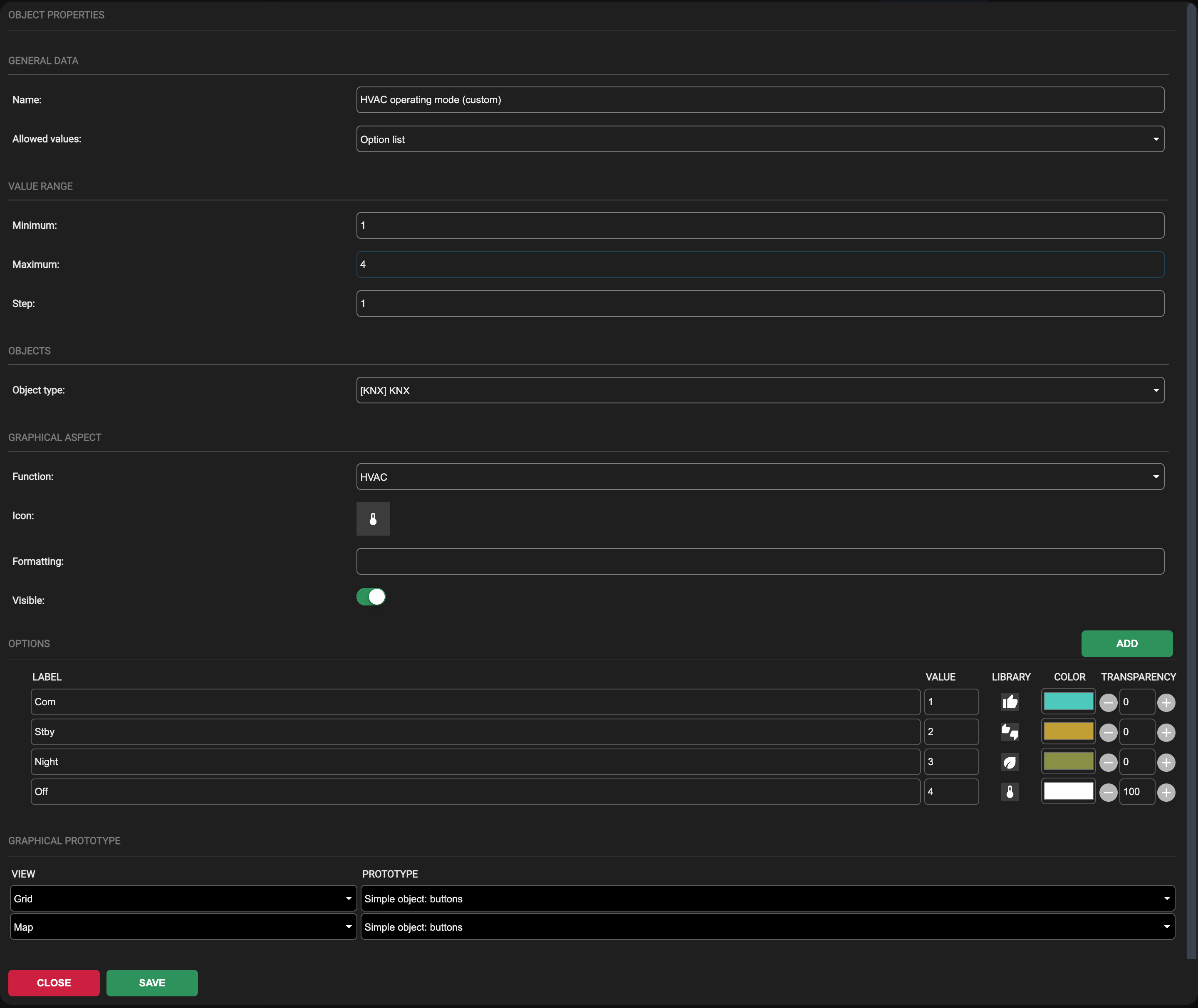
The card is divided into the following groups:
| General data | Name of the rendering and Allowed values: Option list when the object takes a set of discrete values, each with its own label, icon and colour. |
| Value range | Minimum, Maximum and Step of the value. |
| Objects | Object type, the technology the rendering can be applied to, for example [KNX KNX]. |
| Graphical aspect | Function, the functional category the object belongs to in the Visualization, Icon, Formatting of the value and Visible. |
| Options | One row per value, with its label, its value, the icon taken from the library, its colour and its transparency. ADD appends a row. |
| Graphical prototype | For each view of the Visualization, Grid, Map, Popup and Buttons, the prototype that draws the object there, for example Simple object: buttons or Simple object: text field. |
The colours set in Options are the ones the object wears in the Visualization. To give the HVAC modes a different colour, for instance: filter the list on the keyword HVAC, press Copy on HVAC Operating Mode, then Edit the copy, which appears with level User. In its card change the Name, then in Options the colour of the row Com, and press SAVE. From then on every widget that uses this rendering draws its COM mode in the new colour, as in the mode buttons of the thermostat shown in Thermostat with HVAC mode.
Where a custom library already exists, created on a previous version, it remains in the database and continues to be applied.
Floors/Rooms
The building is described in the context tree of the Project section, on three levels: building, floors and rooms. By default DELÉGO SERVER already has a floor containing 12 rooms, which you can edit, and ADD BUILDING, at the bottom of the tree, adds a further building.
Every node of the tree carries its own actions, which appear on the row when it is selected:
| Eye | Enables or disables the visibility of the element in the Visualization. |
| Plus | Adds an element below the selected one: a floor under a building, a room under a floor. It is absent on a room, which has no child level. |
| Bin | Deletes the element. |
Selecting a floor opens its card in the workspace.
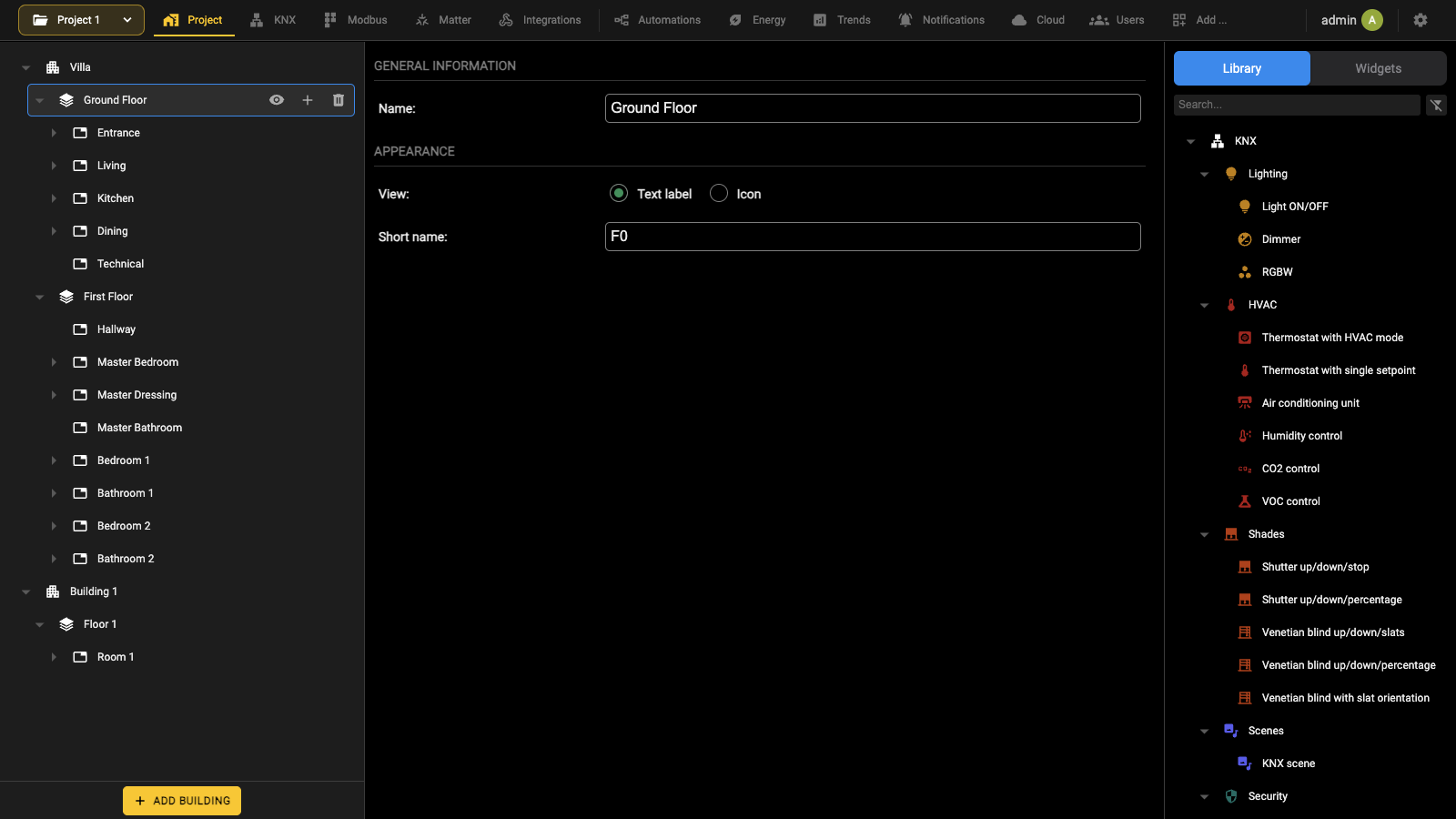
| NAME | Label used to represent the floor. |
| VIEW | Determines the appearance of the button that represents the floor in the homepage. You can choose between Text label, a short abbreviation of the name, and Icon, a graphical symbol. |
| SHORT NAME | The abbreviation shown when the view is Text label: up to 3 characters, for example FL1 for Floor 1 or GRF for Ground Floor. When the view is Icon, a popup lets you choose a symbol from the predefined library, for example a numeral for a floor or a car for the garage, or import your own .jpg or .svg picture. NOTE: the file name of a custom icon must respect the format ico_environment_xxxxxxxxxxx |
Selecting a room opens the room card.
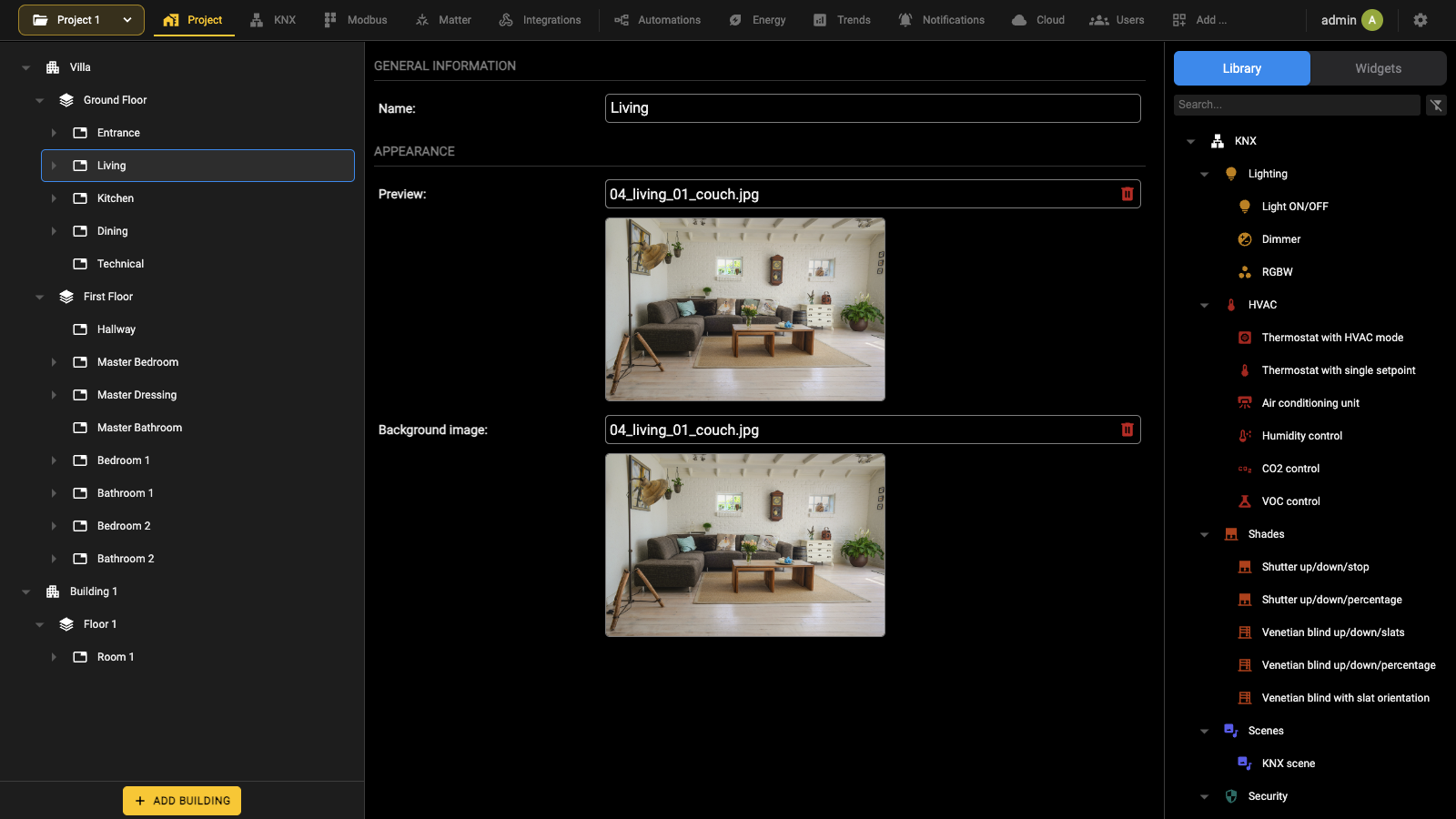
| NAME | The room name. |
| PREVIEW | Image used to identify the room in the Visualization. |
| BACKGROUND IMAGE | Image used as the background of the room in the Visualization. |
With Expert mode active, the room card also shows the ID and Description of the object, a SECURITY group with Enable PIN control and the two fields to set the PIN, and a FUNCTIONS group with one switch per functional category, Lighting, HVAC, Shades, Multimedia, Security, Technologic, Scenes, Sockets, Irrigation, Gates. These switches restrict the categories available in that room.
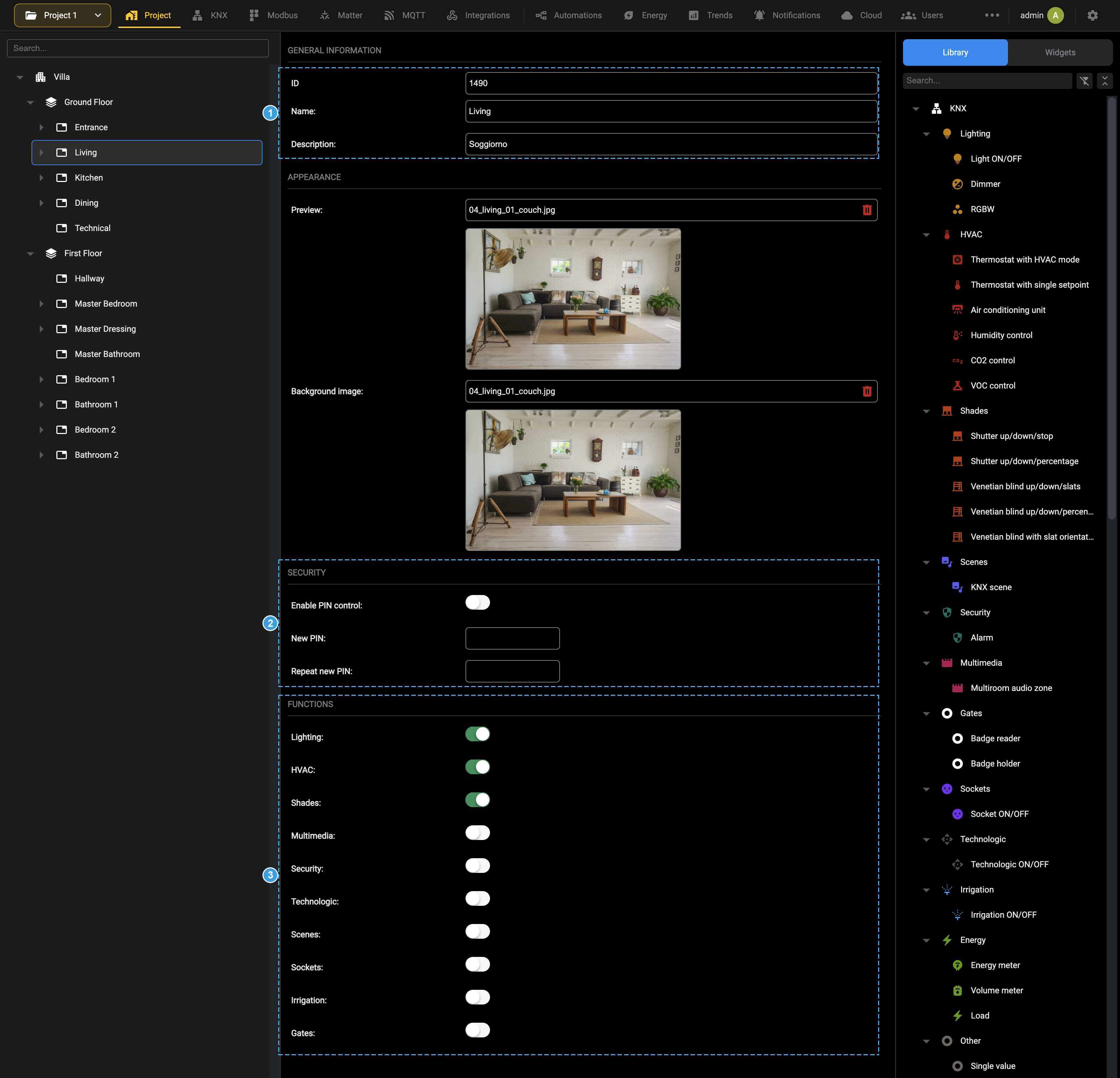
- ID and Description, shown only in Expert mode.
- The SECURITY group: Enable PIN control asks for a PIN before the objects of the room can be commanded from the Visualization; New PIN and Repeat new PIN set it.
- The FUNCTIONS group, one switch per functional category: here only Lighting, HVAC and Shades are on, so only these categories are available in the room.
It is suggested to import images in .jpg or .png format with a maximum resolution of 1024 x 768. Starting from software version 2.7.0, rooms and floors can be automatically created when importing a .knxproj ETS project. Refer to the KNX chapter.
Widgets association
Once a room has been created and configured, one or more widgets are associated with it. The source panel on the right of the Project section has two tabs, and the difference between them is what decides which of the two methods you are using:
| Library | The models available, grouped by technology and by functional category. Dragging a model into the tree creates a new widget in that room. |
| Widgets | The widgets that already exist in the project, grouped in the same way. Dragging one of these into the tree associates an existing widget with that room. |
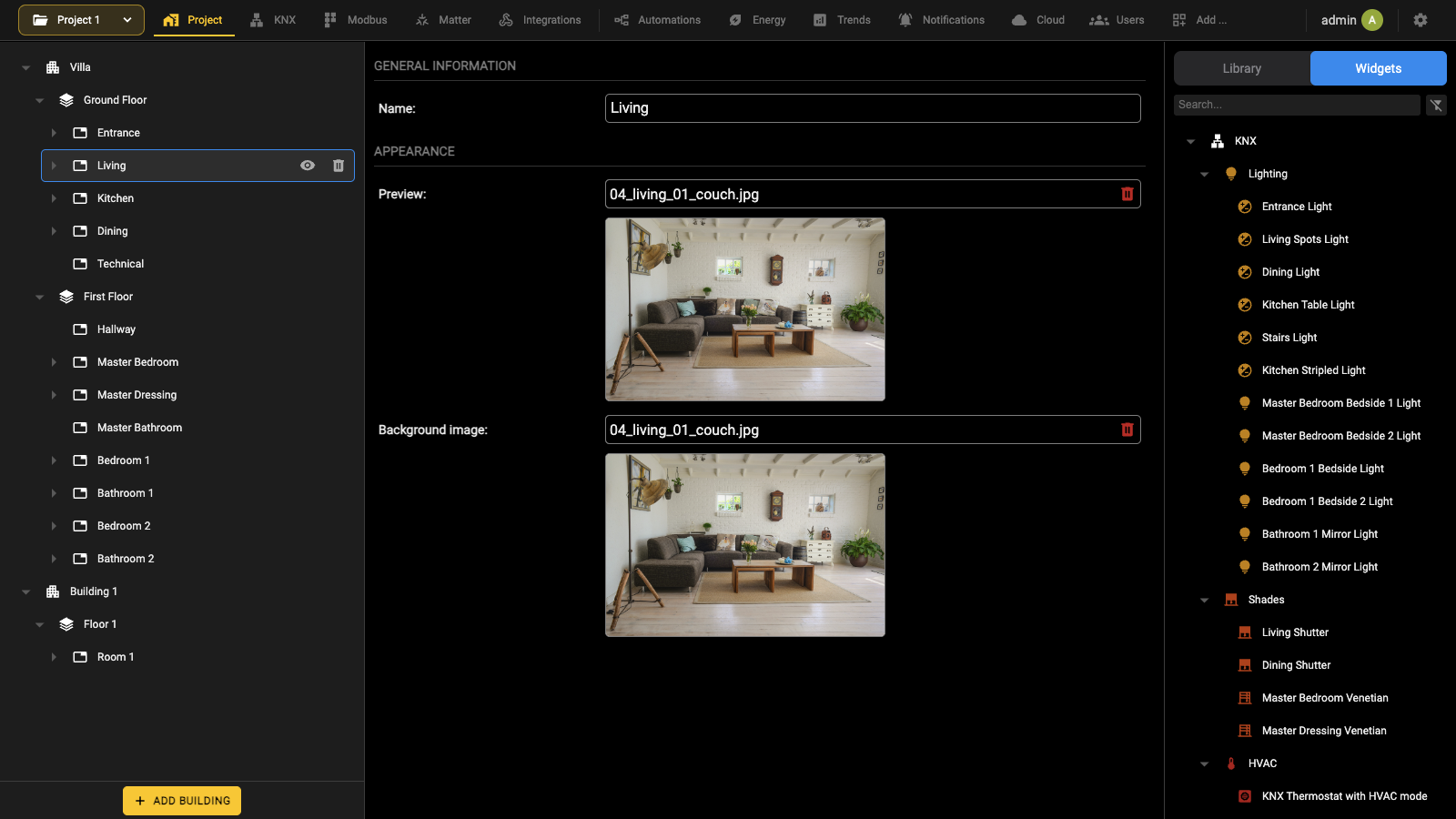
The search field at the top of the panel filters the list, which is the quickest way to find a widget when the project contains many of them.
Expanding a room in the context tree lists the widgets it contains. Their order there is the order in which they are displayed in the Visualization.
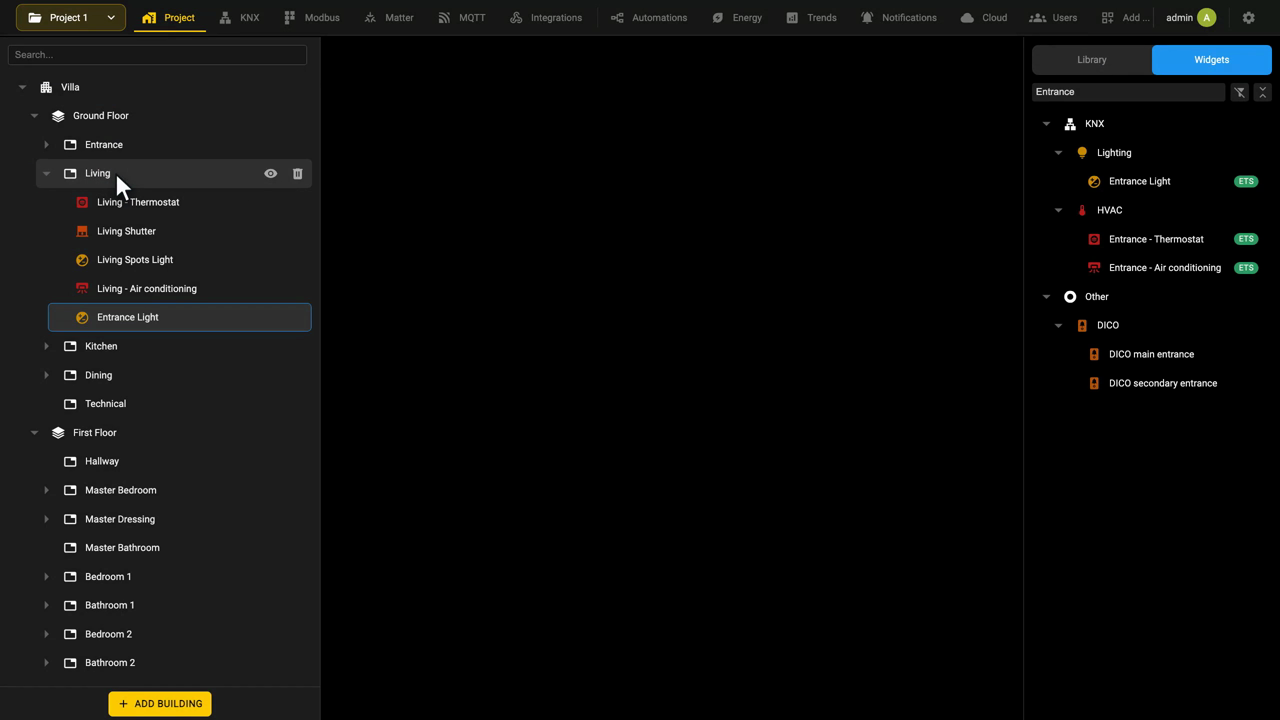
This topic is also covered in the Adding a device video tutorial.
Map view
A room whose background is a floor plan is shown in the Visualization as a plan: the widgets are not listed one under the other, but placed on the drawing at the point where the device actually is. The position and the appearance of each widget are set from the Visualization itself, with the Edit map entry of the navigation menu, which opens the Customize view page. Only users with administration rights see this entry.
In this page it is possible to:
- drag the widgets to the wanted position on the plan: a widget that has never been placed starts at the top-left corner;
- change how each widget is drawn, using the Options panel on the right.
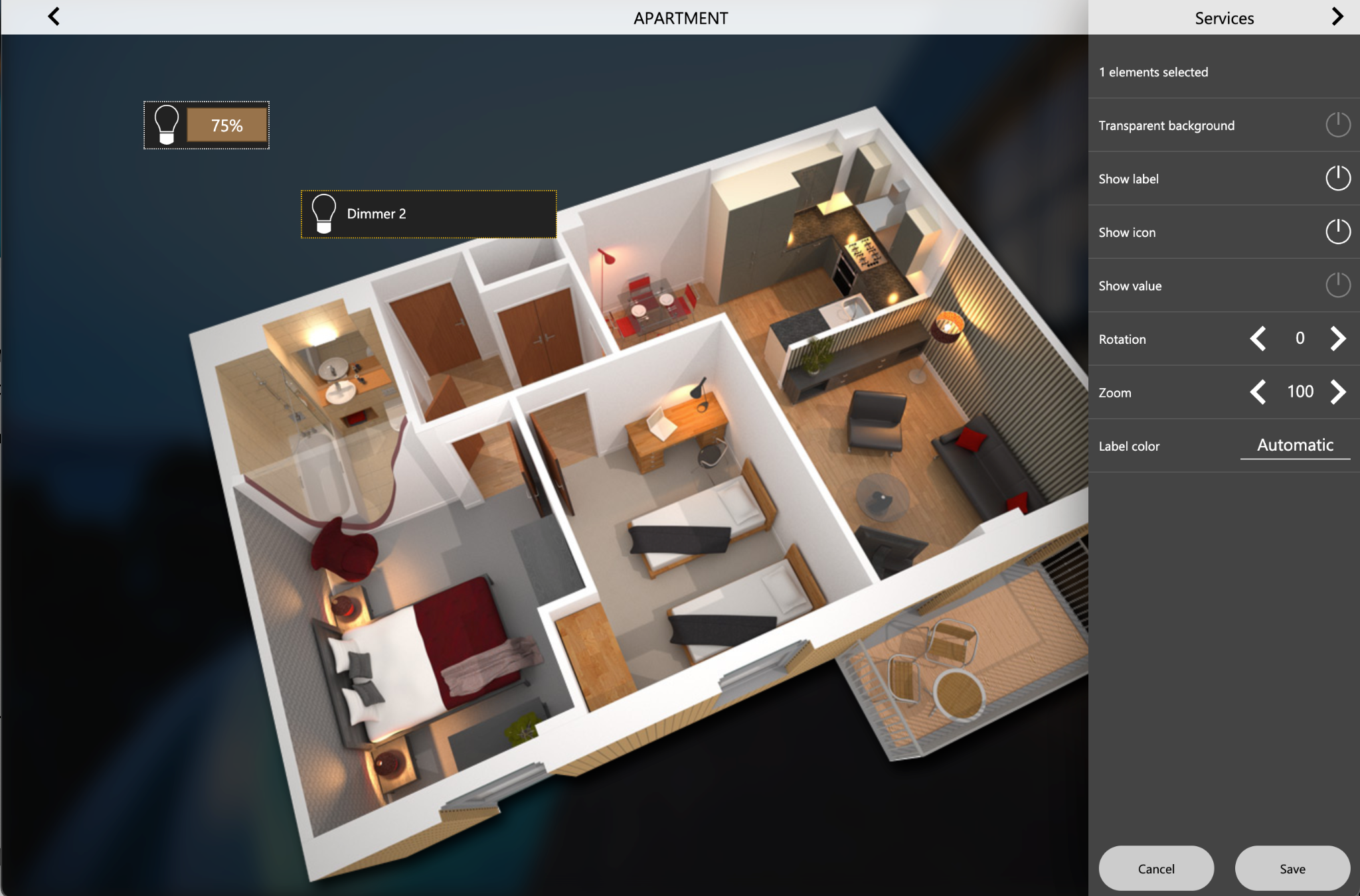
The Options panel acts on the current selection, and its header reports how many widgets are selected:
| Transparent background | Draws the widget without its own background, so that the plan shows through. |
| Show label | Shows or hides the name of the widget. |
| Show icon | Shows or hides the symbol of the widget. |
| Show value | Shows or hides the display with the state and the quick command. |
| Show function | Shows or hides the symbol of the function the widget belongs to. |
| Rotation | Rotates the widget by the given number of degrees. |
| Zoom | Enlarges or reduces the widget; 100 is its normal size. |
| Label color | Color of the name: Automatic, or one of white, black, red, green, yellow, blue, gray, magenta, cyan and orange. |
Widgets can be selected one at a time or several together, and the alignment is helped by a grid that can be turned on and off. Leaving the page without saving asks for confirmation, because the unsaved changes are lost.
Links
A link is a hyperlink that can be inserted in a room and used to connect an entity to:
- Another room.
- An external URL.
- A third-party app (only in the DELÉGO mobile app), like for example Google Maps.
A link is one of the technology-independent models of the Library, in the source panel of the Project section, together with Scene, Virtual Object, IP Camera and Dico. To create one, drag Link from the Library onto the room that has to contain it, then open its card and fill the following options:
| NAME | Name of the link that will be displayed in the Visualization. |
| ROOM | The room where the link must be inserted. |
| FUNCTION | The category (for example lighting, HVAC or shades) in which the link is displayed. |
| LINK TYPE | Select the link type: URL, other room or App. |
| OPEN LINK IN A NEW TAB | If the type of link is URL, enable this option if the URL must be opened in a new browser tab. If not selected, the URL will be opened in a popup of the Visualization. |
| DESTINATION | The destination of the link, according to its type: ● The URL of the web page. ● The room. ● The app to be opened. |
Opening third-party apps
When App is selected as the link type, the following information is required:
| PREDEFINED APP | Select one of the available apps from the drop-down menu; leave empty to enter it manually. Note: some apps are available only on the Android operating system. |
| ANDROID APP REFERENCE | Enter the app reference, i.e., the URL of the app on the Google Play Store. |
| iOS APP REFERENCE | Enter the app's URL scheme, the address used to open the app. This information must be provided by the app developer, or retrieved with a search on the internet. |
Adding links to the navigation menu
It is possible to add a link to the Visualization navigation menu, by opening Project → Navigation menu in the Administration and dropping the link into the list of items in the menu. The position of the link in the list can be changed by dragging it.
Weather service
DELÉGO SERVER can talk to a weather service on the internet and obtain the current conditions and the forecast for the days to come. That information is available in the Visualization and in the logics, so an action can be made to depend on the weather.
The service lives in the project as an object of its own, described in the next chapter.
The service is not a KNX object and needs no device on the bus: it is a service of the server, listed in the Widgets tab of the source panel of the Project section.
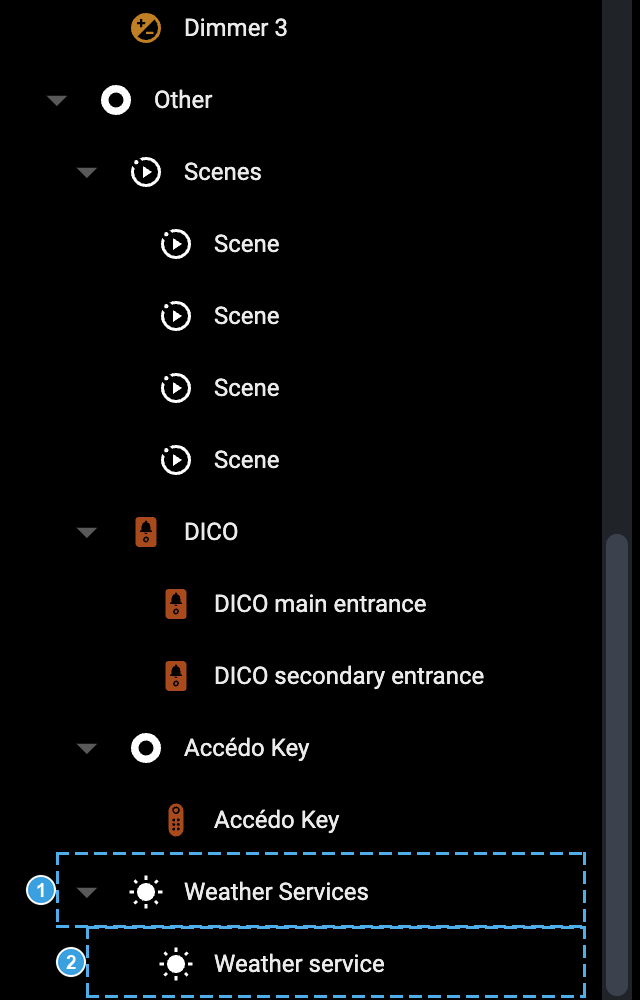
- The Weather Services group.
- The Weather service object: its Open action brings up the card described in the next chapter.
Configuration
The weather service of DELÉGO SERVER is an object of the project, and it is reached from the source panel rather than from the navigation bar:
- open the Widgets tab of the source panel;
- go down to Other › Weather Services › Weather service;
- use the Open action of that node to bring up its card.
The card asks for the following. Only the first two are visible in ordinary use; the others appear with Expert mode active.
| Execution state | State of the service, PLAY while it is running. |
| City | The city the data is requested for. Enter it followed by the country code, as in Rome, IT. Prefer a larger center; if the data looks wrong, check on the site of the service that the city is recognized. |
| Weather service | Which provider to use: Open Weather Map or World Weather Online. |
| API key | The key obtained by registering with the service. Only needed on versions older than 2.5.1. |
| API version | Version of the key. Only needed on versions older than 2.5.1. |
| Premium | To be selected when the key is a paid one, which the provider serves with different limits. |
| Execute on startup, Execute in loop | Leave both selected, unless there is a reason not to. |
| Loop time | How often the object is executed. |
| API call frequency | Time between one request to the service and the next: 30 minutes, 1, 2 or 3 hours. |
| Wind alarm threshold [m/s] | Wind speed above which the Wind alarm value goes to 1. |
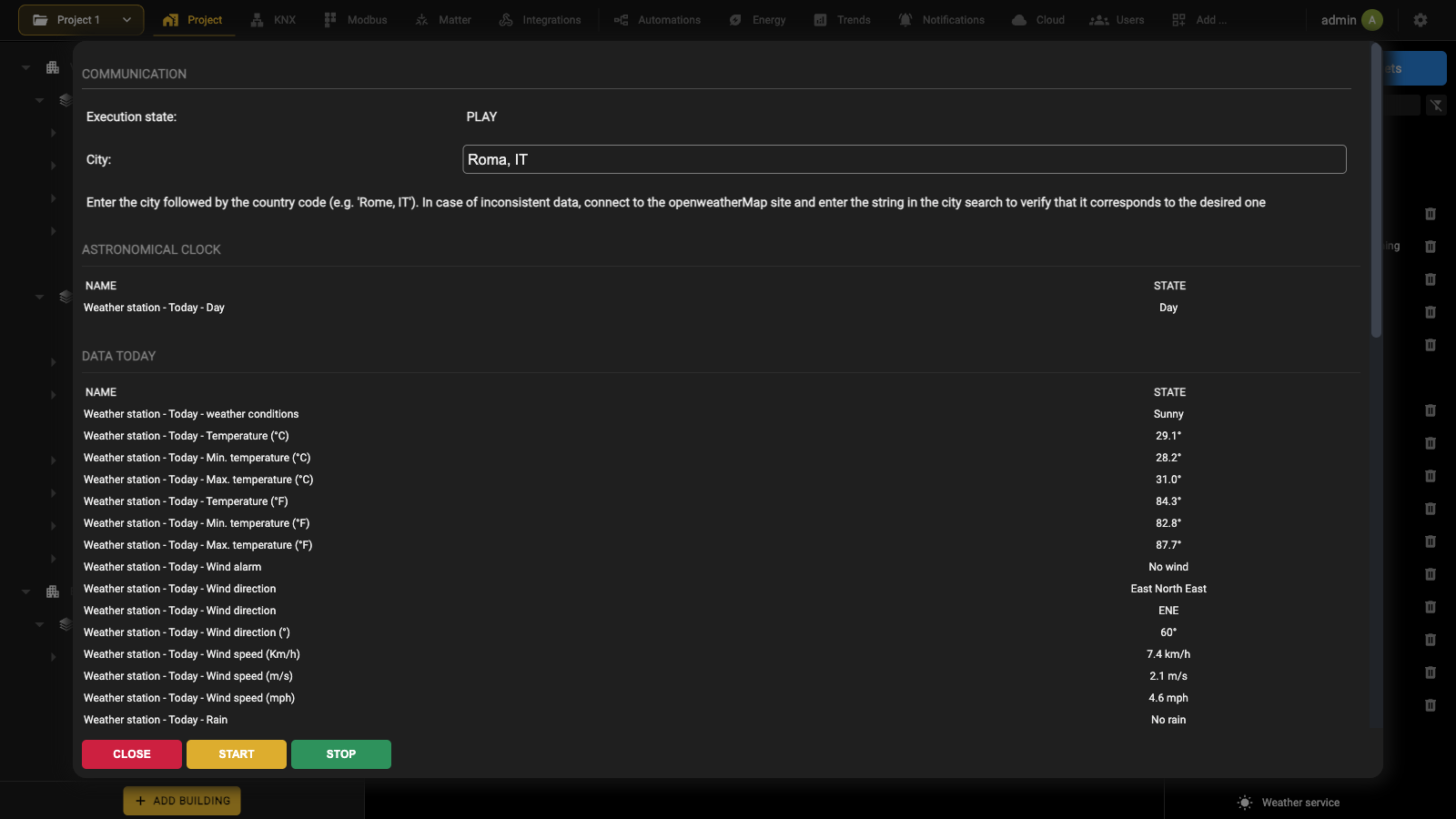
The lower part of the card lists the data the service makes available:
ASTRONOMICAL CLOCK
| Today – day / night | Whether it is day or night, worked out from the sunrise and sunset times with any offset applied: 0 day, 1 night. |
DATA TODAY, DATA TOMORROW
| Weather conditions | A short description of the weather. |
| Temperature | Outside temperature, in several units. |
| Min. temperature, Max. temperature | Lowest and highest temperature forecast for the day, in several units. |
| Wind alarm | 1 when the speed is above the threshold set on the card, 0 otherwise. |
| Wind direction | Given in words, as an abbreviation, and in degrees from north. |
| Wind speed | In several units. |
| Rain | 1 when rain is forecast, 0 otherwise, and the quantity expected in millimeters. |
| Pressure | Atmospheric pressure. |
| Humidity | Relative humidity. |
DATA OF THE FOLLOWING DAYS carries, for each day, the weather conditions and the minimum and maximum temperature forecast.
Every one of these values is an object of the project: it can be used in the logics and as a trigger for other objects.
Schedules
Configuration
Any WIDGET or graphical entity visible in the Visualization can be scheduled, so that DELÉGO SERVER sends commands at a given time of day. The schedulers are managed by the end user, directly in the Visualization
When the user creates a schedule for a WIDGET, the scheduler is applied to the sub-object of the widget that has the schedule flag enabled. The flag is in the SCH/TRG column of the table of sub-objects on the card of the widget, which appears when Expert mode is active. Objects that do not have sub-items (e.g. SCENES) can be directly scheduled.
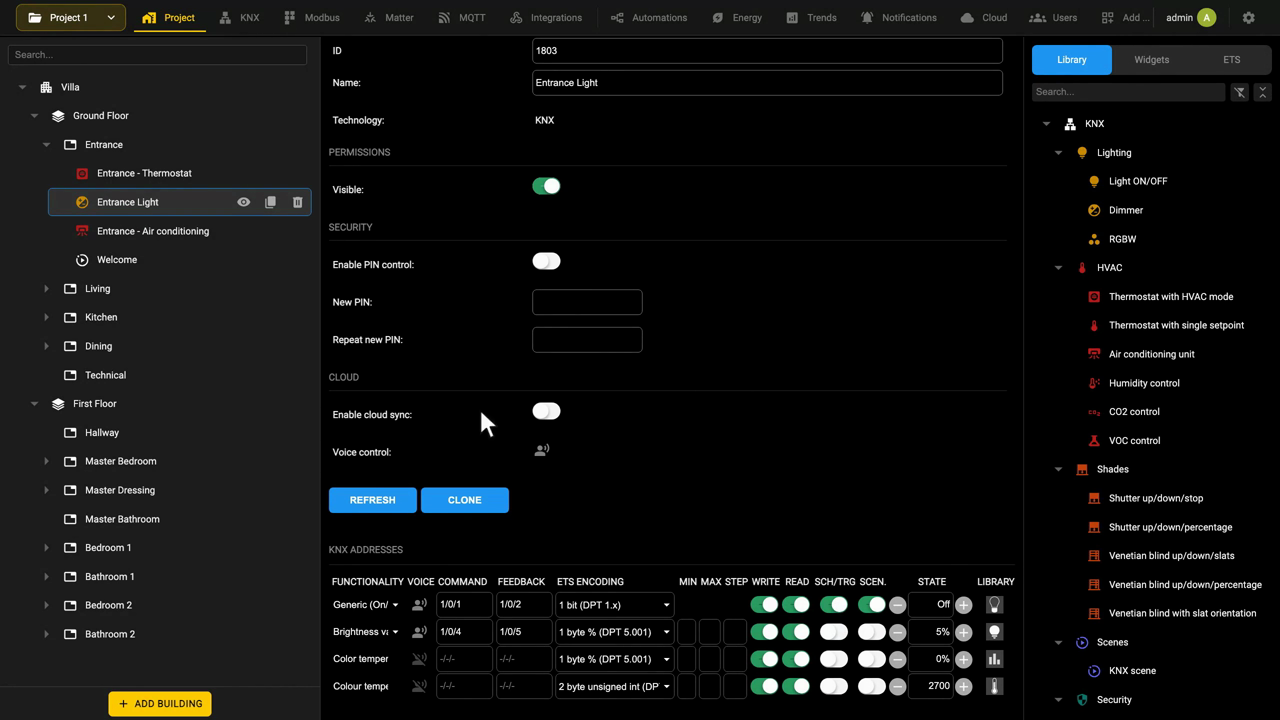
Active schedules visualization
Before illustrating how to change or create new schedules, it is important to know how to see the active schedules already present in the project. There are three different methods.
Schedules overview
Open the navigation menu of the Visualization and select schedules. The page collects every schedule of the project, grouped by function, and opens on the schedules that are active today.
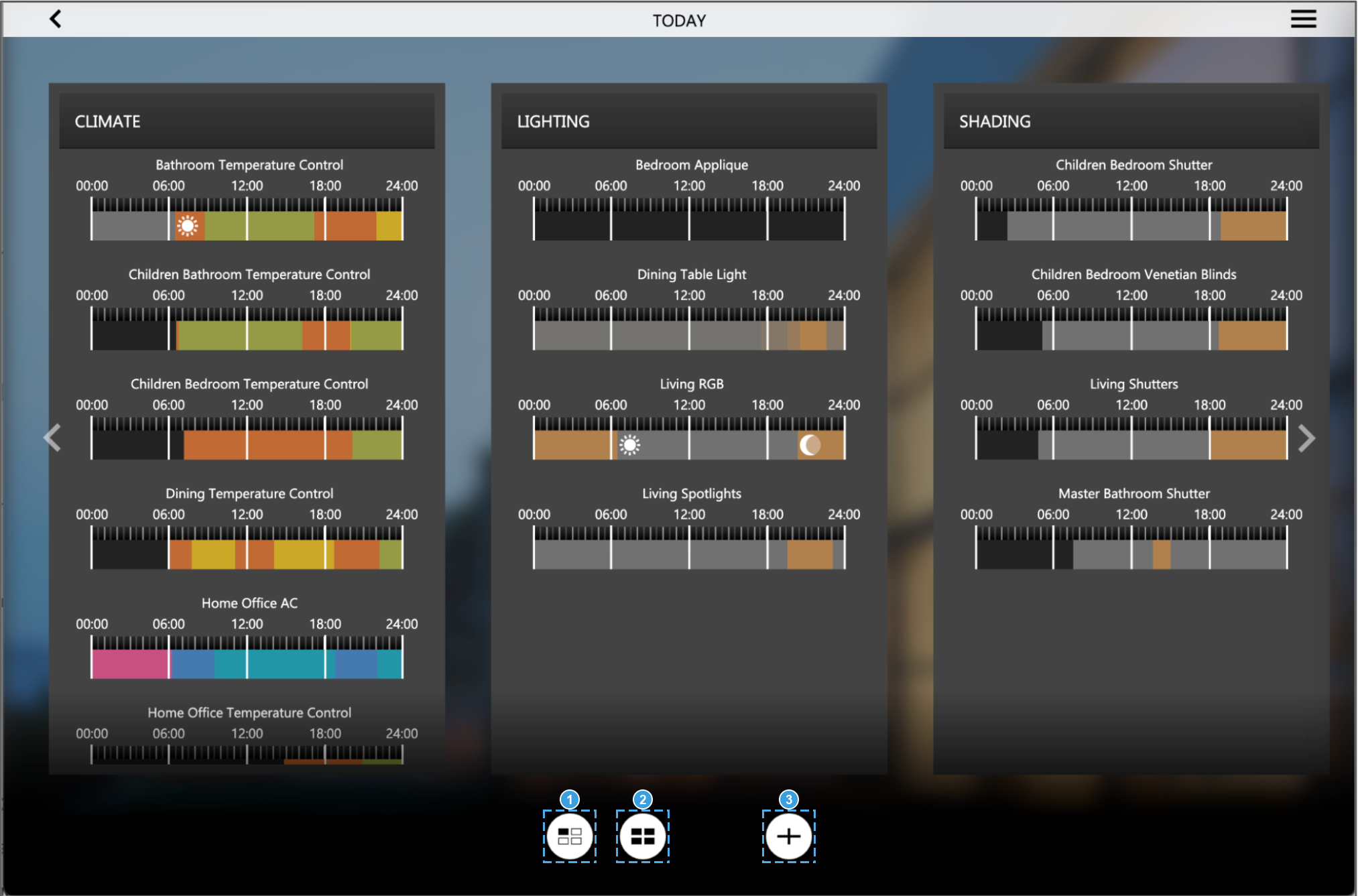
- Today: the schedules active on the current day, taking into account any exception defined for today's date. This is the view the page opens on.
- Week: the same schedules seen day by day, with the seven weekdays selectable at the top.
- Add: opens the list of the objects that can be scheduled, to create a new schedule.
Pressing the preview of a schedule opens it for editing, as described in the following paragraphs.
The Add button leads to a SEARCH page that lists all the schedulable objects of the project (widgets, scenes and the other entities) grouped by function. The bar at the bottom holds one icon per function, and only the functions that actually contain schedulable objects appear there.
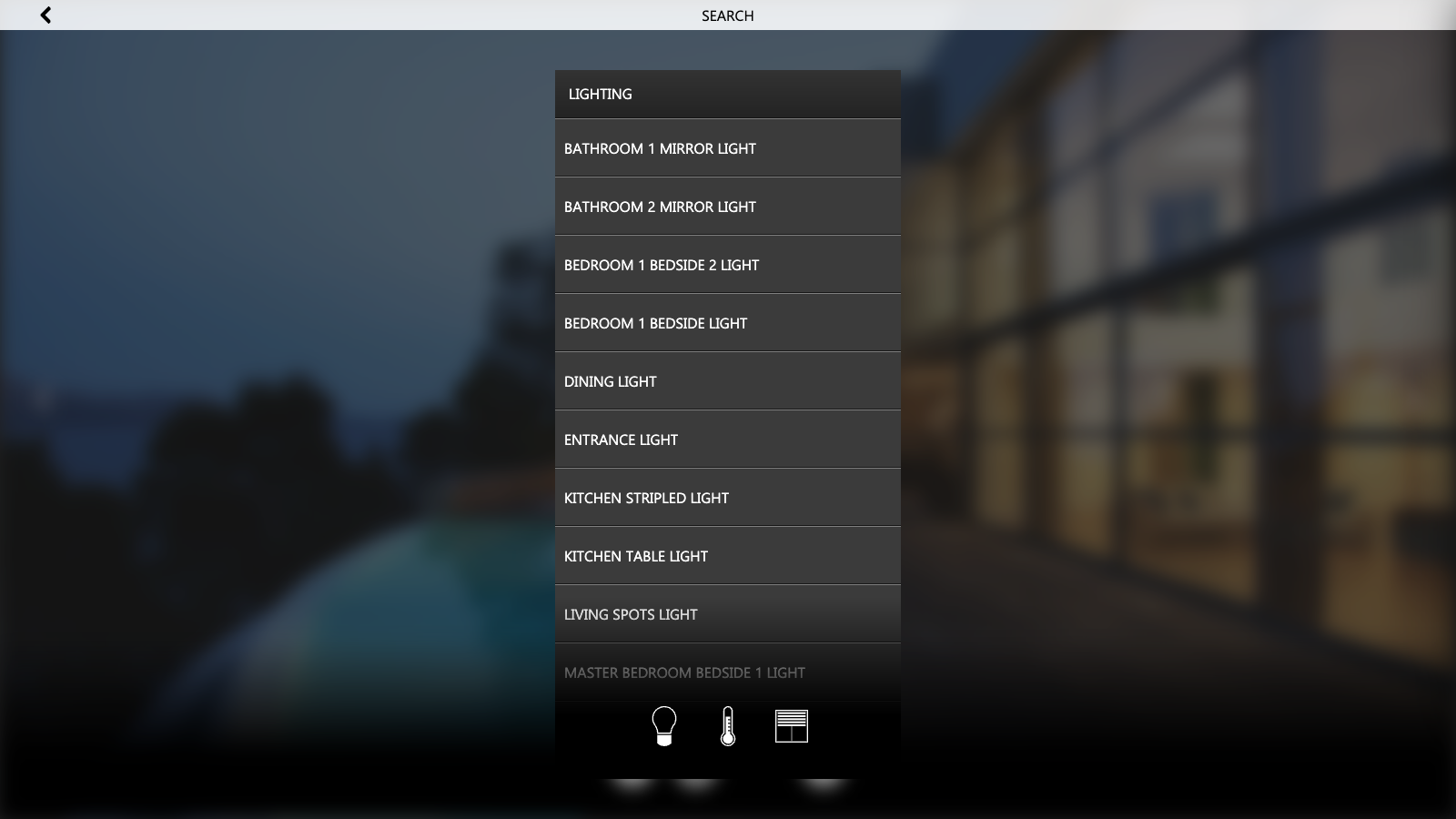
This topic is shown in the Widget scheduling video tutorial.
Preview in widgets popup
The widgets that have a details popup show a preview of the schedule for the current day underneath the main controls, so that the schedule can be read without leaving the object.
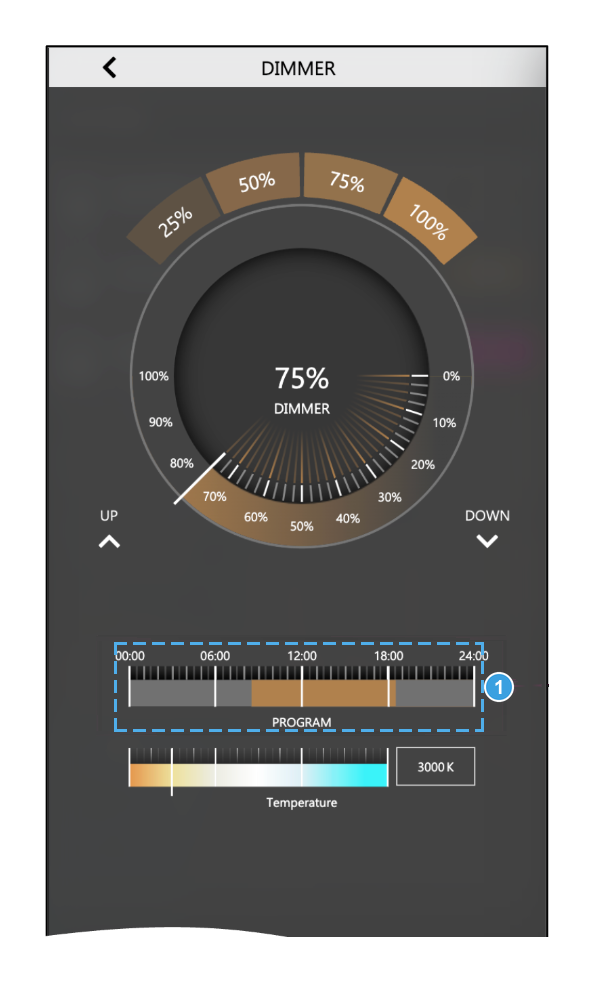
- PROGRAM: the daily profile in force today, drawn on the same 24-hour bar used in the schedules page. It appears only if the object has a schedule; objects without one show no bar.
Context edit menu
Pressing and holding any item in the Visualization for at least 2 s opens an edit popup, from which you can:
- Change its name.
- Add it to or remove it from the favorites.
- Create or change its schedule(s)
Daily profiles
A schedule is made of one or more daily profiles, each of them a list of actions to be carried out within a 24-hour day. Profiles are of two kinds:
- WEEK: associated with one or more weekdays, and therefore repeated every week;
- EXCEPTIONS: associated with one or more specific dates in the year, which override the weekly profile on those days.
A schedule that has just been created is empty: the page shows the two groups, each with a [+] button to add a profile of that kind. The same [+] buttons remain available afterwards, so a schedule can hold several weekly profiles and several exceptions at the same time.
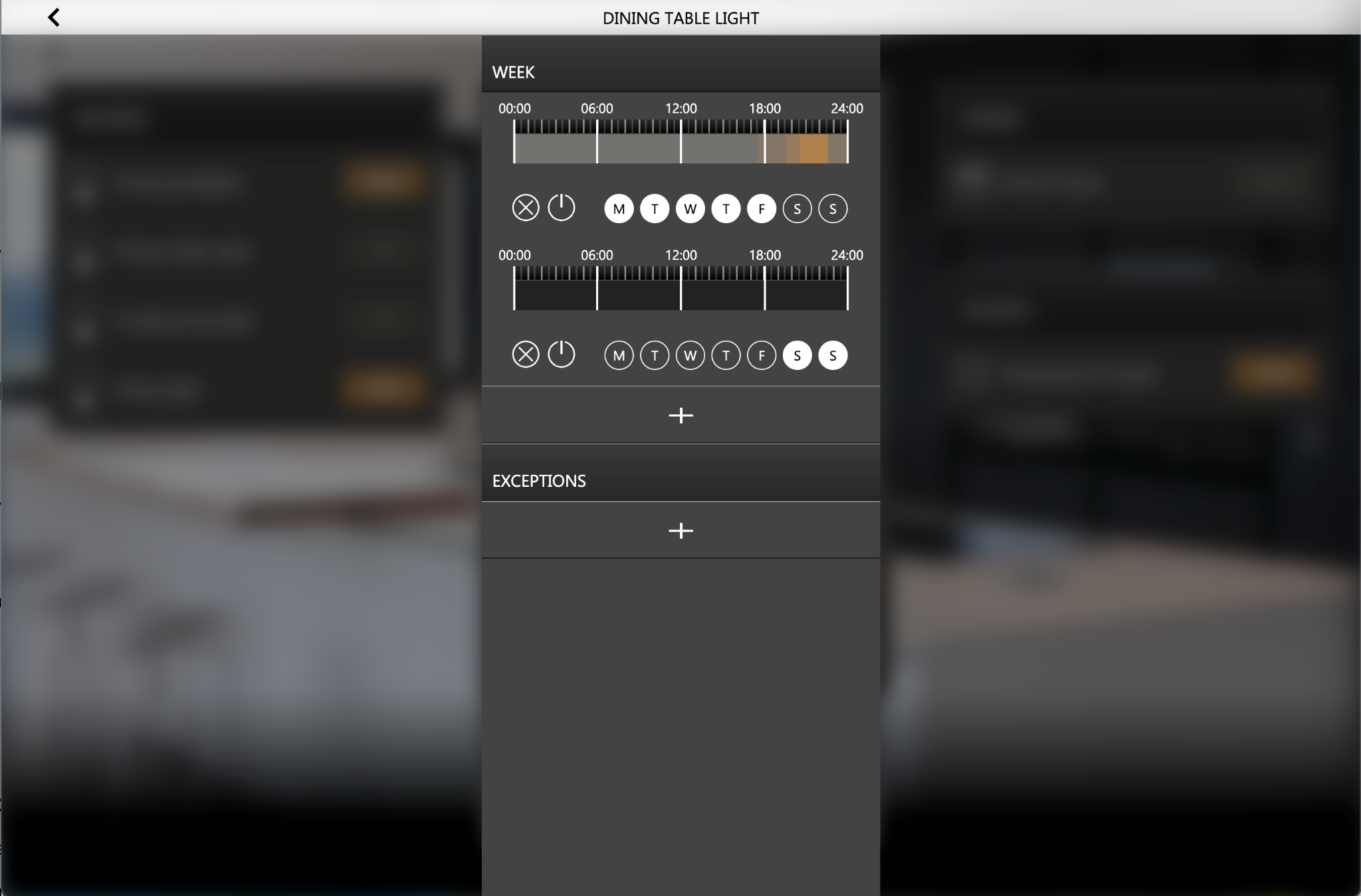
Weekly profiles
When a weekly profile is added, it has to be associated with one or more weekdays. The seven days are shown as circles under the profile bar: press a circle to include that day, and it turns white to show that the profile is active on it.
Exceptions
An exception, by contrast, is associated with specific dates: adding one opens a calendar where the days it applies to are selected.
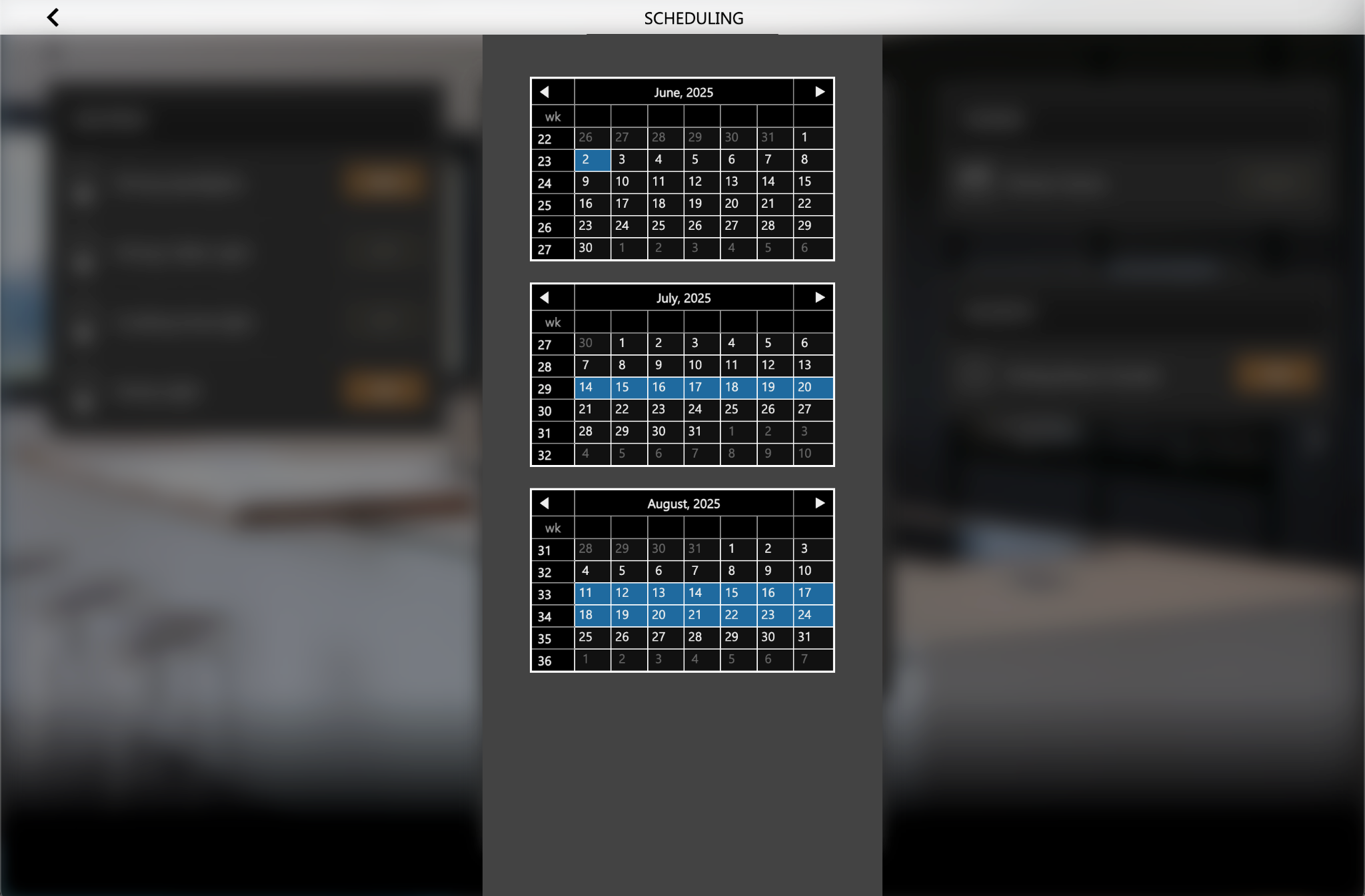
To save the selection press the back button in the top-left corner and confirm the changes.
Disabling profiles
A daily profile can be disabled with the power button shown next to its weekdays. This is useful to avoid losing the configuration of a profile that is not needed at the moment, for example a seasonal one.
A disabled profile still exists in the project, but it is not executed until it is enabled again.
Profiles can also be enabled and disabled automatically, when a given event occurs, using the Schedule manager model of the Library in Automations → Connections; see Schedule managers.
Actions
Entering a daily profile opens the list of the actions to be carried out during the twenty-four hours. Each action consists of a value and of the time at which it is sent; the [+] at the bottom of the list adds one.
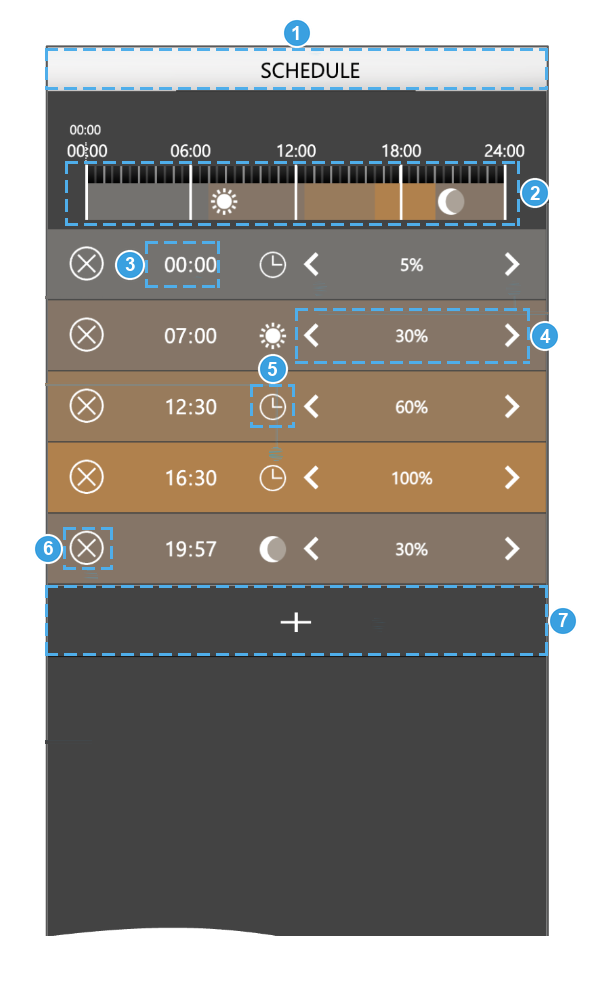
- Title of the schedule, which can be edited.
- Preview of the profile: the actions drawn on a 24-hour bar, with the same colors used everywhere else in the software.
- Time of the action.
- Value sent at that time, adjusted with the arrows at its sides.
- Time mode: manual, sunrise or sunset. The sun and moon icons mark the actions bound to the astronomical clock, whose time follows the position set for the project.
- Deletes the action.
- Adds a new action.
When the list is complete, press the back button in the top-left corner and confirm the changes. The preview of the profile is updated everywhere it appears in the software: in the schedules page, in the schedule itself and in the details popup of the object.
Scenes
DELÉGO SERVER offers the possibility to create sequences of commands and actions, optionally
governed by delays or conditions, called SCENES or SCENARIOS. SCENES/SCENARIOS can be created
in the Administration, by installers and system integrators, or directly in the Visualization by the end user.
Adding a scene to the project
To create a new scene in the Administration, proceed as follows:
- Access the Administration.
- Open the Project section and drag the Scene model from the Library of the source panel onto the room that has to contain it.
- Use the Add action of the node in the context tree to create a new scene.
In the details page, the following parameters are available:
| NAME | Name of the scene. |
| ROOM | Room in which the scene is offered to the user. |
| VISIBLE | Enables or disables the visibility of the scene in the Visualization. |
| EXECUTE AT STARTUP | Enables or disables the execution of the scene at system startup. |
| ALLOW EDITING IN VISUALIZATION | Enables or disables the end user's permission to modify or delete the scene from the Visualization. |
| ENABLE CLOUD SYNC | Enables or disables the cloud synchronization of the scene. |
| VOICE CONTROL | Information box that informs if the scene can be commanded by voice control. |
With Expert mode on, the following options are also visible:
| Delay between actions( seconds ) | Sets a delay between one action of the scene and the next. |
| Enable 'learn'-function | If enabled, a button with a camera icon appears in the Visualization. Pressing it stores the current state of the objects of the scene, and that state is the one commanded the next time the scene runs. |
| Enable PIN control | Enables or disables the control of the scene by means of a PIN. |
| New PIN, Repeat new PIN | Set the PIN, entered twice, when PIN control is enabled. |
Adding an action to a scene
Once a SCENARIO is created with the scene:
- Look for the objects you want to control in the scene by filtering the source panel, then select them (you can use the CTRL key of the keyboard if you need to select more than one object). If you need to search KNX objects belonging to KNX widgets:
○ Activate Expert mode from the Configuration menu. ○ Enter a keyword in the filter of the source panel (e.g., KNX address or label). ○ Select the object from the results.
- Drag the object(s) into the ACTIONS section, arranging the objects in the order in which the actions must be executed.
- For each object, specify the ACTION to perform and, if required, the VALUE to set. In case of KNX objects, select “WRITE” as the action and the value - among those proposed, based on the type of object - to send on the bus when the scene is executed.
If a WIDGET is dropped into a SCENE, the following dialog is displayed:
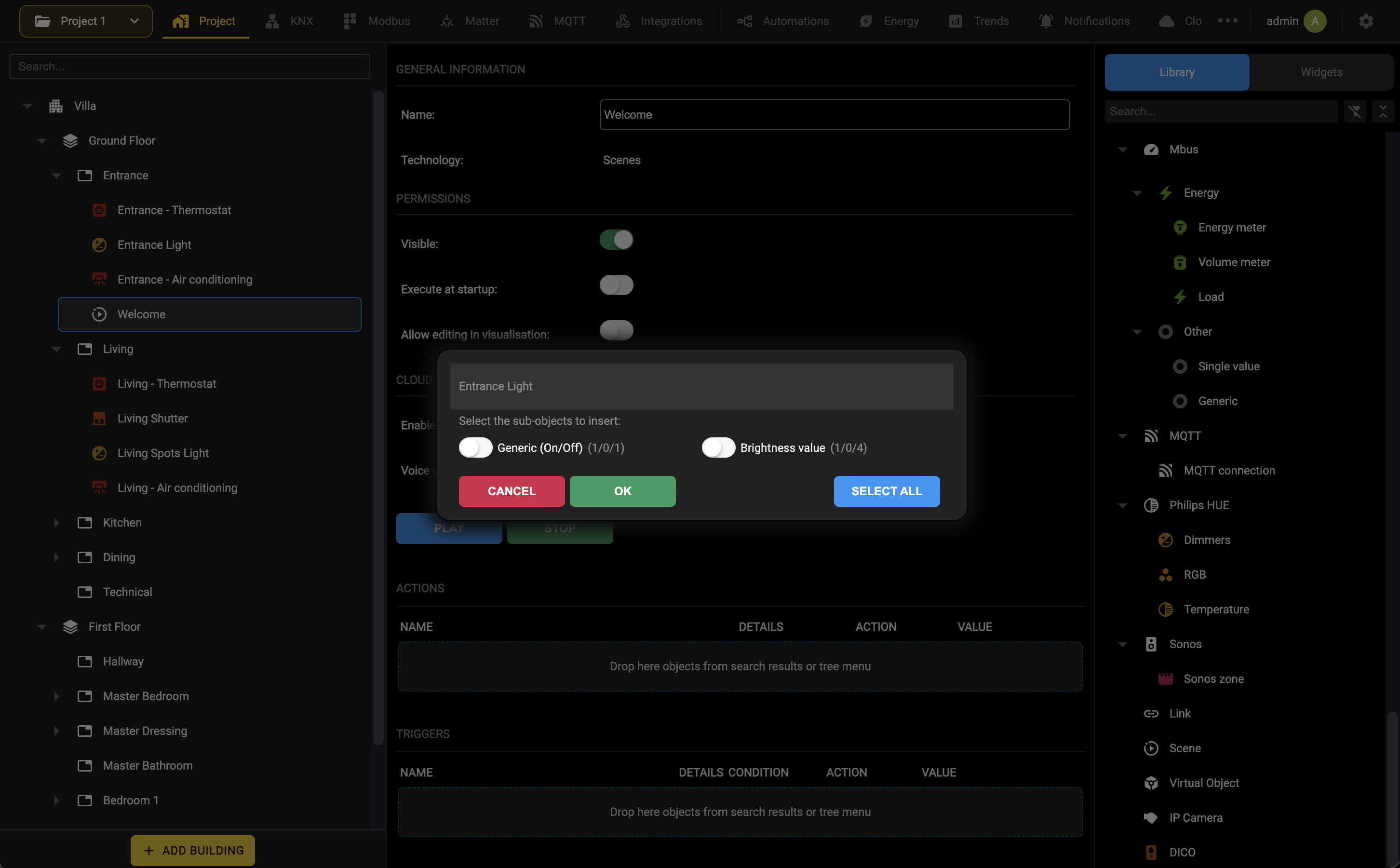
Since a WIDGET is a collection of objects, representing different commands that can be sent on a fieldbus (KNX, MODBUS etc…), it is required to specify which of them must be commanded as an ACTION of the SCENE.
Delays
It is possible to add a delay between the actions of a scene. In the Administration, the procedure to add a delay to a SCENE is the following:
- Enter the keyword “wait” in the SEARCH
- Select the desired predefined delay(s)
- Drop them into the ACTIONS list, at the desired position in the sequence
The following predefined delays are available:
- 1/2/5/10/15/20/30 seconds.
- 1/2/5/10/15/20/30 minutes.
- 1/2/3/6/12/24 hours.
During a delay, the SCENE can be stopped in two different ways:
- By pressing the STOP button in the Visualization
- With an AUTOMATION which sends the STOP command to the SCENE
In both cases, when a scene is stopped, the actions that follow the WAIT in the sequence are no longer executed. Note that the scene is not reverted to its initial state.
Creating a scene in the Visualization
Selecting New Scenario in the navigation menu of the Visualization opens the editor of a new scene:
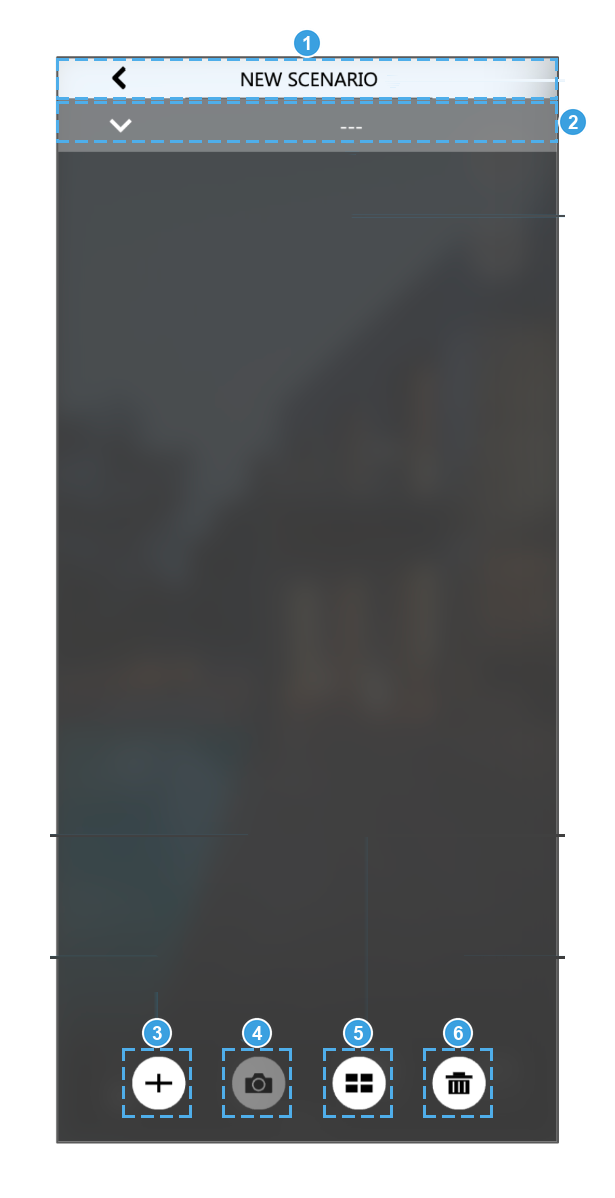
- Name of the scene, edited directly in the title of the popup.
- Room the scene belongs to, so that it appears in that room of the Visualization.
- ADD: look for an object and add it to the sequence.
- SNAPSHOT (LEARN): take the objects already in the sequence to their current state, so that the scene commands them to that state instead of the one recorded before.
- SORT: change the order in which the actions are executed.
- DELETE: delete the scene for good.
Pressing ADD shows all the widgets available, grouped by function; typing one or more keywords in the title of the popup filters the list.
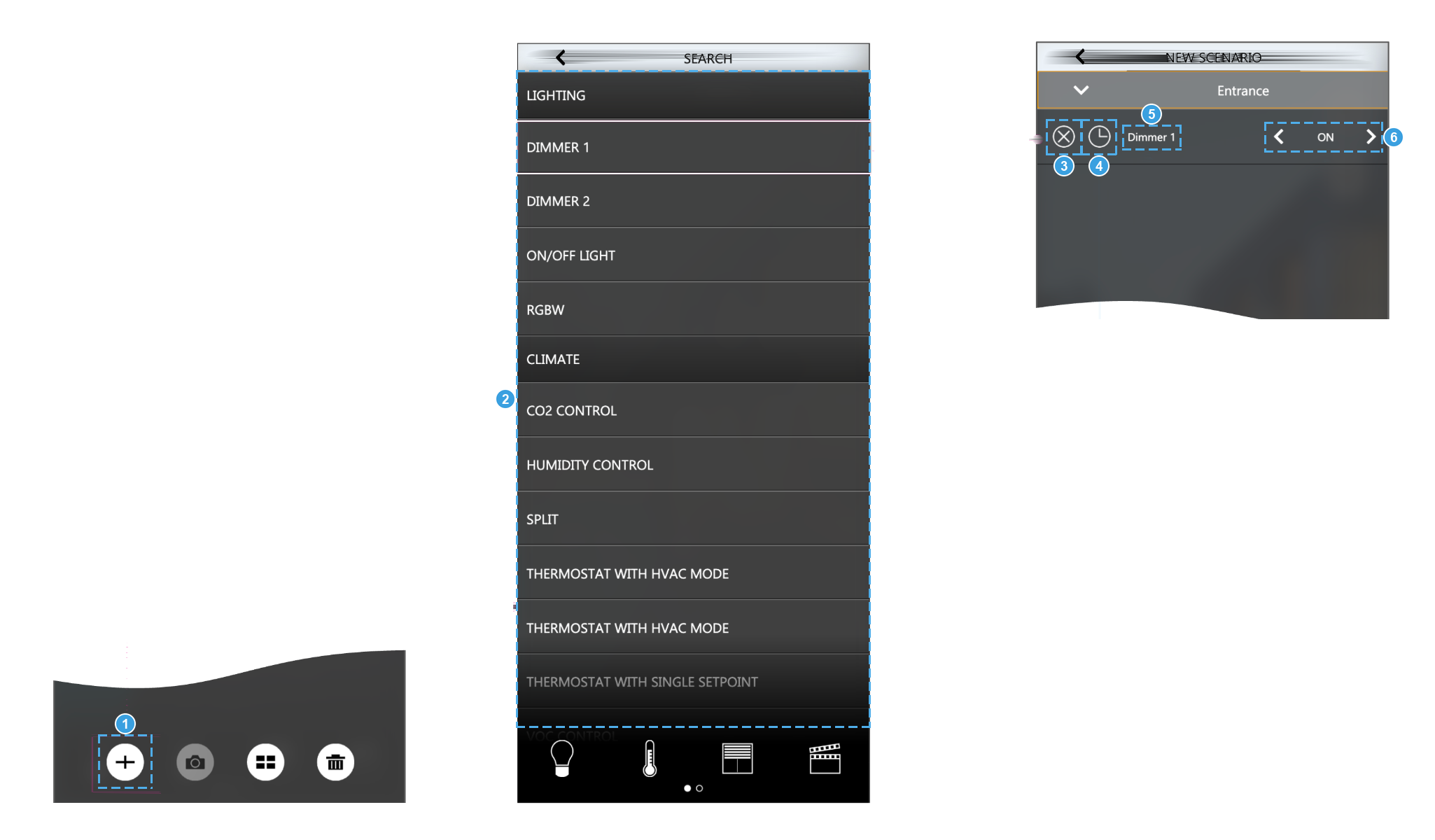
- The [+] that opens the search.
- The objects that can be added, grouped by function; the bar at the bottom filters them by function, and the dots tell how many pages the list takes.
- Removes the action from the sequence.
- Adds a delay before this action: raise the seconds, minutes or hours to insert a pause in the sequence.
- Name of the object commanded.
- Value that is sent every time the scene is executed, changed with the arrows at its sides.
Executing scenes
To execute a scene from the Visualization, find it in the room it belongs to and press the PLAY button on its right.
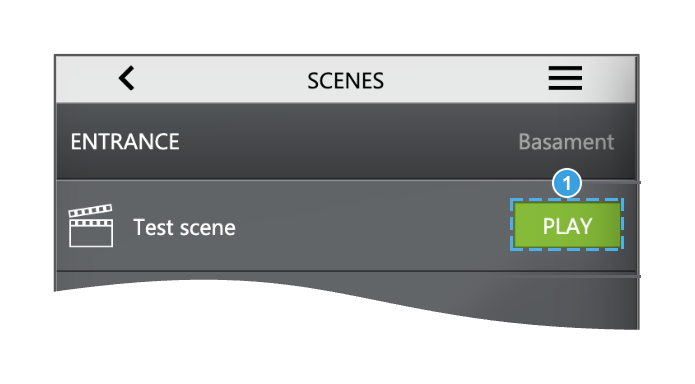
- PLAY: runs the sequence. If the scene is enabled for the stop, pressing the button again interrupts it.
Settings
Configuration menu
The Configuration menu, opened with the gear symbol at the right end of the bar, collects the commands that act on the whole server.

| Settings | Opens the settings workspace: System, Options, Network, System Update, External SD and Vouchers. |
| Save to flash | Writes the configuration to the persistent flash memory. A save is performed automatically every 5 minutes; use this command to consolidate the work immediately, and always before powering the unit down. |
| Clear cache | Clears the server cache. Use it when the screen does not reflect the configuration you have just performed. |
| Expert mode | A switch that acts across the whole Administration. It reveals the technical fields: object identifiers, ETS encoding, minimum, maximum and step values, axes, labels in JSON format and the finer permissions. |
| Page zoom | Scales the whole Administration, from 67% to 150%, with an entry that restores 100%. It changes what is displayed, not the configuration. |
| Frontend | Switches to the Visualization to see the result of the configuration. |
| Version | A static label at the foot of the menu, separated from the entries by a line: it reports the software version currently installed and opens nothing. |
The first entry, Settings, opens the settings of the server, described in detail in the following chapters. They concern the server itself and apply whatever project is configured. They open in a workspace of their own, with a single panel and one tab per group of settings.
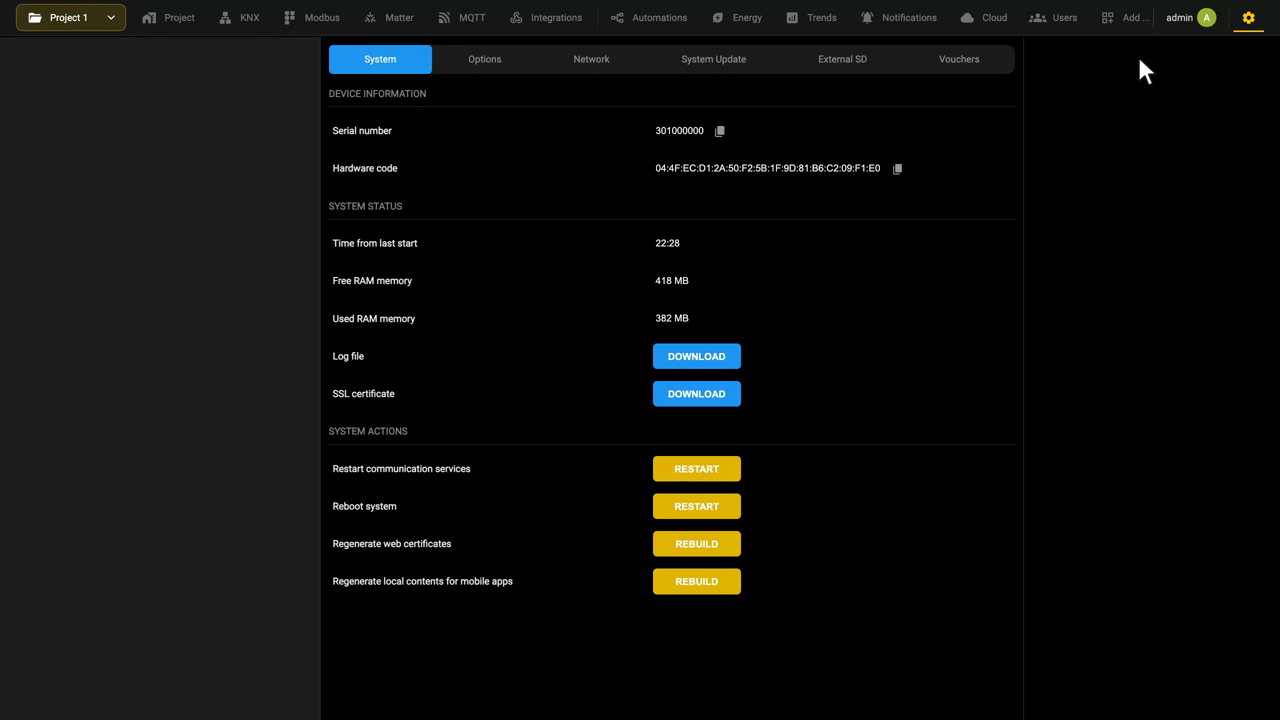
System
Settings → System, reached from the Configuration menu, reports the state of the unit and holds the recovery commands.
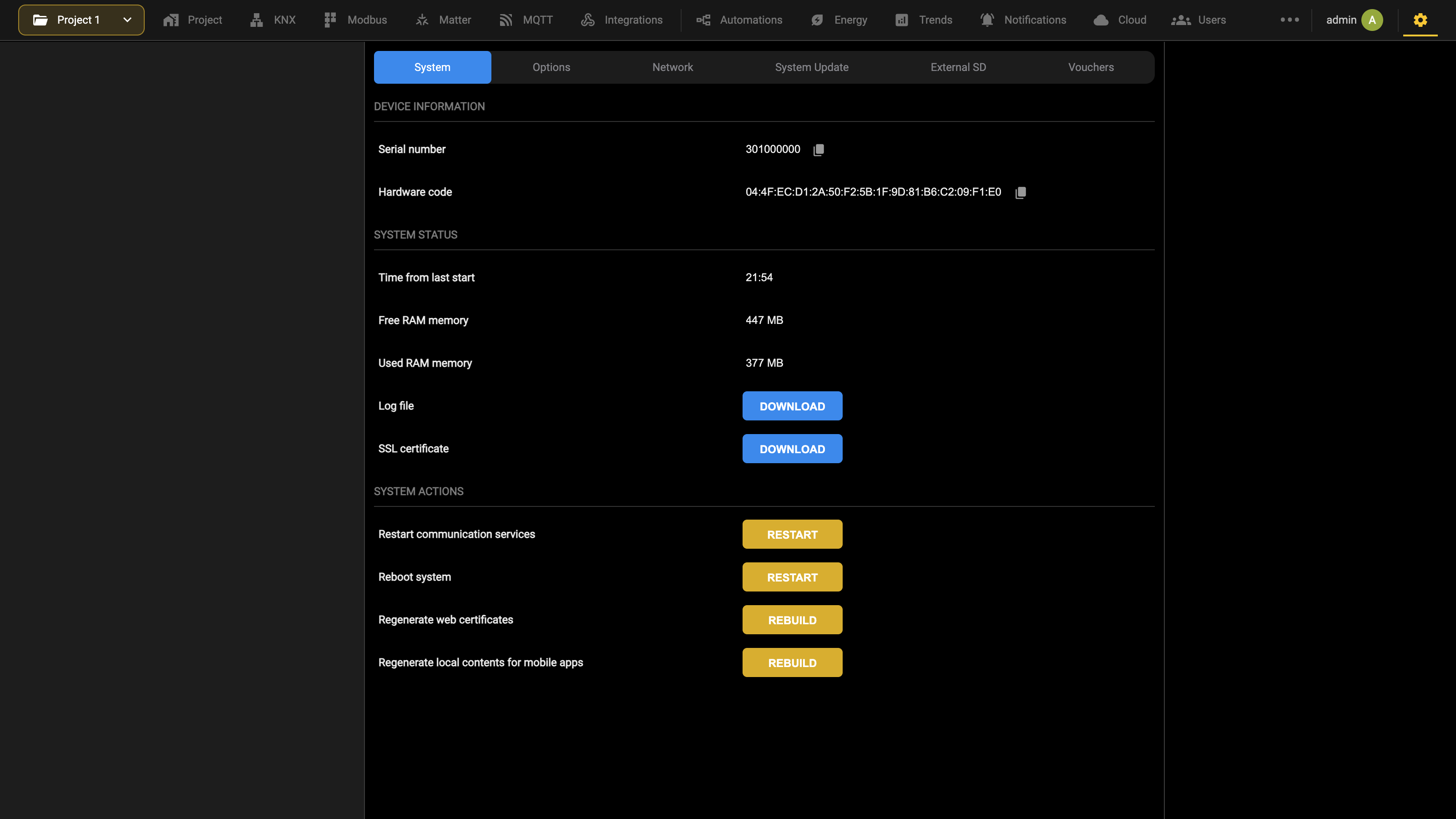
DEVICE INFORMATION reports the Serial number and the Hardware code of the unit, the two items of information that Ekinex customer service asks for.
SYSTEM STATUS reports the time elapsed since the last start and the free and used RAM. DOWNLOAD saves the Log file and the SSL certificate, to be sent to customer service when requested.
SYSTEM ACTIONS holds four commands.
| Restart communication services | Restarts the services that talk to the field technologies and run the logic. Try this when a technology stops communicating, or when a change to the configuration has not been applied on its own. |
| Reboot system | Restarts the unit, without acting on the power supply. |
| Regenerate web certificates | Issues a new SSL certificate for the unit, which secures the connection and removes the security warnings of the browser. It needs internet access. |
| Regenerate local contents for mobile apps | Rebuilds the package that the iOS and Android apps download on first connection to make later access faster. It is normally rebuilt at every software update; after rebuilding it here, refresh the project in the apps. |
This topic is shown in the Server settings video tutorial.
Options
The Options tab gathers the settings that govern the behaviour of the project, arranged in groups: E-MAIL, SIP, MAP VIEW, FUNCTIONS VIEW, CHARTS and the advanced parameters. Each group is described in the chapters that follow.
Email settings
The E-MAIL group of Settings → Options sets how the server sends the email notifications. Two methods are available, chosen with E-mail sending method.
Cloud service. Nothing else has to be configured: the server hands the message to the EKINEX cloud, which delivers it. The unit must be logged in to the cloud account, which is done in the Cloud section.
Custom SMTP server. The server delivers the message itself, through a mail server you provide. Enter the following:
| SMTP server | Address of the SMTP server to which the messages are forwarded. |
| Port | Port used to communicate with the SMTP server. |
| Use SSL protocol | Enables or disables SSL encryption. |
| Activate authorization | Enables or disables authentication with the server. Authentication is normally required. |
| Username | The mailbox created when configuring the SMTP server. |
| Forwarder (e-mail address) | Sender address shown to the recipient. It may differ from the one entered as username. |
| Password | Password of the mailbox on the SMTP server. |
A configuration using Gmail, as an example:
| SMTP server | smtp.gmail.com |
| Port | 465 |
| Use SSL protocol | enabled |
| Activate authorization | enabled |
| Username | the full Gmail address |
| Password | the password of that account, or an application password if two-step verification is active |
Map View settings
The MAP VIEW group of Settings → Options governs how rooms configured with a graphic map are displayed.
| Min. zoom [%] | Lower limit of the zoom, when zooming is enabled on the room. |
| Max. zoom [%] | Upper limit of the zoom. |
| Convert plans into grids on small screens | Turns rooms with a graphic map into grids of widgets. Intended for devices with a small screen, such as smartphones, where a plan becomes unreadable. |
| Max. screen width for plan to grid conversion | Applies when the previous option is on: the screen width, in pixels, below which the conversion takes place. Leave it empty to let the server decide. |
Confirm with SAVE at the bottom of the page.
Functions view settings
Element Display, in the FUNCTION VIEW group of Settings → Options, sets how the rooms are arranged in the function pages, the ones the end user reaches from the bar at the bottom of the home page. Three criteria are available.
Compact. Rooms are grouped by floor, in columns, and only the state previews of the widgets are shown. Pressing a preview sends the command to the corresponding widget. A vertical scroll moves through the rooms of a floor, a horizontal one through the floors.
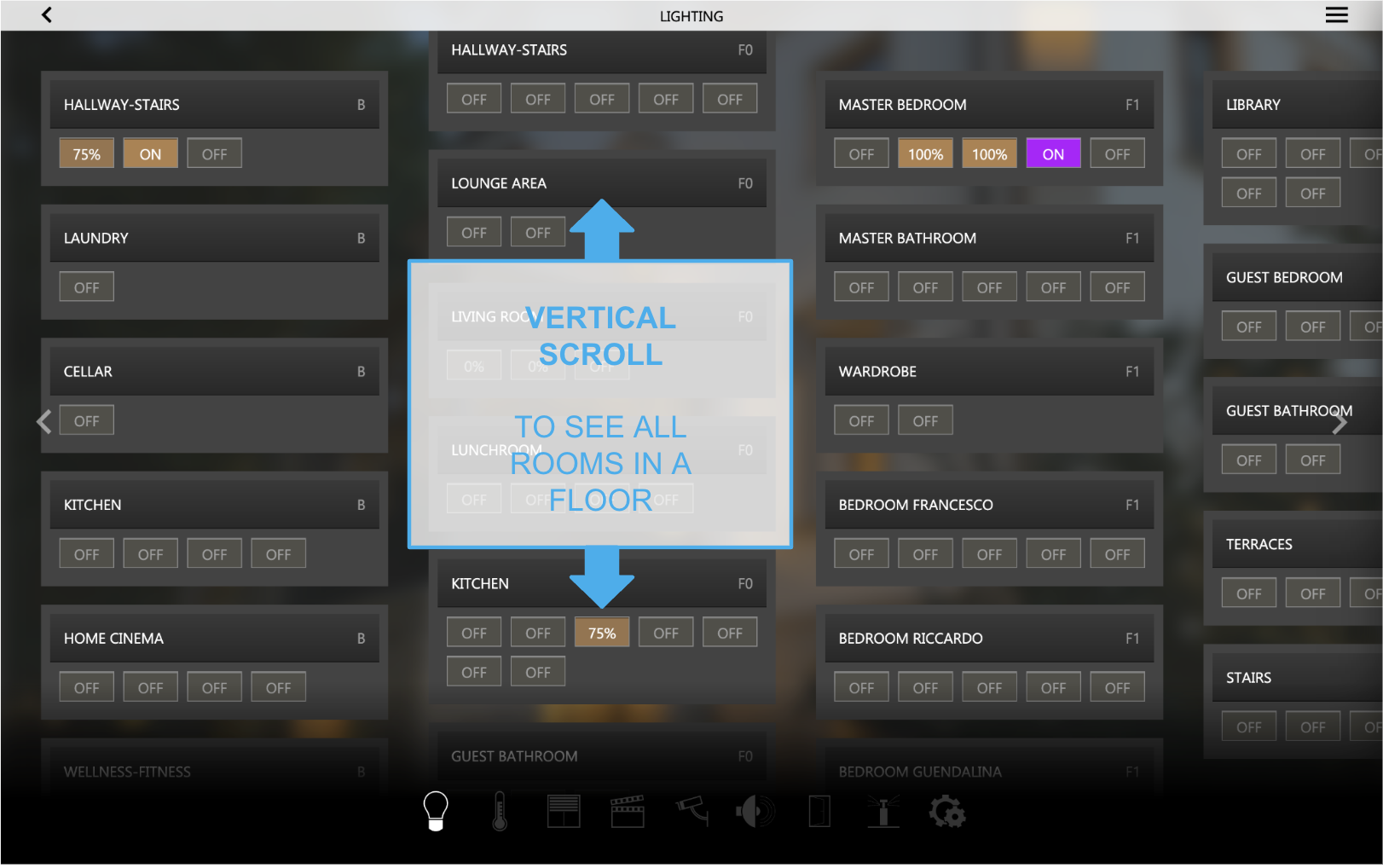
Opening the detail of a room expands it to show all its widgets, with the commands available for each.
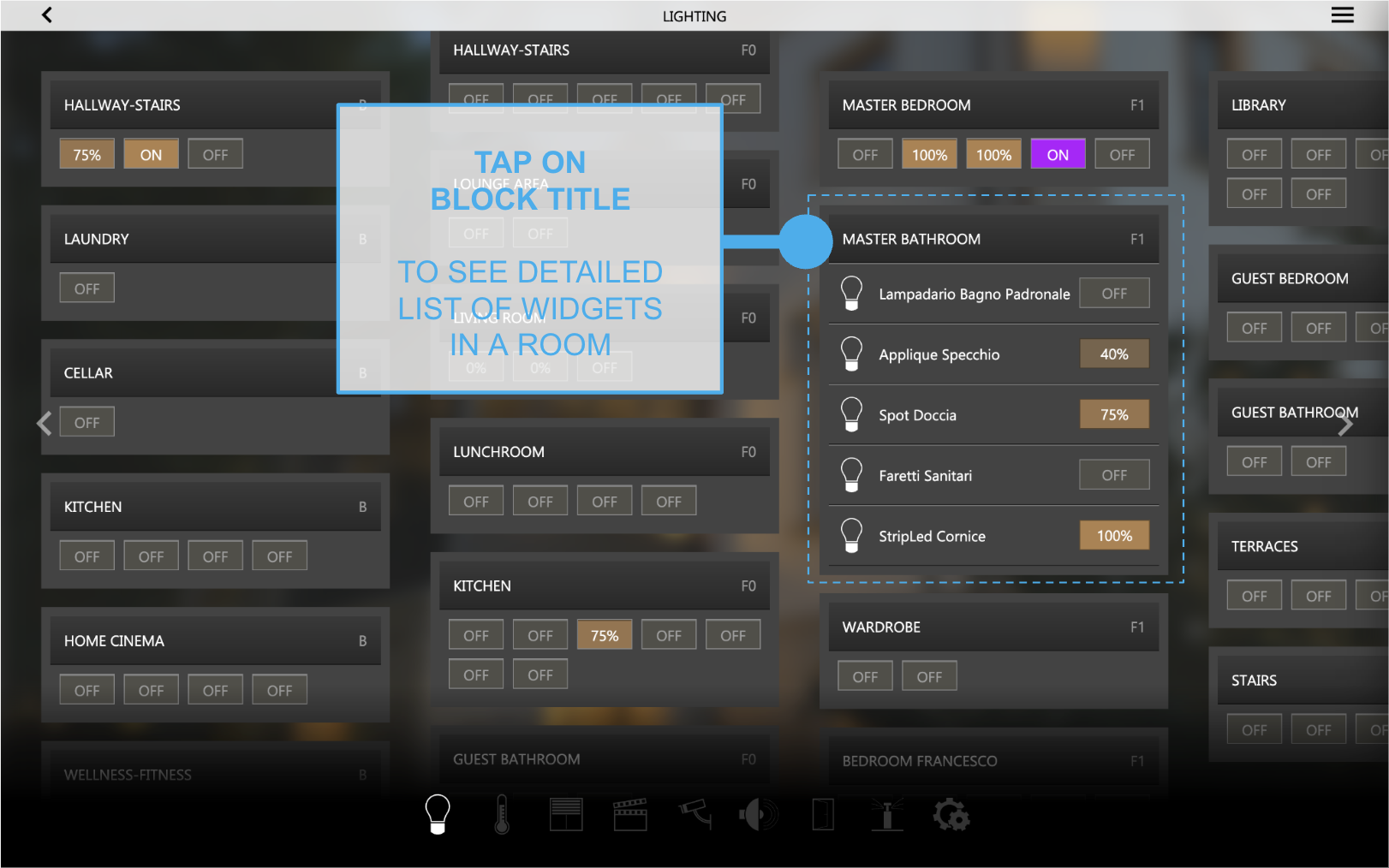
Dynamic. The rooms are arranged automatically to make the best use of the space available in the window.
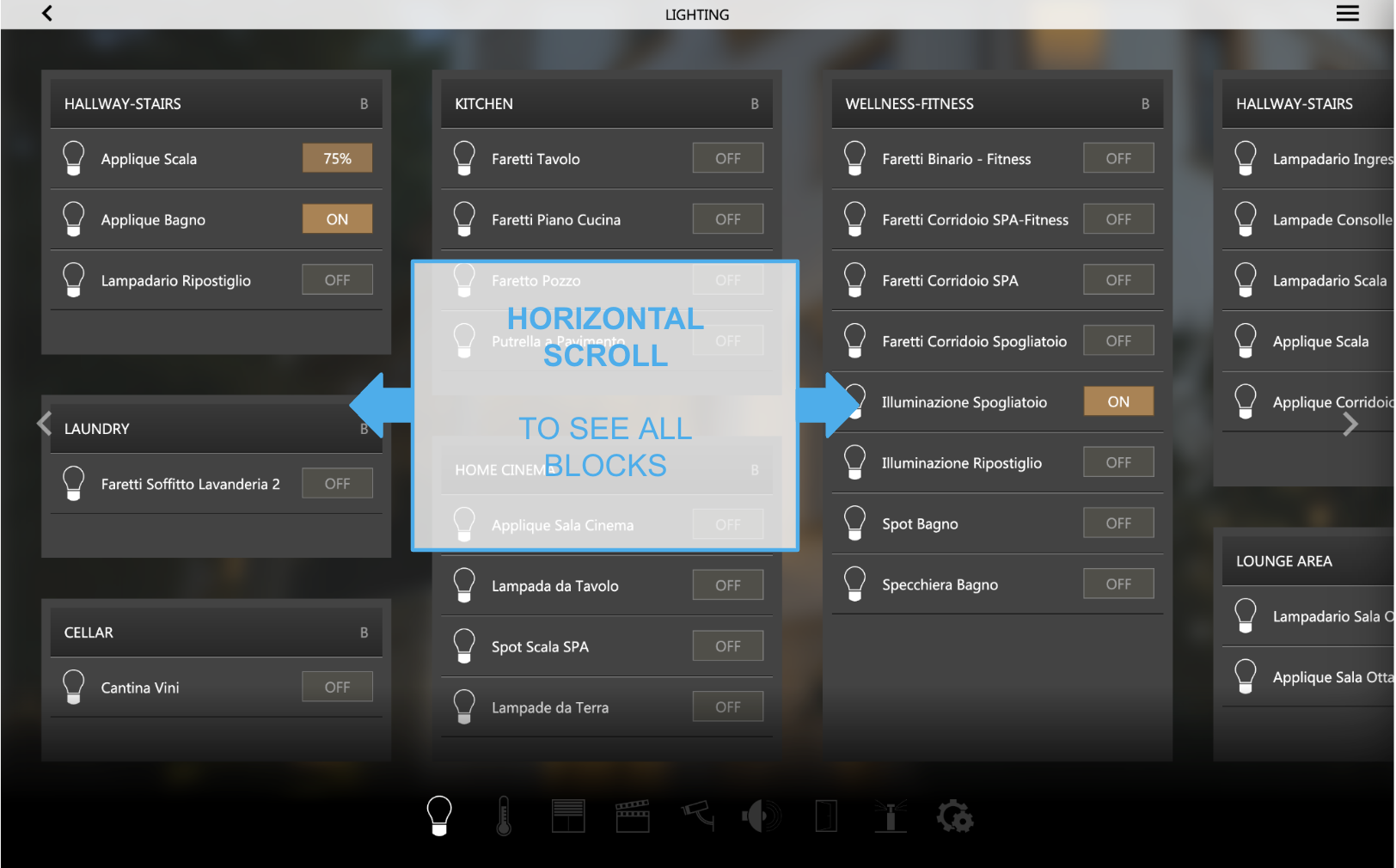
Floors. The rooms are presented floor by floor, following the structure of the building.
Advanced settings
The ADVANCED group at the bottom of Settings → Options tunes how the clients talk to the server. The default values suit most installations: change them only for a specific reason, because they affect responsiveness and load.
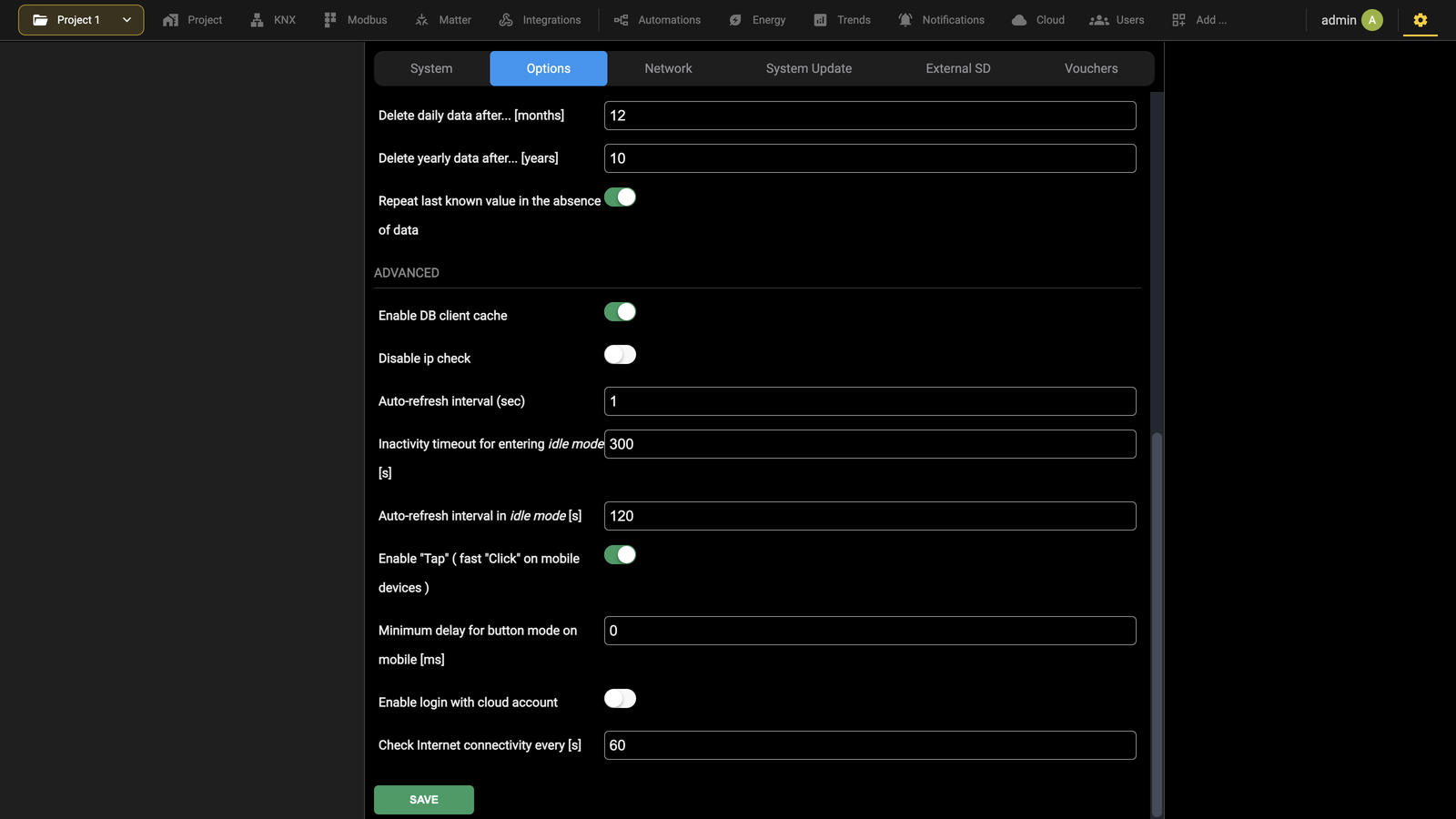
| Enable DB client cache | Lets the apps download the project and keep it locally. Disabling it prevents the download and slows browsing from the apps. Enabled by default. |
| Disable ip check | Loosens the authentication checks, ignoring a change of client address and keeping the session valid. Activate only for a specific need. |
| Auto-refresh interval (sec) | Seconds between one query of the state of the interactive elements and the next. |
| Inactivity timeout for entering idle mode [s] | Seconds after which the querying is slowed down. Enter -1 to disable idle mode. |
| Auto-refresh interval in idle mode [s] | Seconds between one query and the next while in idle mode. |
| Enable “Tap” (fast “Click” on mobile devices) | Disable it if some mobile device shows compatibility problems. The apps respond more slowly when it is off. |
| Minimum delay for button mode on mobile [ms] | Delay applied to widgets configured in button mode, which act on press and again on release. Raise it if those widgets misbehave on a particular phone, where the delay avoids conflicts with the system gestures. |
| Enable login with cloud account | Allows authenticating with the cloud account as well as with the local credentials. |
| Check Internet connectivity every [s] | Interval between the checks the server makes on the internet connection. |
Confirm with SAVE at the bottom of the page.
Network
The network parameters of the server are set in Settings → Network, reached from the Configuration menu.
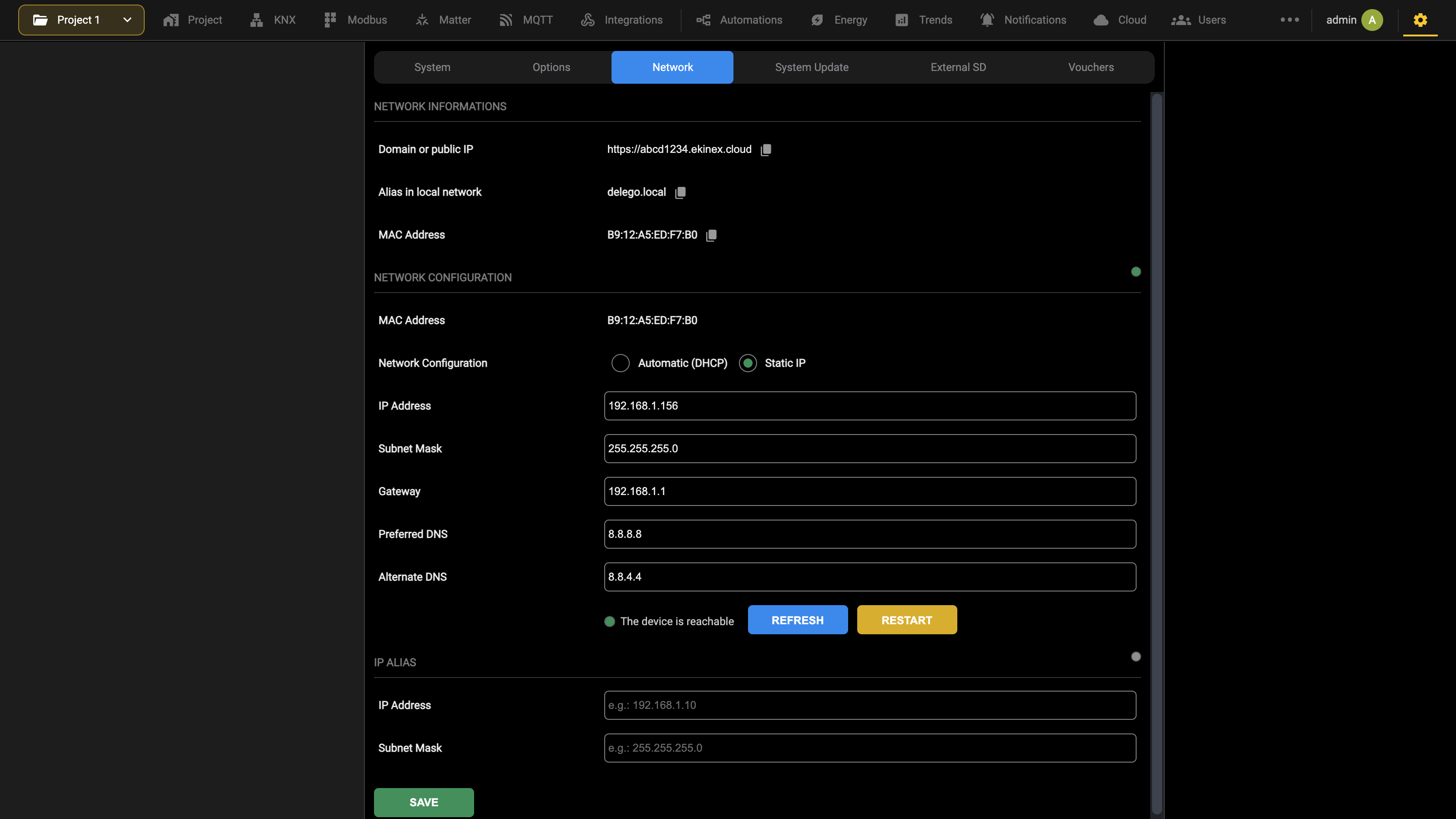
NETWORK INFORMATIONS reports read-only data.
| Domain or public IP | Public address or DYNDNS domain through which the server is reached from outside the local network. |
| Alias in local network | Alternative name of the server on the local network, useful above all when the address is assigned by DHCP. It is normally delego.local; where several servers share a network they become delego-2.local, delego-3.local and so on. |
| MAC Address | Unique identifier of the network card, useful for setting reservations or rules on the router. |
NETWORK CONFIGURATION holds the addressing.
| Network Configuration | Chooses between Automatic (DHCP) and Static IP. Use a static address whenever other devices, such as touch panels or video door phones, have to reach the server. |
| IP Address | Address assigned to the server when the addressing is static. |
| Subnet Mask | Normally 255.255.255.0, unless the network administrator requires otherwise. |
| Gateway | Address of the router, or of the reference server of the network. To reach the server from outside the local network, this must be the address of the router used for that access. |
| Preferred DNS, Alternate DNS | Name servers used by the unit to reach the internet. Leave the factory values unless the network administrator requires otherwise. |
An indicator beside the section reports whether the device is reachable. REFRESH updates it; RESTART restarts the network services.
IP ALIAS adds a second address on which the server answers, for networks that require it. Enter the address and its subnet mask, then confirm with SAVE.
This topic is shown in the Server settings video tutorial.
Software update
The software of the server is updated from Settings → System Update, reached from the Configuration menu.
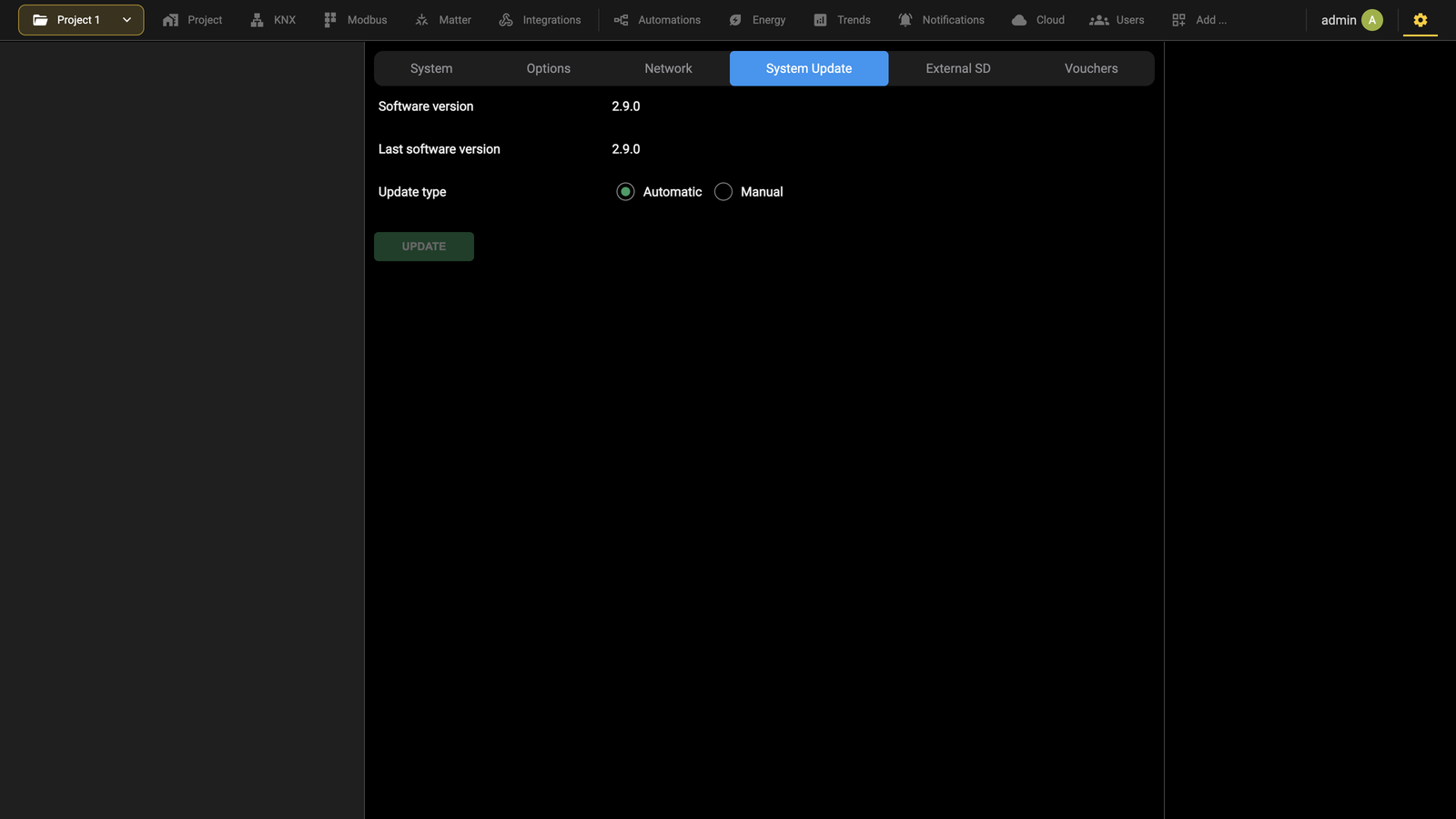
The page reports Software version, the version currently installed, and Last software version, the most recent one found on the EKINEX cloud. Update type chooses between Automatic and Manual.
Automatic. The server checks the cloud by itself. If a newer version is available, Update starts the procedure.
Manual. Use this when the unit has no internet access:
- Ask Ekinex technical support for the latest package and save it on the PC without unzipping it.
- Select Manual.
- Choose the package with the file selector.
- Press Update.
In both cases the procedure runs on its own. It can take several minutes, depending on the installed version and on the size of the configuration. Wait for it to finish without reloading the page or closing the browser. At the end a summary of the new version is shown; restart the server to complete the installation.
If the update is interrupted, for example by a power failure or by the loss of the network connection with the PC:
- Restart the server.
- Wait about 1 minute, then open the address of the server in the browser.
- Let the automatic recovery finish, then restart the server again.
The same recovery also starts after a hard reset from the reset button. If the unit has not recovered after at least 15 minutes, contact Ekinex technical support.
External memory management
An external memory, USB or SD, extends the space available for the data the server records at runtime and for the traffic captured by the KNX telegram recorder. It is configured in Settings → External SD, reached from the Configuration menu.
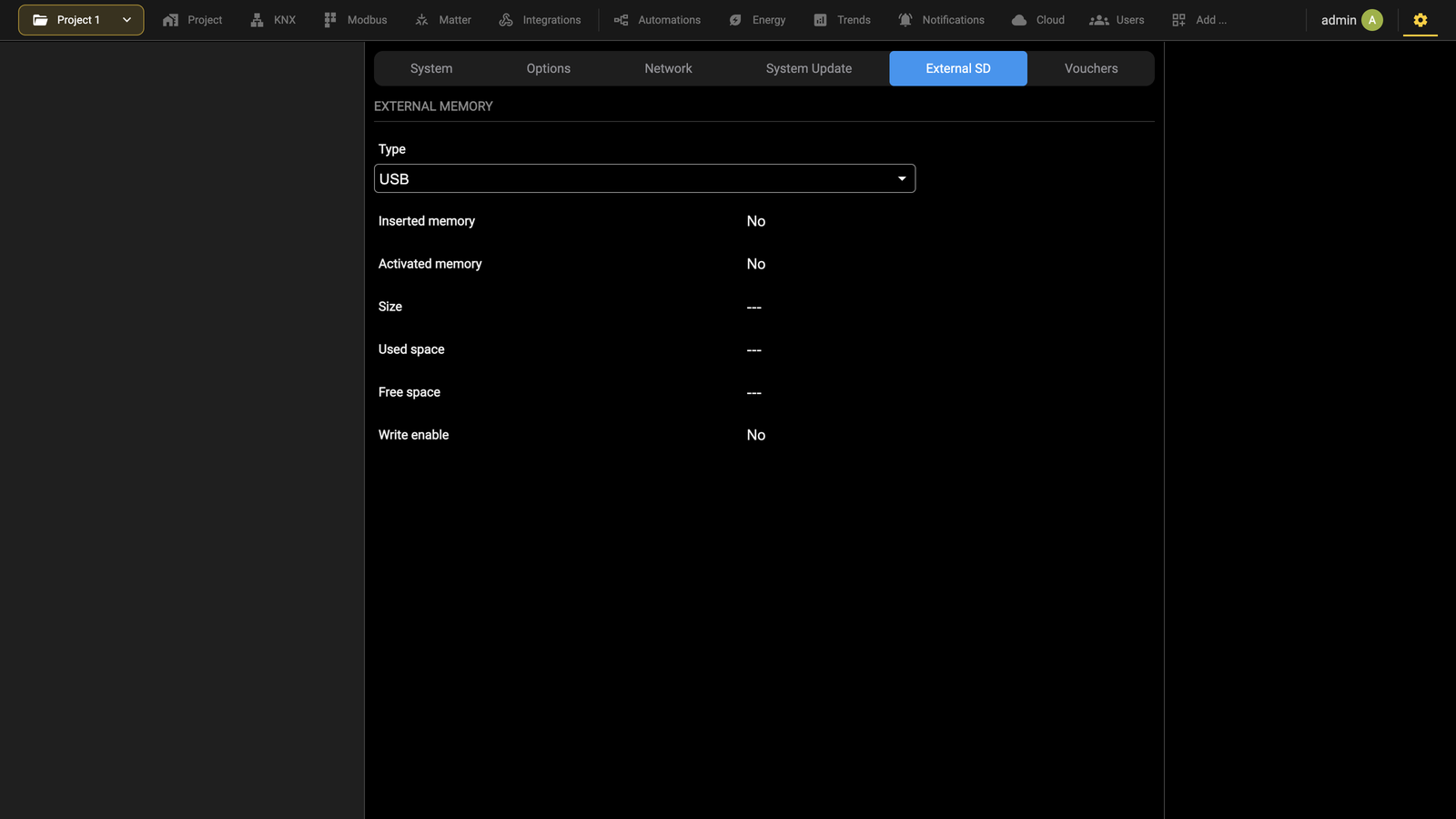
Select the kind of device connected in Type, choosing between USB and SD. The page then reports whether a memory is inserted and activated, its size, the space used and free, and whether writing is enabled.
Vouchers
Several functions of the server are tied to an activation code. The codes are managed in Settings → Vouchers, reached from the Configuration menu.
The page opens with the Serial number and the Hardware code of the unit, which Ekinex customer service needs in order to issue a code. Below them each module has its own field, with the state of the license beside it: a valid license is reported as such, and some modules also report their capacity, for example the number of KNX group addresses in use out of those allowed, or the number of rooms enabled.
To enter a new code, request it from Ekinex customer service, type it in the field of the module it belongs to, then confirm with SAVE. Take care to match the code to the right module: a code entered in the wrong field is not accepted.
This topic is shown in the Server settings video tutorial.
Account
The user menu, at the right end of the bar beside the Configuration menu and marked with the name of the current user, holds the operations on the session.

| Change password | Opens the card of the current user to change the password. The complete management of users and groups is in the Users section. |
| Cloud login... | Shown while the server is not connected to the cloud: connects it to an EKINEX cloud account. |
| Cloud account... | Takes the place of Cloud login... once the server is connected: it opens a popup from which you log out of the EKINEX cloud account, unbind the server from it or change the binding level between OWNER and INSTALLER. |
| Logout | Closes the work session and returns to the login page. |
Password change
Any user, even with basic rights, can change their access password with Change password, in the user menu at the right end of the bar. The command opens the card of the current user, where you can change the username and enter a new password, which takes effect as soon as it has been entered correctly twice.
Product registration
It is possible to register DELÉGO SERVER on Ekinex’s cloud to have access to exclusive services (e.g., VPN).
The EKINEX cloud services are gathered in the Cloud section of the bar.
The first step is to create a free cloud account, if you do not have one already. Open
Cloud → Cloud Services
and click REGISTER to be redirected to a page where you can create a new account:
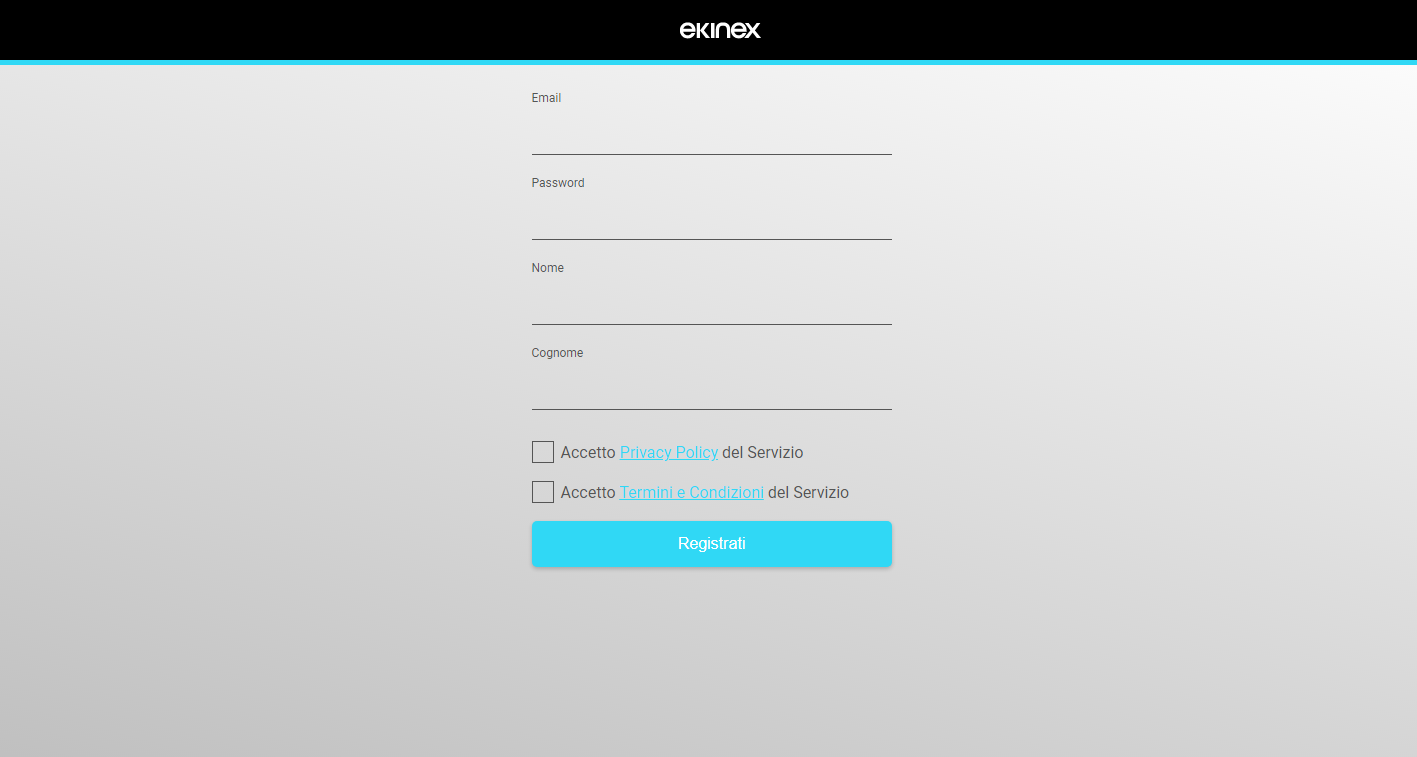
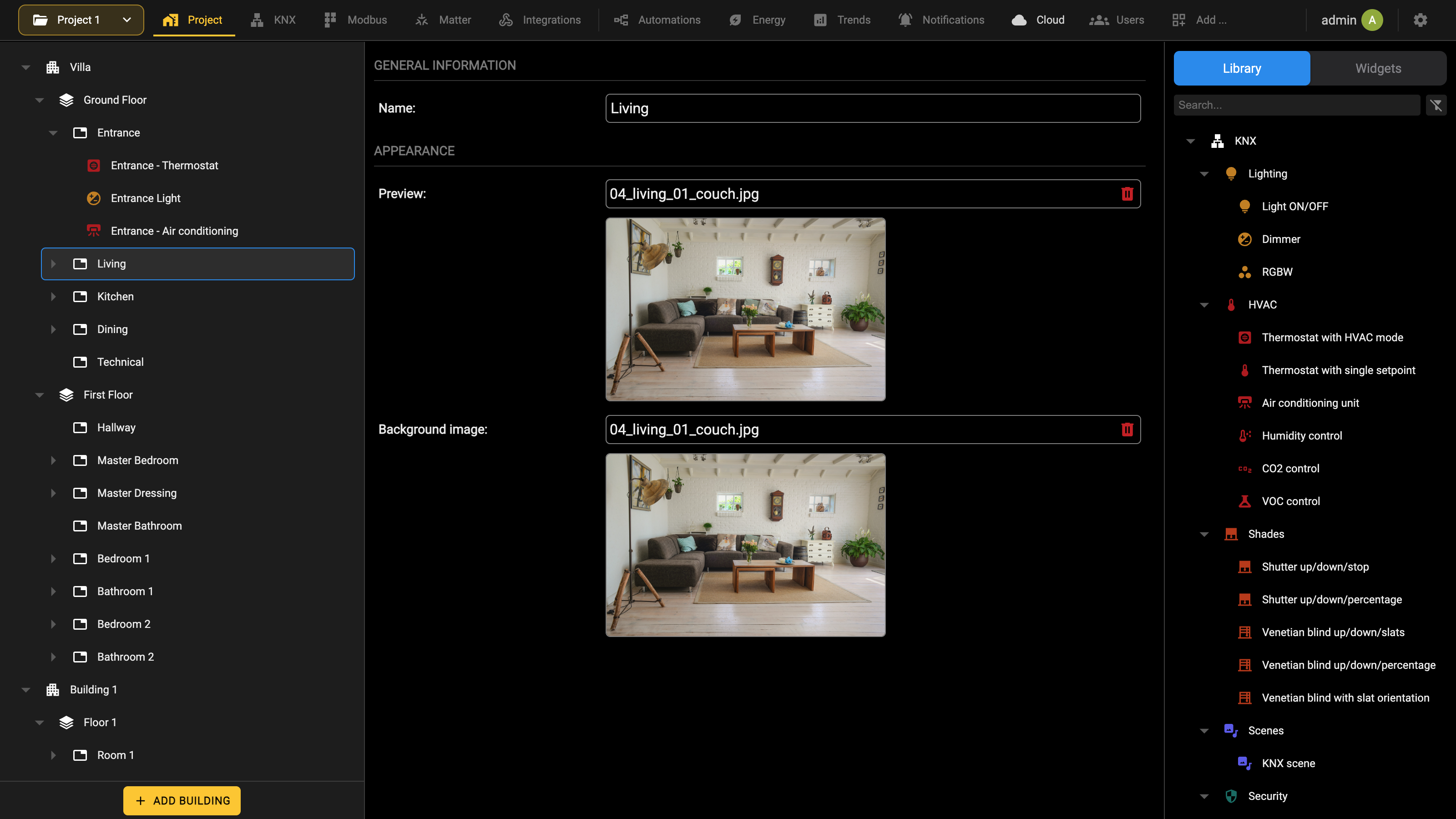
Once the credentials are entered, it is possible to associate the current user (the one you entered in DELÉGO SERVER) to your cloud account. It is possible to choose between two types of profile:
| OWNER | You will have full rights to DELÉGO SERVER and complete management of services associated with the cloud. It will also be possible to control the functions of DELÉGO SERVER through cloud services and voice assistants |
| INSTALLER | You will be associated with DELÉGO SERVER as an installation and configuration technician. It will not be possible to control objects via voice assistants and the cloud. |
At this point you can access the following pages of the Cloud section:
| CLOUD SERVICES | It allows you to activate cloud-based services on the server, such as remote access without opening ports on the router |
| VOICE CONTROL | Allows you to register graphic components on the cloud, so that they can be controlled through external services, such as Alexa and Google voice assistants |
Cloud login
Each user of DELÉGO SERVER can be associated with an EKINEX cloud account. The user logs in with the credentials of the cloud account and binds the server to it with one of two levels:
| OWNER | All the rights of remote command on the server: the functions of DELÉGO SERVER can be controlled through the cloud services and the voice assistants. |
| INSTALLER | Limited rights, for the installation and configuration technician: objects cannot be controlled through the cloud and the voice assistants. |
The first login and the creation of the cloud account are described in Product registration.
Once the user is logged in, the entry of the user menu becomes Cloud account.... Pressing it opens a popup from which you can:
- log out of the cloud account;
- unbind the server from the cloud account;
- change the binding level, from OWNER to INSTALLER or the other way round.
Being logged in also gives access to the cloud services and to voice control, described in Cloud services and Voice control. The cloud VPN is described in Cloud VPN.
Users
This chapter illustrates DELÉGO SERVER’s user management and how to customize it according to your needs, to guarantee security and differentiated access to the supervision pages.
Users and user groups
Authentication in DELÉGO SERVER rests on two distinct things, which the Users section keeps in two separate tabs:
- Users are the accounts used to sign in, each identified by a username and a password. A user holds no permissions of their own; what a user may do is determined by the user groups they belong to.
- User groups hold the permissions on the functions of the software. Changing a permission on a group changes it at once for every user belonging to it.
Creating a new user
A new user is created in the same way as the other types of object seen so far:
- Open the Administration.
- Open the Users section of the bar, Users tab.
- Use the Add action of the node in the context tree, then open the card of the newly created object.
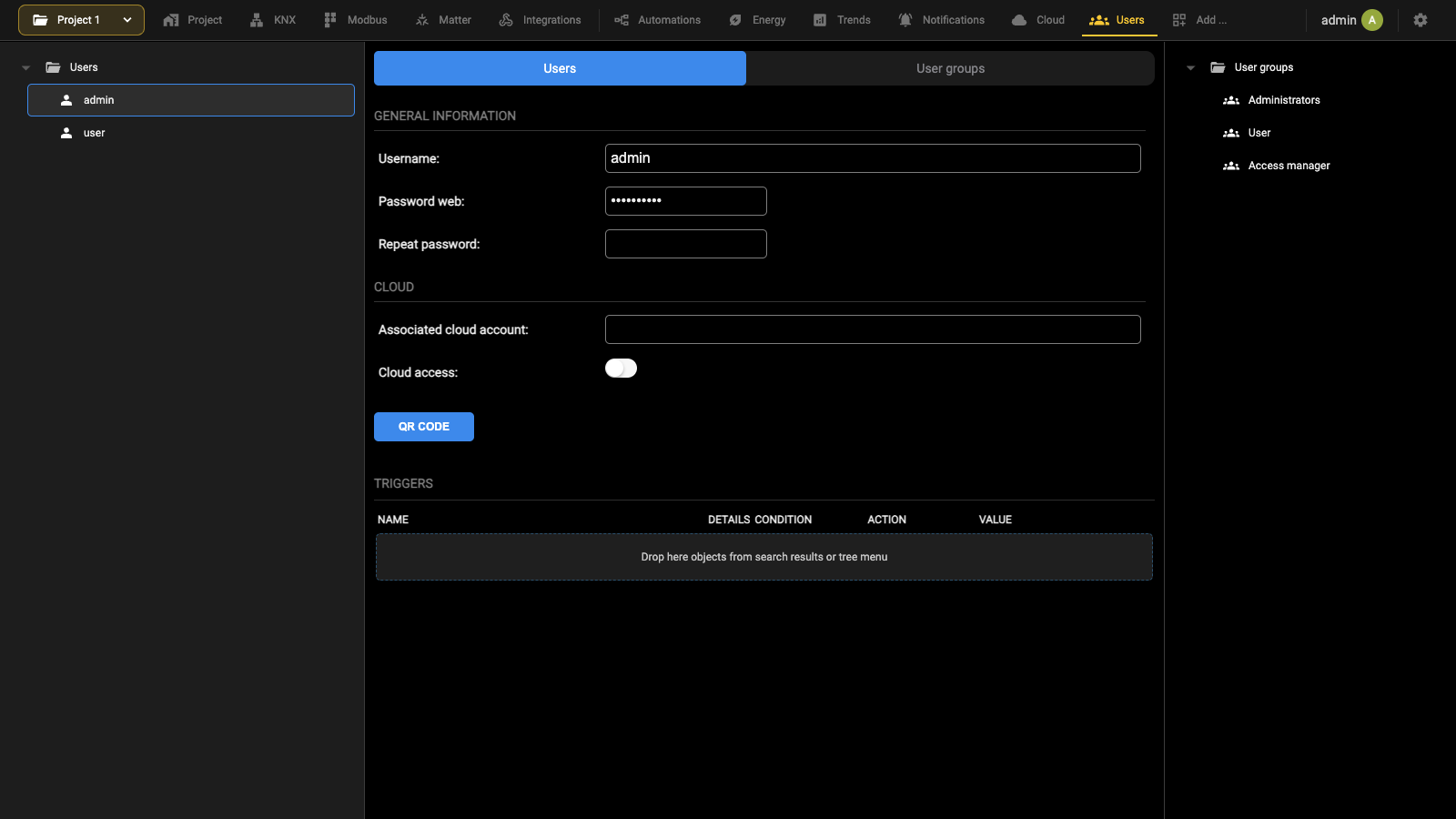
The card allows you to set the following properties:
| Username | Name used to log in to the system. It must be composed of alphanumeric characters, without spaces or special characters. |
| Password web, Repeat password | Password used to access the system, to be entered twice. It must be composed of alphanumeric characters, without spaces. |
| Associated cloud account | If the user has logged in to the cloud and has been associated as owner or installer, the corresponding email is shown here. The field is not editable. |
| Cloud access | Allows this user to authenticate with their cloud credentials, as an alternative to the local ones. |
QR CODE generates the code that carries the access data to the server, so that it can be shared with the user instead of being dictated.
TRIGGERS, at the bottom of the card, lists the conditions that concern this user: an object is dragged into the table from the source panel, and for each row the condition, the action and the value are set.
User groups and access rights
The User groups tab of the Users section is where the kinds of user that may reach the server are defined: installers, maintenance staff, tenants and so on. A new project comes with three groups: Administrators, User and Access manager.
Once a user has been created as described in the previous section, it is assigned to a group by dragging it into the USERS table on the card of the group, either from the context tree or from the source panel.
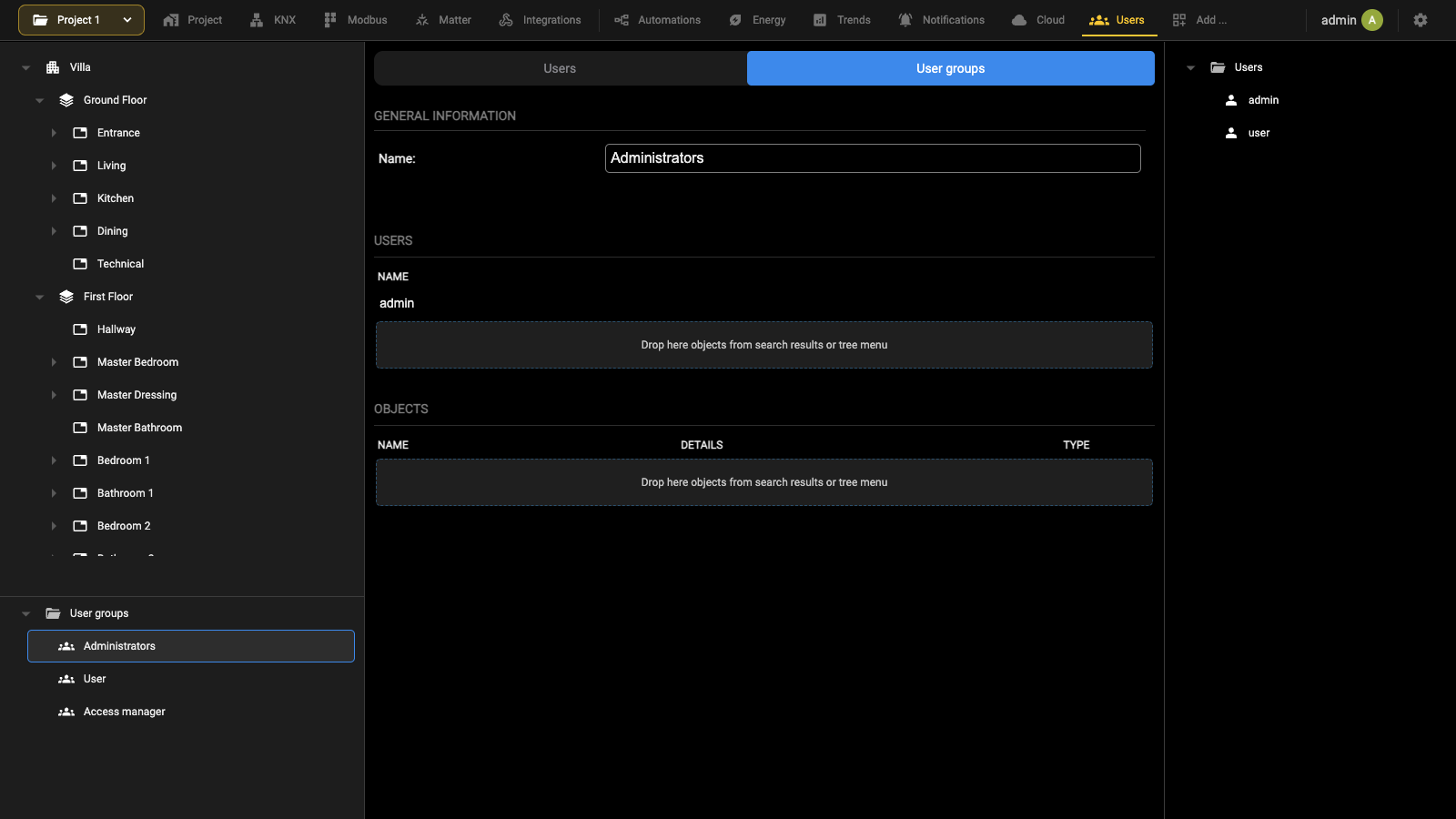
The same card can also be given one or more objects of the supervision, which makes them private: only the users belonging to that group can see and command them. The objects are dropped into the OBJECTS table.
Restricting access
Access to the objects of the project can be restricted to some users only: an object associated with one or more user groups can be viewed and controlled only by the users belonging to one of those groups. For example, in a building containing an apartment A and apartment B, each user can see only the apartment they are associated with. To obtain this configuration, open the Users section of the bar, Users tab, and
- Create an USER A for apartment A.
- Create a USER B for apartment B.
Subsequently in the User groups tab of the same section:
- Create a USER GROUP A.
- Create a USER GROUP B.
In USER GROUP A:
- Drag user A into the USERS table.
- Drag into the OBJECTS table the floor, the rooms and all the objects the user has to see.
Perform the same procedure for USER GROUP B.
The card of a group has a USERS table, listing who belongs to it, and an OBJECTS table, listing what those users may see. Both are filled by dragging from the source panel.
In the Users section, User groups tab, open Administrators and drag all the floors, rooms and objects present in the building into the OBJECTS table. In this way, the admin will be the owner of all the objects of the installation, while users A and B can see and control only the objects assigned to them.
Default passwords
Changing the default password of every user that comes pre-installed in DELÉGO is of fundamental importance, and all the more so when the server is reachable remotely.
As long as at least one of the predefined users still has its default password, the Administration shows a red band at the bottom of the page: One or more users have the default password. Change password for all predefined users to increase security.
Access with QR code
Reaching a DELÉGO SERVER from the iOS and Android apps can be made easier by generating a QR code, one for each user, carrying all the access information: whoever scans it does not have to configure the app by hand.
The QR code is built out of two things. The addresses of the server come from the project card:
Project → Project info
where Local IP address reports the address the server has on the local network and Remote address the one to be used from outside: the address assigned by the cloud, when the remote access service is active. Both are filled in by the server and cannot be edited.
The user is the second half. Open
Users, tab Users
select the account in the context tree and press QR CODE on its card: the code produced belongs to that user and carries their credentials.
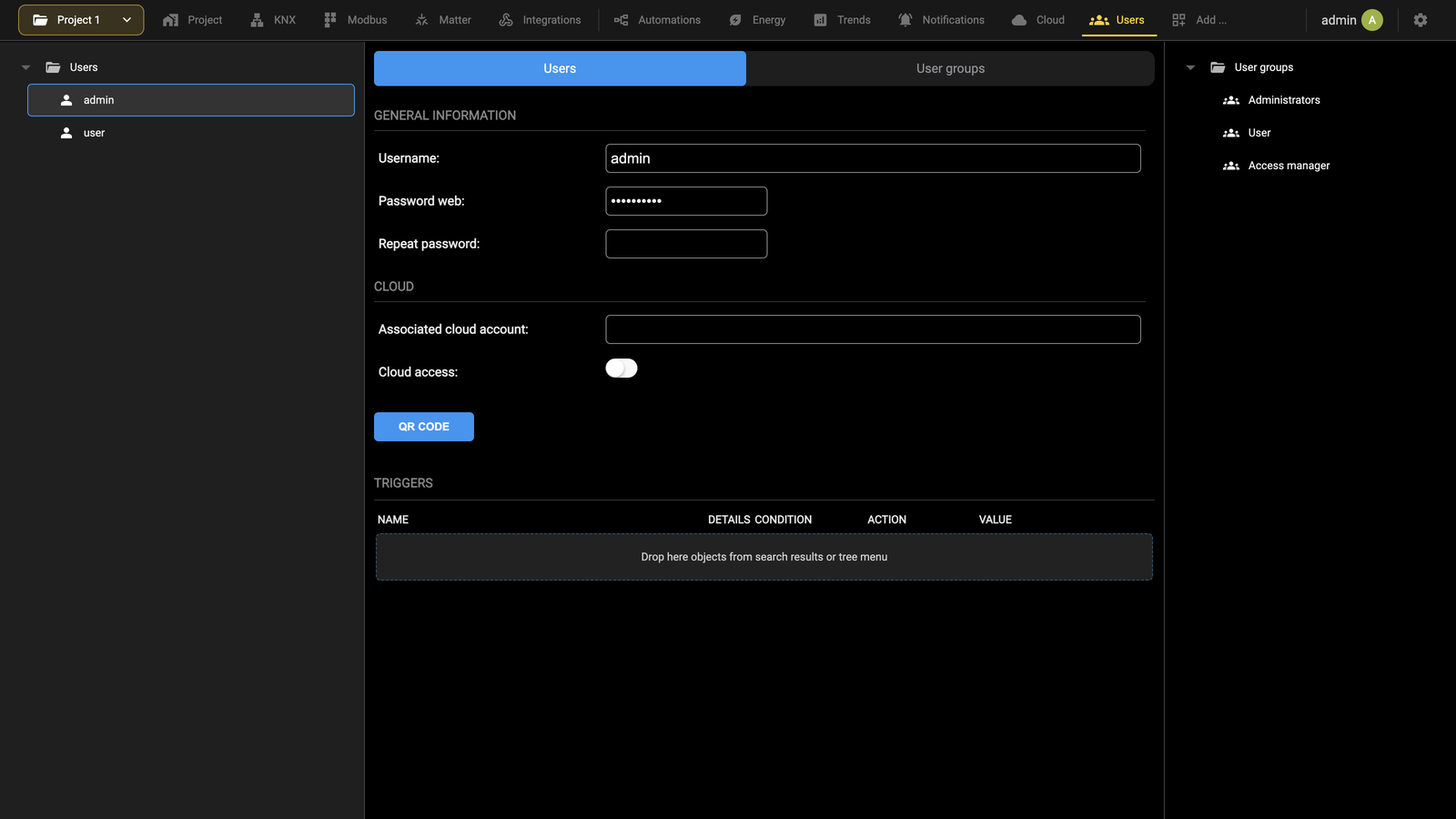
Once the DELÉGO app is installed on a smartphone, the user creates a new project by scanning the code, or by opening the image received from the installer.
Access log
The access log recorded who connected to DELÉGO and when, with a filter by date range, and was reached from the Users section of the Administration.
For the record of the notifications sent by the server, which is a different thing, see the Notification log of the Notifications section.
Notifications
Notifications are messages that DELÉGO SERVER sends to the users when specific actions, called TRIGGERS, occur. They can be sent as push notifications, shown in the Visualization and on the smartphone, as messages on a DELÉGO PANEL, as e-mails or as Telegram messages.
They are configured in the Notifications section of the bar, whose context tree groups them by channel: Push notifications, E-mail notifications, Telegram notifications and Delégo Panel notifications, each with the notifications already defined below it. The last node is Notification log, the history of everything that has been sent. The building tree is shown above them, so that a notification can be referred to the room it belongs to.
Push notifications
Push notifications are shown in the Visualization, in a specific popup accessible in the navigation menu that opens automatically when a message of type “alarm” is received, and are also sent to the smartphones that have the DELÉGO mobile app installed. They reach the phone even when the app is closed or in the background, or the device is in standby. To create a push notification:
- Access the Administration.
- Open the Notifications section and select Push notifications in the context tree.
- Use the Add action of the node in the context tree.
- Access the edit page of the new object created.
To configure a notification set the following information:
| NAME | The name of the notification. |
| MESSAGE CONTENT | Content of the message that will be displayed. The message can contain dynamic information of the object, that is to say, DELÉGO can automatically insert a text using the following keywords: ● {{obj.name}} is replaced with the name of the object that triggers the notification ● {{obj.current_value}} is replaced with the current value of the referenced object ● {{obj.id}} is replaced with the unique id of the object that triggers the notification |
| TYPE | Specifies the type of message: alarm, warning or information. The type affects the color of the banner that will be displayed: red for an alarm, yellow for a warning and blue for an information message. |
Once a notification is created, it has to be associated with an object through a trigger, so that when the state of that object changes the system generates the message. To link a notification to a trigger, drag the object or objects from the source panel into the TRIGGERS table of the notification, and select which values should be used for the trigger condition. Use the filter at the top of the source panel to find the object.
1 Refer to the Connections chapter for further details about the TRIGGERS
Email notifications
Email notifications are sent to one or more recipients when a specific TRIGGER occurs. To create an email notification:
- Access the Administration
- Open the Notifications section and select E-mail notifications in the context tree
- Use the Add action of the node in the context tree.
- Access the edit page of the new object created.
To configure a notification set the following information:
| NAME | The name of the notification. |
| RECIPIENTS | One or more email addresses (separated by commas or semicolons). |
| MAIL SUBJECT | The email subject. |
| MESSAGE | Content of the email that will be sent. The message text can contain dynamic information: DELÉGO can insert data about the object automatically, using keywords. |
The keywords available in the message body are:
| {{obj.name}} | It will be replaced with the name of the object that triggers the notification |
| {{obj.current_value}} | It will be replaced with the current value of the referenced object |
| {{obj.id}} | It will be replaced with the unique id of the object that triggers the notification |
In Expert mode it is also possible to enter CC and BCC addresses.
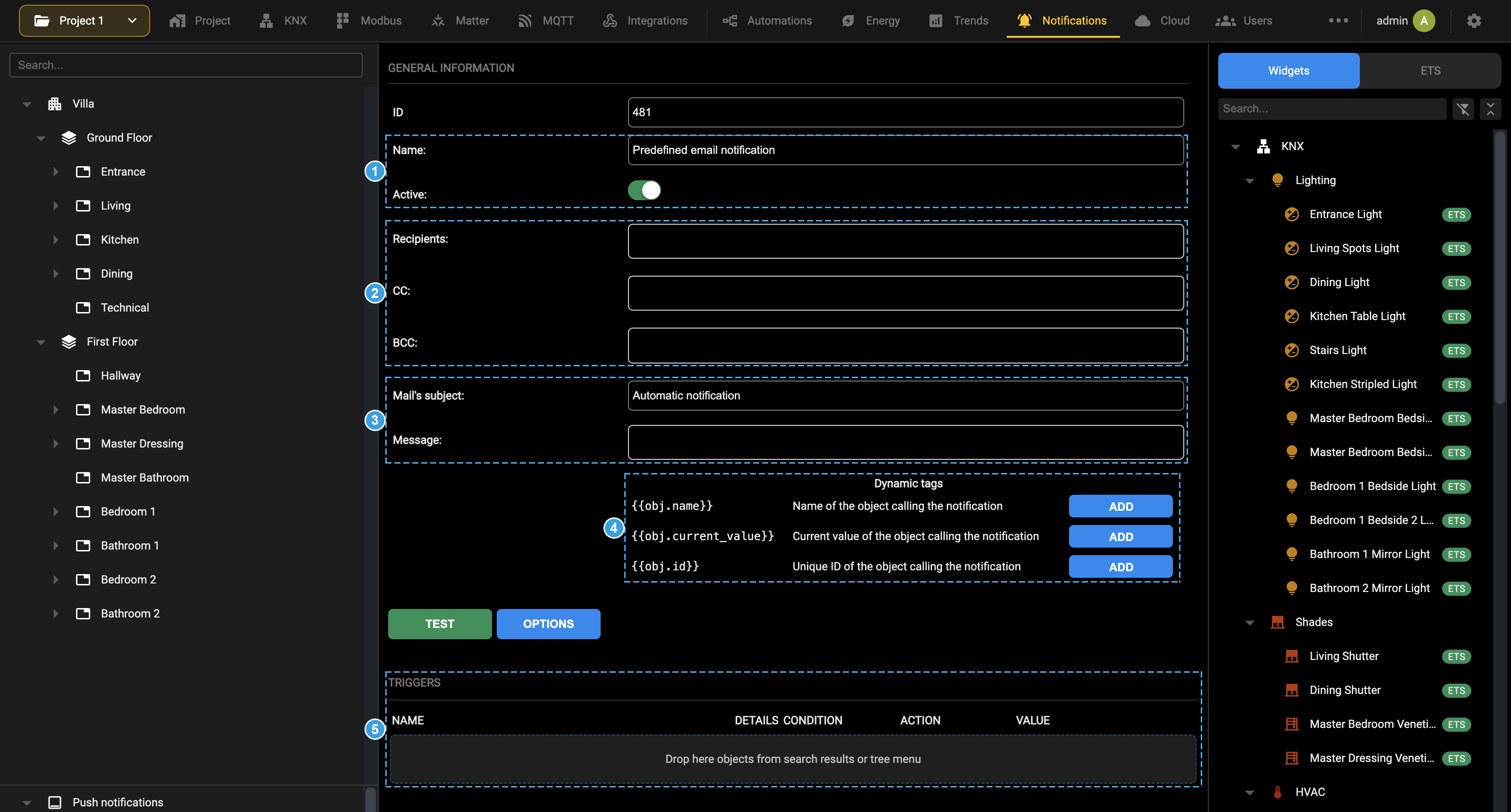
- Name of the notification and Active, which switches the notification on or off.
- Recipients, and the CC and BCC addresses shown in Expert mode.
- Mail's subject and Message.
- The Dynamic tags that can be used in the message, each with its ADD button.
- The TRIGGERS table, where the objects that send the notification are dropped.
After creating a mail it is necessary to link the trigger to an object; the procedure is the same as for push notifications.
The sending of email notifications depends on the settings of the E-MAIL group of Settings → Options (see Email settings).
Telegram notifications
DELÉGO SERVER can send its notifications to the TELEGRAM instant messaging service, so that they reach a phone without the DELÉGO app being involved.
Preliminary operations
Creating a BOT on Telegram
Once the Telegram app has been installed on your device, you need to create a new bot, which will be associated with DELÉGO SERVER.
To create a new bot, you need to search for the @BotFather (the “father” of all bots) in the Telegram app, which will allow you to create and manage new ones, whenever you want.

Then type /newbot and follow the interactive instructions. First you will need to give your bot a name, for example
Home
and then choose a username, which must be unique and must end in ; for example
DelegoBot
At this point your personal bot is ready to be used; @BotFather provides an API key, which is then used in DELÉGO SERVER..
Copy the code you just received for configuration with DELÉGO, and use it in the next steps.
Configuration
Creating a BOT on DELÉGO SERVER
Access the section in the menu administration
the Notifications section, node Telegram notifications, and use its Add action to create a new bot. Enter the API key issued by @BotFather in the API key field, and give the bot a name.
Then start the service clicking the START button; from this moment DELÉGO SERVER and your personal bot will be connected. It is necessary to open the Telegram application again and search for the newly created bot by typing @ before the username you chose.
Giving permissions to chats and users
The bot can be talked to directly, or added to a Telegram group. Either way, the user and the chat have to be authorized before the bot will deal with them, and the first step is simply to start the conversation: send a “Hello” in the chat.
After pressing REFRESH, a new row appears in the Chats list and in the Users list. Both have to be authorized, with the Authorize flag, before the bot interacts with them. A chat can also be enabled to receive the notifications sent by DELÉGO SERVER, with its Notifications flag.
Delégo Panel notifications
DELÉGO SERVER can send messages straight to one or more DELÉGO PANEL units. This kind of notification appears on top of whatever app is running on the panel and, depending on the settings of the panel itself, plays a sound. To receive it, the NOTIFICATION CENTER app has to be installed on the panel first.
After creating a new notification, its card asks for the following:
| Name | Identifies the notification within the project. |
| IP Address | Address of the destination touch panel on the local network. |
| Type | Severity of the message: Information, Warning or Alarm. |
| String | Text of the notification, which may carry dynamic parts. |
| Notification timer | How many seconds the message stays on the screen before the panel returns to the app it was showing. |
| Notification sound | Plays a sound when the message arrives, according to the settings of the panel app. |
The text may contain three dynamic tags, replaced when the notification is sent: {{obj.name}} with the name of the object that raised it, {{obj.current_value}} with its value at that moment, and {{obj.id}} with its identifier.
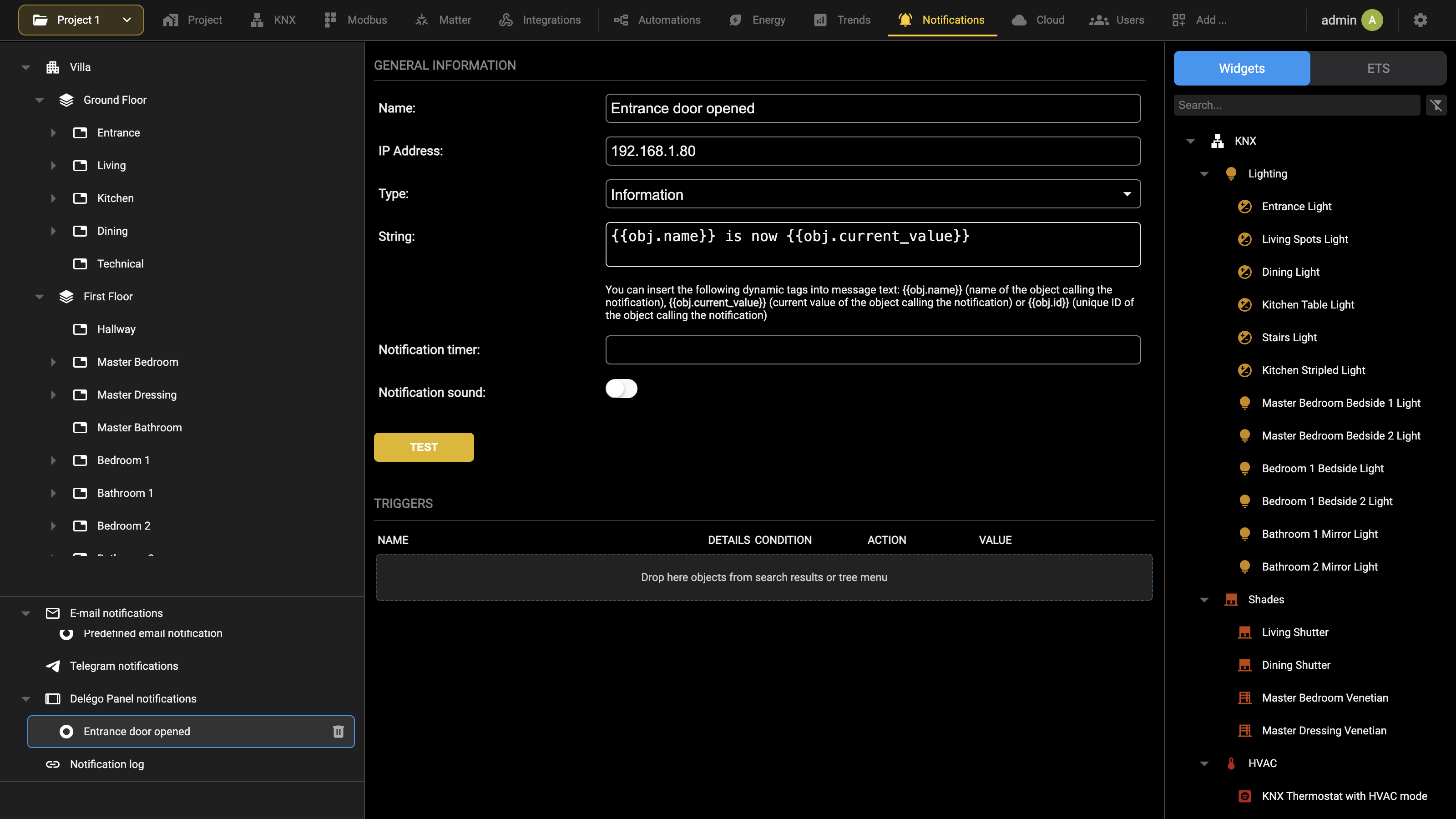
The Triggers list at the bottom of the card decides what causes the notification to be sent: drop into it the objects whose change of state has to raise it.
Notification log
Notification log, the last node of the Notifications context tree, keeps the history of all the notifications sent by DELÉGO.
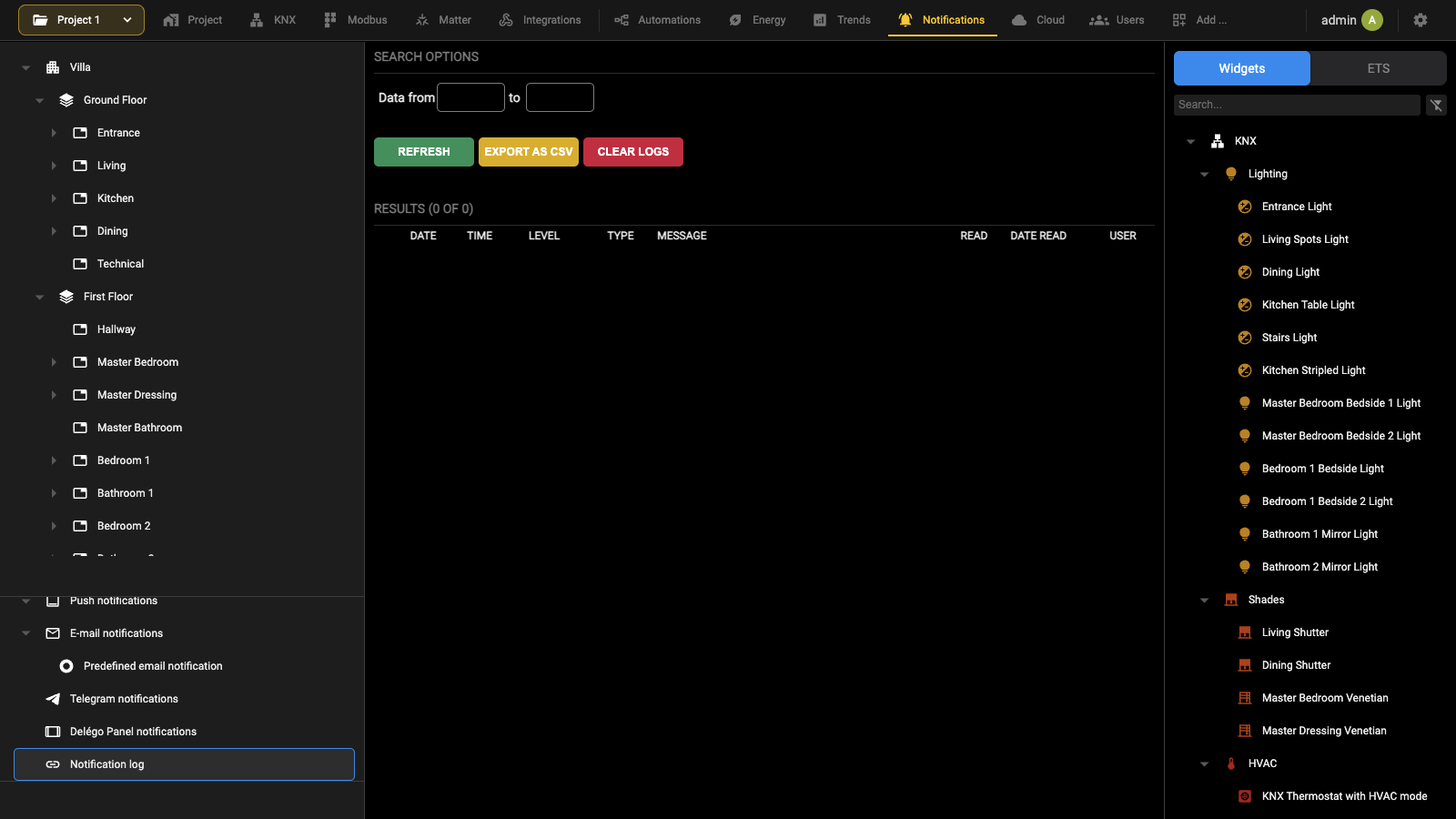
SEARCH OPTIONS restricts the history to a period, with the two date fields. The result appears below, headed by the number of entries found, in a table with the following columns:
| Date, Time | When the notification was sent. |
| Level | The severity of the message. |
| Type | The channel used: on-screen, e-mail, push, Telegram or DELÉGO PANEL. |
| Message | The text delivered to the user. |
| Read, Date Read, User | Whether the notification has been read, when, and by whom. |
Cloud
Introduction
This chapter contains all the information for configuring and using the services based on the EKINEX cloud that extend the local operation of DELÉGO SERVER.
Most of the services described are based on the EKINEX CLOUD platform, which requires a free account to be registered before it can be used; once created, the same account can be used for all the products and applications provided by EKINEX, not only limited to the DELÉGO suite.
Ekinex Cloud
The Cloud section of the bar associates the DELÉGO SERVER with the EKINEX cloud and manages the related services. It has two pages:
| CLOUD SERVICES | Registers the product and binds the webserver to a cloud account with OWNER or INSTALLER rights, which is the operation all the others depend on. The same page gives an overview of the services based on the EKINEX cloud, which empower the local functionalities: before being used, each of them has to be activated with a valid cloud account. |
| VOICE CONTROL | Permits the synchronization of widgets and scenes with the cloud, in order to enable them to be managed with the voice assistants and the quick commands in the DELÉGO app. |
Among the services listed in CLOUD SERVICES is the VPN, which gives full access to the home network where the webserver is installed. It can be used as an interface for the remote commissioning and maintenance of the KNX bus, and to reach other devices on the same network for their configuration. The desktop version of the DELÉGO app is required to get access to the cloud VPN from a PC or Mac.
The online services based on the EKINEX cloud are described in the following chapters.
Cloud services
Remote access
The CLOUD SERVICES page activates the Remote accessibility service, which lets you reach DELÉGO SERVER without opening IP ports on the home router. By pressing the ACTIVATE button, a request is made to the cloud, which after a few seconds sends a confirmation email to the requester (the same email with which the cloud section was accessed) containing:
- The address that can be accessed remotely (to be entered directly into the browser, or into the app DELÉGO)
- The expiry date of the service
The remote control service is free. Once the service is active, it is possible to see the remote server address of DELÉGO SERVER on the following pages:
- Settings → Network, in the NETWORK INFORMATIONS group, as Domain or public IP
- the QR CODE button on the card of a user, in the Users section
Without this service both fields would have to be filled in by hand with your public IP address or dynamic DNS name. With the service active they can no longer be edited: the cloud address can only be copied, to be used in a browser or in an app, or shared with other users.
Since the cloud address is made up of random characters, and therefore not easy to memorize, it is recommended to share access to DELÉGO SERVER via QR, as illustrated previously.
The DELÉGO SERVER exchanges information with the EKINEX cloud using port 5223. This does not pose any problem for home routers which have all outgoing ports open. If DELÉGO SERVER is used in a network with a firewall also for outgoing purposes (e.g. corporate network), port 5223 must be open for outgoing traffic only, for the IP address assigned to DELÉGO SERVER.
As an alternative to the remote accessibility cloud service, you can configure a port forwarding in your internet router, redirecting port 443 of the webserver (on the local network) to port 443, or another port of your choice, on the public address. In this case, it is advisable to enter the public IP address (if static) or the dynamic domain name (dyndns) in Settings → Network.
Access via a direct port is however not recommended, compared to cloud access, as it is less secure, and is conveyed through so-called “self-signed” SSL certificates present within the webserver, which imply security warnings when accessed with the browser or the app, or (in certain cases) the inability to access remotely.
Cloud backup
Thanks to this service, a copy of the project’s database can be exported on the cloud, and imported into the same DELÉGO SERVER or another one. Besides manual backups, a cloud backup is also saved automatically every day.
In order to use this service, you must be logged in to the EKINEX cloud service from DELÉGO SERVER, as explained in the Product registration chapter.
By opening the Backup/Restore tab of the project card
Project → Backup/Restore
the following options for cloud backup are available:
| EXPORT ON CLOUD | Saves a copy of the current project database to the cloud. It is possible to choose between: ● Creating a new backup (up to 2 backups can be kept). Before exporting the backup on the cloud, a name for the backup file must be entered. ● Overwriting an existing backup file. |
| DELETE FROM CLOUD | Removes a copy of the database from the cloud, in order to leave space for another backup. |
| IMPORT FROM CLOUD | Loads a backup previously saved on the cloud. It is possible to: ● Import a backup of the DELÉGO SERVER on which you are connected. ● Import a backup of another DELÉGO SERVER associated to the same cloud account. |
Cloud sync
This section describes how to synchronize DELÉGO SERVER with the cloud and how to select the graphic components that can be controlled by external services, such as Alexa and Google voice assistants. It is advisable to identify your DELÉGO SERVER with a label and the geographical coordinates of the location where it is installed. This allows an easier identification of the server on the cloud. After any change, press SYNC. This can be done in the following section:
Project → Project info
Cloud synchronization is decided widget by widget, on the card of each one, in the CLOUD block.
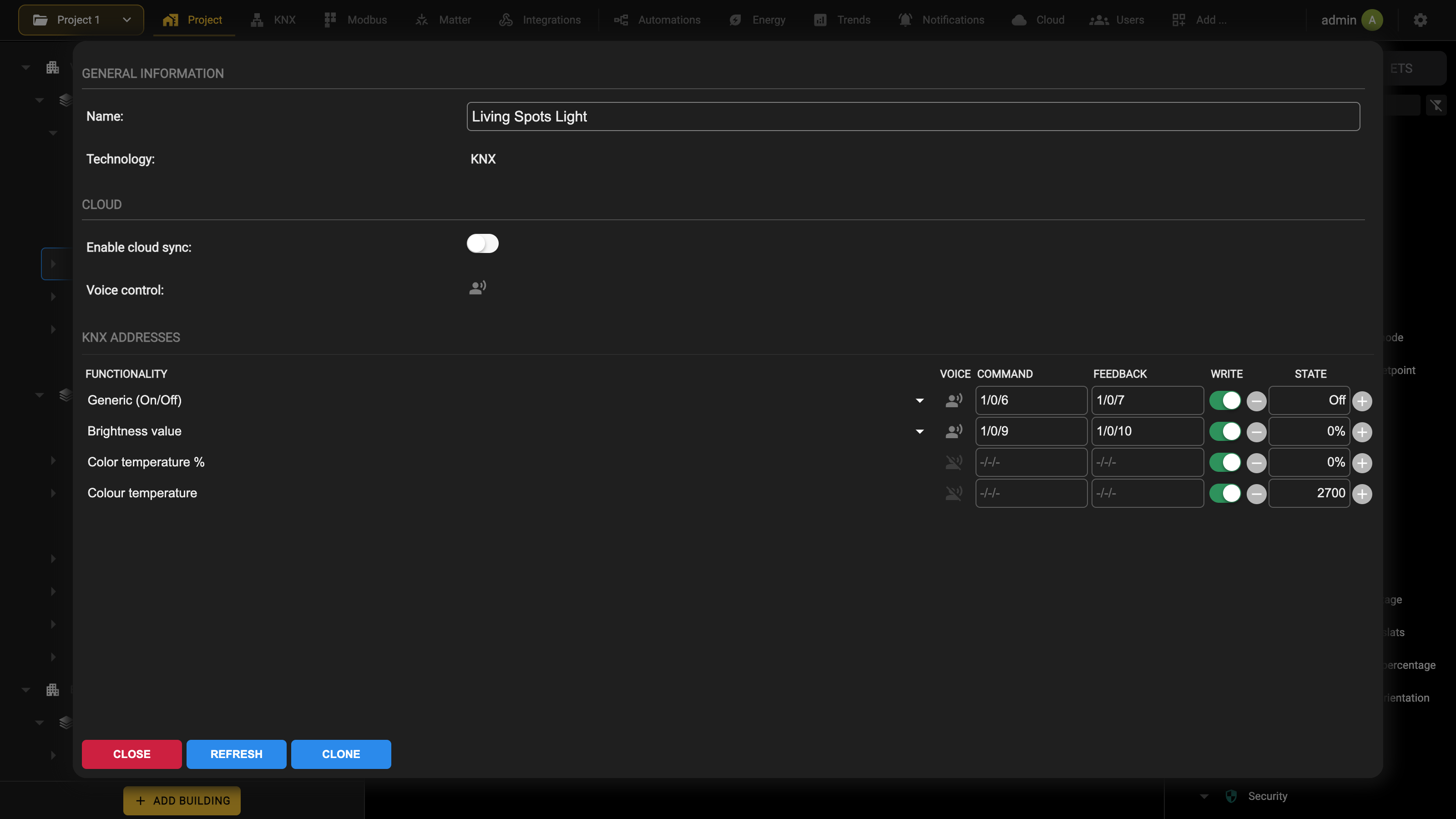
Turn Enable cloud sync on for each widget that has to reach the cloud. The selector stays orange until the synchronization has actually run: orange means the choice is saved in the project but not yet pushed to the EKINEX cloud.
Once every widget has been chosen, press the cloud indicator in the bar to review the summary and start the procedure with SYNC.
At the end of the procedure, all objects will be marked in green, until a new change to their configuration occurs; in the latter case, it will be necessary to perform a synchronization again. The status of the CLOUD indicator – green or red – indicates whether or not there are objects to synchronize.
If an object continues to be orange after a synchronization, you need to check its configuration; in the case of composite graphic components, for example, the minimum number of sub-objects essential for its correct management via the cloud may be missing.
Voice control
Once the graphic components have been correctly synchronized, it is possible to control them via the voice assistants Alexa and Google Assistant, through the management of the smart home of the respective systems (“Alexa” app in the case of Amazon, “Home” for Google). This chapter will describe the procedure for Alexa.
The first step is to activate the EKINEX option in Alexa or Google Home apps; during the procedure, you are asked to associate the EKINEX cloud account. Then it is necessary to execute a scan to search for new devices. Once the procedure has been completed, it is possible to associate each device to a group, to identify it easily and be able to issue group commands, or refer to it verbally using the name of the group. At this point, it is possible to control the new functions with your voice, or with the graphics of the Alexa / Google Home app. For a list of specific keywords, refer to the Alexa and Google Assistant documentation. Here are some examples of the most common requests using Alexa:
Alexa, turn on the light in the kitchen Alexa, set the living room light to 70% Alexa, increase the light in the room by 20% Alexa, tell me the temperature in the living room Alexa, set the kitchen temperature to 21 degrees Alexa, run turn everything off
Please note that not all DELÉGO SERVER features can be managed with Alexa and Google Assistant, because the device models of these systems are far simpler than the functions a KNX system offers. For this purpose, an indicator has been introduced in DELÉGO SERVER, which highlights whether a specific graphic component / object (or which sub-objects are, in the case of composite graphic components) can be controlled by voice.
That indicator is the VOICE column of the address table on the card of the widget, shown in the figure of the Cloud sync chapter: a speaker in full color marks a datapoint an assistant can reach, a grayed-out one a datapoint it cannot.
The use of DELÉGO SERVER with Amazon or Google voice assistants requires the use of port 8883 for updating states and commands. This is not a problem for home routers with all outgoing ports open. If DELÉGO SERVER is used in a network with a firewall (e.g. company network), port 8883 must be open only for the IP address assigned to the DELÉGO SERVER.
Where voice assistants are to be used, the widgets of the Other family, Single value and Generic, cannot be synchronized on the cloud: use only widgets from Lighting, HVAC and Shades.
Quick commands on the mobile app
The DELÉGO app for mobile devices provides a set of quick commands accessible directly on the initial graphic page of the app, convenient for multi-system management. In fact, it is possible to carry out commands and view the most frequently used and/or most important states (for example garage opening and closing) to manage a system without directly accessing the complete graphic interface.
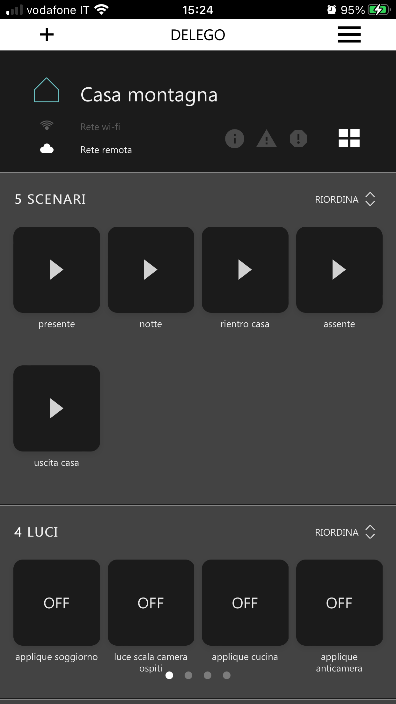
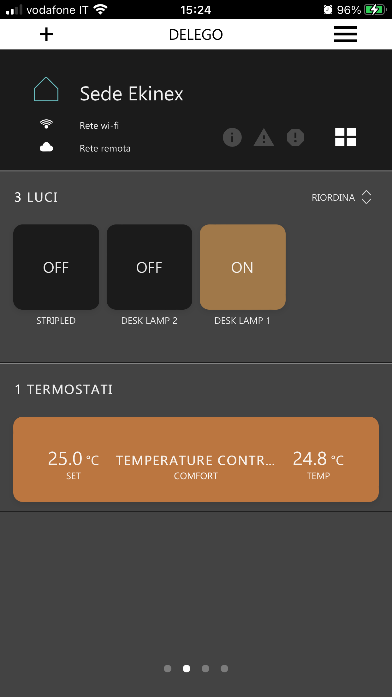
The procedure for configuring shortcuts on the app requires you to follow these steps.
- On DELÉGO SERVER create an EKINEX cloud account, to be associated with every server whose installation the DELÉGO app has to display. The account must be unique for all servers that belong to a multi-installation configuration. The account may not necessarily be the account with which the remote access service is associated. To create an account, open the Administration on the DELÉGO SERVER and go to Cloud → Cloud Services. Once the account has been created, the same account can be used to associate other servers.
- On DELÉGO SERVER, bind the created account with each of the servers for which DELÉGO app must display the shortcuts on the app. The binding must be done as Owner.
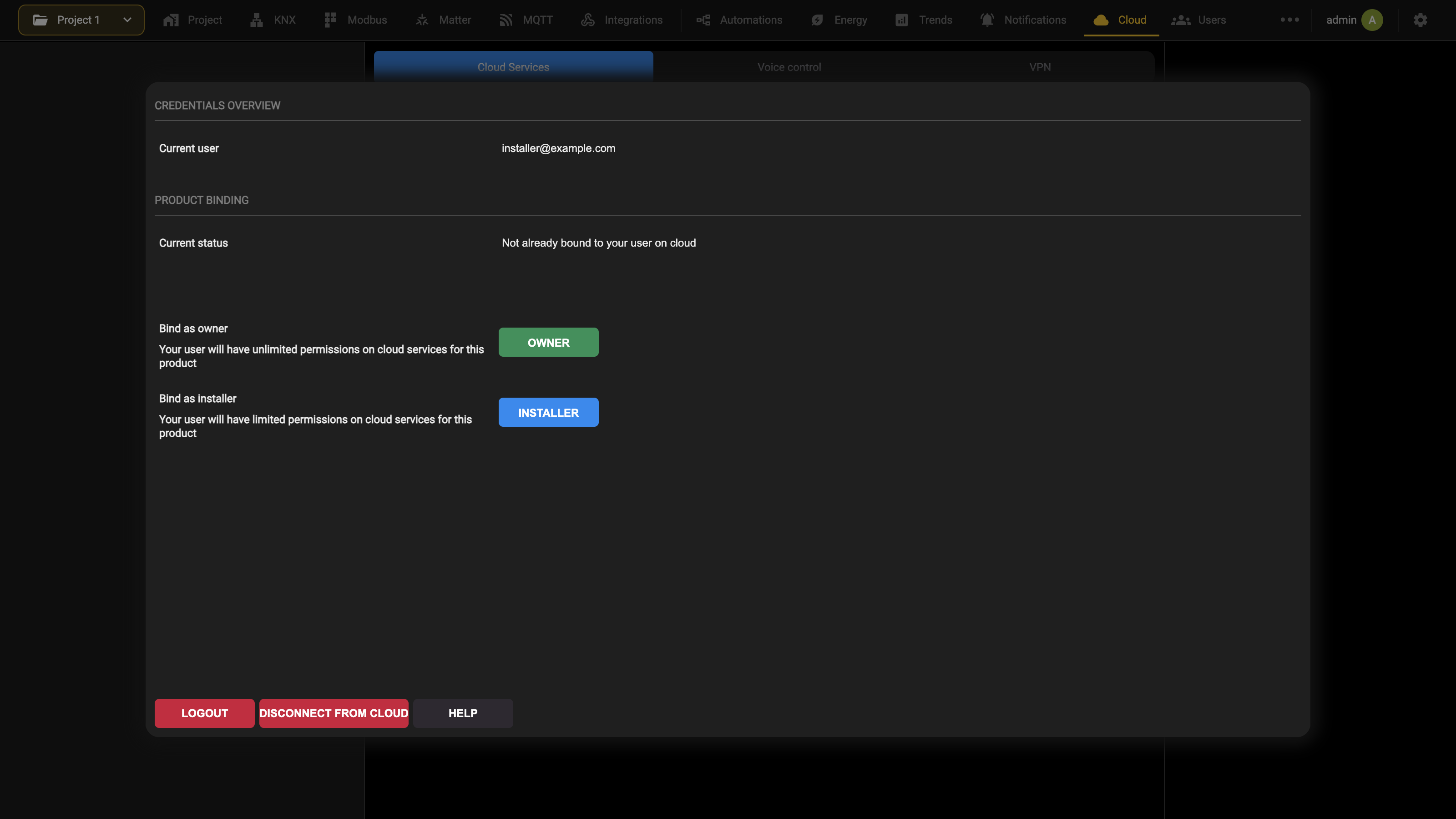
- On DELÉGO SERVER activate the cloud synchronization checkbox for each of the widgets you intend to expose in the shortcuts.
- On DELÉGO SERVER synchronize all the widgets for which the cloud check-box has been activated to the cloud. To carry out this operation, in the Administration go to Cloud → Voice control, press the SYNC button and wait for all the checkboxes to turn green, with the Last sync field updated to the current time.
- On the DELÉGO app, open the contextual menu at the top right of the app title bar and select Connect Ekinex account: enter the credentials of the account created in point 1. Once connected, the configured quick commands will appear on the main page of the app for each system.
Cloud VPN
Starting from version 2.5.2, it is possible to connect directly to the home network where DELÉGO SERVER is installed, from a PC / Mac, through a VPN connection based on the EKINEX cloud.
This connection is useful to remotely:
- Program KNX devices or do diagnostics with ETS PROFESSIONAL.
- Change the configuration of EKINEX connected devices (DICO intercom, DELÉGO Panels, etc.).
- Access any other network-based device, in the same way it would be possible being physically attached to the LAN.
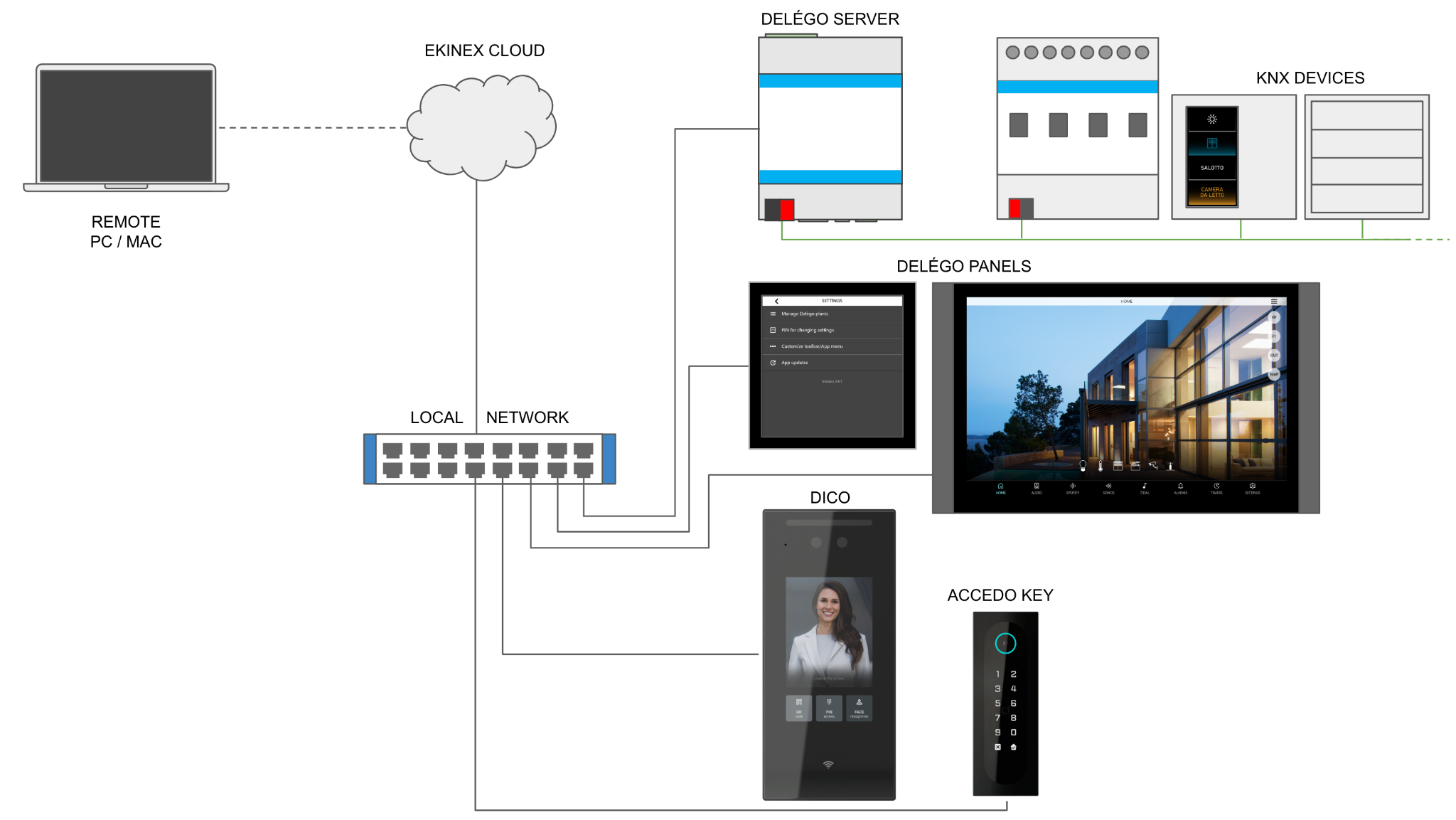
Each DELÉGO SERVER has its own dedicated VPN, isolated from the others, and uses WireGuard tunnel technology, to ensure the maximum degree of robustness and security. No configuration is required on the internet router / firewall.
The cloud VPN service is available only on the 4 DIN rail modules hardware version of DELÉGO SERVER. The older version of 2 DIN rail modules does not support it.
The “old” local VPN, based on an internal server and requiring a port forwarding rule on the router, is no longer available starting from release 2.7.0.
Service activation
In the Administration, after having done a cloud login with a valid EKINEX cloud account, open
Cloud → Cloud Services
and identify the VPN service.
Press the ACTIVATE button and wait until the list reloads and the service becomes active.
The VPN service will “belong” to the cloud account used to activate it. It is your choice to associate it to the installer account, or the property manager (owner) one.
VPN creation
Once the VPN service has been activated, enter the section
Cloud → VPN
and enter a name, to be associated with the VPN. This name will be reported in email and push messages, therefore it is suggested to give a name reminding the building / installation.
By default, for security reasons, DELÉGO SERVER does not allow access to any other device in the home network (LAN) except itself.
It is possible to optionally expose one or more devices, or network subnets, by entering the following informations:
- To expose a single IP address, enter it in the text fields, and press ADD.
- To expose a subnet, enter only the first parts of the address, by leaving the last part(s) empty. In this case all the IP devices matching the numbers entered will be reachable remotely.
In some sections of the webserver, mobile app and client for the VPN connection, the so-called “CIDR” notation is used to represent the exposed addresses.
Please refer to the following table, containing some examples, to clarify the different notations:
| DELEGO SETTING | CIDR NOTATION | REACHABLE IP ADDRESS(ES) |
|---|---|---|
| 192.168.1.1 | 192.168.1.1 /32 | 192.168.1.1 |
| 192.168.1.XXX | 192.168.1.0 /24 | 192.168.1.1 192.168.1.2 [...] |
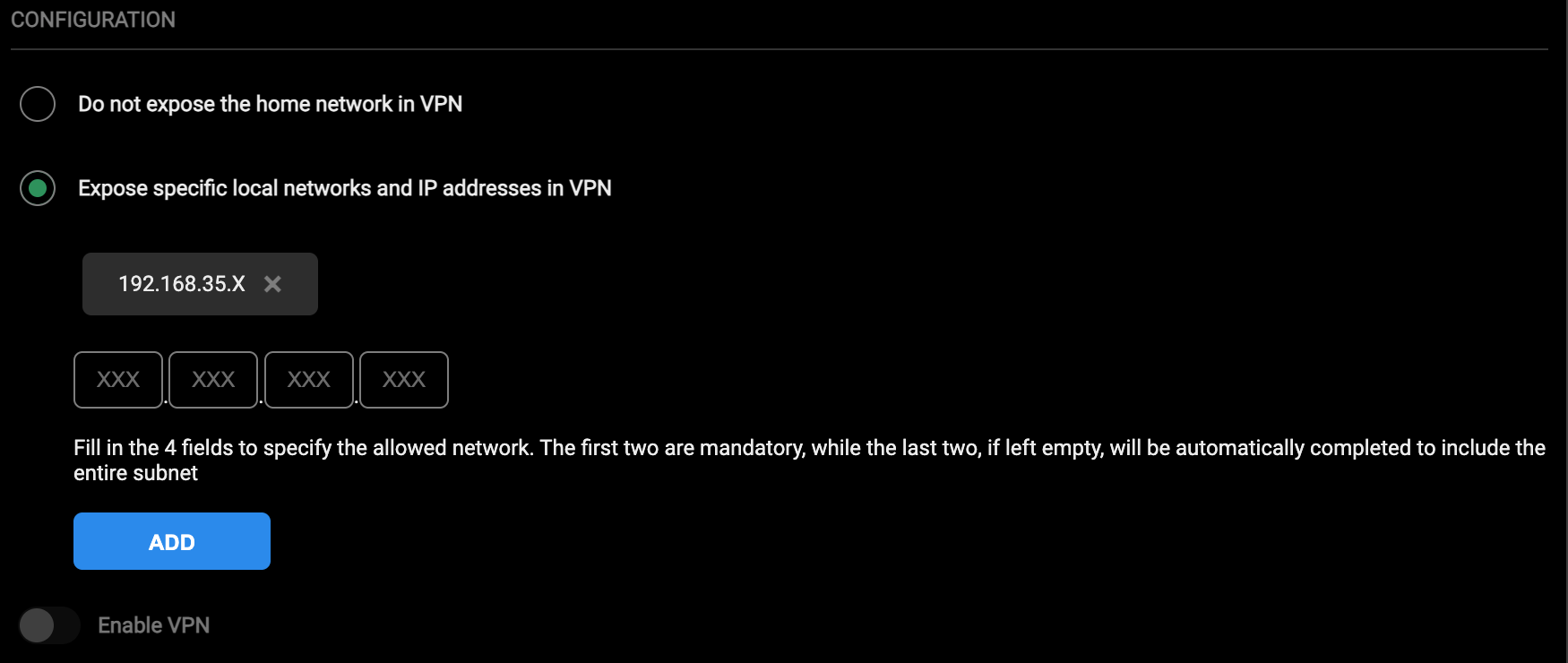
192.168.1.254
| 192.168.XXX.XXX 192.168.0.0 /16 | 192.168.1.1 192.168.1.2 [...] 192.168.1.254 192.168.2.1 [...] 192.168.254.254 |
Press the CREATE button and wait until the VPN information appears on the page, like in the following example:
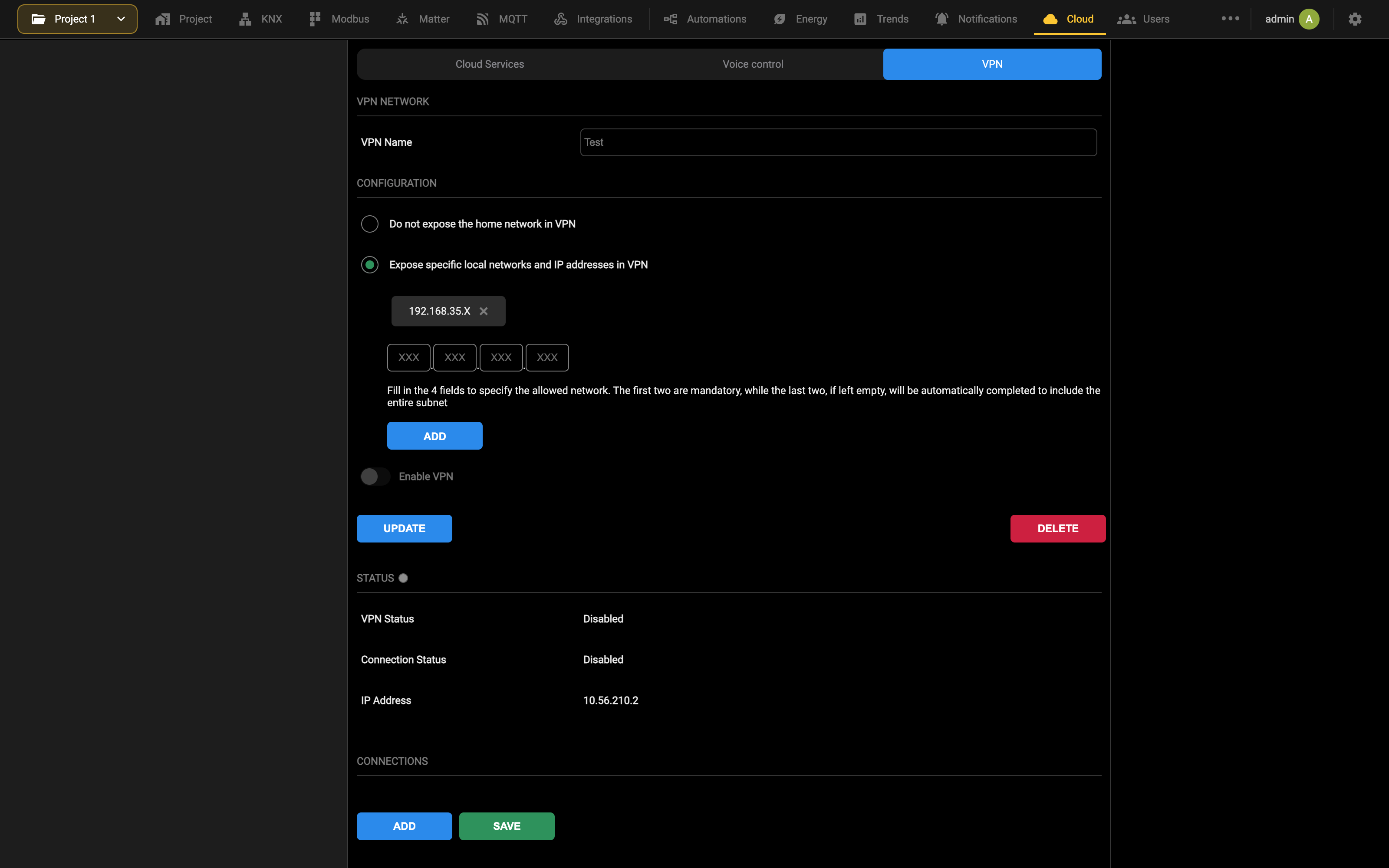
If you want to reach the DELÉGO SERVER with its IP address in the home network (LAN), this address must be added to the exposed IP addresses list.
Otherwise, the DELÉGO SERVER will be only reachable with its VPN address, the one reported under STATUS.
The new VPN is enabled by default: this means that all the cloud accounts, entitled to have a connection, will be able to connect.
Deselect the corresponding flag and press the UPDATE button to make it disabled by default; the owner(s) will enable it with the DELÉGO mobile app, as described below.
After any change to the configuration, press the UPDATE button to apply it. To erase an existing VPN completely, press DELETE.
Connections
In order to connect to the VPN, installers must have one connection for each PC / Mac they will use to remotely access the home network. Use the Add action of the node in the context tree and enter the following information:
- A label that identifies the PC / Mac used for the connection.
- The cloud account associated with the connection.
- The enable (grant) status of the connection.
Only the cloud accounts associated with the DELÉGO SERVER can be selected for the connections. In order to grant access to new accounts:
- Create a new local user in DELÉGO SERVER in the Users section.
- Log in with these credentials, then log in to the desired cloud account in Cloud → Cloud Services.
- Bind the cloud account as OWNER or INSTALLER by pressing the corresponding button (once the cloud login has been done).
Once the SAVE button has been pressed, two further buttons become available:
- The DOWNLOAD button is used to download the configuration file, necessary to set up the VPN connection on the PC/Mac of the installer that needs to connect to the DELÉGO SERVER.
- The QR CODE button is used to download the QR code that can be used on a VPN tool to set up automatically the VPN connection to the DELÉGO SERVER.
Any time a change is done on the configuration of the VPN (e.g. changing the exposed IP addresses) it is necessary to download a new configuration file or QR code.
In that situation, a yellow warning indicator blinks close to the connections to be downloaded again.
Starting and stopping the VPN
By default a VPN is stopped, and has to be started by hand whenever a remote connection to the home network is needed. This can be done by pressing the START button in the VPN configuration page in DELÉGO SERVER, or with the mobile app (as described in the dedicated section later). A VPN connection stays active for 2 hours, then stops on its own. To stop it manually, press the STOP button, when it is no longer needed.
If a longer connection is needed, the VPN can be simply stopped / started again, any desired number of times.
The Status section also contains the IP address of DELÉGO SERVER inside the VPN, in the IP Address row.
Use this IP address to “point” to the webserver, in order to:
- Access its web pages.
- Use it as an IP interface for ETS PROFESSIONAL.
Control with the mobile app
Requirements
The DELÉGO mobile app can drive the VPN of a DELÉGO SERVER, provided that:
- an EKINEX cloud account has been entered in the settings of the app;
- at least one DELÉGO SERVER carries a valid cloud remote address;
- the servers are associated with that cloud account, with Owner or Installer rights.
A project whose VPN is available shows a padlock on the right of its title. Pressing it opens the VPN control screen, described in the paragraphs that follow.
Owner view
The following picture shows the typical VPN section content for an owner account:
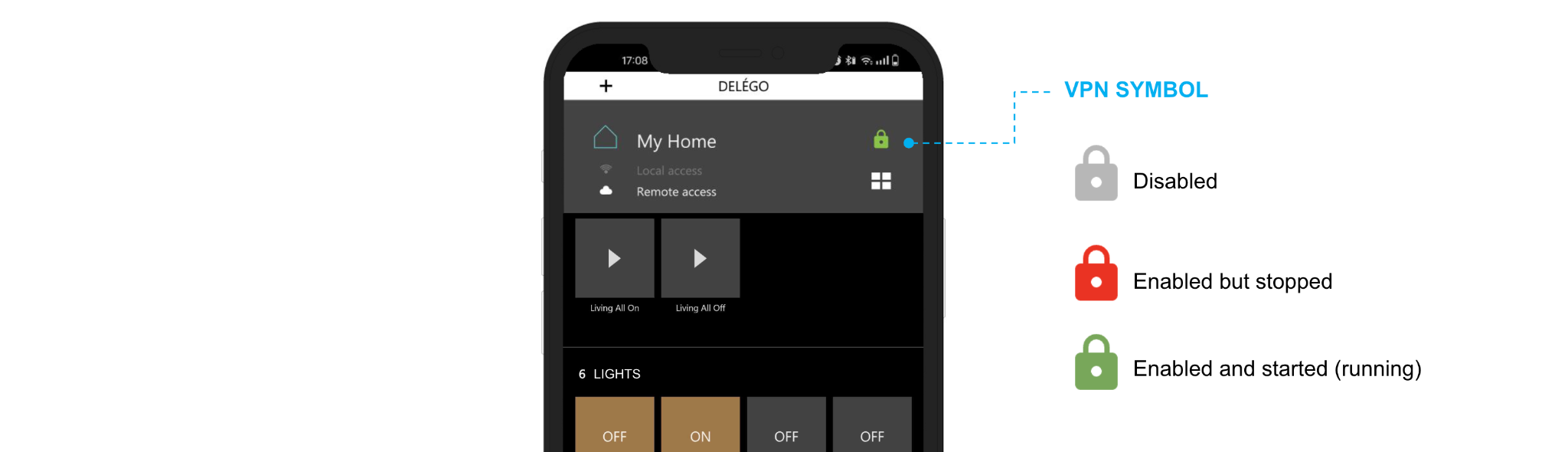
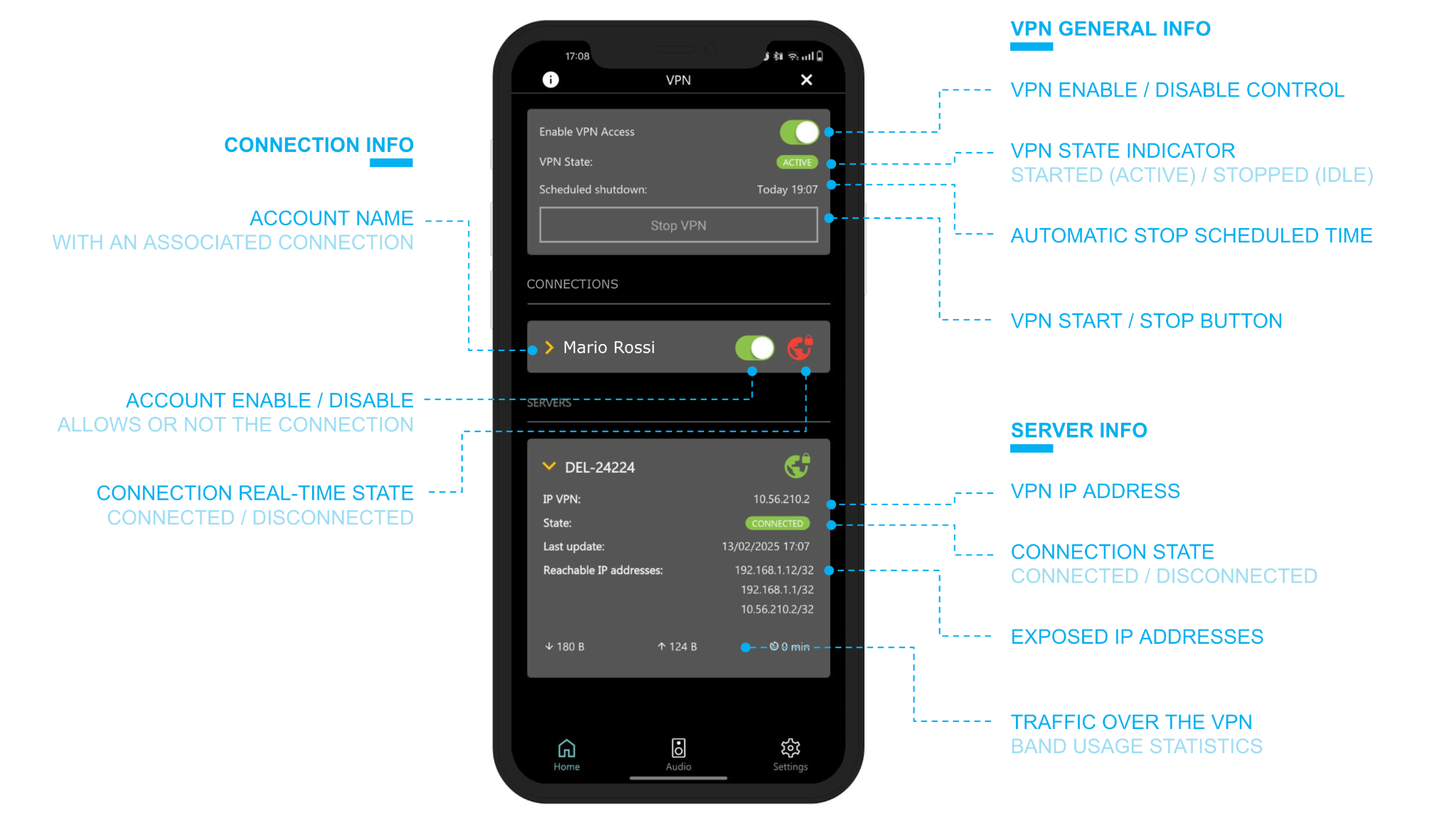
If the owner is not associated with a connection, the START / STOP button is not visible; this action, in fact, is useful only to users who need to connect from their PC / Mac.
If the VPN is not enabled, all the contents are hidden, and the only possible action is to enable it:
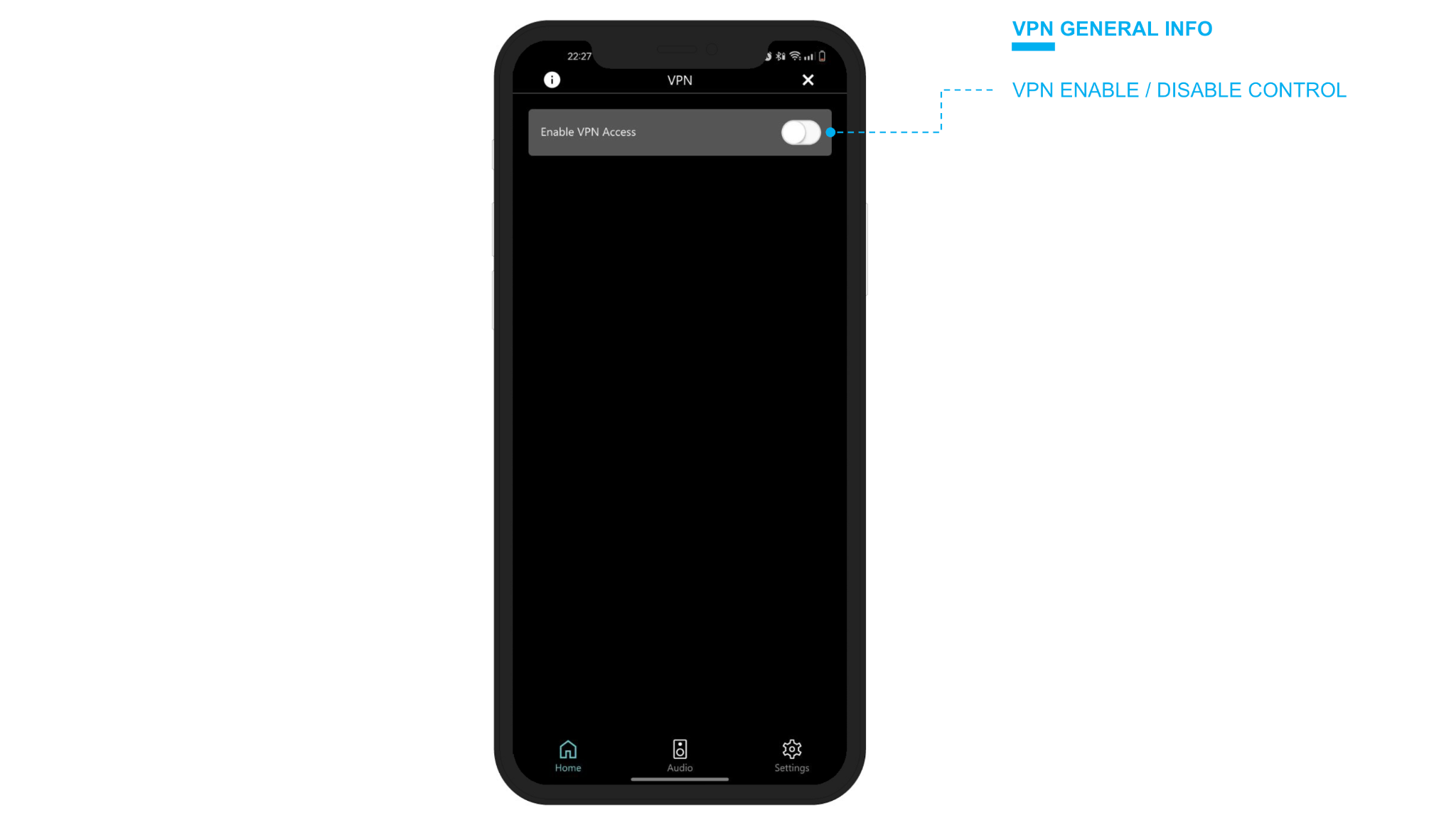
Each account with an associated connection can be enabled or disabled with the corresponding control: in general, a VPN can be enabled (green indicator in the initial part of the screen) but the single users can be disabled. In this case, they cannot connect. When a user connects through one of these connections, the state goes to green.
The server info section contains details about the connection of the webserver to the VPN, its IP address, and all the other reachable IP addresses.
After any Enable, START / STOP or grant operation it may take up to a minute for the connection to be established again and for the status indicator in the app to line up with the webserver and the connected computers.
Installer view
The VPN section as an installer sees it contains less information, as in the following example:
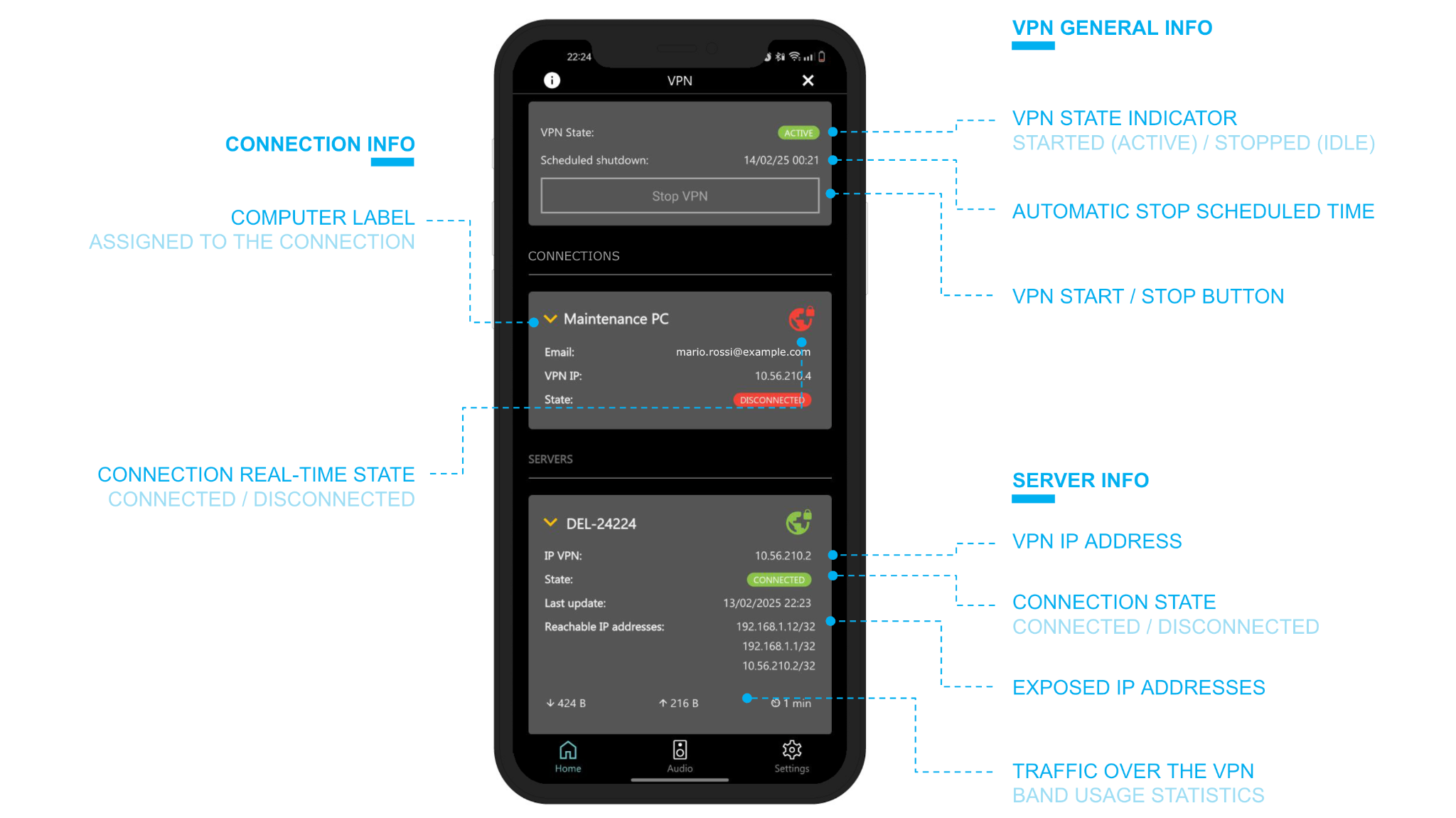
If the VPN is disabled, or the installer has not been granted access, the only allowed action is to send a request to connect:
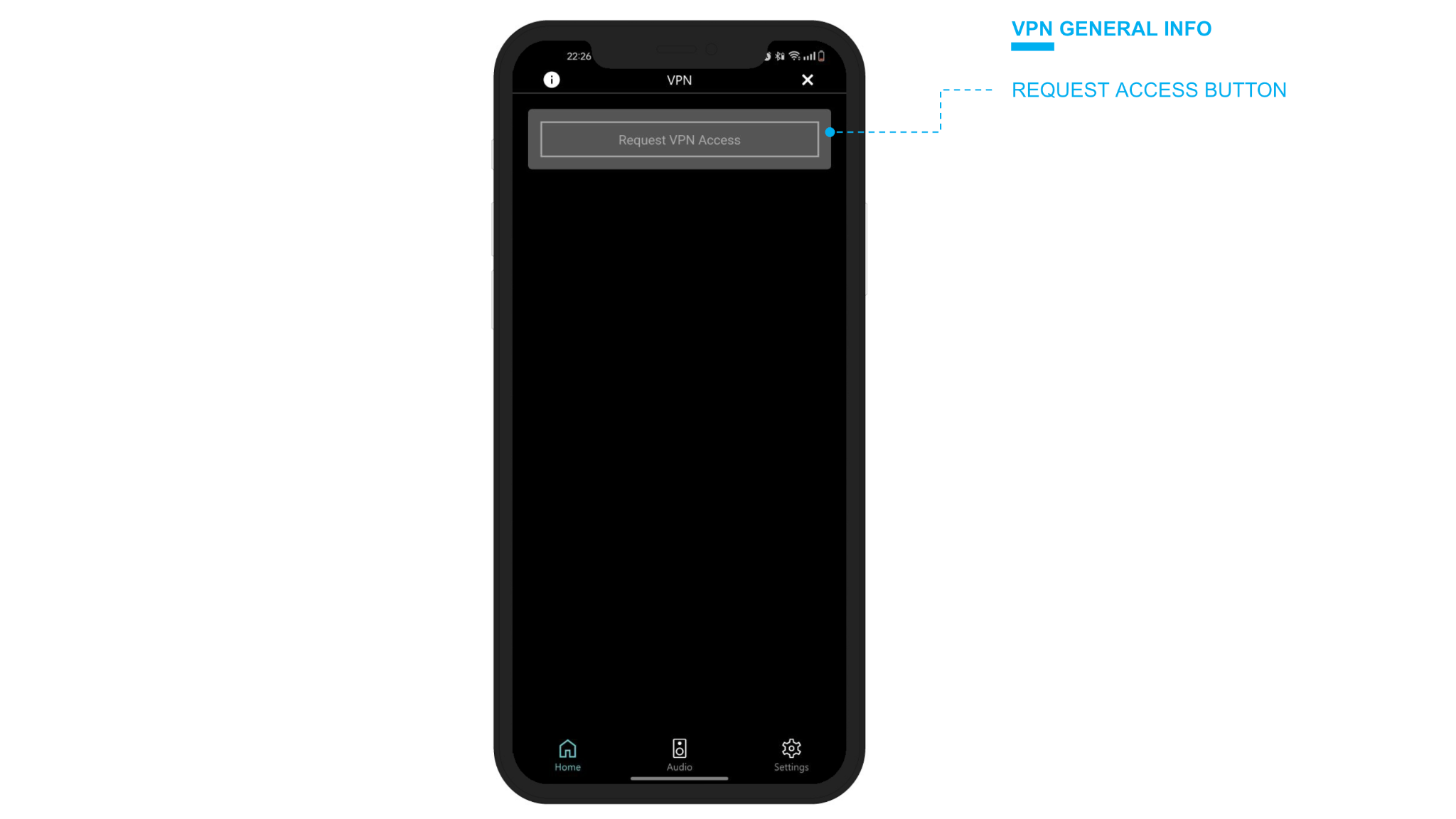
Notifications
When an installer asks to connect, a push notification and an e-mail go out immediately to every owner of the webserver. Pressing the notification opens the DELÉGO app straight on the VPN concerned, where the Enable control is all that has to be operated.
The same notifications are sent when:
- a VPN is enabled or disabled;
- a VPN is started or stopped;
- a connection is granted to a user, or refused.
Remote VPN Connection
Installing the DELÉGO app
To connect remotely to the home network, you need to use the desktop version of the DELÉGO app, which can be downloaded for free from DELÉGO app on the Ekinex website:
https://www.ekinex.com/en/delego-server/new-delego-server.html
Once installed, open the app and enter your computer's administrator password when prompted (this is required to have the necessary permissions to open VPN connections). The app's main screen looks like the following figure:
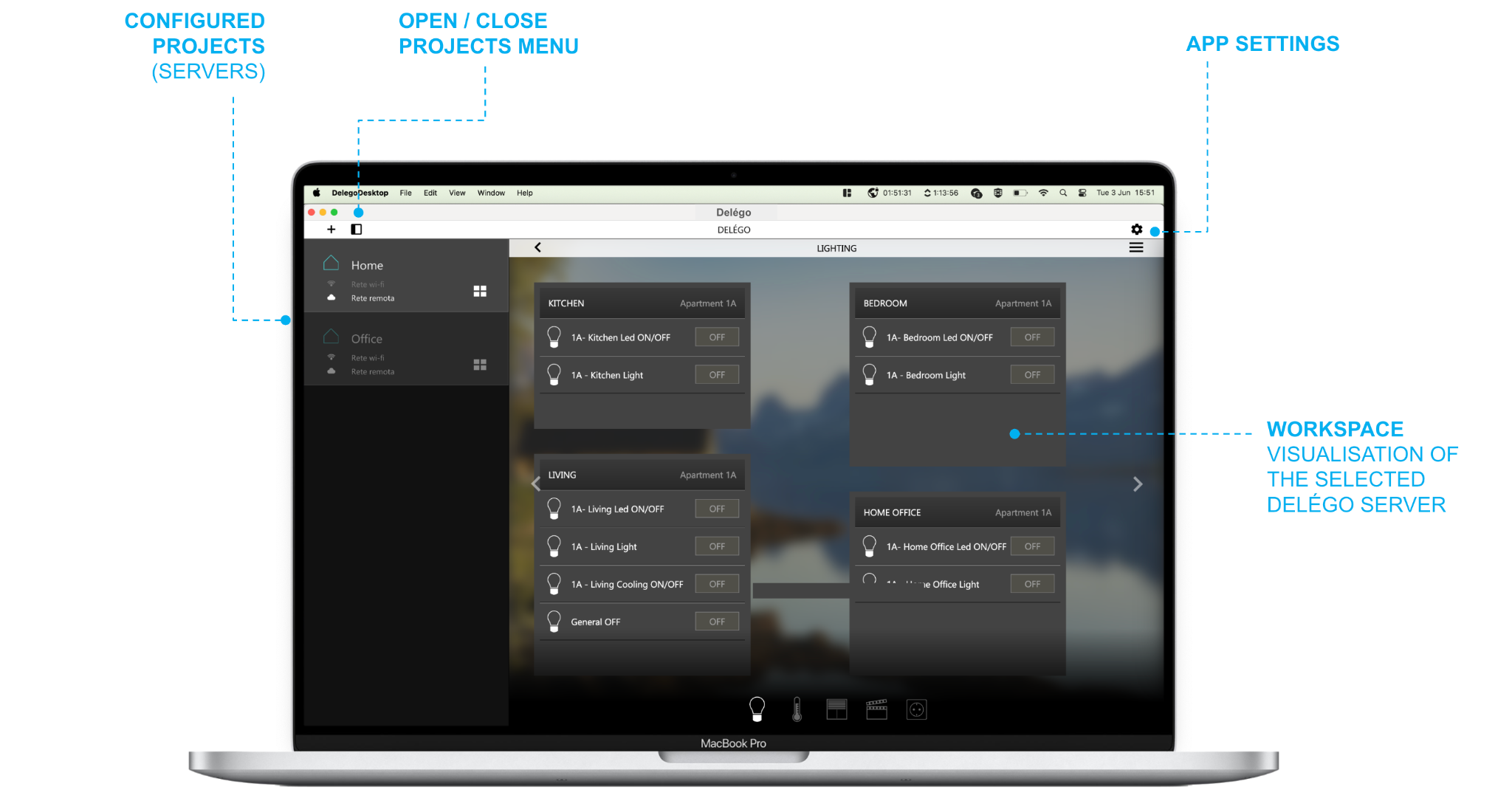
Cloud login
Reaching an installation over the VPN requires authenticating with an EKINEX cloud account.
Press the settings button, select Connect Ekinex account and enter the e-mail address and the password of the account.
Accessing the VPNs
If the connection to the cloud is successful, a menu appears in the system bar containing the list of CLOUD VPNs to which your account has access.
If one or more webservers have also been configured as systems (see next point) they appear at the beginning of the list, otherwise they are listed in the “Other VPNs” section as in the following example (which shows the macOS version):
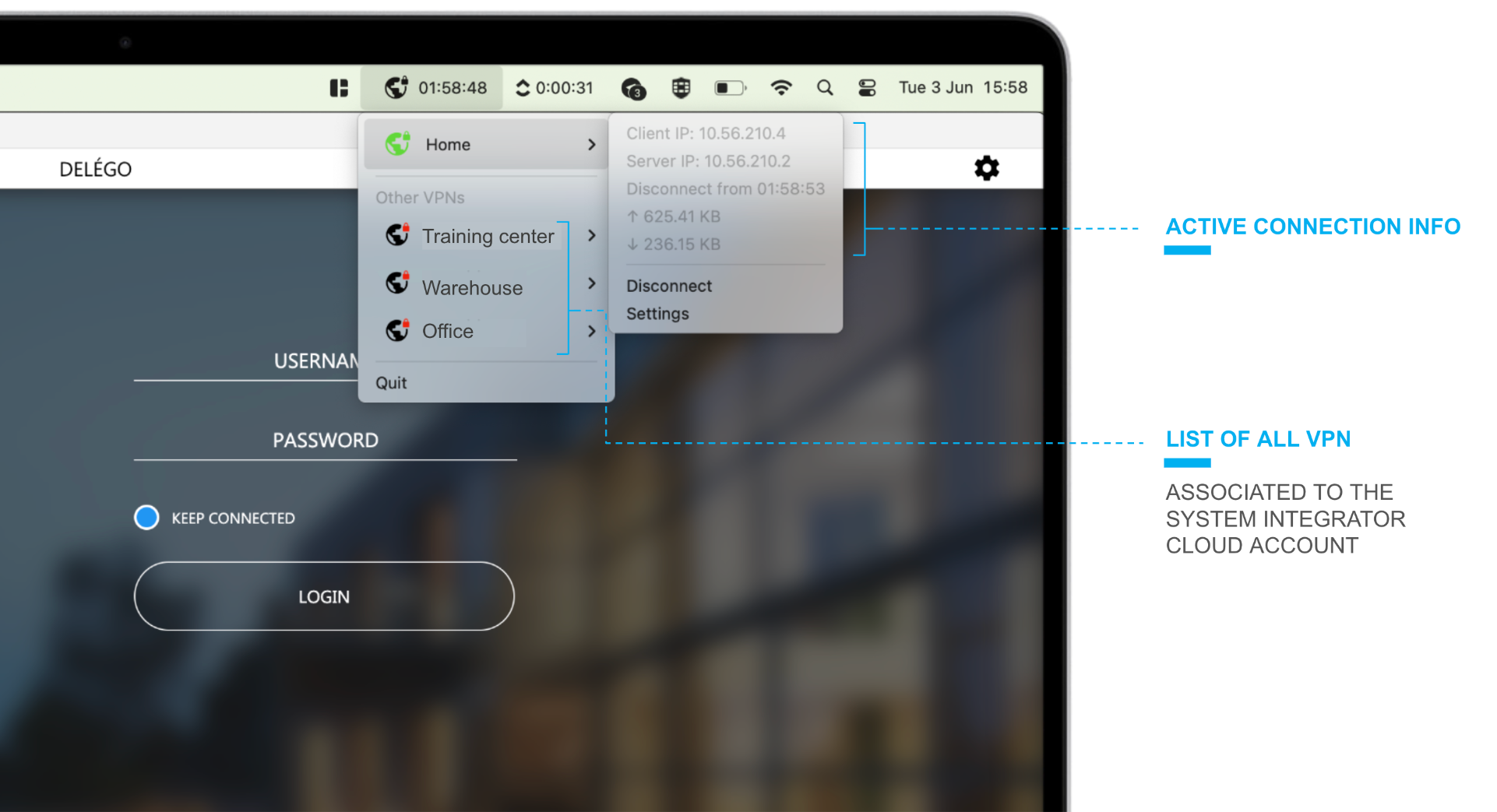
The first time you connect to a VPN, you need to press the SETTINGS item; a screen similar to the following is displayed:
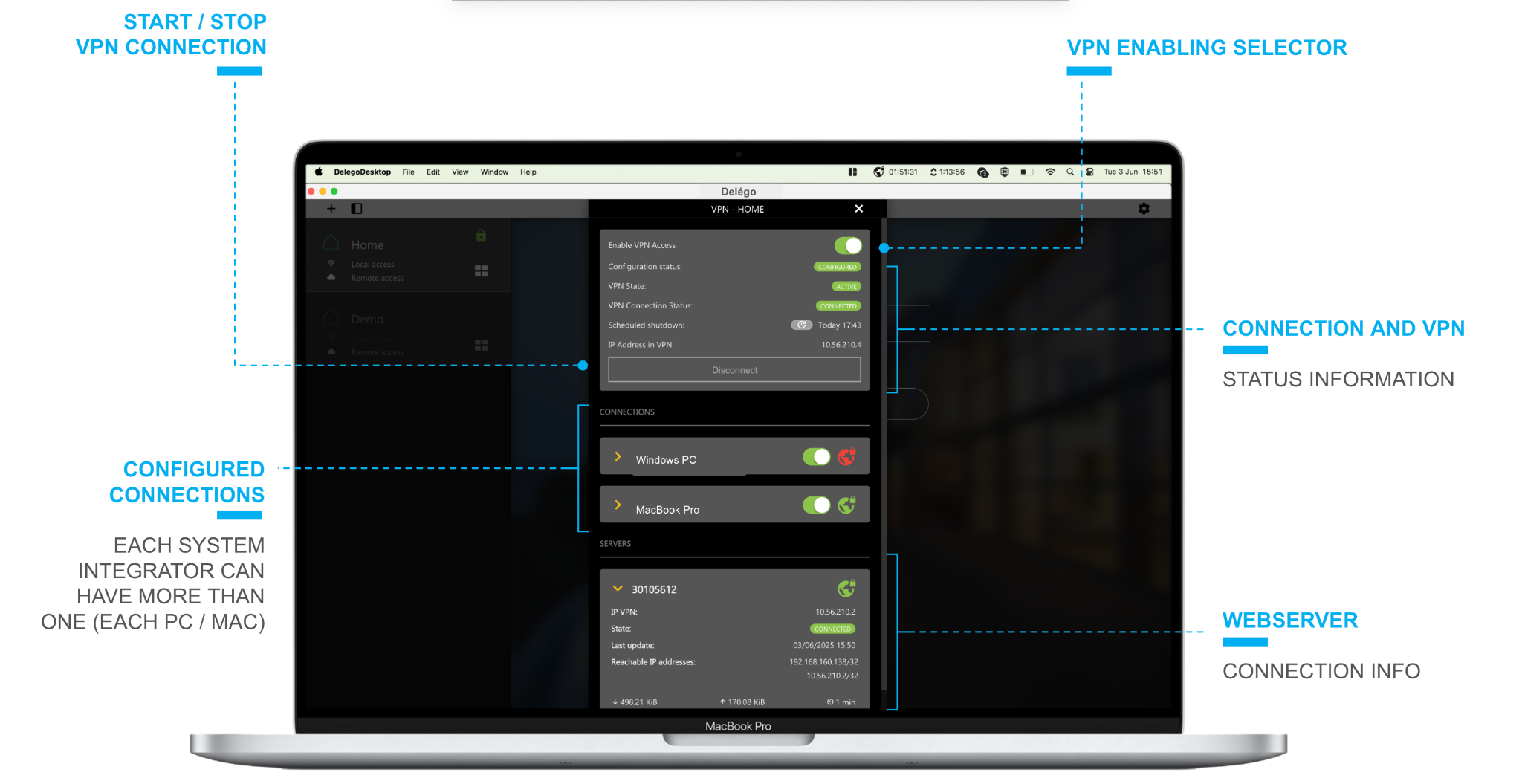
In the CONNECTIONS section, a new connection is automatically created for your PC / MAC, associated with your cloud account. This connection is initially disabled; if you have an installer profile, you must request access via the appropriate button at the top of the popup, and wait for the building owner to authorize your user to connect.
If, on the other hand, you are the owner, you can enable the connection, with the appropriate selector.
By pressing the CONNECT button, you can establish a connection to the building's local network through the CLOUD VPN; after a few seconds, the status indicators turn green, and the statistics on connection time and exchanged data traffic begin to update.
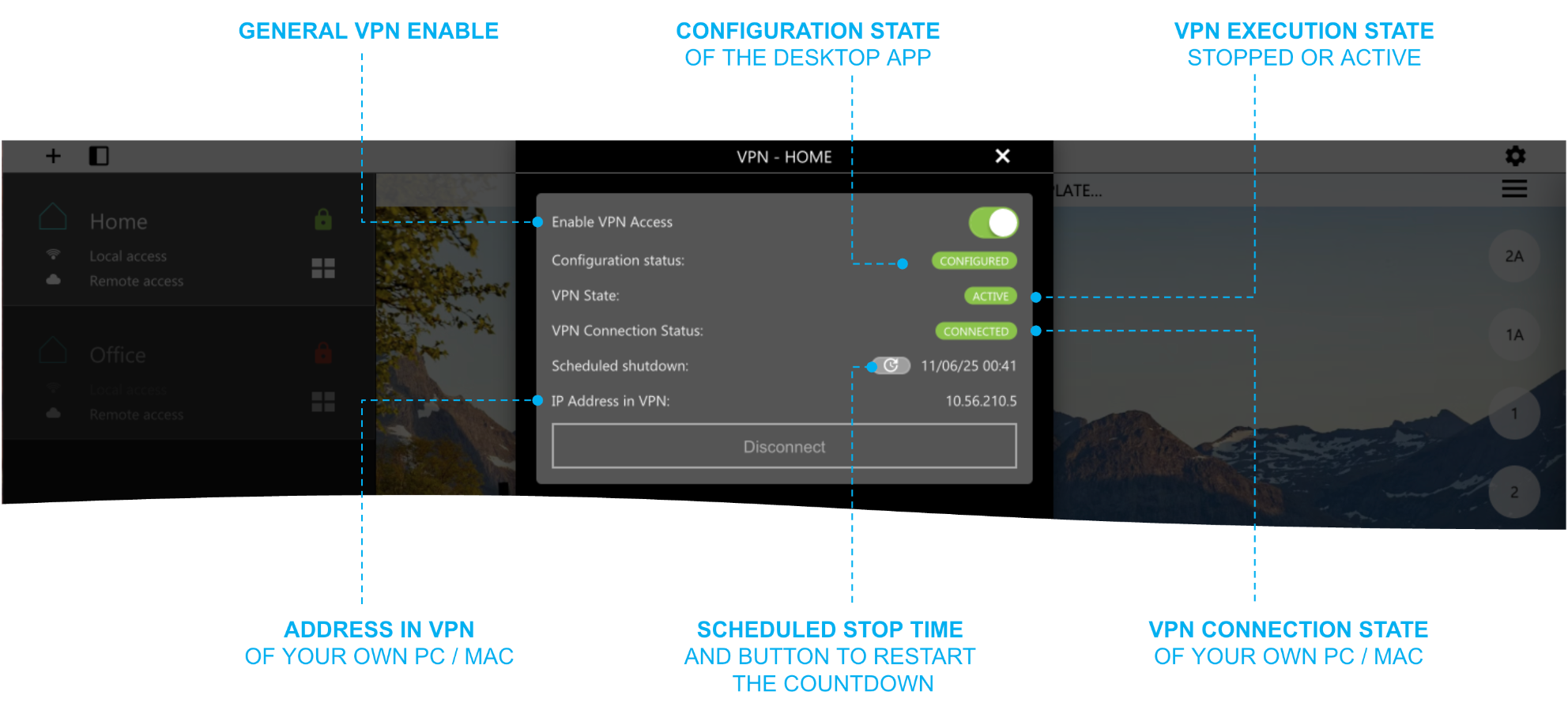
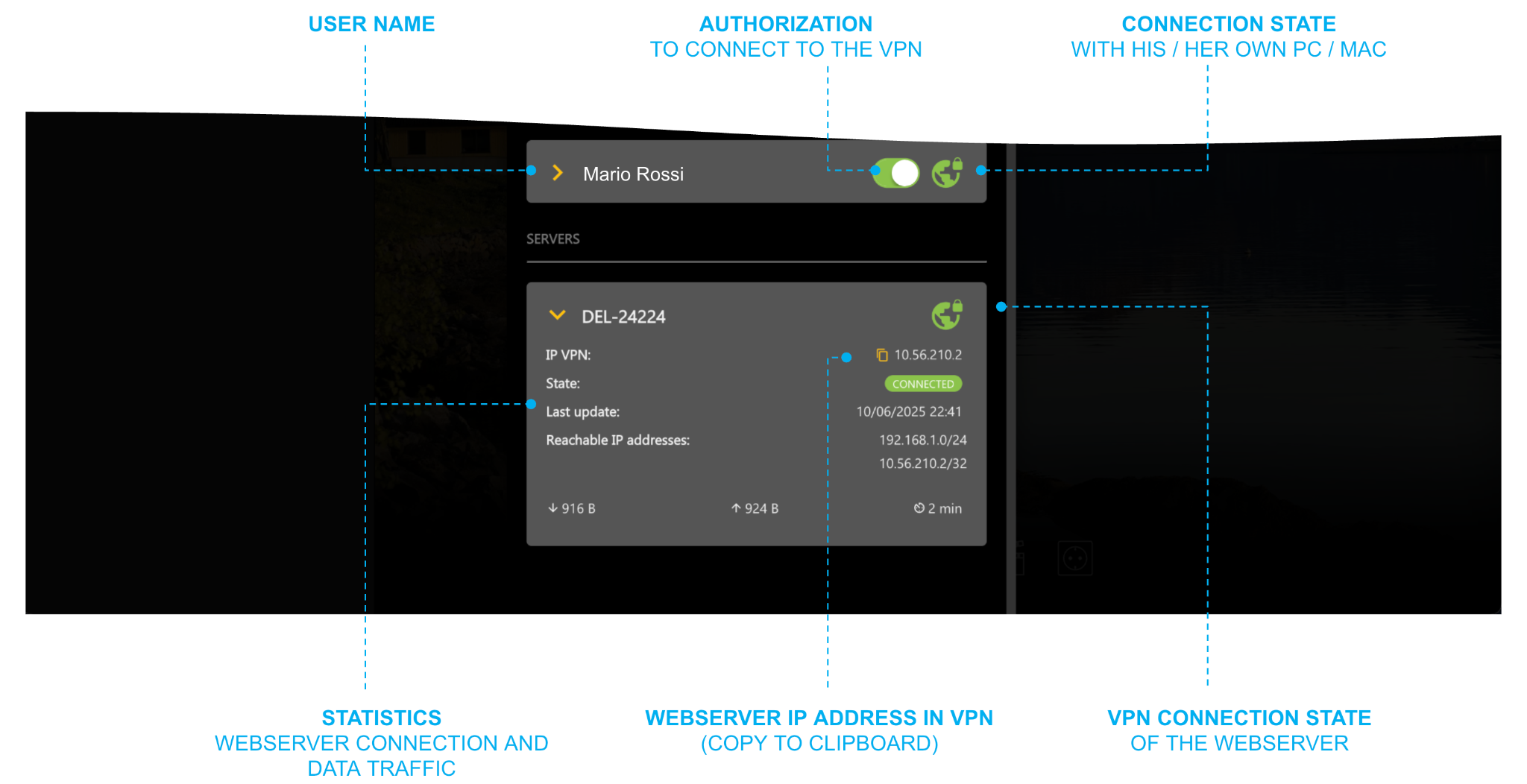
The IP address of the webserver in the VPN is shown in the section below, containing the server data; you can copy it to the clipboard with the appropriate button, so that it can be pasted into other applications (for example ETS Professional).
After the first connection, you can monitor the connection statistics and start or stop the connection directly from the system tray. It also displays the time remaining before the connection stops automatically, and it is possible (via the dedicated button, by opening the settings) to reset the countdown, if the maintenance intervention requires more than 2 hours.
Adding projects
To browse the supervision pages of a DELÉGO SERVER it has to be added as an installation:
- press the [+] button;
- enter a name, the login credentials, the IP address and port for the local network, and the cloud address, in the form XXXXXXXX.ekinex.cloud;
- save.
The configured installations are listed in the menu on the left. Clicking one opens its supervision in the main working area, much as a web browser would; the app decides on its own whether to go through the local address or through the cloud.
KNX
Introduction
This chapter contains all the information for configuring and visualizing a building automation system based on the KNX standard, inside DELÉGO SERVER, the multiprotocol webserver for the connected buildings by EKINEX.
Preliminary operations
Connection
DELÉGO SERVER is a DIN-rail module intended for the installation in an electric cabinet, and directly connected to the local network (it can be powered via PoE) and to the KNX bus. The bus is wired with a certified KNX TP (twisted pair) cable to the standard red and black KNX terminal supplied with the module.
It is also possible to interact with the KNX installation through the IP network, by configuring the communication driver as described below.
The connection to the KNX bus is not strictly essential in order to configure it; however, it is not possible to verify the correctness of the project or simulate the automation functions configured on the server until this connection is established.
ETS library
It is recommended to add the DELÉGO SERVER library into the ETS project, by searching for it in the online catalog, or downloading it from the EKINEX website.
When the library is added to a project with KNX Secure enabled, ETS asks for an (optional) project password:
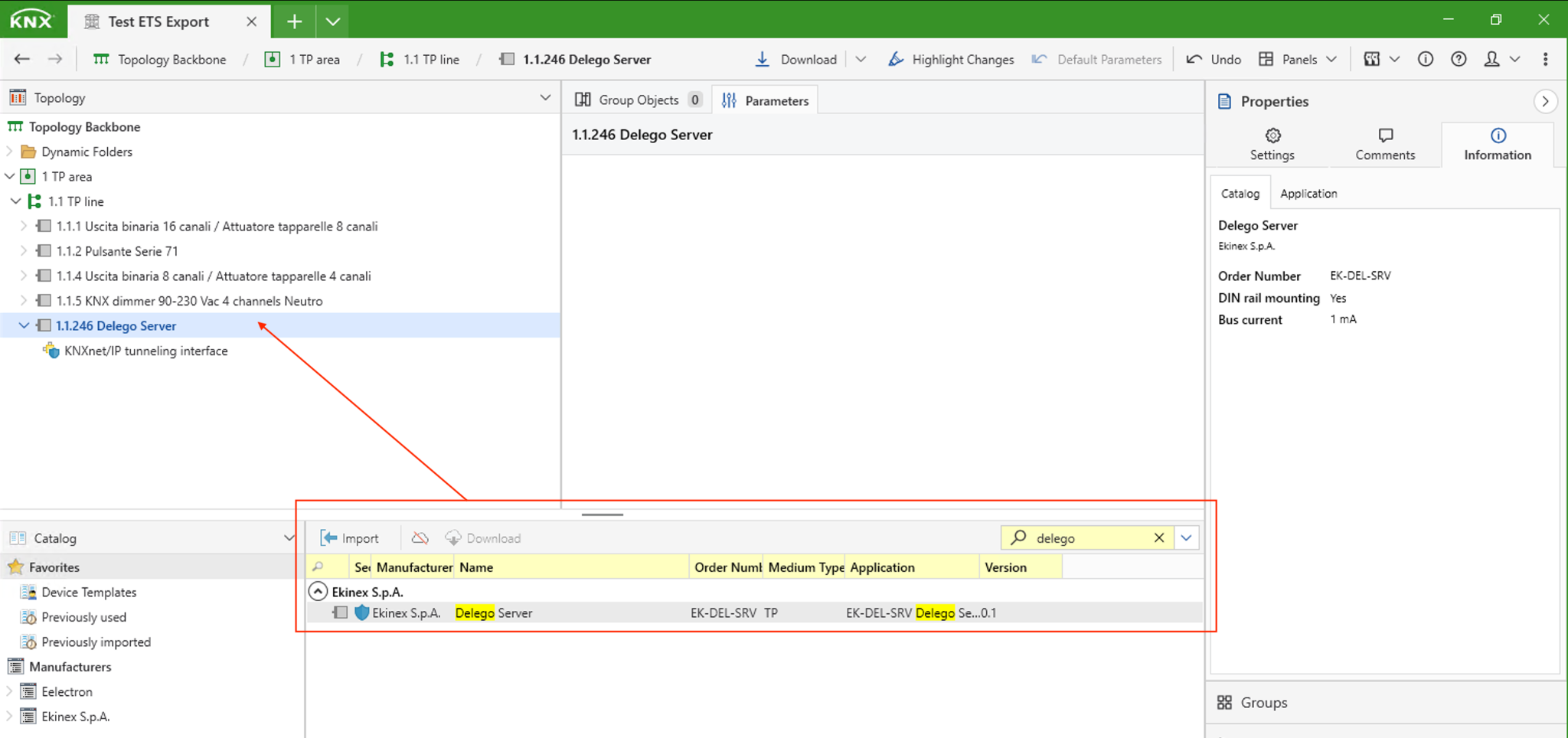
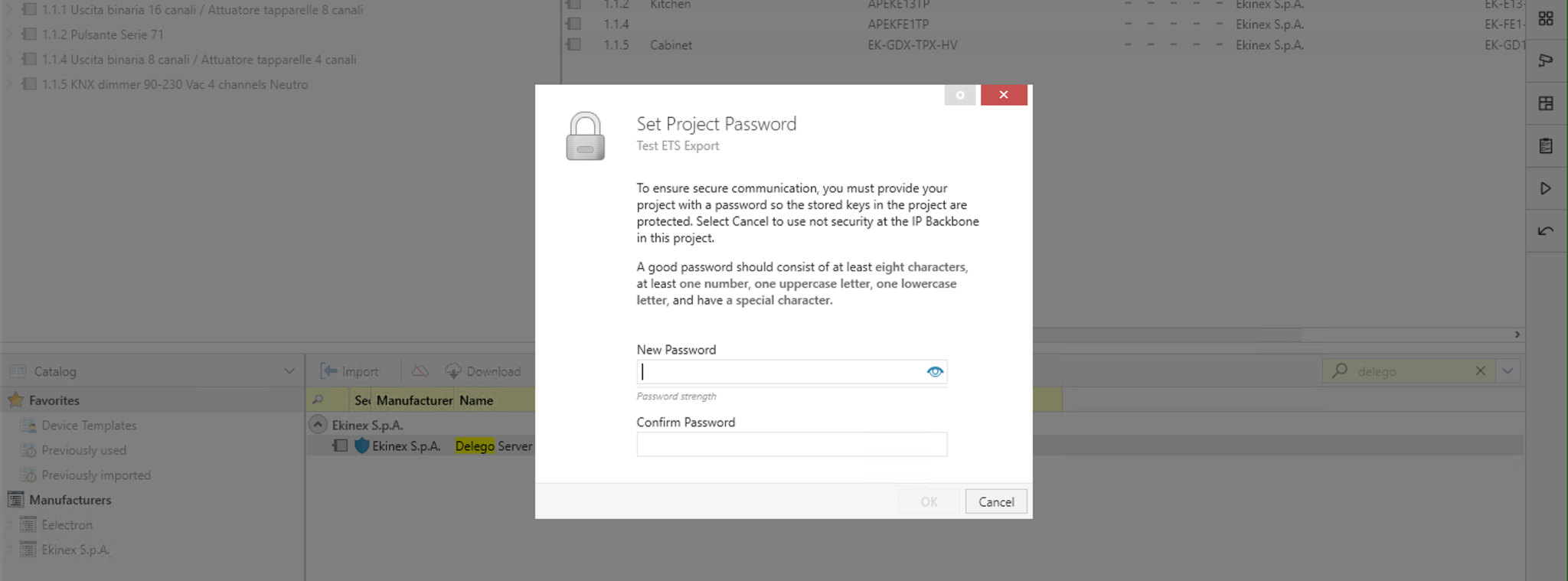
The library offers only a KNXnet/IP tunnelling interface, as an IP interface, without any parameter to be set nor communication object. It is only necessary to assign a unique address, to be entered in DELÉGO SERVER.
The ETS library is compulsory in case of KNX Secure projects. Otherwise, it is not strictly necessary, even if it’s recommended.
Communication settings
Open the KNX section of the Administration. The same page that holds the ETS import also holds the KNX - PHYSICAL ADDRESS and COMMUNICATION INTERFACE blocks, with all the settings related to the communication with a KNX installation, as better described in the following paragraphs.
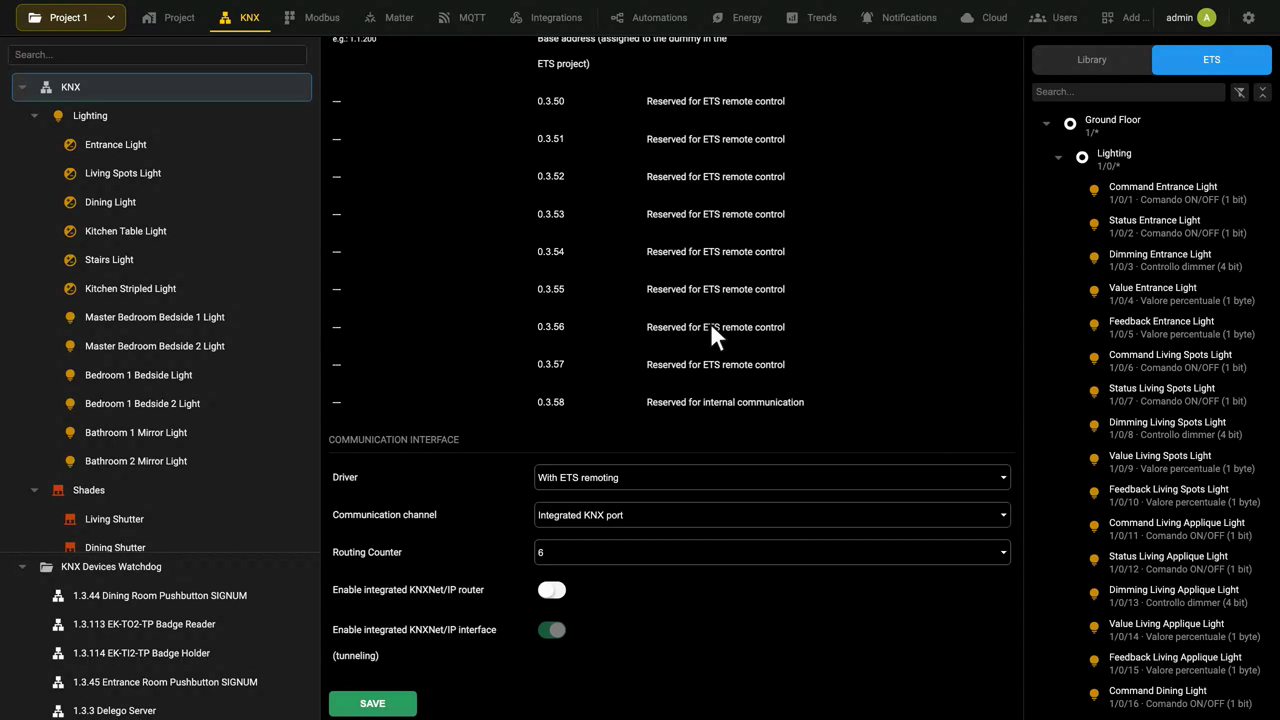
This topic is also covered in the KNX widget card video tutorial.
KNX physical address
Enter the physical address of DELÉGO SERVER in the Physical address field, in the KNX - PHYSICAL ADDRESS group of the KNX section.
The address must be specified in the X.Y.Z format respecting the limits imposed by the KNX protocol:
- First number between 0 and 15
- Second number between 0 and 15
- Third number between 0 and 255
When a driver with the “ETS remote” support is selected (see the next paragraph for further details) it automatically allocates the next 10 physical addresses not only for its communication with the bus, but also for ETS remote control (the reserved addresses are shown on the screen, like in the following figure).
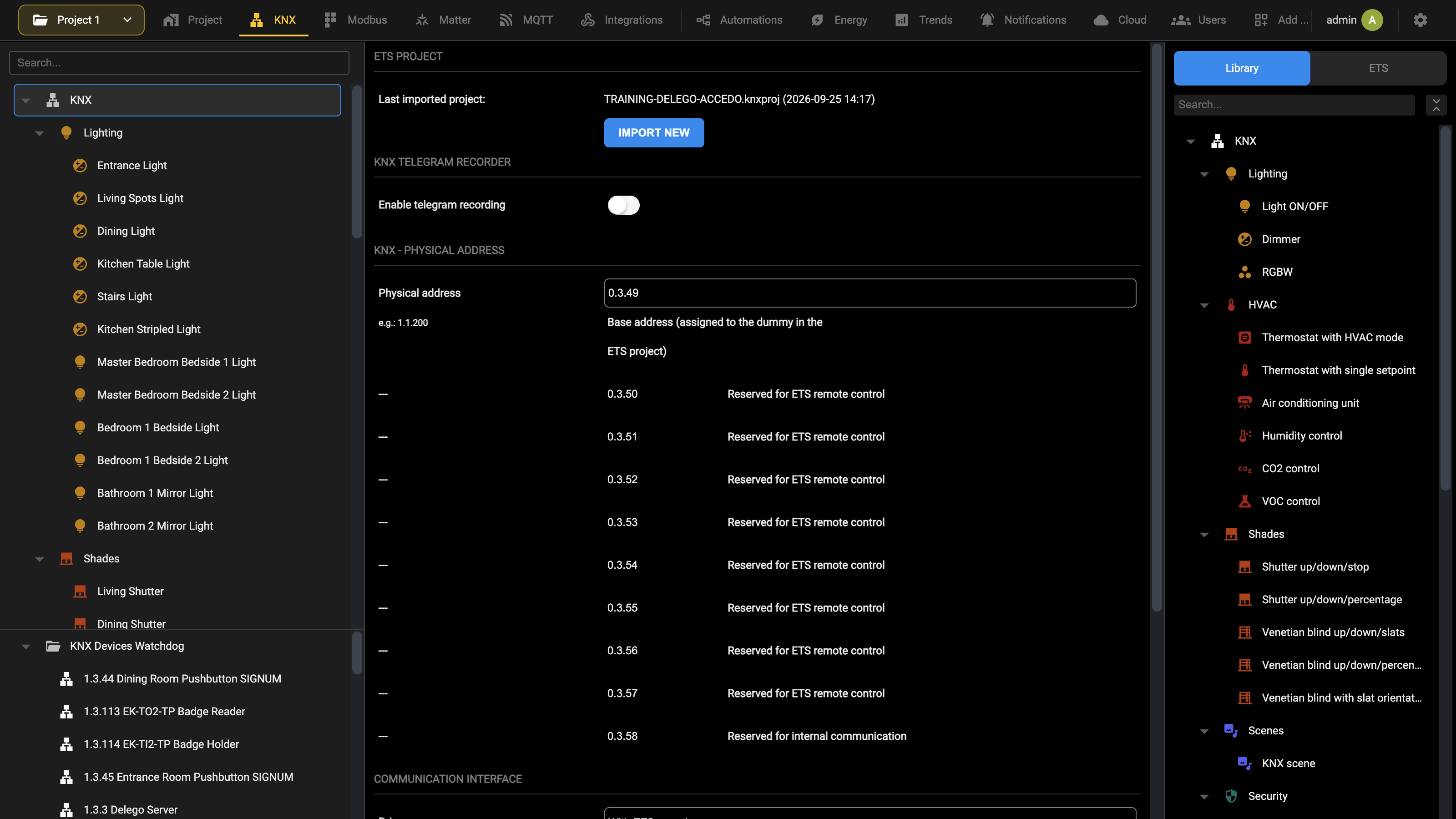
Both the base address and the 10 reserved addresses must be free within the project and not used by any other KNX device.
Communication driver
The driver is selected in the Driver field of the COMMUNICATION INTERFACE group, at the bottom of the KNX section. Starting from version 2.6.0 it is possible to choose between the following KNX communication drivers:
| DRIVER NAME | DESCRIPTION |
|---|---|
| Standard | Basic communication driver for the Visualization |
| With ETS remoting | Enhanced communication driver supporting the Visualization and the KNXnet/IP server for ETS remoting |
| With ETS remoting and KNX secure support | Full-feature driver supporting also the KNX data secure layer. Available starting from software version 2.6.0 and only on the 4 DIN-rail module version of the server |
The drivers supporting the ETS remoting functionality allow the use of DELÉGO SERVER as an IP interface for ETS PROFESSIONAL. As described in detail in the ETS remoting chapter, this functionality can be used locally and remotely, thanks to the CLOUD VPN service.
Communication interface settings
The COMMUNICATION INTERFACE group, at the bottom of the KNX section, holds the settings of the interface towards the bus. SAVE applies them.
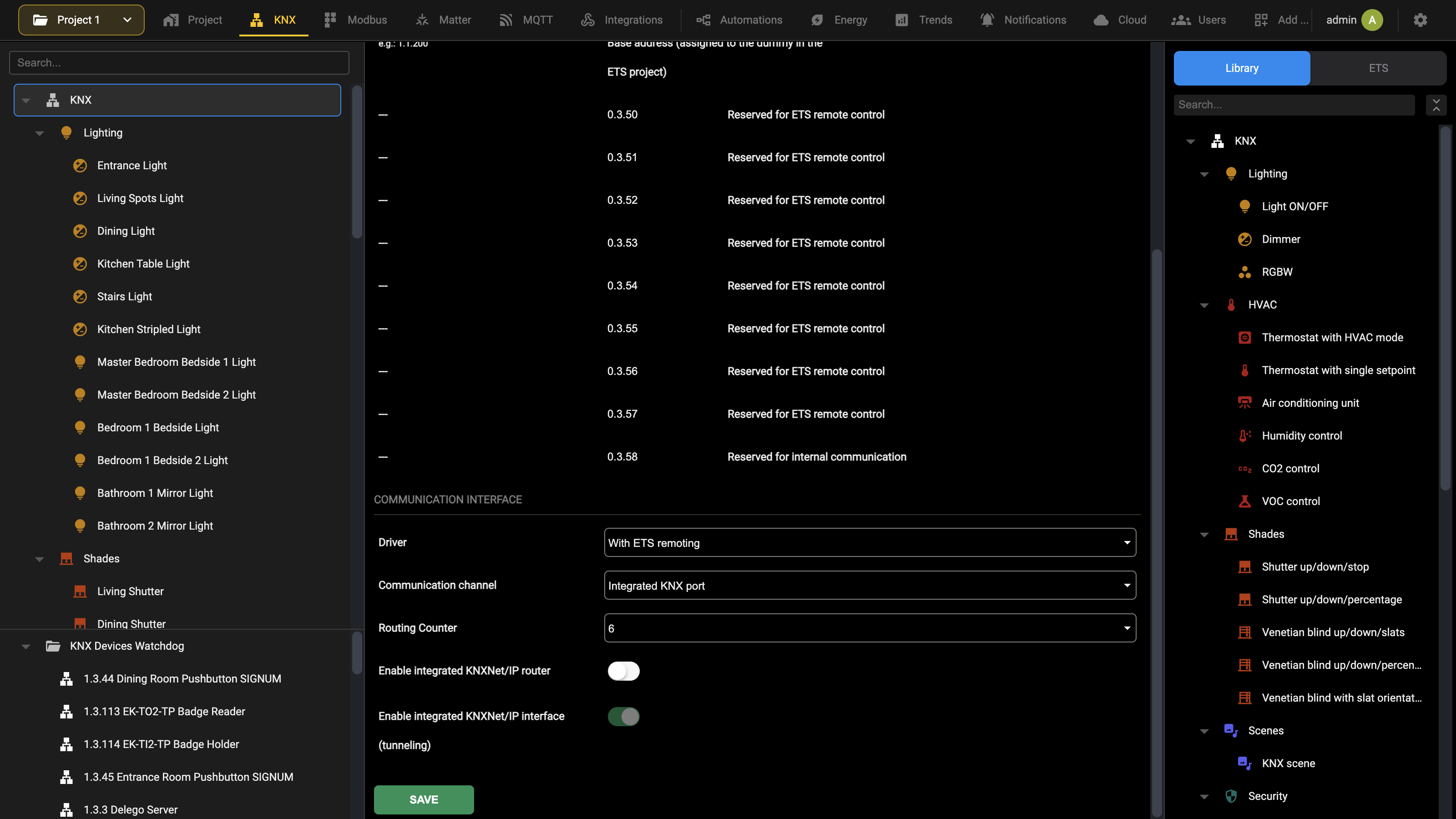
| Communication channel | The medium used to reach the bus: Integrated KNX port, the twisted pair connected directly to the server; KNXnet/IP router; or KNXnet/IP interface, available only when KNX Secure is enabled. If an external IP interface is selected, its IP address is asked as well. |
| Routing Counter | How many line couplers the telegrams sent by DELÉGO SERVER may cross. The default is 6. |
| Enable integrated KNXNet/IP router | DELÉGO SERVER automatically forwards all the telegrams received from the twisted pair onto the IP network, and vice versa, like a common IP router. NOTE: router mode must not be activated in the presence of other IP routers on the network, otherwise continuous telegram retransmission loops would occur. |
| Enable integrated KNXNet/IP interface (tunneling) | Allows external devices, Control4 for example, to communicate with and program the KNX devices. NOTE: if a driver with ETS remoting is selected, this option is always active and cannot be disabled. |
ETS import
It is possible to import the ETS project in order to facilitate the creation of the KNX WIDGETS and the structure of FLOORS and ROOMS, starting from the information already present in the project.
Even if the importing of the ETS project is not strictly necessary, it is strongly recommended as a starting point for the creation of a KNX visualization.
Supported formats
The import from ETS accepts the following formats:
| FORMAT | EXTENSION | NOTES |
|---|---|---|
| Full project file | *.KNXPROJ | Carries all the information of the project. Compatible with ETS 5 and 6. Supported on the 4 DIN-rail module version of the server only, with software release 2.6.0 or higher. |
| OPC export | .ESF, .PHD | Carry the group addresses that are not empty, with their relations, and the physical addresses of the devices. Compatible with ETS 3 and later. |
| Group addresses list | *.CSV | Carries the group addresses and nothing else. |
The recommended format is the full project, *.KNXPROJ, which is compatible with ETS 5 and 6. The OPC and CSV formats, described in Older formats, are still supported but no longer recommended.
Project export from ETS
Full project (KNXPROJ)
Select the project in the main screen of ETS and press EXPORT, choosing *.KNXPROJ as the format. This format is produced by ETS 5 and 6 only.
Older formats
The OPC and CSV formats are no longer recommended: they carry much less information than the KNXPROJ file, although they are still supported.
OPC export
The procedure is the same (select the project in the main screen of ETS and press EXPORT) choosing the OPC format instead. An OPC export produces two files, and the server needs both:
| *.ESF | Group addresses and their relations. |
| *.PHD | Physical addresses of the devices. |
CSV group addresses list
The tree of the group addresses, whole or in part, can be exported in CSV format straight from the Group Addresses panel of ETS, by right-clicking the main group of interest. The file carries the group addresses and nothing else.
Project upload and options setting
To import a new ETS project, open the KNX section of the Administration. The ETS PROJECT block at the top of the page reports the last project imported and holds Import new, which opens the import dialog:
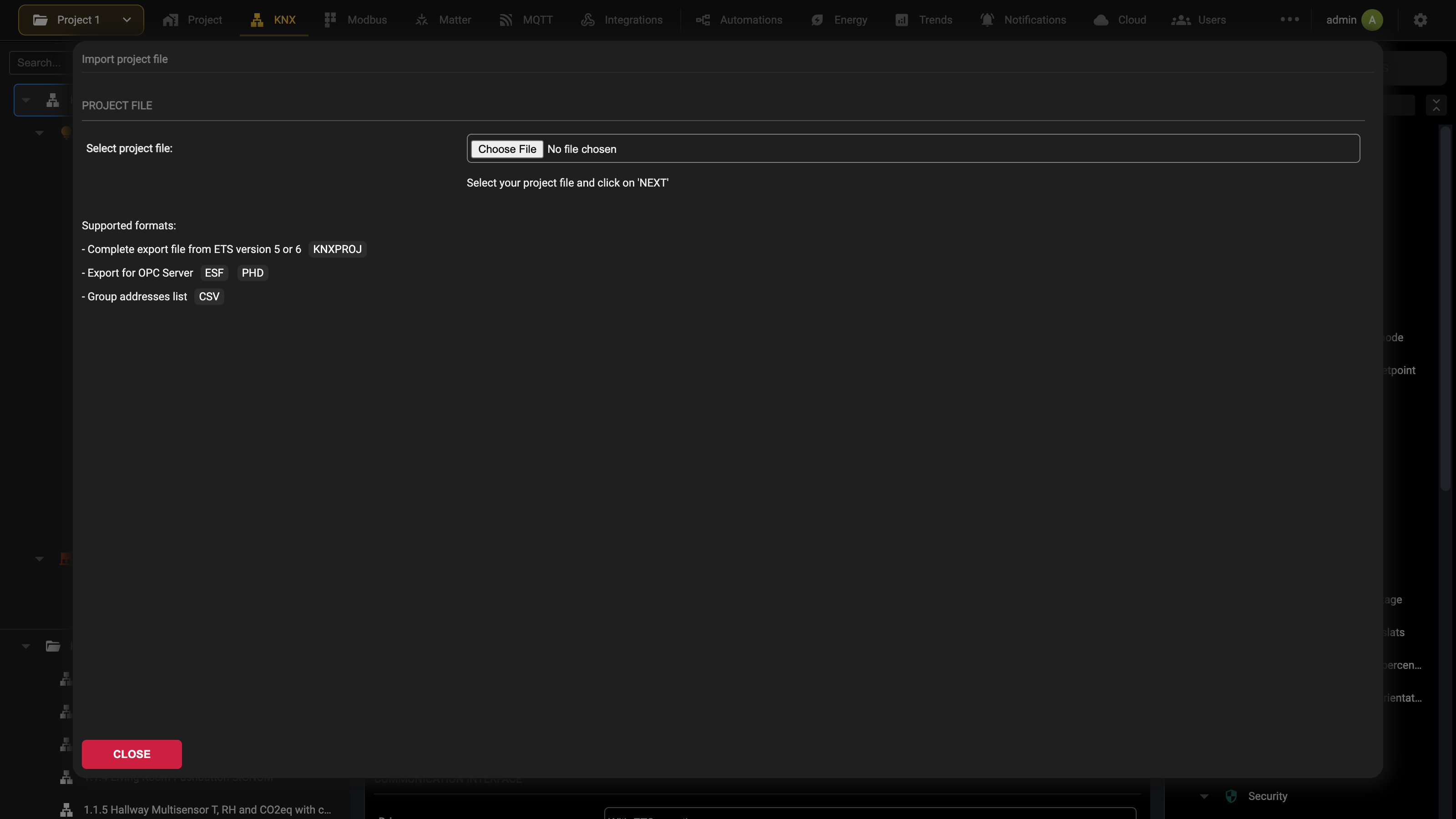
As soon as a project file is selected, the settings of the import are displayed, according to the file format; the following screenshots refer to the KNXPROJ format:
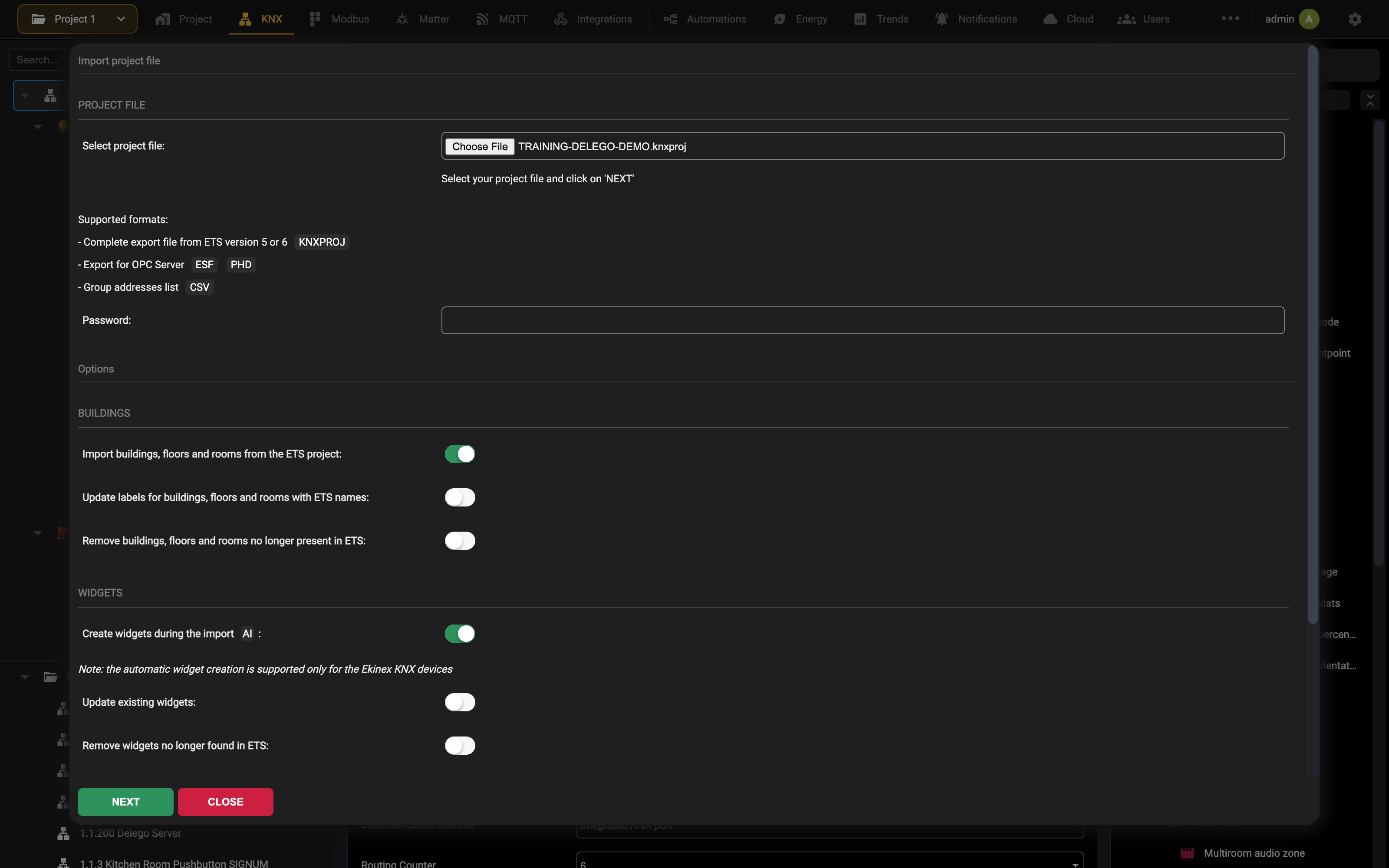
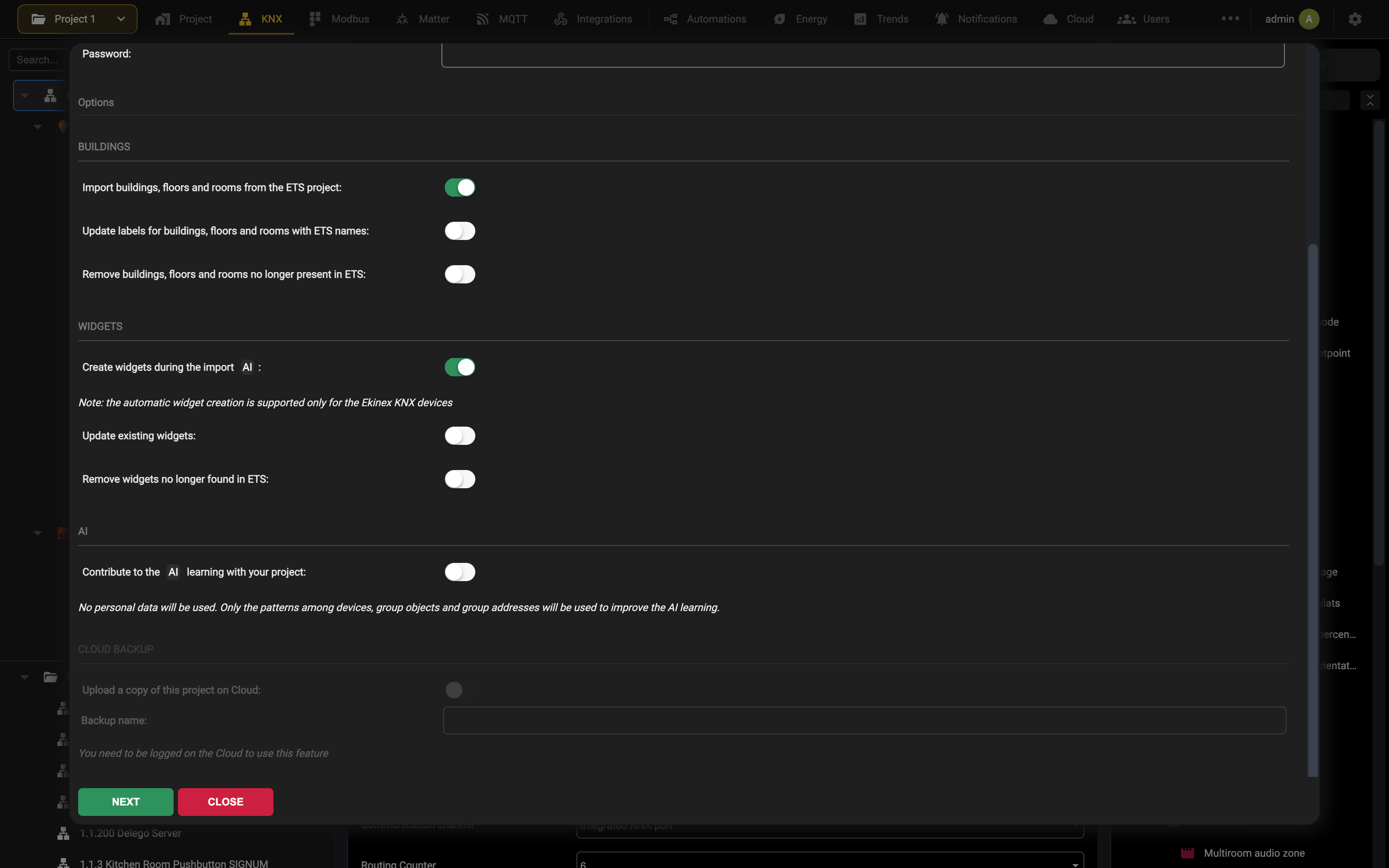
The following settings are available for the KNXPROJ format; other formats may offer a shorter list.
GENERAL
| Password | For KNXPROJ files, the password of the project, if it has been protected in ETS. Leave it empty for projects without password. |
BUILDINGS
| Import buildings, floors and rooms from the ETS project | When selected, the building structure of the ETS project is interpreted and created as BUILDINGS, FLOORS and ROOMS in DELÉGO SERVER. On by default. |
| Update labels for buildings, floors and rooms with ETS names | When selected, the names of the buildings, floors and rooms created by a previous import are aligned with those of the ETS project, if different. |
| Remove buildings, floors and rooms no longer present in ETS | When selected, the buildings, floors and rooms created by a previous import that are no longer found in the project are removed. |
WIDGETS
| Create widgets during the import | When selected, the integrated AI engine interprets the structure of the project and the devices it contains, and creates the corresponding widgets, placing them in the most appropriate room. On by default. The automatic creation works only with Ekinex KNX devices. |
| Update existing widgets | When selected, the widgets created by a previous import are adjusted if the corresponding devices or addresses have changed in the ETS project. |
| Remove widgets no longer found in ETS | When selected, the widgets created by a previous import that the AI no longer finds in the ETS project are removed. |
AI
| Contribute to the AI learning with your project | When selected, the imported project is used to improve the automatic detection of the widgets. No personal data is used: only the patterns among devices, group objects and group addresses. |
CLOUD BACKUP
| Upload a copy of this project on Cloud | When selected, a complete copy of the ETS project file is saved on the cloud while it is being processed. |
| Backup name | Name under which the copy is saved. |
The cloud backup is available only when the server is logged on the EKINEX cloud. It keeps the very project that was imported last: if the original file is lost, or simply to be sure of opening in ETS the same project that is in the server, it can be downloaded to the PC from the Backup/Restore tab of the project card.
Project import and final report
After specifying the import options, pressing NEXT starts the project analysis and import; during this procedure, an animation reports the current stage and the progress. Do not exit this page until the import is finished; it normally takes no more than 5 minutes for large projects.
At the end of the import procedure, a summary of the performed operations is given, like in the following example:
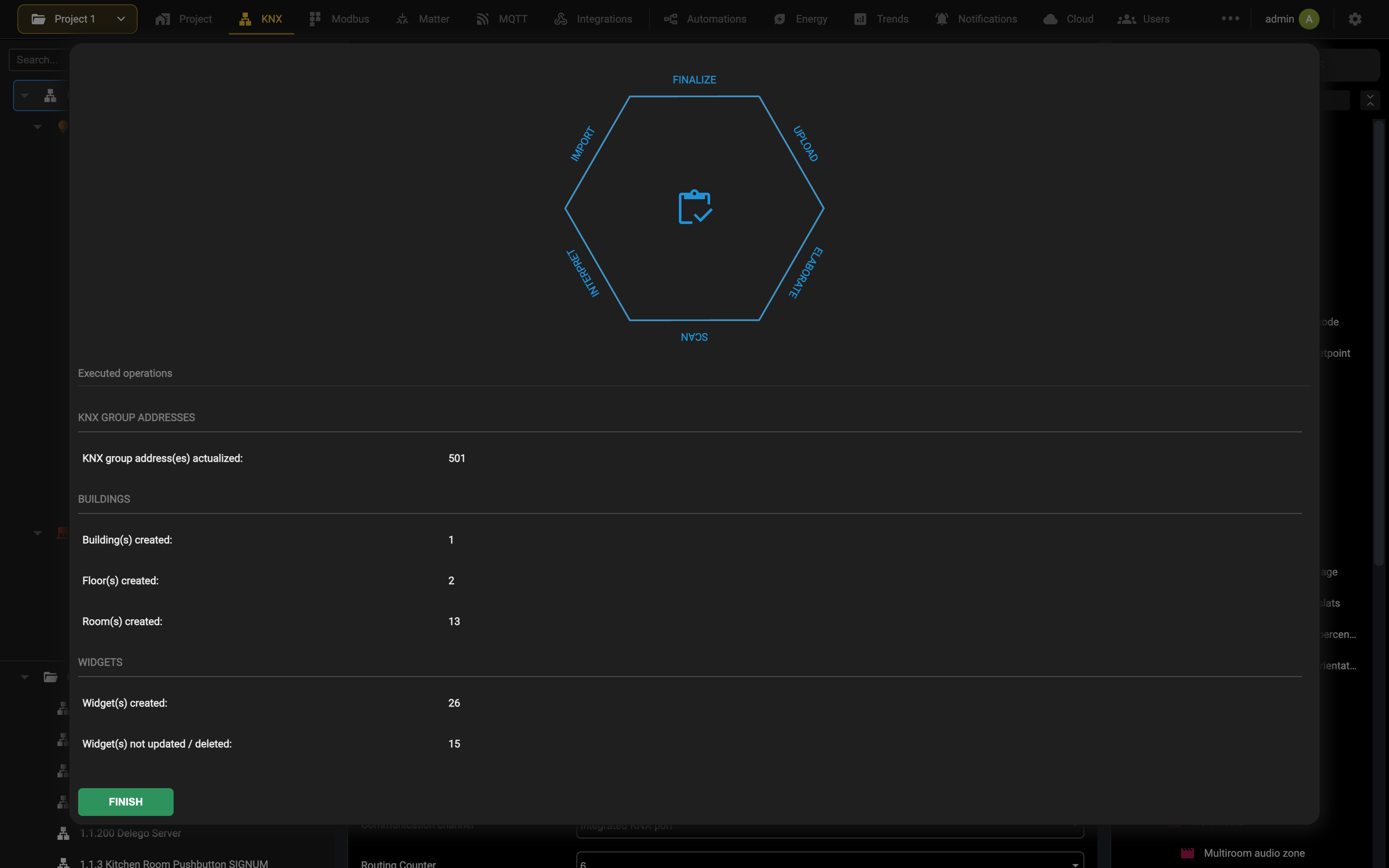
The elements reported as “not updated / deleted” had already been created by a previous import and were not considered in this one, because the corresponding update flags were not set.
The buildings, floors and rooms of the ETS project become the BUILDINGS, FLOORS and ROOMS of DELÉGO SERVER. Rooms, cabinets or stairs directly associated to a building part are created as ROOMS, and the building part they belong to as FLOOR.
The BUILDINGS, FLOORS and ROOMS automatically generated by the ETS import can be manually customized, in the same way as those manually created.
This topic is shown in the The KNX section video tutorial.
Encoding and function assignment
The KNX group addresses the import procedure did not recognize have to be checked by hand before going on, so that the right encoding is used for the communication.
Importing a project in the KNXPROJ format normally skips this step altogether, because everything needed is already in the project file; only the addresses whose encoding is unknown are listed here.
Each of the addresses in the list offers:
| TYPE | Length, in bits or bytes, of the data the address carries. |
| ENCODING | The encoding DELÉGO uses to interpret what travels on the bus. Which encodings are offered depends on the length set in TYPE. |
From here there are two ways of proceeding.
One address at a time. Choose its exact encoding, the function it belongs to (not mandatory) and the icon that represents it best.
Several addresses at once, when one rule can cover them: press Modify rules and write a rule for the purpose. The page that opens lists the import rules already defined, each of them made of:
| Keyword | One or more words, or fragments of words, to look for in the names the group addresses carry in ETS. Separate several of them with a comma. A space inside a keyword is part of the keyword, which is what allows a rule to be made more selective. |
| KNX group address type | Length of the data of the addresses to look for. |
| DPT / EIS type | The encoding to use for communicating with the addresses the rule finds. |
| Function | The function, with its graphical symbol, to assign to the addresses the rule finds. |
A rule reads like this: when DELÉGO SERVER meets a group address whose name contains at least one of the keywords, and whose data length is the one the rule states, it adopts the encoding of the rule for reading and writing on the bus, assigns the function chosen, and uses its icon for the graphical representation of the object.
Once the rules are in place, go back to the ETS import with Return to KNX import and select Use automatic import rules. Repeat as many times as it takes to work through the whole list. Leaving some addresses unmapped is allowed, but they may not behave correctly later, when the KNX widgets are configured.
Press NEXT to finish the import. The page reloads and every address of the project appears in the ETS tab of the source panel, arranged by the address levels the project uses, ready to be associated with the KNX widgets.
KNX widgets
As described in the Widgets chapter KNX WIDGETS visually represent a functionality executed by one or more KNX DEVICES; these devices exchange commands and states by communicating on the KNX bus by means of telegrams addressed to one or more GROUP ADDRESSES.
Each command / state is normally associated with a different group address (or a couple of group addresses, the one being the command, and the other the corresponding status feedback). They are also called sub-items of the WIDGET.
A typical example is a dimmer (light with brightness control) which can be commanded in different ways:
- ON/OFF switching
- Brightness control
- Tunable white control (warm/cool light temperature) if supported
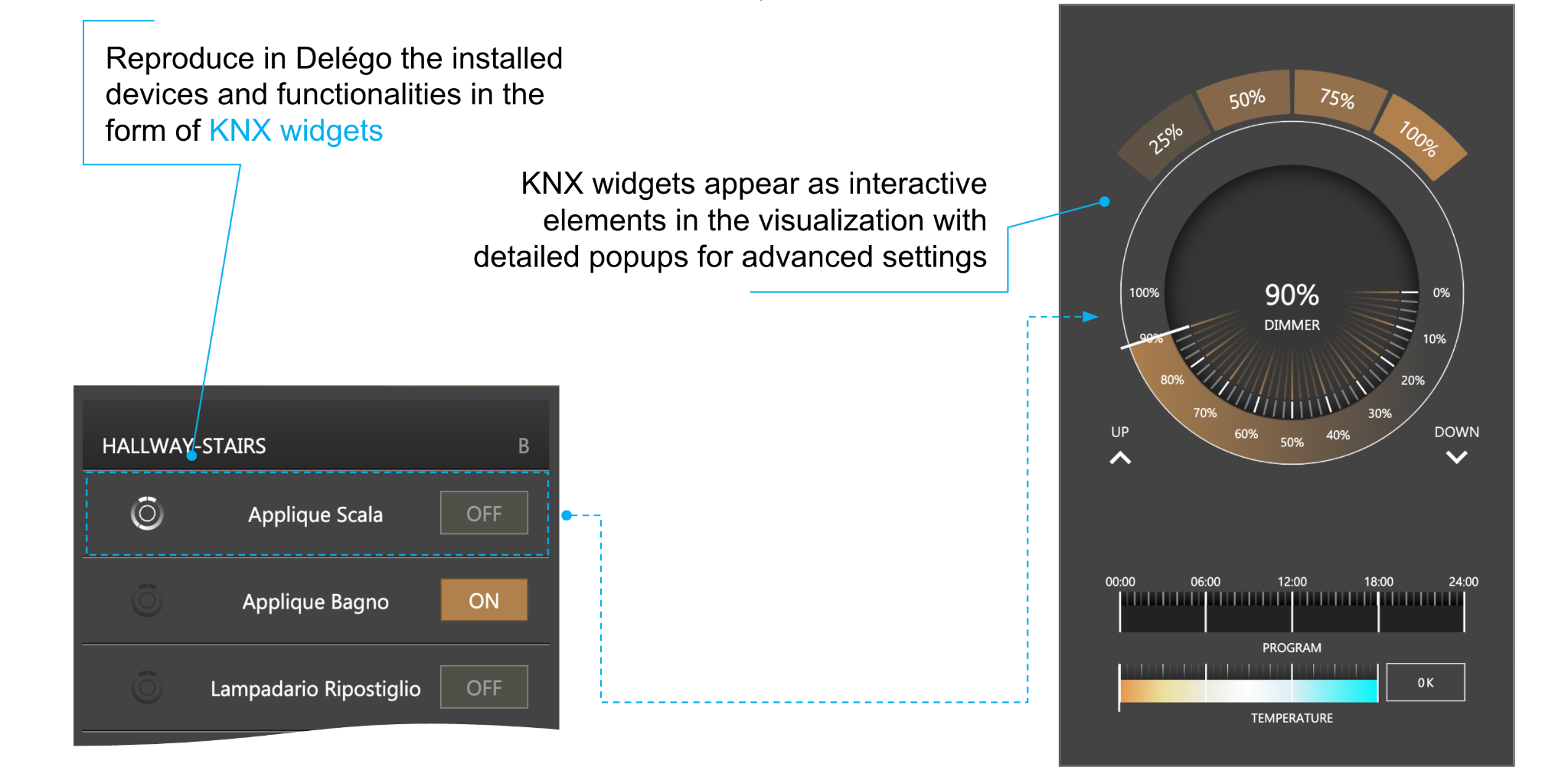
The KNX widgets are configured in the KNX section of the Administration, where the context tree on the left lists them grouped by CATEGORIES where the widgets can be created; each category contains the list (initially empty) of widgets belonging to the corresponding function.
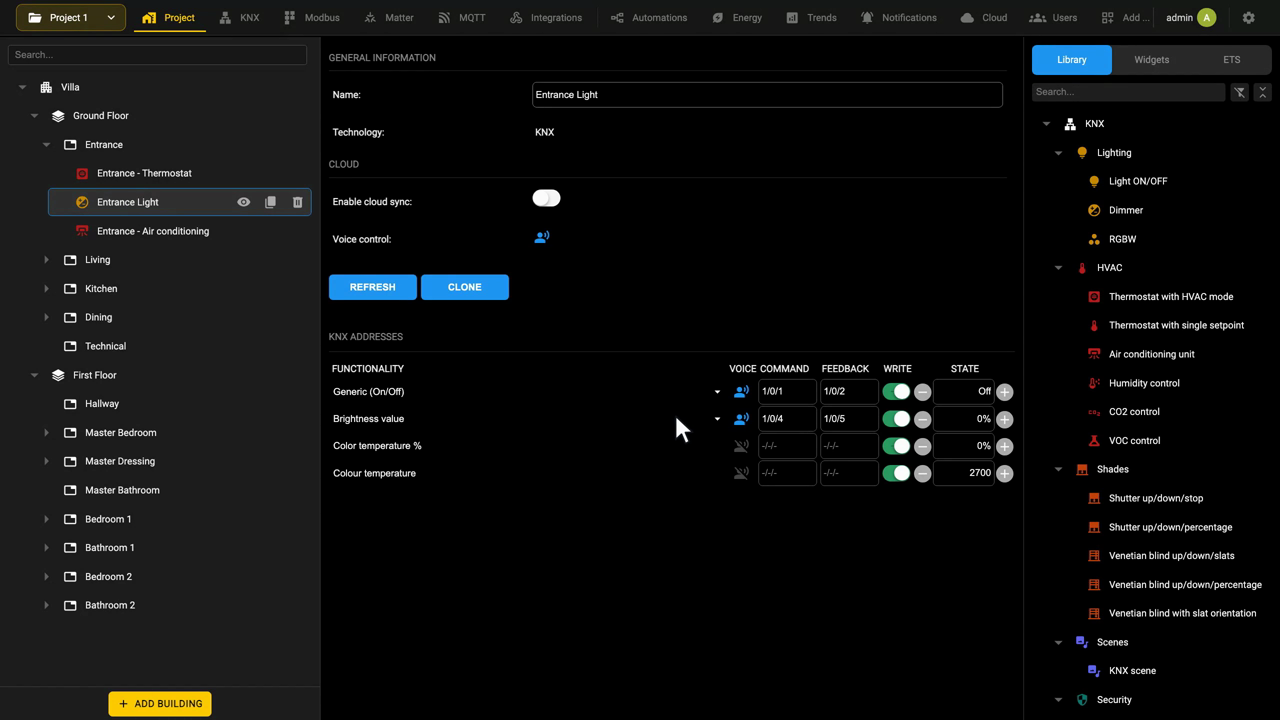
Creating a new KNX widget
When a KNXPROJ file containing Ekinex products is imported, almost all the widgets that the project needs are created automatically. A widget has to be created by hand only when a function is not covered by the import, or when a new function has to be offered to the end user.
Create widgets one at a time and check that each works before going further: once a widget of a given type behaves correctly, duplicate it rather than building the next one from scratch. The offset-based duplication described in the next chapter saves a considerable amount of time on a project of any size.
As for any other technology, a widget can be created by hand in two alternative ways:
- In the KNX section. Open the source panel on the right, on its Library tab, find the model you need under its category and drag it onto the category of the context tree where it belongs. The tree is organized by the same categories as the library: Lighting, HVAC, Shades, Scenes, Security, Multimedia, Gates, Sockets, Technologic, Irrigation and Other.
- Directly in the Project section. Open the Library tab of the source panel, find the KNX model you need and drag it onto the room of the context tree where the widget belongs.
In both cases, selecting the new widget in the tree opens its card. Fill in its settings and, above all, associate a group address with each of its functionalities, as described below.
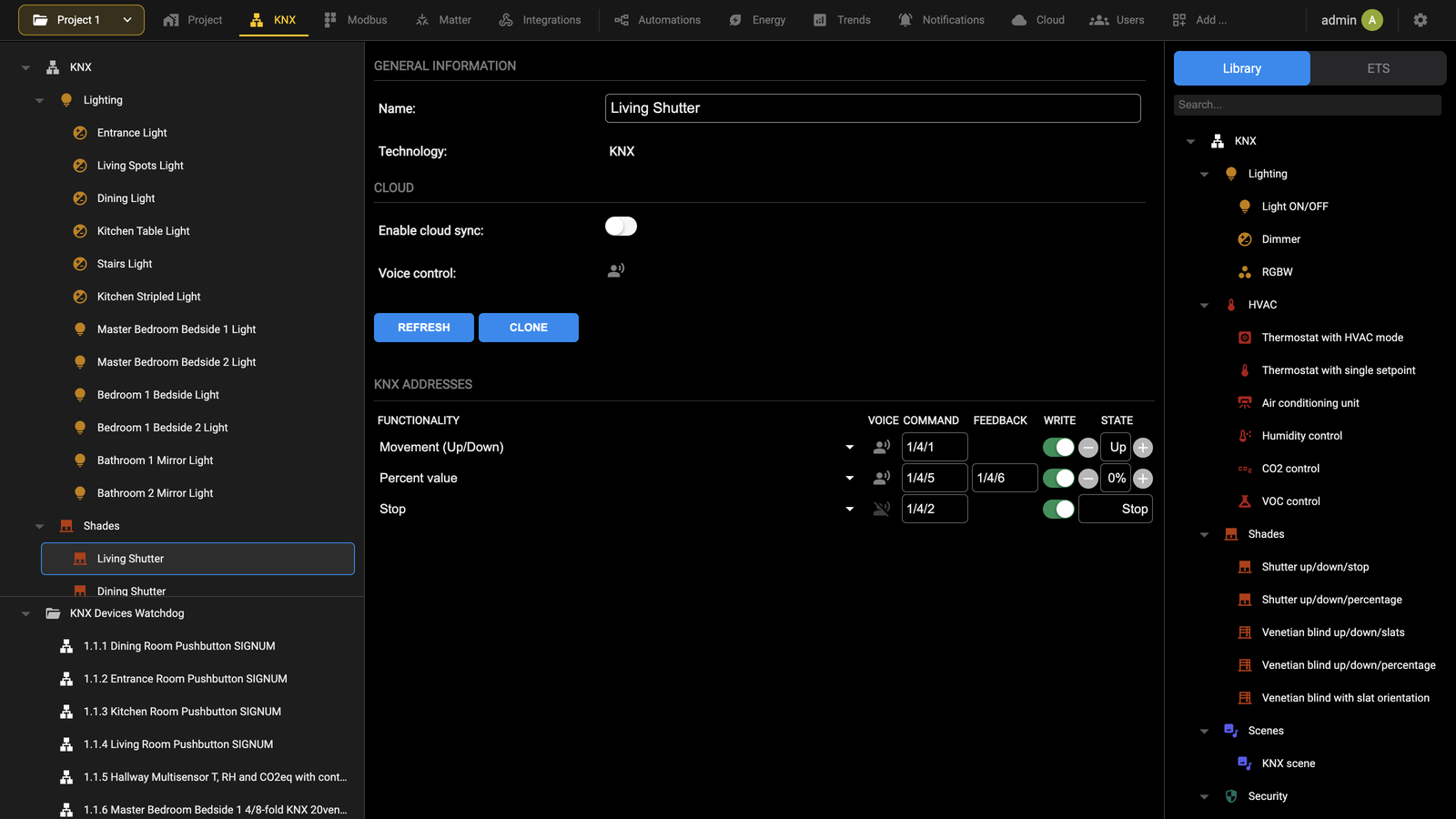
GENERAL INFORMATION and CLOUD hold the general attributes.
| Name | Label that identifies the widget in the Visualization. |
| Technology | The field technology the widget belongs to, here KNX. It is not editable. |
| Enable cloud sync | Synchronizes the widget on the cloud, which is what makes it available to external services such as voice assistants. |
| Voice control | Reports whether the widget can be driven by a voice assistant. See the Cloud chapter for details. |
REFRESH re-reads the state of the widget from the bus; CLONE duplicates it.
KNX ADDRESSES lists the commands and states that the model supports. Each row carries the following:
| FUNCTIONALITY | The function of the address within the widget. It is fixed, except on generic widgets. |
| VOICE | Marks the addresses a voice assistant can drive. It is not editable. See the Cloud chapter. |
| COMMAND | The primary group address, the one DELÉGO SERVER writes to send a command to the bus. |
| FEEDBACK | The group address on which the devices report their actual state, for example the actuator after a command. On read-only objects, enter here the address on which DELÉGO SERVER expects the telegrams. |
| WRITE | Determines whether the interface may write on that address. |
| STATE | Shows the value read from the bus in real time and, where the address is writable, sends a test command. |
Associating the group addresses. A group address can be entered in the COMMAND or FEEDBACK box of a functionality in three ways:
- Dragging it from ETS. Select the ETS tab of the source panel and drag the group address you need onto the COMMAND or FEEDBACK box of the functionality. The tab lists the group addresses of the imported ETS project (see ETS import).
- Typing it. If you know the address, type it in the box. To be faster, type a space instead of each
/: once the whole address has been typed, the spaces are replaced automatically, so1 2 3becomes1/2/3. - Choosing it from the context menu. As you start typing part of the address, or part of the name the address has in ETS, a context menu opens with the matching group addresses, filtered as you type. Select the one you need.
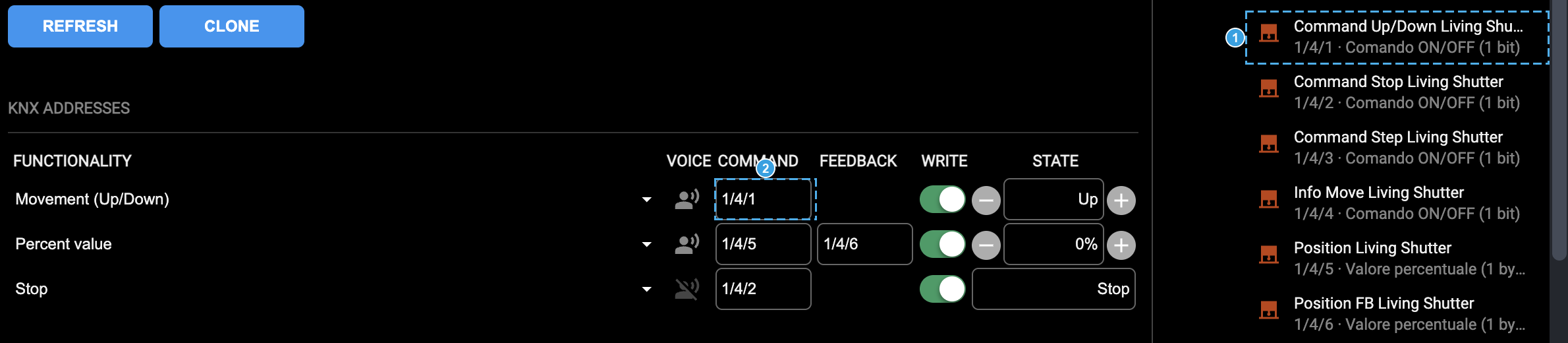
- The group address in the ETS tab: the name it carries in the ETS project, its address and its datapoint type.
- The COMMAND box of the functionality it is dropped on. The FEEDBACK box takes an address the same way.
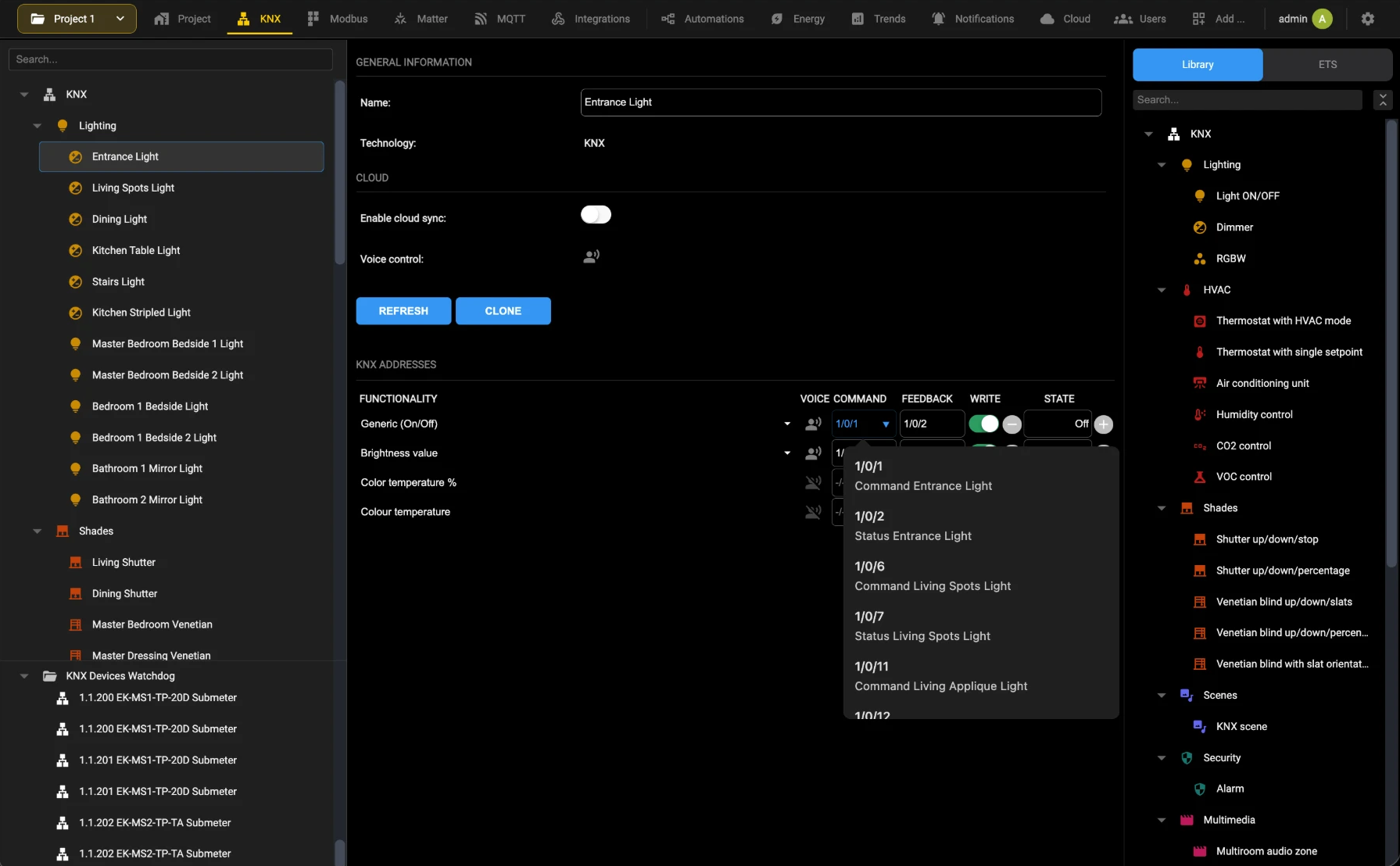
Advanced fields. Switching Expert mode on, in the Configuration menu, adds several fields to the same card.
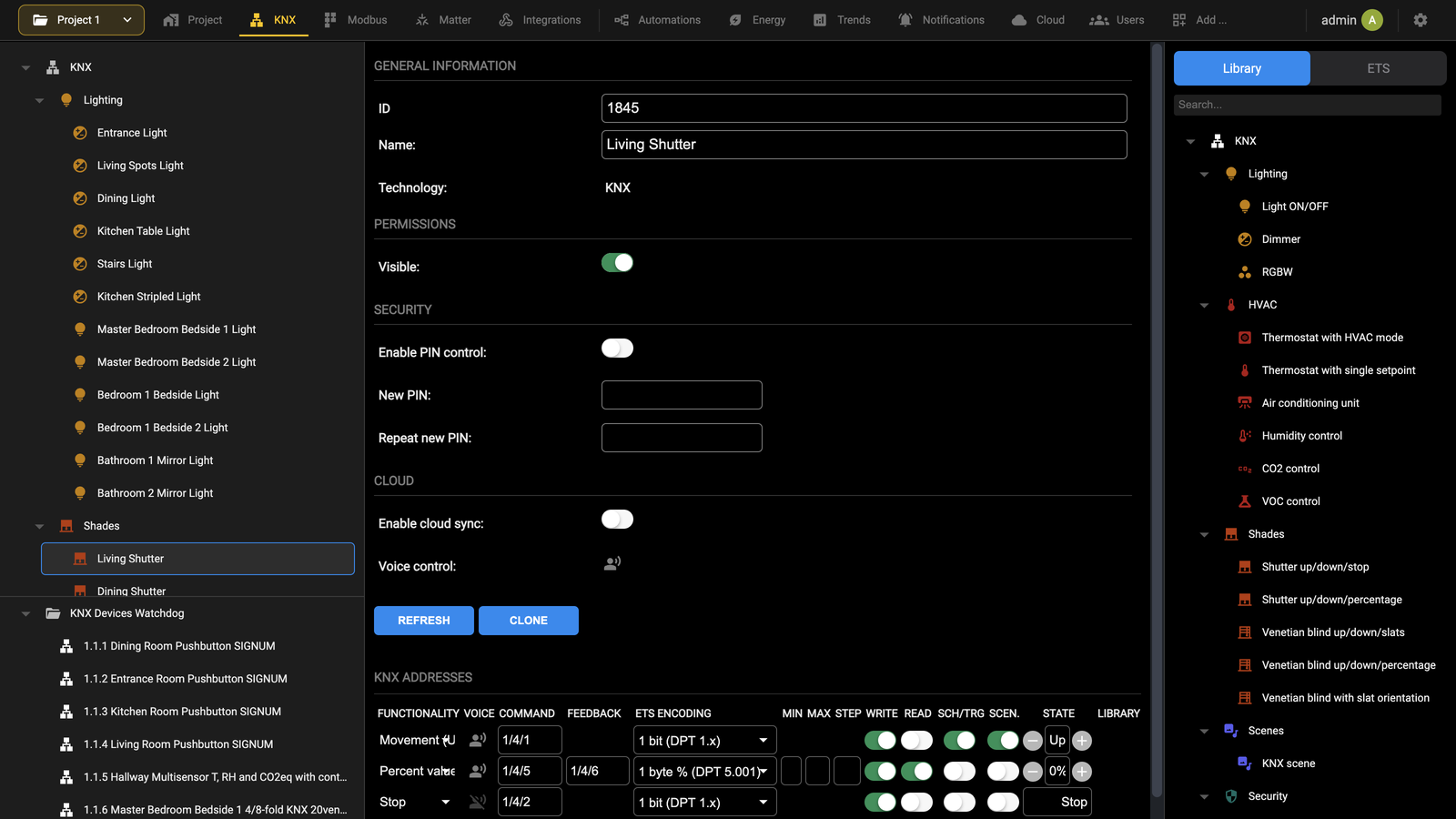
| ID | The internal identifier of the object, needed when it is referenced from a script or from an automation. |
| Visible | Under PERMISSIONS, establishes whether the widget appears in the Visualization. |
| Enable PIN control | Under SECURITY, asks the user for a numeric PIN before sending a command or opening the widget details. Assign the PIN in New PIN and confirm it in Repeat new PIN. Choose a PIN that is not guessable: it protects a command, not just a screen. |
The address table gains its technical columns: ETS ENCODING, which sets the datapoint type of the address, MIN, MAX and STEP for the values the interface may send, READ, SCH/TRG and SCEN., which enable the address for reading, for schedules and triggers and for scenes, and LIBRARY, which chooses the graphic set used to represent the address.
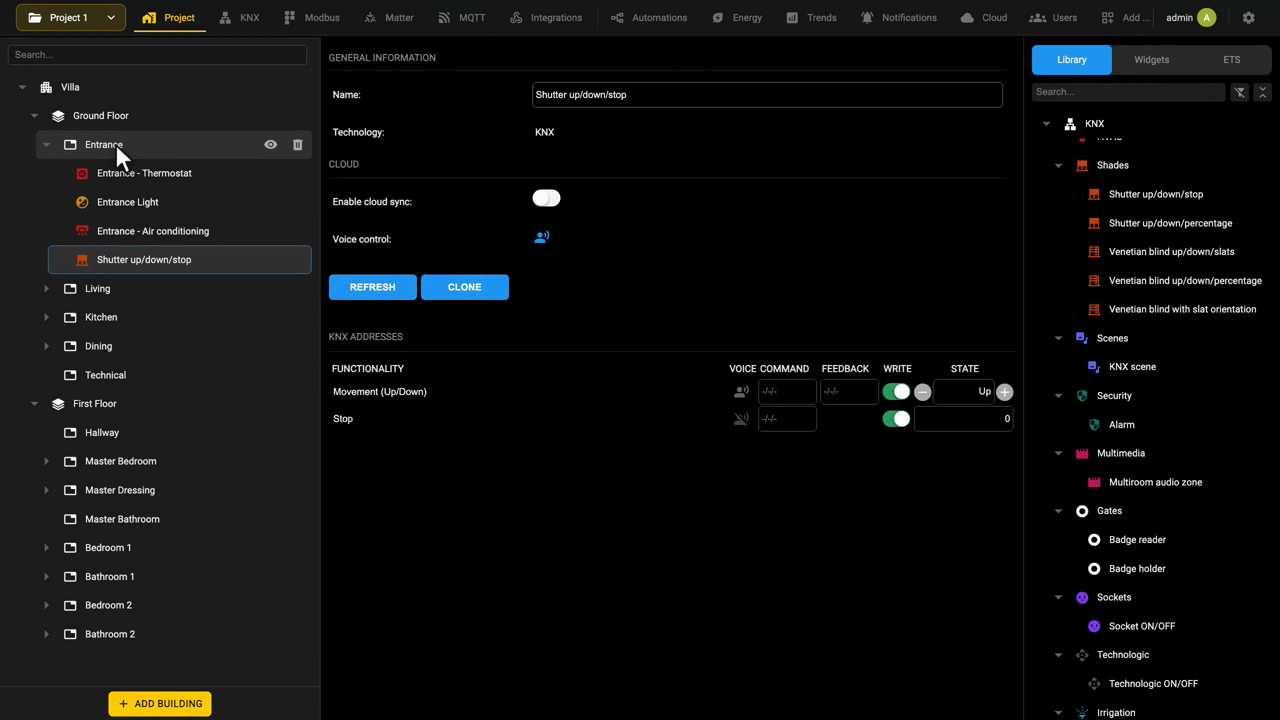
This topic is also covered in the Widget scheduling, The KNX section and KNX widget card video tutorials.
Cloning KNX widgets
Once a widget is fully configured, it can be duplicated several times, to make the creation of similar widgets quicker. This approach represents the fastest way to quickly implement the supervision project, thanks to the possibility - during duplication - of automatically increasing the group addresses.
To duplicate a widget, select it in the context tree, open its card and press CLONE. A dialog opens:
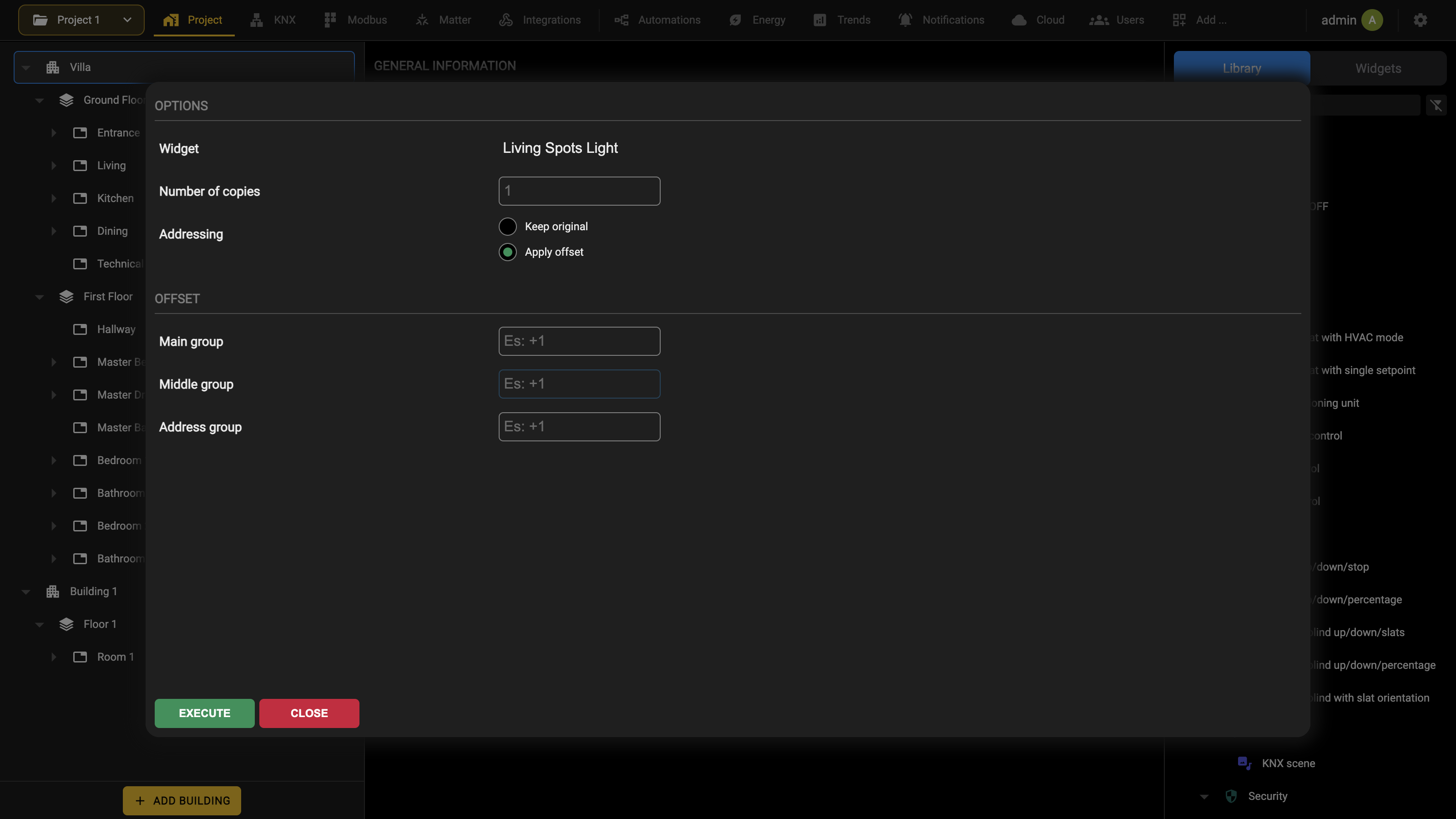
The fields are:
| Widget | The widget being cloned. It is not editable: it is the one whose card is open. |
| Number of copies | How many copies to create from the selected widget. |
| Addressing | Keep original makes identical copies. Apply offset opens the OFFSET section below. |
| Main group, Middle group, Address group | With Apply offset, the increment applied to each of the three numbers of the KNX address, once per copy. Negative values are accepted. |
For example, entering 1 or +1 as the offset on the address group increases the last number of every KNX address of the starting widget by one, as many times as there are copies requested.
For example, by entering “1” or “+1” as an offset on the group address, each KNX address present in the starting widget will be increased by 1 on the last number, as many times as there are copies requested:
3/0/1 · 3/0/2 · 3/0/3 …
EXECUTE starts the duplication, CLOSE leaves without cloning; after a few seconds, the new widgets appear under the same category of the context tree. After the duplication of a widget, it is required to press the REFRESH button in the category list, in order to see the new widgets
At this point:
- Change the label of the new widgets.
- Assign them to the appropriate room.
Customization
Switching Expert mode on, in the Configuration menu, makes it possible to customize specific aspects of the addresses of a widget.
For the numeric items, it is possible to force the MIN, MAX and STEP values, in order to set a specific range of values and the “granularity” of the intermediate values between the limits. The round sliders in the Visualization will adjust the displayed values accordingly.
Furthermore, for a specific subset of the items, a different graphic library can be set, from the default one. By pressing the corresponding button, a dialog window is displayed, with the possibility to filter and select the most appropriate set.
The graphic library can even be customized, as explained in detail in the Graphic library chapter.
Functions
As explained in the Functions chapter, every element visible in DELÉGO SERVER belongs to a function, and KNX widgets are no exception.
The chapters that follow go through the templates available for each function, and through the graphical forms each of them can take.
Lighting
ON/OFF light
Simple widget for the control of ON/OFF lights and, more in general, switching relays. Items supported by the template:
| IDENTIFIER | ETS ENCODING | R/W DESCRIPTION / NOTES |
|---|---|---|
| ON/OFF | Switching (1 bit DPT 1) | RW Turns the light ON and OFF. Mandatory element for this type of widget. |
The following picture shows how the widget appears in the Visualization of DELÉGO SERVER:
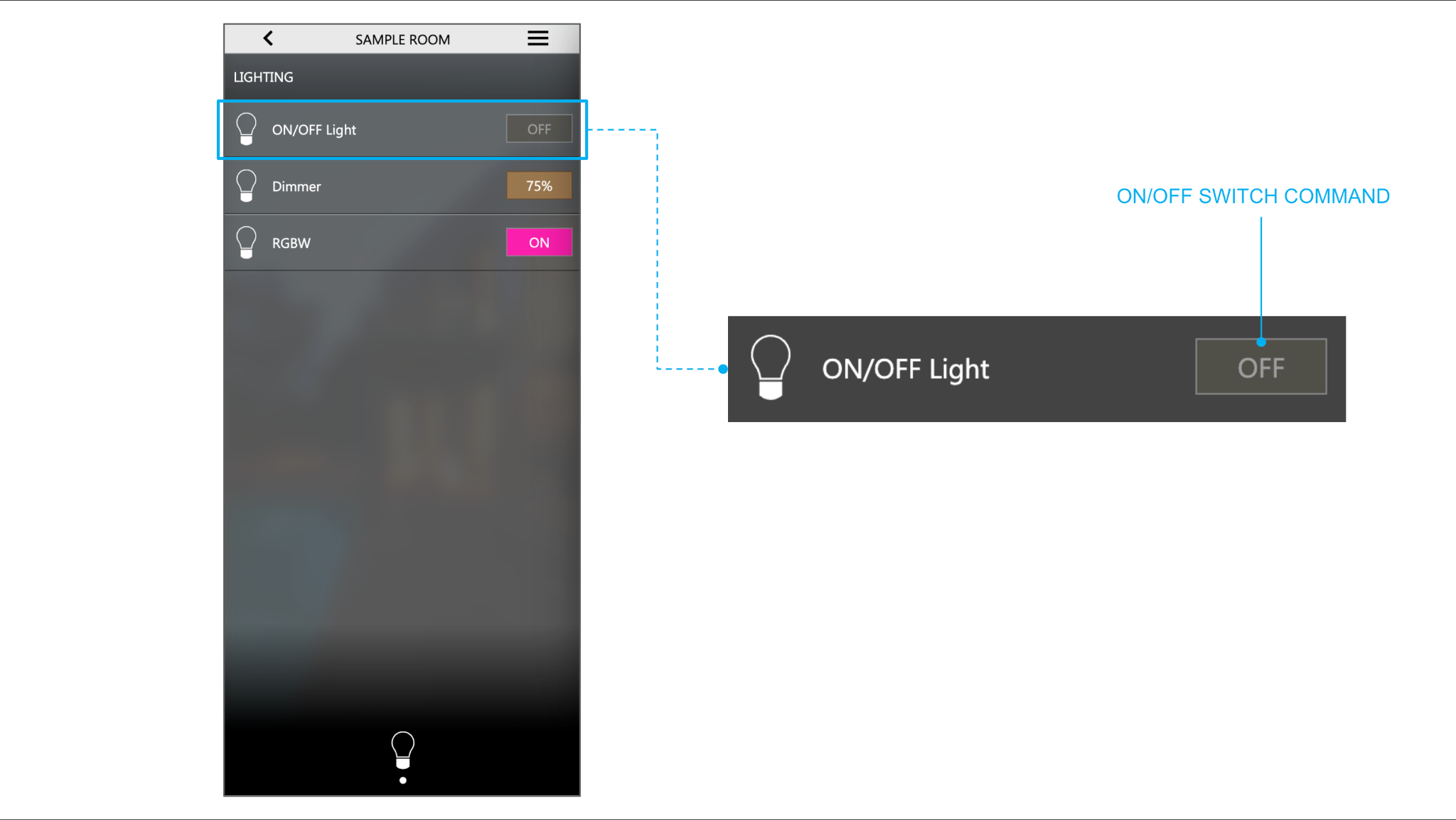
Dimmer
Template dedicated to the control of lights with brightness and, where available, tunable white control. Items supported by the template:
| IDENTIFIER | ETS ENCODING | R/W | DESCRIPTION / NOTES |
|---|---|---|---|
| ON/OFF | Switching (1 bit DPT 1) | RW | Turns the light ON and OFF. Mandatory element for this type of widget. |
| Brightness value | Percent value (1 byte DPT 5) | RW | Adjustment of the percentage intensity of the light. Mandatory element for this type of widget. |
| Color temperature | 16 bit counter (2 byte DPT 7.600) | RW | Adjustment of color temperature (tunable white) in absolute value expressed in K |
| Color temperature % | Percent value (1 byte DPT 5) | RW | Color temperature adjustment (tunable white) as a percentage between cool and warm light |
The “color temperature” and “color temperature %” are mutually exclusive being alternative encodings for the same meaning.
The following picture shows how the widget appears in the Visualization of DELÉGO SERVER:
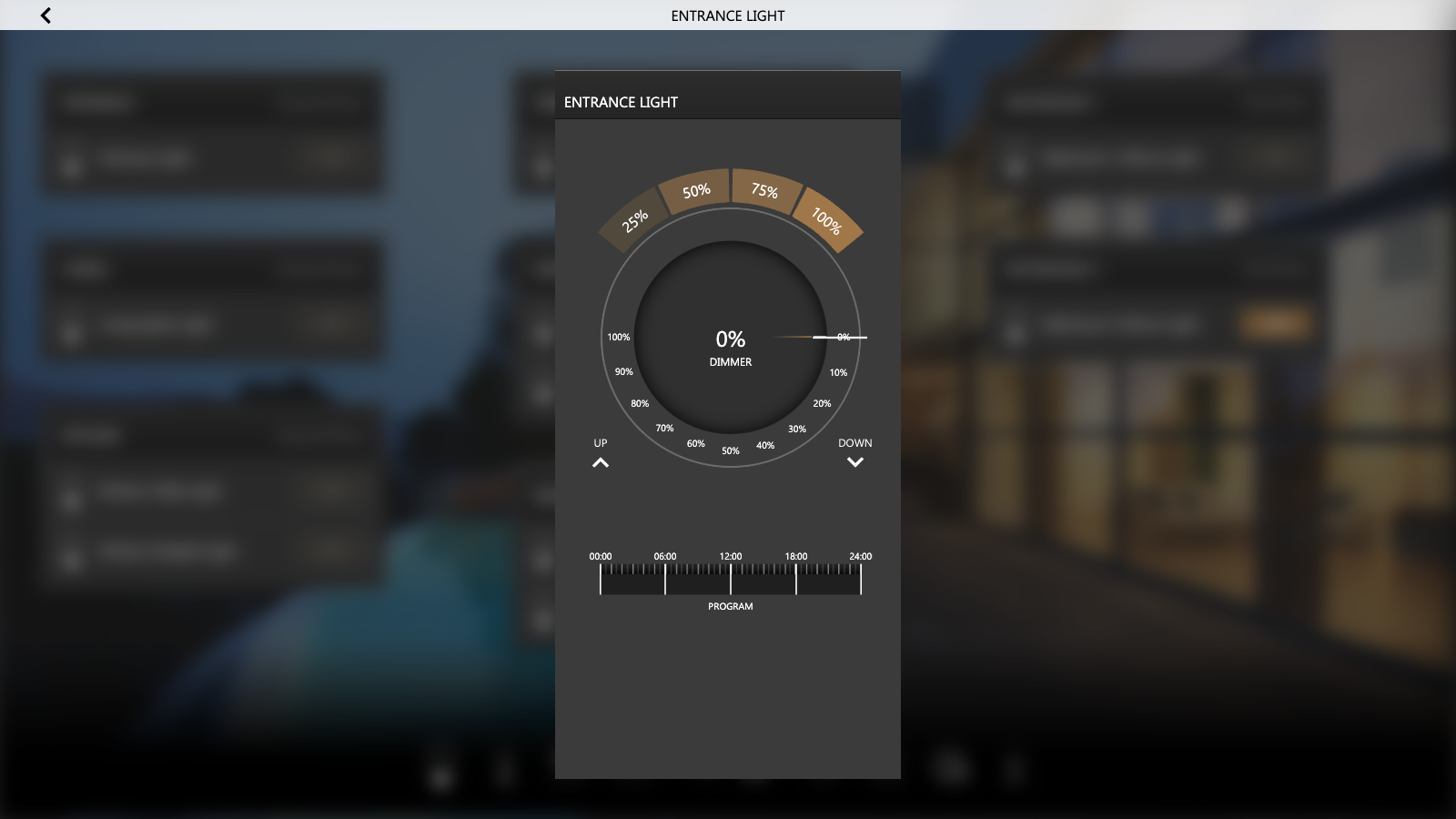
RGBW
Template dedicated to the control of colored lights. Items supported by the template:
| IDENTIFIER | ETS ENCODING | R/W | DESCRIPTION / NOTES |
|---|---|---|---|
| ON/OFF | Switching (1 bit DPT 1) | RW | Turns the light ON and OFF. Mandatory element for this type of widget. |
| RGBW - Red, RGBW - Green, RGBW - Blue | Percent value (1 byte DPT 5) | RW | Individual component coloring when using RGB color coding |
| RGBW - White | Percent value (1 byte DPT 5) | RW | If present, the WHITE component of the RGBW |
| Intensity dimmer | Percent value (1 byte DPT 5) | RW | Adjustment of the intensity of the light fitting regardless of the color selection |
| HSV - Hue, HSV - Saturation, HSV - Value | Percent value (1 byte DPT 5) | RW | Individual component coloring when using HSV color coding |
| HSV | 3 byte (DPT 232.600) | RW | Color control in HSV coding, with a single telegram |
| RGB | 3 byte (DPT 232.600) | RW | Color control in RGB coding, with a single telegram |
It is important to specify only one of the following color adjustment modes, which must be considered mutually exclusive:
- RGB single components
- RGB single telegram
- HSV single components
- HSV single telegram
This template makes it possible to save the current color in a PRESET, in order to retrieve it in a second moment. It is possible to save up to 4 presets. In order to save a preset:
- Set the desired color
- Long press on one of the four elements on top of the color picker The following picture shows how the widget appears in the Visualization of DELÉGO SERVER:
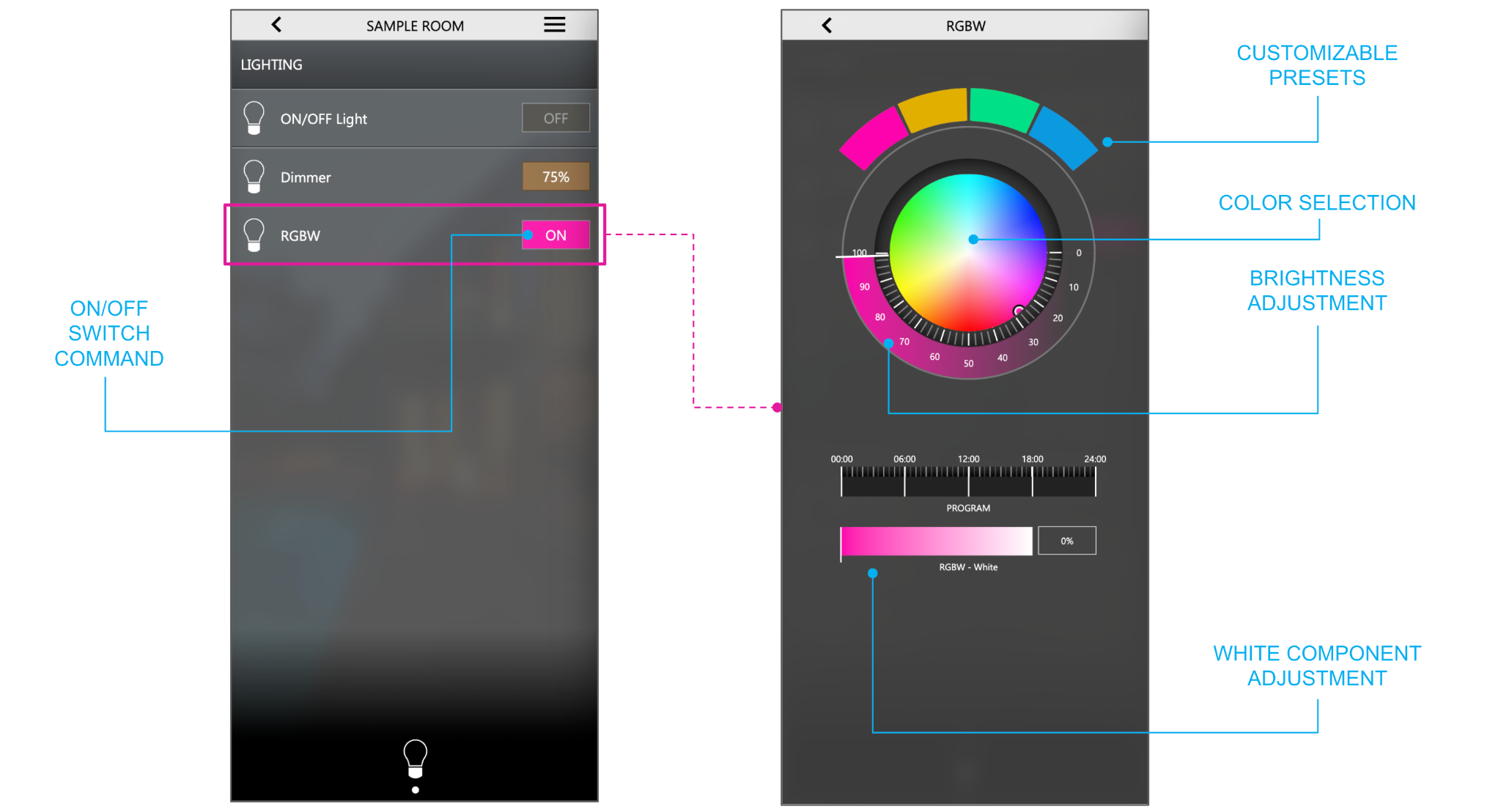
HVAC
Thermostat with HVAC mode
Full-featured template for thermostats configured in ETS to be used with the HVAC operating mode(s) (also called “absolute” temperature control).
GENERIC THERMOSTATS Items supported by the template for generic thermostats:
| IDENTIFIER | ETS ENCODING | R/W | DESCRIPTION / NOTES |
|---|---|---|---|
| Measured temperature | Float value (2 byte DPT 9) | R | Measured temperature read from the internal sensor |
| Thermostat ON/OFF | Switching (1 bit DPT 1) | RW | If present, activates or deactivates thermostat management and related graphics |
| HVAC manual mode | Numeric value 0-255 (1 byte DPT 6) | RW | Standard convention: 1 → Comfort 2 → Precomfort / Standby 3 → Economy 4 → Off / Protection Note: this sub-object is the one associated by default with scenes and schedules |
| Setpoint - Actual | Float value (2 byte DPT 9) | R | Setpoint used by the thermostat based on the current mode. Read only. |
| Setpoint - Manual | Float value (2 byte DPT 9) | RW | In case of single setpoint thermostats, assign this item to the setpoint group address. In case of “dual” chrono and manual modes configurations of EKINEX thermostats, set this item to the manual setpoint group address (refer to the specific instructions below) |
| Offset | Float value (2 byte DPT 9) | RW | If the thermostat provides +/- 3° regulation compared to the basic set point, associate a KNX address to adjust it in the graphics, instead of the set point |
| Setpoint XXX Heating / Cooling | Float value (2 byte DPT 9) | RW | Setpoints associated with the different HVAC modes for the heating and cooling |
| Heating / cooling | Switching (1 bit DPT 1) | RW | Convention: 0 → cooling 1 → heating Note: in the absence of this address, the thermostat is considered to be in heating only mode |
| Heating (ON/OFF), Cooling (ON/OFF) | Switching (1 bit DPT 1) | R | Heating or air conditioning request status; read only. If the thermostat controls a single output in both seasons, enter the same KNX address in both lines. |
| Automatic / manual mode | Switching (1 bit DPT 1) | RW | Convention: 0 → manual 1 → auto |
| Ventilation speed | Numeric value 0-255 (1 byte DPT 6) | RW | Fan speed. Depending on the chosen sub-object, the regulation occurs in discrete steps or as a percentage (continuous regulation). |
| Ventilation speed (%) | Percent value (1 byte DPT 5) | RW | As above, expressed as a percentage |
To change the values exchanged on the KNX bus, press the button in the last column of the row and pick the most suitable set of options in the popup that opens.
If a single HVAC mode is used, the “HVAC manual mode” item must be filled in with the KNX group addresses from ETS, and not the “HVAC mode”. The “HVAC mode” is intended for the dual mode configuration, specific for EKINEX thermostats / pushbuttons, as explained below.
The “ventilation speed” and “ventilation speed (%)” are mutually exclusive; assign KNX group address(es) only to one of the two items, according to the encoding (datapoint type) configured in ETS. The following picture shows how the widget appears in the Visualization of DELÉGO SERVER:
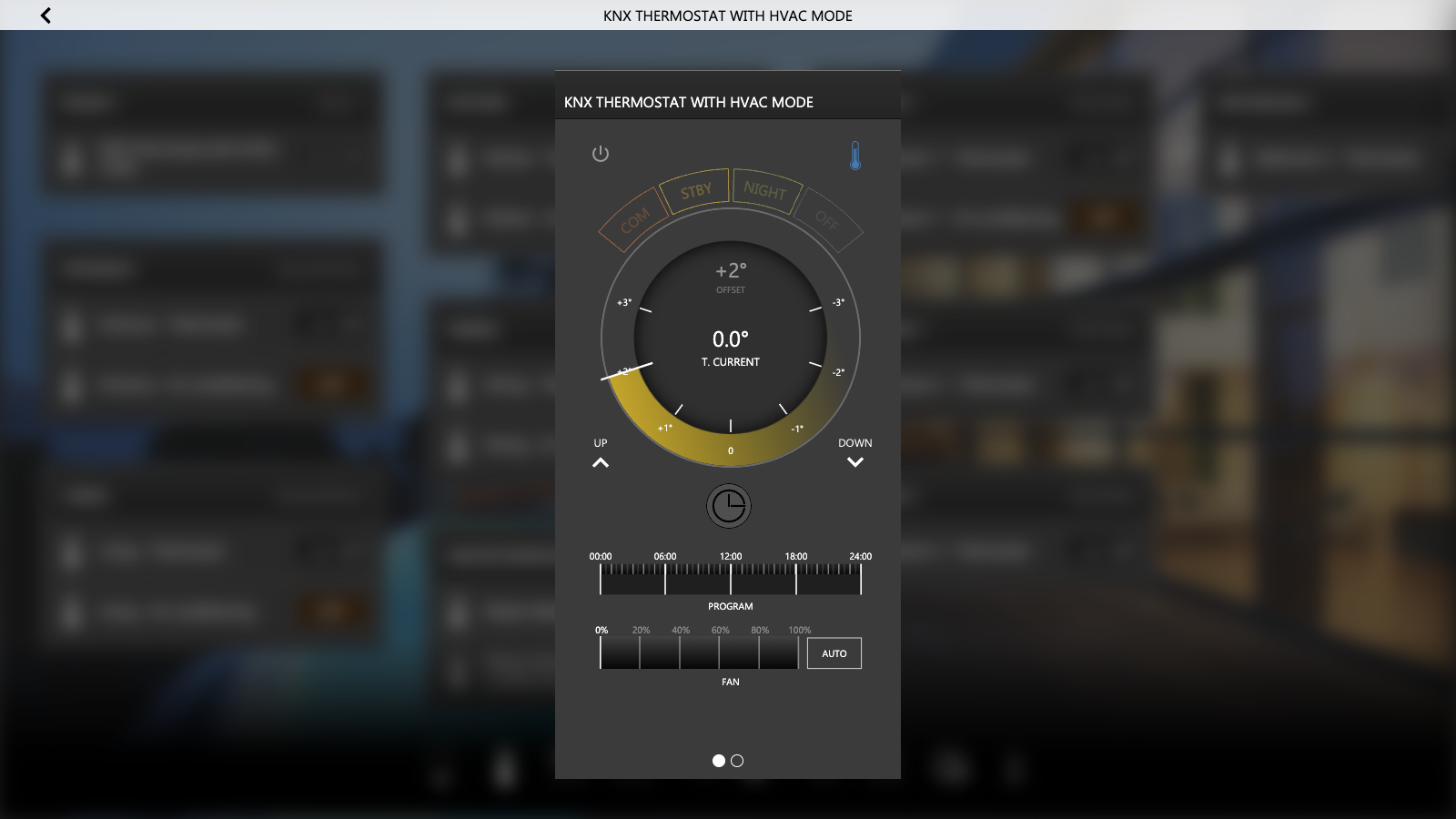
EKINEX THERMOSTATS AND PUSHBUTTONS EKINEX’s thermostats and pushbuttons with integrated thermostat have an advanced HVAC regulation, normally not available on KNX devices from other manufacturers, based on the principle of two different operating conditions, where the thermostat can be in:
- Chrono mode
- Manual mode
In chrono mode the thermostat is under the control of a BMS - like DELÉGO SERVER - where the temperature and HVAC operating mode are managed automatically and scheduled during the day. In that condition, the “ HVAC Mode ” is considered as the operating mode of the thermostat. When the user interacts with the thermostat (e.g., by changing the HVAC mode or the manual setpoint ) the thermostat goes to the manual mode.
The advantage of this dual mode approach, is an easy way - for the end user - to “override” the automatic (chrono) functionality with a temporary manual mode; during the manual mode, anyway, the thermostat keeps in memory the changes of the automatic mode; when the user restores the chrono mode, the thermostat returns to the state it would have had if it had not gone into manual mode. The following items of the thermostat widget are involved in the dual mode:
| IDENTIFIER | ETS ENCODING | R/W | DESCRIPTION / NOTES |
|---|---|---|---|
| HVAC mode | Numeric value 0-255 (1 byte DPT 6) | RW | Operating mode of the thermostat used when it is in chrono mode. To be associated with the KNX group address(es) of the following communication objects: ● HVAC Mode In (COMMAND) ● HVAC Mode Out (FEEDBACK) |
| HVAC manual mode | Numeric value 0-255 (1 byte DPT 6) | RW | Operating mode of the thermostat used when it is in manual mode. To be associated with the KNX group address(es) of the following communication object: ● HVAC Manual Mode (COMMAND) |
| Chrono active status | Switching (1 bit DPT 1) | R | Status of the “chrono mode”. To be associated with the KNX group address(es) of the following communication object: ● HVAC Manual Mode (COMMAND) |
| Setpoint - Manual | Float value (2 byte DPT 9) | RW | Setpoint used in manual mode to override the one associated with the operating mode. To be associated with the KNX group address(es) of the following communication object: ● Manual setpoint (COMMAND) |
| Manual setpoint active status | Switching (1 bit DPT 1) | RW | Status of the “manual setpoint”. To be associated with the KNX group address(es) of the following communication object: ● Manual setpoint active status (COMMAND) |
The two pictures below show the communication objects involved with the dual mode in the ETS library, and how the widget then appears in the Visualization of DELÉGO SERVER in each of the two modes:
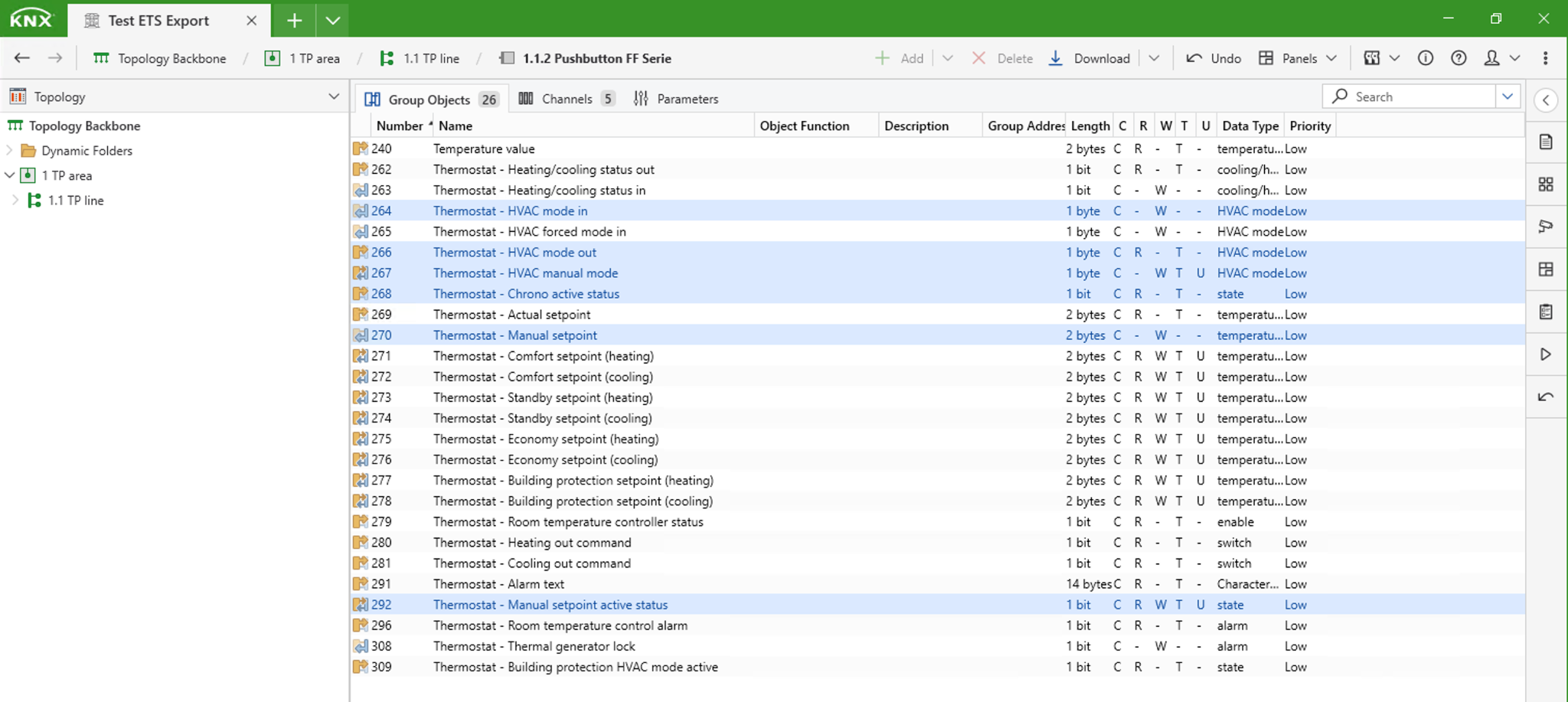
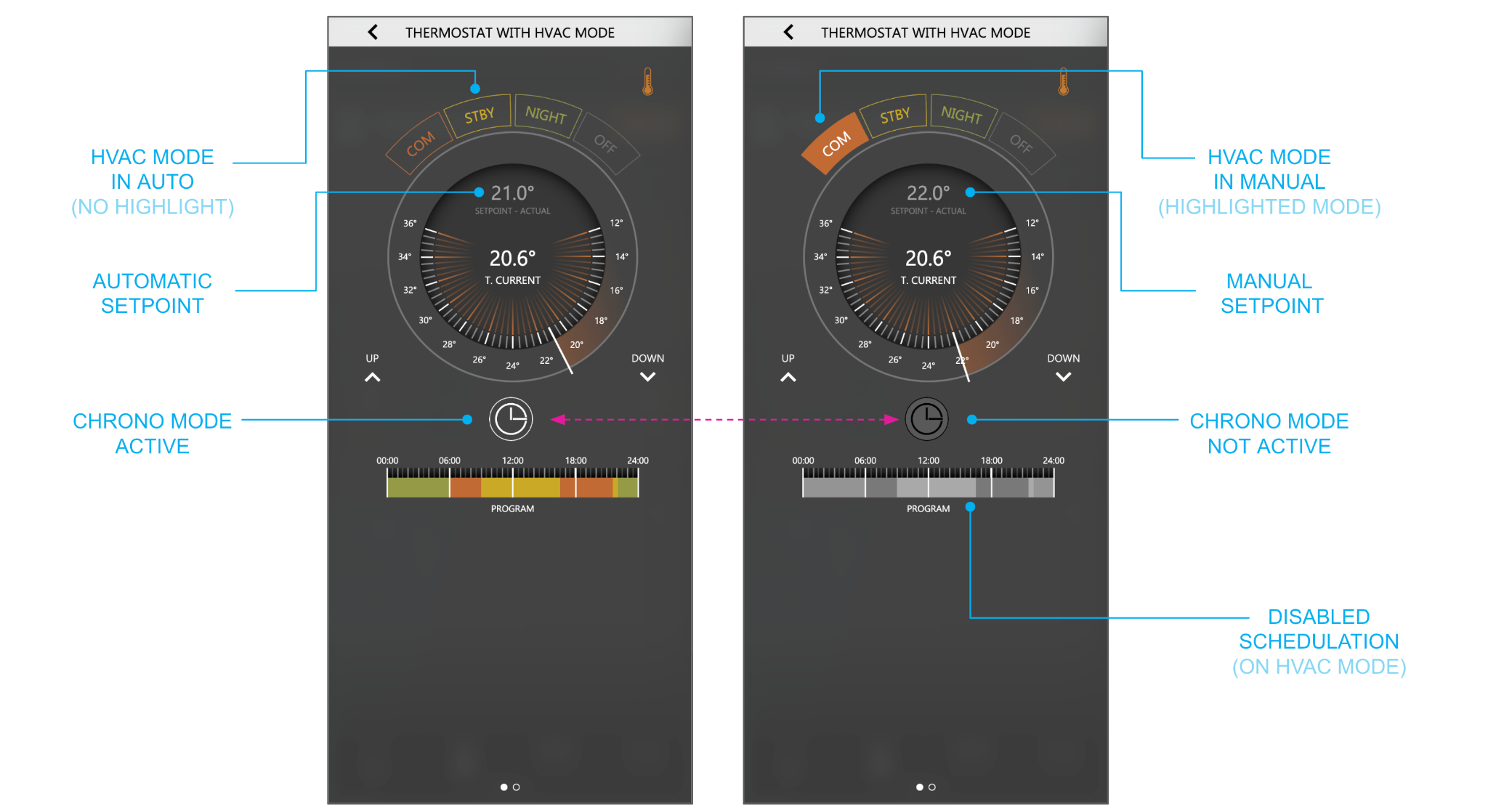
For the dual mode to work properly, the following steps are also necessary:
- Switch Expert mode on
- Select HVAC mode (the chrono one) in the SCH/TRG column
By doing this, the schedules will be done on the chrono HVAC mode, and not on the manual one.
Thermostat with single setpoint
Items supported by the template:
| IDENTIFIER | ETS ENCODING | R/W | DESCRIPTION / NOTES |
|---|---|---|---|
| Measured temperature | Float value (2 byte DPT 9) | R | Measured temperature read from the internal sensor |
| Thermostat ON/OFF | Switching (1 bit DPT 1) | RW | If present, activates or deactivates thermostat management and related graphics |
| Comfort mode, Eco mode | Switching (1 bit DPT 1) | RW | If present, activate respectively a “comfort mode” (increased comfort with an offset on the temperature setpoint) and an “eco mode” (reduced setpoint for energy saving) |
| Setpoint - Actual | Float value (2 byte DPT 9) | R | Setpoint used by the thermostat based on the flags. Read only. |
| Setpoint - Manual | Float value (2 byte DPT 9) | RW | Adjustable temperature (base) setpoint. |
| Offset | Float value (2 byte DPT 9) | RW | If the thermostat provides +/- 3° regulation, this item overrides the setpoint regulation |
| Heating / cooling | Switching (1 bit DPT 1) | RW | Convention: 0 → cooling 1 → heating Note: in the absence of this address, the thermostat is considered to be in heating only mode |
| Heating, Cooling | Switching (1 bit DPT 1) | R | Heating or air conditioning request status; read only. Enter the same address in case of single output. |
(ON/OFF)
| Automatic / manual mode | Switching (1 bit DPT 1) | RW | Convention: 0 → manual 1 → auto |
| Ventilation speed | Numeric value 0-255 (1 byte DPT 6) | RW | Fan speed. Depending on the chosen sub-object, the regulation occurs in discrete steps or as a percentage (continuous regulation). |
| Ventilation speed (%) | Percent value (1 byte DPT 5) | RW | As above, expressed as a percentage |
The “ventilation speed” and “ventilation speed (%)” are mutually exclusive; assign KNX group address(es) only to one of the two items, according to the encoding (datapoint type) configured in ETS.
The following picture shows how the widget appears in the Visualization of DELÉGO SERVER:
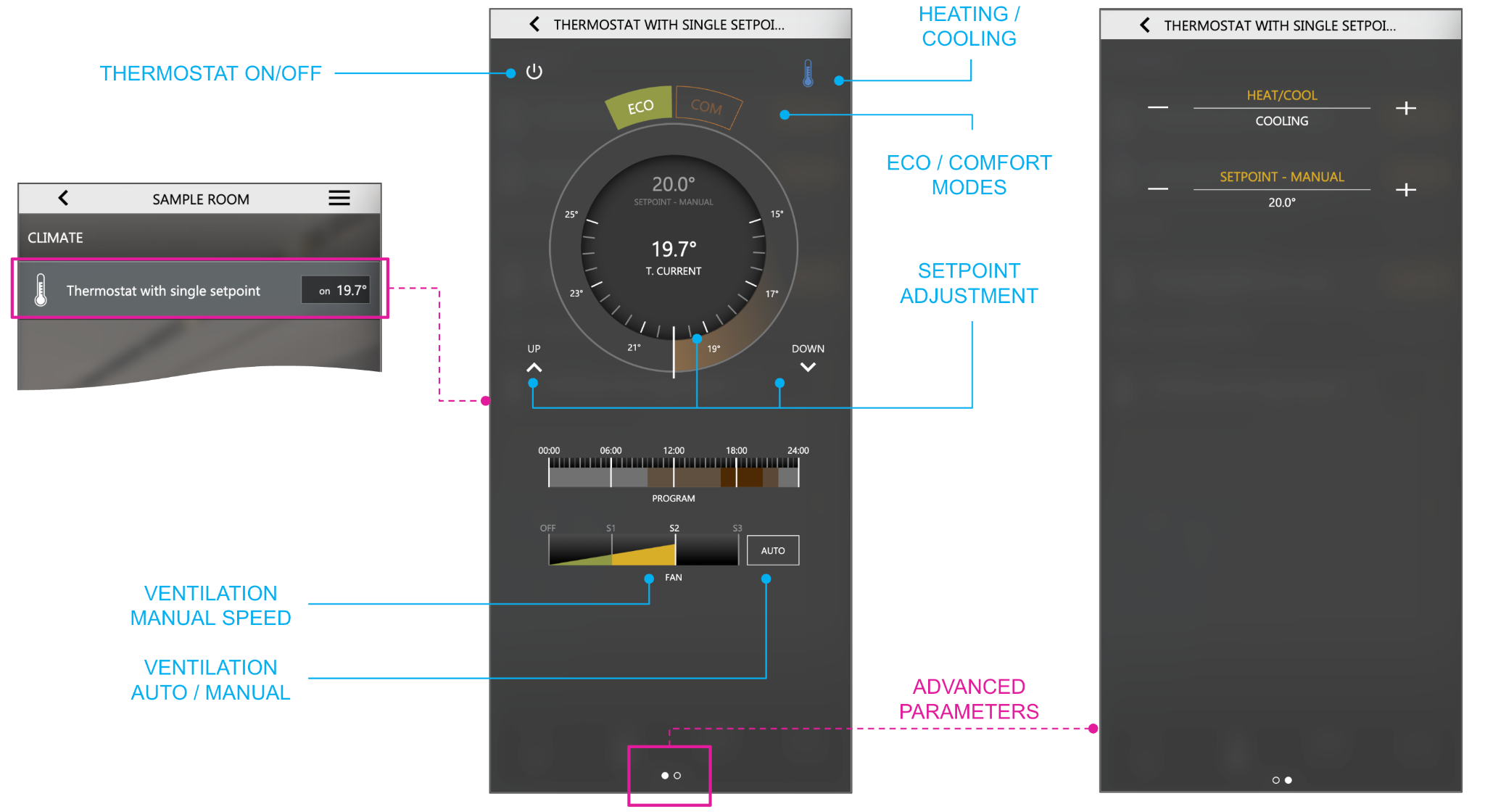
Thermostat with seasonal setpoint
This template is similar to the thermostat with a single setpoint, but offers two different temperature setpoints, one for the heating, and the other for the cooling.
Items supported by the template:
| IDENTIFIER | ETS ENCODING | R/W | DESCRIPTION / NOTES |
|---|---|---|---|
| Measured temperature | Float value (2 byte DPT 9) | R | Measured temperature read from the internal sensor |
| Thermostat ON/OFF | Switching (1 bit DPT 1) | RW | If present, activates or deactivates thermostat management and related graphics |
| Comfort mode, Eco mode | Switching (1 bit DPT 1) | RW | If present, activate respectively a “comfort mode” (increased comfort with an offset on the temperature setpoint) and an “eco mode” (reduced setpoint for energy saving) |
| Setpoint - Actual | Float value (2 byte DPT 9) | R | Setpoint used by the thermostat based on the flags. Read only. |
| Setpoint - Heating, Setpoint - Cooling | Float value (2 byte DPT 9) | RW | Adjustable temperature setpoint, respectively for the heating and the cooling mode |
| Offset | Float value (2 byte DPT 9) | RW | If the thermostat provides +/- 3° regulation, this item overrides the setpoint regulation |
| Heating / cooling | Switching (1 bit DPT 1) | RW | Convention: 0 → cooling 1 → heating Note: in the absence of this address, the thermostat is considered to be in heating only mode |
| Heating (ON/OFF), Cooling (ON/OFF) | Switching (1 bit DPT 1) | R | Heating or air conditioning request status; read only. Enter the same address in case of single output. |
| Automatic / manual mode | Switching (1 bit DPT 1) | RW | Convention: 0 → manual 1 → auto |
| Ventilation speed | Numeric value 0-255 (1 byte DPT 6) | RW | Fan speed. Depending on the chosen sub-object, the regulation occurs in discrete steps or as a percentage (continuous regulation). |
| Ventilation speed (%) | Percent value (1 byte DPT 5) | RW | As above, expressed as a percentage |
This template is particularly suited for the Ekinex EK-ER2-TP easy thermostat; the following picture shows the communication objects that normally have to be configured, to obtain a suitable visualization in DELÉGO SERVER, and how the widget then appears in the Visualization:
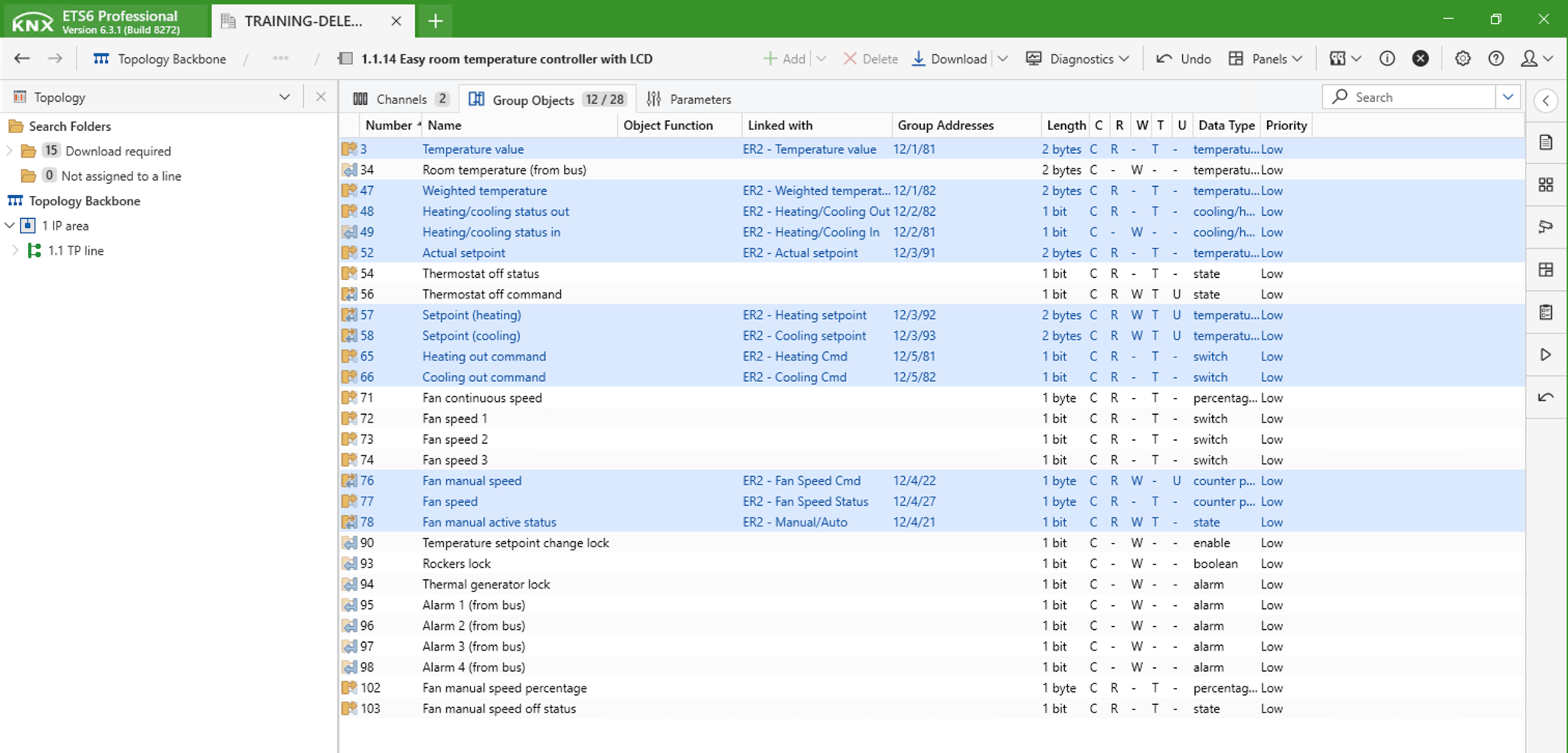
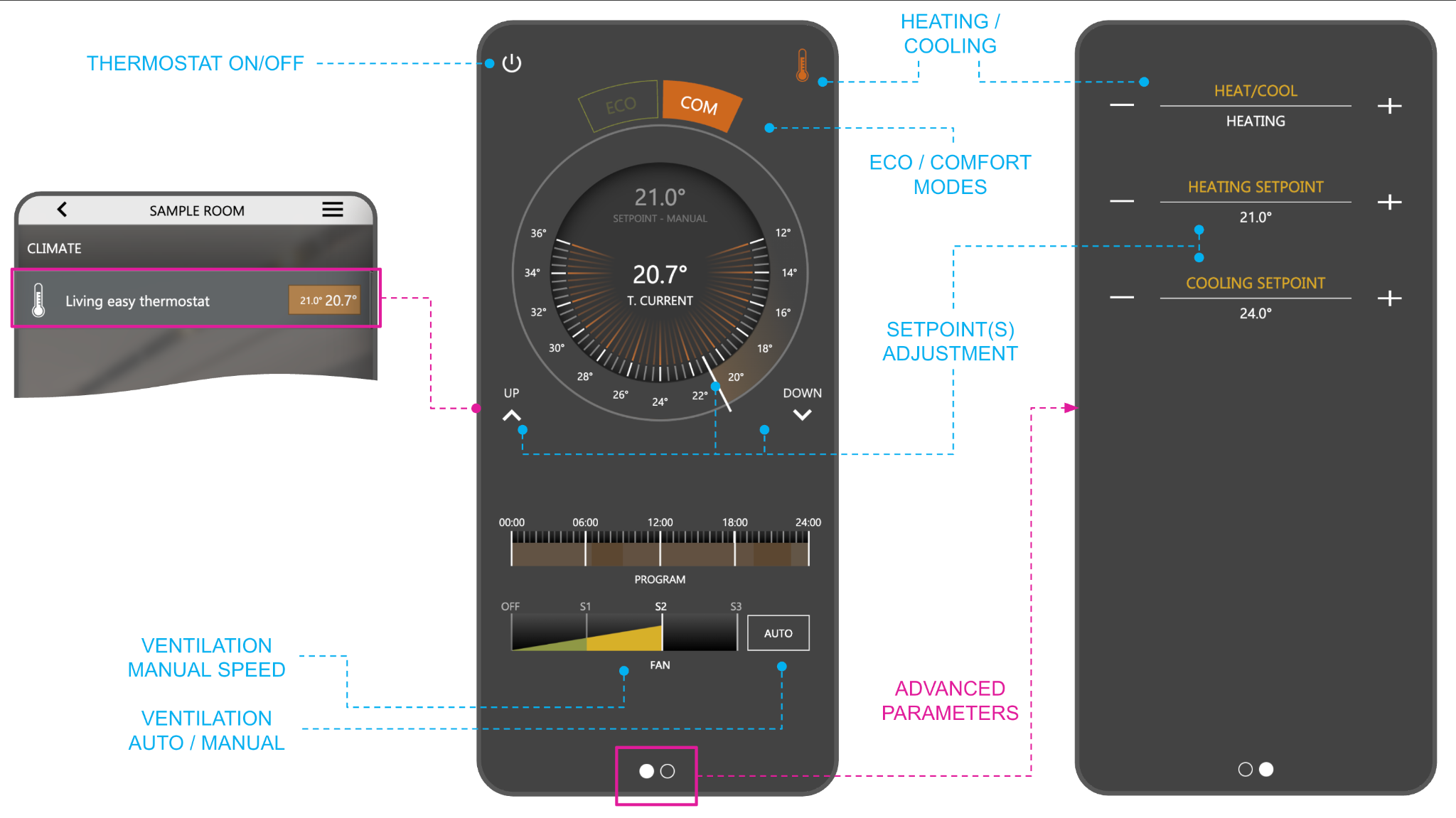
The Ekinex easy thermostat EK-ER2-TP does not support the eco and comfort modes, even if they are present in the DELÉGO SERVER template (being it more generic). Furthermore, in order to manage the ON/OFF of the thermostat from the Visualization, it is necessary to invert the group object called “thermostat OFF” with a logic function, because the thermostat accepts the value 1 to switch OFF, instead of 0.
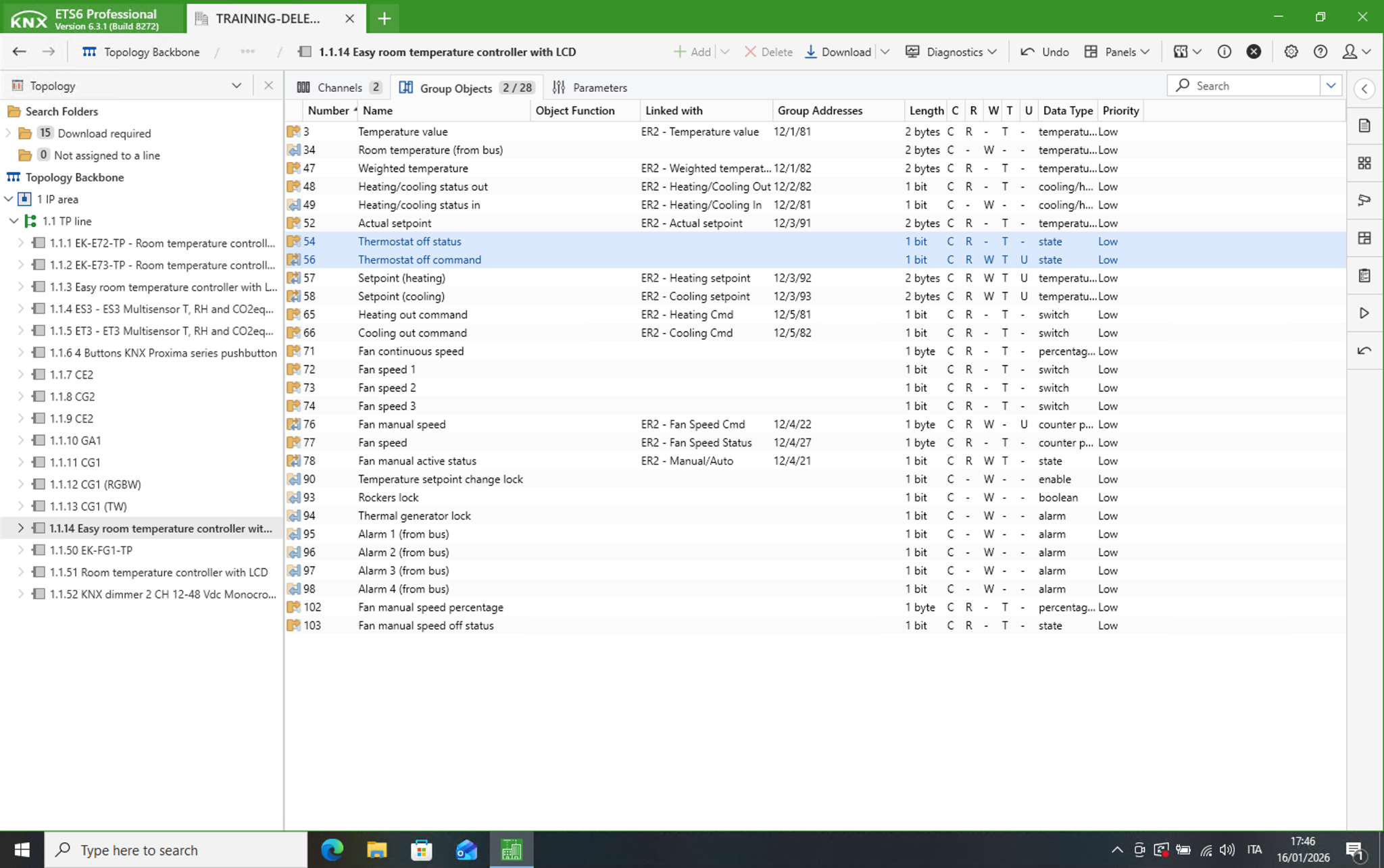
Air conditioning unit
Template dedicated to AC (Air Conditioning) interfaces for VRV / Split systems and native KNX devices.
Items supported by the template:
| IDENTIFIER | ETS ENCODING | R/W | DESCRIPTION / NOTES |
|---|---|---|---|
| Measured temperature | Float value (2 byte DPT 9) | R | Measured temperature read from the internal sensor |
| Thermostat ON/OFF | Switching (1 bit DPT 1) | RW | If present, activates or deactivates the split management and related graphics |
| Working status ON/OFF | Switching (1 bit DPT 1) | R | Operating status of the AC system reported by the device |
| Cooling mode | Numeric value 0-255 (1 byte DPT 6) | RW | Standard convention: 0 → Auto 1 → Heat 3 → Cool 9 → Fan 14 → Dry |
| Setpoint - Command | Float value (2 byte DPT 9) | RW | Adjustable temperature (base) setpoint. |
| Setpoint - Actual | Float value (2 byte DPT 9) | R | Setpoint used by the thermostat based on the flags. Read only. |
| Automatic / manual mode | Switching (1 bit DPT 1) | RW | Convention: 0 → manual 1 → auto |
| Ventilation speed | Numeric value 0-255 (1 byte DPT 6) | RW | Fan speed. Depending on the chosen sub-object, the regulation occurs in discrete steps or as a percentage (continuous regulation). |
| Ventilation speed (%) | Percent value (1 byte DPT 5) | RW | As above, expressed as a percentage |
| Flaps position | Numeric value 0-255 (1 byte DPT 6) | RW | Position of the slats: 5 values correspond to as many inclinations, plus an AUTO mode and SWING (i.e. the oscillatory movement of the slats) |
| Swing | Switching (1 bit DPT 1) | RW | As an alternative to selecting the SWING (oscillation of the slats) via the previous object, it is possible to send the command or know the status of the SWING via this sub-object |
To change the values exchanged on the KNX bus, press the button in the last column of the row and pick the most suitable set of options in the popup that opens.
The following picture shows how the widget appears in the Visualization of DELÉGO SERVER:
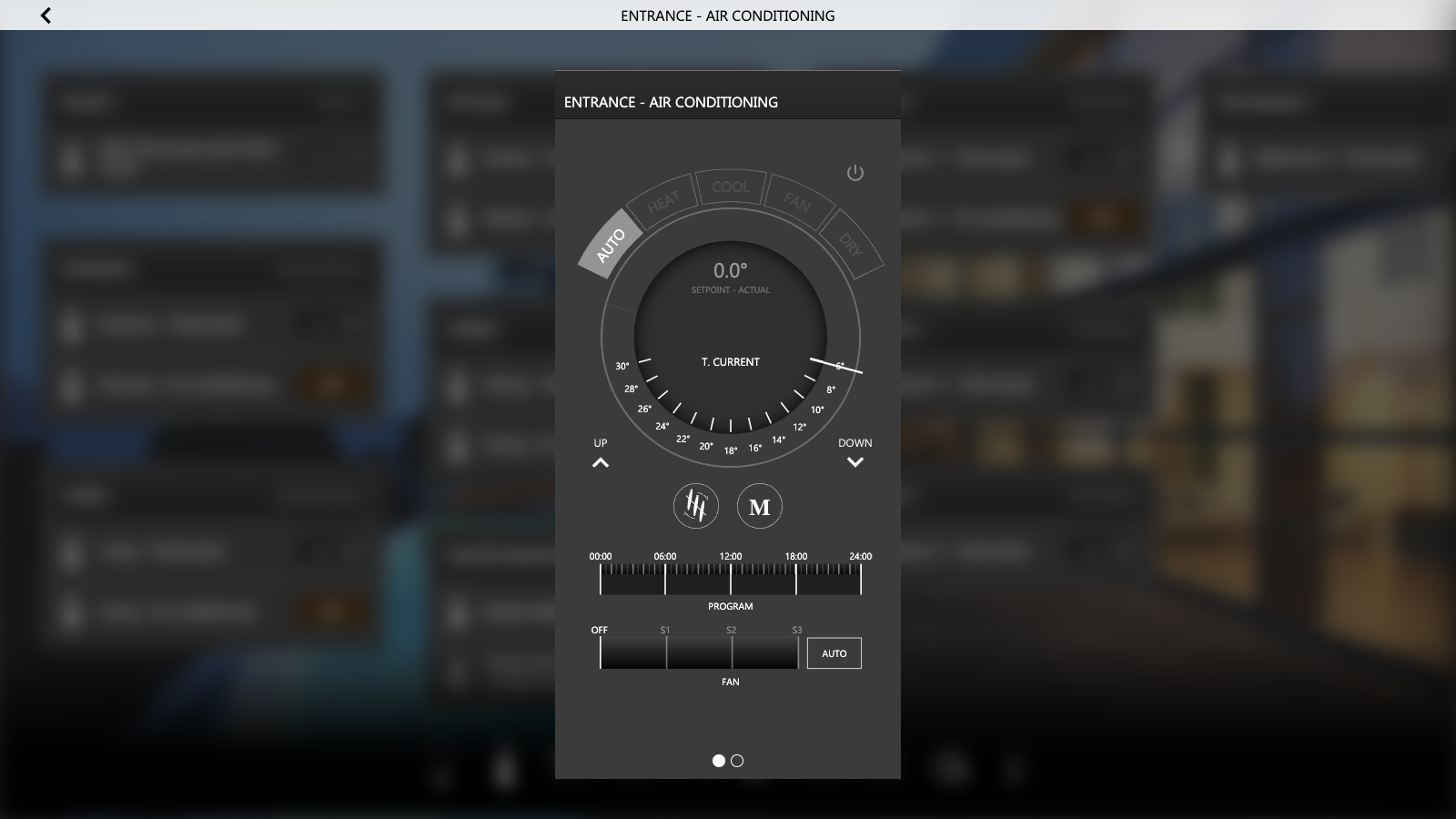
Humidity control
Template dedicated to humidity sensors and controllers. Items supported by the template:
| IDENTIFIER | ETS ENCODING | R/W | DESCRIPTION / NOTES |
|---|---|---|---|
| Humidity % - Actual | Percent value (1 byte DPT 5) | R | Measured relative humidity and corresponding setpoint, expressed with a percent value |
| Humidity % - Setpoint | RW | ||
| Humidity value - Actual | Float value (2 byte DPT 9) | R | Measured humidity and corresponding setpoint, expressed with an absolute value |
| Humidity value - Setpoint | RW | ||
| Humidification Dehumidification | Switching (1 bit DPT 1) | R | State of the humidification and dehumidification respectively |
| Mode | Switching (1 bit DPT 1) | RW | Selector between humidification and dehumidification mode. Convention: 0 → Humidification 1 → Dehumidification |
The following picture shows how the widget appears in the Visualization of DELÉGO SERVER:
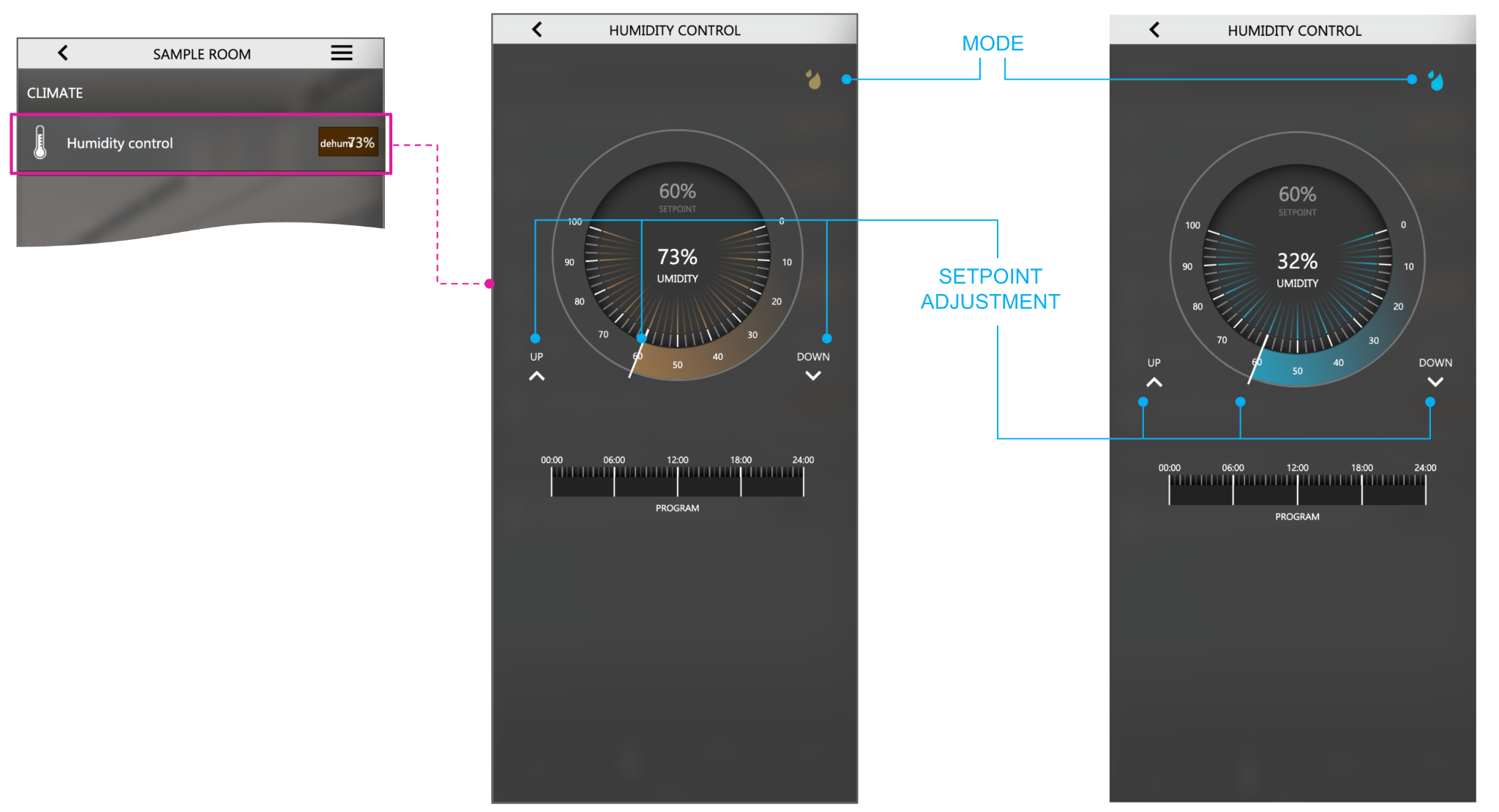
CO₂ and VOC Control
Templates dedicated to air quality sensors with CO₂ / VOC measurement and control. Supported items by the CO₂ control template:
| IDENTIFIER | ETS ENCODING | R/W | DESCRIPTION / NOTES |
|---|---|---|---|
| CO₂ level | Floating point (2 byte DPT 9) | R | Measured value of CO₂, expressed in PPM |
| CO₂ setpoint | Floating point (2 byte DPT 9) | RW | Setpoint value for the CO₂ |
Supported items by the VOC control template:
| IDENTIFIER | ETS ENCODING | R/W | DESCRIPTION / NOTES |
|---|---|---|---|
| VOC level | Floating point (2 byte DPT 9) | R | Measured value of VOC, expressed in PPM |
| VOC setpoint | Floating point (2 byte DPT 9) | RW | Setpoint value for the VOC |
The following picture displays how the widget is displayed in the Visualization of DELÉGO SERVER for both CO₂ and VOC controls:
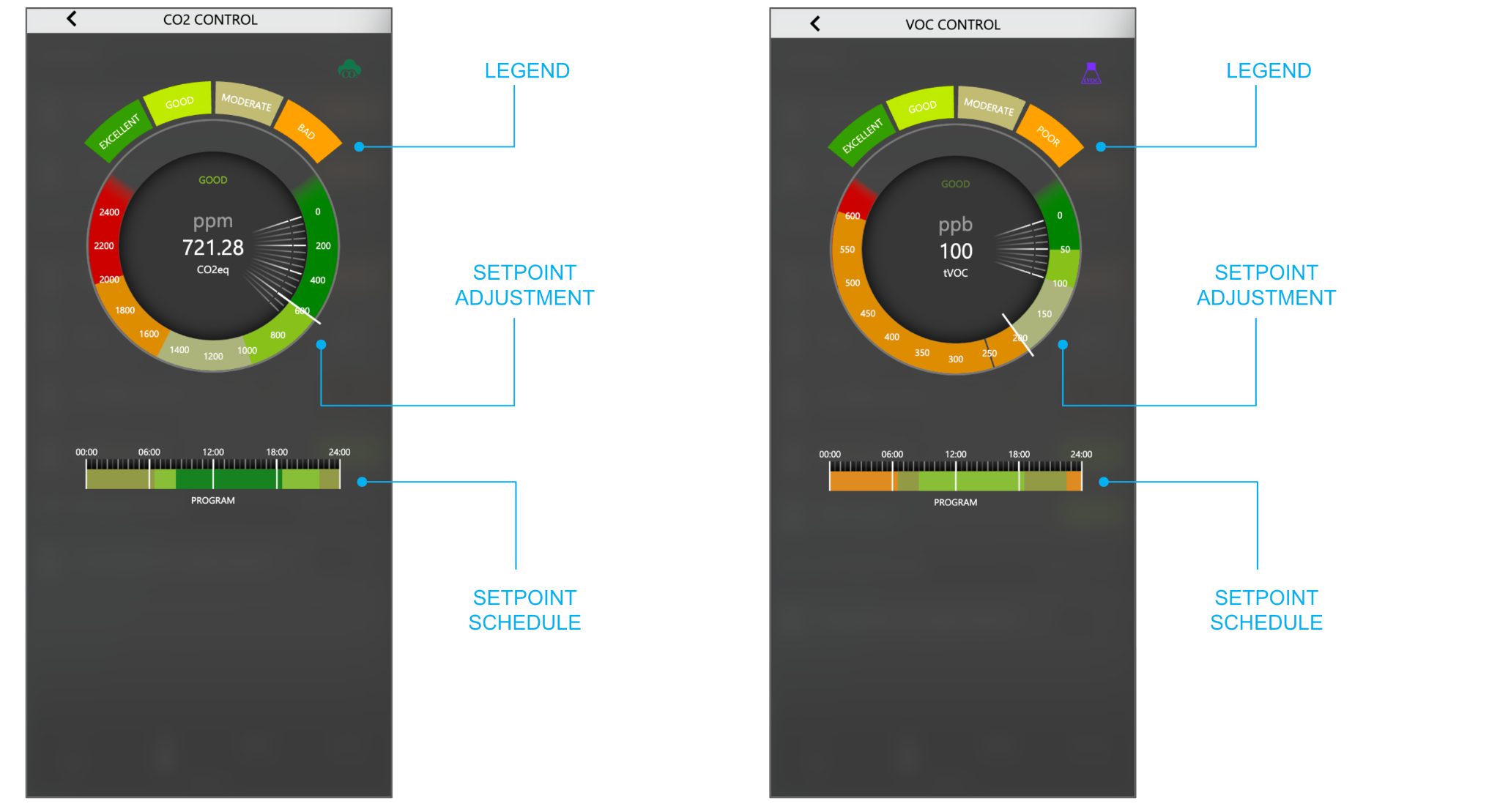
Motorizations
Shutter up/down/stop
Simple motor control for up/down and stop control of shutters and similar motorizations. Items supported by the template:
| IDENTIFIER | ETS ENCODING | R/W | DESCRIPTION / NOTES |
|---|---|---|---|
| Movement (up/down) | Switching (1 bit DPT 1) | RW | Typical convention: 1 → lower / close 0 → raise / open |
| Stop | Switching (1 bit DPT 1) | W |
The following picture shows how the widget appears in the Visualization of DELÉGO SERVER:
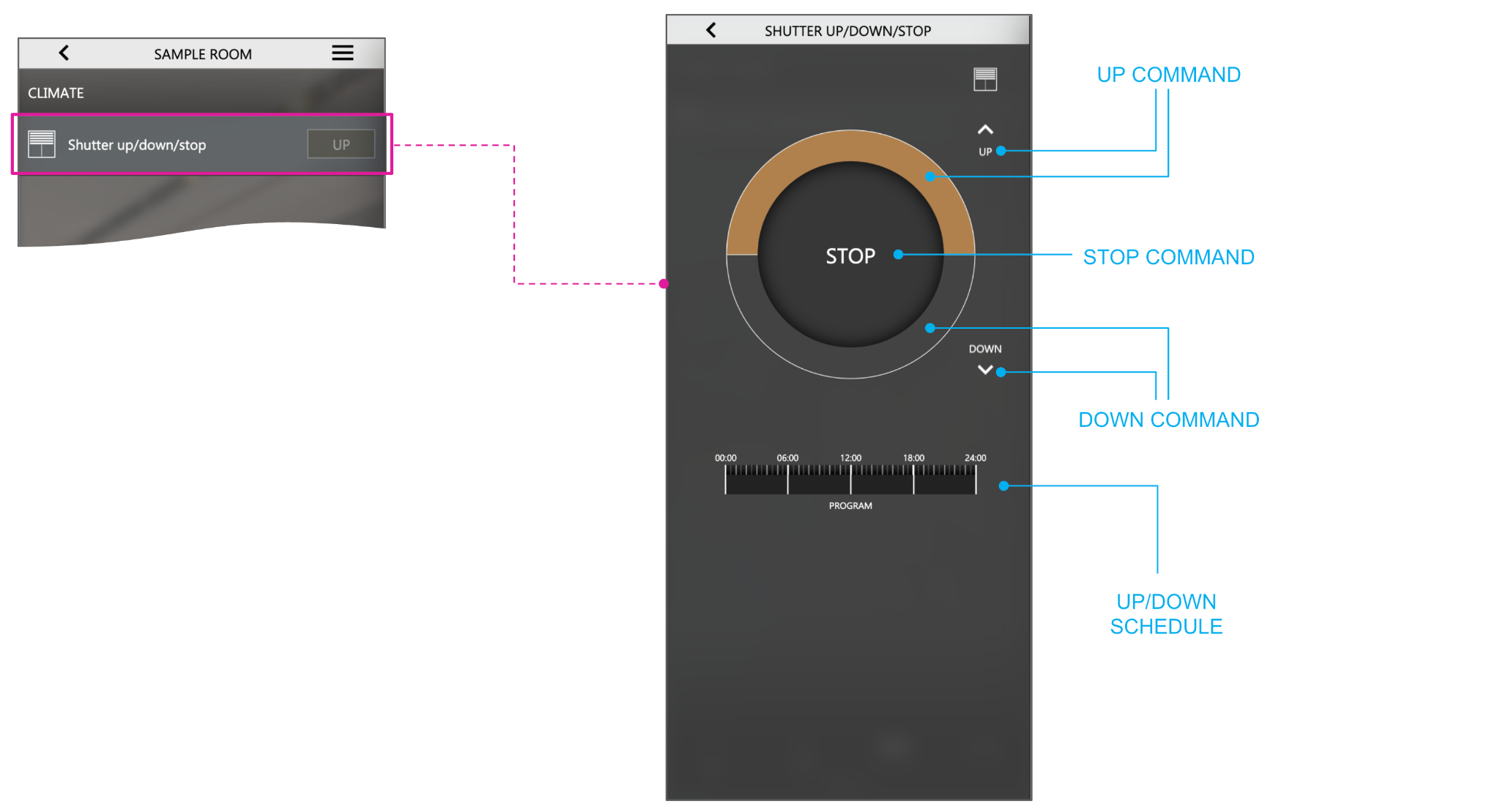
Shutter up/down/percentage
Motor control for up/down and stop control of shutters and similar motorizations with percent (absolute) position control. Items supported by the template:
| IDENTIFIER | ETS ENCODING | R/W | DESCRIPTION / NOTES |
|---|---|---|---|
| Movement (up/down) | Switching (1 bit DPT 1) | RW | Typical convention: 1 → lower / close 0 → raise / open |
| Percent value | Percent value (1 byte DPT 5) | RW | Typical convention: 100% → Fully closed / down 0% → Fully opened / up |
| Stop | Switching (1 bit DPT 1) | W |
Visualization preview:
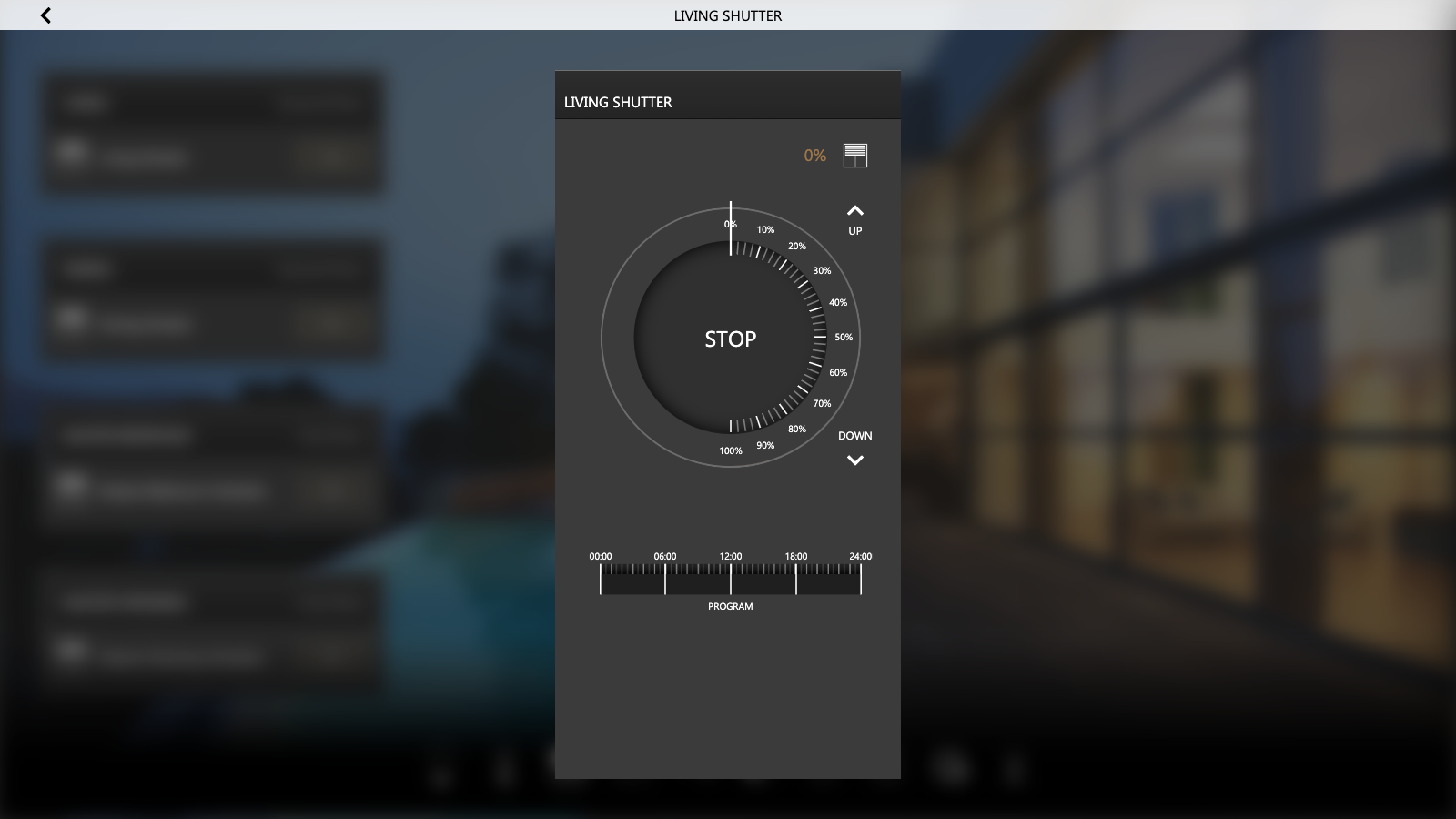
Venetian blinds up/down/step
Simple venetian blinds control with up/down/stop movement control and slats open/close (step up/down). Items supported by the template:
| IDENTIFIER | ETS ENCODING | R/W | DESCRIPTION / NOTES |
|---|---|---|---|
| Movement (up/down) | Switching (1 bit DPT 1) | RW | Typical convention: 1 → lower / close 0 → raise / open |
| Slats (step up/down) | Switching (1 bit DPT 1) | RW | |
| Stop | Switching (1 bit DPT 1) | W |
The following picture shows how the widget appears in the Visualization of DELÉGO SERVER:
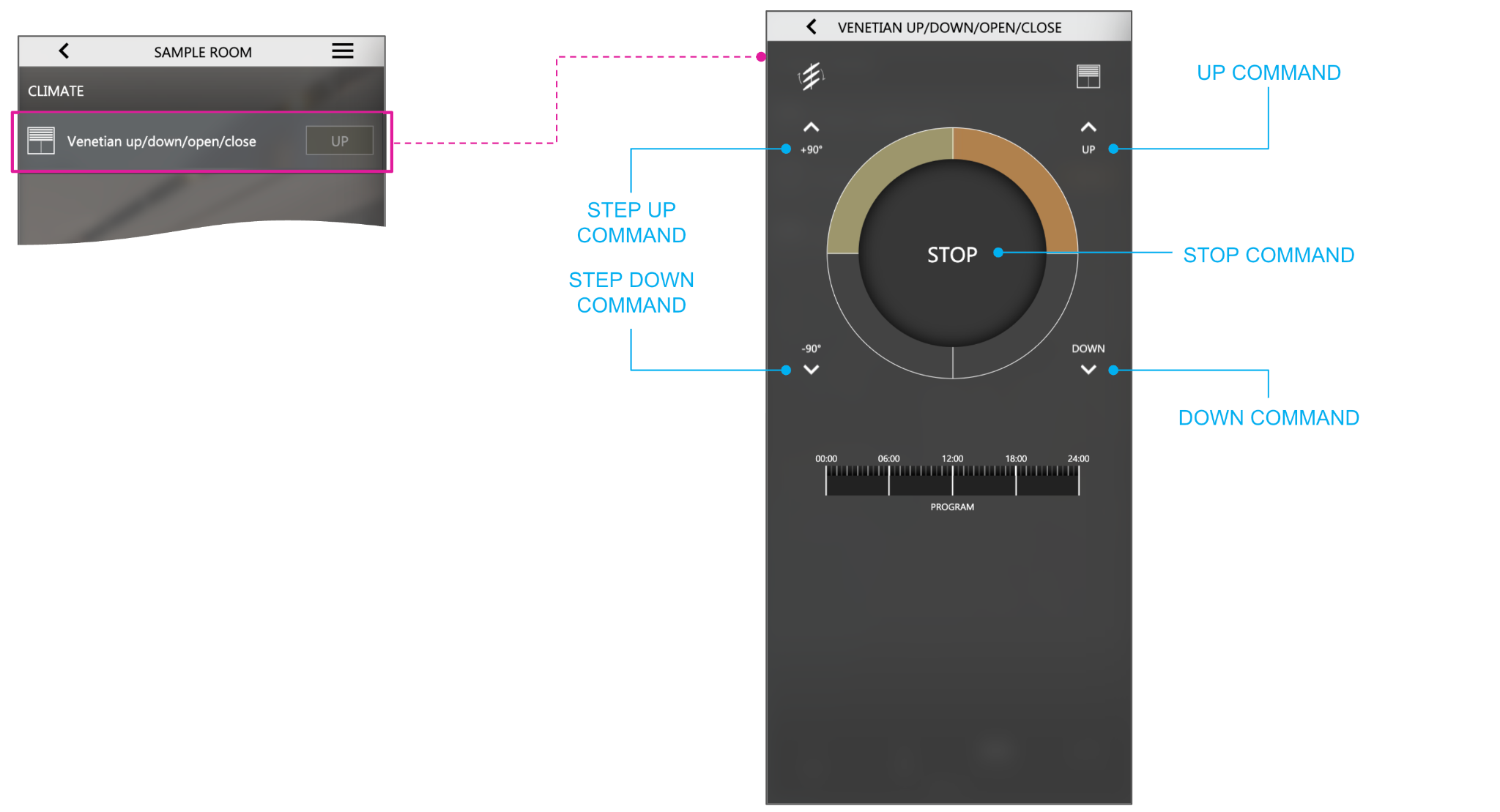
Venetian up/down/percentage
Venetian blind control with percent position and slats step up/down command. Items supported by the template:
| IDENTIFIER | ETS ENCODING | R/W | DESCRIPTION / NOTES |
|---|---|---|---|
| Movement (up/down) | Switching (1 bit DPT 1) | RW | Typical convention: 1 → lower / close 0 → raise / open |
| Percent value | Percent value (1 byte DPT 5) | RW | Typical convention: 100% → Fully closed / down 0% → Fully opened / up |
| Slats (step up/down) | Switching (1 bit DPT 1) | RW | |
| Stop | Switching (1 bit DPT 1) | W |
The following picture shows how the widget appears in the Visualization of DELÉGO SERVER:
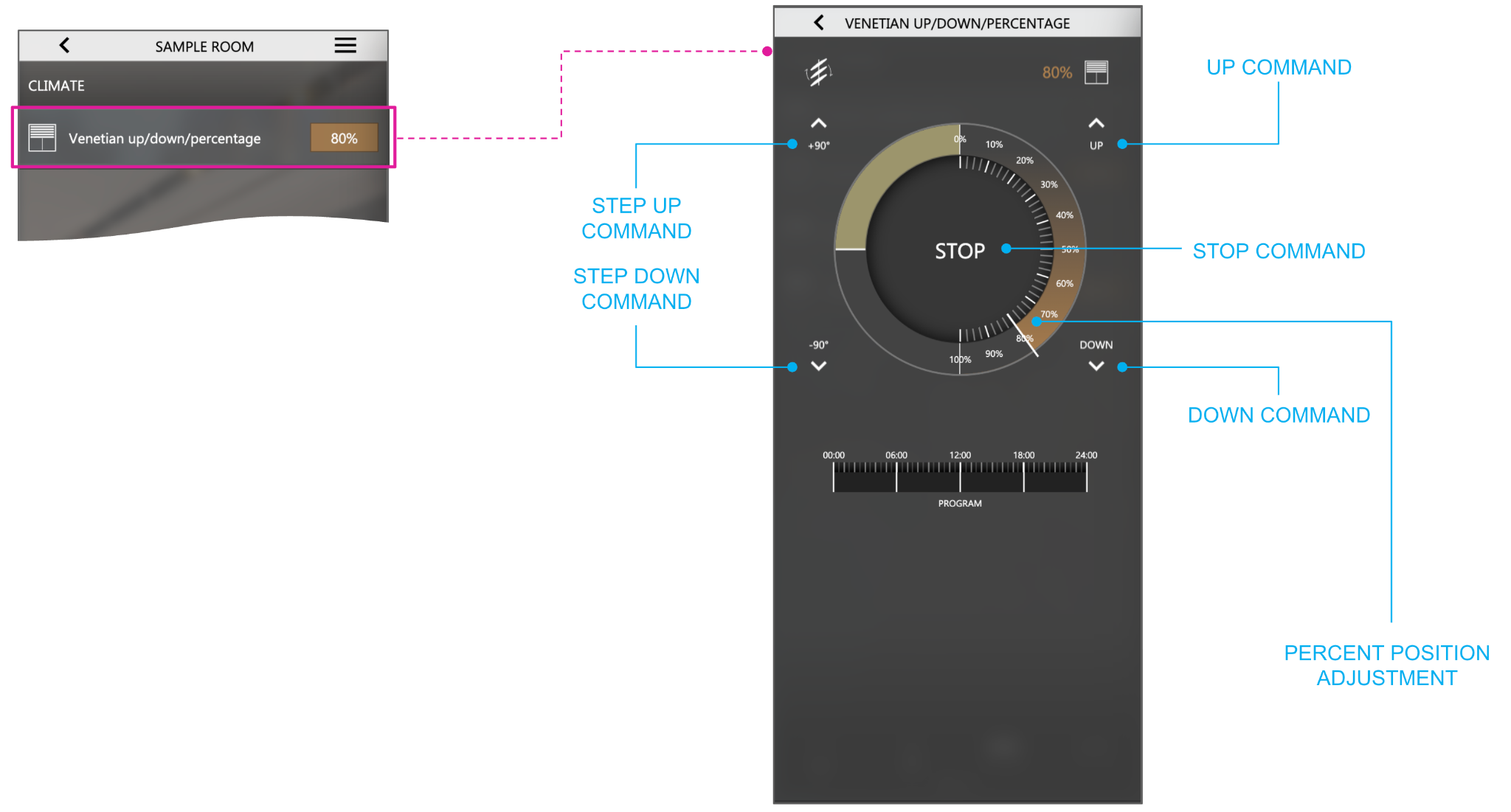
Venetian with slat orientation
Full-feature venetian blinds control with up/down/percent positioning management and slats orientation percent control. Items supported by the template:
| IDENTIFIER | ETS ENCODING | R/W | DESCRIPTION / NOTES |
|---|---|---|---|
| Movement (up/down) | Switching (1 bit DPT 1) | RW | Typical convention: 1 → lower / close 0 → raise / open |
| Percent value | Percent value (1 byte DPT 5) | RW | Typical convention: 100% → Fully closed / down 0% → Fully opened / up |
| Slats (step up/down) | Switching (1 bit DPT 1) | RW | |
| Slats (orientation) | Percent value (1 byte DPT 5) | RW | Typical convention: 100% → Fully oriented up 0% → Fully oriented down |
| Stop | Switching (1 bit DPT 1) | W |
The following picture shows how the widget appears in the Visualization of DELÉGO SERVER:
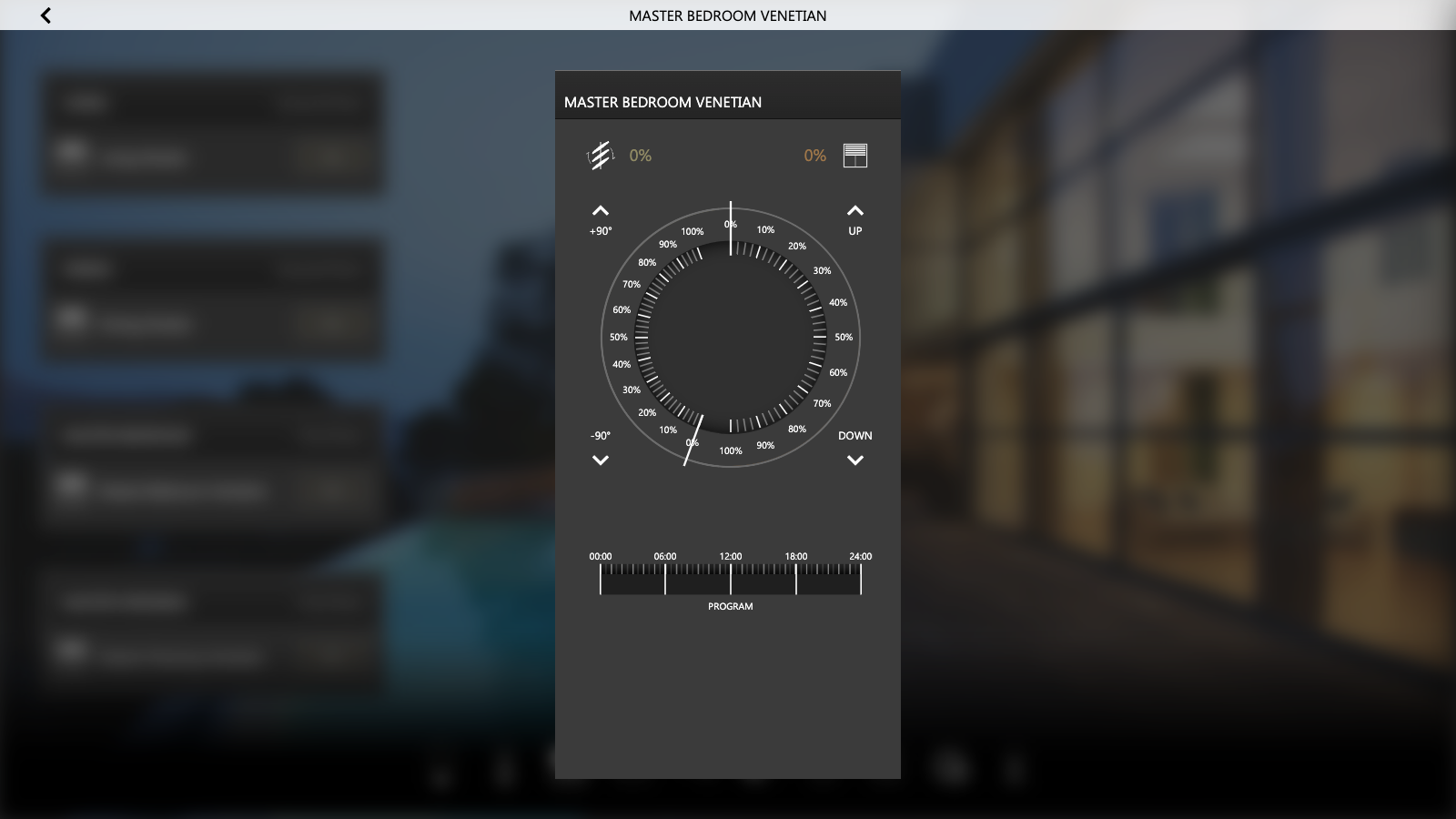
Multimedia
Multiroom - Zone
Audio zone management for KNX-based multiroom systems. Items supported by the template:
| IDENTIFIER | ETS ENCODING R/W | DESCRIPTION / NOTES |
|---|---|---|
| Play/Pause | Switching (1 bit DPT 1) | 2 group addresses can be entered, one for monitoring and one for command. The command allows you to activate and pause playback |
| Stop | Switching (1 bit DPT 1) | 2 group addresses can be entered, one for monitoring and one for command. The command allows you to stop playback |
| Previous/next track | Switching (1 bit DPT 1) | The command allows you to select the previous and next tracks |
| Playback mode | Numeric value 0-255 (1 byte DPT 6) | The playback mode can be selected from the following modes: ● Normal ● Repetition ● Random |
| Volume | Percent value (1 byte DPT 5) | Allows you to monitor and control the volume on a scale from 0 to 100% |
The following picture shows how the widget appears in the Visualization of DELÉGO SERVER:
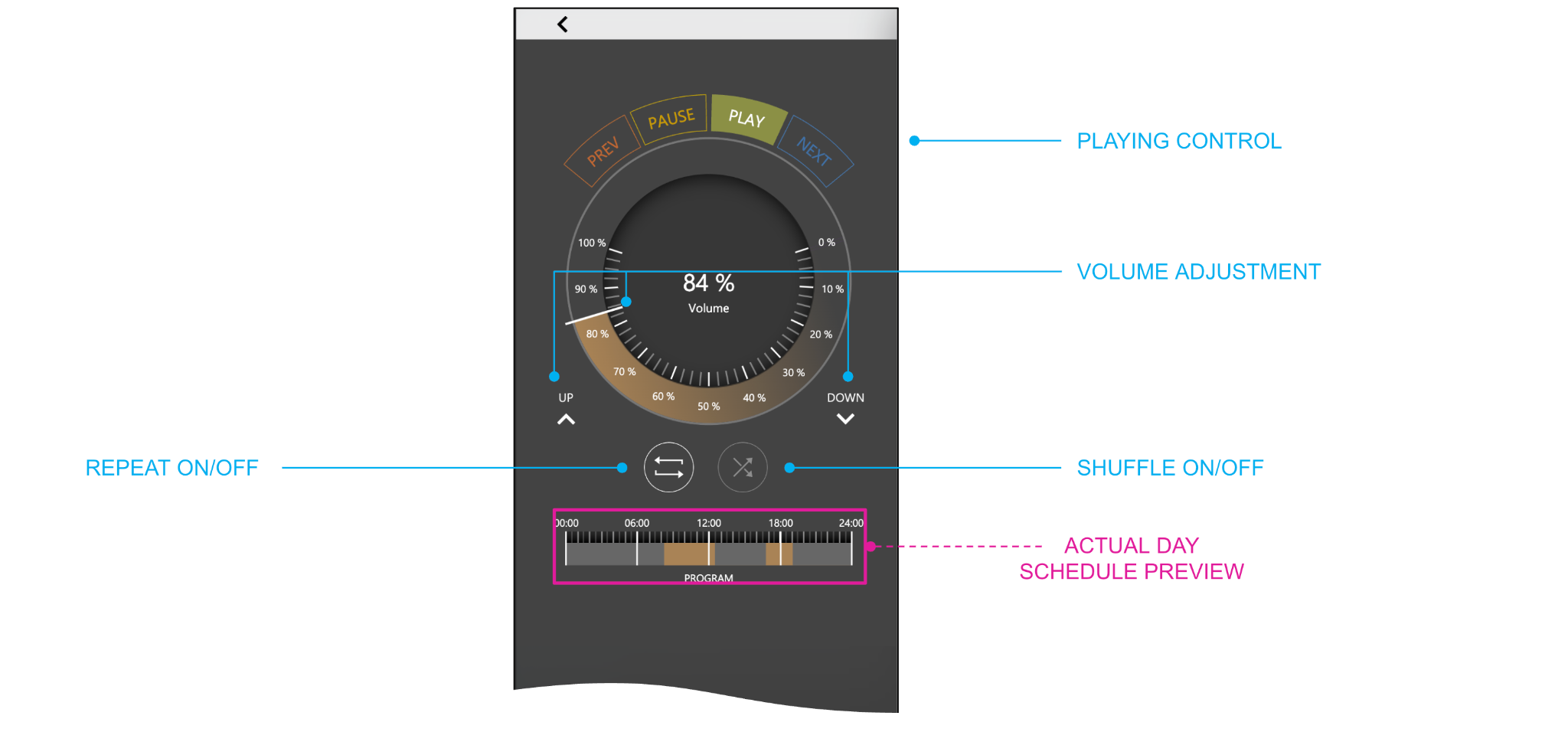
Other functions
Alarm
A simple widget tied to a single KNX address, to represent an alarm or an anomaly. The template supports one item:
| IDENTIFIER | ETS ENCODING | R/W | DESCRIPTION / NOTES |
|---|---|---|---|
| Alarm | Switching (1 bit DPT 1) | R | KNX group address the alarm is received on. |
Energy
This category holds the widget templates dedicated to energy monitoring, which are described in the Energy chapter together with the rest of the energy management.
Single value
This template is intended for the generic visualization of single KNX group addresses (with the corresponding status feedback address, where present) not already covered by existing templates in the categories seen before.
When creating a single value widget, the following additional option can be set:
| Style | Determines how the widget is presented. Available options: Buttons (popup), Slider (popup), Toggle, Textbox. |
Items supported by the template:
| IDENTIFIER | ETS ENCODING | R/W DESCRIPTION / NOTES |
|---|---|---|
| Single value | To be set manually Default: switching | RW KNX group address where commands have to be sent, and the status feedback, where present |
If the default ON/OFF switching (1 bit) encoding is not suitable for the specific need, activate Expert mode from the Configuration menu and select the most appropriate encoding with the drop-down menu in the ETS ENCODING column.
The single value widgets, in the OTHER category, can be assigned to one of the following functions:
GATES Intended for doors, gates and similar
| SOCKETS | Intended for controlled outlets and sockets |
| SPRINKLING | Intended for irrigation of gardens and outdoor spaces |
| TECHNOLOGIC | Generic function for technical functionalities |
If a different category is assigned (e.g. lighting, shading, climate etc…) after a page reload, the widgets will no longer be visible in the OTHER category, but in the assigned category.
The single value widget template is useful also when a KNX group address must be used in an automation (trigger, logic, connection etc…) without the need to be put in the Visualization.
In that case, no matter the style, the creation of the widget is still necessary, because otherwise, the group address (even if it was imported from ETS) cannot be used in the project.
The following picture shows how the widget appears in the Visualization of DELÉGO SERVER:
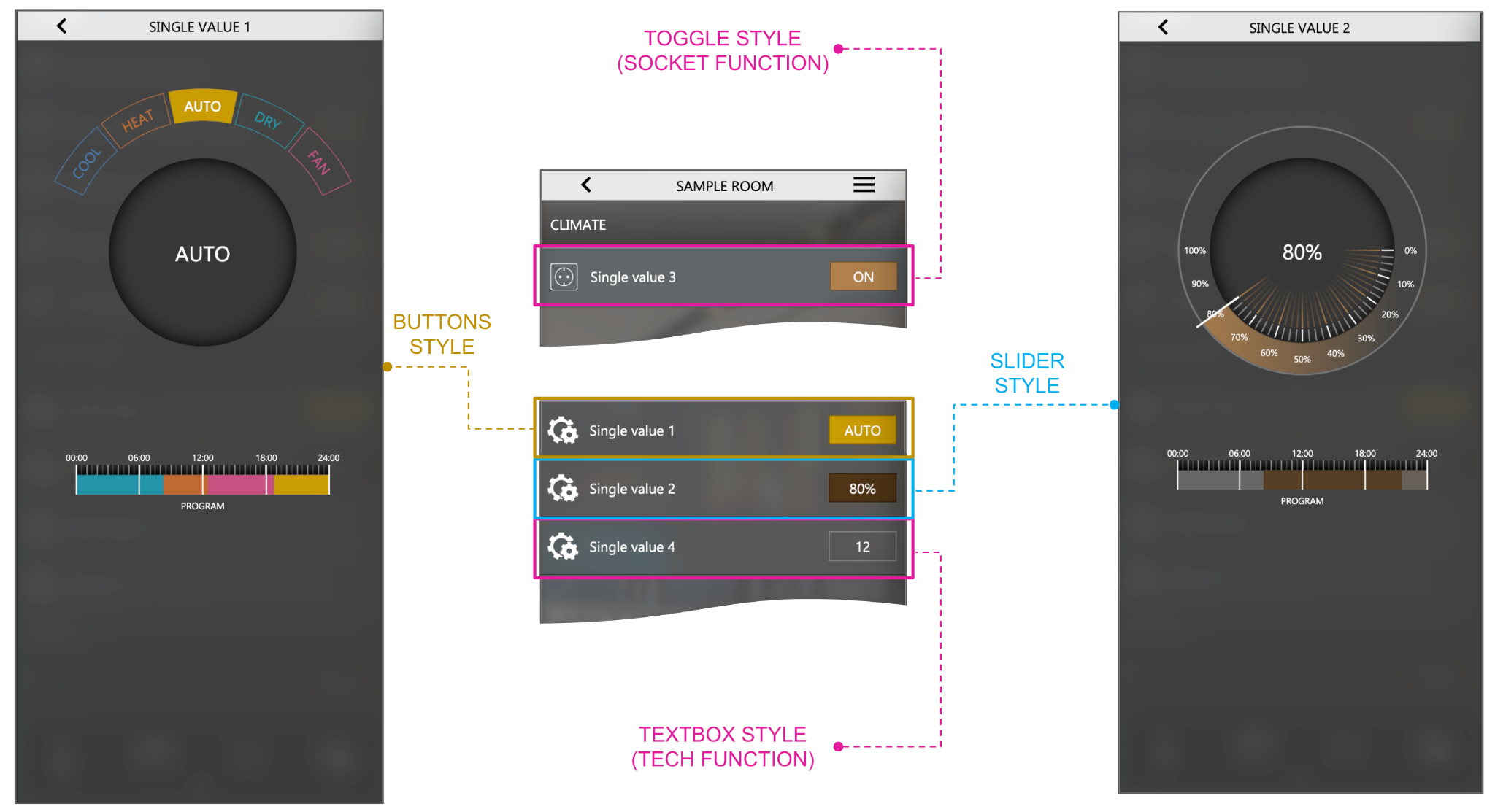
KNX Scenario
This template is intended for the execution of a KNX scenario configured in ETS. This functionality is normally associated with a group address belonging to DPT 17.001 or 18.001, but an encoding of 1 byte unsigned integer (DPT 5.001) is also supported.
Items supported by the template:
| IDENTIFIER | ETS ENCODING | R/W DESCRIPTION / NOTES |
|---|---|---|
| KNX Scenario | Scene (DPT 17.001 / 18.001) Unsigned integer (DPT 5.001) | RW KNX group address used to execute the scene |
When creating a KNX scenario widget, the following additional option must be set:
| SCENARIO VALUE | The numeric value to be written on the bus in order to execute a specific scene |
In case the same group address is associated with multiple scenes with different values, it is recommended to create several widgets (with the KNX scenario template) by entering the same group address, and the different values in the SCENARIO VALUE field.
In the Visualization, a KNX scenario is displayed as a simple element; pressing the play symbol executes the scenario, and the row turns green briefly.

Generic
General purpose flexible template useful to create popup-based widgets hosting multiple KNX group addresses (up to 64).
When editing a generic template, the APPEARANCE group sets the style of the main page of the popup:
In the list of KNX addresses, in order to add new items, press ADD and select the position where the new item must be placed:
| GENERAL - MAIN STATE | State of the widget visible in the list (outside the popup) and in the center of the main screen of the popup |
| GENERAL - UPPER BUTTONSET | Buttons set in the top part of the popup |
| GENERAL - LOWER BUTTONSET | Buttons set in the bottom part of the popup |
| GENERAL - LOWER SLIDER | Slider in the bottom part of the popup |
| TAB X - OBJECT Y | Up to 6 additional sections of the popup (“tabs”) with up to 12 elements each. Elements are in the form of increment / decrement / textbox fields. |
Each item in this list can be accompanied by a Label that will be presented in the popup (secondary screens). As an example, six consecutive addresses are enough: the main state, the upper buttonset and the lower slider make up the main page, while three more objects placed on the first tab carry the labels that will name them in the popup. This is the result in the Visualization of DELÉGO SERVER:
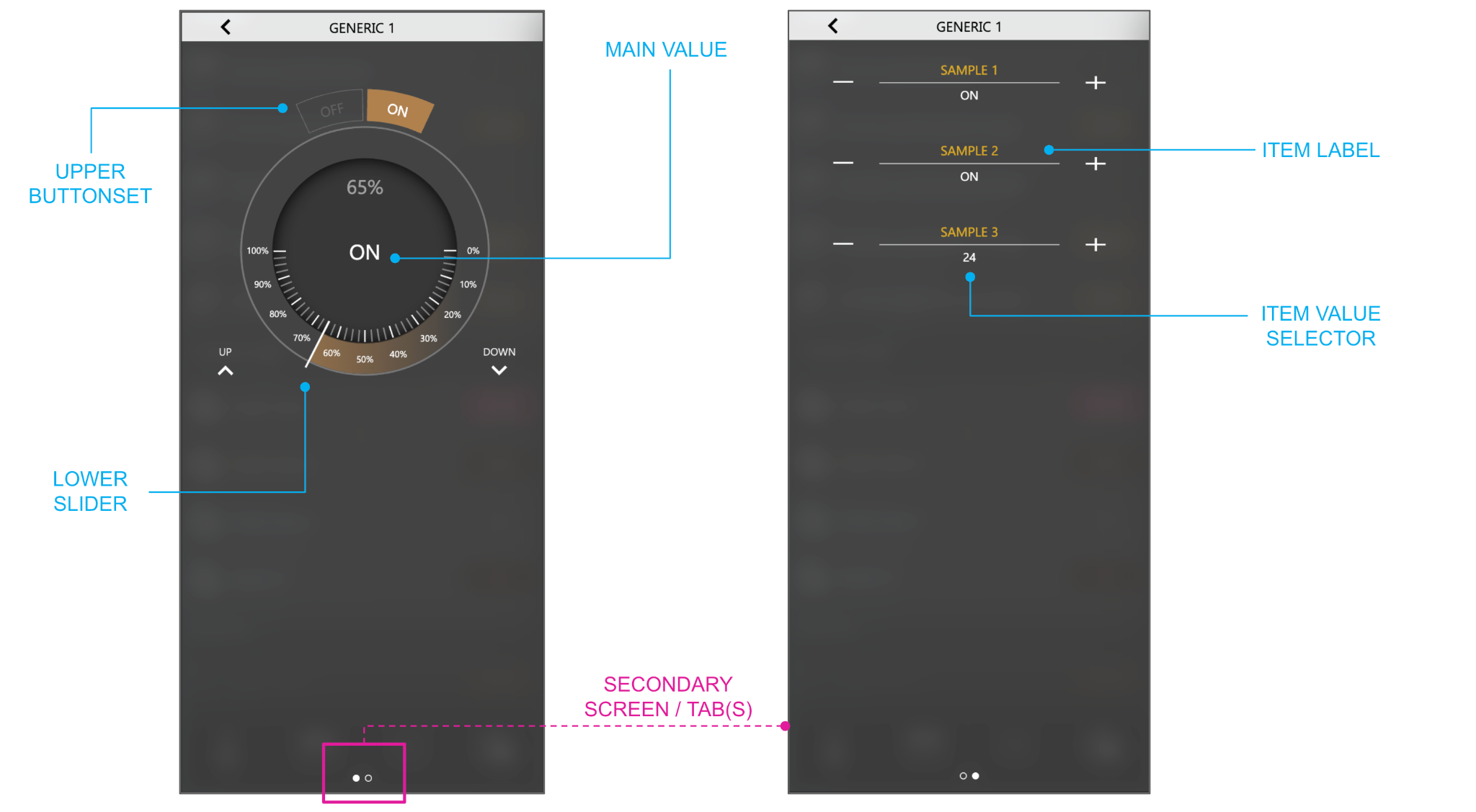
KNX Devices Watchdog
KNX Devices Watchdog is new in this version. It sits at the bottom of the context tree of the KNX section and lists the physical devices of the installation, identified by their individual address, as read from the imported ETS project.
It serves two purposes: watching whether each device answers on the bus, and updating the firmware of Ekinex devices without removing them from the wall.
This topic is shown in the The KNX section video tutorial.
Device monitoring
Selecting KNX Devices Watchdog shows the list of the devices found in the ETS project, with their individual address and their state.
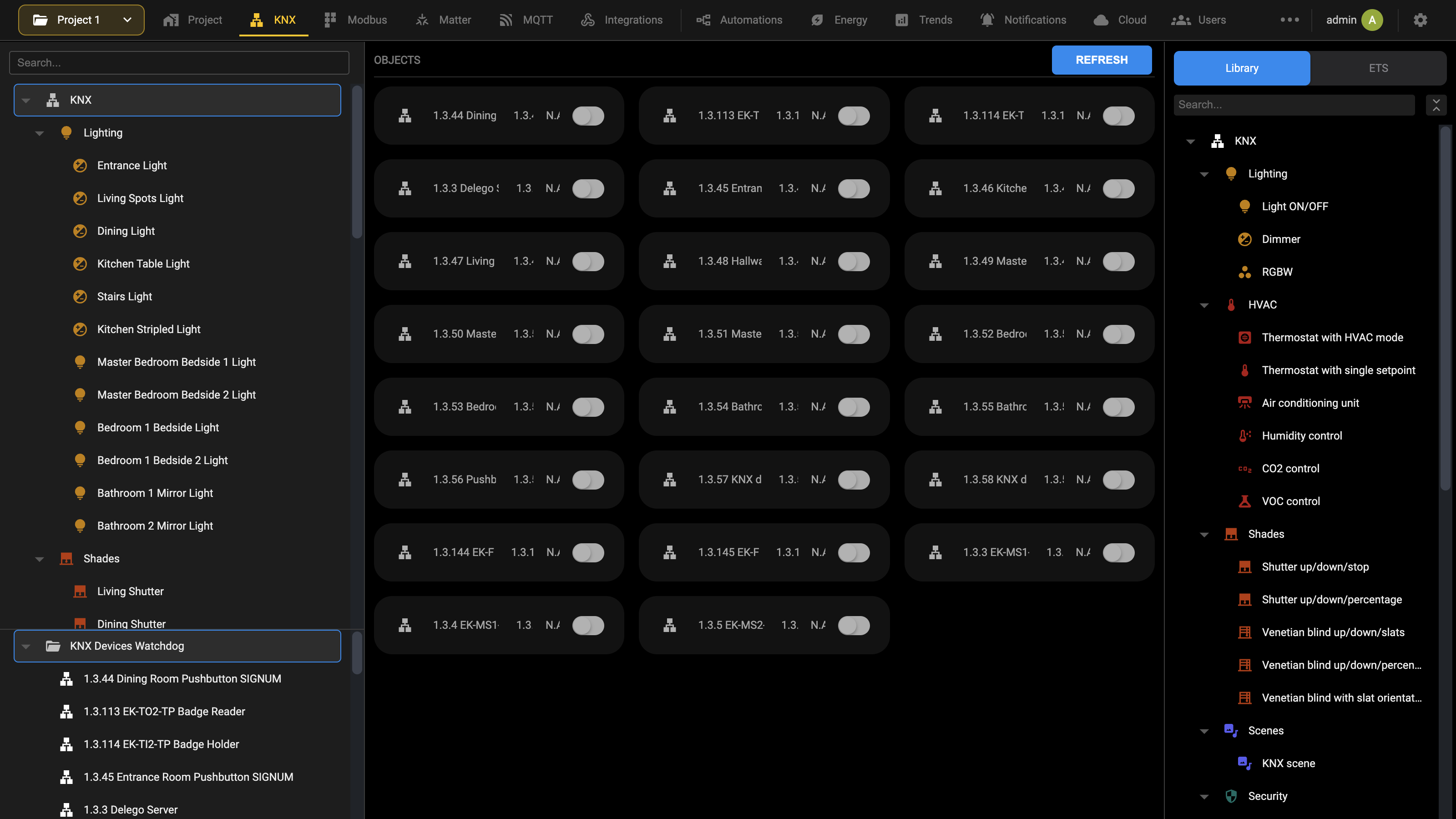
A device that does not answer is reported as unreachable, which usually means it is unpowered, disconnected from the bus, or programmed with a different individual address than the one the ETS project declares. Where no bus is connected, every device is reported as not available.
Selecting a single device opens its card, which reports the Manufacturer, the Physical address and Scan periodically, the switch that includes the device in the periodic check.
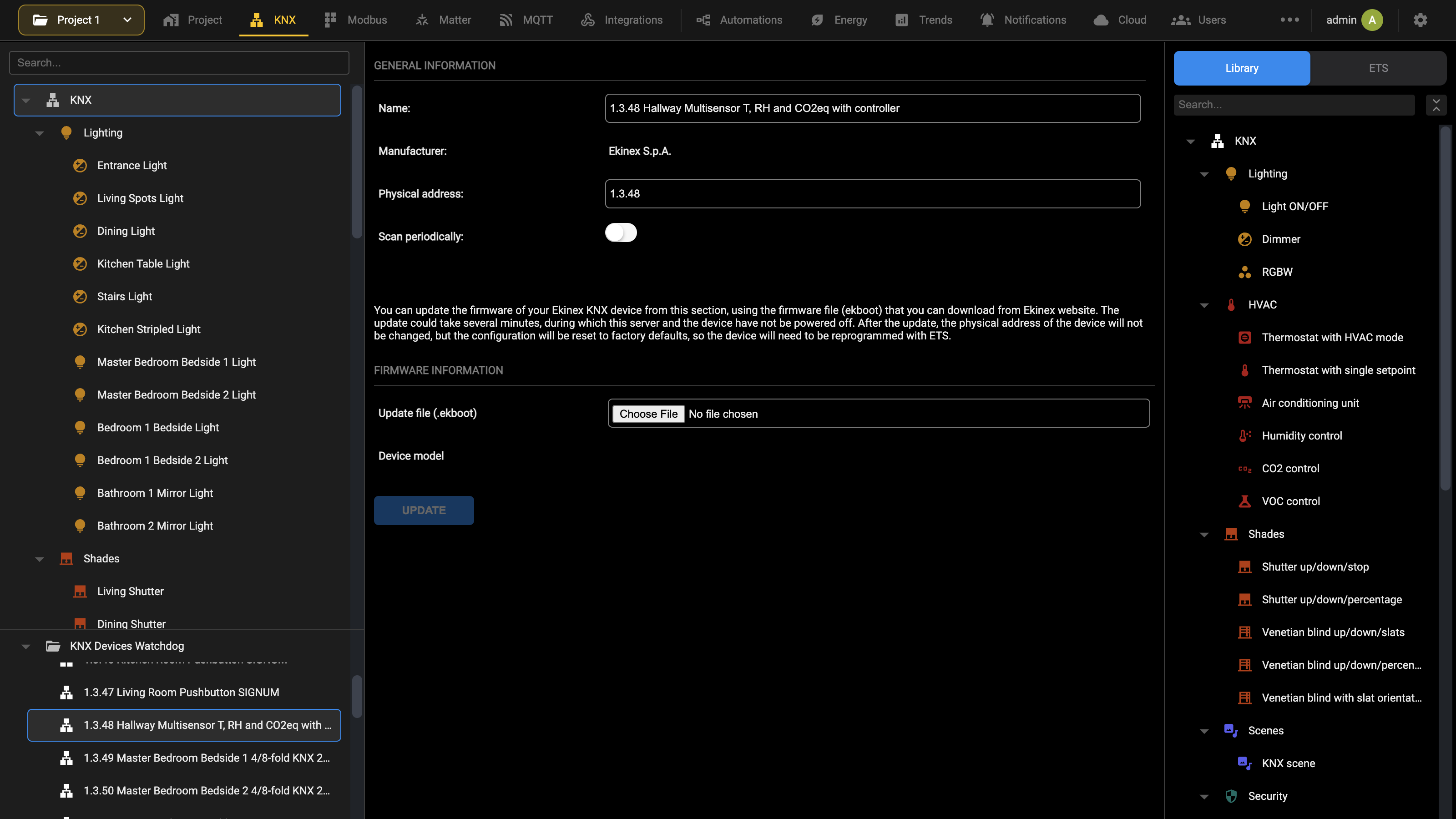
Firmware update
The firmware of an Ekinex KNX device can be updated directly from DELÉGO SERVER, over the bus, without removing the device from the wall. The update is available only for Ekinex devices: the firmware section appears in the card of a device only when the imported ETS project describes it as made by Ekinex, with its order number.
Before starting, the following are needed:
- A KNX communication driver with ETS remoting, With ETS remoting or With ETS remoting and KNX secure support (see Communication driver): the Standard driver does not support the firmware update. With the Standard driver, selecting an Ekinex device in KNX Devices Watchdog shows a Notice asking to change the driver in the KNX settings, and the update controls are not shown. Once the update has finished, the previous driver can be selected again.
- The firmware file of the device model. On www.ekinex.com, open the detail page of the product, scroll to the Technical documentation section and download the Firmware item. It is a ZIP archive: unpack it on the computer. It contains the setup of a Windows program that updates the device directly from a PC, which is not part of this procedure, and the firmware file itself, with the extension .ekboot, which is the one to use with DELÉGO SERVER.
- The ETS project of the installation, needed to program the device again after the update.
To update the device:
- In the KNX section, select the device in KNX Devices Watchdog, at the bottom of the context tree. The FIRMWARE INFORMATION group appears at the bottom of its card, below the description of the procedure.
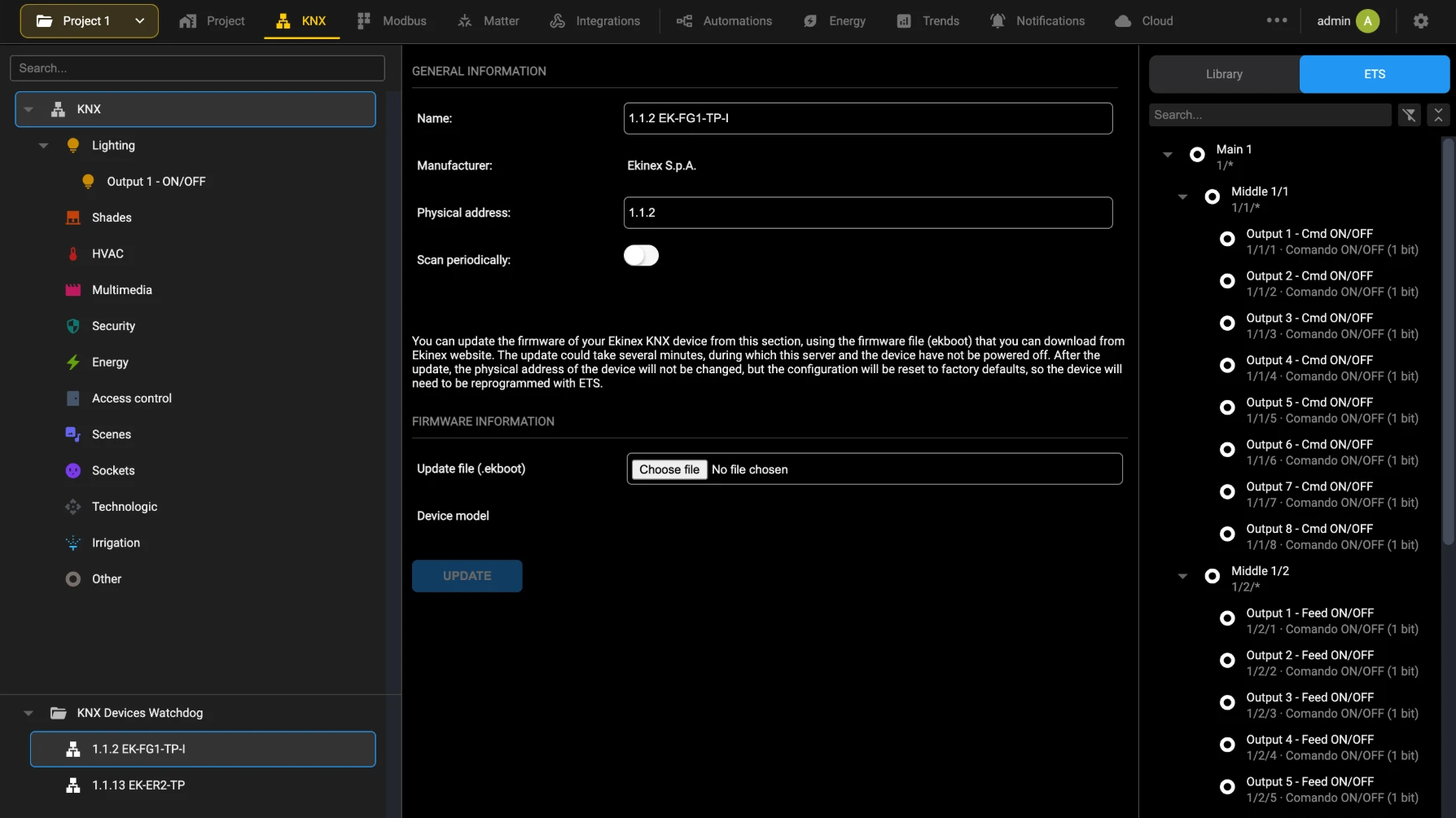
- In Update file (.ekboot), choose the .ekboot file. The server checks that the file is meant for the model of the device selected in the tree, and shows that model in Device model. If the two do not match, an error message appears and the update cannot go on, so that a wrong firmware never reaches the device.
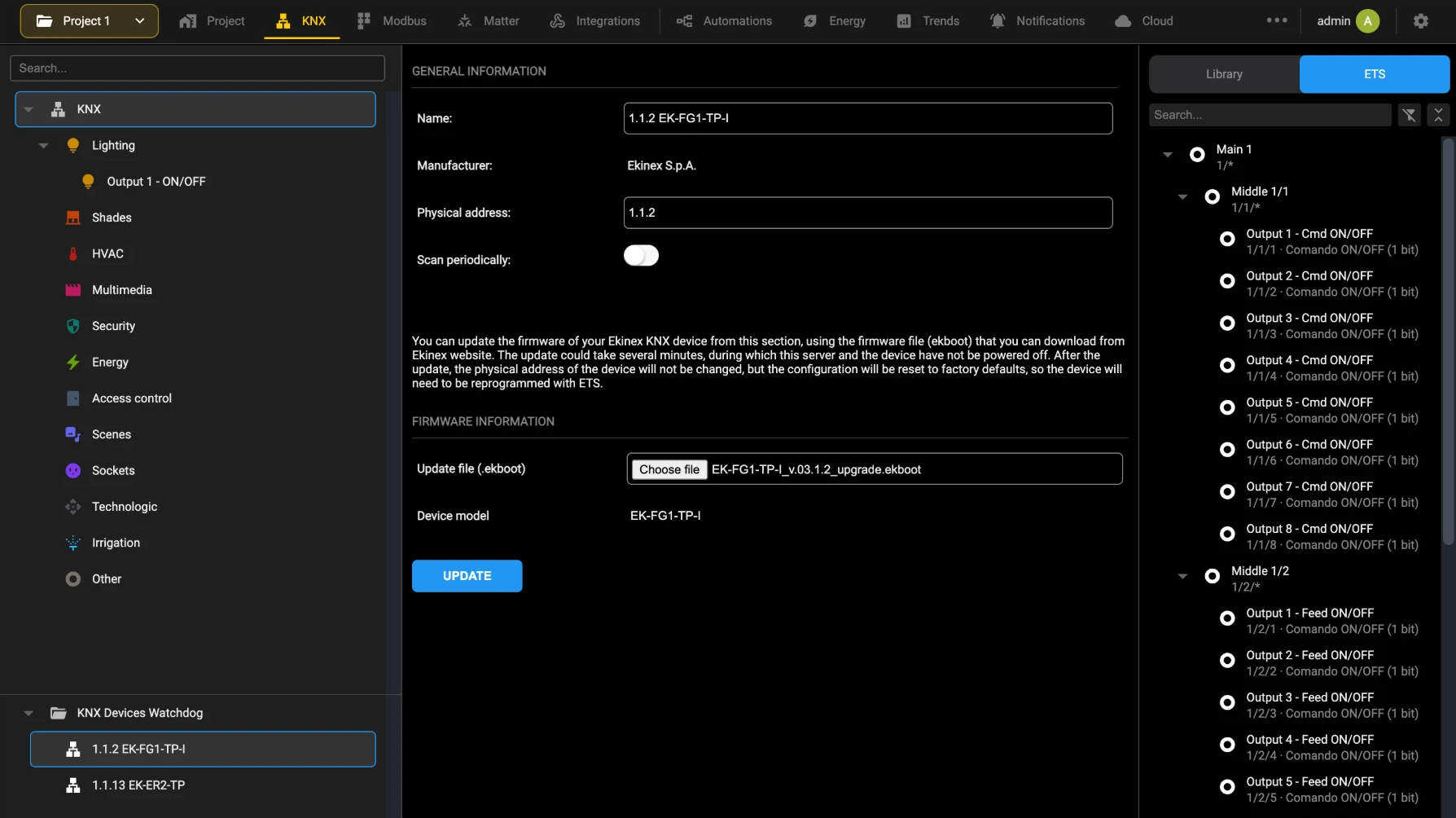
- Press UPDATE. The update starts, the file fields are hidden and the ADVANCE PROGRESS group shows how it is going:
| Update status | Pending while the update waits to start, then Running, and at the end Completed or Failed. |
| Update progress | The percentage of the update already transferred, shown while the status is Running. |
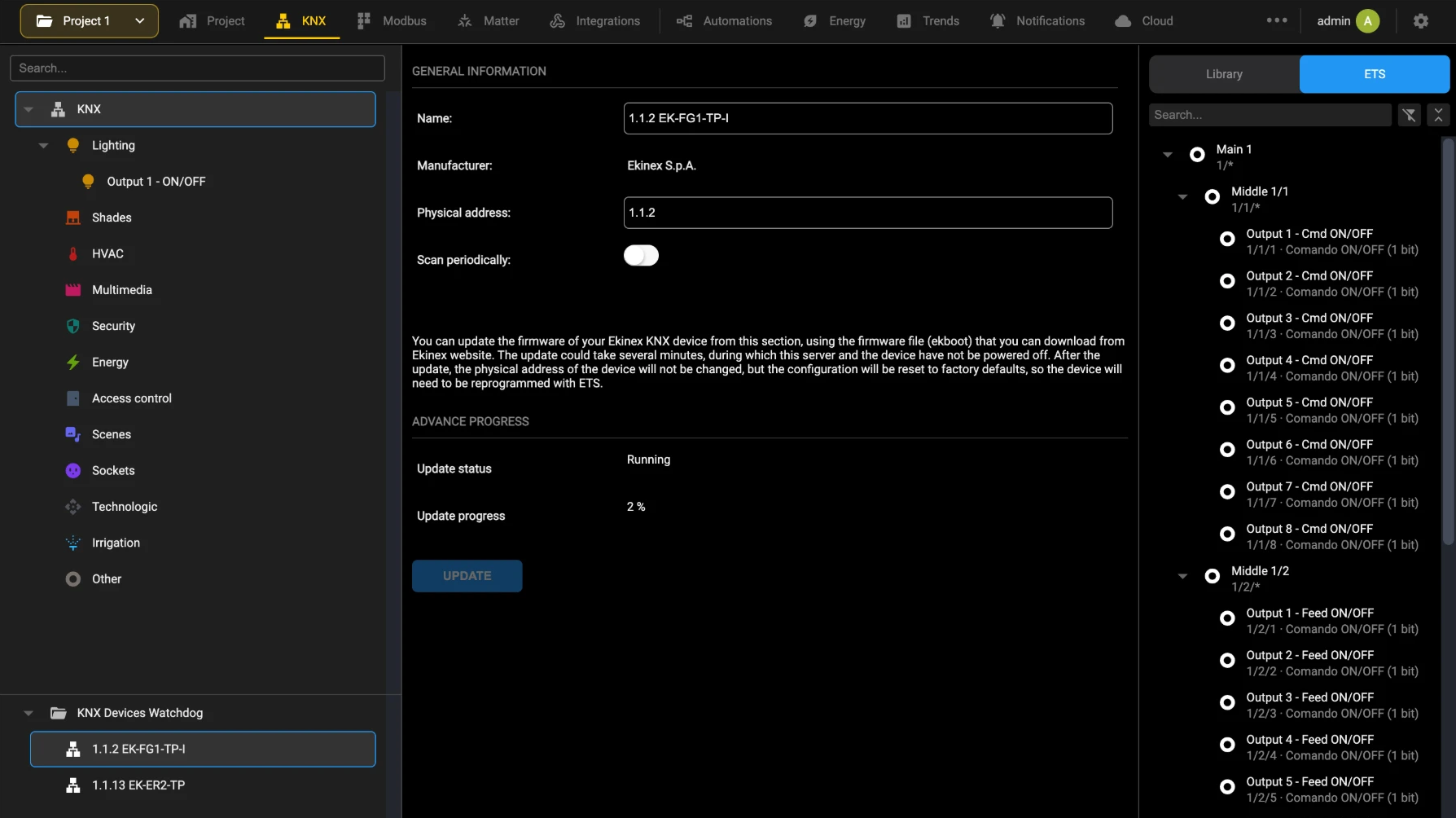
The update typically takes 10 to 15 minutes. When it has finished, download the application configuration to the device again with ETS: the device keeps its individual address, but not its configuration. The UPDATE STATISTICS group keeps the Last version installed and the Last update timestamp.
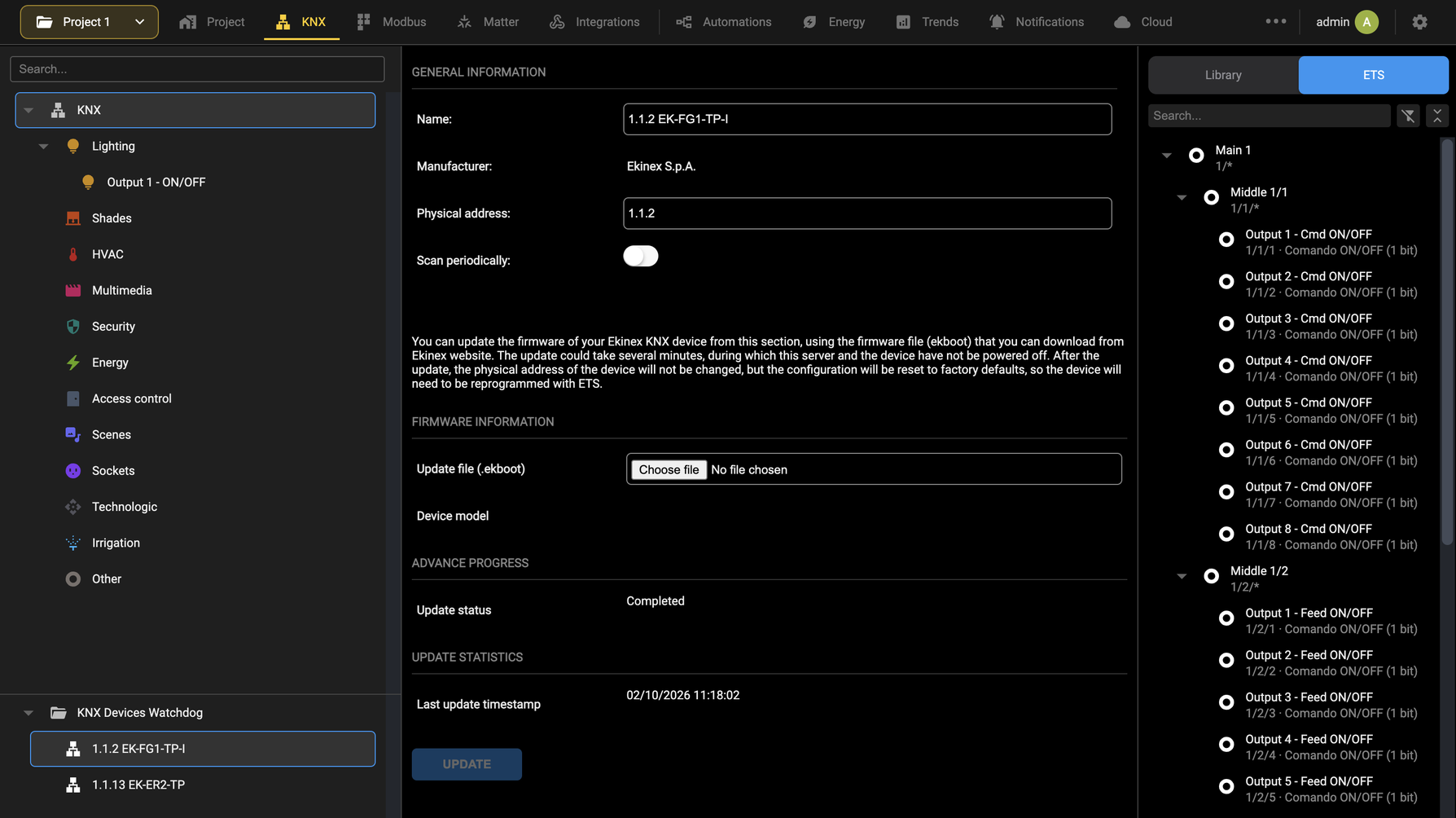
While the update is running, you can move to other sections of DELÉGO SERVER and go on with the configuration: going back to the card of the device shows the progress reached in the meantime. Only one update can run at a time, though: the card of any other KNX device shows a Notice in place of the firmware section until the current update has finished.
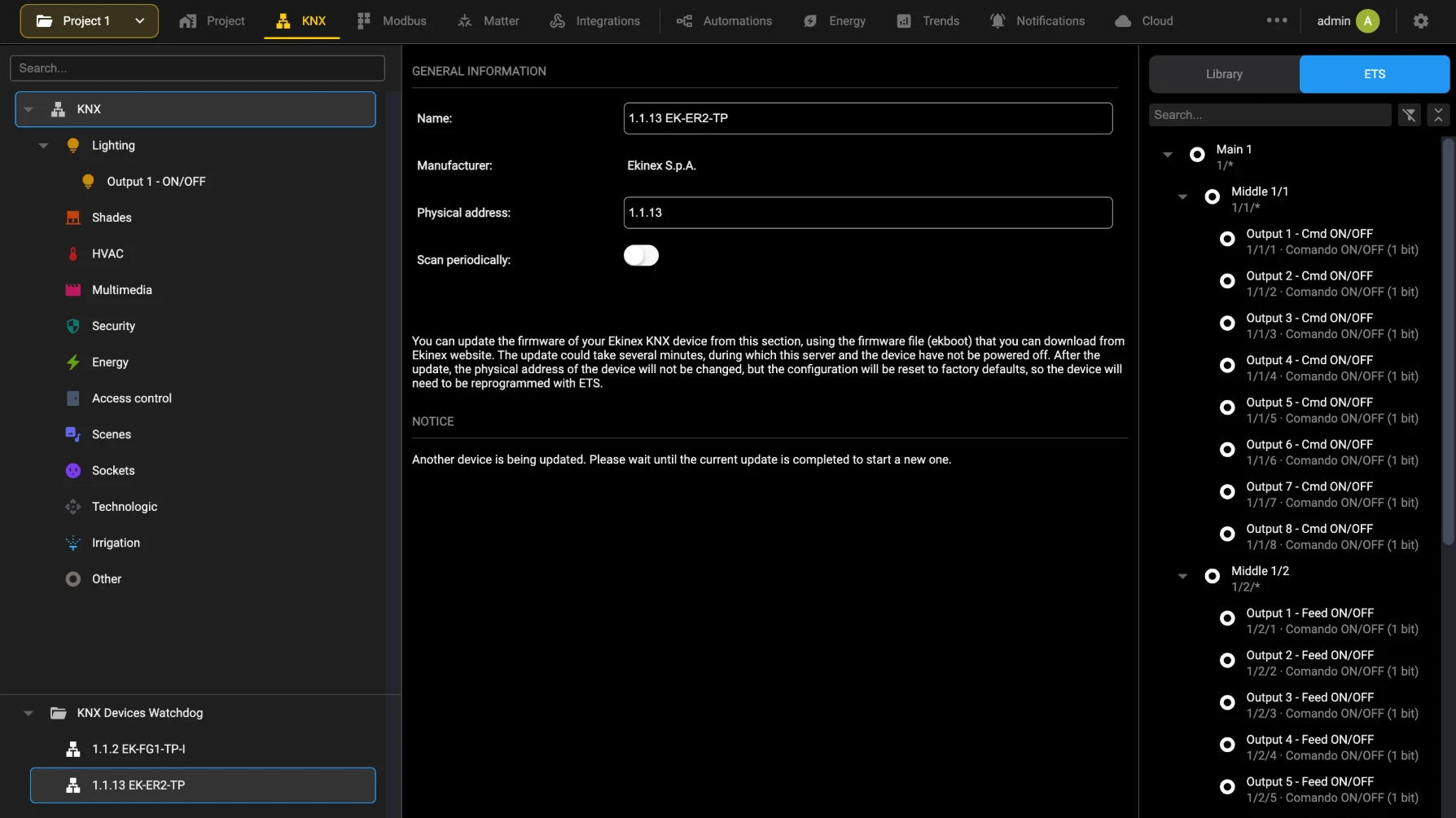
If the status ends in Failed, check the bus connection of the device and start the update again with the same file.
KNX Telegram recorder
Starting from software version 2.7.0, DELÉGO SERVER offers the possibility to trace and store the KNX telegrams history, to be consulted interactively or exported to ETS PROFESSIONAL.
Due to the intense load that this functionality places on the storage, especially on high KNX traffic installations, it is recommended to switch Enable telegram recording on only when needed, and to deactivate it when the diagnostic purposes are over.
To take the most benefit from this functionality, it is suggested to install an SD card, and to activate the long-term storage of the KNX telegrams. In this way, it will be possible to retrieve the entire log for a specific day and consult it in ETS.
Activation
To activate the KNX TELEGRAM RECORDER, open the KNX section in the bar, where the KNX TELEGRAM RECORDER block sits on the same page as the ETS import and the physical address,
and select Enable telegram recording, then press SAVE and confirm the warning message. Wait until the browser reloads, and open again this section to start using it.
Interactive use
The recorder is opened from the KNX TELEGRAM RECORDER block of the KNX section, above the physical address: once Enable telegram recording is on, OPEN TELEGRAM RECORDER opens a window that lists the most recent telegrams detected on the bus, in descending order. In case of a high number of telegrams, it is possible to move among the pages with the dedicated buttons (SHOW PAGE X OF Y).
The log contains the following information:
| DATE / TIME | The instant when the telegram has been recorded |
| SOURCE | Physical address of the device which sent the telegram |
| DESTINATION | The group address, in case of multicast telegrams, or the physical address, in case of point-to-point communication, to which the telegram was addressed |
| DESCRIPTION | The name of the group address, if it has been imported by ETS in DELÉGO SERVER |
| DPT | Encoding of the payload and corresponding data length |
| VALUE | Value of the payload, decoded according to the detected encoding |
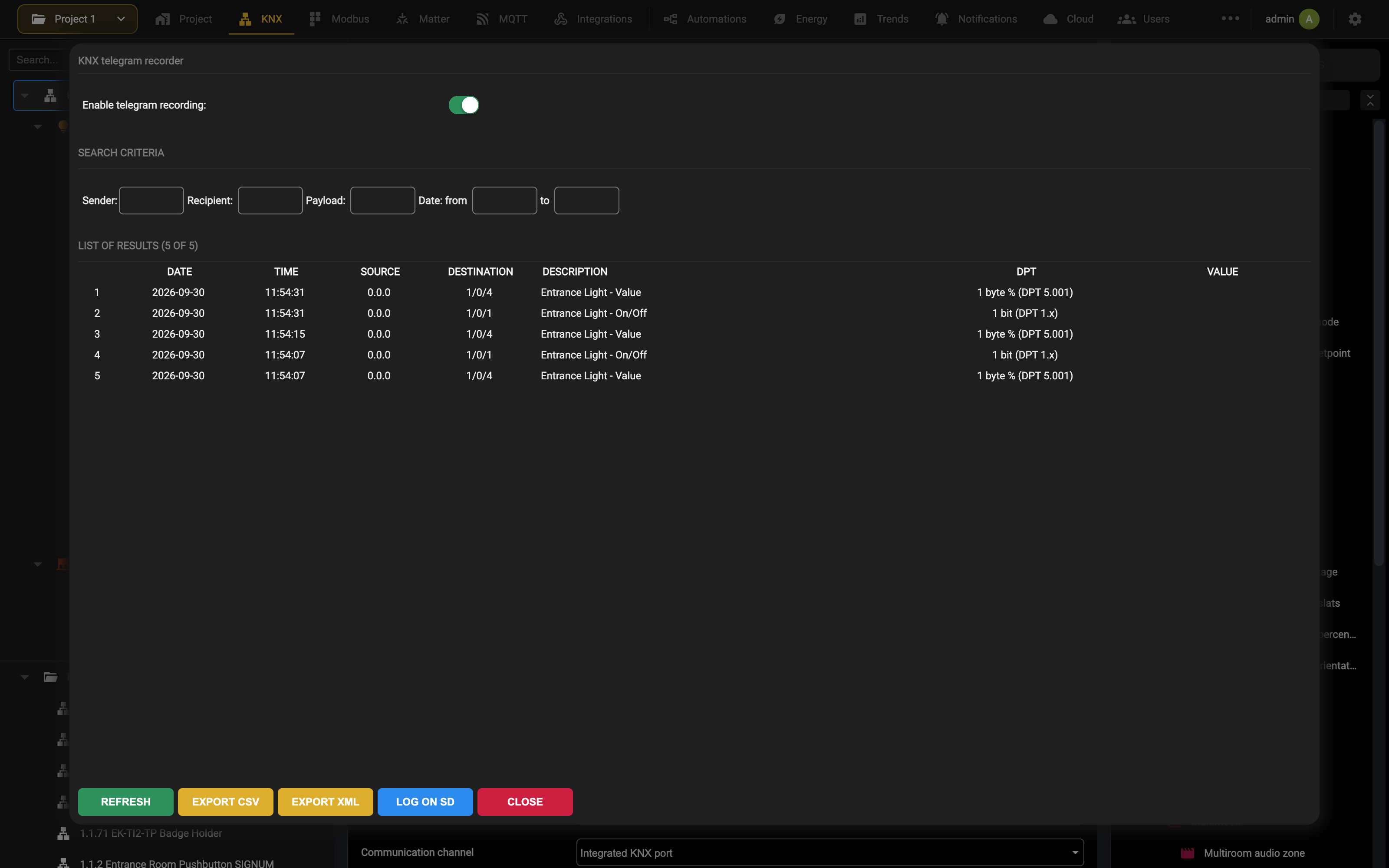
The list does not update on its own: press REFRESH to show the telegrams received by the webserver in the meantime. The other buttons at the bottom of the window export the log (EXPORT CSV, EXPORT XML), open the external memory page (LOG ON SD) and close the recorder (CLOSE).
It is possible to export the log in two different formats:
- CSV: useful for opening in a spreadsheet, for example Microsoft Excel
- XML: ready to be imported in the diagnostic tools of ETS PROFESSIONAL (bus or group monitor)
The following screenshot shows the log exported in XML from DELÉGO SERVER, and imported in ETS:
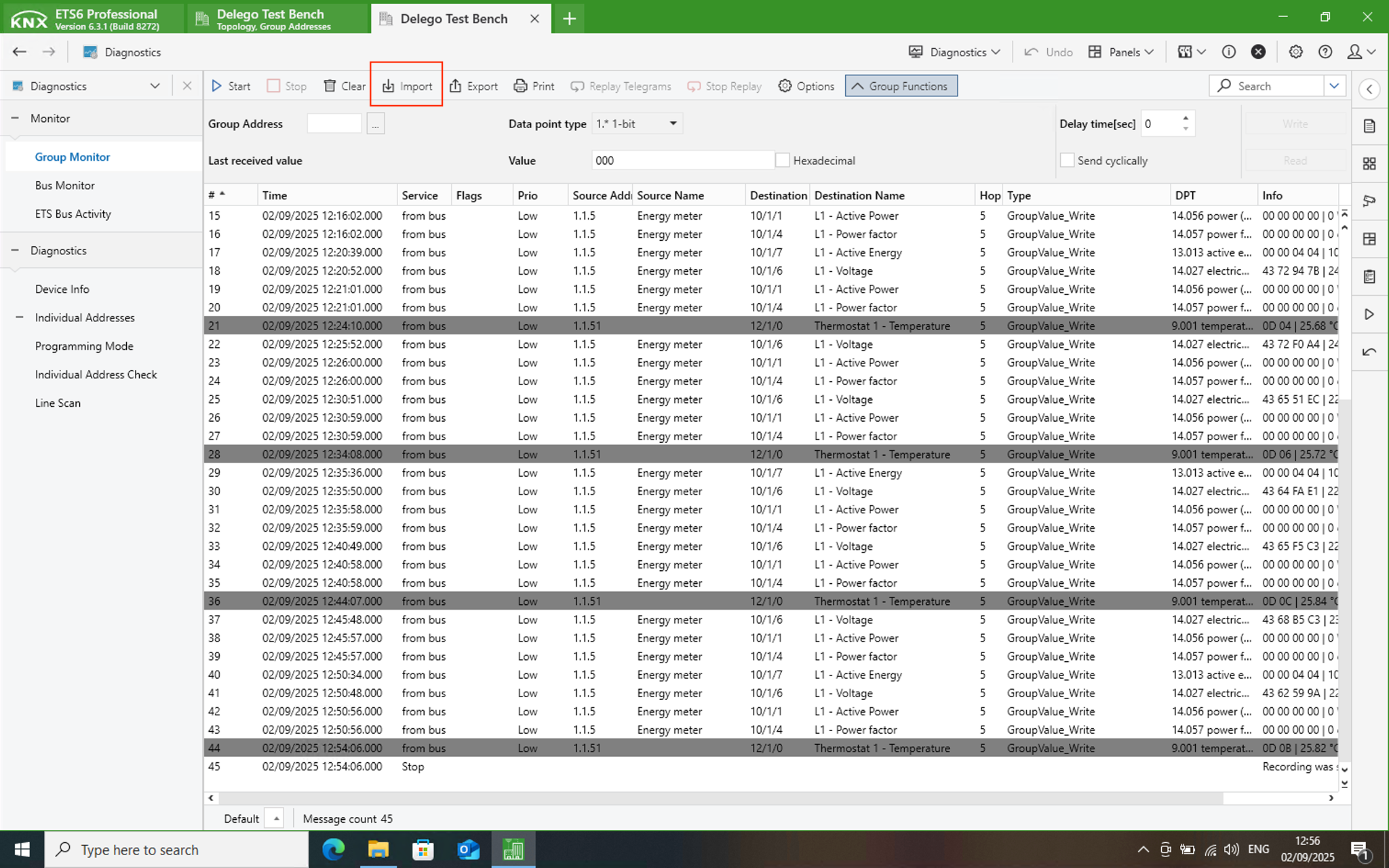
Log on SD card
If an external SD memory is installed, it can be used to store periodically the KNX log for longer amounts of time, and to retrieve it after days.
As a preliminary action, the SD memory must be activated, in the
Settings → External SD
page, as described in the External memory management chapter. This configuration page can be accessed directly from the KNX TELEGRAM RECORDER, by pressing the LOG ON SD button.
In the KNX BUS MONITOR section, select first the “enable KNX historical saving on SD” checkbox, and then select which format must be used to store the KNX telegrams, among the following options:
- CSV: suitable for further processing in a spreadsheet (e.g. Microsoft Excel)
- XML: compatible with the diagnostic tools of ETS PROFESSIONAL
- TRX: older format to be imported in ETS versions 3 and 4
After doing this, DELÉGO SERVER starts saving, every hour, the KNX telegrams (and correspondingly clearing them from the temporary memory, the one that can be consulted in the interactive view) and creating a daily archive, available for a future download. In the calendar above the settings, the highlighted days have a daily record; by pressing on a day, the corresponding log is automatically downloaded.
The KNX log is saved on the SD card in the selected format. If the format is changed, all the previously saved archives in a different format are no longer available in the calendar (unless the original format is selected back) and only the new archives, created from that moment on, will be highlighted.
From this page it is possible to return to the interactive KNX real-time monitor by pressing the OPEN button under the calendar.
KNX Secure
DELÉGO SERVER supports both KNX DATA SECURE and KNX IP SECURE:
- KNX Data Secure protects the communication on the twisted pair, through the KNX interface integrated in the server: DELÉGO SERVER reads and sends encrypted telegrams directly on the bus.
- KNX IP Secure protects the communication with an external IP interface that supports the secure protocol, when the server reaches the bus through the network; it is described in KNX IP Secure.
Delégo library configuration in ETS
In order to be able to send commands to secure devices, the ETS library of DELÉGO SERVER must be added to the project and bound with all the KNX group addresses containing secure devices:
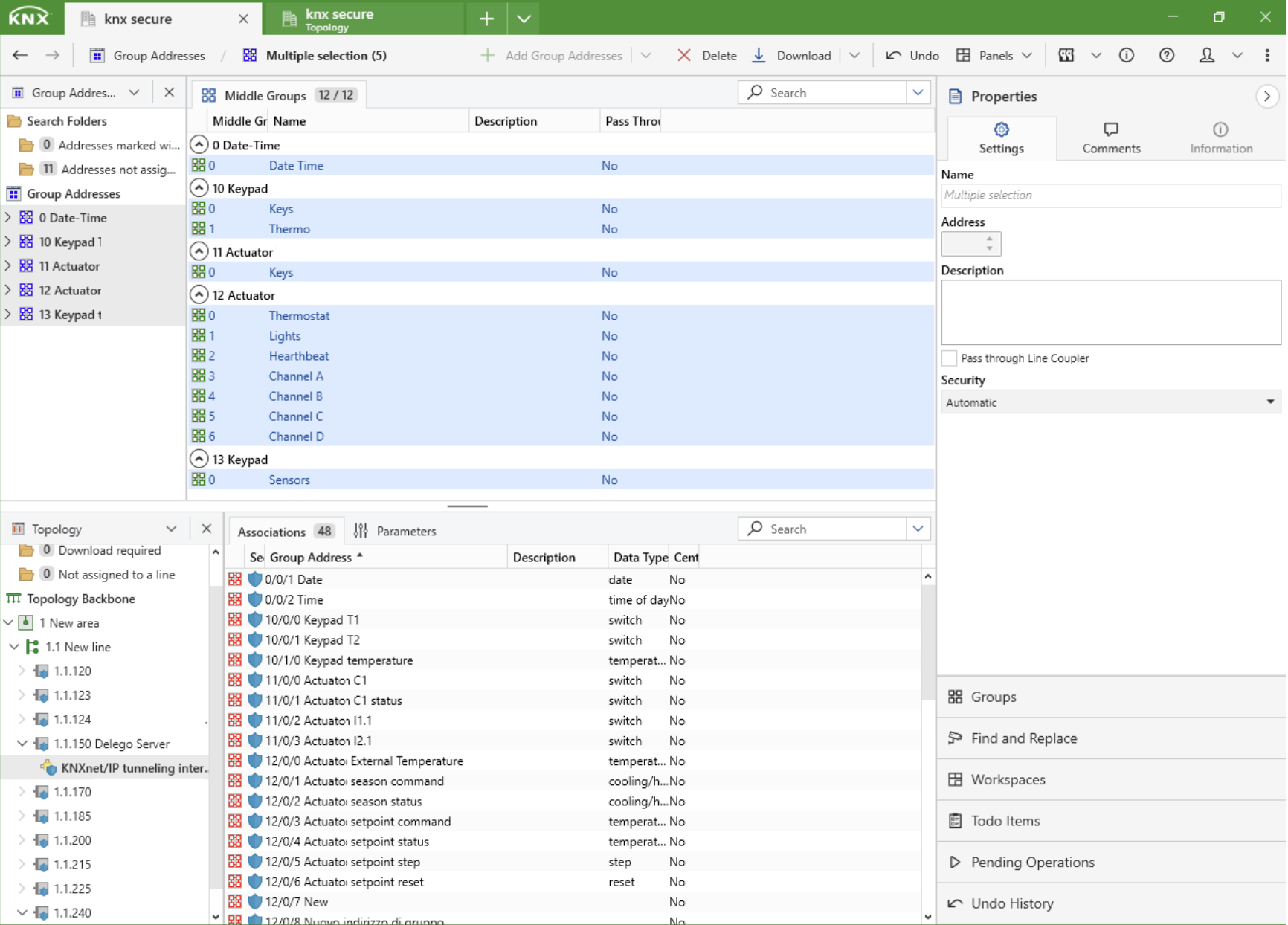
Keyring import
After doing the association of DELÉGO SERVER with all the secure group addresses, it is necessary to export the KEYRING from ETS; it is an archive containing all the certificates of the secure devices in the project. This file must be kept in a secure place and never shared with anyone.
Enter the project settings and press the “arrow” in the SECURITY section
then press the BACKUP KEYRING button in the list of certificates…
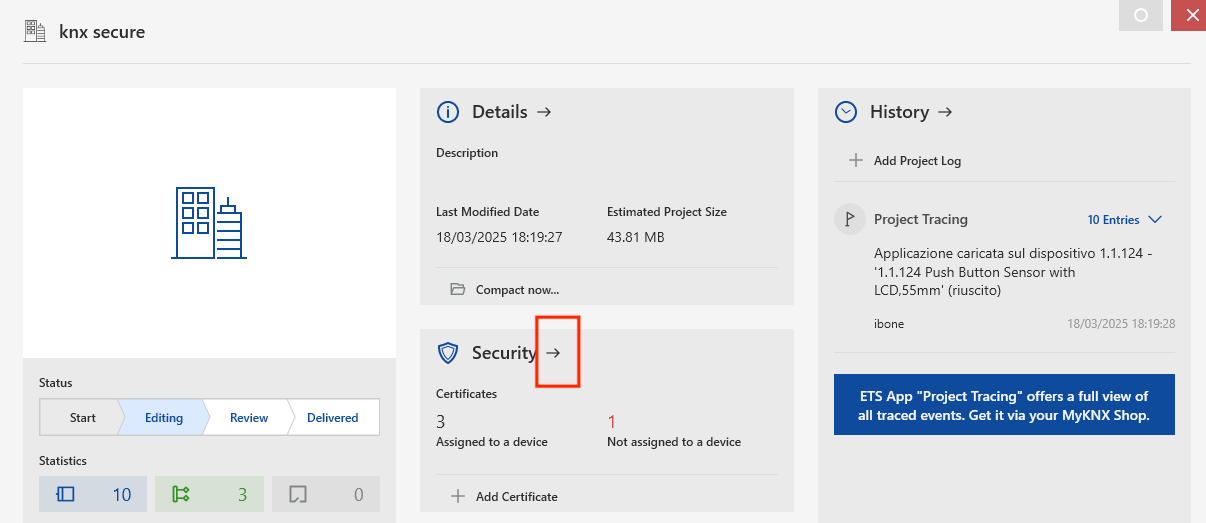
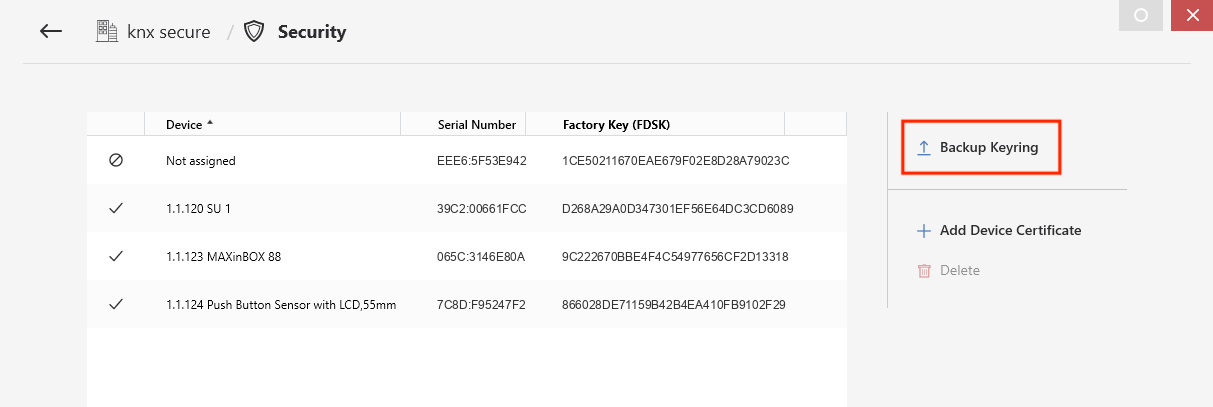
and enter a password to protect the keyring:
Leave the Include device certificates checkbox cleared.
At that point, in DELÉGO SERVER, browse for the key archive file, and enter the protection password, before proceeding with the import of the project.
KNX IP Secure
In the Communication interface settings of the KNX section, activating the driver with KNX secure support (With ETS remoting and KNX secure support) allows the server to talk to an external IP interface in an encrypted way, with the KNX IP SECURE protocol.
The KNX IP Secure group then asks for the following:
| IP Address | Address of the IP interface to be used on the network. |
| Port | Port of the same interface. |
| Commissioning password | Provided by ETS in the properties of the IP interface, and needed for the secure communication. |
| Authorization code | Provided by ETS together with the password, in the same properties. |
The last two are not needed when the IP interface is not in secure mode.
ETS remoting
DELÉGO SERVER can be used as an IP interface for the commissioning of KNX devices and the diagnostics with ETS PROFESSIONAL.
It requires a communication driver with ETS remoting support (With ETS remoting or With ETS remoting and KNX secure support) selected in the Driver field of the COMMUNICATION INTERFACE group of the KNX section, as explained in the chapter on the communication driver.
Use in local network
When the PC with ETS PROFESSIONAL is in the same local network as DELÉGO SERVER, proceed as follows:
- Open the MANAGE CONFIGURED CONNECTIONS window.
- Press the ADD button.
- Enter the following information: ○ Server → IP address of DELÉGO SERVER. ○ Port → leave default value (3671). ○ Connect using NAT mode: select it if the communication does not start.
- Check the communication with the TEST button.
- If the TEST is OK, save with the OK button, and ensure the new connection is selected as the active one for the following download / diagnostic operations.
Remote connection
Using DELÉGO SERVER as an IP interface for ETS Professional from outside the installation requires a VPN between the two. The chapter that follows describes how to establish it with the cloud VPN, configured as described in the Cloud VPN chapter.
Cloud VPN
When using the CLOUD VPN for the ETS remoting, it is necessary to enter the webserver VPN IP address (typically 10.56.210.2 ) in the ETS connection (after having started the VPN connection), like in the following example:
MODBUS
Introduction
This chapter contains all the information for configuring and visualizing one or more MODBUS devices inside DELÉGO SERVER, the multiprotocol webserver for the connected buildings by EKINEX.
MODBUS Master
DELÉGO SERVER speaks MODBUS RTU and MODBUS TCP/IP, and can therefore control the parts of an installation built on that technology. It handles several MODBUS slave devices at the same time, on RTU over RS485 cabling and over the LAN, in any combination.
The installation and the configuration differ according to the transport.
MODBUS RTU. The integrated RS485 port of DELÉGO SERVER can be used directly: connect the terminals of the slave devices to it with two wires, respecting the polarity. The alternatives are an RS232 port, available only on the 4 DIN rail modules hardware version, and a USB to RS485 converter, which is what allows more than one RS485 line to be managed.
MODBUS TCP. The devices reach DELÉGO SERVER over the data network of the installation. Each peripheral with a MODBUS TCP interface has its own IP address and communication port, both set on the device, exactly as the server does. The physical connection is an ordinary LAN one: network cables or wi-fi, switches and routers.
MODBUS lines
DELÉGO SERVER supports more than one MODBUS interface, by creating as many MODBUS lines on different communication channels. The lines work at the same time, provided each is configured on one of the interfaces the server offers:
- the integrated RS485 port;
- a USB converter;
- the LAN.
Each line holds a number of objects, the MODBUS registers, belonging to the devices connected to it; those objects are then placed in the graphical pages of the supervision. Several slave devices cascaded on the same RS485 line are handled by a single line in DELÉGO SERVER, telling them apart by their slave address, as described further on.
Within a line it is also possible to create graphical components directly, each made of a list of registers. On a line with many slave devices this keeps the configuration shorter and far easier to read.
New MODBUS line
To create a new MODBUS line, proceed as follows:
- Access the Administration of DELÉGO SERVER
- Open the Modbus section in the bar
- Select Modbus master in the context tree
- Use the Add action of that node, which appears on the node itself when the pointer is over it
A new bus line is created and added under Modbus master. Select it in the tree to open its card:
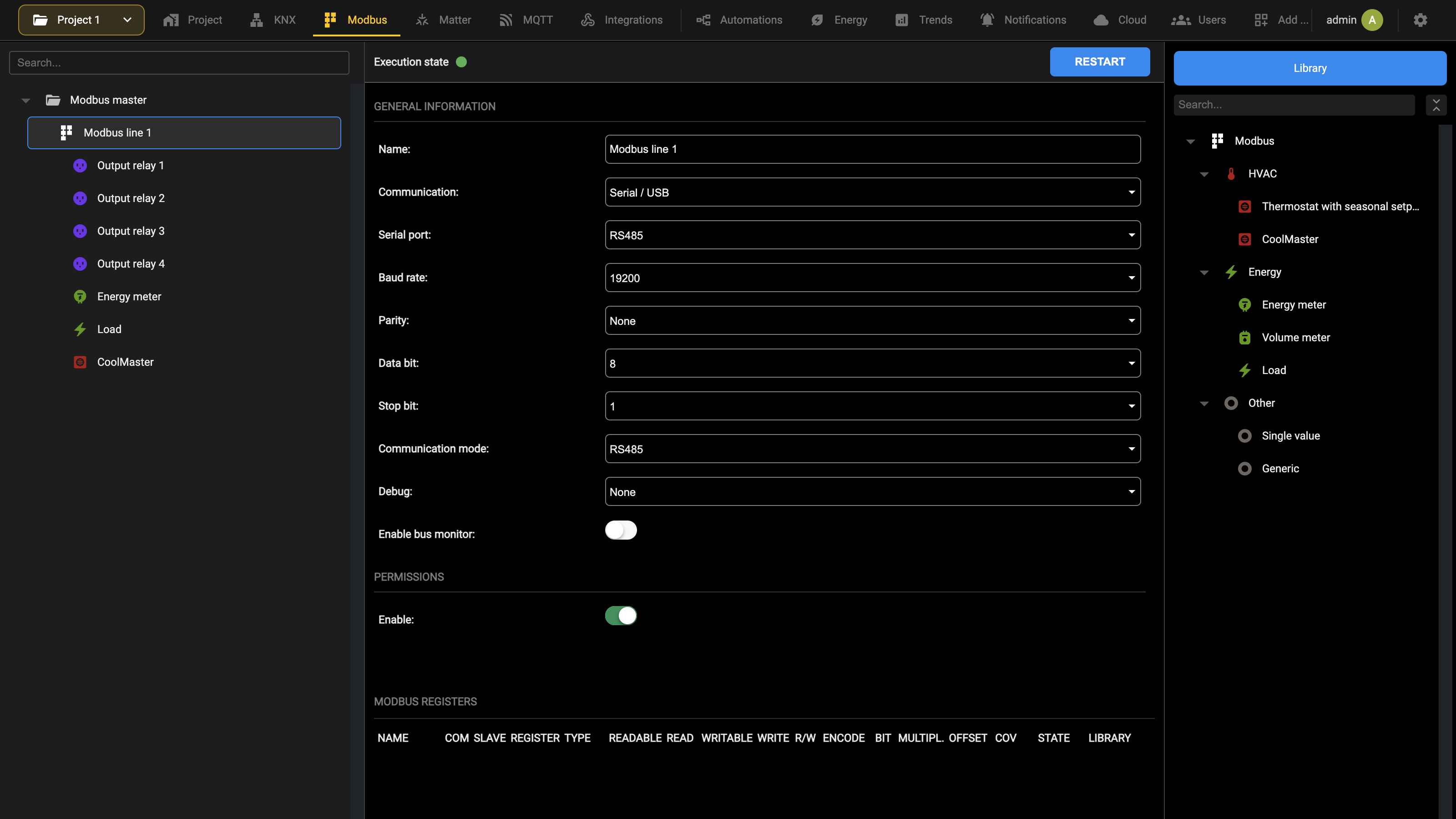
The GENERAL INFORMATION group holds the identification of the line and the communication parameters.
| Name | Label that identifies the MODBUS line. |
| Communication | The transport used: Serial / USB or Network. The fields below depend on this choice. |
| Debug | None or Log file. With Log file, every event on the MODBUS line, both transmitted and received, is written to a file that can be downloaded with Download log, together with the related errors, the line settings and other information. Clear log empties it. |
| Enable bus monitor | Stores all the MODBUS traffic in a temporary file, which can be consulted with Bus monitor. That button is available only while this option is active. |
The debug log is useful while commissioning MODBUS devices with DELÉGO SERVER, but once the installation is working it is advisable to enable it only when actually needed, for example during maintenance or a software change.
With Serial / USB, the parameters of the serial channel appear:
| Serial port | The communication channel used to reach the MODBUS devices: RS485, RS232, USB 1 or USB 2. The RS232 port is only available on the 4 DIN-rail module hardware version. |
| Baud rate | Communication speed of the MODBUS channel in bit/s: 1200, 2400, 4800, 9600, 19200, 38400, 57600 or 115200. It must match the speed set on the connected devices. |
| Parity | Even, Odd or None, to be matched with the devices. |
| Data bit | 5, 6, 7 or 8, to be matched with the devices. |
| Stop bit | 1 or 2, to be matched with the devices. |
| Communication mode | Which serial protocol to use: RS485 or RS232. |
With Network, the address of the device is asked instead:
| IP address | Address of the MODBUS device. |
| Port | Communication port used by the MODBUS device. |
The status bar at the top of the card reports the Execution state of the line as a coloured dot, green while the line is communicating and red when it is stopped, and holds RESTART. Changing any of the communication parameters above stops the line and turns the dot red, so that it never keeps running with the previous values: press RESTART to start it again with the new ones. The colours are described in Workspace.
PERMISSIONS holds Enable, which activates the line, and Execute at startup, which starts it when the system is powered up.
With Expert mode active, the following advanced settings become available:
| Query time [ms] | Waiting time between querying one register and the next. |
| Command time [ms] | Waiting time, after sending a command on the bus, before resuming polling or executing another command in the queue. |
| Delay time after interrogation cycle [ms] | Waiting time, at the end of the polling scan of the registers configured in the line, before restarting from the beginning. |
| Connection timeout [ms] | Waiting time for a response from the device, before declaring a timeout and moving to the next register. |
| Keep connection active | The server does not disconnect from the slave device at the end of a query cycle, but keeps the connection open. |
| Optimize reading of contiguous registers | Contiguous registers are read together instead of one by one. The MODBUS master applies this regardless of how the registers are configured. |
| Maximum number of registers for a single read | The upper limit for the grouping above. |
Expert mode also shows General communication status and Communication status with slaves, which report the health of the line, and Additional options.
Advanced options
By activating Expert mode, the switch in the Configuration menu, the following advanced settings are available:
| Query time [ms] | Waiting time between the polling of one register and the next; time expressed in milliseconds. |
| Command time [ms] | Waiting time, after sending a command on the bus, before resuming polling, or executing another queued command. |
| Delay time after interrogation cycle [ms] | Waiting time, at the end of the polling scan of the registers configured in the line, before starting again from the beginning. |
| Connection timeout [ms] | Waiting time for a response from the device, before declaring a timeout and moving on to the next register. |
| Keep connection active | By enabling this flag, the server does not disconnect the communication with the slave device at the end of a polling cycle, but keeps it permanently engaged. |
It is possible to optimize the reading of contiguous registers by automatically reading them in groups instead of one at a time; this operation is performed automatically by the Modbus master process, regardless of the register configuration, according to the following parameters:
| Optimize reading of contiguous registers | By enabling this flag, contiguous registers are automatically read together, up to a maximum number set with the next parameter. |
| Maximum number of registers for a single read | Enter the maximum number of registers that can be read simultaneously. |
Registers
Once the communication is configured, the registers of the slave devices on the MODBUS line are created with the widgets, as described in Creating a new widget. The table of the read and write registers of each device is in the technical manual of the product, and that manual is where the information below has to be found before starting.
| Communication parameters | They depend on the protocol the device speaks. For MODBUS RTU: baud rate, parity, data bits and stop bits. For MODBUS TCP: IP address and port. |
| Slave address | Every MODBUS device, on RTU as on TCP, carries an address that is unique on its network. Unless the manufacturer fixed it, it can be changed, usually through the software of the device or through dedicated hardware switches; the manual says how. Valid addresses run from 1 to 247. The master of the line, which here is always DELÉGO, needs no address, and 0 is reserved for broadcast messages. |
| Functions | The function is the second byte of a MODBUS message. The master sends it to say which register table of the slave to reach, and whether the operation is a read or a write. |
| Registers | A register holds the data to be read or written. Each device has a map that identifies every register and declares its content: a temperature, an on and off command, an alarm. In DELÉGO the registers become the objects the user works with, and being objects they can be used in every function of the server: schedules, logics, conditions, composite objects. |
| Data types | The set of values a register can take, and the operations allowed on it. On an integer register, for instance, only integer arithmetic makes sense. The register table of the device usually states the encoding needed to interpret the value. |
The functions are the following.
Reading:
| FC 01 | Read coil status |
| FC 02 | Read input status |
| FC 03 | Read holding registers |
| FC 04 | Read input register |
Writing:
| FC 05 | Force single coil |
| FC 06 | Preset single register |
| FC 15 | Force multiple coils |
| FC 16 | Preset multiple registers |
Knowing which function reads and writes each register of each device is essential to reach the right data, and that too is in the manual of the device.
Do this once per device model going onto a line. Several free MODBUS master programs exist; these are three:
- http://www.modbustools.com/modbus_poll.html (30-day trial)
- https://oceancontrols.com.au/OCS-011.html
- http://qmodbus.sourceforge.net/
With the information gathered and the communication tested, the registers can be created in the webserver.
Multiple reads and writes
It is possible to read and/or write simultaneously on more than one register; this option is necessary (by setting the value “2”) for the 4-byte encodings, and “4” for the 8-byte ones, but more generally it can be used (if the slave device supports it) to operate on contiguous registers with a single read/write operation, thus speeding up communication.
To activate multiple reading/writing, enter a value other than “1” in the R/W field; one “sub-object” is automatically created for each read/write beyond the first: with R/W set to n, the main register is followed by n − 1 sub-objects, automatically configured with the registers adjacent to the first:
The sub-objects are constrained to share some attributes with the first, such as read/write flags and encoding. Conversely, it is possible to independently set any multiplication factor, the COV and the set of icons, given that they represent independent values in the graphic supervision (which could also represent different types of quantities).
Widgets
Widgets can be built on MODBUS exactly as they are on KNX, with the same templates available. Compared with creating the single registers one by one, a widget brings four advantages:
- the list of registers arrives already filled in from the model chosen, and only the communication mapping has to be set;
- the widget can be placed directly in a room;
- once configured, it can be duplicated, which makes repetitive configurations far quicker;
- the registers stay readable, because they are grouped by slave device instead of forming one long list.
Nothing changes on the protocol side. A widget is a graphical structure only: how the server talks to the devices, and what has to be configured for each register, is exactly what the previous chapters describe.
Creating a new widget
The templates available for a MODBUS line are in the Library panel on the right of the Modbus section:
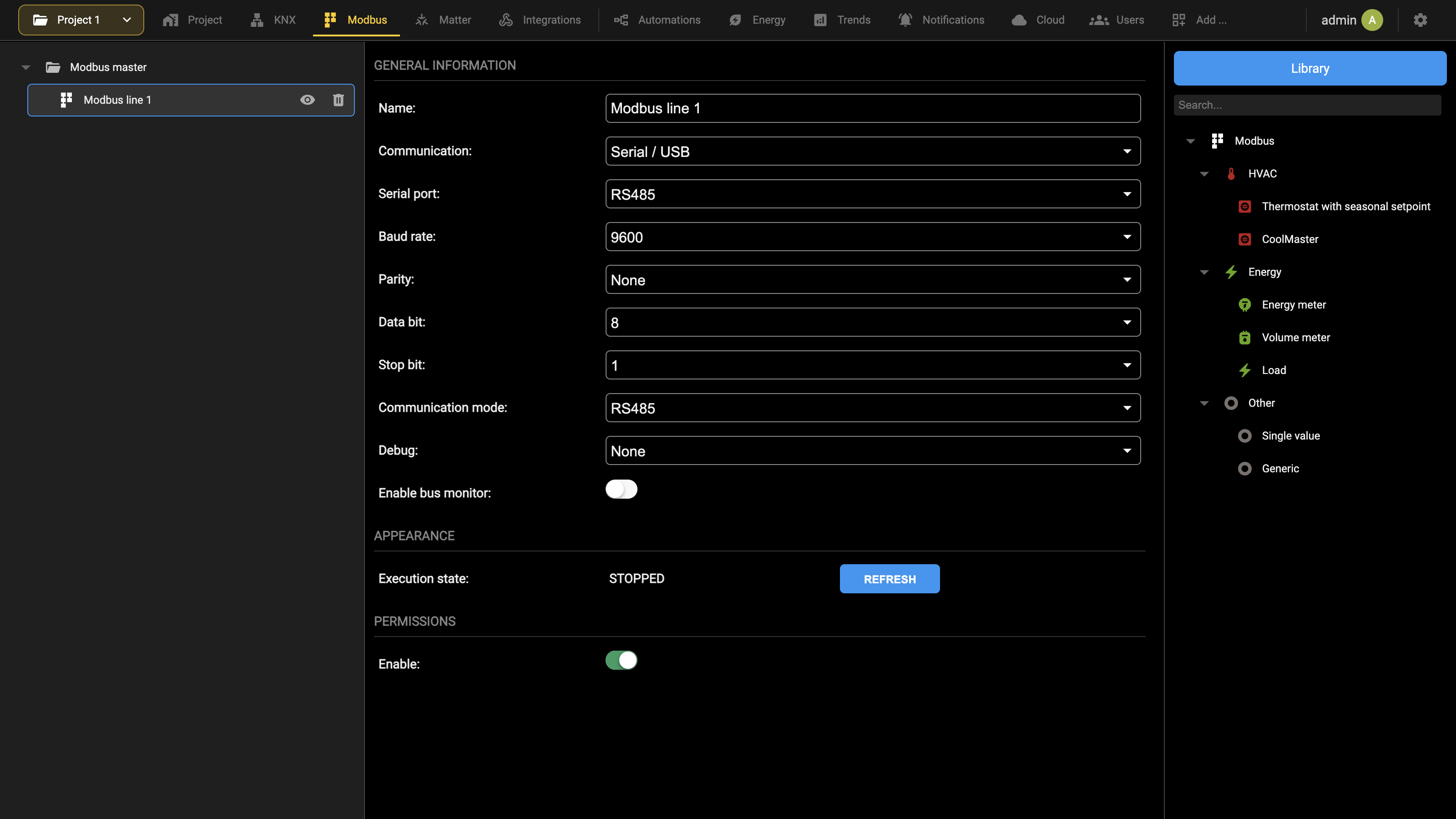
To insert a new graphic component into the line, drag its template from the Library onto the line, entering the number of components to create if it is different from one.
Once the graphic component has been created, open its card with the edit button; in the initial section of the page it is possible to specify the following (in addition to the parameters / flags common to all DELÉGO object types):
| NAME | Identification label for the graphic component, also shown in supervision |
| ADDRESS | If specified, forces the slave number on all the associated registers |
| ROOM | The room to which the widget belongs |
| FUNCTION | Allows you to choose the category to which the graphic component belongs |
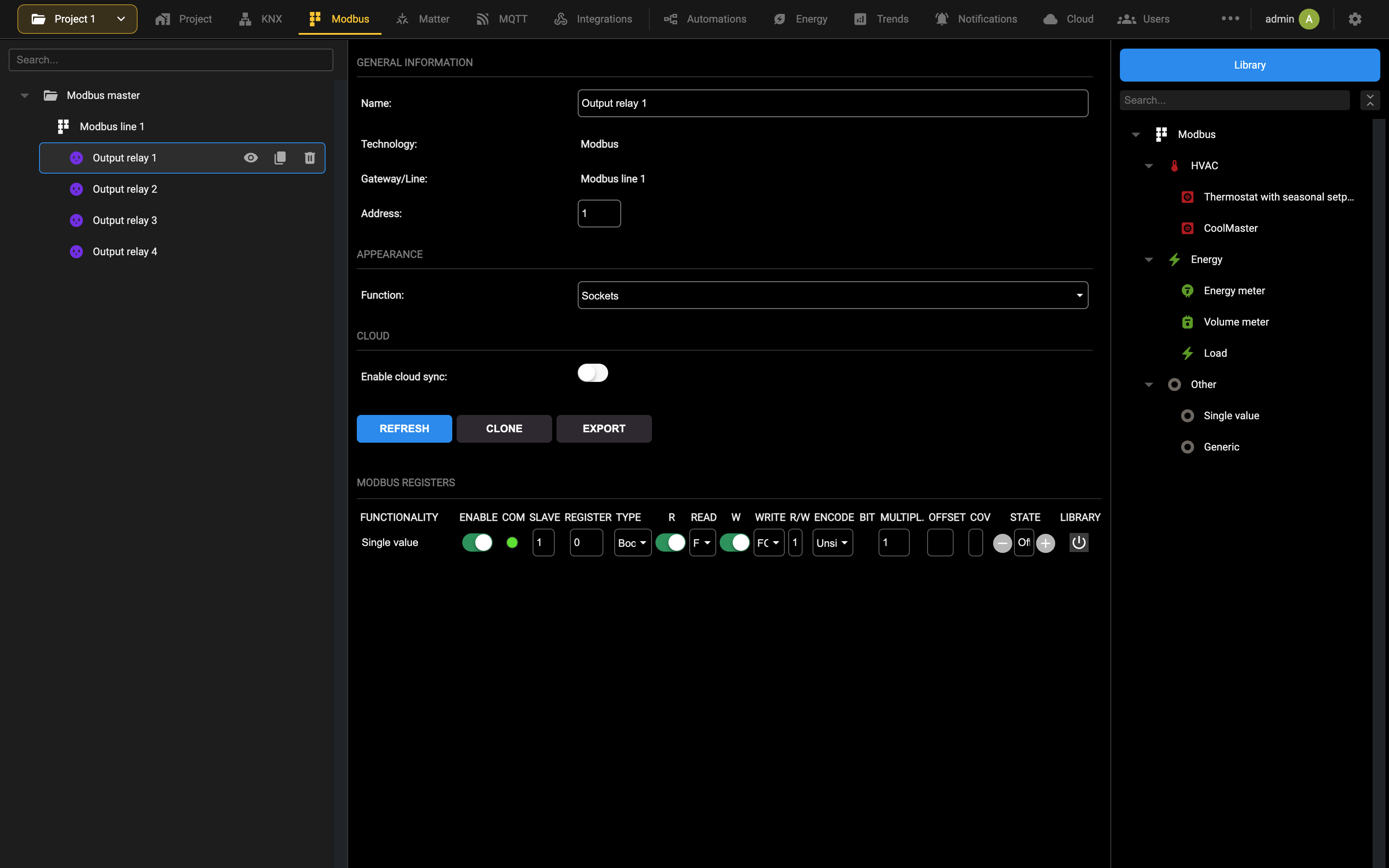
In the MODBUS REGISTERS section there are all the registers created automatically, based on the template chosen initially. Registers cannot be created directly on a MODBUS line: they always belong to a widget and come from its template.
If there are unnecessary registers in the list (because the template provides them, but they will not actually be used in the specific case) simply delete them with the appropriate trash can button.
A graphics component does not necessarily have to coincide with a MODBUS slave device; for this reason, it is possible not to specify the slave address above, and fill in the SLAVE field for each of the addresses. Typically, however, graphic components are used precisely to automate the graphic creation of an element that represents a physical device.
For each register you can set the following properties:
| FUNCTIONALITY | The function of the register within the widget, as defined by the template. |
| ENABLE | Enables or disables the register. |
| COM | Indicator of the communication status of the register. |
| SLAVE | Address of the slave device to which the register belongs. |
| REGISTER | Register address. |
| TYPE | Establishes the type of data contained within the register: ● Boolean (ON/OFF) ● Numeric - Float (values with decimals) ● Numeric - Integer (whole values only). Note: it is recommended to use integer encoding if you do not expect decimal values to be handled. |
| R (READABLE) | Flag to enable if the register can be read. |
| READ | If the register is readable, establish which function to perform the query with: ● FC1 (Read Coil Status) ● FC2 (Read Input Status) ● FC3 (Read Holding Registers) ● FC4 (Read Input Register) |
| W (WRITABLE) | Flag to enable if the register is writable. |
| WRITE | If the register is being written, choose the appropriate function to execute it: ● FC05 (Force Single Coil) ● FC06 (Preset Single Register) ● FC15 (Force Multiple Coils) ● FC16 (Preset Multiple Registers) |
| R/W | Allows you to establish the number of registers to read and/or write simultaneously. For further details, please refer to the appropriate section below |
| ENCODE | Establishes the type of coding to be used for interpreting the data within the register. The supported encodings are listed in the table below |
The encodings available in the ENCODE field are the following:
| Encoding | Registers occupied |
|---|---|
| Unsigned integer | 1 register (2 byte) |
| Signed integer | 1 register (2 byte) |
| Unsigned long (4 byte) | 2 registers (4 byte) * |
| Signed long (4 byte) | 2 registers (4 byte) * |
| Long (4 byte) signed inverted | 2 registers (4 byte) * |
| Floating point (4 byte) | 2 registers (4 byte) * |
| Floating point (4 byte) inverted | 2 registers (4 byte) * |
| Bit mask | 1 register (2 byte) |
| Signed double long (8 byte) | 4 registers (8 byte) * |
| Unsigned double long (8 byte) | 4 registers (8 byte) * |
| Signed (with flag) integer [2 byte] | 1 register (2 byte) |
| Signed (with flag) long [4 bytes] | 2 registers (4 byte) * |
| Signed (with flag) long [4 bytes] inverted | 2 registers (4 byte) * |
| Signed (with flag) double long [8 bytes] | 4 registers (8 byte) * |
In the inverted encodings the order of the registers is reversed with respect to the corresponding straight one.
| BIT | Entry available only if the register on which the writing and reading operations are carried out is encoded as Bitmask. This coding is used where every single bit has a precise meaning (e.g. a one-byte register where every single bit is an on/off output of an 8-channel actuator). The Bit item therefore establishes on which bit within the mask the reading and/or writing operation will be carried out. |
| MULTIPLIER | The contents of the register are multiplied by the value set in this field. E.g. register (temperature): 235; multiplier: 0.1; value in DELÉGO: 235 × 0.1 = 23.5 |
| OFFSET | Allows you to add a fixed value to the value read by the device. E.g. register (temperature): 235; multiplier: 0.1; offset: -20; value in DELÉGO: 235 × 0.1 - 20 = 3.5 |
| COV | In the case of numerical coding, it allows you to set a threshold, below which value changes are ignored and not “propagated” within the supervision. Note: For decimal values, use the period as a separator |
| STATE | Current value of the register. |
| LIBRARY | Choice of the graphic set used to display the register in the Visualization. Allows you to choose which icon to use in the visualization of DELÉGO to graphically represent the register. The library of available icons depends on the selection of the Register Type (Boolean or Numeric). |
After each change to the list of registers, press REFRESH on the widget card to confirm the changes, make the registers active and restart communication on the MODBUS line.
Duplication
Once a graphics component is successfully configured, you can duplicate it to speed up the configuration of repetitive elements. To do this, press the CLONE button in its detail sheet or, alternatively, the duplicate button directly from the list of graphic components in the line; in both cases, the following window is shown:
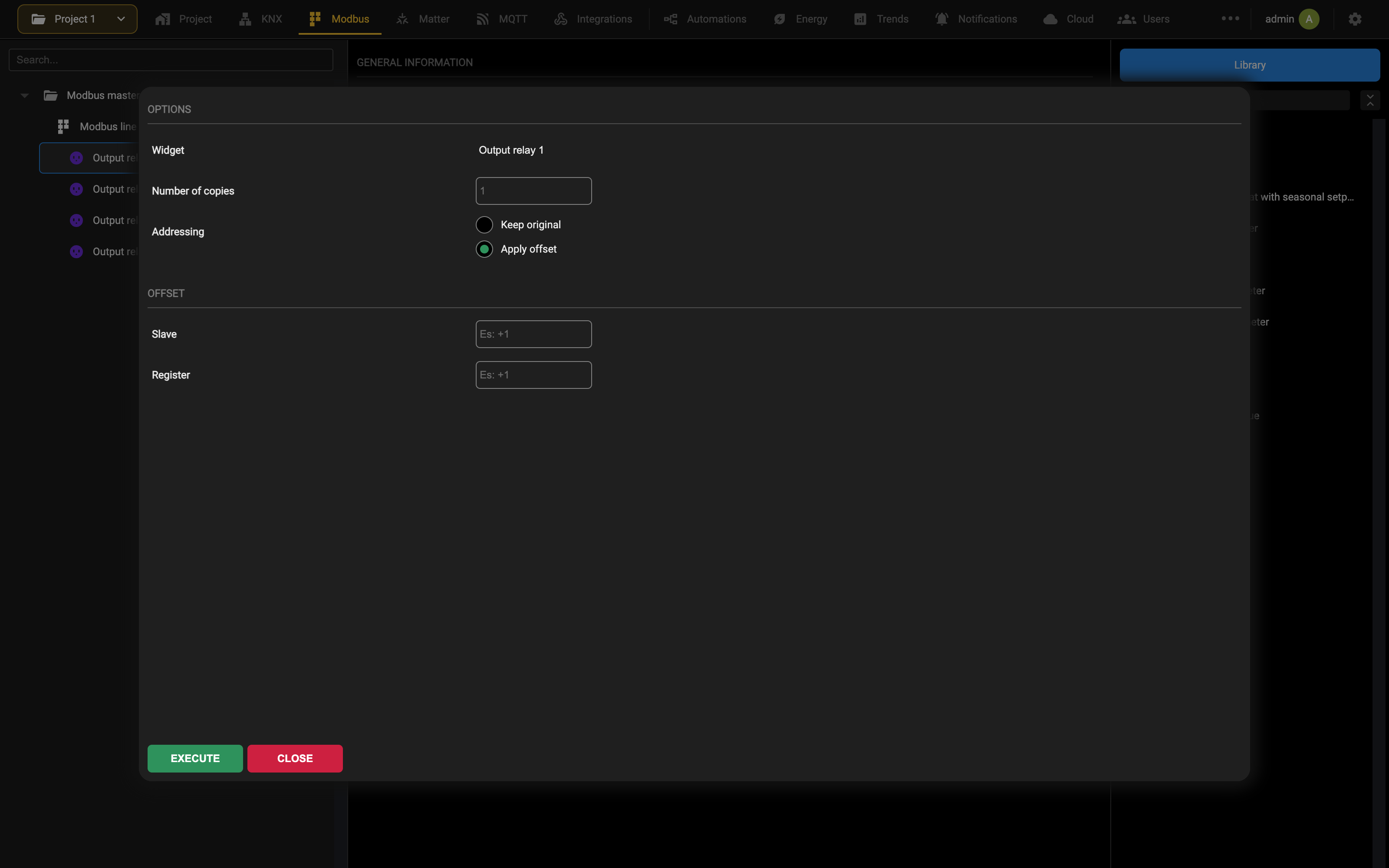
The WIDGET field is preselected with the starting element and cannot be modified; on the other hand, it is possible to establish how many copies must be made, and whether the corresponding registers must be created identical to the original, or instead by applying an offset.
The offset can be either on the slave address or on the register; indicate an incremental number (using for example “+1” to increase, “-1” to decrease) which will be applied, for each of the graphic components, compared to the original.
When finished, the new graphic components appear in the line list; by entering their tab, it is possible to verify that the creation of the registers has correctly implemented the offset, and possibly modify the configuration according to your needs.
CoolMasterNET
This chapter contains all the information required for the integration of DELÉGO SERVER, the multiprotocol webserver for connected buildings by EKINEX, with a CoolMasterNET device.
CoolMasterNET connection and configuration
Connection of CoolMasterNET and the external unit(s)
Refer to the following CoolMaster document for detailed instructions for the connection of the CoolMasterNET to the external unit(s):
https://coolautomation.com/wp-content/uploads/sites/2/2021/01/CoolMasterNET-installation-manual-3.5_.pdf
DIP switches must be set appropriately for the HVAC units in use, then the outdoor unit comms line must be connected to the CoolMaster (only certain comms lines can be used for certain brands). The image below is for a Samsung outdoor unit.
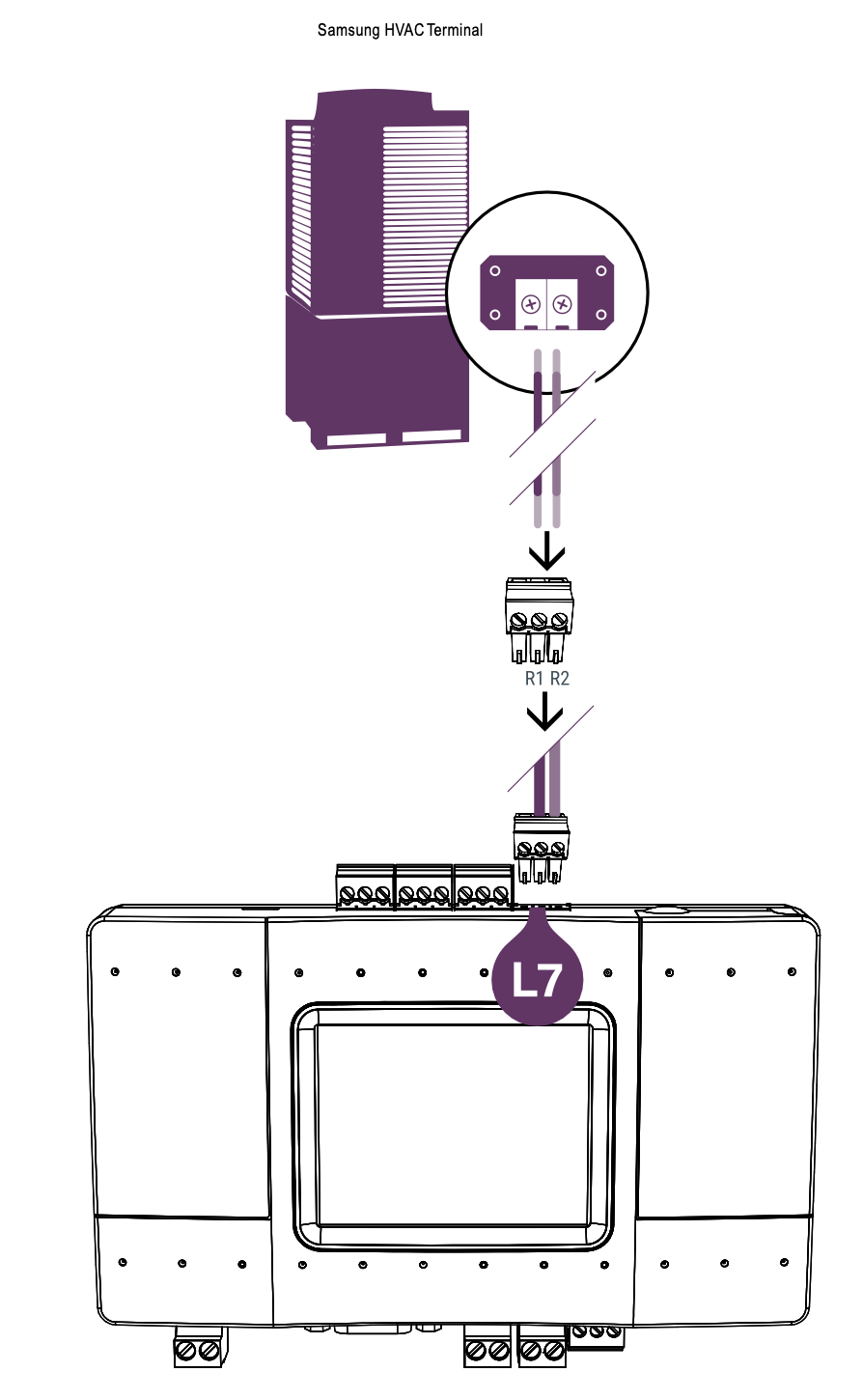
This connection allows up to 64 indoor units to be controlled from a single connection to the outdoor unit. Refer to the manual of the HVAC unit for recommendations on cable used for this connection. For example a Samsung VRF unit recommends a conductor cross-section of 0.75 mm² to 1.5 mm². If there is a second outdoor unit, then simply connect it to another data line of the CoolMasterNET.
Indoor units detection and addressing
A CoolMasterNET controls several indoor units, so before any of them can be reached over Modbus each one needs a virtual address. That address is then the base address of the Modbus registers of that unit.
The CoolMaster can scan a line on its own and detect every indoor unit connected to it, which is the quickest way to obtain the list to work from.
HVAC brand setting
- Open Settings
- Enter HVAC line
- Select the HVAC Line you want to configure
- Configure the HVAC line type
- Make sure the DIP switches are set properly for the brand (see the CoolMasterNET installation manual linked in the previous section)
- A red warning message appears if the DIP switches are set incorrectly
- Reset is required to make the change
Scanning for indoor units
- Open settings
- Enter HVAC Line
- Select the HVAC Line you want to configure
- Press SCAN
Modbus IP enabling
- Open settings
- Open BMS Settings
Creating VA list
- Run VA Auto
- View VA List
For full instructions please refer to the CoolMasterNET documentation at the following link:
https://coolautomation.com/wp-content/uploads/sites/2/2021/03/CoolMasterNet_UM_v1.1.2-1.pdf
Delégo configuration
Widget configuration
Open the Library panel on the right, where the Modbus templates are grouped into HVAC, Energy and Other, and drag CoolMaster, in the HVAC group, onto the Modbus line in the context tree; a new widget is created under the line, for the first AC unit. Select it to open its card, enter a name and 1 in the Address field (the Modbus slave number), leaving all the other settings as default:
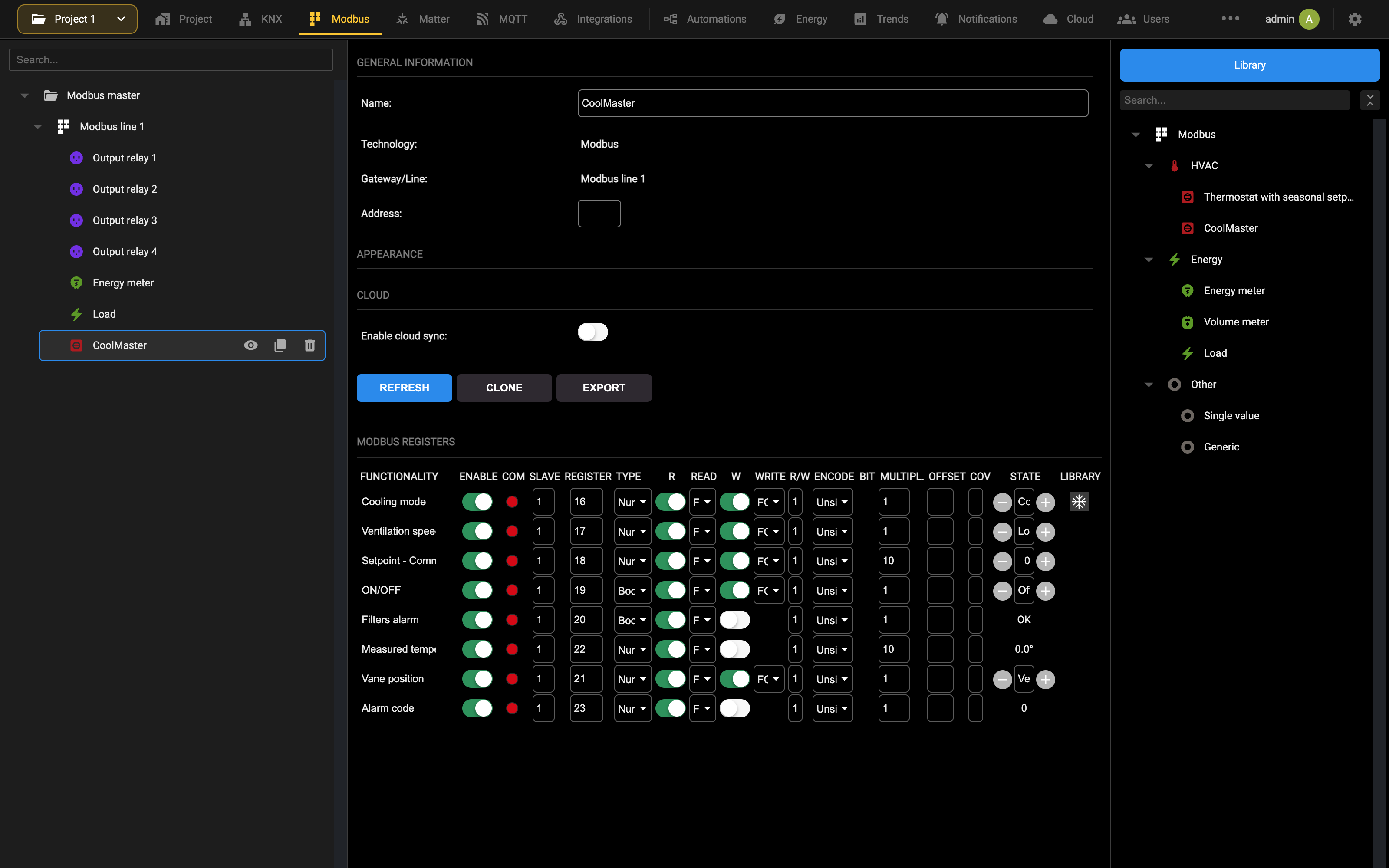
The CoolMasterNET gives access to each AC unit with register addresses shifted by 16 from one another:
| AC UNIT | BASE ADDRESS | REGISTER ADDRESSES |
|---|---|---|
| 1 | 16 | Cooling mode = 16 Ventilation speed = 17 Command setpoint = 18 […] |
| 2 | 32 | Cooling mode = 32 Ventilation speed = 33 Command setpoint = 34 […] |
| 3 | 48 | Cooling mode = 48 Ventilation speed = 49 Command setpoint = 50 […] |
| [...] | [...] | [...] |
For this reason, in order to add the next AC units, the quicker approach is to clone the first widget, by specifying “16” as address offset:
- Press the CLONE button from the details page of the first AC unit
- Enter the number of AC units to be created
- Enter “+16” as an offset for the register (no offset for the slave)
- Press EXECUTE
When done, return to the Modbus line page, and change the names of the AC units in the WIDGETS list. Finally, press REFRESH to restart the communication; if everything has been correctly set, the “dots” in the detail page of each AC unit must turn from red to green.
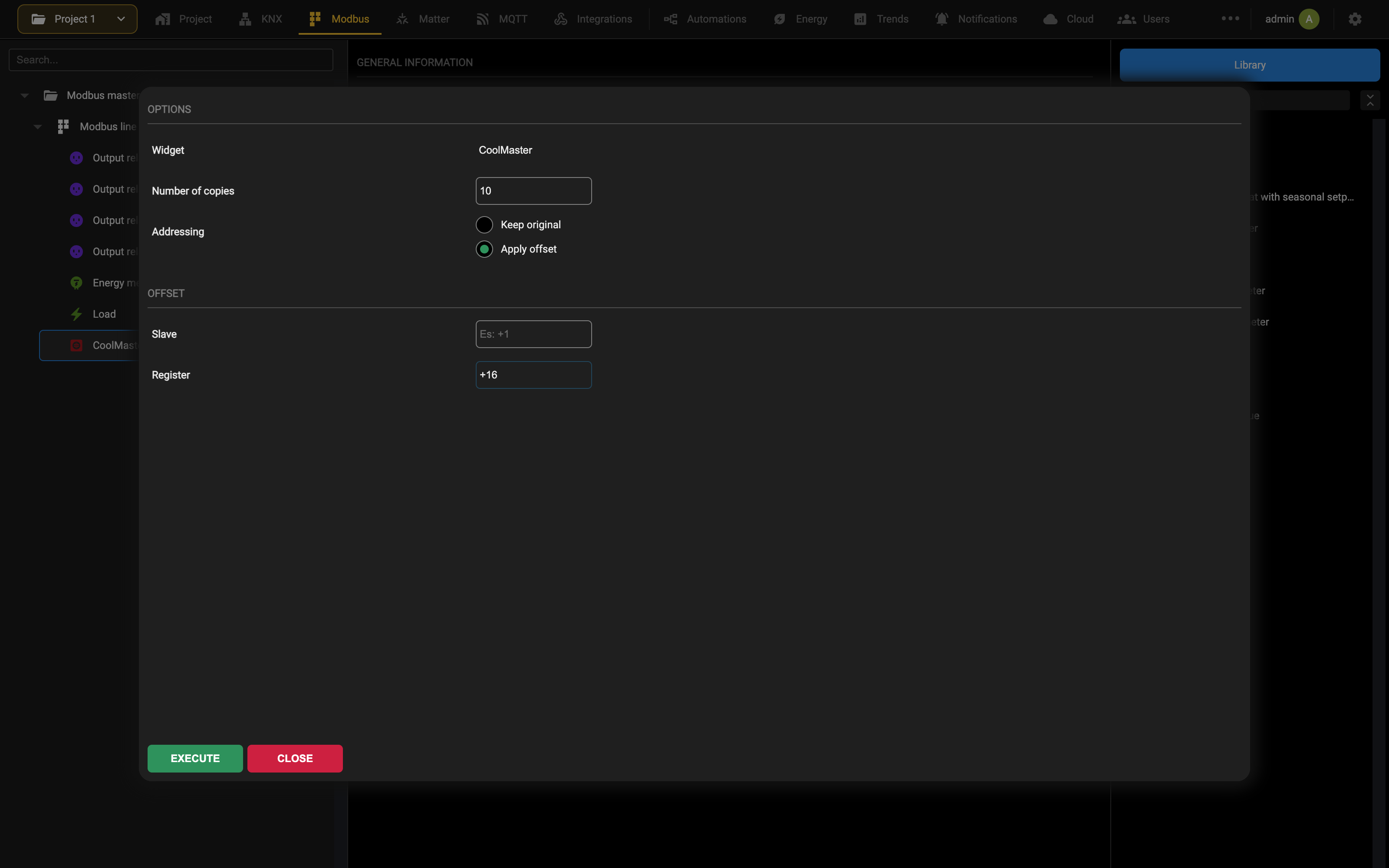
Visualization
Assigning each AC unit a Room in the Widgets list of the Modbus line page makes it appear automatically in the page of that room in the Visualization.
The following pictures show an example of visualization of an AC unit in the widgets list of a room, and the corresponding detail popup (accessible by pressing the widget in the list):
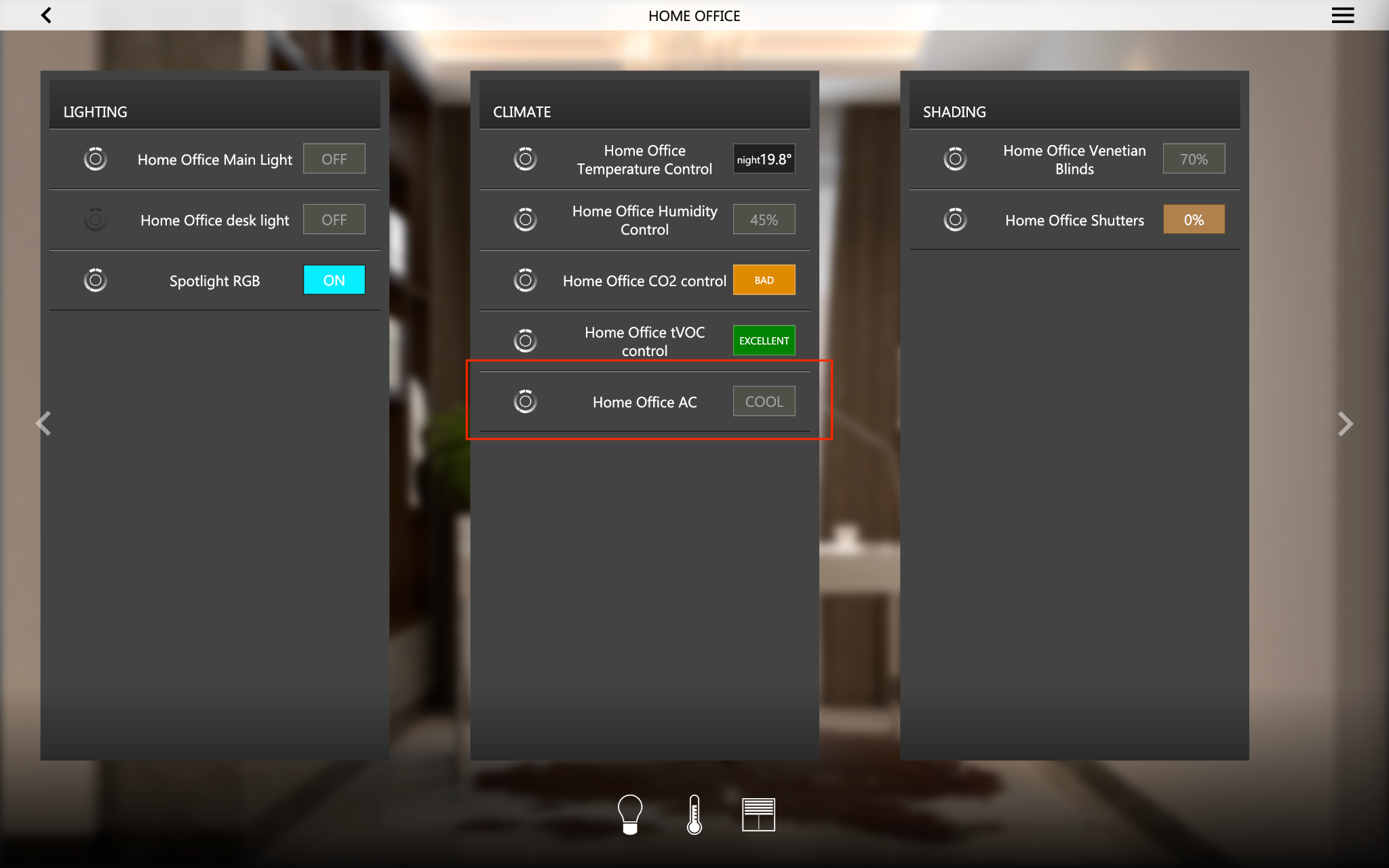
MATTER
Introduction
MATTER is the standard for smart home IoT, used by many connected accessories and compatible with several ecosystems like Apple Home, Amazon Alexa, Google Home and Samsung SmartThings.
DELÉGO SERVER implements the MATTER protocol in two different ways:
- CONTROLLER: the webserver can control MATTER accessories and make them interact with KNX and the other supported cabled technologies
- MATTER BRIDGE: a subset of the configured widgets can be exposed to a MATTER ecosystem, in order to be managed by the corresponding apps and voice assistants
Matter Controller
Preliminary operations
Enrollment
Before becoming available for the management in DELÉGO SERVER, a MATTER native device must be enrolled to one of the following smart home ecosystems (typically the preferred one by the end user):
- Google Home
- Apple Home
- Amazon Alexa
- Samsung SmartThings
This operation normally associates the device to the home Wi-Fi network, and adds it to the devices that can be managed by the corresponding app; the following examples refer to the Apple Home ecosystem.
It is also possible to manage devices, or groups of devices, not natively based on MATTER, but compatible with the standard by means of a gateway device, which is normally referred to as the “border router”. The PHILIPS HUE smart lighting system, based on the ZigBee radio protocol, is an example.
In this case, the enrollment stage is not necessary, and the PAIRING can be directly done, by following the specific instructions of the manufacturer of the compatible system.
DELÉGO SERVER also supports use of MATTER THREAD devices, which use a low-power mesh network for communicating and preserving energy on battery powered Matter devices. Thread is an alternative technology to Wi-Fi and a MATTER THREAD “border router” is required for communications with DELÉGO SERVER to work. Adding a new accessory typically requires scanning the QR code printed on the device:
After a while (the operation can take some minutes) the app recognizes the type of device, and asks in which room to add it. This depends on the specific app you are using; the following screenshots refer to the enrollment of a smart plug into the Apple Home application:
Finally, the new device can be controlled from the room it belongs to, like in the following example:
Pairing
In order to be controlled by DELÉGO SERVER, the device must be put in PAIRING MODE. This can be done directly by the preferred smart home app, normally by opening the device settings; the following screenshots show how to do it in Apple Home:
The given pairing code can be copied and pasted (or manually entered) into DELÉGO SERVER, as described in the next chapter.
The pairing code stays valid only for a few minutes after activation: complete the procedure in the webserver before it expires.
Matter Thread
In case of MATTER THREAD devices, the procedure may change depending on the manufacturer of the devices and the border router.
Usually, a pairing between the border router and your network is required. This can be done using the border router manufacturer app.
When the border router is configured, you can pair the MATTER THREAD devices you own with it using the dedicated function, so they’ll use the router as a communication gateway to the LAN.
Then, enable the Pairing mode on any device you want to control with DELÉGO SERVER to obtain the Pairing code you’ll need to use in the next steps.
All these steps have to be performed directly from the border router app or web interface made by its manufacturer.
The exact procedure can change from one manufacturer to another. Please refer to the user manuals of the MATTER THREAD border router and devices.
Pairing each MATTER device individually always works, and is the recommended method.
Configuration
In order to manage one or more MATTER devices in DELÉGO SERVER, open the Matter section in the bar and select the Matter Controller tab. The page appears like this:
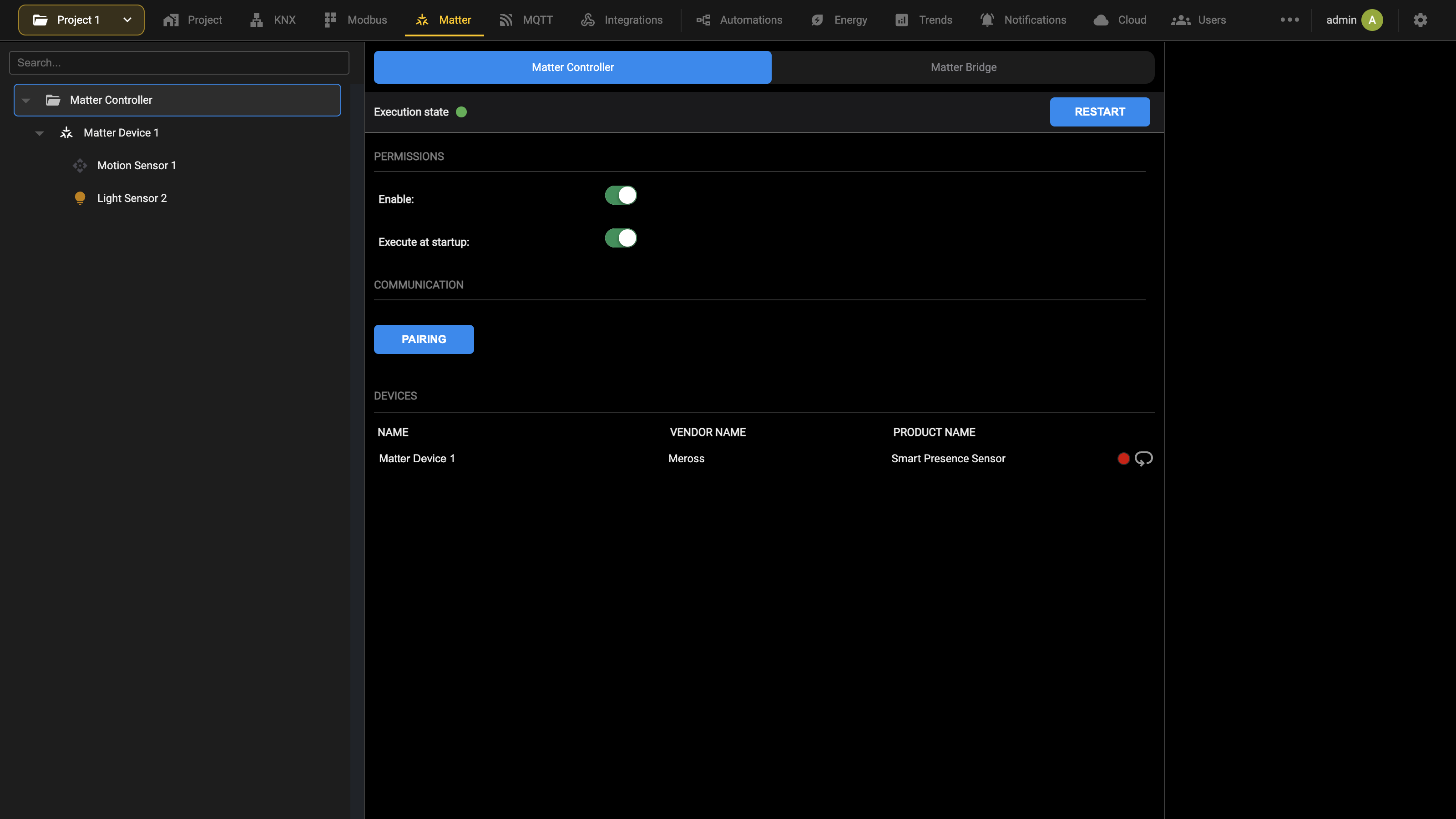
The PERMISSIONS group holds Enable, which activates the controller, and Execute at startup, which starts it automatically when the DELÉGO SERVER is powered on. The status bar at the top of the tab reports the Execution state of the controller as a coloured dot, and a change to its settings stops it and turns the dot red, until RESTART starts it again with the new settings (see Workspace). Under COMMUNICATION, PAIRING starts the association of a new device.
Each physical MATTER device, after the configuration described below, will be listed in the DEVICES table of this page, with its name, vendor and product name. This is valid not only for MATTER native products, but also for compatible systems; in this second case, the gateway (border router) will be listed here.
A MATTER device (also called NODE in the standard terminology) can offer more than one functionality, referred to as ENDPOINTS. An example can be a sensor, offering both the light brightness and the presence of persons in a room: those two functionalities can be used independently, despite the fact they’re offered by the same hardware.
This is especially true for compatible systems: in this situation, as mentioned above, the DEVICE is the gateway, and each appliance of the system is an ENDPOINT. This is because, from the MATTER perspective, all those appliances behave as if they were a single device (the border router itself).
Each detected ENDPOINT becomes in DELÉGO SERVER a widget, which can be assigned to a FUNCTION and placed into a ROOM, in exactly the same way as the other types of widget (KNX, Modbus etc…) as described in the Widgets association chapter.
Matter Thread support
Depending on the version of DELÉGO SERVER and on when it was manufactured, the page may report that the Thread components are not installed.
When a MATTER THREAD device is going to be used, press INSTALL THREAD: the server downloads and installs what it needs by itself. The installation ends with a reboot of the server, so plan it outside the hours when the installation is in use.
Pairing
After having set the MATTER device in pairing mode, as described in Pairing, press PAIRING in the controller page, and enter the pairing code:
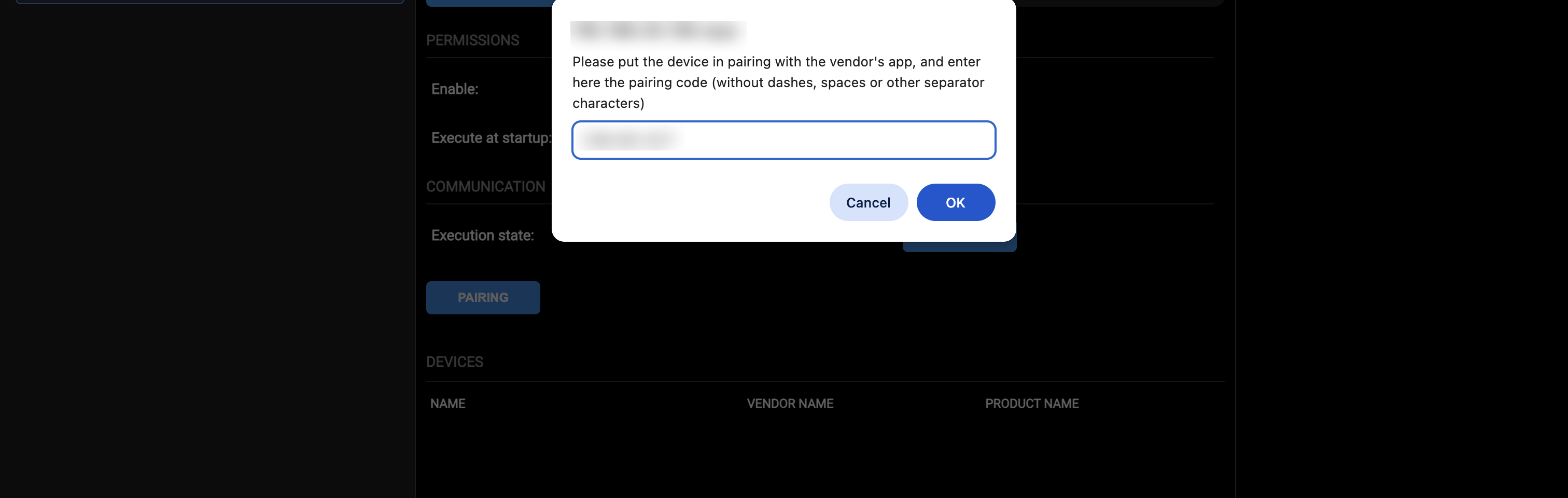
After a while, the new appliance is listed in the DEVICES section, like in the following example:
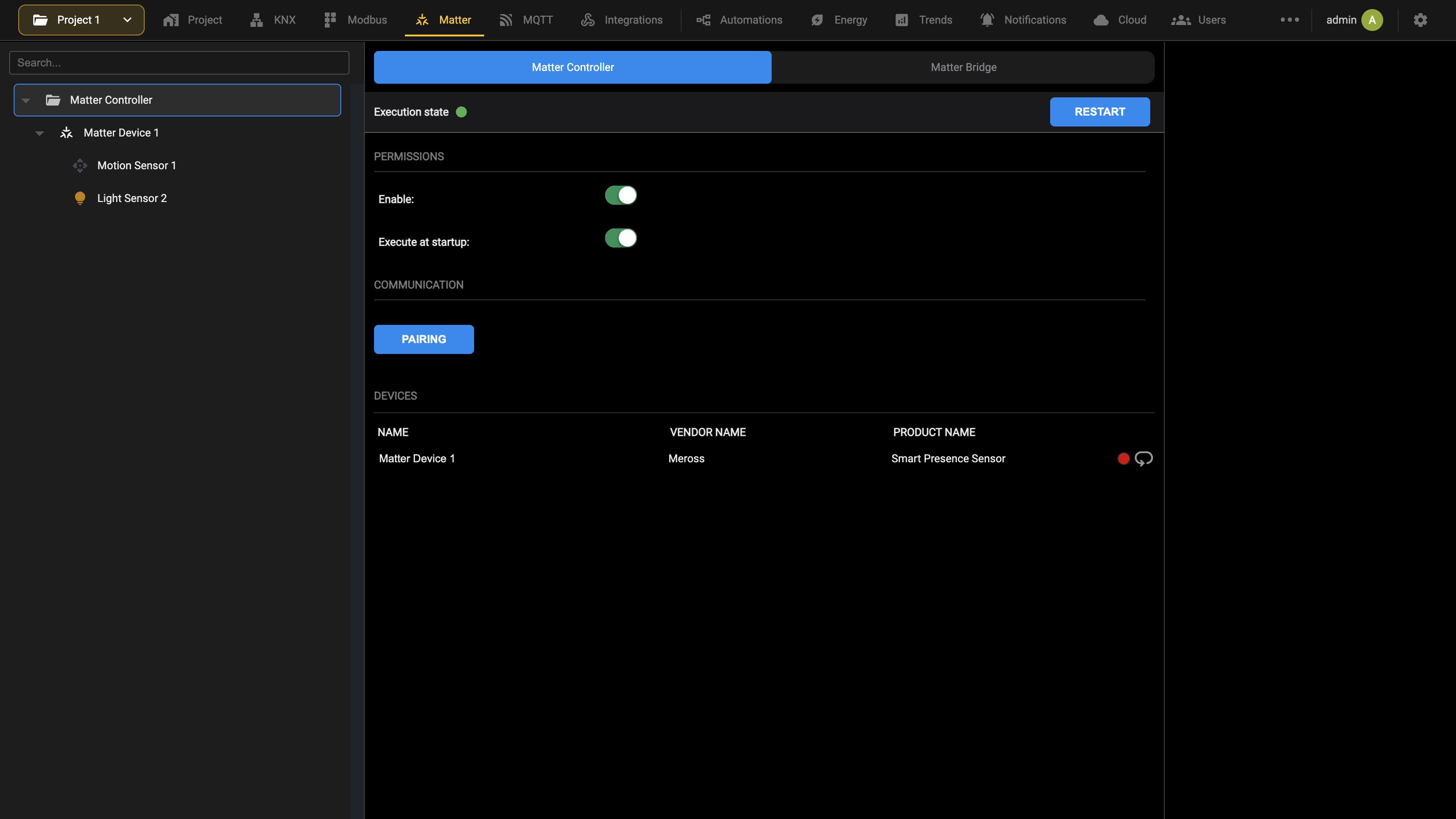
If the communication is established correctly, the indicator becomes green after some seconds. The device is now ready to be used; repeat the pairing for the other devices.
Widgets
By entering the device page (by pressing the corresponding EDIT button) a number of details (manufacturer, version and so on) are listed at the beginning of the page; the associated WIDGETs are displayed in the bottom section, like in the following example (of a smart plug):
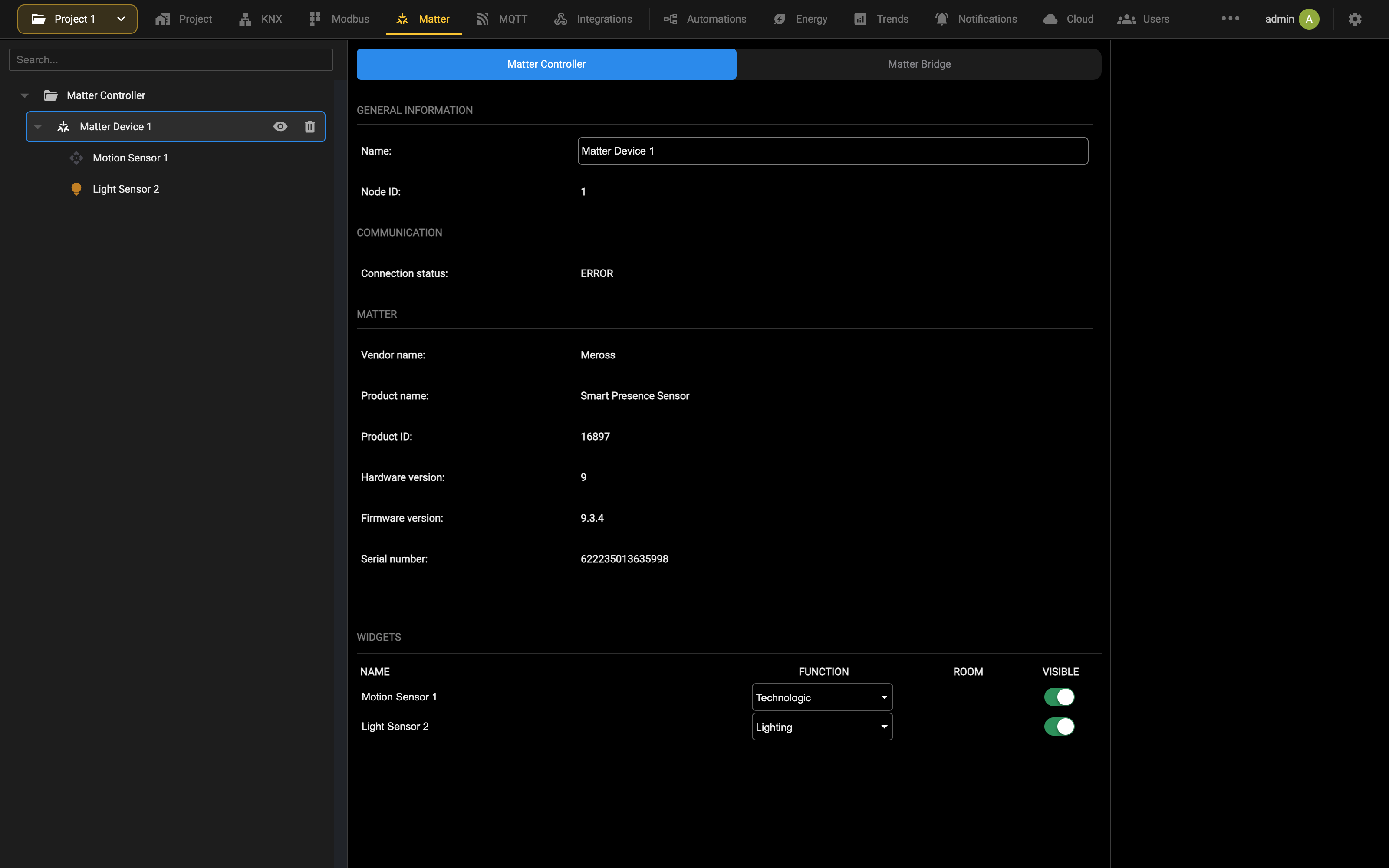
In order for the WIDGET to be displayed in the Visualization, as any other graphical element in DELÉGO SERVER, it must be assigned to a FUNCTION and an existing ROOM:
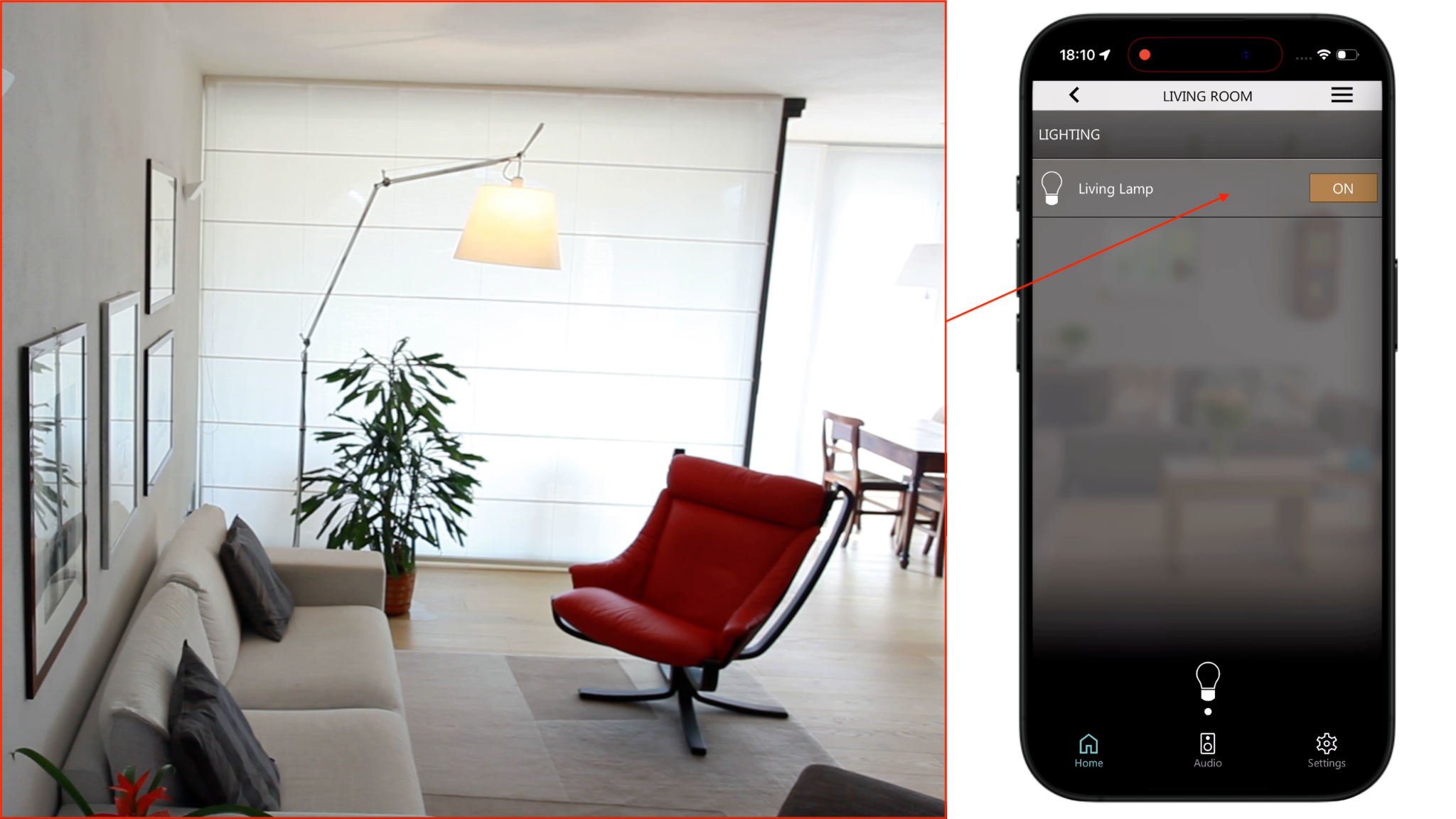
In the administration area, by entering once again in details into the widget, a page similar to the following example is displayed:
The ATTRIBUTES are information made available by the MATTER device, some of which can also be written. Conversely, the COMMANDS are actions that can be performed; in the example of a smart plug, to switch it ON or OFF, or to TOGGLE its state.
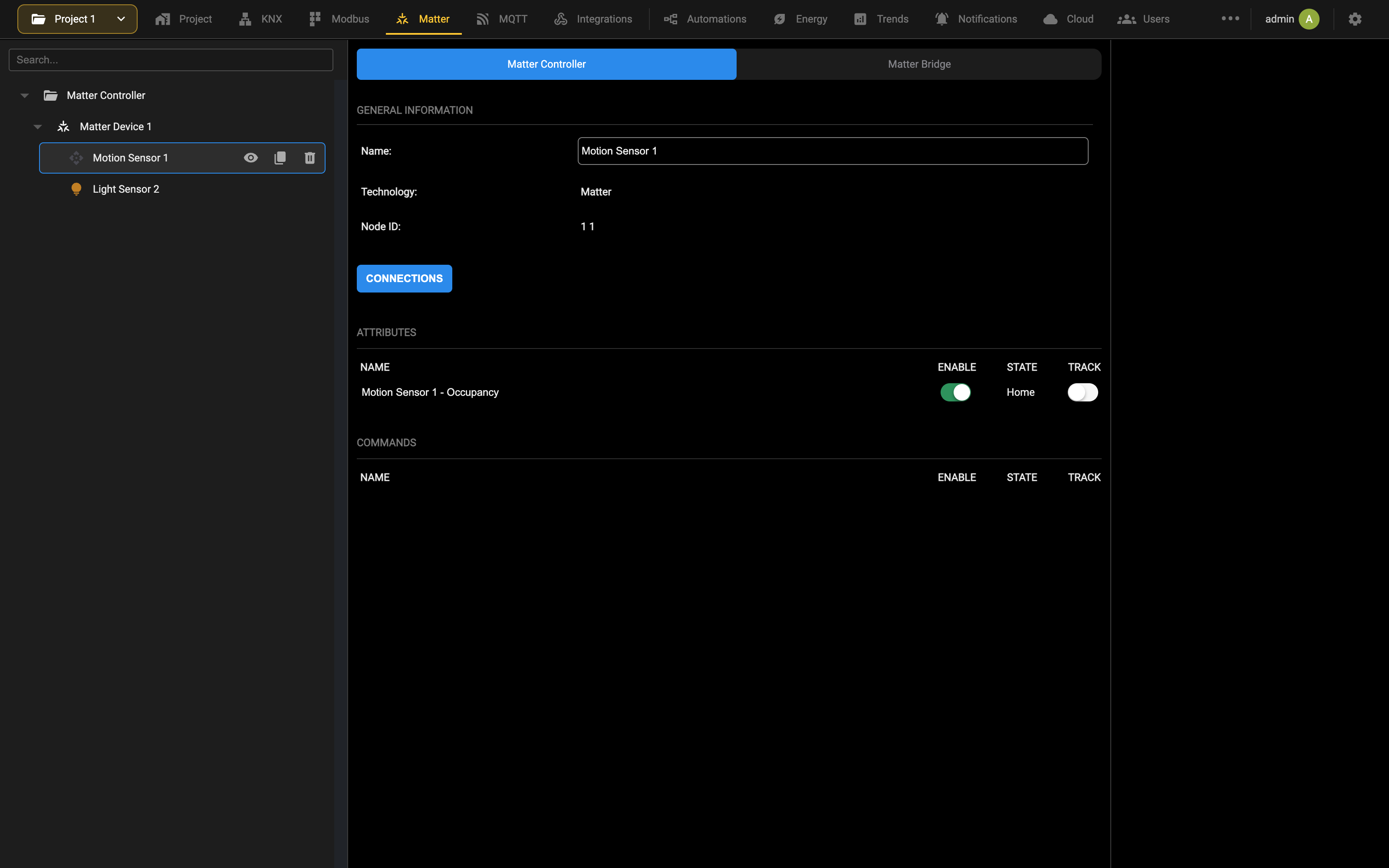
The following example represents a thermostat, which normally gives a higher number of attributes:
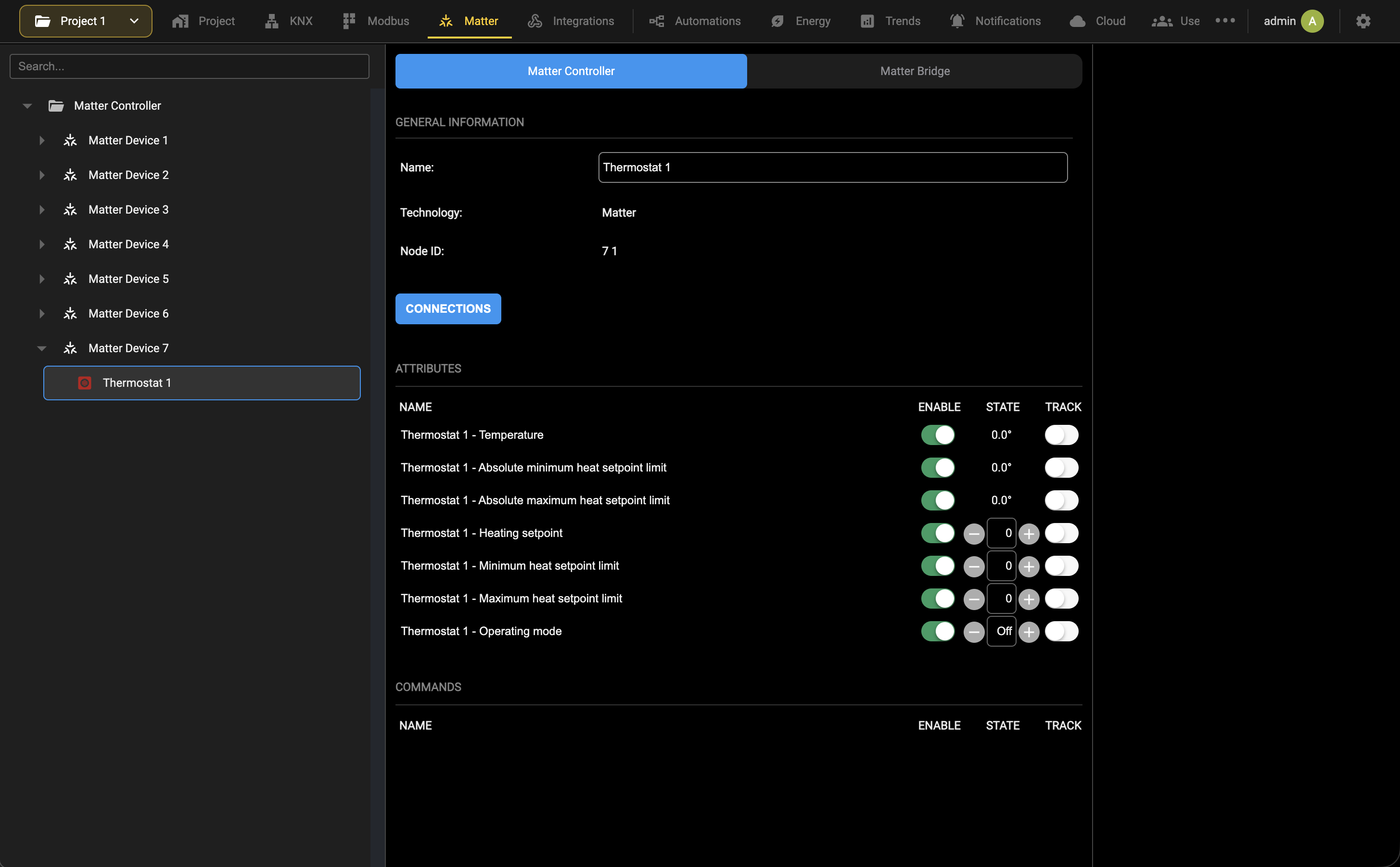
The following screenshot shows how a MATTER thermostat appears in the DELÉGO SERVER visualization:
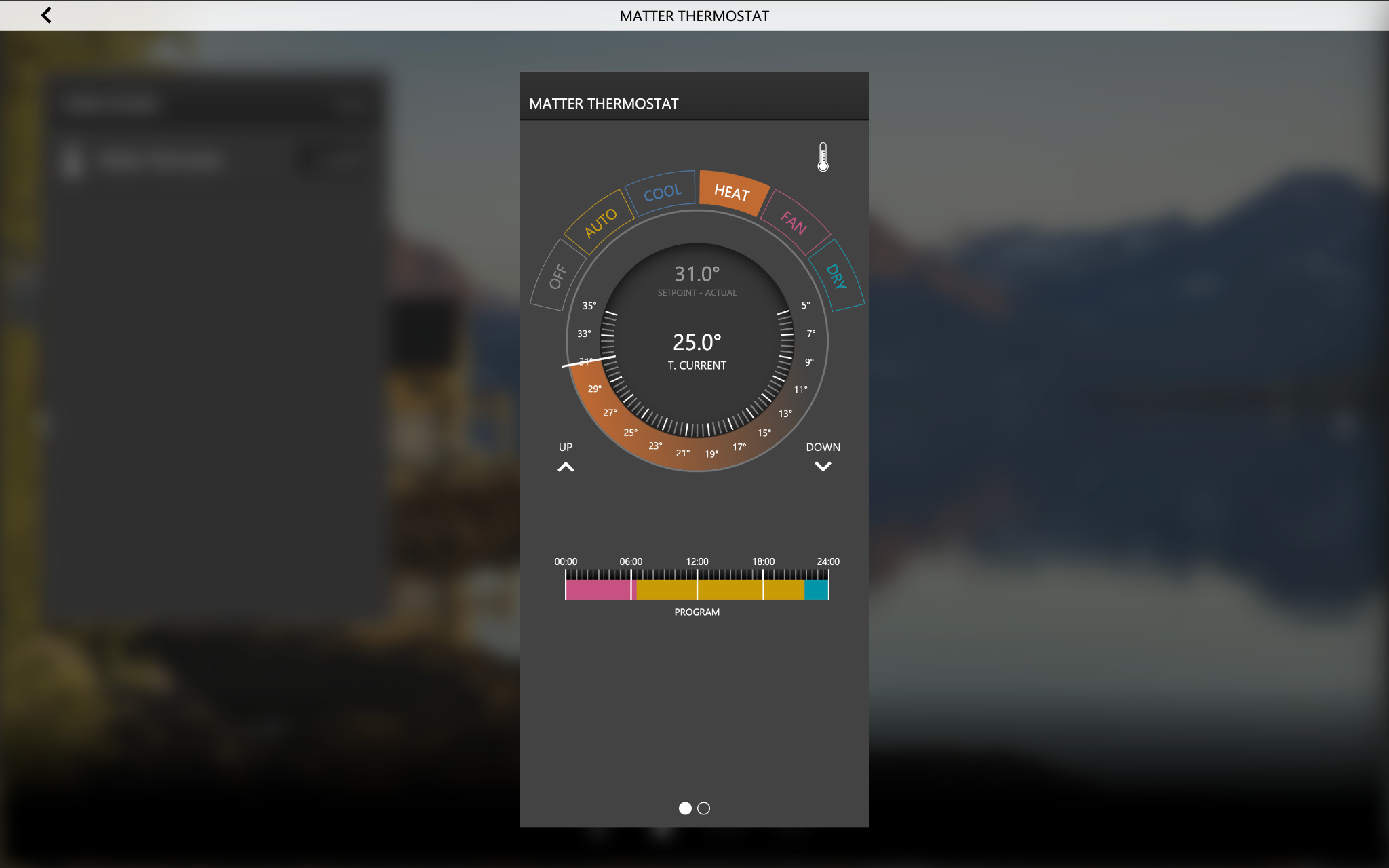
Matter Controller key archive
Each time a device is paired with DELÉGO SERVER, a key is added inside the server. That key is what makes the communication work, and it exists only on the unit until a copy is taken.
The archive of those keys is exported and imported from the project card, in Backup/Restore, under MATTER CONTROLLER: the copy can be saved to the PC or to the cloud, and reloaded from either.
Keeping a copy of the archive is strongly recommended, because it is what allows a paired installation to be brought back on a replacement unit. Please note that this is a different set of keys than the one used by the MATTER BRIDGE.
Supported product families
At present DELÉGO SERVER supports the following device families:
- Lights
- Motorizations
- Smart plugs / switches
- Thermostats
- Brightness and motion sensors
- Window/door sensors
- Smart locks
If a device is not recognized by DELÉGO SERVER, an error is given at the end of the pairing procedure. Ekinex continuously works to expand the compatibility to new families and functionalities; feel free to contact us to get specific support, and ask to add new products to our development roadmap.
Furthermore, DELÉGO SERVER may not implement all the features that the device offers in other smart home ecosystems; this is due to compatibility constraints, which can evolve over time and change among software versions of the webserver.
Automations
Once a MATTER device has been created in DELÉGO SERVER, it can be combined with other widgets / functions, in order to exchange information and/or trigger cross-technology actions.
As an example, a KNX light in a hallway can be switched ON when a MATTER presence sensor detects a person. Conversely, a KNX wall-mounted pushbutton can command a traditional light powered by means of a MATTER smart plug.
Connections
The simplest way to combine a MATTER device with the other supported technologies in DELÉGO SERVER is to create a new CONNECTION (Automations → Connections, then +) and drop into it the MATTER widget that represents the functionality.
Do the same with the other technological function (a light, a pushbutton etc…) and connect the input / output nodes, in order to build the desired automation:
Alternative ways to do bidirectional automations are the ACTIONS / TRIGGERS and the LOGIC MODULE of DELÉGO SERVER. For more information please refer to the Connections chapter.
Matter Bridge
A subset of the widgets configured in DELÉGO SERVER can be exposed to a MATTER ecosystem, in order to make them manageable by the corresponding app and/or voice assistants.
One or more of the following systems can be connected in this way:
- Apple Home
- Amazon Alexa
- Google Home
- Samsung SmartThings
Bridge start
Open the Matter section in the bar and select the Matter Bridge tab, to open the following page:
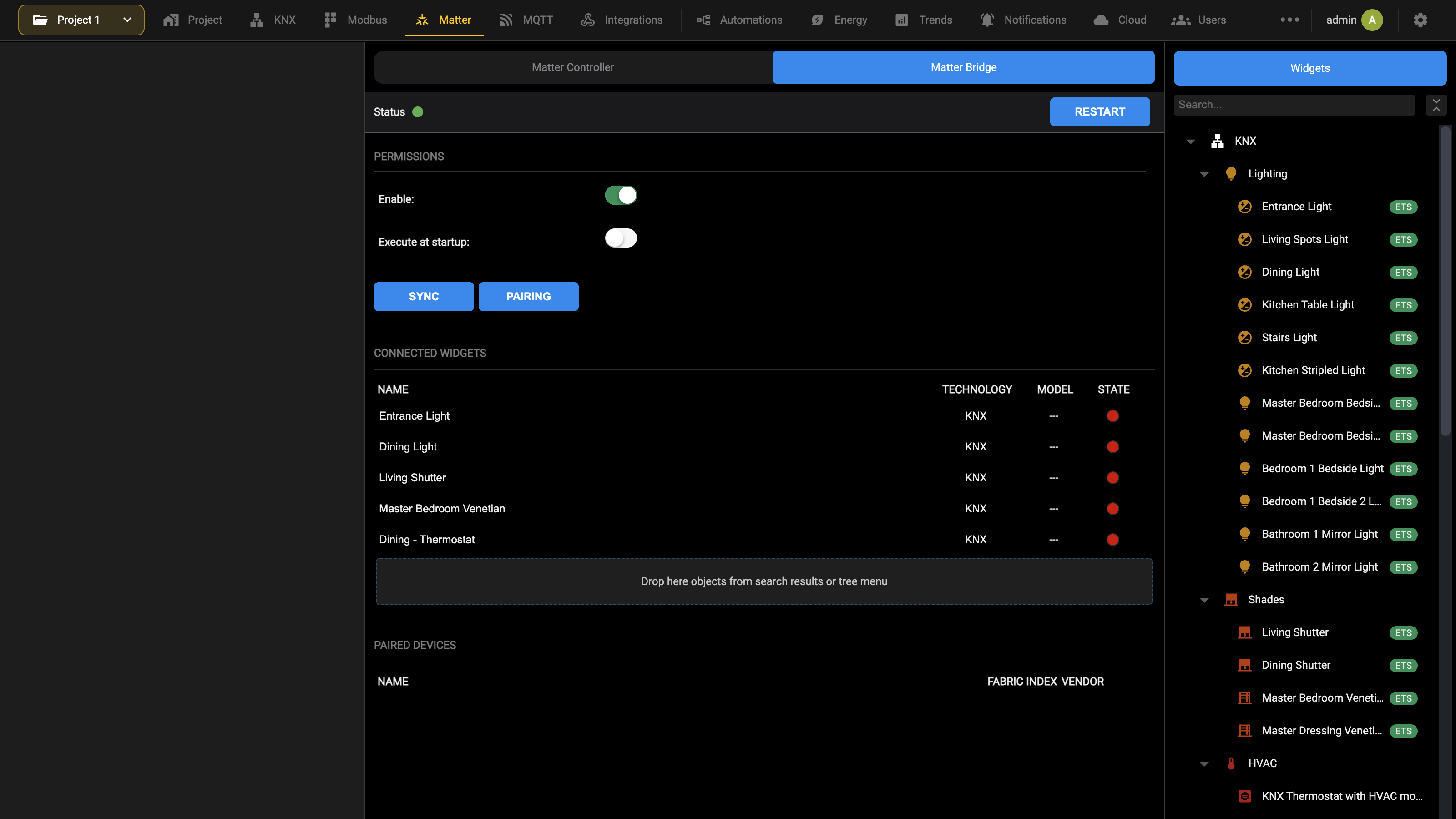
Turn on Execute at startup and start the bridge with RESTART in the status bar; after a few seconds the Status dot turns green. A red dot means the bridge is stopped, which is normal while it has never run. A change to the settings of the bridge stops it and turns the dot red: press RESTART again to start it with the new settings (see Workspace). SYNC pushes the associated widgets to the ecosystems, and PAIRING opens the pairing procedure described further on.
Widgets association
Search for the desired widgets (in the search field on the left) and drag and drop them into the CONNECTED WIDGETS list. The following KNX and MODBUS WIDGETS are compatible with the MATTER BRIDGE:
| CATEGORY TEMPLATE | COMMANDS / STATES |
|---|---|
| Lighting ON/OFF light | ON/OFF |
| Dimmer | ON/OFF switch Brightness level Color temperature |
| RGBW | ON/OFF Brightness level HSV (color selection) |
| Motorizations Shutter with percent position | Up/Down Percent position |
| Venetian blind with percent | Up/Down |
| position and slat orientation | Percent blind position Percent slats orientation |
| HVAC Thermostat | Measured temperature Temperature setpoint ON/OFF Heating / Cooling Fan speed |
| AC unit | Measured temperature Temperature setpoint ON/OFF Operating mode Fan speed Swing |
| Other Socket | ON/OFF |
Other templates and technologies will be added in future versions.
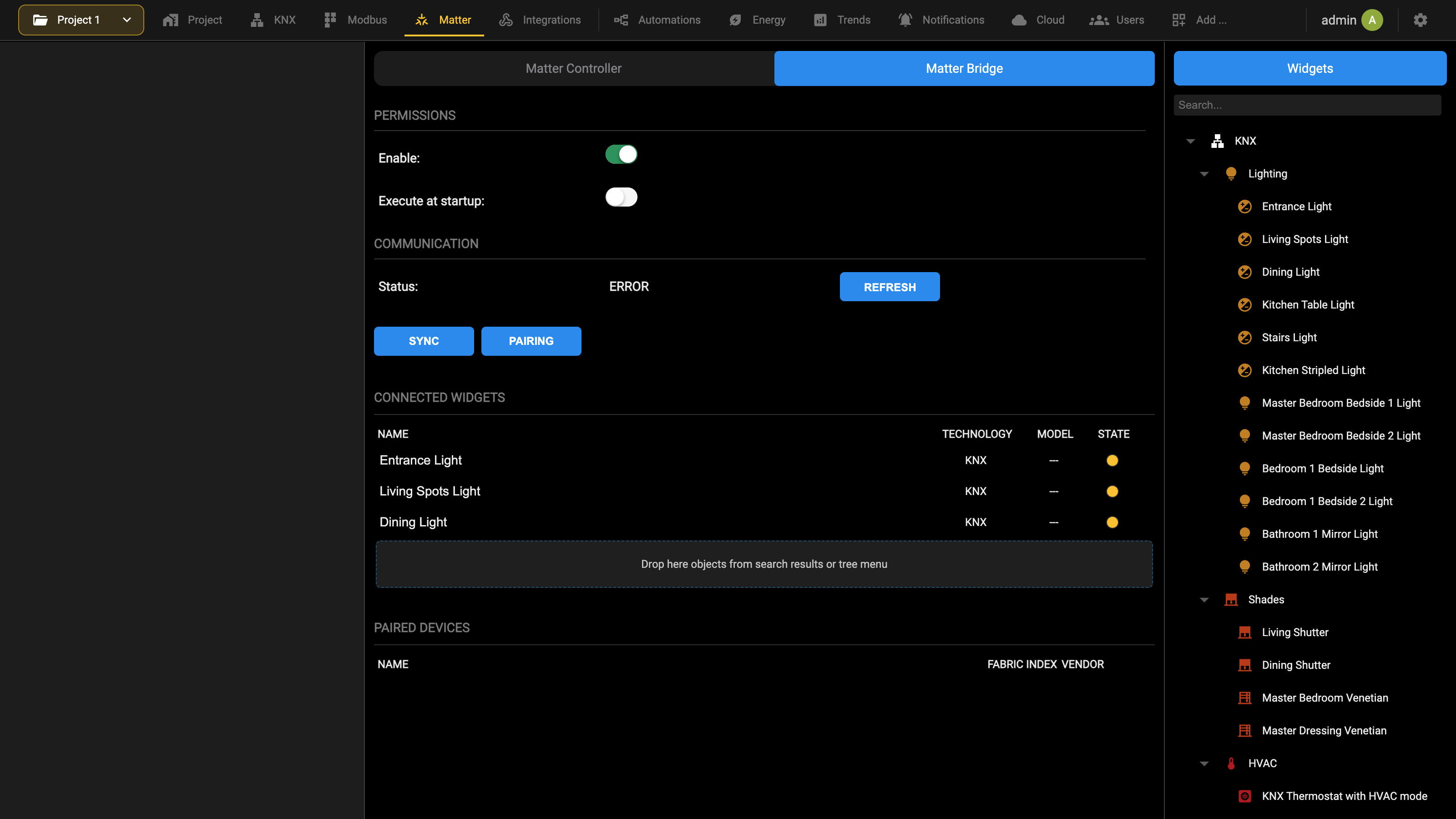
The associated widgets stay yellow and inactive in the bridge until it takes them on board, with SYNC or at the next REFRESH. After that the compatible ones turn green and the MODEL column names the MATTER device type each widget has been mapped to, which is the quickest check that the association went through. The widgets that are not supported stay red and are simply ignored by the bridge.
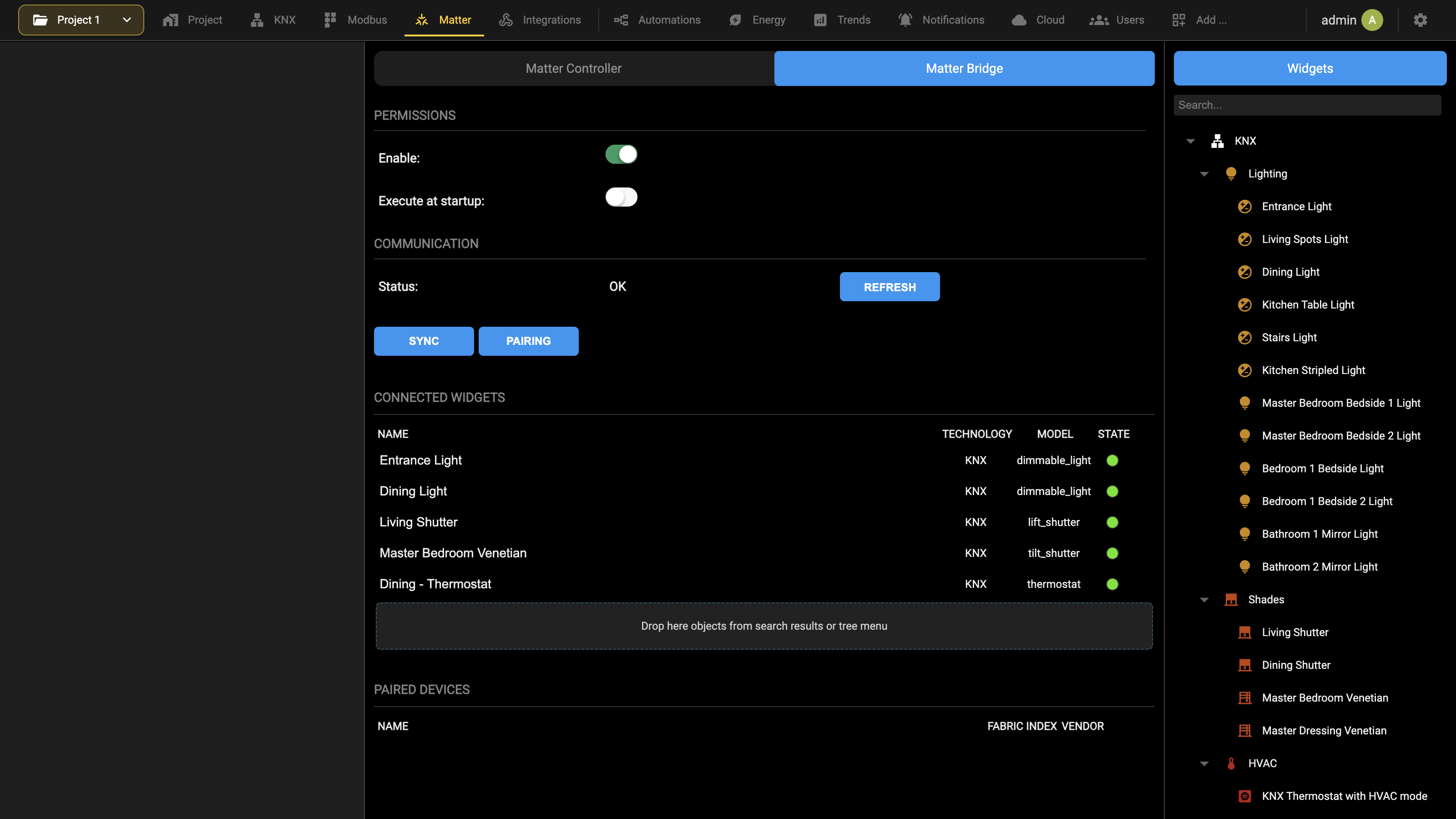
The whole list is exported as a single accessory, so the widgets have to be named in a way that stays readable inside the ecosystem app.
Pairing
In order to manage the associated widgets in a MATTER compatible ecosystem, press PAIRING on the bridge page; a panel opens over the page with a QR code. The bridge must be running and connected, otherwise the page answers with an error message: press REFRESH first, wait for Status to read OK and retry.
Scan the QR code in the external app to start the pairing (or manually enter the pairing code, if for some reason the QR code cannot be scanned); the following examples refer to the APPLE HOME app, and may vary in the other ecosystems.
The pairing must be completed in 15 minutes, and can be stopped before that timeout with the corresponding button. If a pairing procedure is in progress on one PC, it cannot be started on a second computer, unless the first finishes.
The following picture shows an example of the pairing procedure:
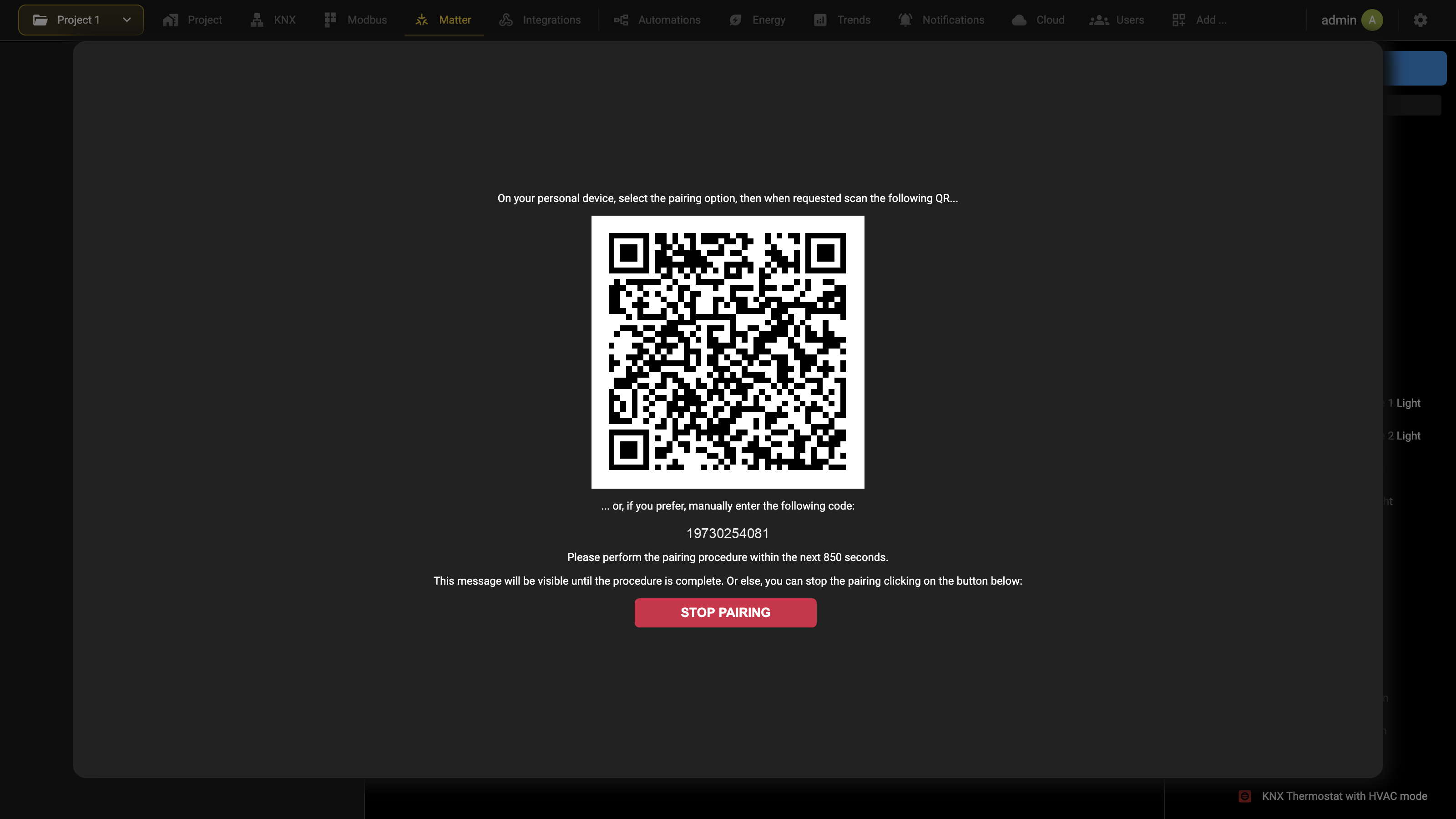
The pairing process typically asks to add the bridge to the MATTER ecosystem and then requests a confirmation (or customization) of the name of each widget, and the room it has to be added to:
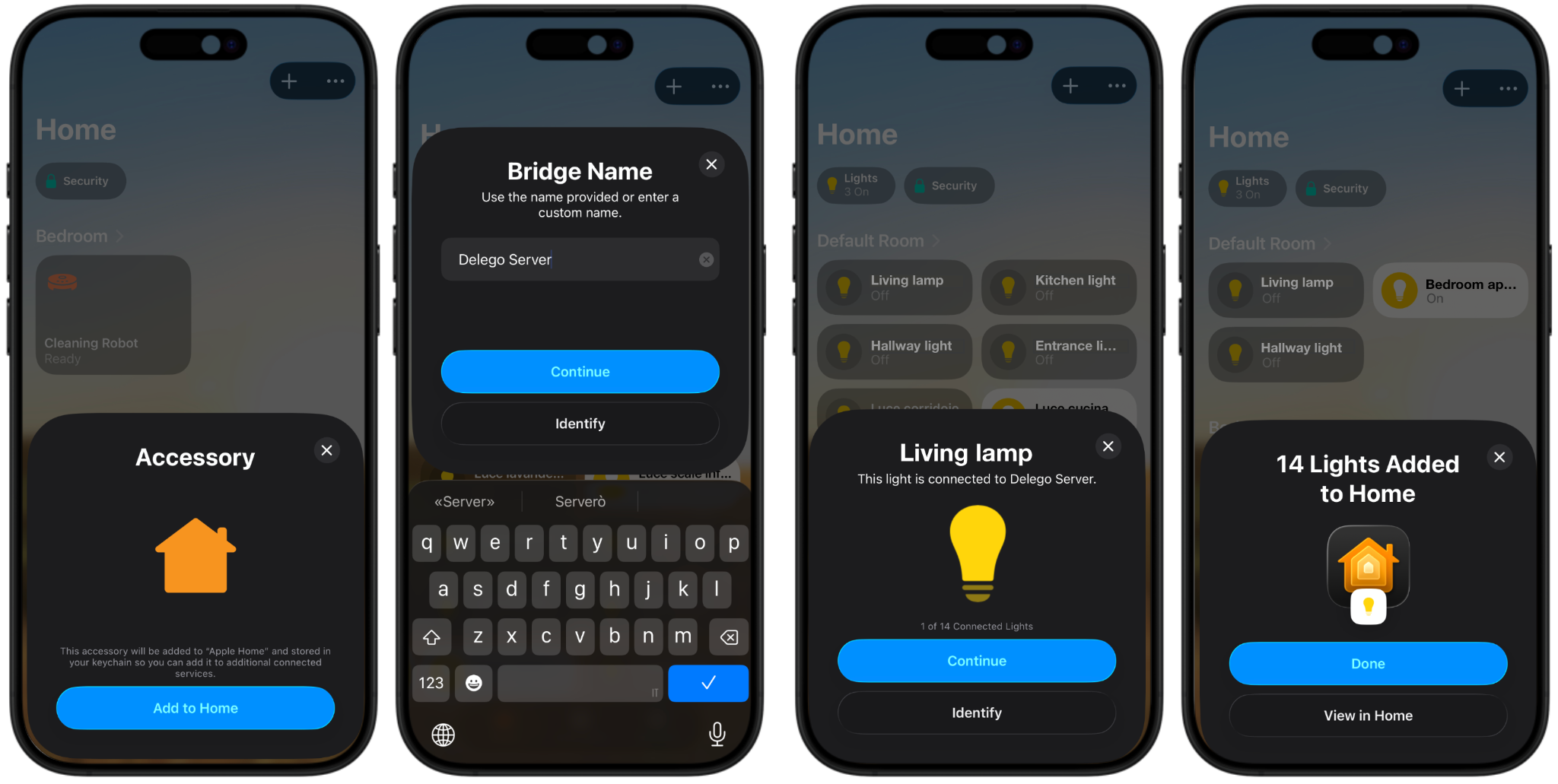
Because the MATTER certification of DELÉGO SERVER is still in progress, a warning could appear during the procedure; select ADD ANYWAY (or similar) to proceed. This does not compromise the functionality or security of the system. It is possible to associate further widgets to the bridge after the pairing; in such a case, after a while, the new widgets become automatically available on the MATTER ecosystem. If they do not appear, try a pairing again.
Matter Bridge key archive
As with the Matter controller, the keys of the bridge are exported and imported from the project card, in Backup/Restore, under MATTER BRIDGE.
Supported widgets
Premise
Not all the WIDGET templates are compatible with the MATTER BRIDGE, due to limitations of the standard; some features offered by DELÉGO SERVER are in fact still not available in MATTER, and will be added in the future. Generic widgets cannot be exposed to MATTER either, because they do not fall into a specific category.
Furthermore, within a supported WIDGET not all the items (addresses) are exported through the MATTER BRIDGE, because the management in MATTER of some features is highly simplified as compared to DELÉGO SERVER. A thermostat, for example, can have in MATTER only one temperature setpoint, and does not support the HVAC operating mode (comfort, standby, economy etc…).
This limitation is similar to what happens with AMAZON ALEXA and GOOGLE HOME voice assistants; generally speaking the supported items in the MATTER BRIDGE are the same as those available for voice control, and are identified by the active “VOICE” symbol in the list, as in the following example:

The following paragraphs give the complete list of supported widgets, with the details of the items involved in the MATTER BRIDGE. Some of those items are necessary, others are optional: if they are missing, the corresponding functionality is not available in MATTER. An example is the color temperature in a dimmer: if not associated with a KNX address, it is simply not exposed to MATTER, and only the brightness level (and the ON/OFF) is possible.
Lighting
ON/OFF LIGHT Supported items in MATTER:
| WIDGET ITEM | OPTIONAL | DESCRIPTION |
|---|---|---|
| GENERIC (ON/OFF) | ON/OFF switch of the light Typically set by “tapping” on the light symbol |
Example of visualization in APPLE HOME app:
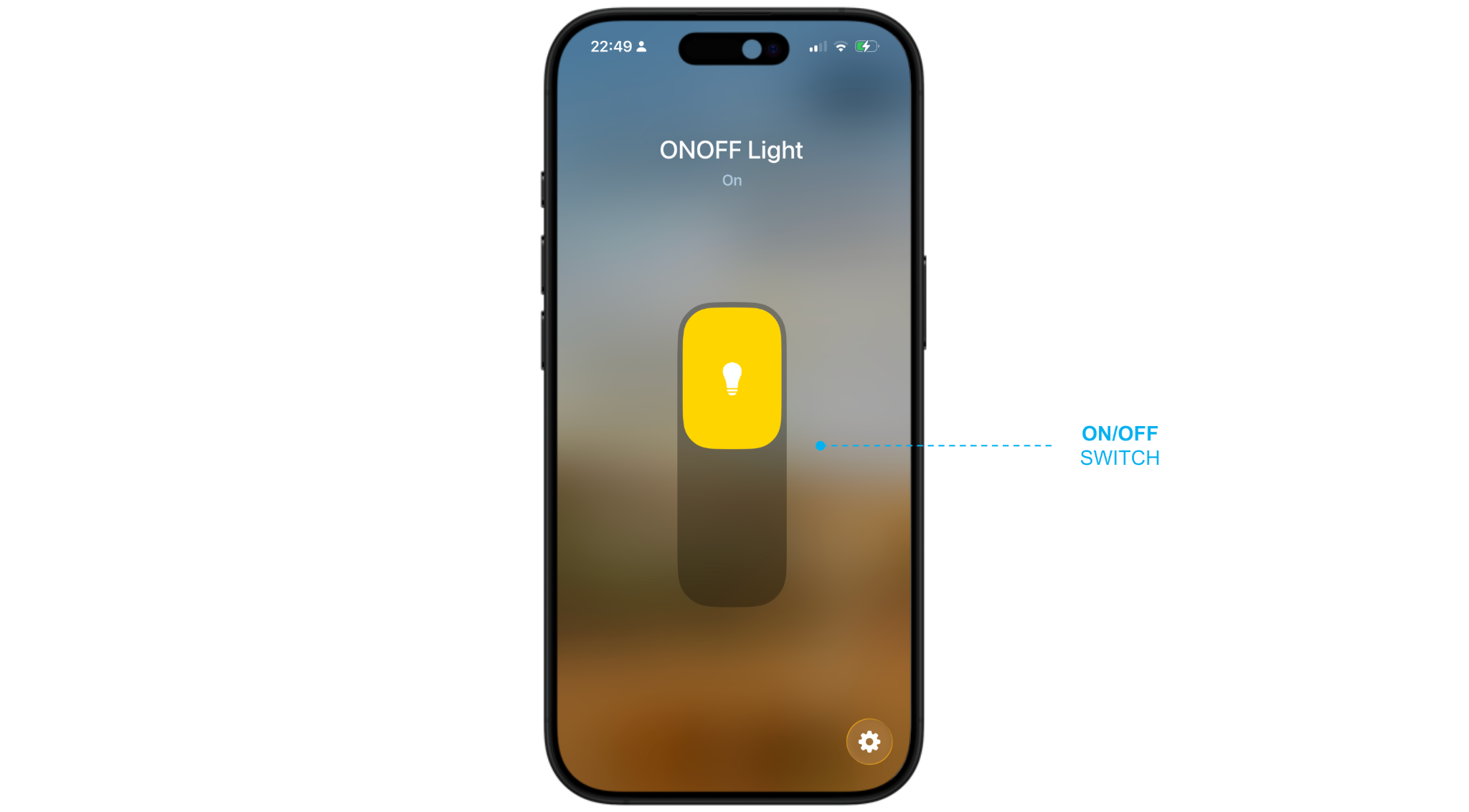
DIMMER Supported items in MATTER:
| WIDGET ITEM | OPTIONAL | DESCRIPTION |
|---|---|---|
| GENERIC (ON/OFF) | ON/OFF switch of the light Typically set by “tapping” on the light symbol | |
| BRIGHTNESS VALUE | Brightness level of the light Typically adjusted by sliding on the light control | |
| COLOR TEMPERATURE, COLOR TEMPERATURE (%) | ✔ | The temperature of the white light between cold and warm. Can be expressed in absolute value (K) or as a percent between full warm (0%) and full cold (100%); only one of the two methods is expected (if both are present, the absolute value is used). |
In case of absolute value for the color temperature, it is possible to specify the temperature range (in °K) by enabling Expert mode and entering the minimum and maximum values in the MIN / MAX columns respectively, as in the following example:
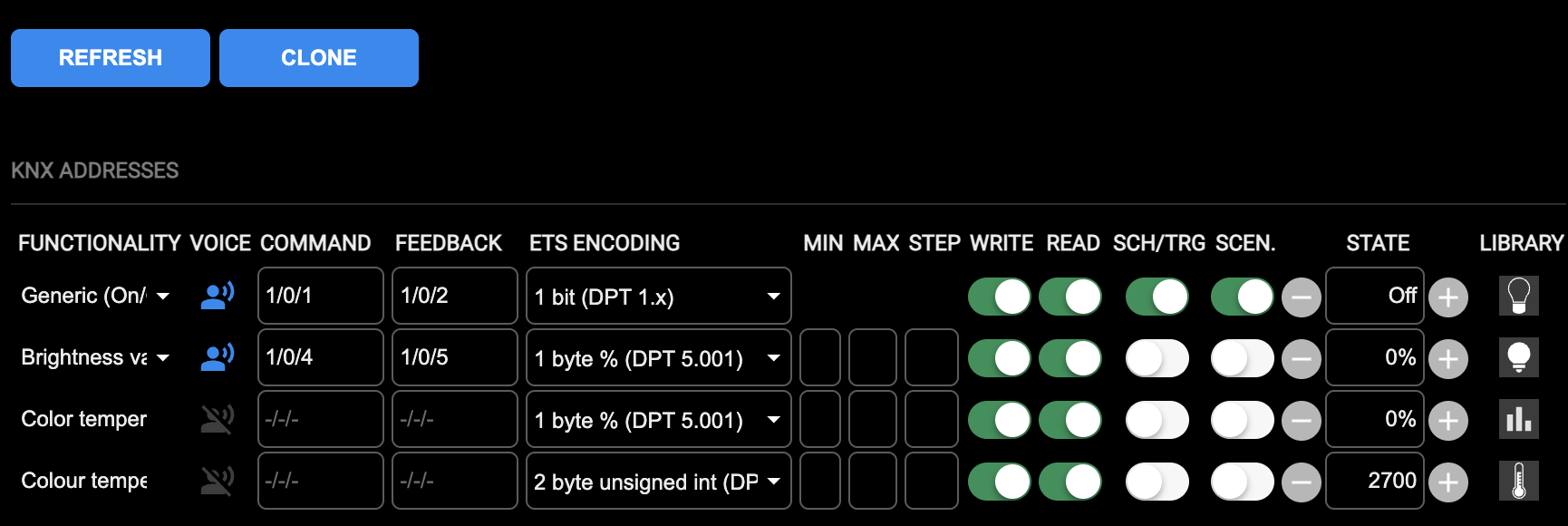
Example of visualization in APPLE HOME app:
RGBW Supported items in MATTER:
| WIDGET ITEM | OPTIONAL | DESCRIPTION |
|---|---|---|
| ON/OFF | ON/OFF switch of the light Typically set by “tapping” on the light symbol | |
| HSV - HUE, HSV - SATURATION | Components of the color. Typically set by entering the details and choosing a different color and saturation to the white | |
| HSV - VALUE | Light brightness Typically set by moving the intensity slider |
For compatibility reasons, do not configure the item called Intensity dimmer, because the brightness is already associated with HSV - Value.
Example of visualization in APPLE HOME app:
Motorizations
SHUTTER (WITH PERCENT POSITION)
Supported items in MATTER:
| WIDGET ITEM | OPTIONAL | DESCRIPTION |
|---|---|---|
| MOVEMENT (UP/DOWN) | Command to start moving in the UP or DOWN direction. Typically associated to UP and DOWN buttons if present in the MATTER app; not available in Apple Home | |
| PERCENT VALUE | Absolute position of the shutter Typically associated with the shutter slider |
Example of visualization in APPLE HOME app:
VENETIAN BLIND
Supported items in MATTER:
| WIDGET ITEM | OPTIONAL | DESCRIPTION |
|---|---|---|
| MOVEMENT (UP/DOWN) | Command to start moving in the UP or DOWN direction. Typically associated to UP and DOWN buttons if present in the MATTER app; not available in Apple Home | |
| PERCENT VALUE | Absolute position of the blind Typically associated with the blind slider | |
| SLATS ORIENTATION | ✔ | Orientation angle of the slats Typically represented as a secondary slider when available in the MATTER app |
Example of visualization in APPLE HOME app:
HVAC
THERMOSTAT Supported items in MATTER:
| WIDGET ITEM | OPTIONAL | DESCRIPTION |
|---|---|---|
| MEASURED TEMPERATURE | Temperature measured by the thermostat. | |
| THERMOSTAT ON/OFF | ✔ | Activation or deactivation of the thermostat Typically associated with the OFF mode |
| SETPOINT - MANUAL | Desired temperature level | |
| HEATING / COOLING | Switchover between the two conduction systems Typically associated respectively to the HEAT and COOL mode | |
| VENTILATION SPEED | ✔ | Manual assignment of the fan speed |
VENTILATION SPEED (%) Typically represented as a slider. In case of discrete speeds, the slider positioning will be rounded to the nearest option.
NOTE: only one of the two items is expected (if both are present, the percent value is used).
Example of visualization in APPLE HOME app:
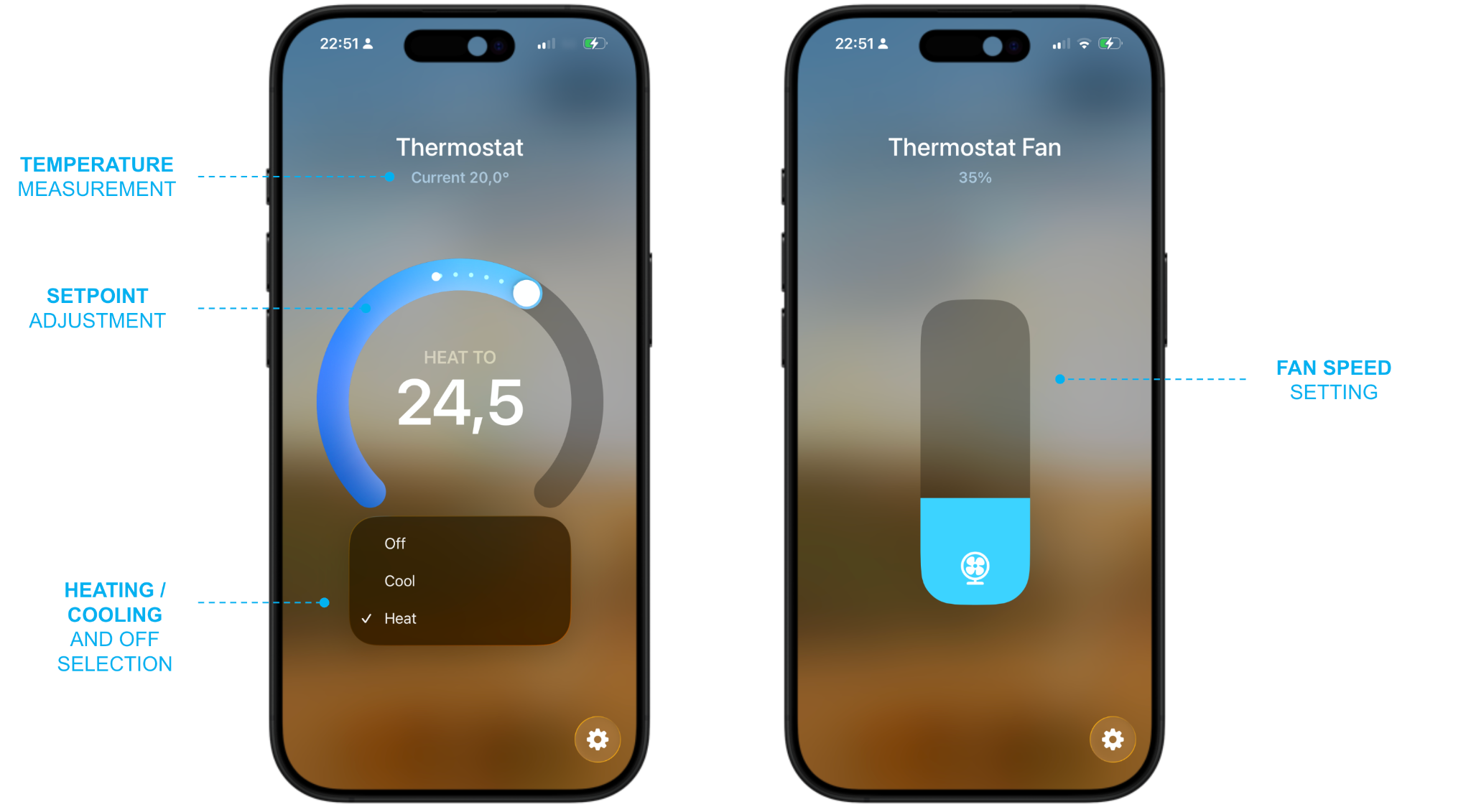
AIR CONDITIONING UNIT
Supported items in MATTER:
| WIDGET ITEM | OPTIONAL | DESCRIPTION |
|---|---|---|
| MEASURED TEMPERATURE | Temperature measured by the thermostat. | |
| THERMOSTAT ON/OFF | ✔ | Activation or deactivation of the thermostat Typically associated with the OFF mode |
| COOLING MODE | AC unit operating mode Typically associated with the HEAT and COOL modes in the MATTER apps | |
| SETPOINT - MANUAL | Desired temperature level | |
| VENTILATION SPEED | ✔ | Manual assignment of the fan speed |
VENTILATION SPEED (%) Typically represented as a slider. In case of discrete speeds, the slider positioning will be rounded to the nearest option.
NOTE: only one of the two items is expected (if both are present, the percent value is used).
SWING ✔ Automatic oscillation of the slats
Example of visualization in APPLE HOME app:
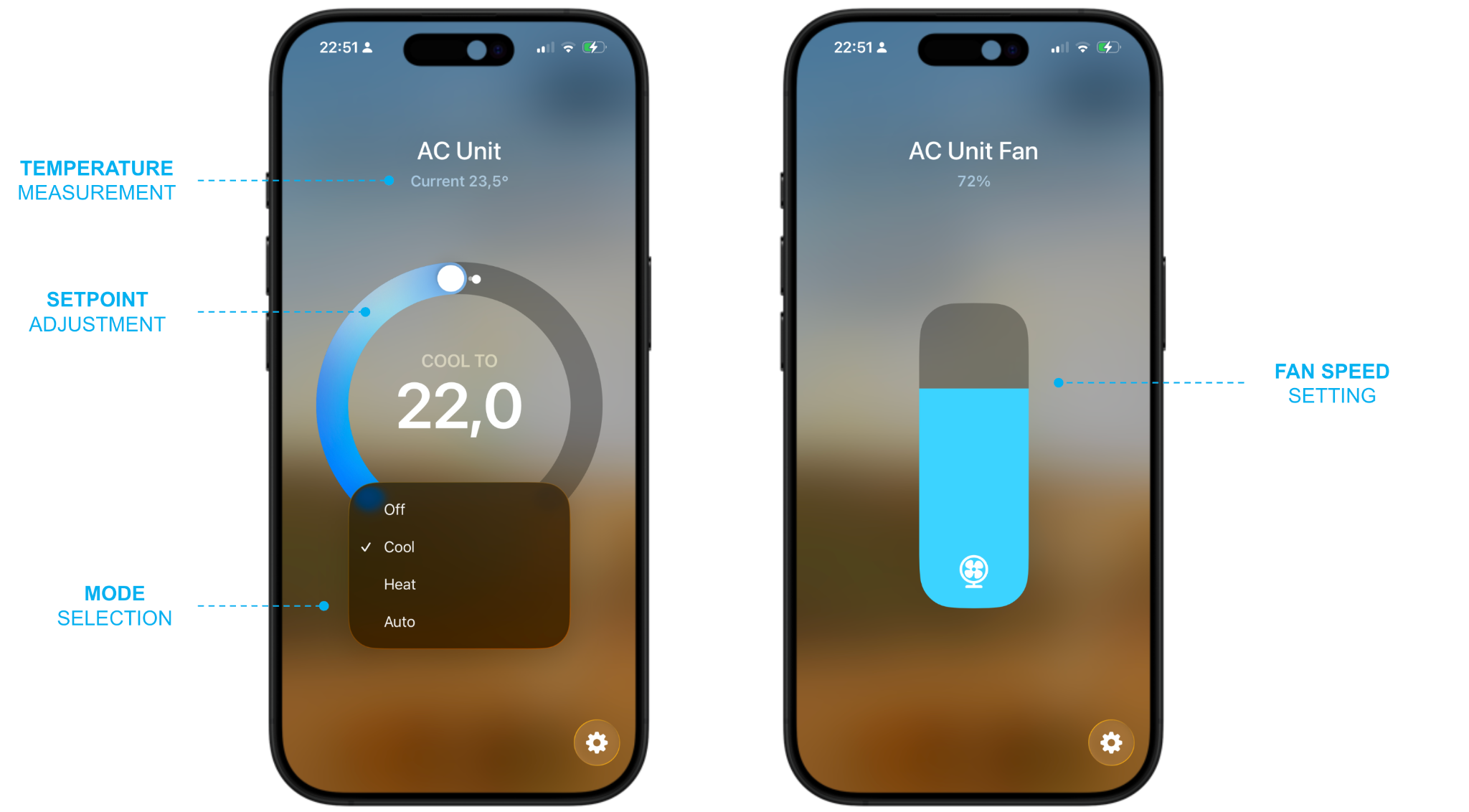
In some ecosystem apps, such as APPLE HOME, the fan speed control of the THERMOSTAT and of the AC UNIT is published as a separate accessory
MQTT
Introduction
DELÉGO can connect as a client to one or more MQTT brokers for publishing and receiving data in real time. This functionality is useful for interacting with devices or systems operating on cloud services other than the native EKINEX ones.
DELÉGO can also in turn function as an MQTT broker, thus acting as the hub for communication with the devices on the local network using the MQTT exchange protocol. This capability can also be used to make two or more DELÉGO servers communicate with each other.
This chapter contains all the information for the integration of DELÉGO SERVER, the multiprotocol webserver for the connected buildings by EKINEX, with other devices or services, based on the popular MQTT communication protocol.
MQTT Broker
DELÉGO provides an MQTT broker, to which it is possible to connect not only the same webserver, but also third-party devices that support this protocol, or other DELÉGOs as long as they are in the same LAN network.
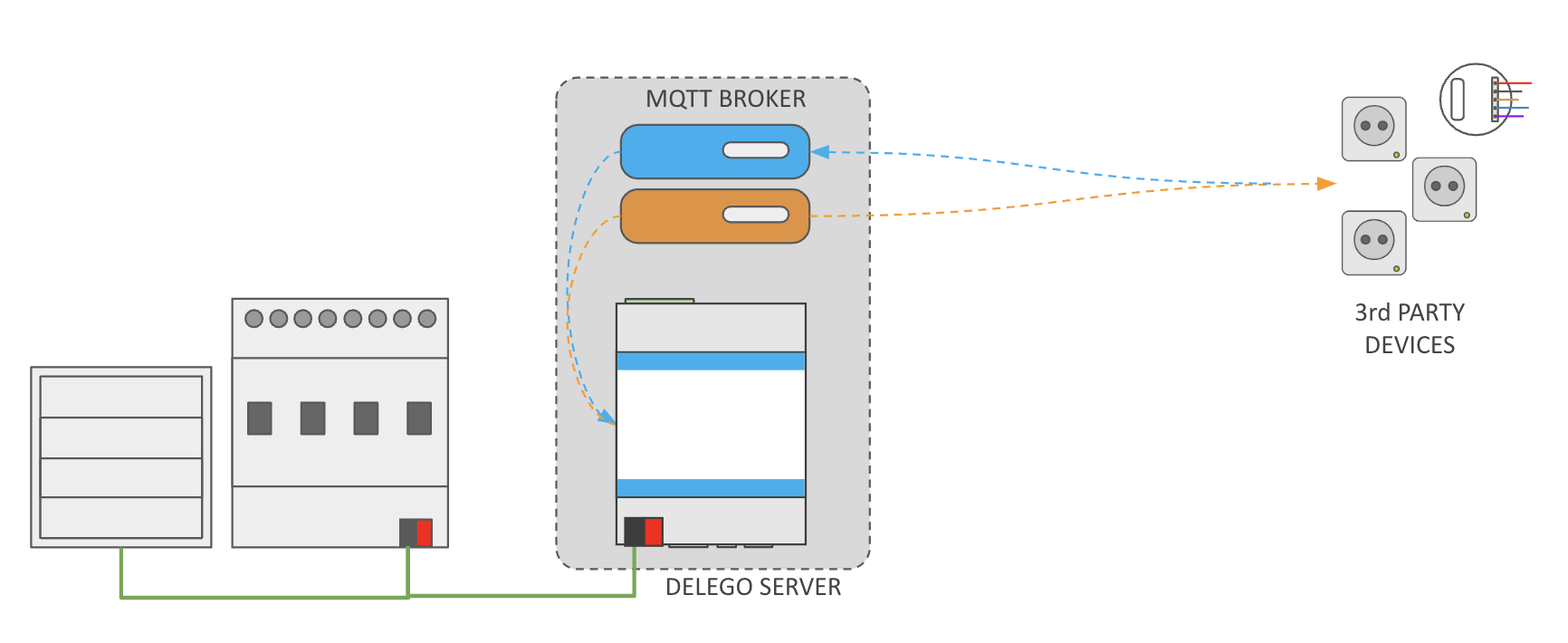
This chapter illustrates how to set up DELÉGO's integrated MQTT broker; after carrying out the operations described, it is typically necessary to:
- Configure third-party devices to work with the broker
- Configure DELÉGO itself to make its supervision objects interact with the broker (internal client connection)
- Configure other DELÉGOs to “point” to the broker
For the first point, you need to refer to the documentation of the devices to be integrated with the broker. The second and third points are covered in the following chapter; if you do not want to use DELÉGO's integrated broker but only configure a connection to an external broker, we recommend moving directly to the next chapter.
Broker settings
Open the MQTT section in the bar and select the MQTT Broker tab, to set the following:
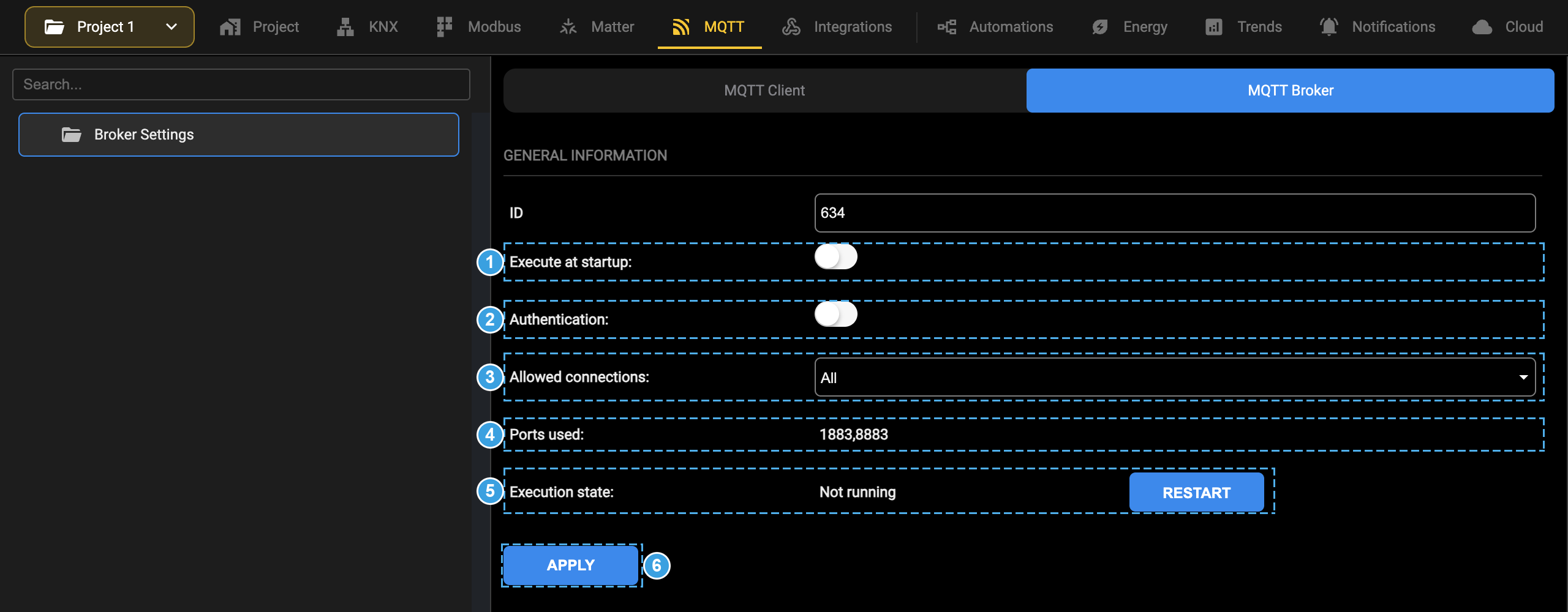
- Execute at startup: starts the broker when the system is powered up.
- Authentication: verifies the credentials of the connecting clients against the list of Users (see the next chapter). Strongly recommended.
- Allowed connections: All, or SSL only to accept encrypted connections only.
- Ports used: the ports on which the broker listens, 1883 for plain connections and 8883 for SSL connections. Not editable.
- Execution state: whether the broker is running, reported as text, next to RESTART, which restarts it.
- APPLY: saves the settings of the tab.
Unlike the other communication processes of this version, the broker tab has no status bar with the coloured dot: its state is reported as text in Execution state. After changing a setting, press APPLY and then RESTART, so that the broker starts again with the new values.
Users
With authentication enabled, every client device that connects to the broker needs a user of its own. DELÉGO itself needs one too, for when it connects to its own broker as a client; that is the subject of the next chapter.
Pressing ADD inserts a new row in the Users section:
| Name | Label that identifies the user within the system. |
| Username | The username the MQTT client presents to authenticate. |
| Password | The password the MQTT client presents to authenticate. |
| Enable | Clearing it keeps the credentials on file without letting the user connect. |
After every change to the list press REFRESH. Once the users are in place and the broker is running, carry on with the next chapter to configure the connection of the client.
MQTT Client
DELÉGO allows connection to more than one MQTT broker simultaneously; it is advisable to limit the number of such connections as much as possible, so as not to overload system resources. It is possible to associate one or more supervision objects with each MQTT connection; in this way:
- when a value is received via MQTT, it is passed to the object as a command
- vice versa, when the object changes state, its value is sent to the broker via MQTT
To each of the objects associated with the connection, it is possible to assign two topics, i.e. the communication channels on which DELÉGO exchanges information with the broker; for further information on MQTT topics, please refer to the specifications of this protocol, and to the documentation widely available on the internet. The report topic is used by DELÉGO to send the state of objects every time it changes:
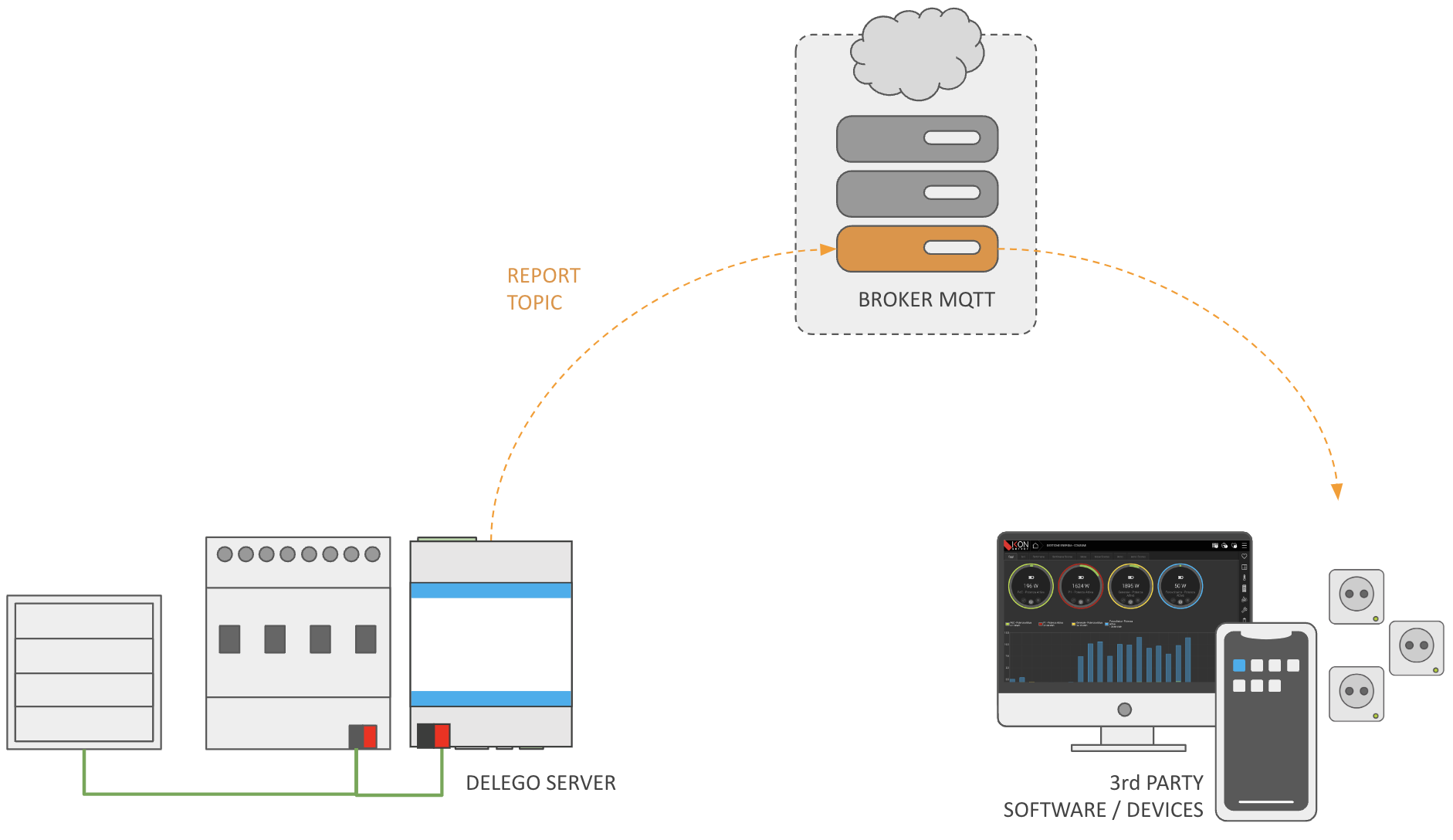
Conversely, when DELÉGO receives a value on the command topic, it runs that value as a command on the object.
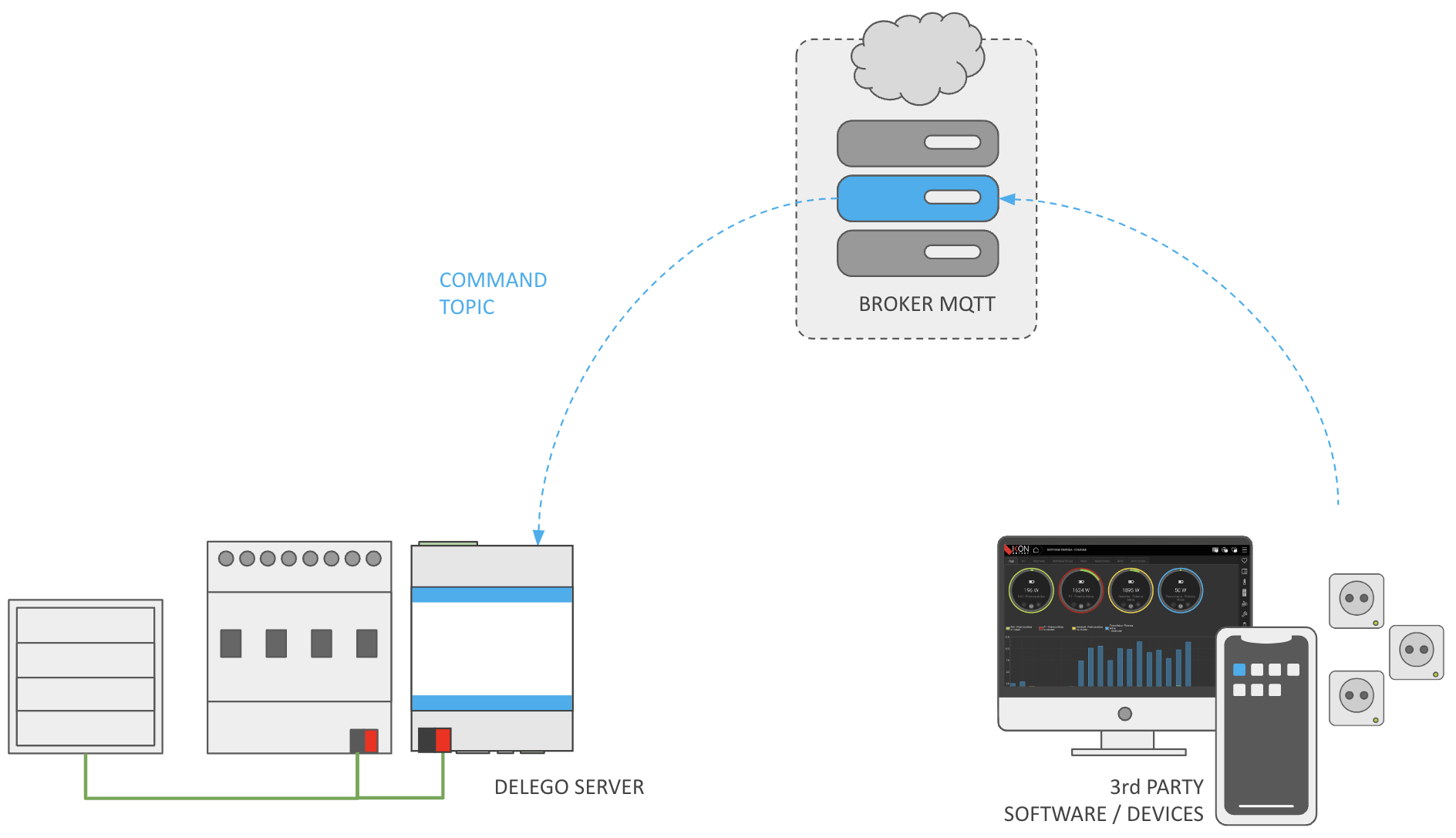
In both cases, DELÉGO expects numeric values to be exchanged on the topics, using the dot as decimal separator (if they are not integer values). No other format is supported, JSON included. For each object it is necessary to indicate at least one command topic or one report topic. Both may of course be specified.
It is strongly discouraged to use the same topic for both the command and the report, because loops could be generated.
To connect to your integrated broker it is necessary to configure a connection in any case, however using a simplified procedure, better described below.
New connection
To create a new connection, open the MQTT section in the bar and select the MQTT Client tab. Add a connection with the Add action of the root node of the context tree, then select it to set its parameters. Its card looks like the following figure:
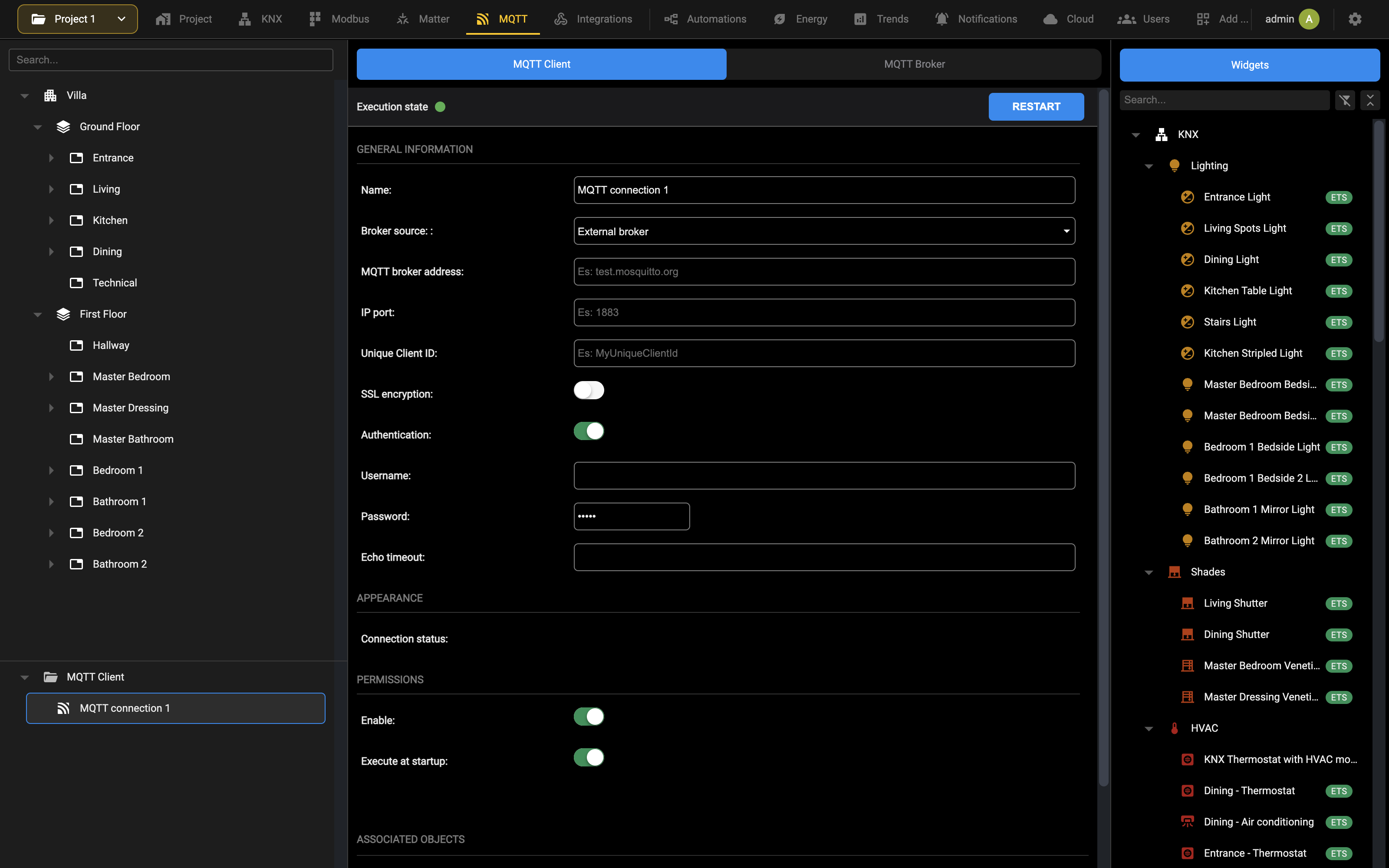
Enter the following information:
| NAME | Identifies the connection within the project |
| Broker source | Select External broker to connect to a service on the Internet or to another device on the LAN, or Internal broker to connect to the broker built into DELÉGO of DELÉGO (see the next section for details) |
| MQTT BROKER ADDRESS | Internet domain of the MQTT broker, without port and paths |
| IP PORT | Communication port. Typically the following ports are used: ● 1883: unencrypted MQTT communication ● 8883: MQTT communication encrypted with SSL |
| UNIQUE CLIENT ID | Enter a string (preferably without spaces or special characters) that uniquely identifies the DELÉGO client to the broker. Depending on the MQTT service being used, there may be restrictions on this string, or it may be provided by the service. |
| SSL ENCRYPTION | Select whether the communication is protected by SSL |
| AUTHENTICATION | Select whether the service requires authentication |
| USERNAME, PASSWORD | Access credentials for the service |
| ECHO TIMEOUT | Time interval in seconds for the anti-echo functionality. The default is set to 10 seconds. Normally it is not necessary to change this parameter. |
Once all the data has been entered, press RESTART in the status bar to start the connection with the new parameters; if the data and credentials are correct, after a few seconds the dot turns green and Connection status becomes CONNECTED. Changing one of these parameters stops the connection and turns the dot red, so that it never keeps running with the old values: press RESTART again to start it with the new ones (see Workspace). At this point, everything is ready to associate the objects with the connection.
Object association
Drag into the ASSOCIATED OBJECTS section the supervision objects that you want to connect to the service; for each of them it is necessary to specify at least one of the following parameters:
| COMMAND TOPIC | Name or path of the topic on which commands are received |
| REPORT TOPIC | Name or path of the topic on which state changes are sent |
It is possible to directly control the object through the selector in the STATUS column, in order to verify in real time whether the MQTT communication takes place correctly:
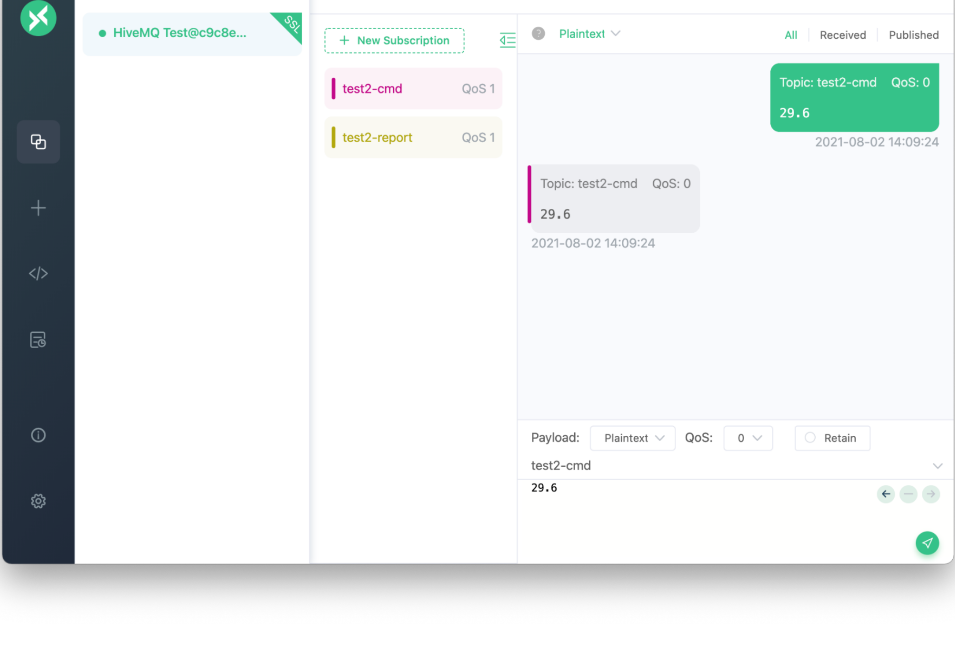
The following screen shows an example of MQTT test client software, with which it is possible to subscribe to the same broker and read / write on the same topics, thus verifying the correct communication of DELÉGO:
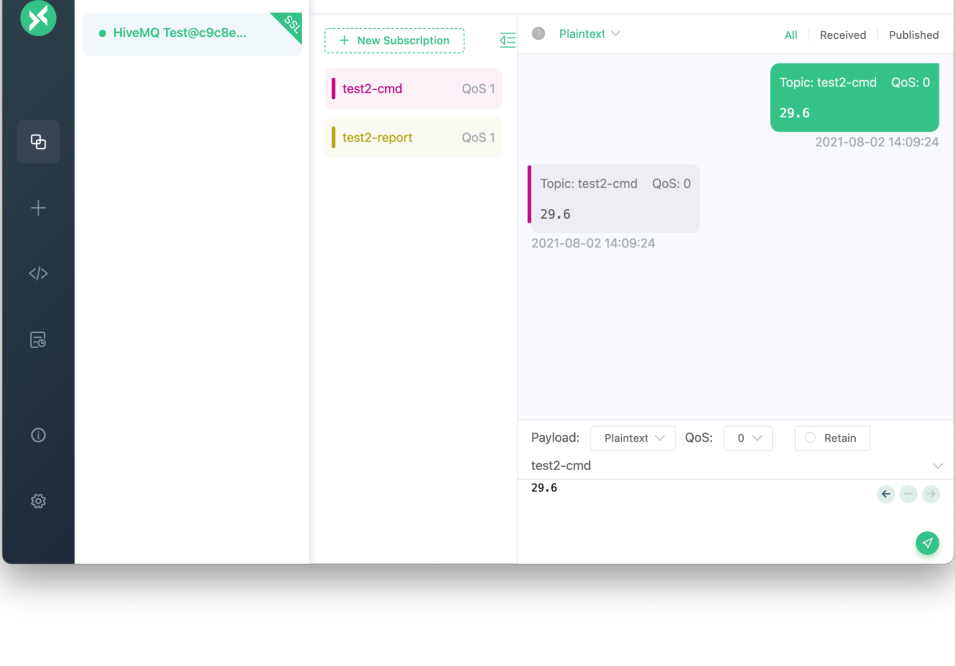
Before carrying out a test with DELÉGO, it is recommended to verify the correct configuration and functionality of the broker. For this purpose, it is possible to use other known devices, or two instances of an MQTT test client software, mutually writing to and receiving from the command and report topics. If the expected behavior is verified, it is then possible to configure DELÉGO and carry out the appropriate checks in the real environment.
Internal connection
To connect to the internal broker of DELÉGO select Internal broker in the configuration of the client connection seen previously; in this case it is not necessary to fill in all the fields normally required, and it is possible to choose the user from a drop-down menu (instead of typing it manually). For security reasons it is still necessary to specify the password.
M2M connection
It is possible to use the MQTT protocol to establish a bidirectional machine-to-machine communication between several DELÉGO servers, provided they are all connected to the same network. First of all it must be decided which DELÉGO should act as “master”, and the built-in MQTT broker must be enabled on it. Then the MQTT client connections must be configured as follows:
- On the same DELÉGO configure an Internal broker connection, selecting one of the previously created users
- On the other DELÉGO servers create a generic connection, specifying the IP address of the master and manually typing the user to be used
For each of the DELÉGO servers, including the master, a dedicated user must be provided, and a unique client ID must be assigned....
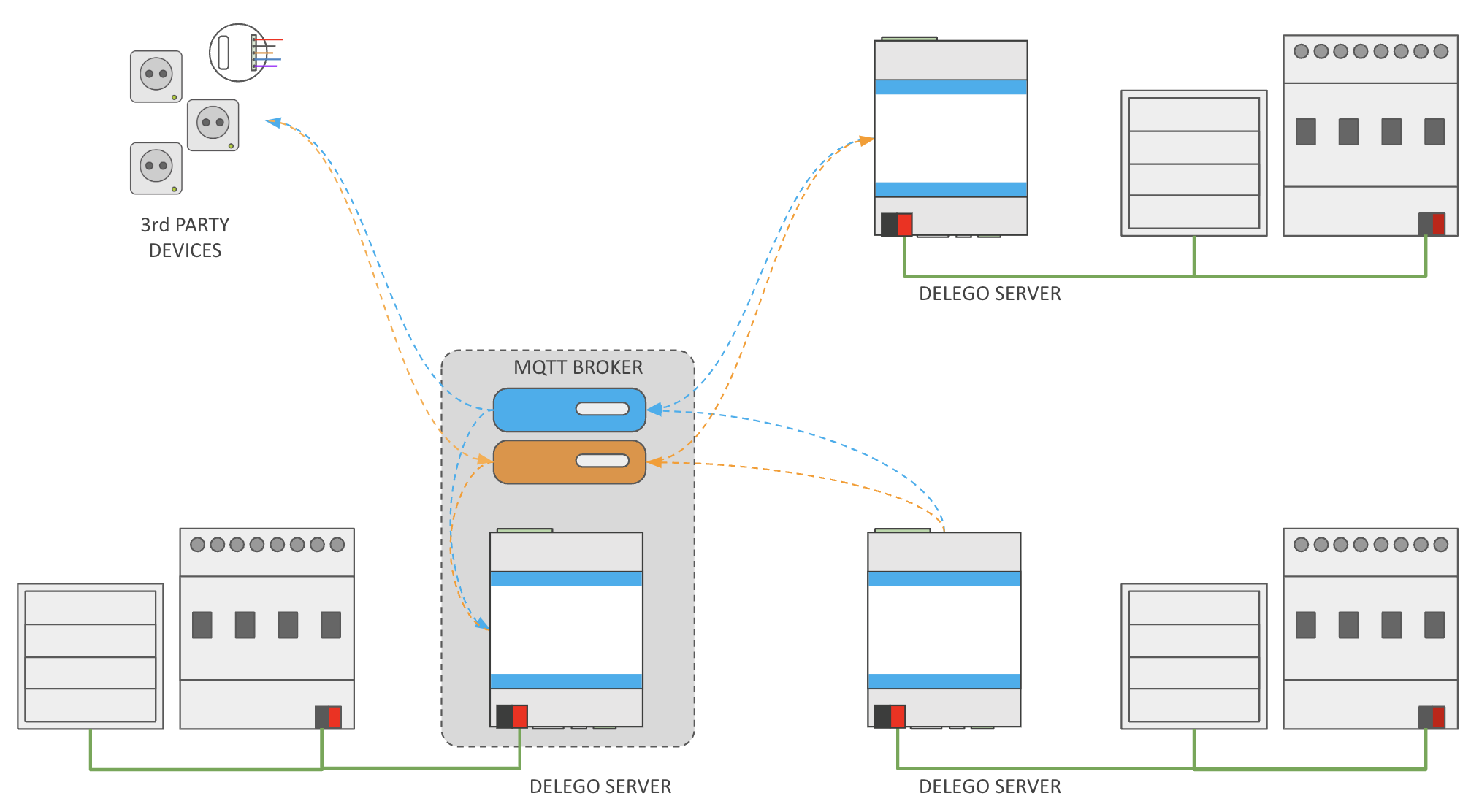
To control an object of another server from a DELÉGO, at that point, it is necessary to proceed as follows:
- In the DELÉGO to be controlled, drag the technology object (e.g. KNX) into the connection tab, arbitrarily choosing one topic for the command and one for the status
- In the other DELÉGO servers, create a virtual object with the same graphical rendering and drag it into the corresponding MQTT client connection, using:
○ As command topic the one that on the other server is marked for the report ○ As report topic the one that is instead used for the command
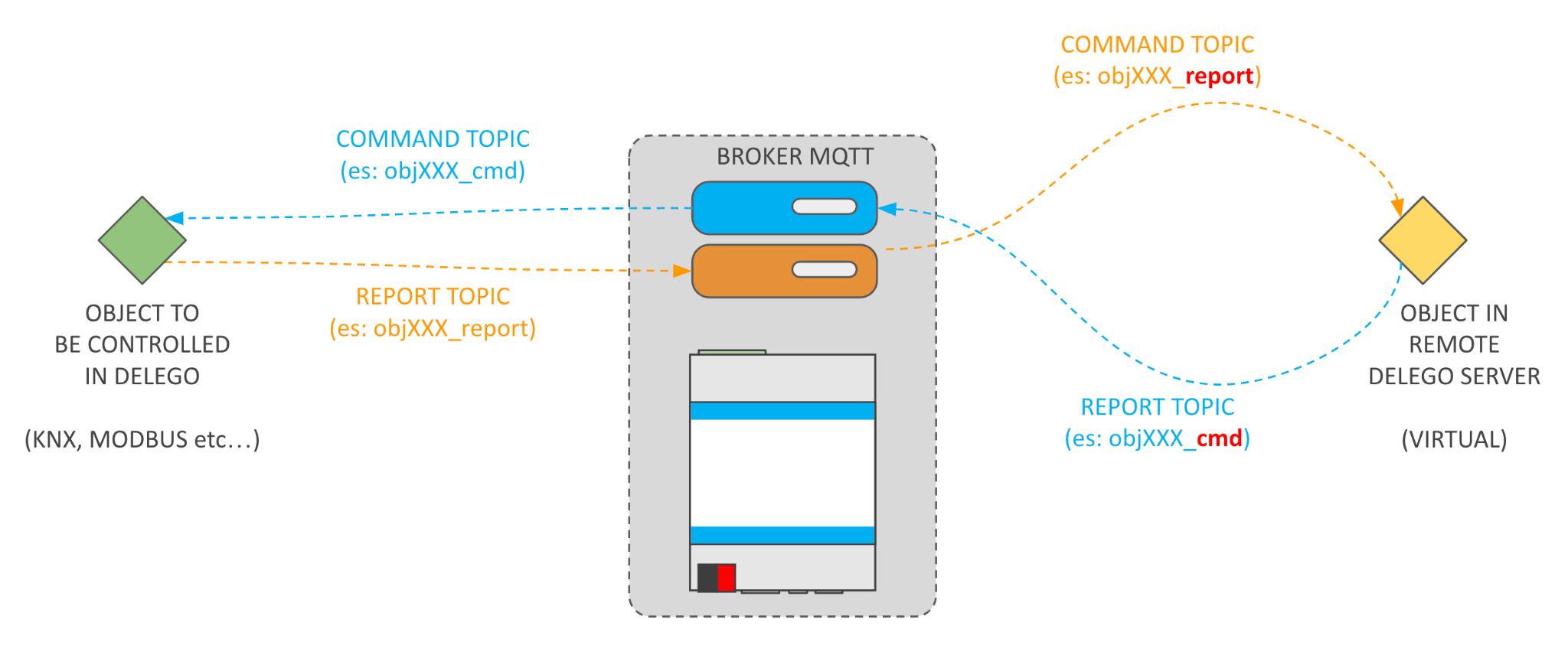
In other words, the topics must be “crossed” between the object to be controlled and the “synchronized” object on the other DELÉGO.
M-Bus
Introduction
M-Bus (Meter-Bus) is the bus used by heat, water and gas meters. This chapter describes how to configure and visualize one or more M-Bus devices in DELÉGO SERVER.
To connect a line of M-Bus devices to DELÉGO SERVER, place a signal converter (level converter) between M-Bus and RS-485, or use an M-Bus to IP network interface.
For related topics, see also the Energy chapter.
M-Bus
DELÉGO handles one or more metering devices speaking the M-Bus standard, over an RS-485 connection or over the LAN. The protocol is widely used for energy metering inside buildings.
The server supports both transports, and can work in two roles: as the master that interrogates the devices, and as a sniffer of the traffic another concentrator generates.
This chapter covers what there is to do:
- create an M-Bus communication line;
- scan the devices present on the line;
- choose which of them to bring into the project;
- place them in the energy flow management and in the consumption monitor of the supervision.
Lines
A set of M-Bus devices connected together (on the same RS485 line, or conveyed through the same IP interface) is managed in DELÉGO by a line. M-Bus is not a section of its own: it lives in the Integrations section, on the MBUS tab, where the context tree lists the lines already defined. A new line is created with the Add action of the MBUS node, which appears on the node when the pointer is over it. Once a line has been created, select it in the tree to set its properties, as in this example:
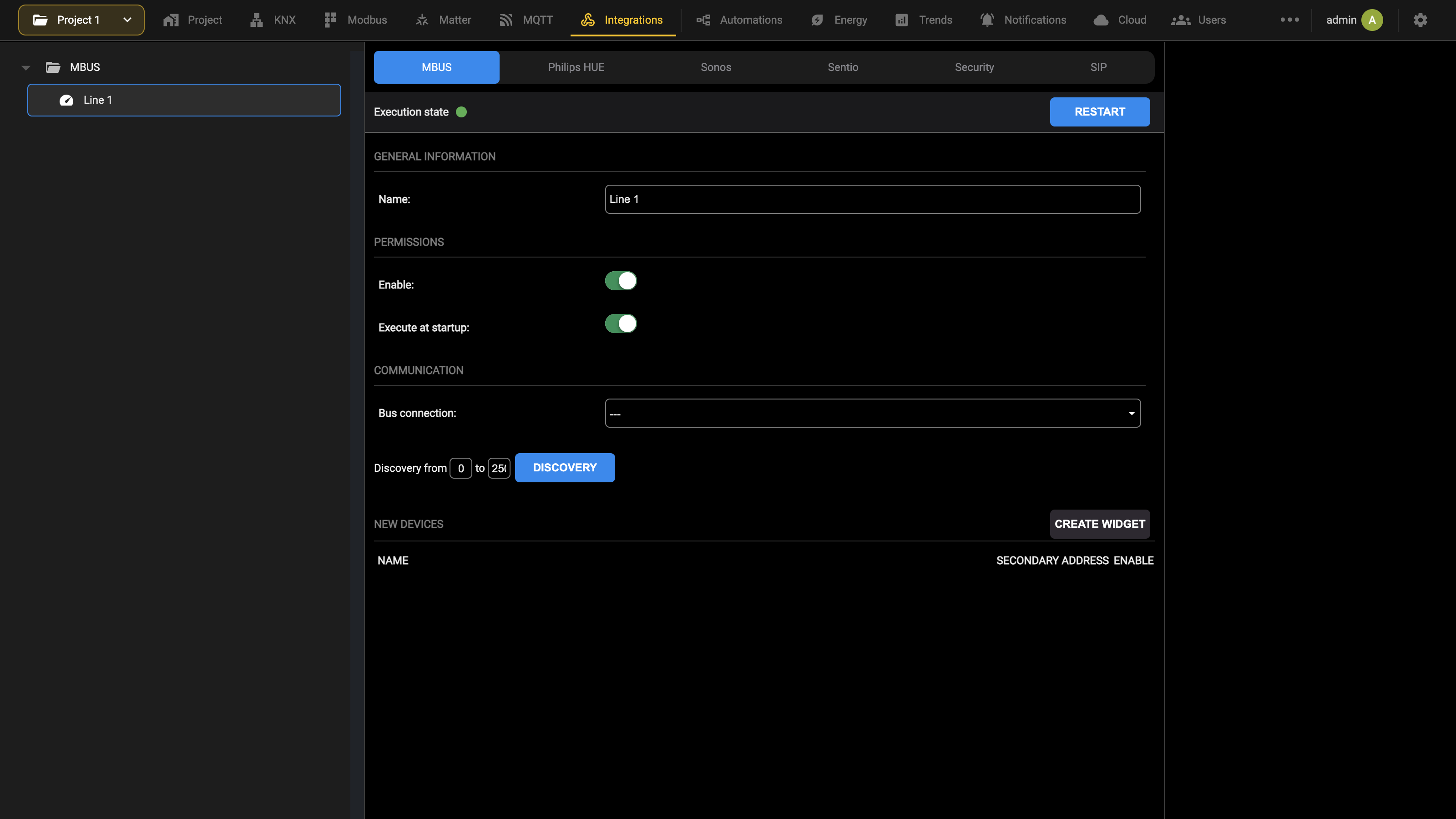
The status bar at the top of the card shows the Execution state of the line as a coloured dot, and holds RESTART. A change to the communication settings below stops the line and turns the dot red, so that it never keeps running with the old values: press RESTART to start it again with the new ones (see Workspace). The available properties are the following:
| Name | Identifies the line within the project. |
| Enable | Enables M-Bus communication. If it is off, the line remains inert. |
| Execute at startup | Starts the line when the system is powered up, or after a restart of the services. |
| Bus connection | Chooses between Serial and Network. The fields below depend on this choice. |
With Serial, the parameters of the port used to reach the slave devices appear:
| Serial port | RS485, RS232, USB1 or USB2. |
| Baud rate | From 1200 to 115200 baud. |
| Parity | Even, Odd or None. |
| Data bit | 5, 6, 7 or 8. |
| Stop bit | 1 or 2. |
With Network, the address of the IP gateway appears instead:
| Ip | Address of the gateway that conveys the M-Bus line. |
| Port | Port on which the gateway answers. |
Two further parameters govern the polling:
| Enable polling | Actively polls the M-Bus devices. If another concentrator is already present on the line, leave this off: several masters cannot coexist on the same line. With polling off, DELÉGO sends no requests of its own, but reads and interprets the response telegrams directed to the other master. |
| Polling timer [ms] | With active polling, the time between one query and the next. |
Discovery
Once the line has been configured correctly and Enable is on, the devices present on it can be detected.
The DISCOVERY button starts the search. The operation queries the devices one address at a time and takes a few minutes; to narrow the search and reduce the waiting time, enter the lower and upper limits in the two Discovery from … to … fields before starting the procedure.
At the end of the scan, the devices detected are listed under NEW DEVICES, with their name and secondary address. If a device does not expose a name on the bus, it is shown as a device without a name with the manufacturer's abbreviation (usually three letters) in brackets; that wording and the secondary address, which is the unique serial number of the device, are what allow the detected devices to be told apart.
Configuration
The devices discovered by DISCOVERY are not yet part of the project: you have to select the ones you intend to insert and press CREATE WIDGET.
Not all detected devices must necessarily be managed in the project; in situations of shared metering systems for example, as in the case of condominiums, meters of different ownership typically coexist on the same line, and typically only those relating to one's own housing unit are of interest to the supervisor. The configuration procedure carries out a second, more in-depth reading of the parameters that the devices involved make available, and creates the object structures within the project database. Depending on the number of enabled devices, this operation may also take a few minutes. At the end, the objects created are usable in the supervision, and the corresponding entries are removed from the NEW DEVICES list.
If the device configuration changes at a later time, it is possible to update their list of attributes (channels) with the REFRESH button.
Devices
Selecting a device opens its card, with the general data at the top and the Channels list below.
The following information is made available in the general data section:
| NAME | Identifies the device within the project |
| ADDRESS | Unique serial number of the device (SECONDARY ADDRESS) |
| ROOM | Allows you to assign the device to a room in the supervision |
| VISIBLE | Allows you to establish whether or not the device should be displayed in the supervision |
Each M-Bus device provides a series of information, which can represent its configuration, its version, and the measured quantities. The list of this information is not known a priori, and depends on each device; in the case of measured quantities, the unit of measurement is typically also made known. This information is represented within DELÉGO in the form of objects, listed in the Channels list; to leave some of this information out of the Visualization, clear the corresponding VISIBLE box. By also accessing the detail sheet of each of these objects, it is also possible to associate them individually with a room, through the appropriate drop-down menu in the general data.
Load control
Some M-Bus devices are automatically enabled to be directly inserted into the load control; for this to happen, they must have at least one electrical power type quantity.
If an M-Bus device falls into this category, the sub-information necessary for use is also available: under the Channels list of the device, the Load control section adds the minimum and maximum power limits, the priority and the Over limit indication.
Consumption monitor
M-Bus devices can be inserted directly into the consumption monitor (please refer to the Energy chapter for further details).
In order for them to be correctly managed in this section of the supervision, however, it is necessary for them to have at least one energy type quantity (for the categories relating to energy) or volume type (for the categories relating to gas and water).
By dragging a device within a category of the consumption monitor, a check is carried out on the list of quantities; if a quantity suitable for that category is not found, a warning is shown: in the Counters list, a device that exposes no volume quantity is marked in red Measured volume missing, while a compliant one is marked OK.
For further information, please refer to the Consumption monitor section of the Energy chapter.
Philips Hue
Introduction
This chapter contains all the information for configuring and visualizing a PHILIPS HUE lighting system inside DELÉGO SERVER, the multiprotocol webserver for the connected buildings by EKINEX.
Configuration
DELÉGO SERVER brings one or more bridges of the PHILIPS HUE lighting system into the supervision. The lights are then handled as though they were KNX widgets: in the Visualization, and in the automations, scenes, logics and schedules alike.
Creating a bridge
Open the Integrations section in the bar and select the Philips HUE tab, then add a new bridge. Open its card and enter the following data:
| Name | Identifying name of the bridge. |
| IP address | Address of the Philips Hue gateway. It can be retrieved from the HUE app, in Settings → My Hue System → About. |
| User | Filled in automatically once the pairing has succeeded. |
The card guides the connection in four steps, listed under CONFIGURATION STEPS: enter the IP address of the bridge, press the physical button on the Philips Hue bridge, press PAIRING on the card to complete the connection and, once the User field is filled in, press DISCOVERY to detect the lights and create the corresponding widgets. The status bar at the top of the card reports the Execution state of the connection as a coloured dot; changing the IP address stops the connection and turns the dot red: press RESTART to start it again with the new value (see Workspace).
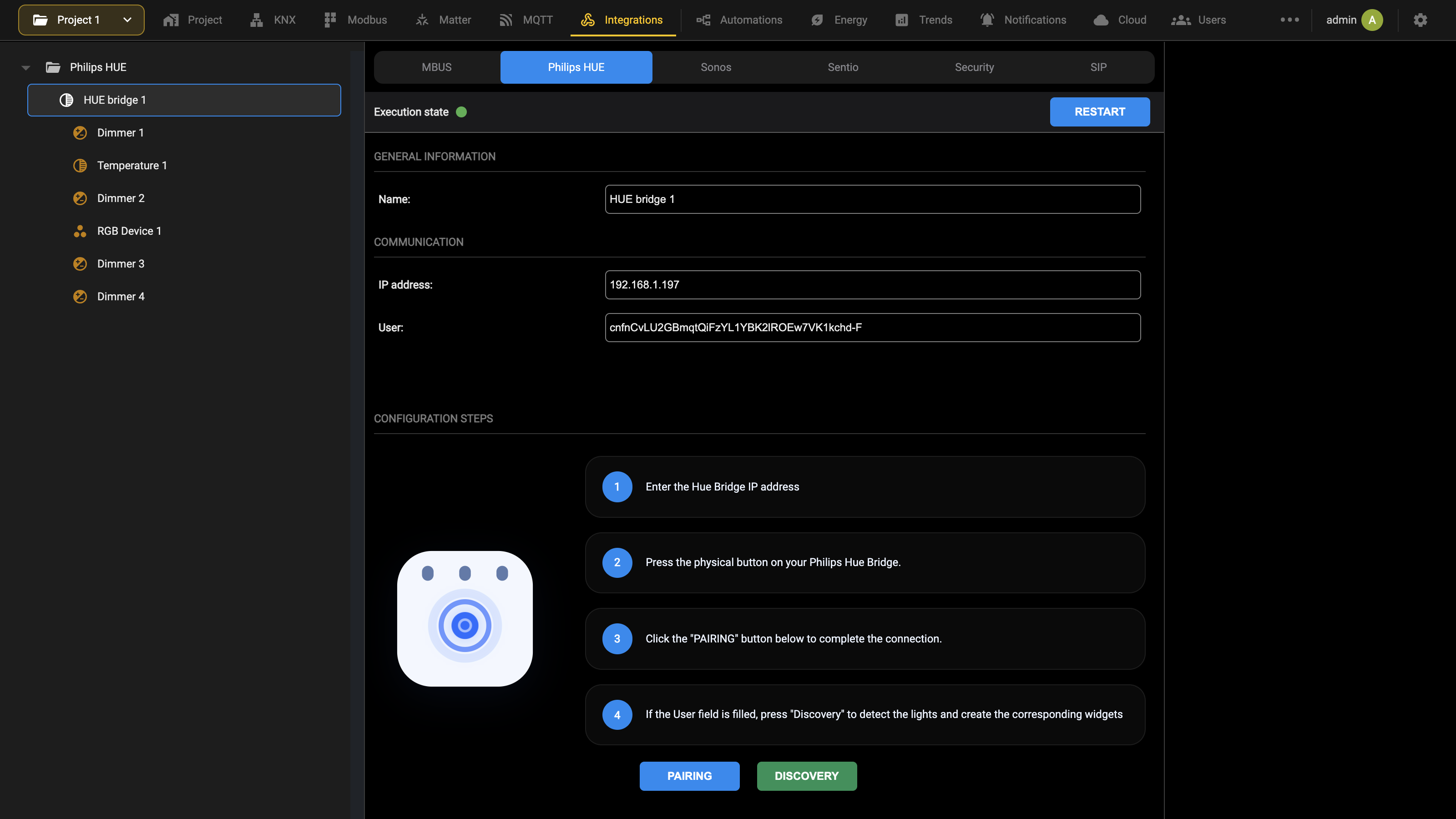
Discovery
Press DISCOVERY on the bridge card to detect the lights in your PHILIPS HUE system; at the end of the procedure they appear in the tree on the left, under the bridge, one node per light. Three types of light are recognised, each with its own icon:
- Dimming lights white lights with intensity adjustment only
- RGB lights lights with color control
- Temperature lights white lights with adjustment of intensity and white temperature
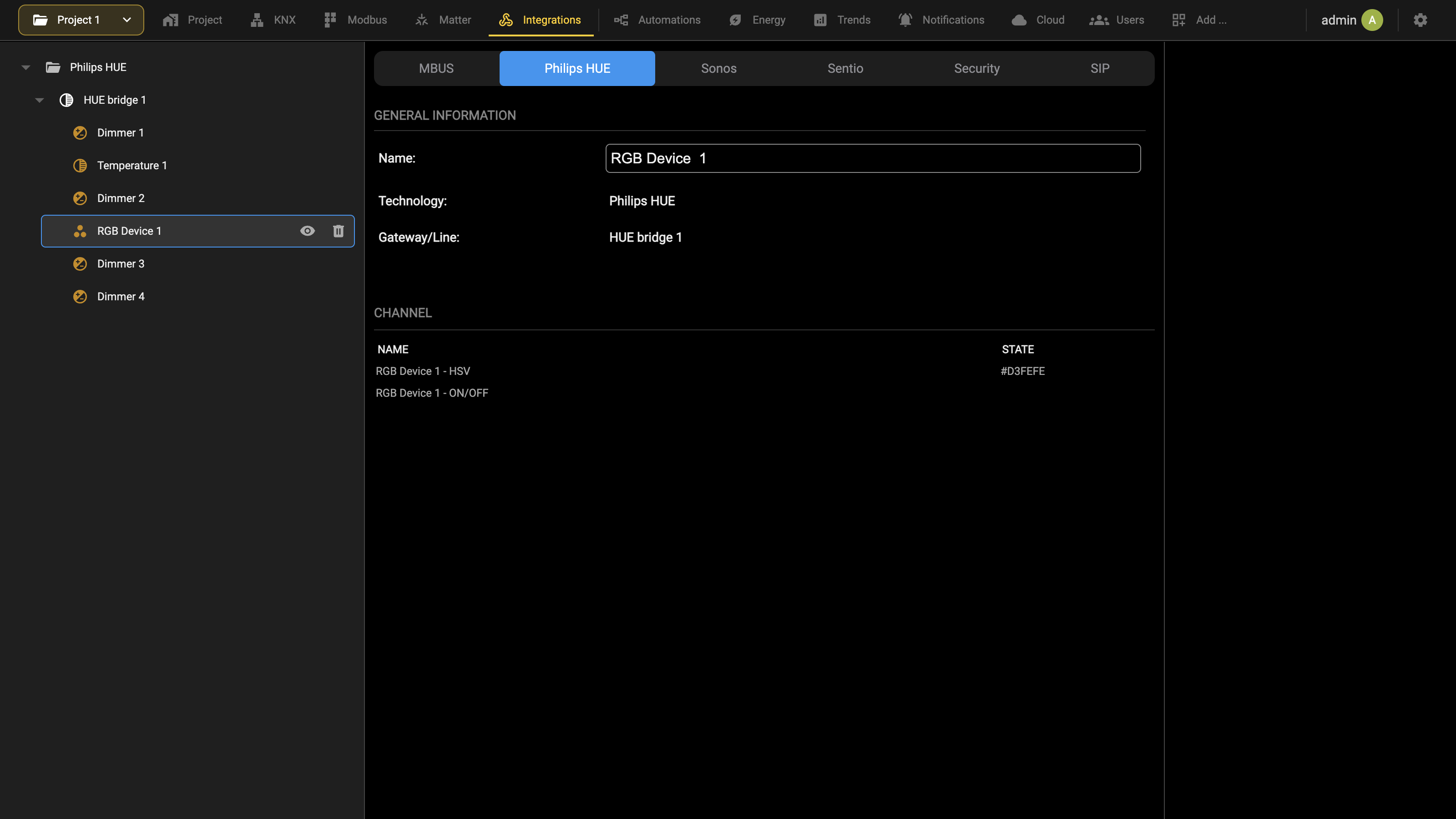
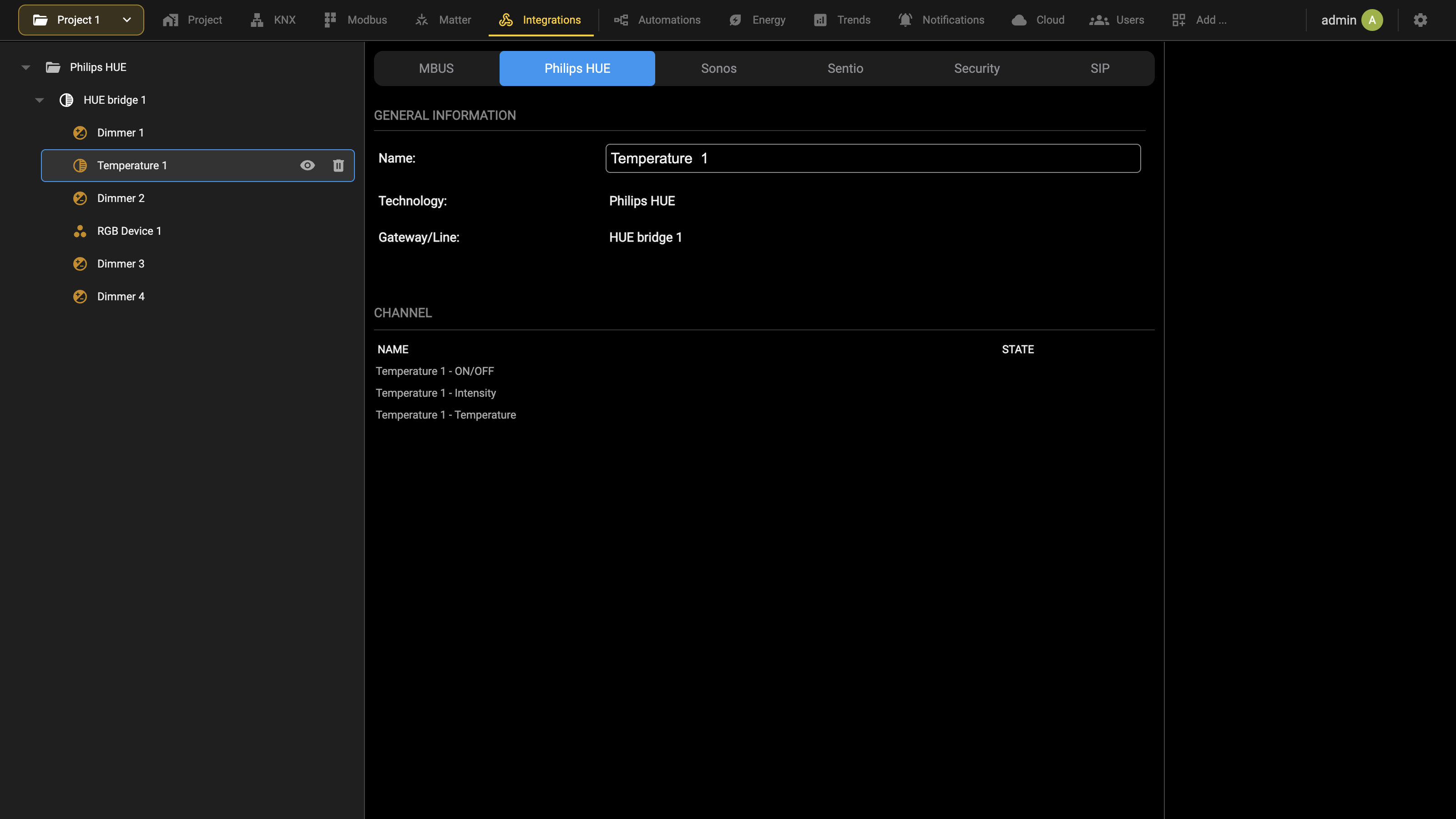
Each light found is a widget of the project: to show it in the Visualization, drag it into a room of the building tree in the Project section, as for any other widget; only the lights placed in a room are shown.
Visualization
The different types of PHILIPS HUE lights can be managed inside the Visualization pages of DELÉGO, in much the same way as the widgets based on other technologies (e.g. KNX).
The following pictures show an example of the different light types, when their popup is opened in the app or browser:
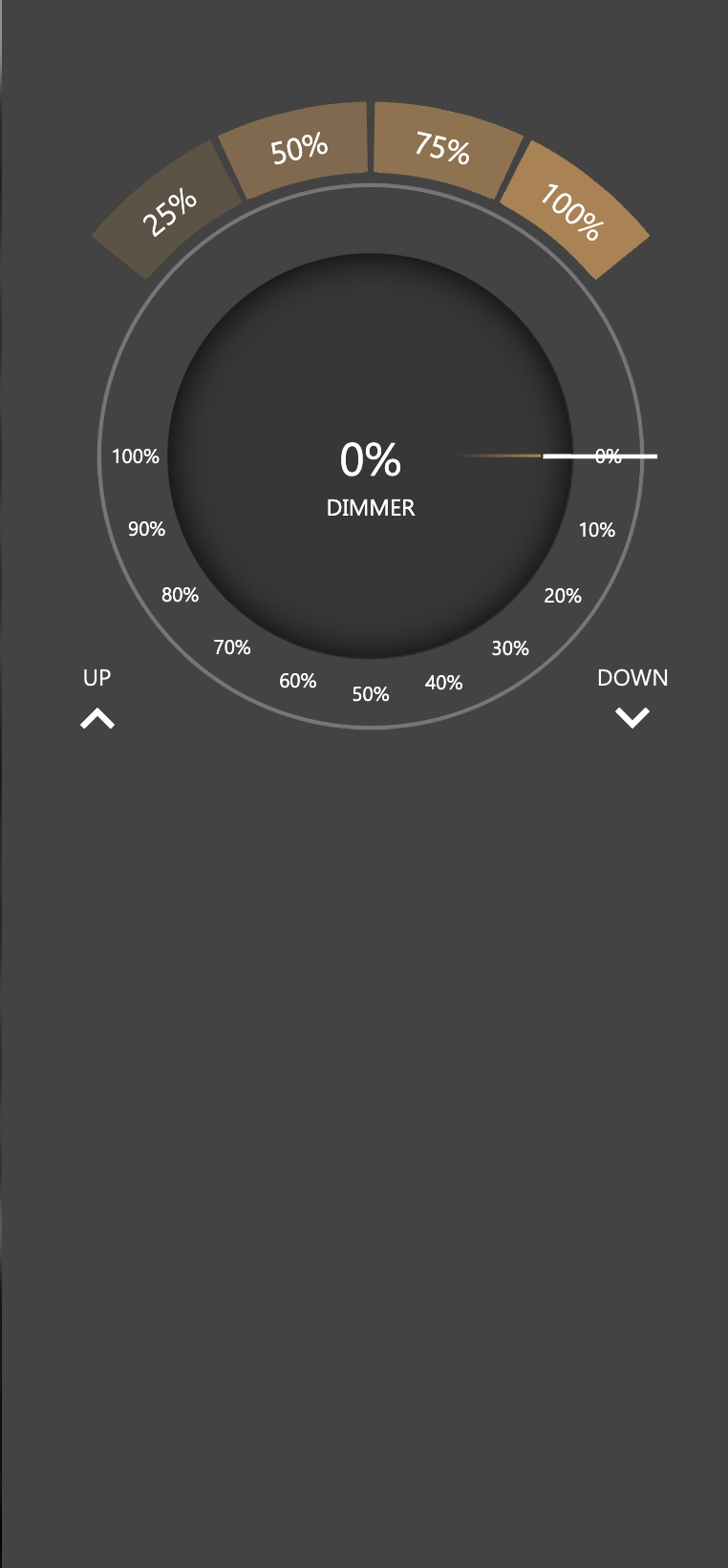
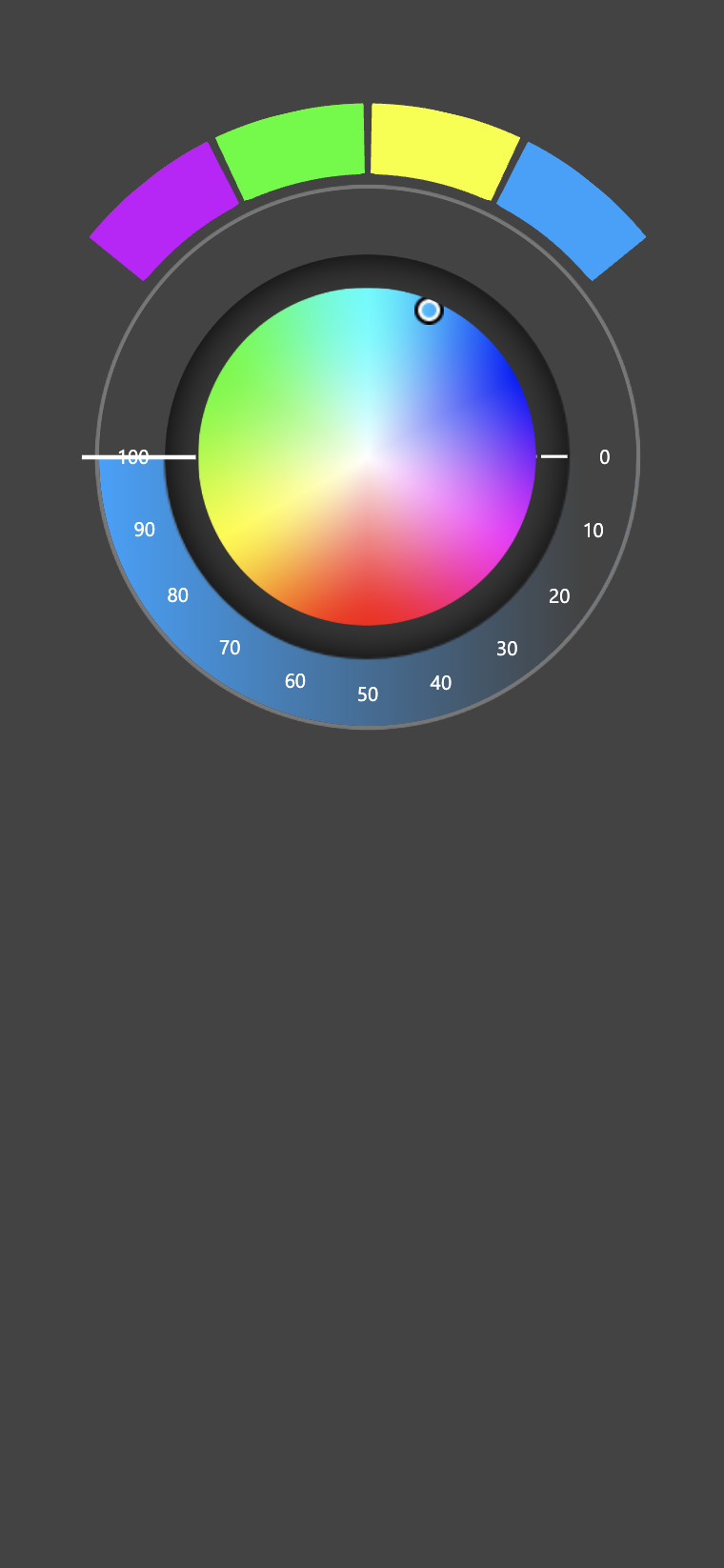
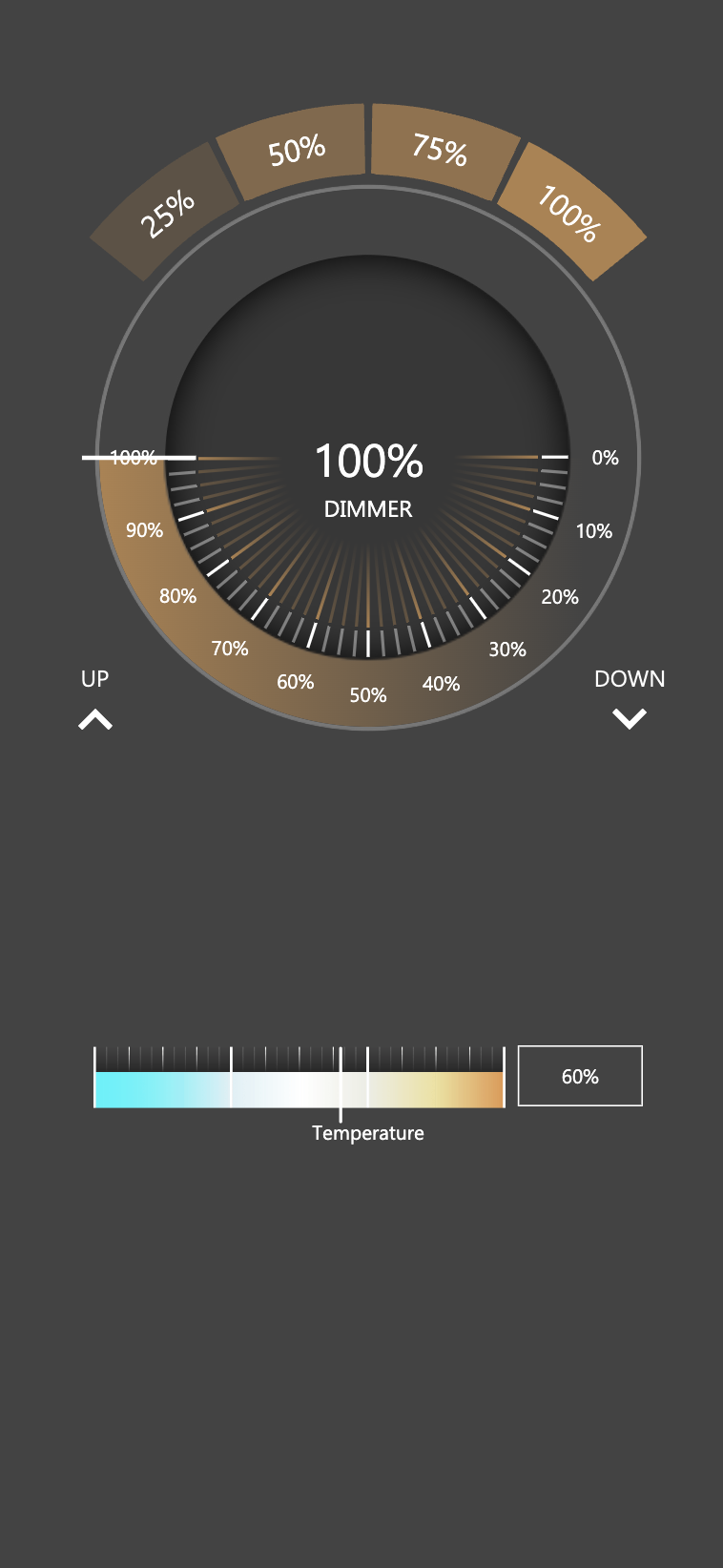
Sonos
Introduction
This chapter contains all the information for configuring a SONOS multimedia system inside DELÉGO SERVER, the multiprotocol webserver for the connected buildings by EKINEX.
Configuration
Discovery
Open the Integrations section in the bar and select the Sonos tab. The tab holds one or more Sonos system objects, each of them a SONOS installation reachable on the network.
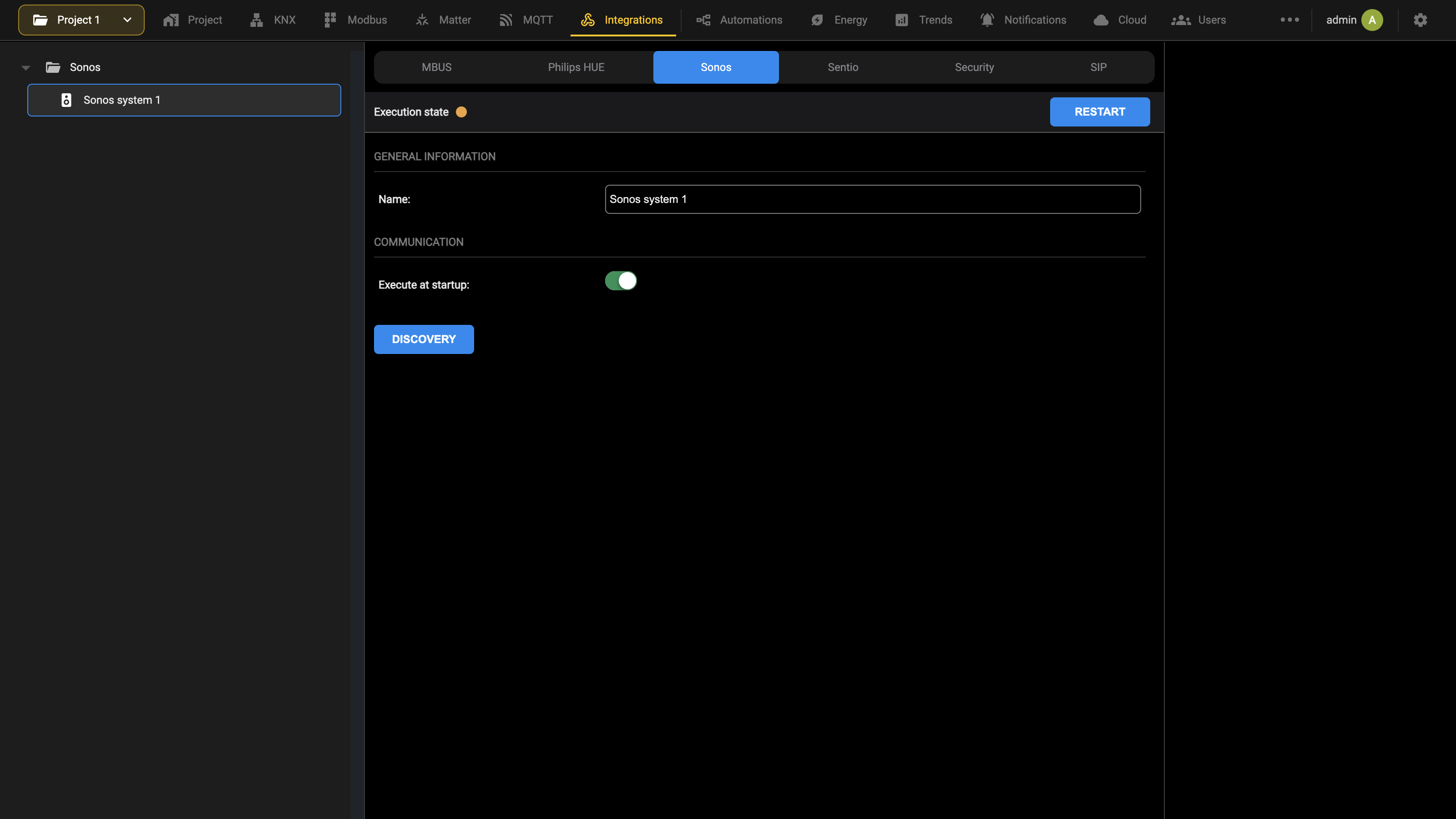
Press DISCOVERY on the card of a system to look for the SONOS devices on the same network as DELÉGO SERVER. While the search runs, the card reports that it is looking for devices, and at the end it says how many devices are new and how many have been updated. The zones found are then listed in the ZONES section of the card. The status bar at the top of the card reports the Execution state of the system as a coloured dot, green while it is communicating, and a change to its settings stops it and turns the dot red, until RESTART starts it again with the new settings (see Workspace).
If no device answers, the card reports that no SONOS device was found: check that the players are powered and on the same network as the server, then repeat the discovery.
Zones
Each zone found is an object of the project, with the IP address of its player and a set of Commands:
| Play/Pause, Stop | Control the playback of the zone. |
| Mute | Silences the zone without changing its volume. |
| Volume % | The volume of the zone, as a percentage. |
| Volume increase/decrease | Raises or lowers the volume by the amount set in Volume increase/decrease - step. |
| Treble, Bass | The tone controls of the zone. |
| Media content | Reports what the zone is playing. |
| Connection | Reports whether the zone can be reached: Connected or Disconnected. |
As with the other technologies, a zone is shown in the Visualization once it has been dragged into a room of the building tree of the Project section; only the zones placed in a room are shown.
Sentio
Introduction
DELÉGO SERVER can act as a KNX gateway to control the Ekinex SENTIO system via pushbuttons or dedicated SIGNUM screen. The gateway is configured in the Integrations section of the bar, on the Sentio tab.
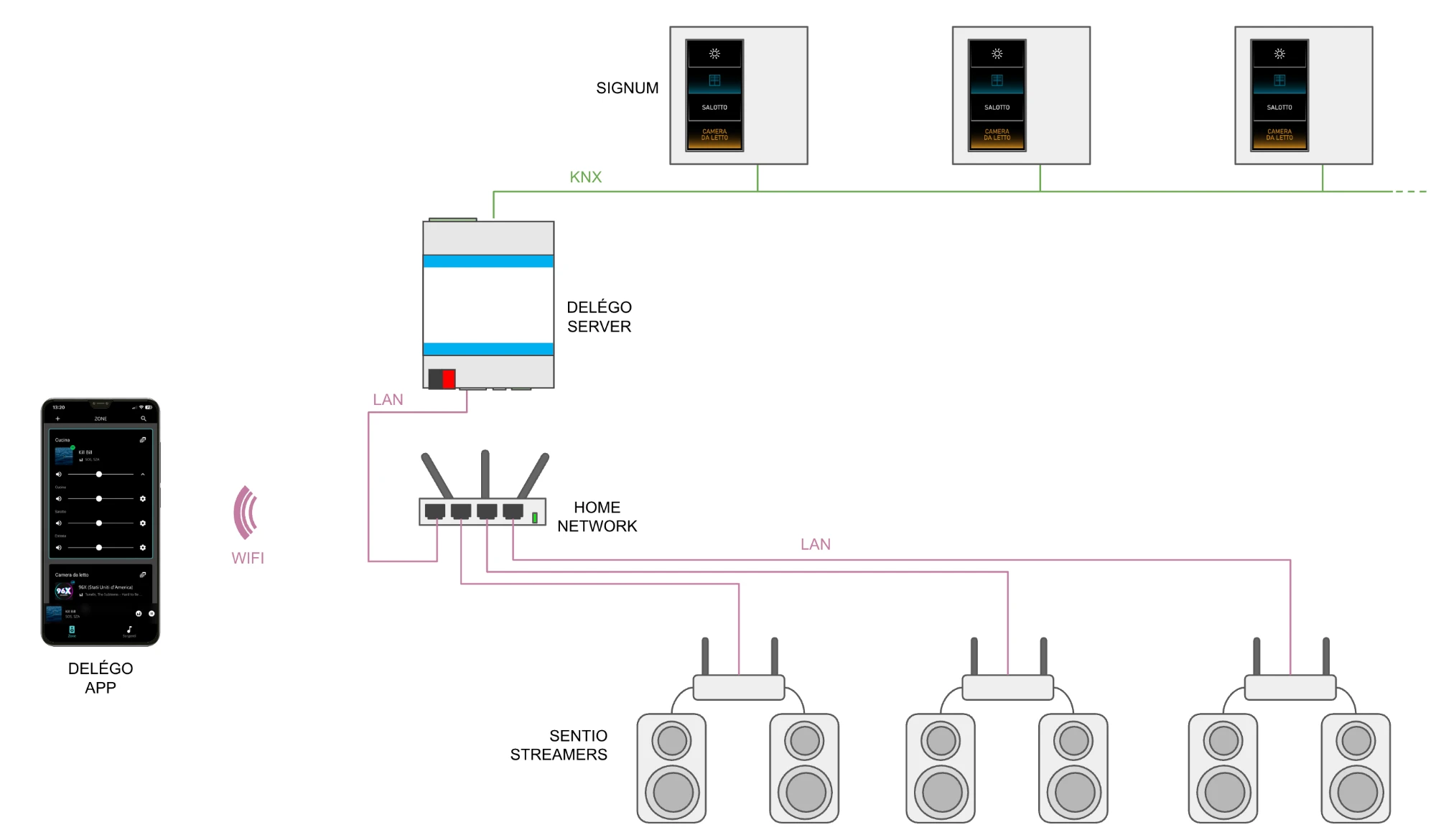
Discovery
In the Administration, open the Integrations section in the bar and select the Sentio tab.
The status bar at the top of the gateway card reports its Execution state as a coloured dot. If the gateway is not running, turn on Enable communication and press RESTART; the dot turns green (see Workspace). Changing a setting of the gateway stops it again and turns the dot red: press RESTART to start it with the new settings. The SENTIO streamers present in the same network as DELÉGO SERVER are then recognised and listed under NEW DISCOVERED DEVICES:
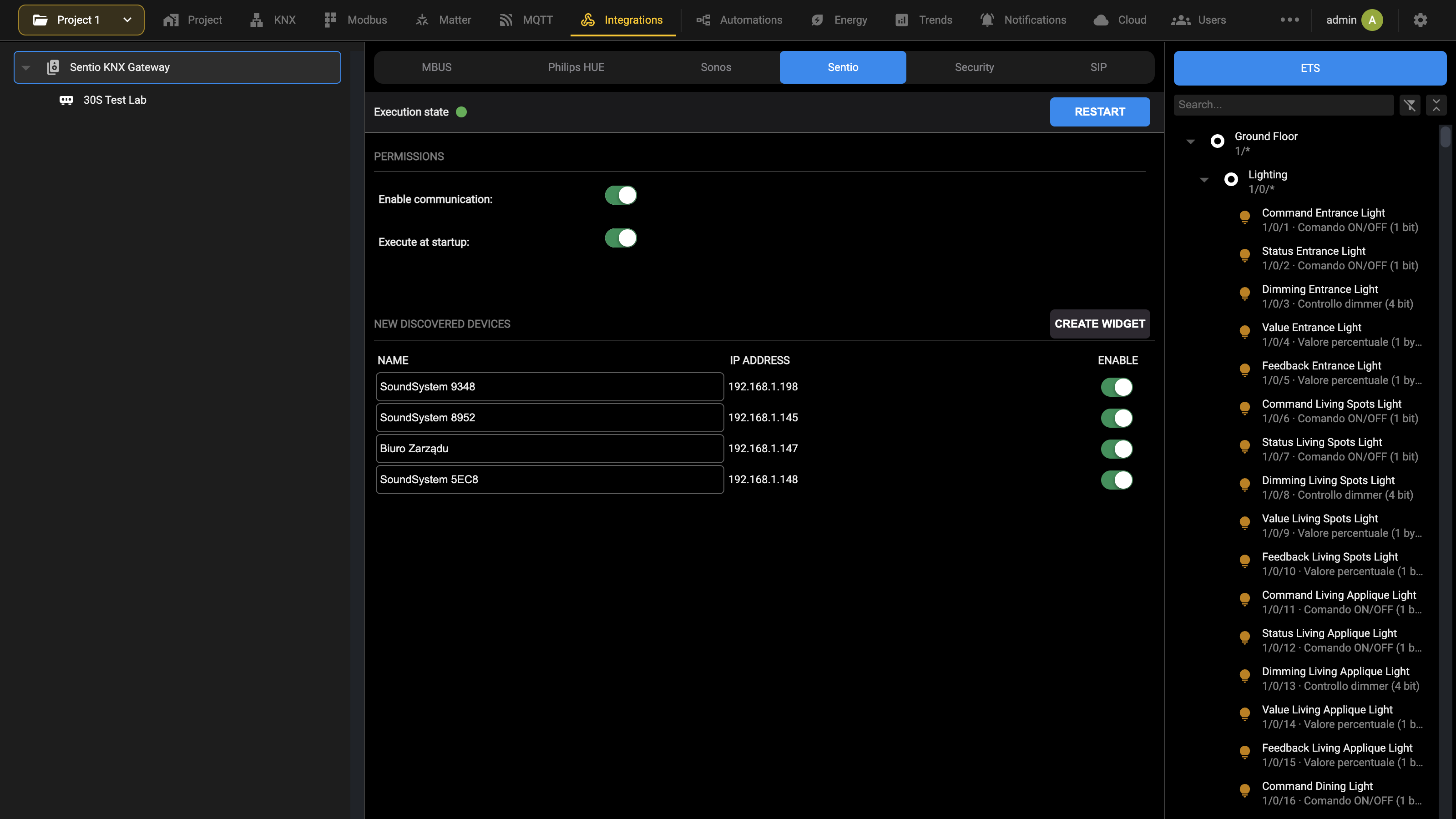
30S Test Lab.Configuration
To configure one or more zones inside the gateway, turn on the ENABLE switch of each of them and press CREATE WIDGET. When the operation finishes, the configured zones leave the list and appear in the tree on the left, under the gateway.
A green State indicator on the zone card confirms that the server is talking to the streamers. A red one means it is not: check that the streamer is properly connected to the local network.
KNX addresses
In the details page of each streamer it is possible to set the KNX group addresses:
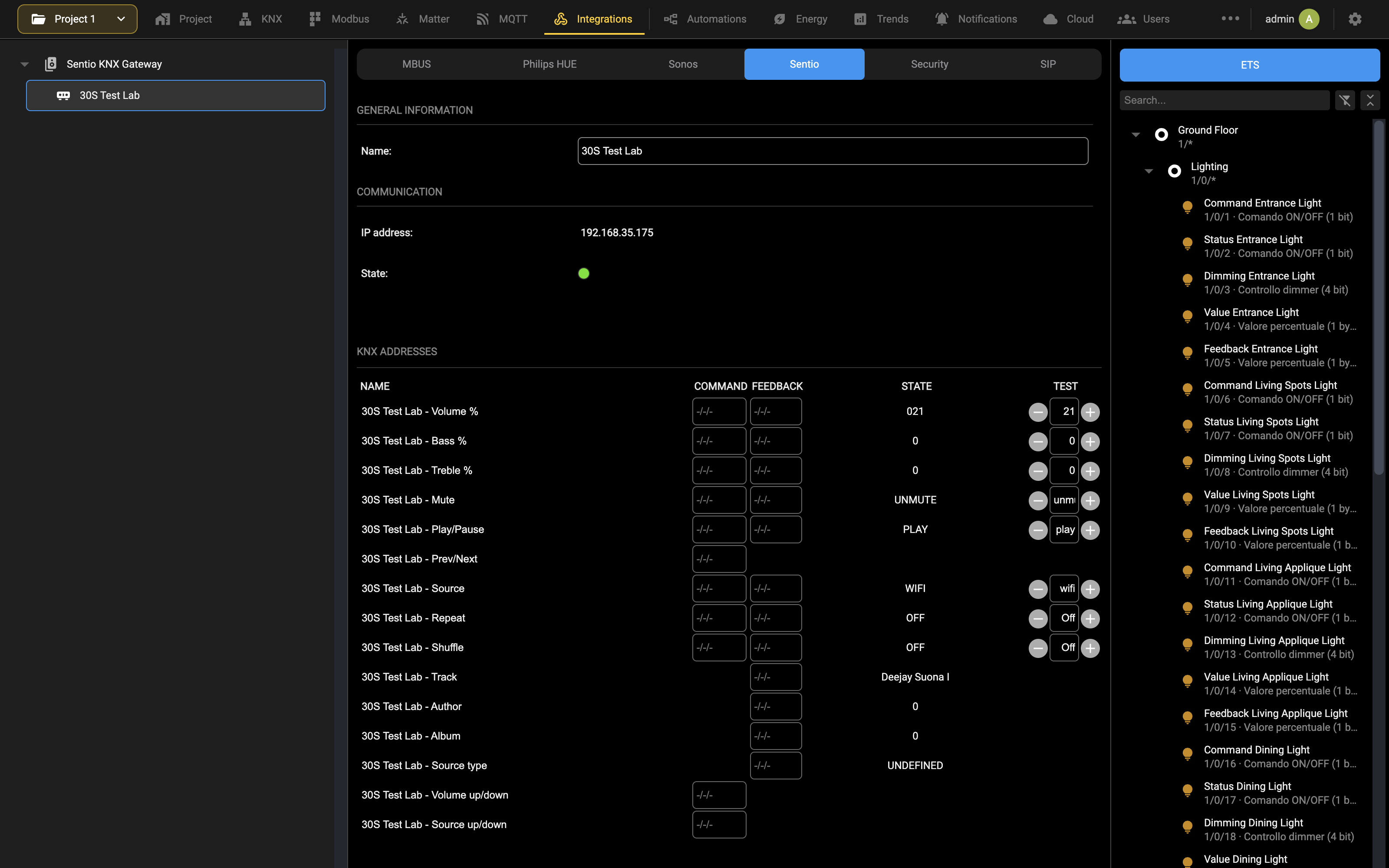
The card shows at the top the State of the zone, which reports whether the gateway is reaching the streamer. Below, KNX ADDRESSES has one row per feature: the COMMAND and FEEDBACK group addresses side by side, the STATE read from the streamer and, under TEST, the buttons that write a value to it. Rows that are feedback only, such as Track or Author, have no command address; rows that are command only, such as Prev/Next or Volume up/down, have no feedback address.
The group addresses can be either typed manually in the fields or dragged onto them from the ETS tree shown in the right panel.
The KNX group addresses entered in the COMMAND column can be used by any KNX device to give commands to the SENTIO streamer; vice versa, the status information of the audio zone is sent upon change to the group addresses entered as FEEDBACK.
The following features are available for each audio zone:
| ADDRESS DESCRIPTION | VALUES |
|---|---|
| VOLUME % Master volume control | 0 … 100% [1 byte dimming] |
| BASS %, TREBLE % Equalization control | 0 … 100% [1 byte dimming] |
| MUTE Setting the MUTE mode (silent) | 0 = no mute 1 = mute [1 bit switching] |
| PLAY / PAUSE Start or stop playback | 0 = pause 1 = play [1 bit switching] |
| PREV / NEXT Skip to previous or next track (for music sources that support it) | 0 = prev 1 = next [1 bit switching] |
| SOURCE Selection of the music source to play | 1 = preset 1 2 = preset 2 3 = preset 3 4 = preset 4 5 = preset 5 6 = preset 6 7 = preset 7 8 = preset 8 9 = preset 9 10 = preset 10 11 = USB 12 = Line IN 13 = Bluetooth 14 = optical [1 byte unsigned] |
| REPEAT Activating playlist repeat | 0 = no repeat 1 = repeat [1 bit switching] |
| SHUFFLE Enabling random playback | 0 = no shuffle 1 = shuffle [1 bit switching] |
| TRACK Information about the current playback | [14 bytes of text] |
| AUTHOR, ALBUM Information about the author and the album of the current playback | [14 bytes of text] |
| SOURCE TYPE Type of the current source | 0 = n.d. 1 = USB 2 = Line IN 3 = Bluetooth 4 = Optical 15 = Internet radio 16 = TuneIn 17 = Spotify 18 = Amazon Music 19 = Tidal [1 byte unsigned] |
| VOLUME UP/DOWN Volume increase/decrease | 0 = decrease 1 = increase [1 bit switching] |
| SOURCE UP/DOWN Source increment/decrement | 0 = decrease 1 = increase [1 bit switching] |
Once the KNX group addresses have been specified, they can be used immediately without further saving operations.
As regards specifically the increase/decrease of the source, the detail page of the Source up/down row (the Edit action of the row) makes it possible to select which sources should be taken into consideration, if not all of them are used:
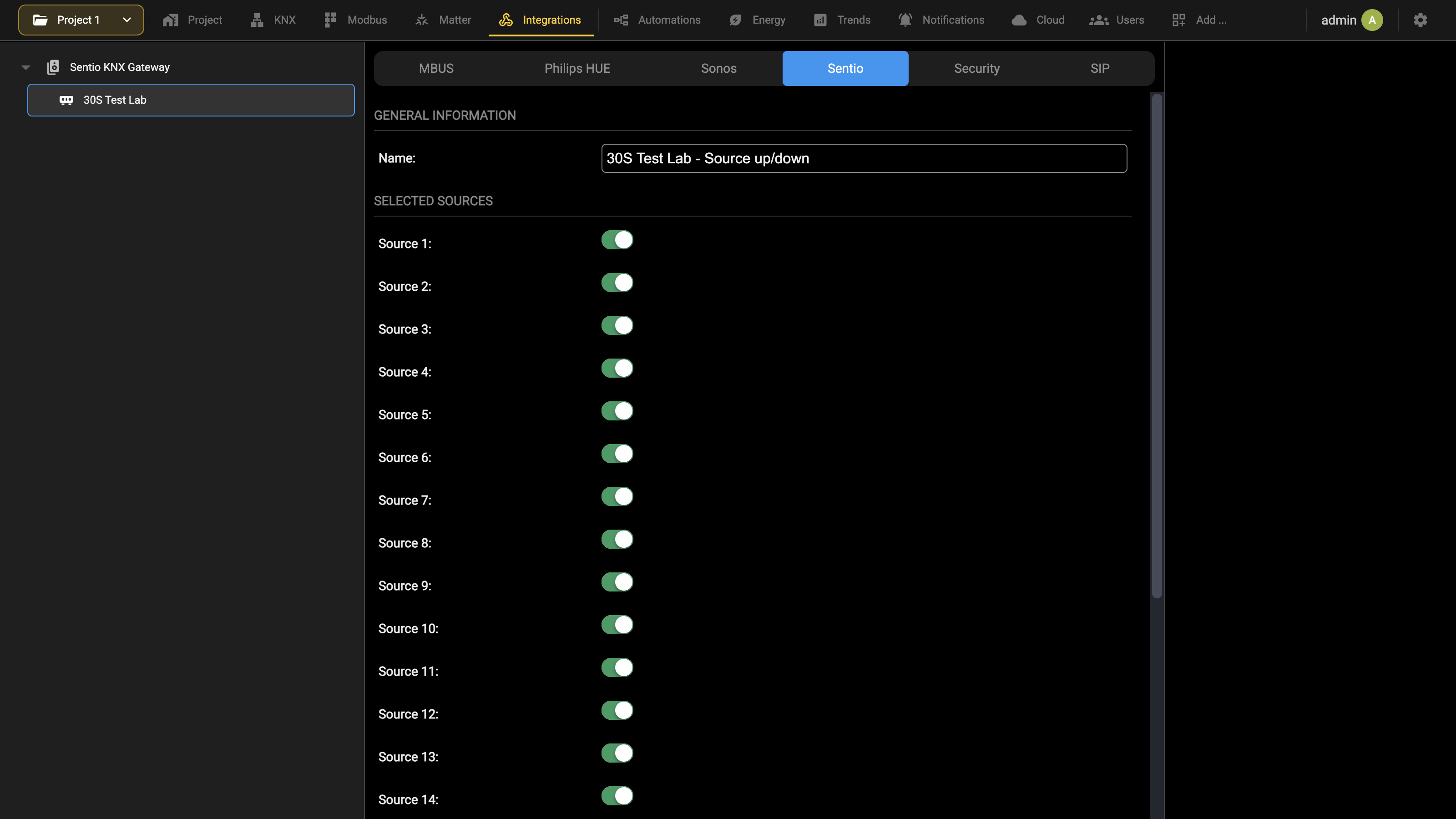
Use in combination with Signum
The SIGNUM virtual pushbutton panel provides a graphic screen for controlling a multimedia area of a KNX compatible audio system. In particular, this screen can be used to control a SENTIO streamer, through the DELÉGO SERVER gateway function.
For optimal use we recommend using the following versions of SIGNUM:
- Firmware: release 1.2.0 or later
- ETS library: release 0.6 or later
Furthermore, to view the SIGNUM audio screen, it is necessary to apply a specific license voucher to the keypad; for further details, please refer to the relevant documentation.
Parameters
Inside the SIGNUM ETS library it is first necessary to enable the audio screen (and the corresponding tab configuration), through the following flag:
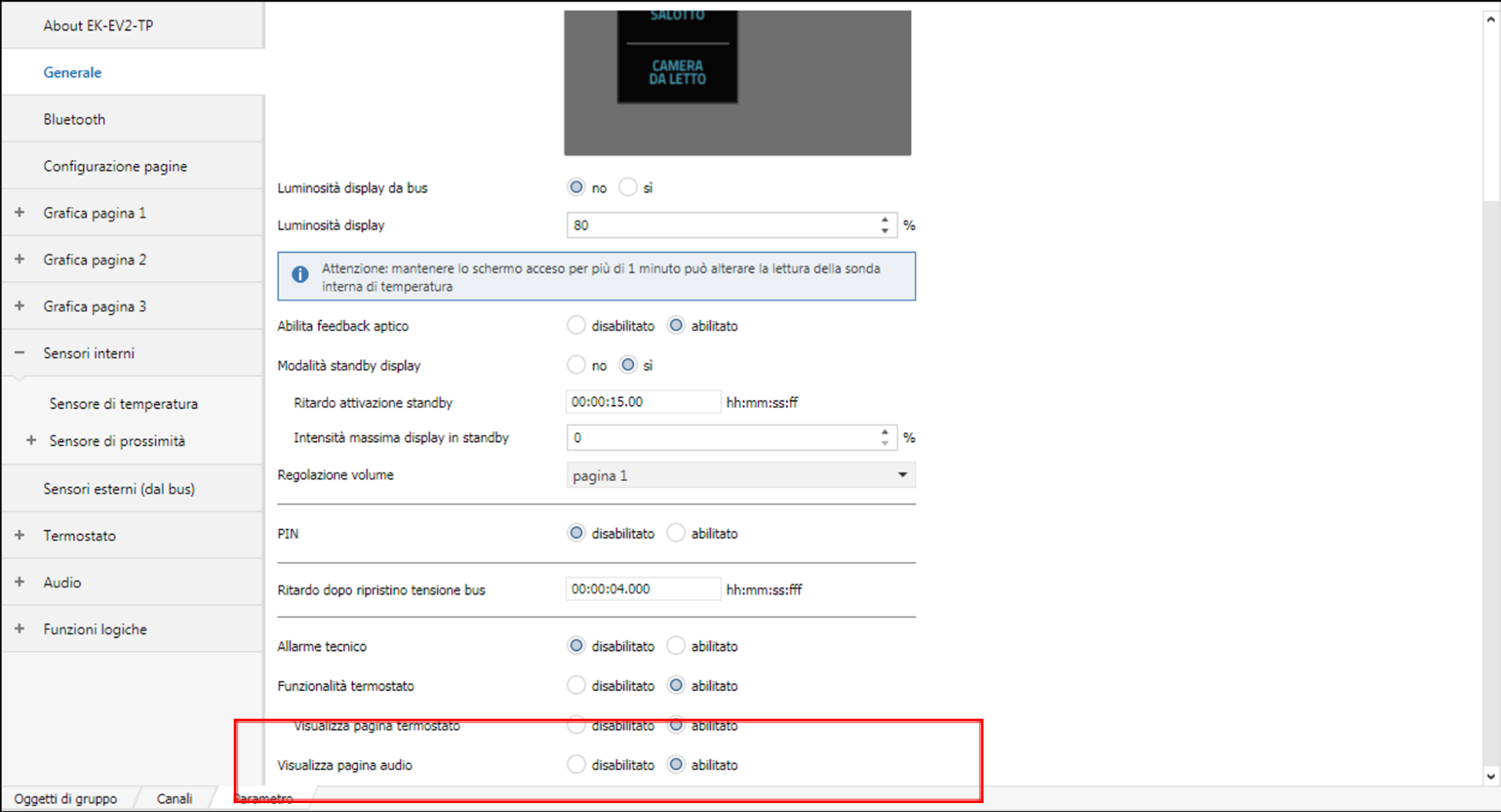
In the AUDIO configuration tab, first enable all the features, as in the following example:
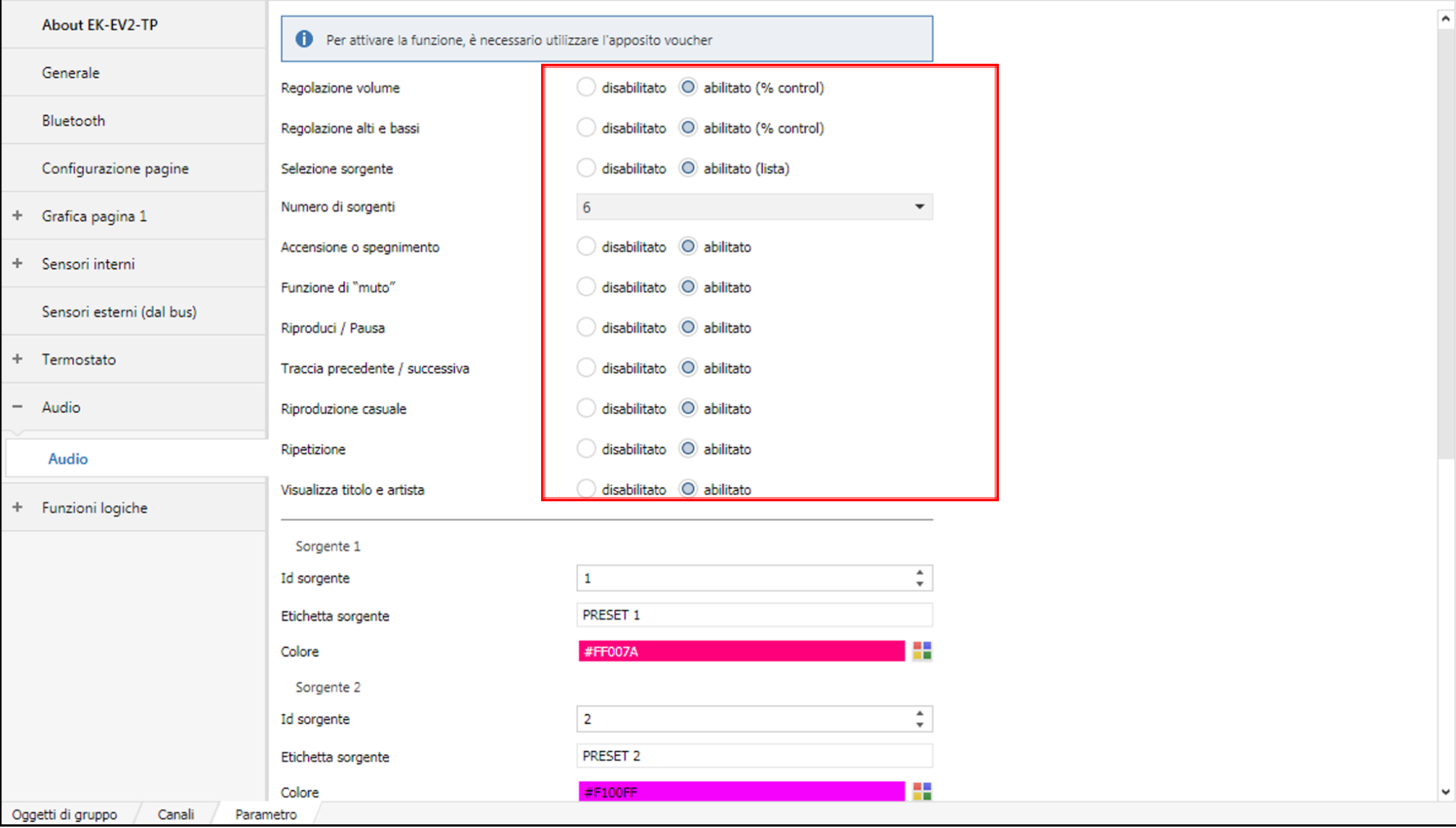
Finally, it is recommended to enable the maximum number of sources available in SIGNUM (6) and to associate them with the same number of SENTIO presets, therefore using the numbers from 1 to 6 as numbering (to be read / written on the KNX bus). In this way, via the SENTIO app you can associate your favorite streams with PRESETS, and you can subsequently recall them from SIGNUM.
Alternatively, you can reserve one or more sources of SIGNUM to activate a different input from a stream, such as Bluetooth (see following screenshot):
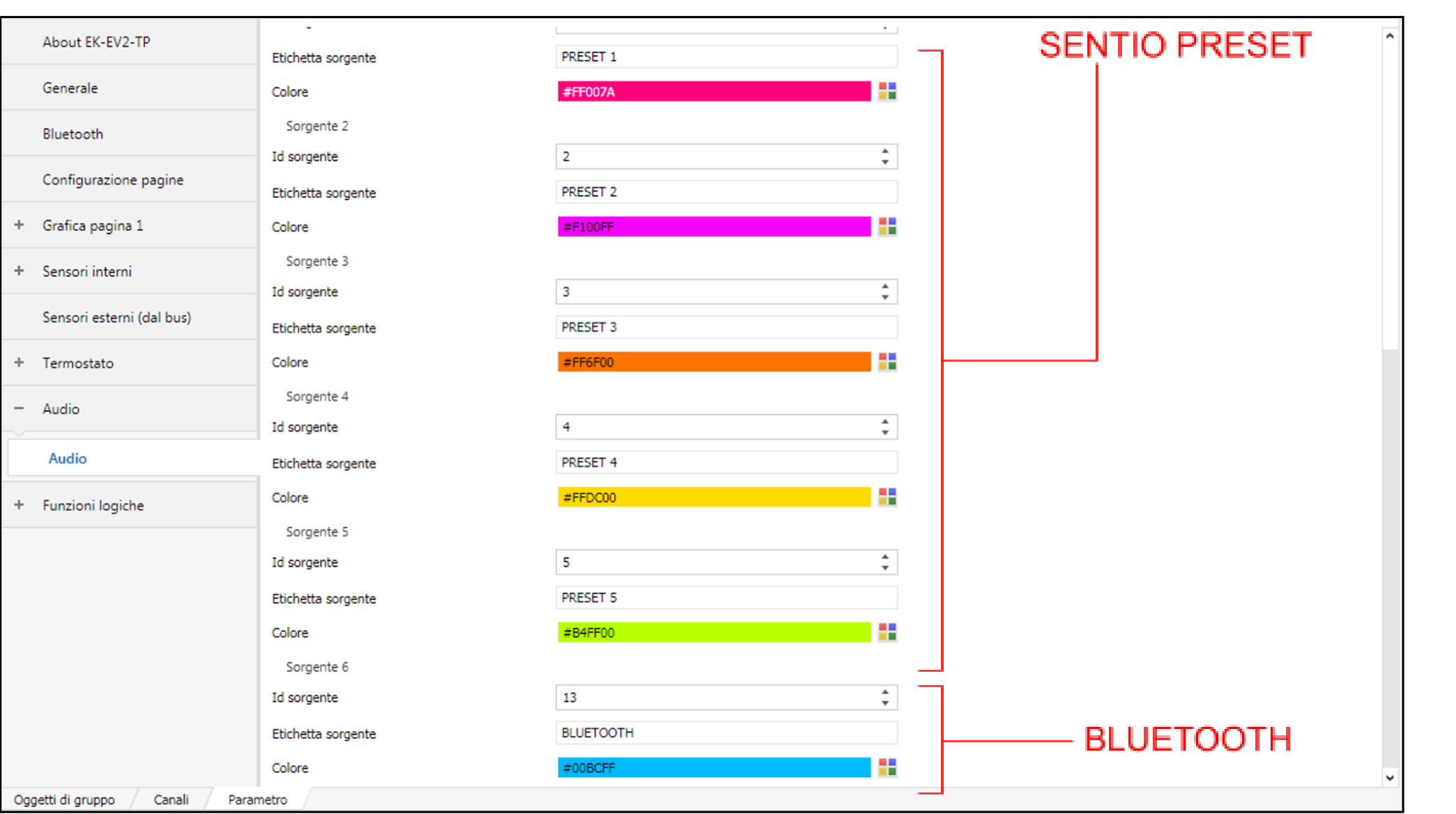
As regards the wording to be assigned in SIGNUM, it is recommended to adopt a generic nomenclature “PRESET 1”, “PRESET 2” etc... in order to subsequently be able to customize the streaming associated with each preset, without having to consequently adapt the wording in SIGNUM. The colors obviously can be chosen as you wish.
In any case, please remember that the wordings of the SIGNUM sources can also be modified via the EKINEX TOOL app, therefore without the need to modify and download the ETS project again.
Group addresses
The SIGNUM library provides a series of group objects, through which the pushbutton panel updates its status on the screen according to the SENTIO audio system, and on the other hand allows commands to be sent to DELÉGO SERVER, which forwards them to the corresponding streamer.
The following figure shows an example of configuration of group addresses associated with the different group objects, for a SIGNUM with audio function enabled:
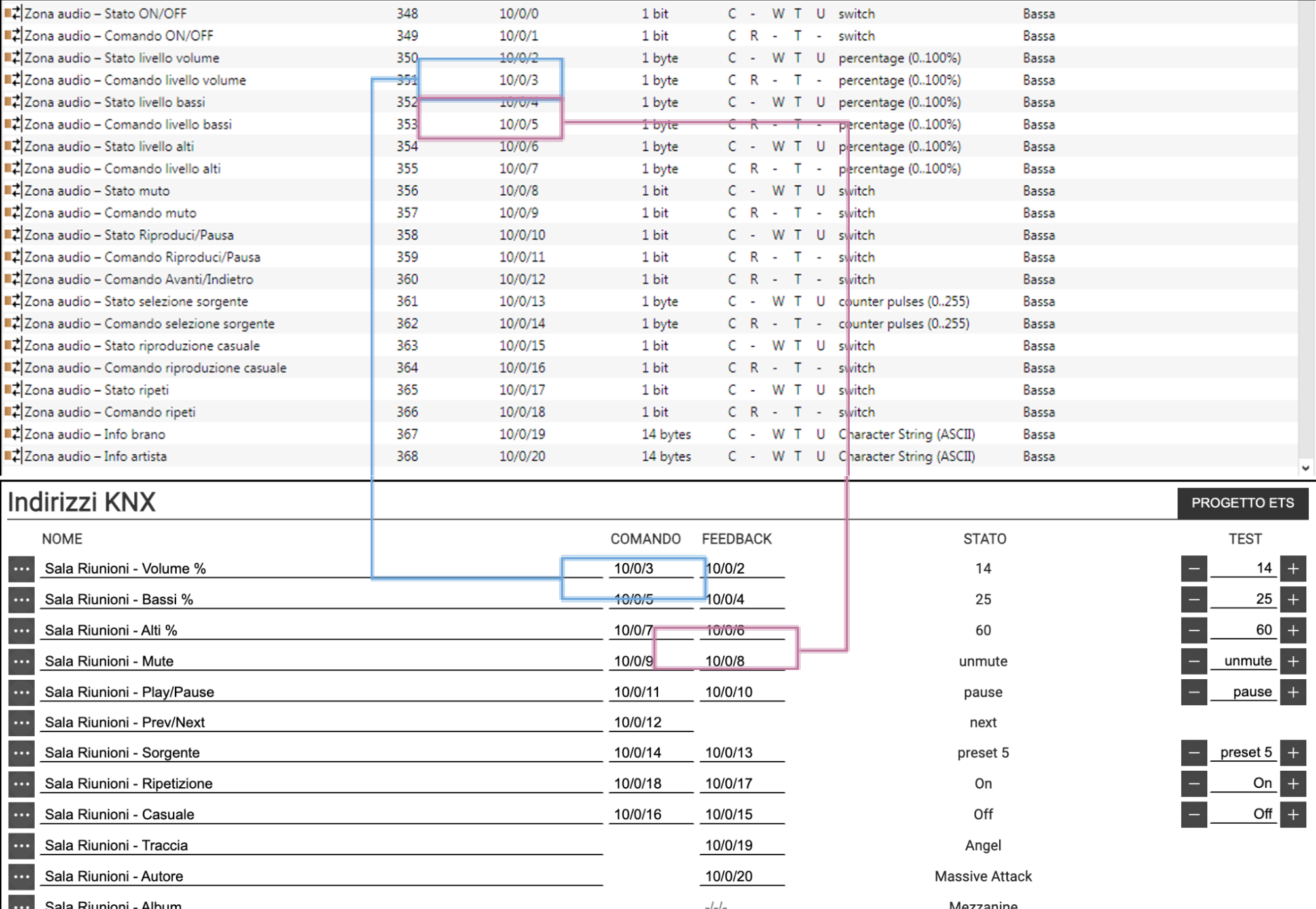
As you can see, the group addresses associated in ETS with the “COMMAND” type group objects must be reported in the COMMAND column of DELÉGO, and vice versa as regards the states (“FEEDBACK” column).
The card of the same zone in the current version of the server is described in KNX addresses.
Security
Introduction
This chapter contains all the information for configuring and visualizing a compatible intrusion detection system inside the DELÉGO SERVER visualization.
General overview
DELÉGO controls the intrusion systems it supports natively, connecting to them over the LAN or through a USB or serial port, depending on the panel.
Native supervision is safer than going through an external gateway, such as a panel interfaced over KNX: it speaks the protocol certified by the manufacturer of the security system, and the exchange of information is encrypted.
It is also far more flexible, because a native integration typically reaches every single aspect of the panel, rather than the handful of signals a gateway exposes.
Creation of a control panel
Once the license code of the desired technology has been entered, DELÉGO SERVER provides a dedicated section in the area
Integrations → Security
of the configuration menu, based on the license entered.
By expanding this section, and the corresponding Control panels item, it is possible to add a new control panel with the Add action of the node in the context tree. Depending on the chosen technology, it is possible to create a single control panel, or communicate with multiple control panels at the same time; for further details, please refer to the subsequent sections of this chapter.
Once the new control panel card has been opened, it is possible to set the general communication parameters, which depend on the type of technology chosen. Furthermore, in the subsequent sections of the page, it is possible to create sub-objects that represent the different functions of the anti-intrusion system, the number of which depends on the specific configuration and the number of devices installed.
The following table summarizes the types of functions made available by the different technologies:
| TECNOALARM | BENTEL | PARADOX | EL.MO. / IESS | AXEL |
|---|---|---|---|---|
| Programs | Areas | Areas | Sectors | Areas |
| Zone | Zone Output | Zone Utility Key | Inputs, Outputs | Zones |
| Central States | Central States | Central States | Central States | Central States |
Adding features
To add one or more functions, specify the number of objects to create in the appropriate field and press ADD; new objects are numbered progressively starting from the last number used. The numbering reflects what is configured within the control panel and therefore functions as a reference key for the security system.
Once the sub-objects have been created, you can:
- Assign an identifying label (e.g. location of a sensor)
- Modify any detailed parameters by accessing their tab
- Drag them into one or more rooms, to allow their management in navigation by floors, as well as in the specific dedicated section of supervision
- Use them within logic or as triggers for automatic actions (scenes, notifications etc...)
Central States
The states of the control panel are a particular kind of sub-object: their number cannot be chosen. Pressing ADD creates, according to the model of panel, the set of elements that stand for its states and alarms.
As with the other objects, once they exist their default name can be changed and they can be assigned to a room. They can also be used inside logic blocks, to command the KNX system or run a scene depending on the state of the panel.
Visualization
Once the anti-intrusion system has been configured and communication has started, open the Visualization with Frontend, in the Configuration menu, and select the item
SECURITY
it is possible to manage the entire anti-intrusion system through a control panel similar to the following figure:
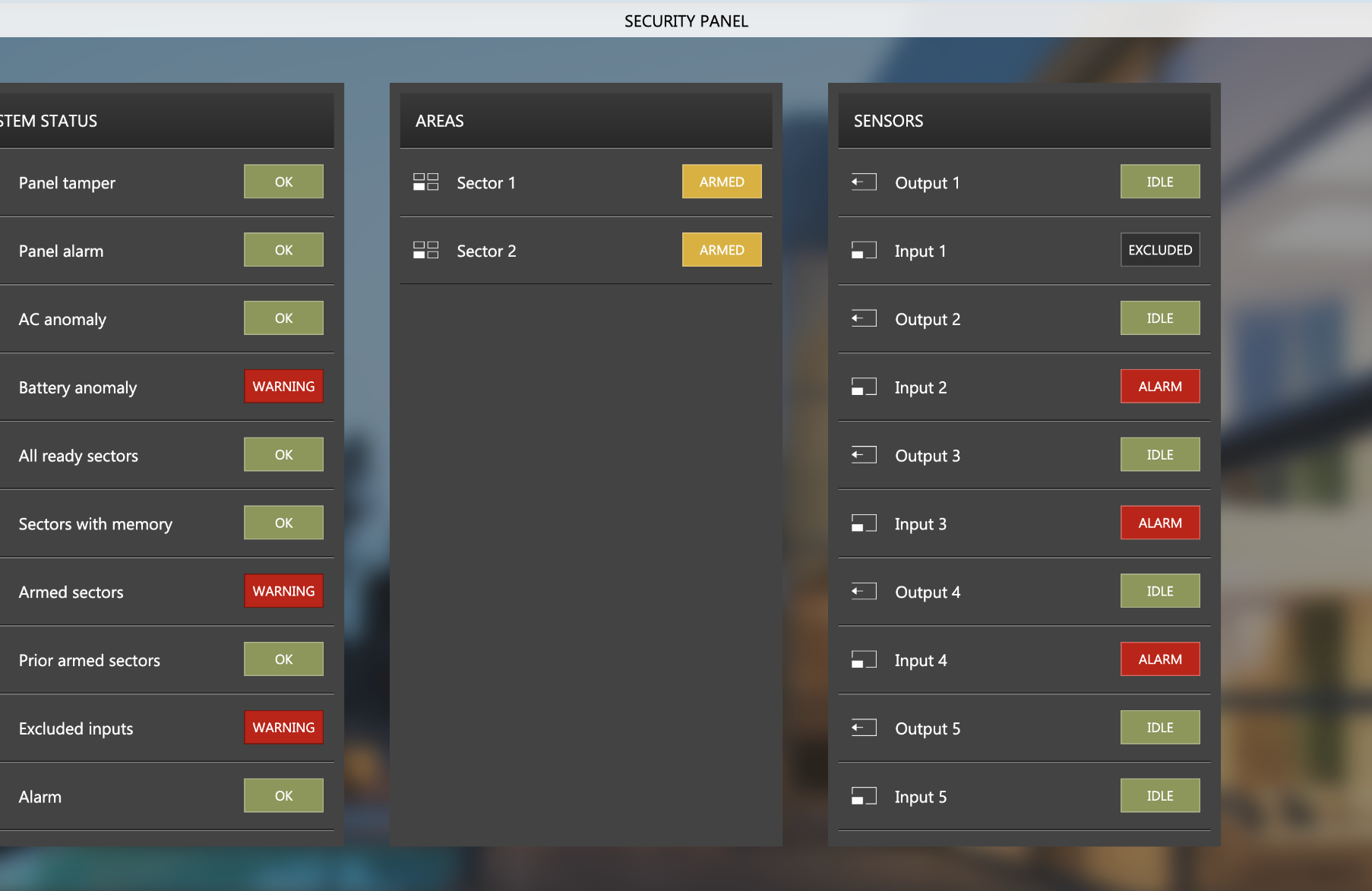
Depending on the type of integrated control panel, the following sections are available:
| SYSTEM STATUS | Contains the central states and any general commands |
| AREAS | Contains the list of areas, programs or sectors (depending on the specific nomenclature of the control panel manufacturer) through which it is possible to arm the anti-intrusion system |
| SENSORS | Contains all the zones / inputs of the system and any outputs |
| LOG | Where available, it allows you to consult the security control panel log |
When accessing from a smartphone, given the limited size of the screen, one section is displayed at a time; it is possible to switch from one section to another via the toolbar at the bottom.
Tecnoalarm
Compatibility
DELÉGO talks to every TECNOALARM control panel that offers the TECNO-OUT protocol. Enabling that protocol may require an additional license from the manufacturer.
The connection is over the LAN or directly over USB. Only one intrusion panel can be managed.
Preparation of the control panel
NETWORK COMMUNICATION Inside the control panel configuration software, in the LAN configuration section, it is necessary to tick the Enable checkbox and enter the network parameters, making sure they are compatible with DELÉGO (same subnet).
In the SERVER section it is possible to configure up to 4 connections for “generic tasks”, such as via iOS-Android apps, remote monitor software etc... DELÉGO does not fall into this category, having to be configured in the Tecno-out section (as detailed below) however it is important to check that the configuration of the “generic” servers does not conflict with the subsequent configuration of DELÉGO.
If you need to use one of the 4 “generic” servers, it is important to make sure that the port is unique for each server, and different from the port subsequently configured in the Tecno-Out section. The port can be any number greater than 10,000 and less than 65,535.
In the TECNO-OUT tab it is possible to configure dedicated access to the Tecno-out server, therefore reserved for DELÉGO. In particular it is necessary:
- Enable the protocol using the appropriate enable box
- Select “SERVER” mode
- Insert a port with a number greater than 10,004, consistently with what was seen previously (port greater than 10,000 and unique)
- Enter a passphrase that serves as the basis for encrypting communication
It is strongly recommended to enter an alphanumeric passphrase that is not easily reproducible, possibly “pseudo random”, because the encryption algorithm for data transit on the LAN network and therefore the security of the system is based on this parameter. For the correct functioning of DELÉGO, furthermore, the passphrase must be exactly 16 or 32 characters long; based on the length, DELÉGO must be appropriately configured as detailed below.
NOTE
- For the basic operation of the integration there are no configurations of the “Whitelist” parameters, please refer to the official Tecnoalarm documentation for this type of setting.
- The programming of these 3 phases is sent to the control panel and set correctly only when a complete sending is carried out in “first programming of the control panel” mode (as reiterated several times at the bottom of the sheets themselves): to make this happen, it is necessary to set from keypad the control panel identifier to FFFF and send the complete programming. To change the control panel identifier you need to log in from the console with the installer code (factory default 54321) and go to the “Telephone” - “Callback” - “Identifier” menu: with the upward arrow you delete the 4 numbers of the pre-existing identification code, by typing “yes”+“6” four times, the FFFF identifier is entered. By pressing “Exit” until you return to the date and time on the console, the data is stored. At this point it is necessary to completely re-download the configuration to the control panel using the Tecnoalarm software and proceed with testing.
- Integration access code: even in the preliminary phase it is necessary to use a code with sufficient rights to be able to act on the various functions of the control panel. To facilitate the task, it is strongly recommended to use the master code in order to verify the correctness of the functionality integrated between DELÉGO and the control panel. Furthermore, in the case of communication via network, after each change to the control panel configuration, it is of fundamental importance to carry out the following steps:
- Set the control panel in “first programming” mode
- Enter the master code
- Reset panel ID to “FFFF”
Communication check
Before tackling the integration into DELÉGO, it is recommended to check communication using the TECNO-OUT MONITOR program, available for WINDOWS PCs.
Configuration
In the card of the TECNOALARM control panel inside DELÉGO, the following information is requested:
| Name | Identification name for the control panel, used within DELÉGO. |
| User ID | A valid numeric code to authenticate on the control panel. The field is masked as a password. |
| Systems | The family the panel belongs to, TP or EV. It has to match the actual panel, because the two families speak different dialects of the protocol. |
| Activate | Establishes whether communication should be enabled or not. Turning it off keeps the configuration of the control panel in the project without using it. |
| Communication | Whether the dialogue goes over the USB / serial connection or over the network. |
The user code is used for all non-interactive operations (periodic status request, reading of the panel log and so on), so it has to be a code that is allowed to perform them.
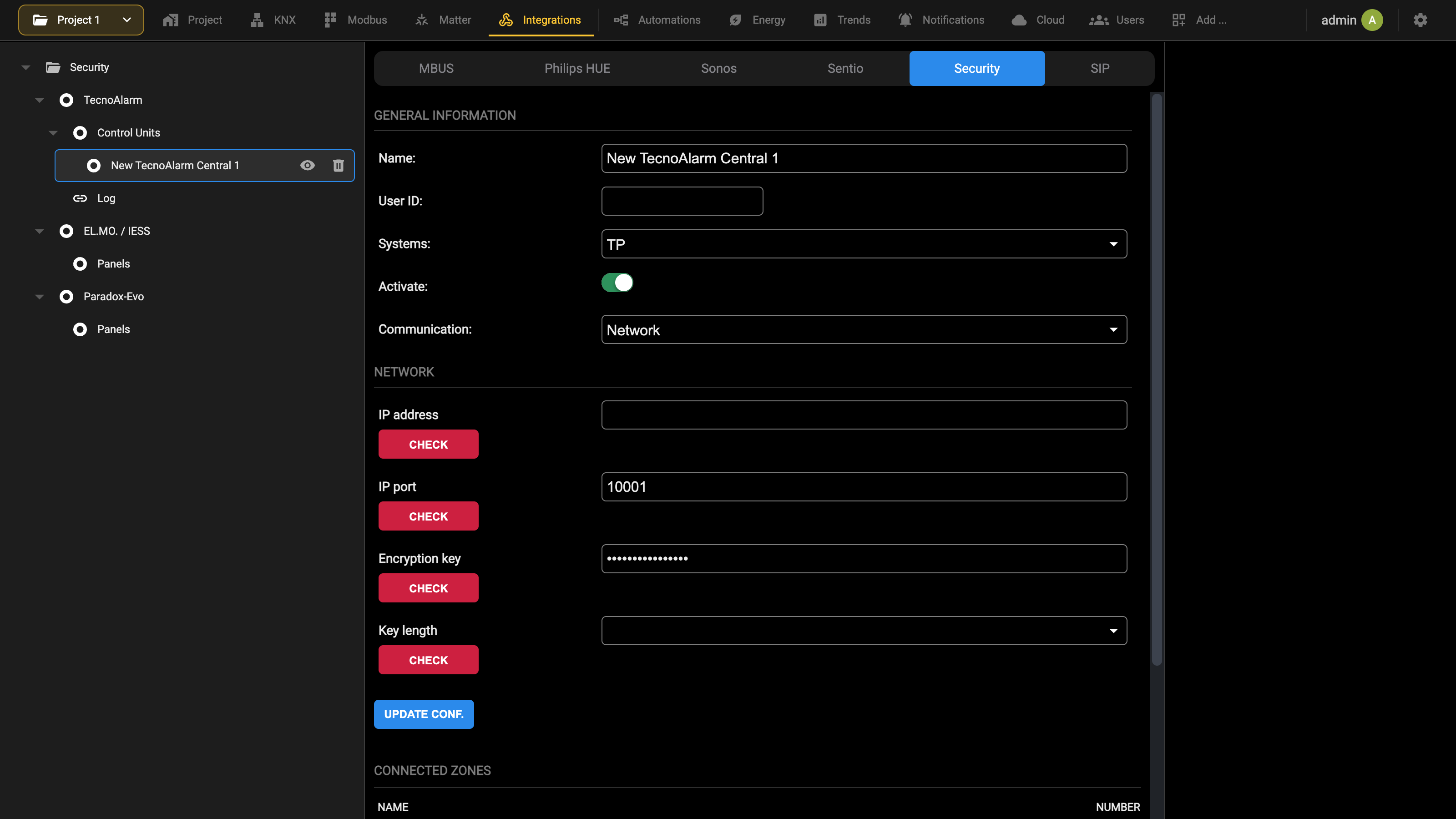
Depending on the communication mode chosen, it is possible to set this additional information:
| PARAMETER | COMMUNICATION | DETAILS |
|---|---|---|
| PORT | USB | Allows you to select the communication port to use |
| IP ADDRESS | NET | IP address of the control panel |
| IP PORT | NET | Communication port (default: 10001) |
| ENCRYPTION KEY | NET | Keyword defined in the control panel as the basis for calculating the communication encryption |
| KEY LENGTH | NET | Keyword length |
Once this information has been specified, it is necessary to press the UPDATE CONF. button to activate the communication. This operation is necessary whenever the user code or communication port is changed. After pressing UPDATE CONF., check the correctness of the configuration, in particular:
- In the case of a USB connection, check that the corresponding port is connected to a device
- In the case of a LAN connection, check that the IP address corresponds to a device on the network
Once the communication parameters have been configured, the objects that represent the programs (the arming modes) and the zones (the detectors) are inserted through the ADD button of the sections of the same name, and the same button in the CENTRAL STATES section creates the objects that carry the status and error signals of the panel.
Zones and programs keep the number they have in the control panel, which is what ties the object in DELÉGO to the physical one; the central states arrive as a ready-made list of read-only signals, each with its own visibility flag and its current value.
Log
The TECNO-OUT communication protocol allows you to read the log inside the control panel and show it in DELÉGO; in this way, it is possible to review the operating events and the actions carried out on the security system, not only through the webserver but also through keypads, key readers and so on. To consult the logs in the administration of DELÉGO, select the item
Integrations → Security, node TecnoAlarm → Log
The following screen is shown:
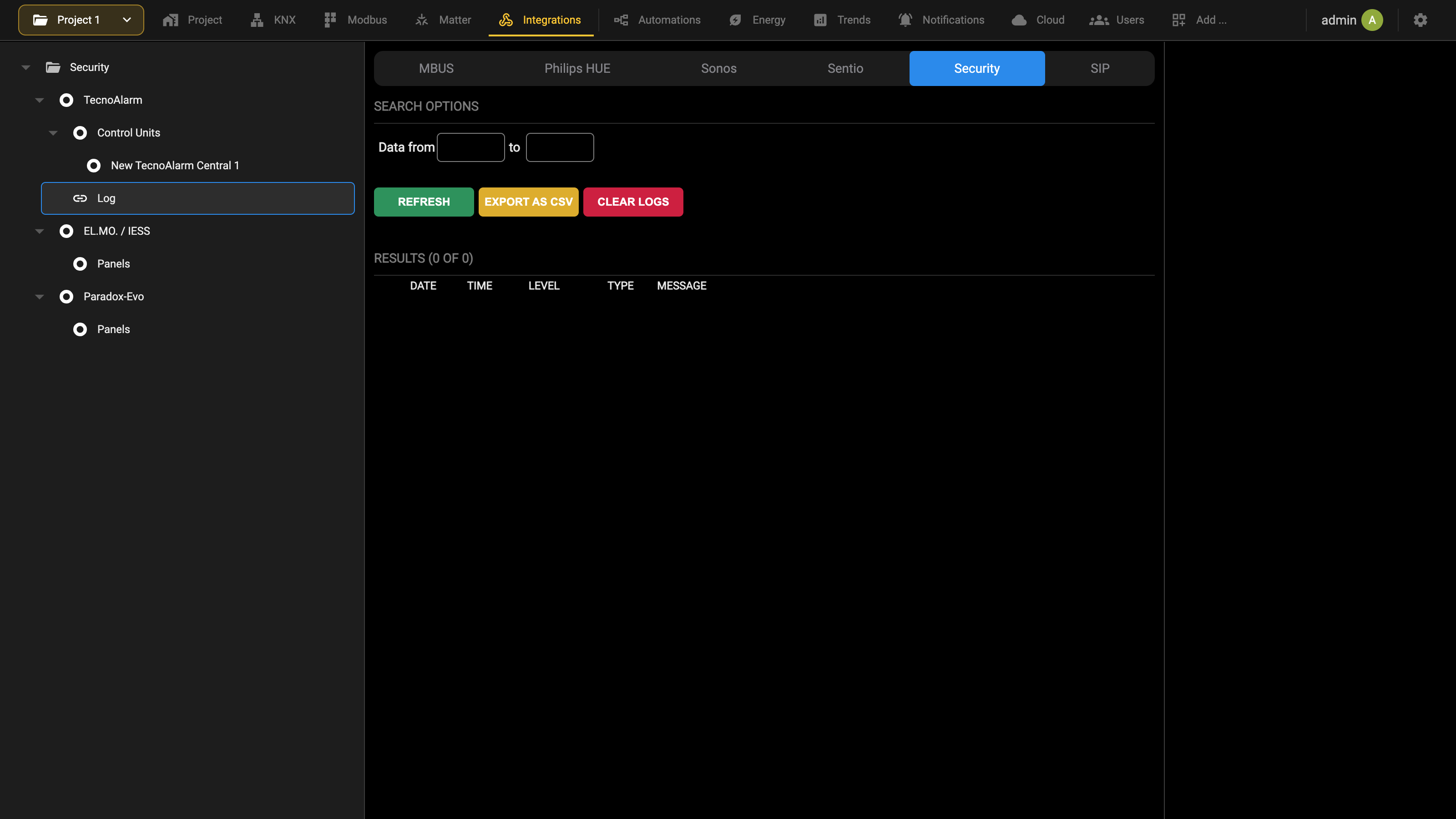
SEARCH OPTIONS restricts the list to a period, with the two date fields, and three buttons act on the result:
| REFRESH | Re-reads the log and applies the dates set above. |
| EXPORT AS CSV | Saves the list currently shown as a CSV file on the PC. |
| CLEAR LOGS | Empties the log held by DELÉGO. It does not touch the log inside the control panel, which keeps its own record. |
Each record carries Date, Time, Level (the severity), Type and the Message as the panel worded it.
Visualization
In the Visualization, the control center of the TECNOALARM system allows you to manage the PROGRAMS, ZONES and CENTRAL STATES as already seen on a general level. Furthermore, it is possible to consult the control panel log by selecting the appropriate button in the toolbar at the bottom (if accessed from a smartphone) or by scrolling on a tablet / desktop to the corresponding panel:
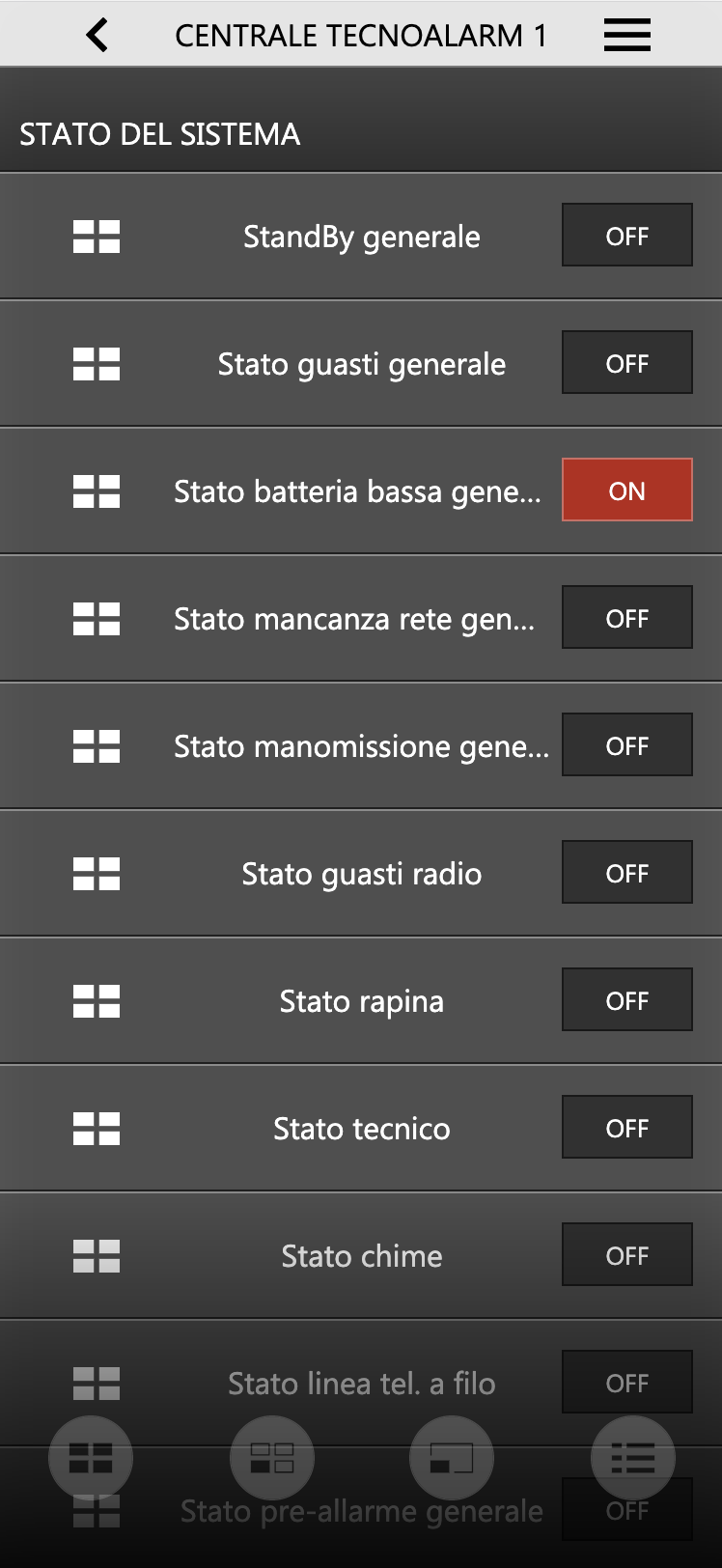
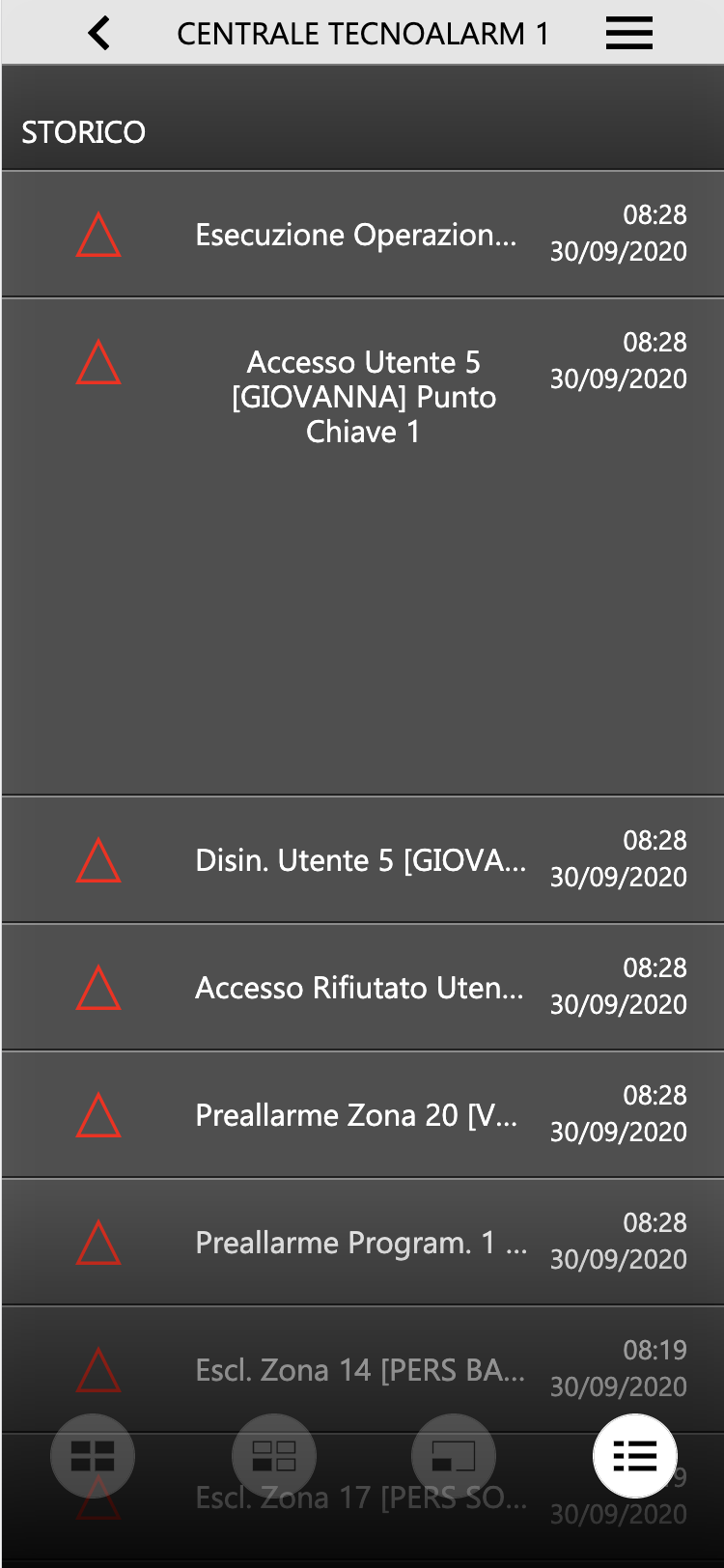
By pressing a specific message in the log list, the corresponding record is expanded to allow reading in case of long messages.
To arm a program, press the corresponding status button (normally REST); you are asked to enter your PIN, as exemplified in the figure below. If the PIN entered is correct, after a few seconds the program switches to the ARMED state.
Similarly, it is possible to exclude individual zones of the system.
The PIN entered in the DELÉGO Visualization is passed to the control panel for validation; it is therefore possible to use the same user PIN that is used to interact with the anti-intrusion system, for example, from the keypad. DELÉGO does not process or validate the PIN to authorize commands.
EL.MO. / IESS
Compatibility
DELÉGO talks to EL.MO. and IESS control panels, over USB or over the LAN. Unlike the other integrations of this chapter, this one manages several panels at once.
Control panel configuration
In the control panel tab inside DELÉGO, the following information is requested:
| Name | Identification name for the control panel, used within DELÉGO. |
| Technology | Reports the integration the record belongs to, EL.MO. / IESS. It is not editable. |
| User | Identification number of a valid user on the control panel. |
| Code | The access code of that user. The pair is what DELÉGO uses to interact with the panel, so the user must hold the necessary command rights. |
| Enable PIN control | Under PERMISSIONS. Enables validation of the commands by DELÉGO and sets a control PIN valid for every object of this panel. The PIN can then be specialized on each sub-object, from its own detail sheet. |
| Communication type | Under COMMUNICATION. Serial or TCP/IP, according to the connection chosen. For a serial connection on the panel side, use a USB-to-RS-232 adapter. |
| IP address, Port | With TCP/IP: the address of the control panel and the port, 10000 unless otherwise indicated. |
| Serial port | With Serial: select USB port 1 when connecting through the USB or serial cable. |
| Polling time [ms] | The wait between one status query and the next. Default 1000. |
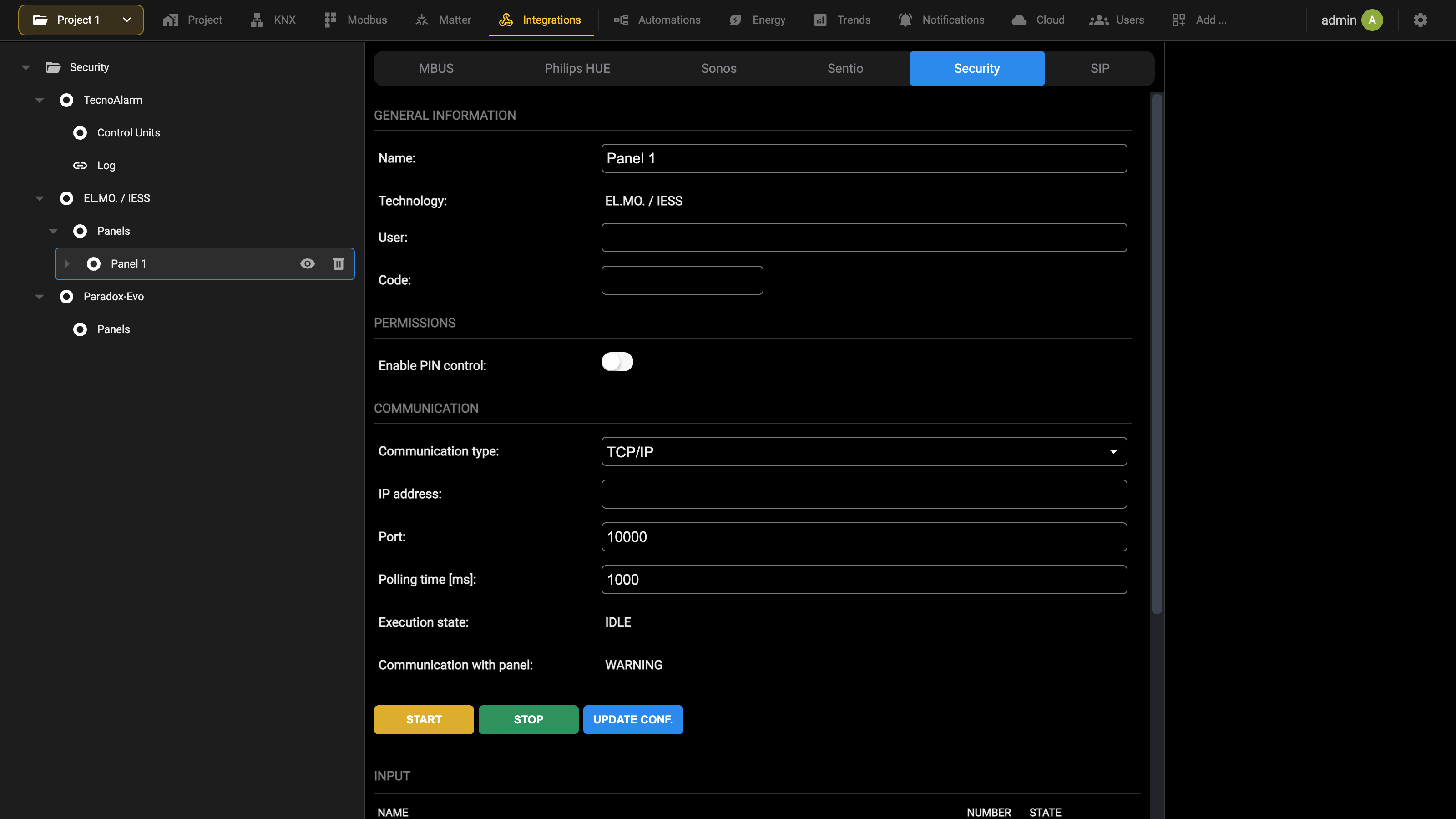
The following status indicators are also available:
| Execution state | Whether the DELÉGO communication gateway is running. IDLE on a gateway that has never been started. |
| Communication with panel | The state of the current dialogue with the control panel, useful for diagnosing a misalignment with the security system. It reads WARNING as long as no panel answers. |
Once the communication parameters have been configured, start the gateway with START; after any later change press UPDATE CONF. so that it is applied.
Sectors, inputs and outputs
It is possible to define the SECTORS, INPUTS and OUTPUTS within DELÉGO using the ADD button in the corresponding sections of the page, specifying the number of objects to create:
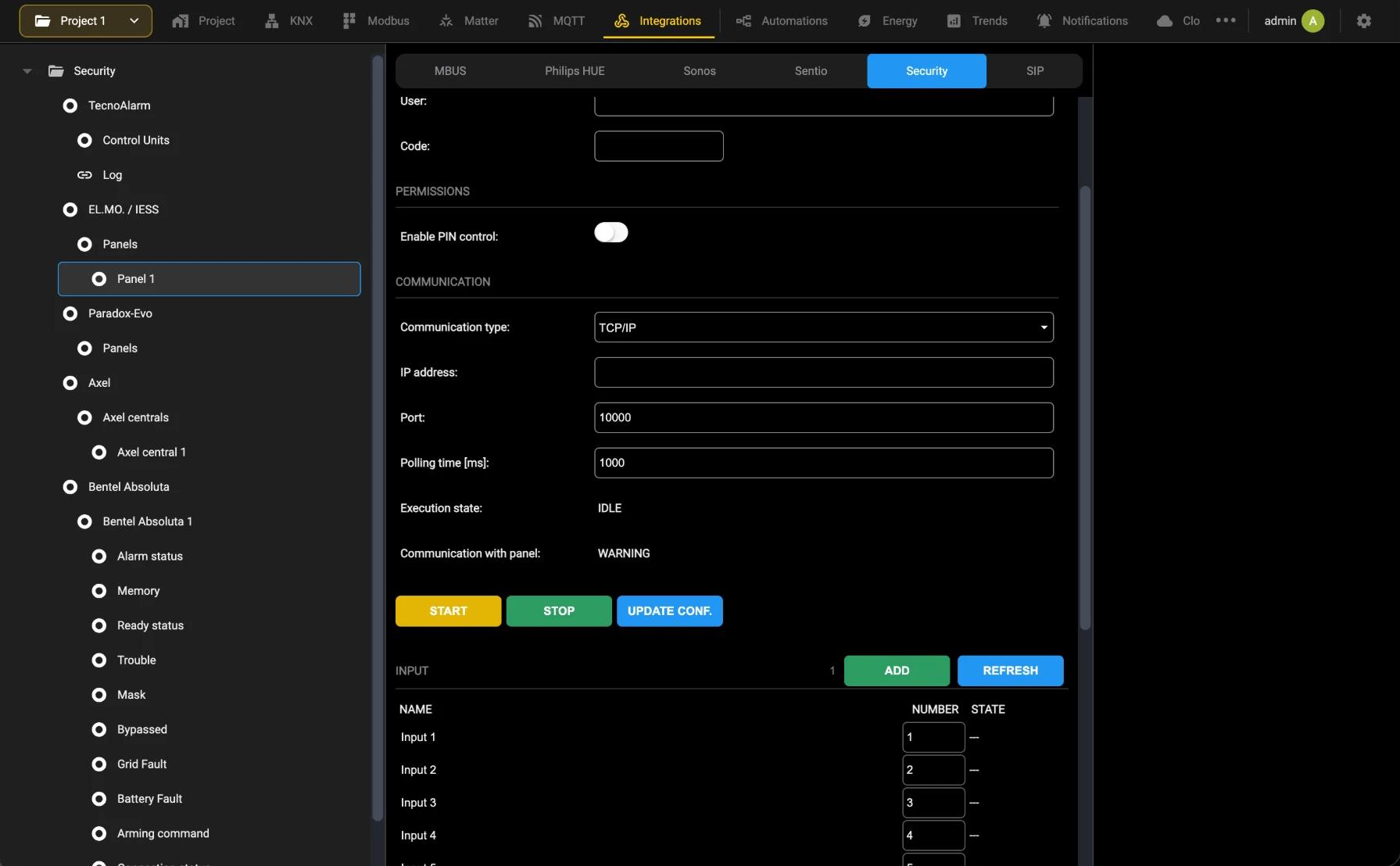
By accessing the detail sheet of a sector, it is possible to change its number (which is also possible in the general list) and, if desired, set a PIN different from the general one.
If, after changing a PIN at a single sector level, you change the panel PIN again, the latter will be applied again to all sub-objects, therefore invalidating the specific PIN.
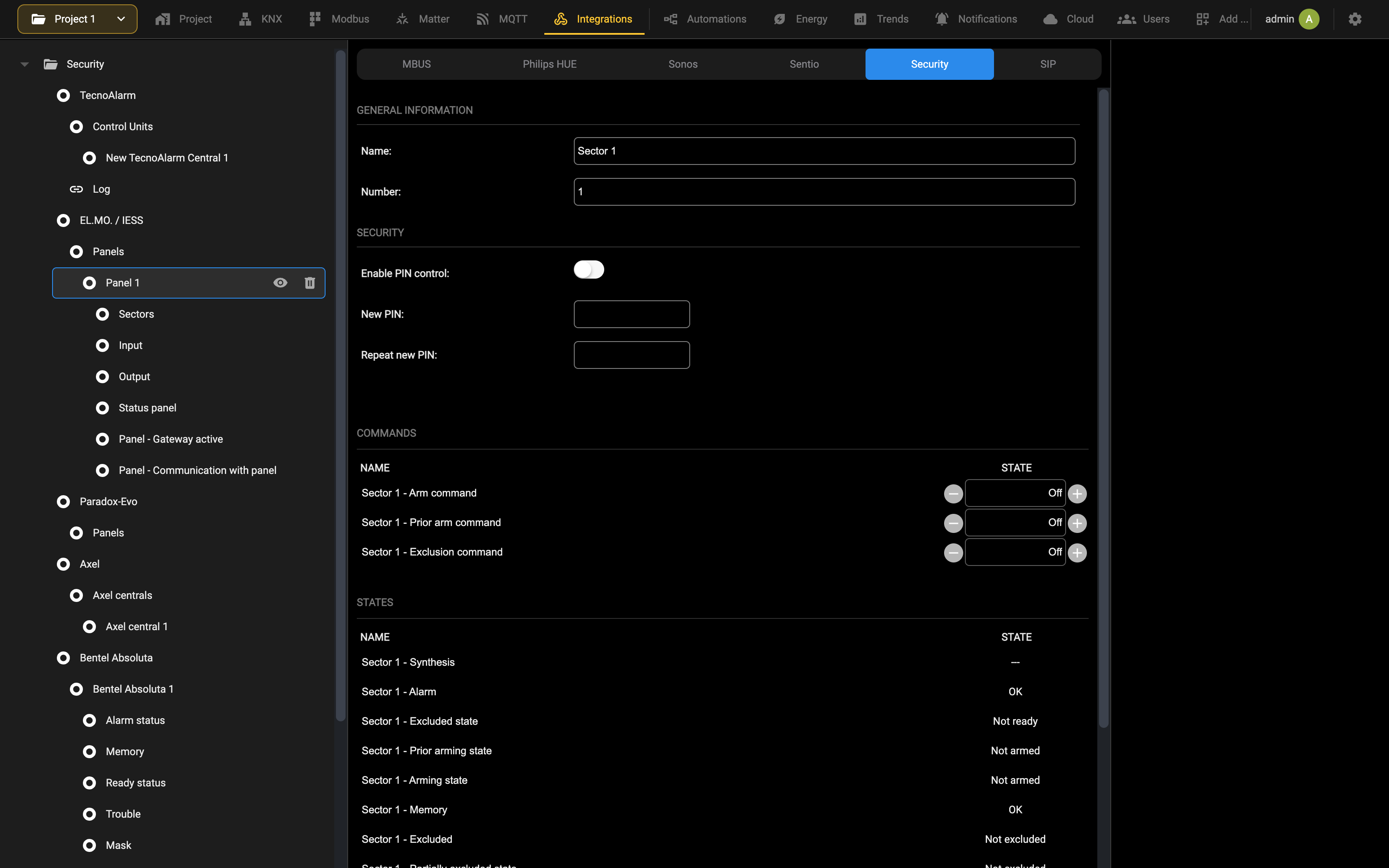
The lists at the bottom of the page allow you to manage the sector arming commands and all its states. To allow the correct updating of the states, it is necessary to associate the inputs with their sectors, thus replicating the configuration carried out within the control panel. To associate one or more inputs with a sector:
- Access the sector tab
- Identify the “Related inputs” section
- Look for the inputs by filtering by source panel
- Drag the inputs into the “Related inputs” section
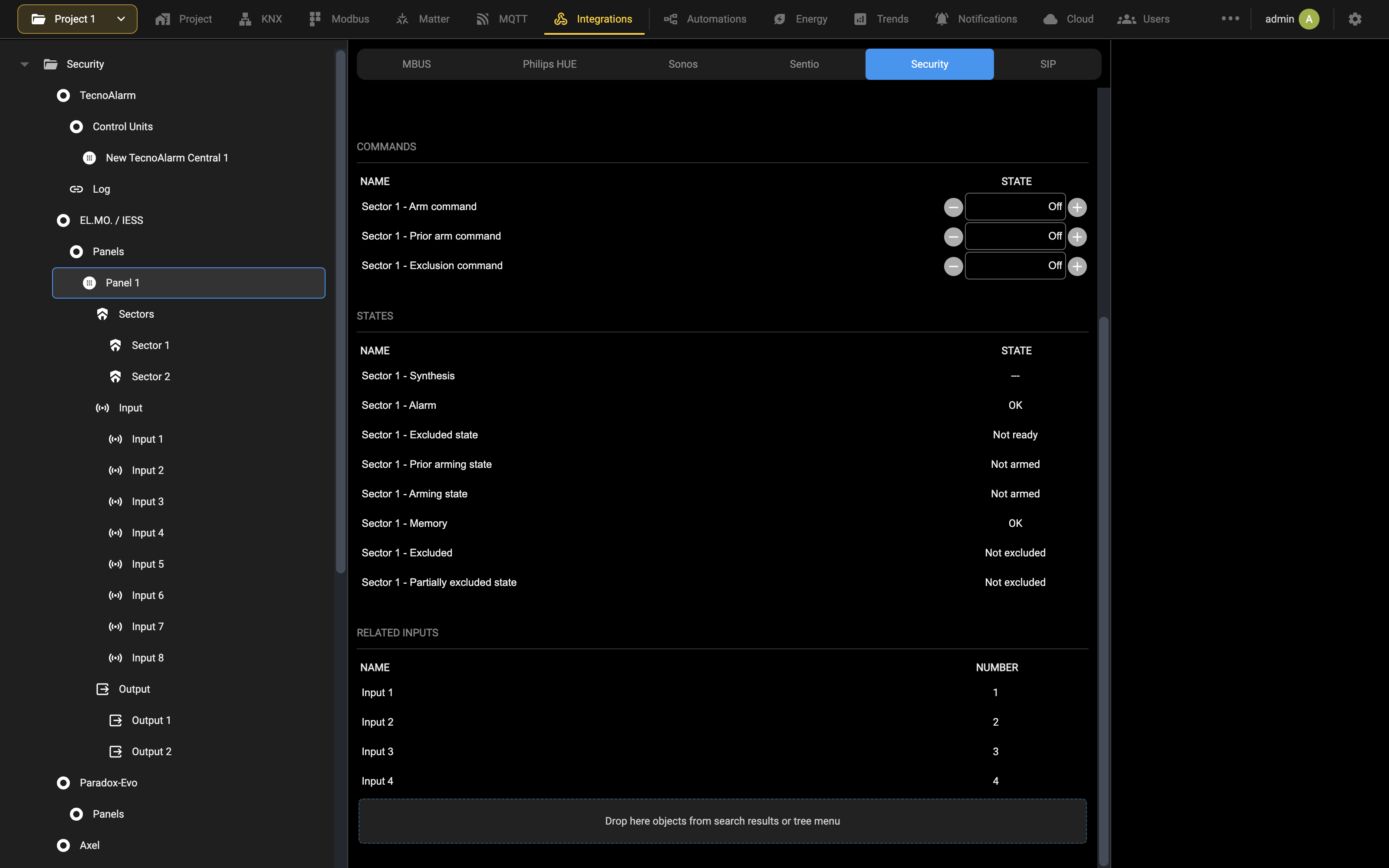
Alternatively, it is possible to proceed in the opposite way, i.e. access the card of an input and drag the sectors, once found by filtering the source panel, into the Related sectors section. In a completely similar way, by accessing the Input and Output tabs, the list of commands available for interaction and available states is summarized.
In all the element types seen previously, the “digest” sub-object is available; it represents a state of synthesis, based on priority among the other available states, and is the graphic element that is reported in the supervision, with an associated color, depending on whether it is a state of exclusion (gray), rest (green), activation (yellow) or alarm (red).
Central States
Pressing ADD in the Status panel section creates the objects that stand for the state of the system.
They can simply be displayed, or used like any other state object seen so far: inside a logic, or as a trigger that fires KNX commands, scenes and notifications.
Visualization
In the Visualization, the control center of the EL.MO. / IESS system allows you to manage the SECTORS, INPUTS, OUTPUTS and CENTRAL STATES as already seen on a general level.
By pressing on a sector, the following detailed pop-up is displayed:
The upper portion highlights the Synthesis sub-object of the sector; the elements below allow you to send different types of arming or exclusion commands. Similarly, by accessing the input and output pop-ups, the list of the states they are in is shown and, in the case of the outputs, the ON/OFF control selector is made available:
Also in this case, the part at the top summarizes the status, while the selector below allows you to send the exclusion command (for the inputs) or activation (for the outputs). All the commands mentioned are executed only upon correct entry of the PIN.
The PIN entered in the DELÉGO Visualization is validated by the webserver, based on what is set in the configuration sections seen previously. This PIN does not necessarily coincide with what is set at the control panel level.
Paradox Evo
Compatibility
DELÉGO talks to the PARADOX control panels of the EVO family over a serial connection, which requires a PRT-3 printer module between the two systems. Only one panel can be managed.
Preparation of the control panel
PRT-3 MODULE The communication module must be installed and configured as shown in the following screenshots:
CENTRAL OUTPUTS To allow DELÉGO to control the control panel outputs, the following configuration must be set up:
Configuration
In the PARADOX EVO control panel data sheet, the following information is requested:
| Name | Identification name for the control panel, used within DELÉGO. |
| PIN Central | Numeric code that will be requested from the user to protect the commands sent to the control panel. |
| Activate | Whether the communication is used. Turning it off keeps the configuration without running it. |
| Port | Port to which the control panel is connected, under the SERIAL heading. Select USB port 1, and use CHECK to verify that a device answers on it. |
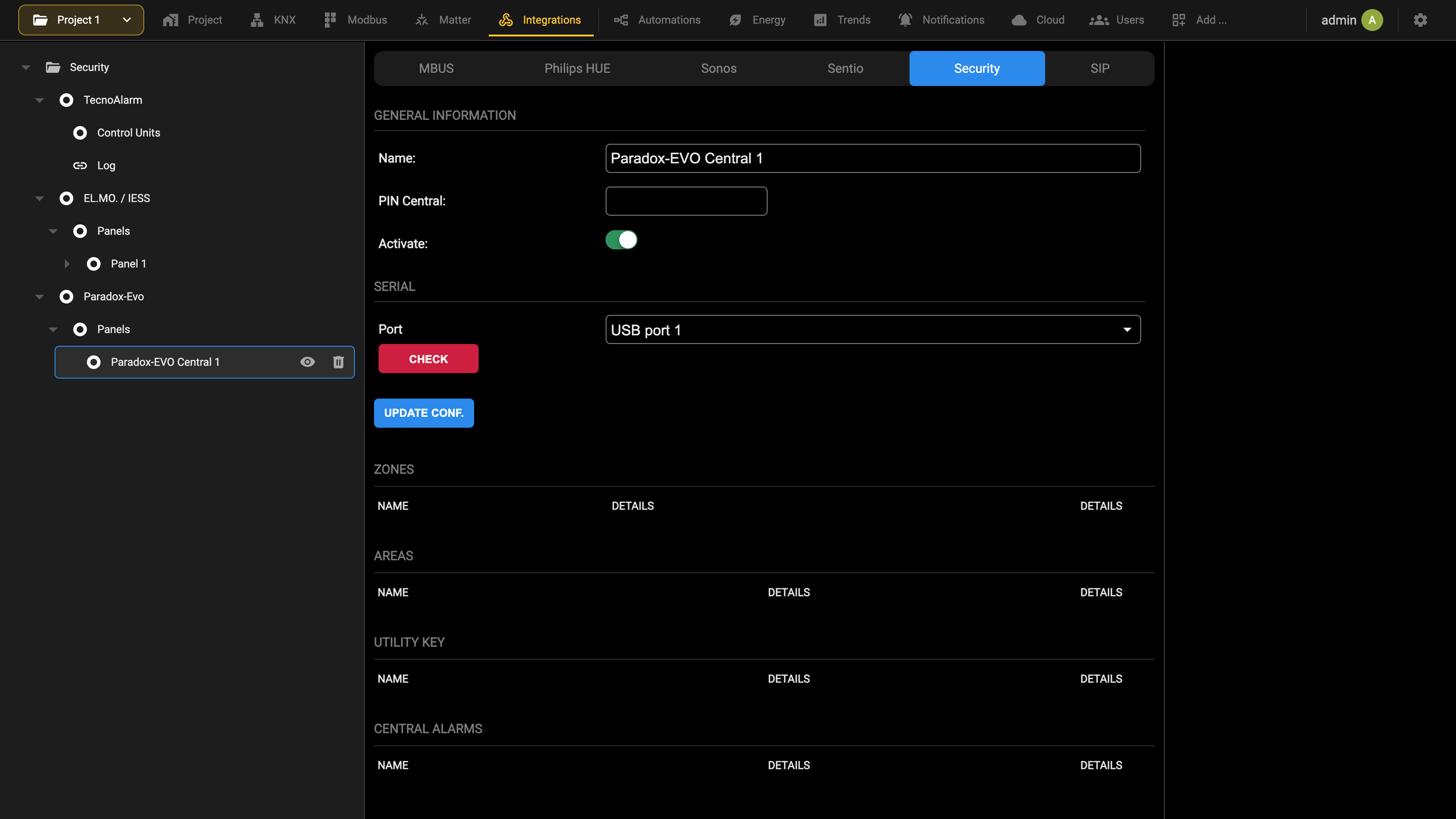
It is possible to define within DELÉGO the AREAS, ZONES and UTILITY KEYS that have been configured in the control panel, using ADD in the corresponding sections of the page. Furthermore, as already seen on a general level, through the ADD button in the Central alarms section, it is possible to create a set of objects that represent the different states / alarms of the system.
Visualization
In the Visualization, the control center of the PARADOX EVO system allows you to manage AREAS, ZONES, UTILITY KEYS and CENTRAL STATES as already seen on a general level.
By pressing on an area, the pop-up shown below is displayed, which allows you to send different types of commands, both in terms of arming modes and for specific call or reset actions. Every command sent to the system is authorized only after the valid PIN has been entered, as previously configured. The PIN entered in the DELÉGO Visualization is validated by the webserver, based on what is set in the configuration sections seen previously. This PIN does not necessarily coincide with what is set at the control panel level.
Axel
Configuring the control panel
The configuration of the AXEL control panels can be done either directly from the keypad or via the Oberon software. Refer to the manufacturer's website (https://www.axelweb.com/) for further information and to download the necessary documentation and material. The procedure described below involves configuration via the Oberon software.
Enabling communication
The first thing to do is enable communication with external entities. To do this, simply modify the “Active service” item found in the Communications and connection → Network services configuration → User connection menu. Remember to send the programming to the control panel for the change to take effect.
Customizing the LAN code
The LAN code is used by the control panel to authorize the communication requested by external entities, such as DELÉGO. Its default value is “000000”, but the installer can change it as required. Simply change the “LAN Code” field found in the Communications and Connection → Network Services Configuration → User Connection menu. Remember to send the programming to the control panel for the change to take effect.
Communication port towards DELÉGO
The communication port towards external entities such as DELÉGO is not expressly mentioned or configurable in the Oberon software. It is important to note that you cannot use the same port used for the connection with the Oberon software, because the protocol adopted is not compatible.
The communication port open towards DELÉGO is always the one immediately following the one configured for the Oberon software. The port configured for the Oberon software is found under the “TCP Port” item in the Communications and connection → Network services configuration → Installer connection menu. The default value for the port reserved for the Oberon software is 8030, consequently the communication port open towards DELÉGO by default is 8031. Remember to send the programming to the control panel to make the change effective.
Delégo Configuration
To be able to use DELÉGO’s Axel features, you need to have an additional activation license. To verify that you have the necessary license, or to enter the code received at the time of purchase, proceed as follows:
- Authenticate on DELÉGO with a user authorized to access the administration
- Open the Settings section and select Modules and licenses
- Identify the “AXEL” entry and check the presence of a valid license (identified with green writing)
- If the license is not present or valid, enter the new code in the corresponding field and press “SAVE”
CENTRAL Once the module license has been activated, it is necessary to configure communication with the intrusion detection control panel; for this purpose:
- Open the Integrations section of the bar, Security tab
- Select “AXEL” then “Axel centrals”
- Use the Add action of the node in the context tree at the bottom to create a new control panel
- Select the new item in the context tree to open its card
The following information is requested:
| NAME | Identification name for the control panel, used within DELÉGO |
| IP ADDRESS | Indicate the IP address of the Axel control panel. |
| PORT | Specify on which port you will communicate with the control panel. |
| PIN | Specify the 6-character numeric PIN used to authenticate the connection with the control panel. |
| MODEL | Select the control panel model via the drop-down menu. The available models are: ● AXTRA808 ● AXTRA1608 ● AXTRA3208 ● SPARKLE120 ● SPARKLE280. Based on the model selection, the corresponding “Central warnings” are created automatically. |
| Areas and zones sub-objects pin | Indicate the PIN to control the objects of the areas and zones. This must be the PIN of a valid user on the control panel, authorized to perform the required actions. It is useful when the objects of the areas and zones are controlled by an event within DELÉGO or by a scene. |
Once this information has been specified, it is necessary to press the UPDATE CONF. button to activate the communication.
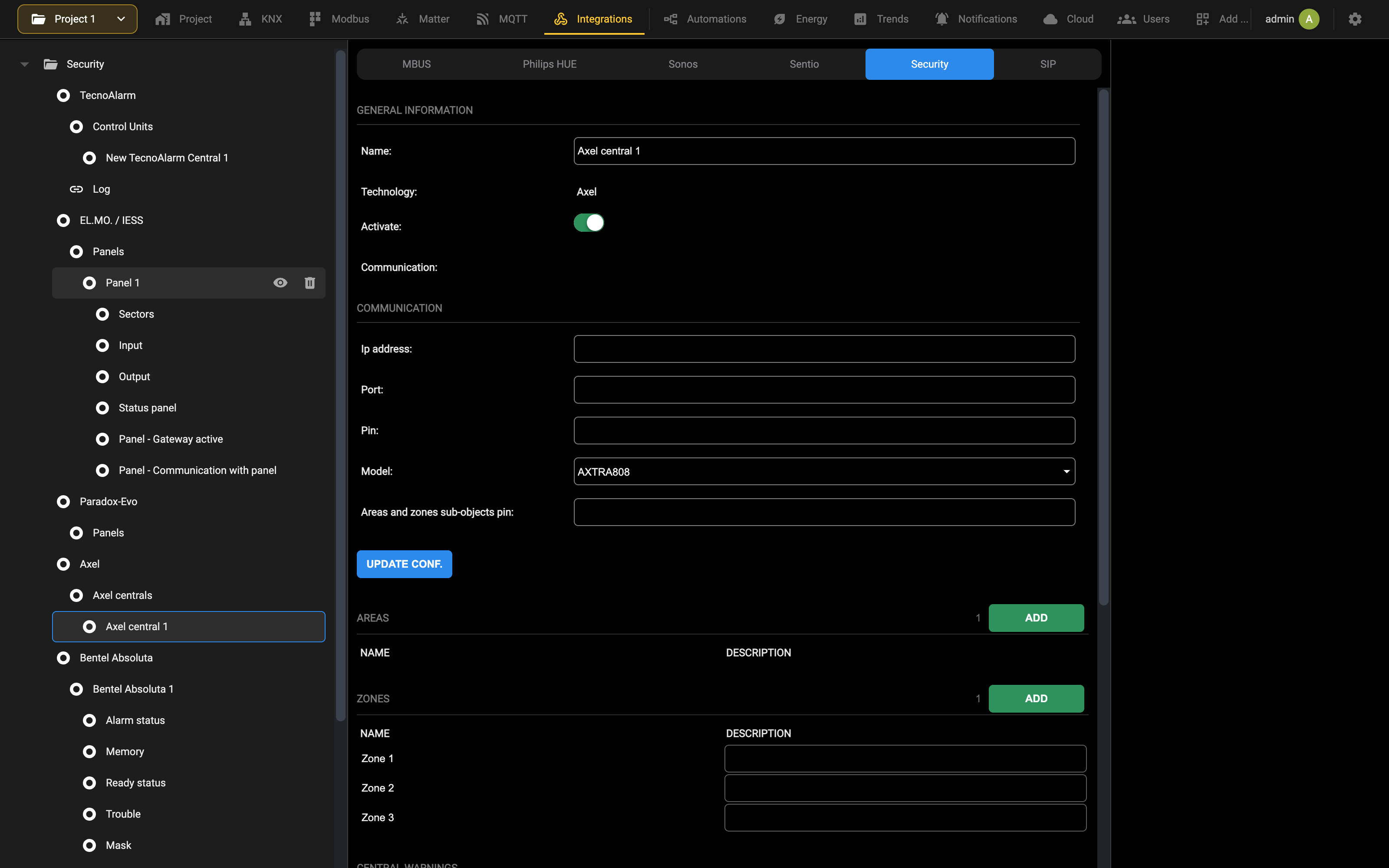
This operation is necessary whenever a structural change is made to the control panel data or to the objects connected to it, with the exception of names.
AREAS
Once the control panel has been defined, it is possible to configure one or more areas associated with it, whose status is monitored by DELÉGO and displayed in the Visualization. To create one or more areas, proceed as follows:
- Access the control panel tab
- Type the number of areas to create in the text field next to the “ADD” button within the “AREAS” section title
- Press the ADD button
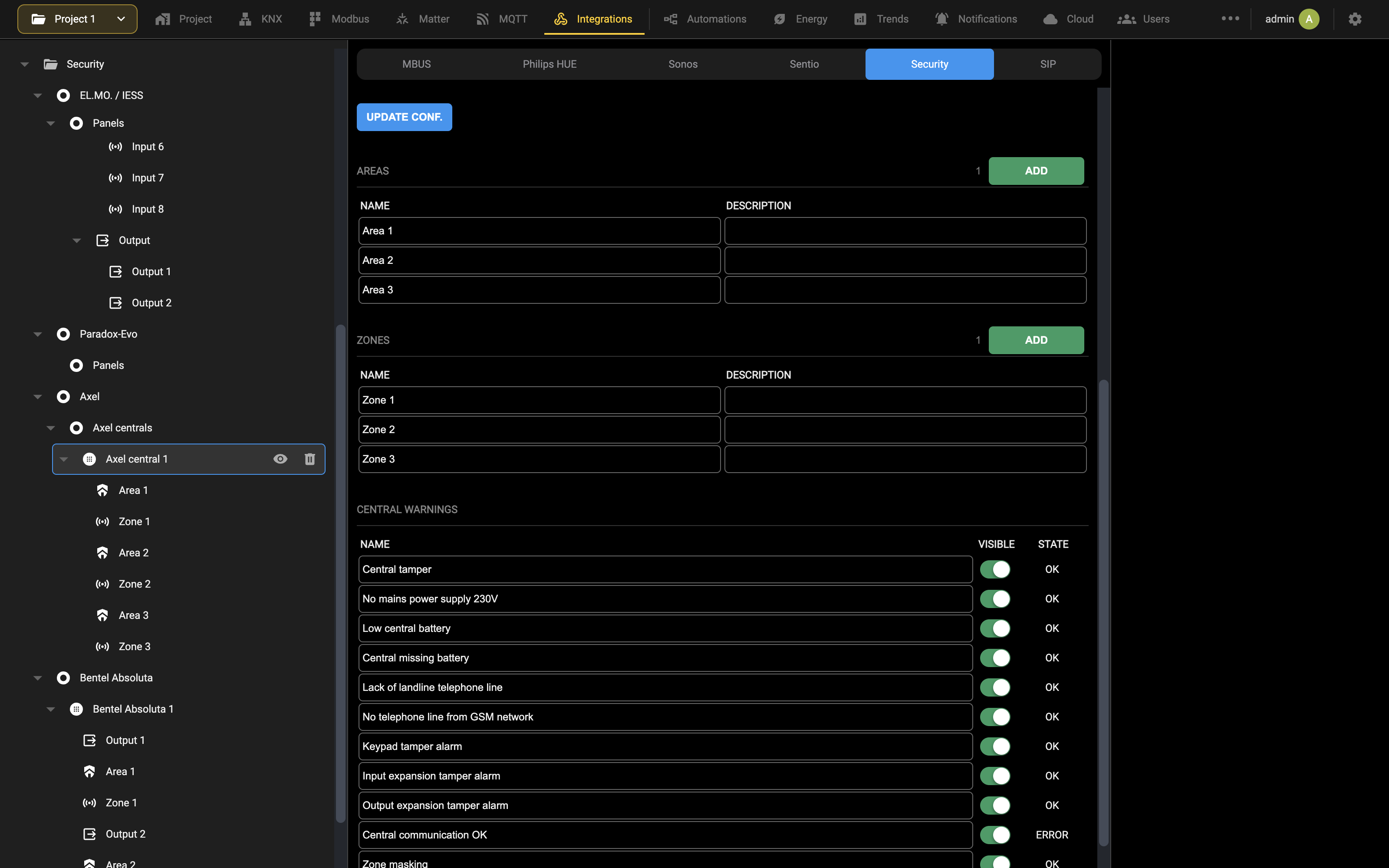
As many areas as requested are automatically created, numbered progressively starting from the last area index present in the project. The sub-objects belonging to the area are also created, which control its state and display. Once created, areas can be renamed simply by typing the new name in the appropriate text box.
It is also possible to access the detail sheet of the areas, through the corresponding edit button; the “DELETE” button, on the other hand, removes (permanently) the area from the project. By accessing the detail sheet of an area it is also possible to view the sub-objects that make up the area itself through the “AREA PROPERTIES” section.
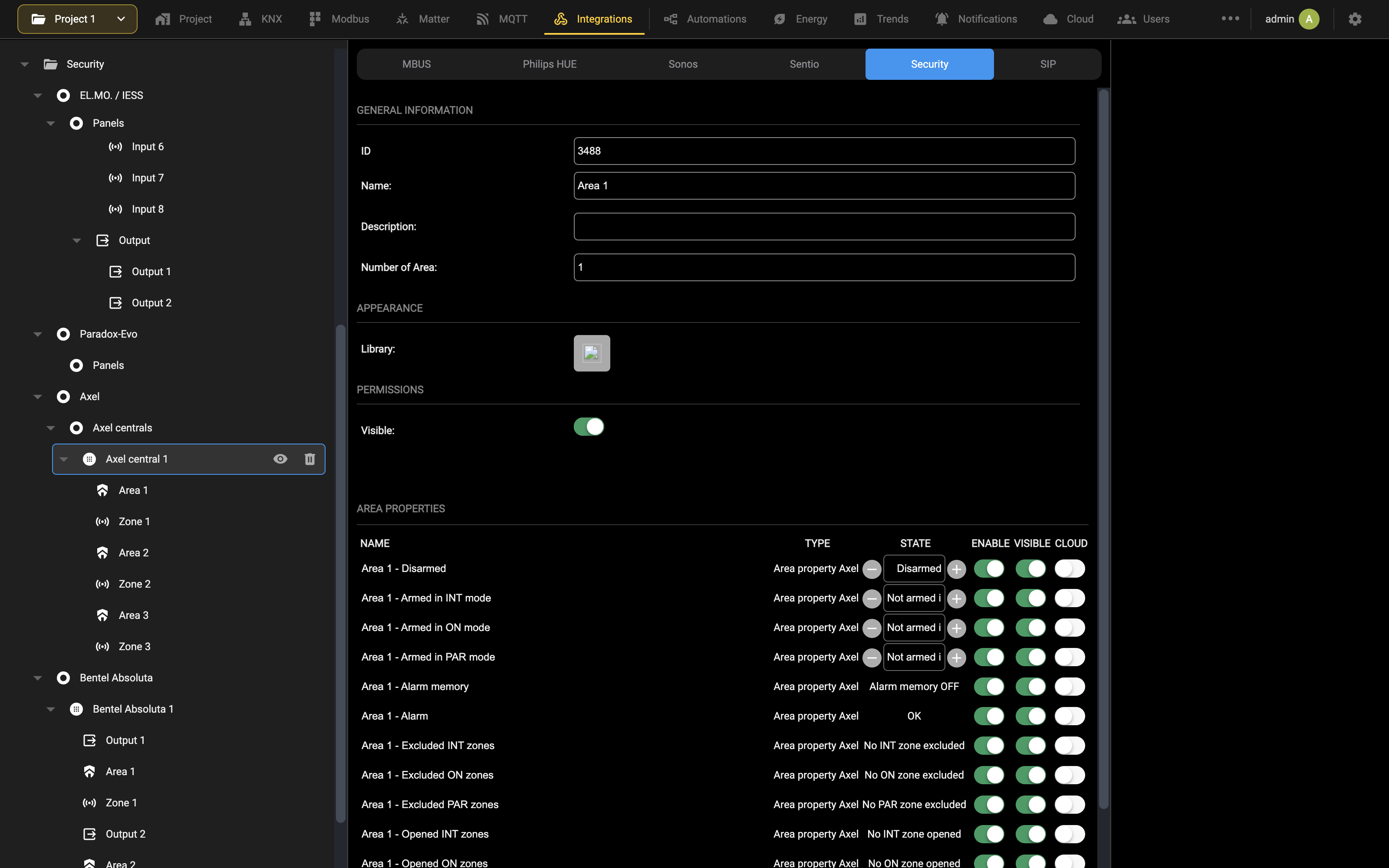
Also in this case it is possible to rename the sub-objects and view their current value through the “STATUS” column; through the same column it is also possible to control the sub-objects that are enabled for the control.
ZONES
In a similar way to what was seen for the areas, it is possible to configure one or more zones within DELÉGO by typing the number of objects to create in the corresponding field and pressing the “ADD” button:
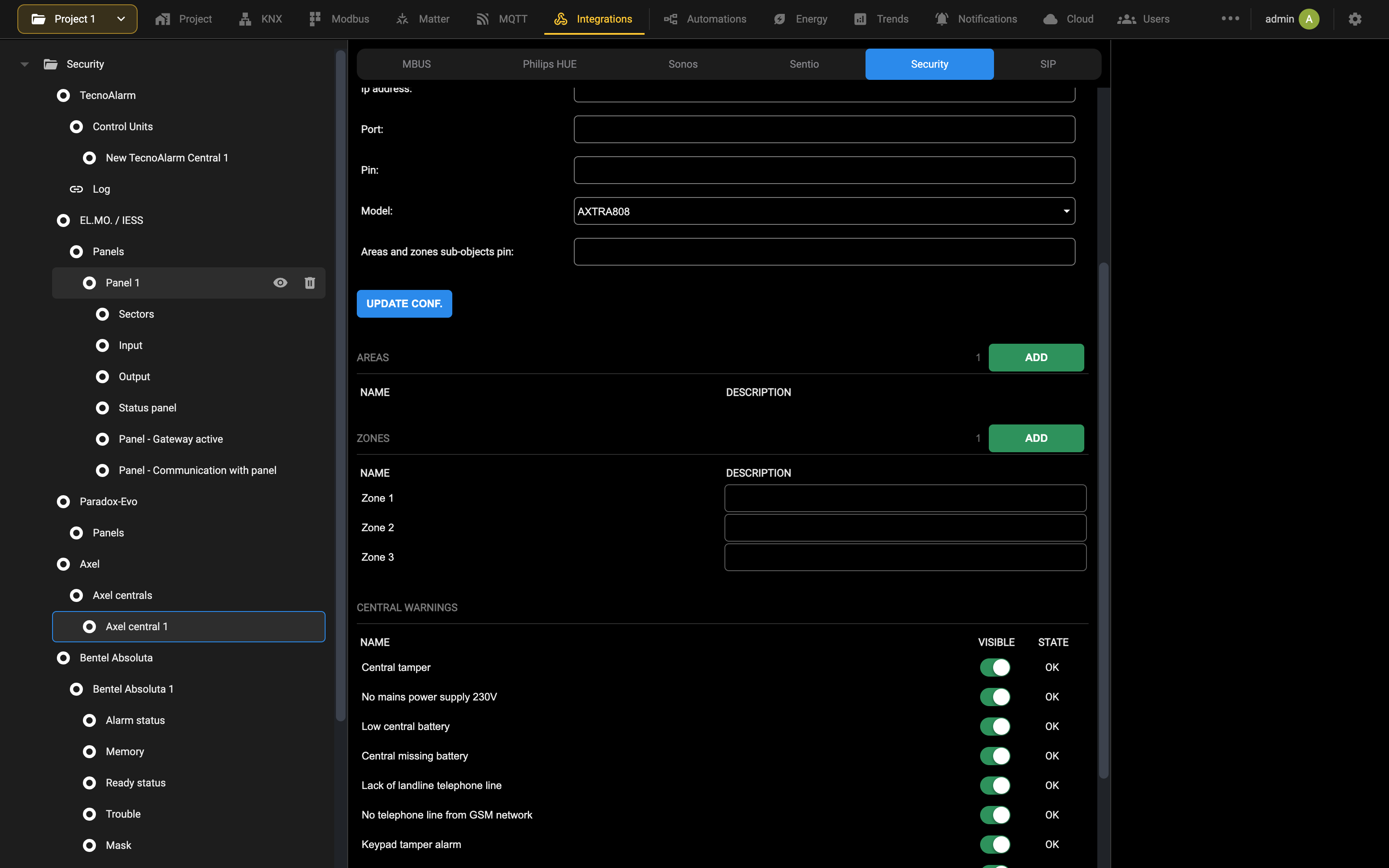
Also in this case, once the objects have been created they can be renamed.
RELATIONSHIP BETWEEN AREAS AND ZONES
To associate the zones that apply to each area, you need to:
- click on the “edit” button (the one with the three dots) next to the affected area 2. click on the “edit” button next to the sub-object of the area concerned (Armed in X mode) 3. search for the desired zones by pressing the title “ZONES ASSOCIATED WITH GROUP X”, or using the search tool at the top left 4. drag the zones to be associated from the search results to the appropriate list in the area detail screen
The objects of the dragged zone are also related automatically to the zone sub-objects corresponding to the same mode. These relationships can also be created by hand, by opening the sub-object of the area.
Central warnings DELÉGO can monitor a series of status information made available by the control panel. These objects differ based on the control panel model; for this reason they are created dynamically when a model is selected in the control panel detail sheet; on the contrary, if no model is selected (option “---”) any “Central warnings” objects previously created by selecting a model are eliminated.
Automatic creation of central state objects takes a few seconds. Do not close the window or perform any other operation until the operation is complete.
The following figure shows an example of a control panel with configured alerts:
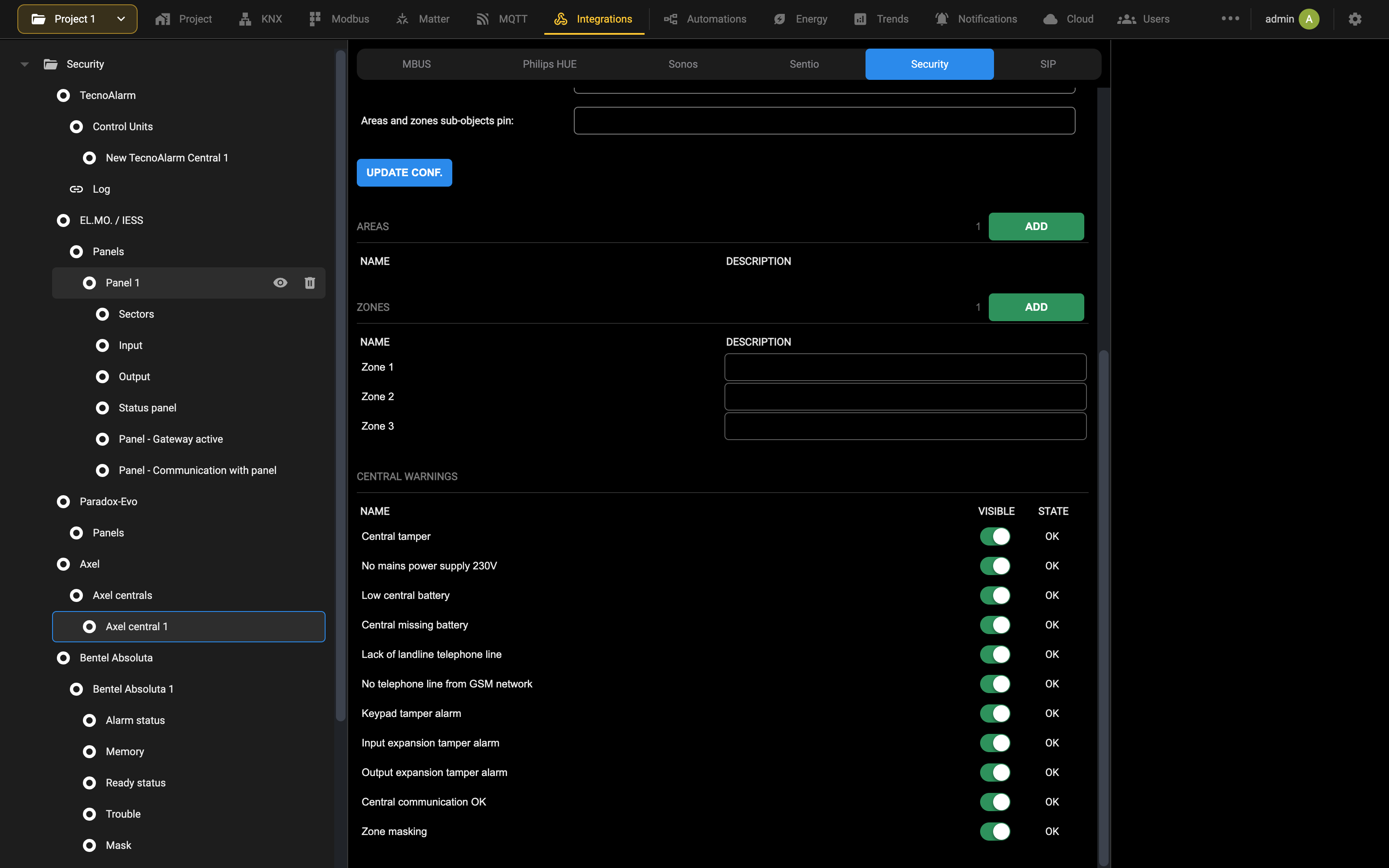
Usage
Once an Axel control panel and the related sub-objects have been configured, they are automatically available for use in the FRONTEND, in the “SECURITY” section of the navigation menu. This page allows you to quickly access the complete list of areas, zones and central alerts (toolbar at the top right) and manage them as detailed in the following paragraphs.
AREAS
The areas are presented in the FRONTEND in the form of “widgets”. The icon at the top right highlights the arming status, as exemplified in the following figure:
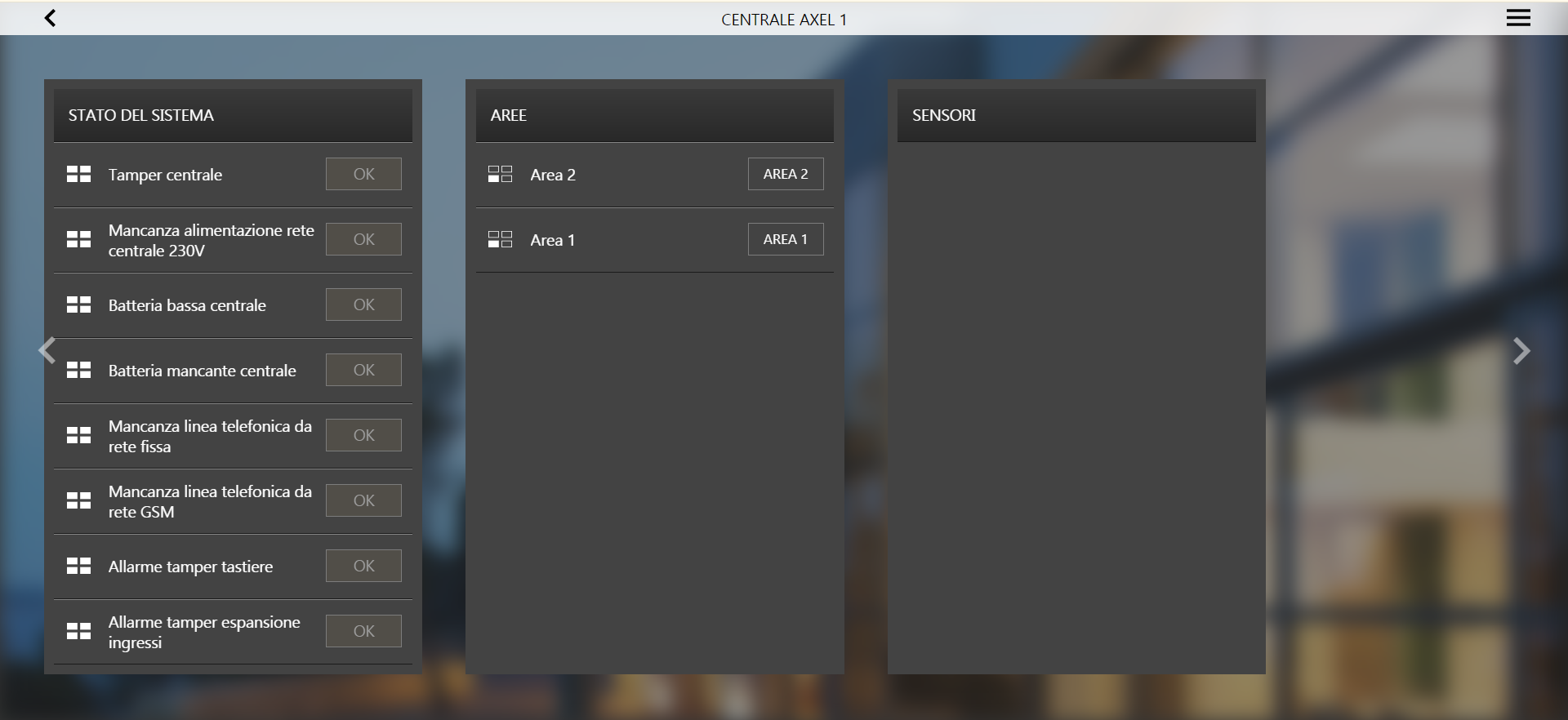
Pressing on an area opens the relevant detail popup showing the states of its sub-objects...
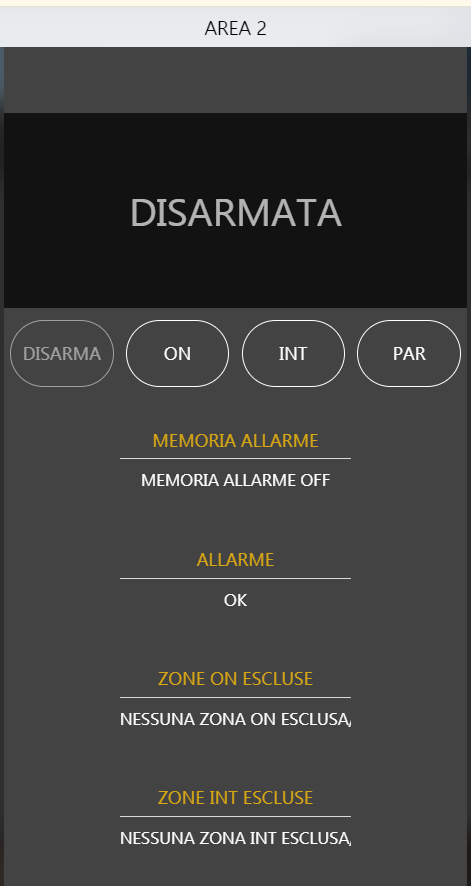
... and provide the following direct commands:
- DISARM: disarming the area
- INT: arming the area in INT mode
- ON: arming the area in ON mode
- PAR: arming the area in PAR mode
By pressing a command button, the user is asked to specify the numeric PIN set in the control panel card: ZONE
Similarly, the zones appear as “widgets” which allow the exclusion or, vice versa, the enabling of previously excluded zones; also in this case, the icon at the top left highlights the current status of the zone, and any command in the detail popup must be authorized by the user by entering the PIN specified in the control panel card.
CENTRAL WARNINGS
The control panel alerts are presented in the FRONTEND in the form of a “widget” and show a general picture of the “health status” of the control panel:
Bentel Absoluta
Compatibility
DELÉGO talks to every BENTEL control panel of the ABSOLUTA family, over the LAN.
Preparation of the control panel
NETWORK COMMUNICATION Before configuring DELÉGO, it is necessary to set up communication via the network, through the IP section of the BENTEL BOSS configuration software:
In particular, it is necessary to set the following parameters:
This information must then be entered consistently in DELÉGO.
Central configuration
In the BENTEL ABSOLUTA control panel card inside DELÉGO, the following information is requested:
| NAME | Identification name for the control panel, used within DELÉGO |
| USER | Identification number of a valid user on the control panel, and related access code |
| USER CODE | This code is used to interact with the control panel; the user must have the necessary control rights |
| PIN CONTROL | Enables validation of commands by DELÉGO and allows you to set a control PIN valid for all objects associated with the control panel. It is possible to subsequently specialize the PIN for each sub-object, through its detail sheet. |
| Communication type | Set TCP/IP |
| IP ADDRESS, TCP port | Enter the control panel address and port 3064 unless otherwise indicated |
| POLLING TIMER | Specify a waiting time (in ms) between one status query and the next. Default value: 1000 |
| AES KEY | Allows you to enable communication encryption with an AES key, to be indicated in the appropriate field; refer to the configuration carried out via BOSS software |
The following status indicators are also available:
| Gateway STATUS | Highlights whether the DELÉGO communication gateway is running |
| Connection status | State of effective communication with the control panel. Useful for diagnosing any problems of misalignment with the security system |
Once the communication parameters have been configured, start the gateway with the START button; in the event of any subsequent changes, press UPDATE CONF. so that they are implemented.
Central States
When the control panel is created, the following general states are made available:
Once communication is started, they are automatically aligned with the control panel. It is possible to establish which of them are visible in the Visualization by acting on the corresponding VISIBLE flag. Among these, the general command is also available INSERT COMMAND
through which it is possible to force a simultaneous arming of the entire system, in one of the possible partial arming modes (A, B, C or D). All other items in the list are read-only.
Areas, zones and outputs
It is possible to define the AREAS, ZONES and OUTPUTS (panel outputs) within DELÉGO using ADD in the corresponding sections of the page:
By accessing the detail sheet of an area, it is possible to change its number (which is also possible in the general list) and, if desired, set a PIN different from the general one.
If, after changing a PIN at a single area level, you change the panel PIN again, the latter will be applied again to all sub-objects, therefore invalidating the specific PIN.
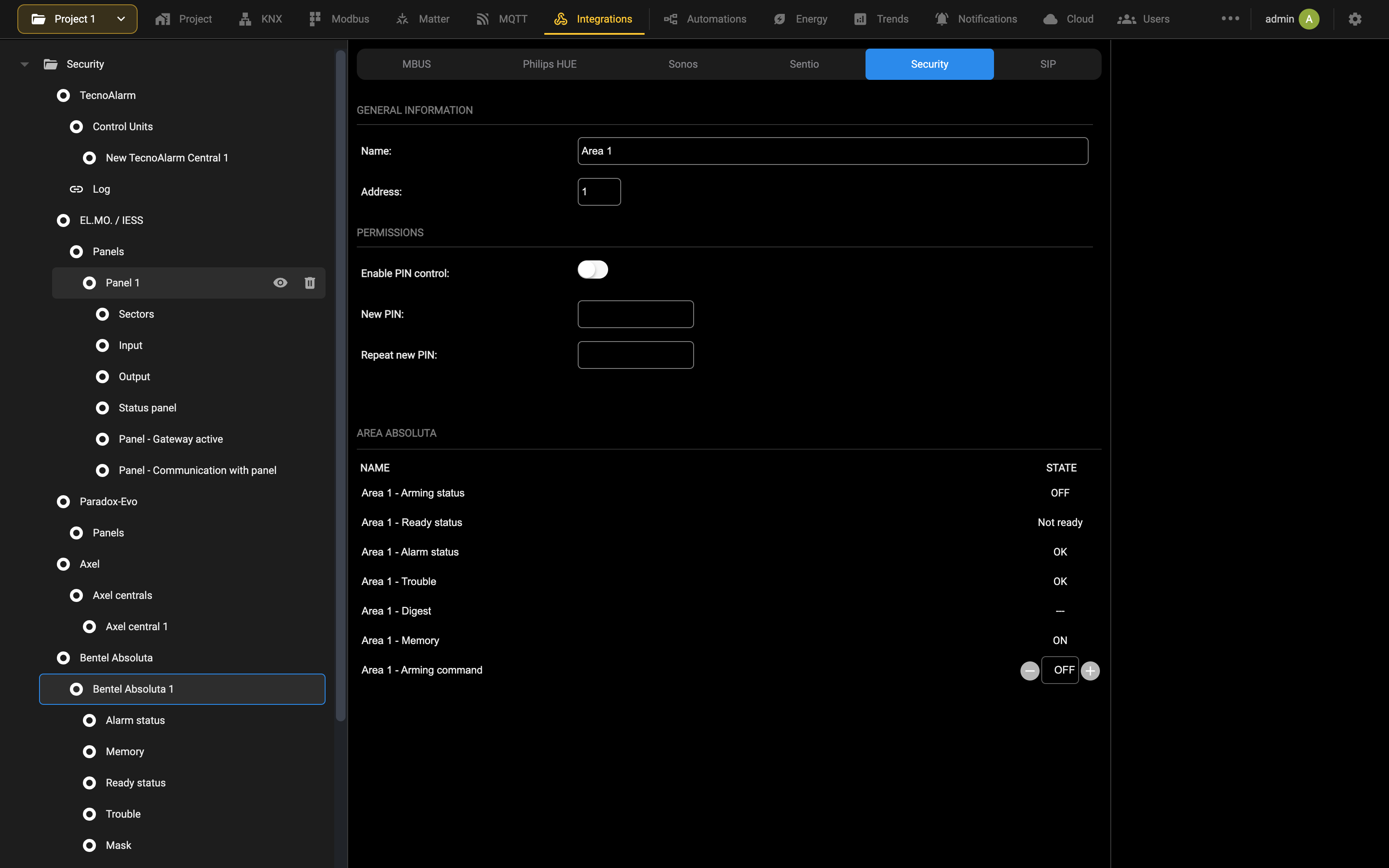
The list at the bottom of the page allows you to manage all the individual aspects of the area; it is also possible to force an arming command, using the appropriate element. The individual objects in this list not only allow you to control the status of an area, but can be associated with other elements of supervision, through logic or as triggers to perform actions (e.g. KNX commands, scenes, notifications and so on).
In a completely similar way, by accessing the tab of a zone, the following is shown:
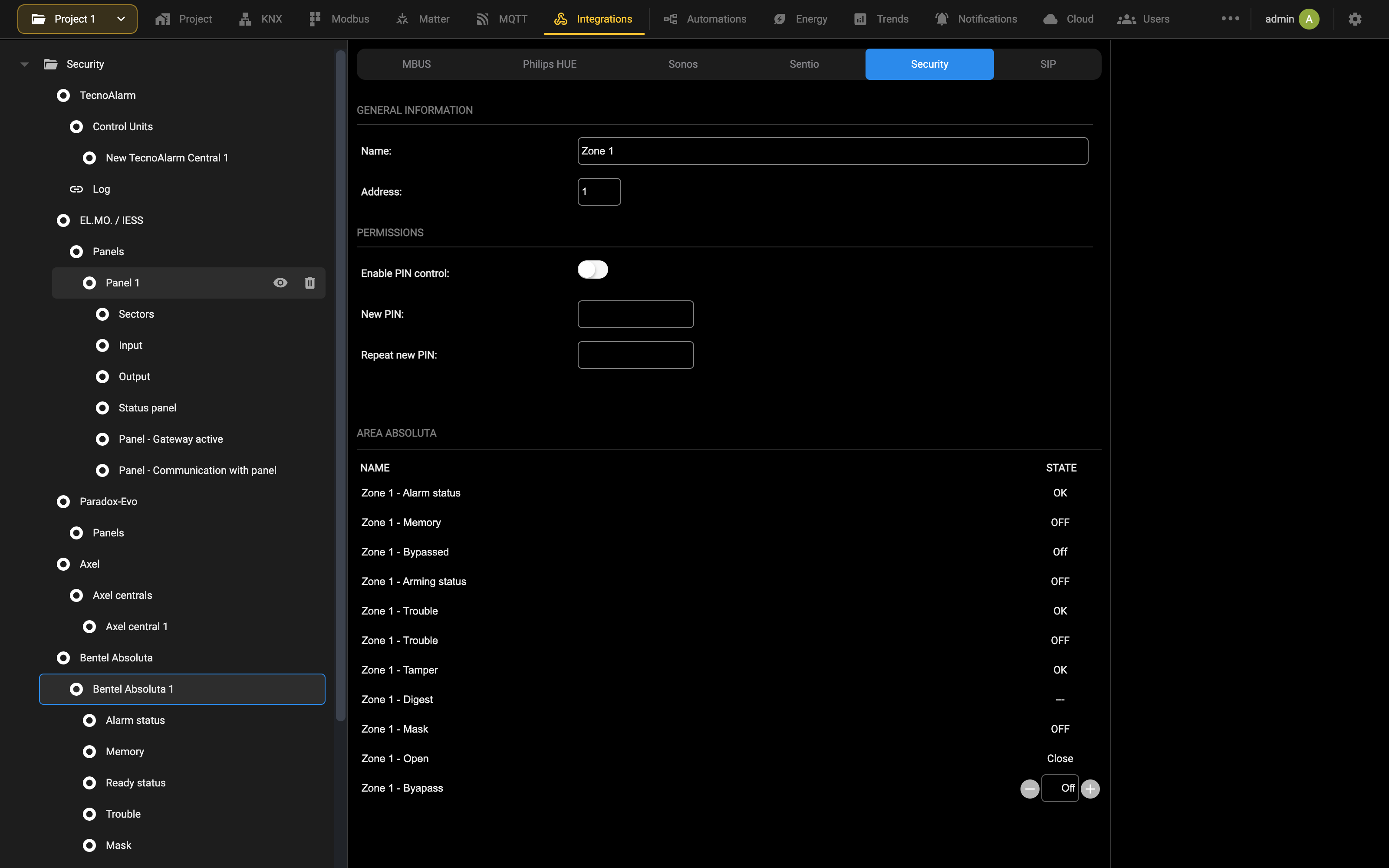
Also in this case, in addition to monitoring individual aspects of the sensor, it is possible to send an exclusion command. Finally, the detail sheet of an OUTPUT of the control panel allows you to control it and view what state it is in at a given moment.
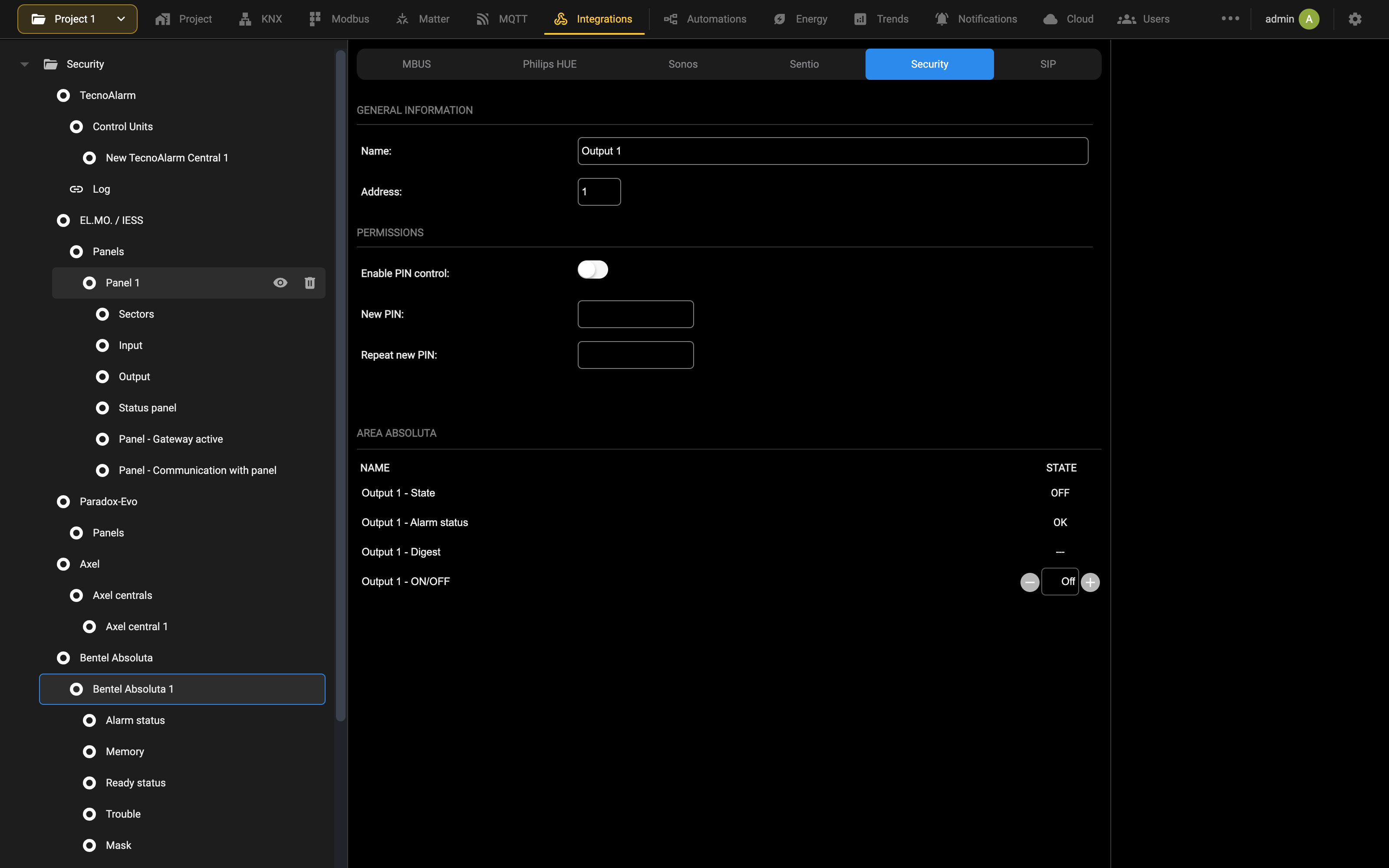
In all the element types seen previously, the “digest” sub-object is available; it represents a summary state, chosen by priority among the other available states, and is the graphic element that is reported in the supervision, with an associated color, depending on whether it is a state of exclusion (gray), rest (green), activation (yellow) or alarm (red).
Visualization
In the Visualization, the control center of the BENTEL ABSOLUTA system allows you to manage the AREAS, ZONES, OUTPUTS and CENTRAL STATES as already seen on a general level.
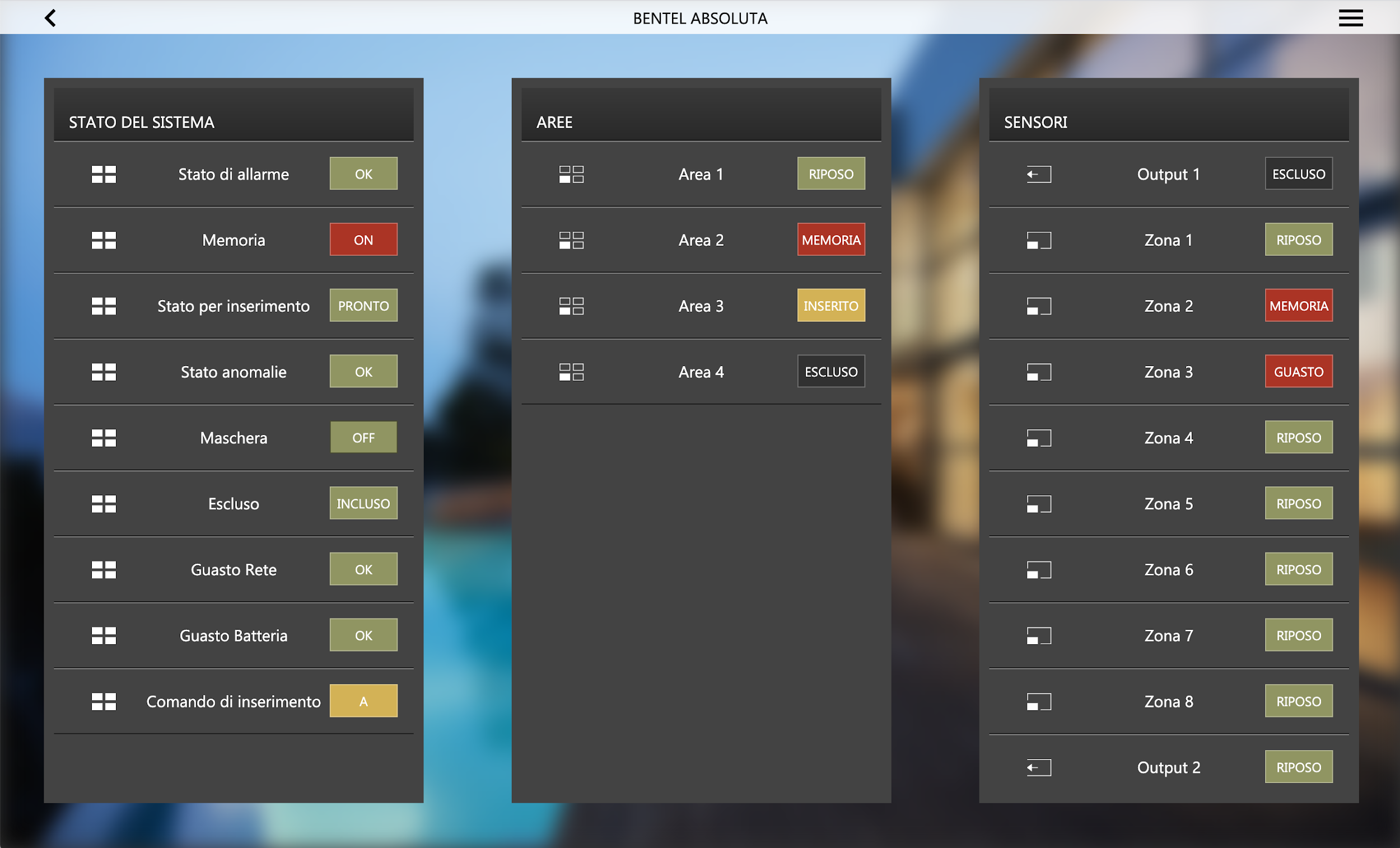
By pressing on an area, the following detailed pop-up is displayed:
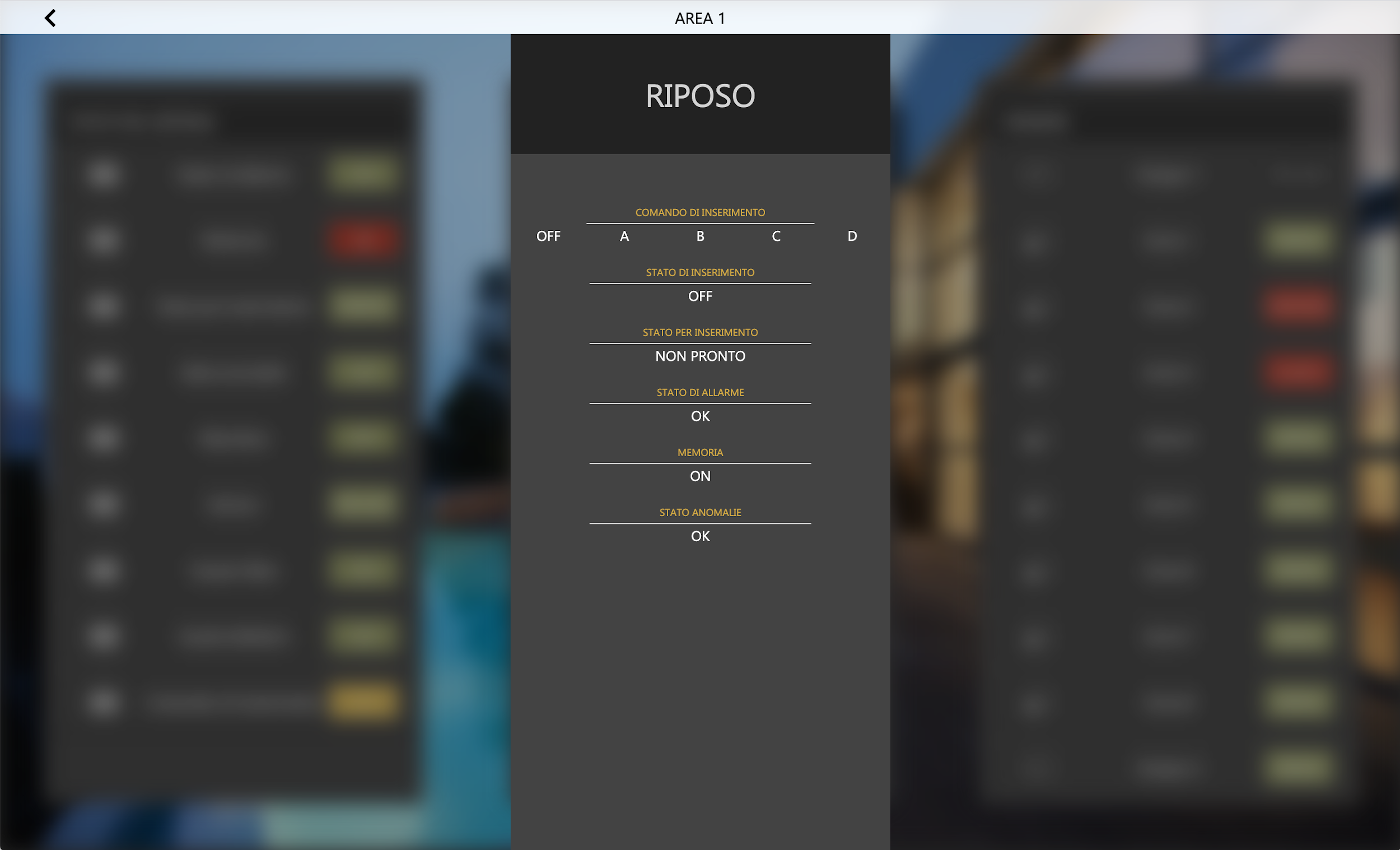
The upper portion highlights the state of synthesis of the area; the first element below allows you to carry out an arming command, in one of the partitions A...D, or to disarm; you are asked to enter a PIN to validate the operation. The subsequent elements are read-only, and highlight the different states in which the area is found. Similarly, by accessing the ZONE and OUTPUT pop-ups, the list of the states they are in is shown and, in the case of the outputs, the ON/OFF control selector is made available:
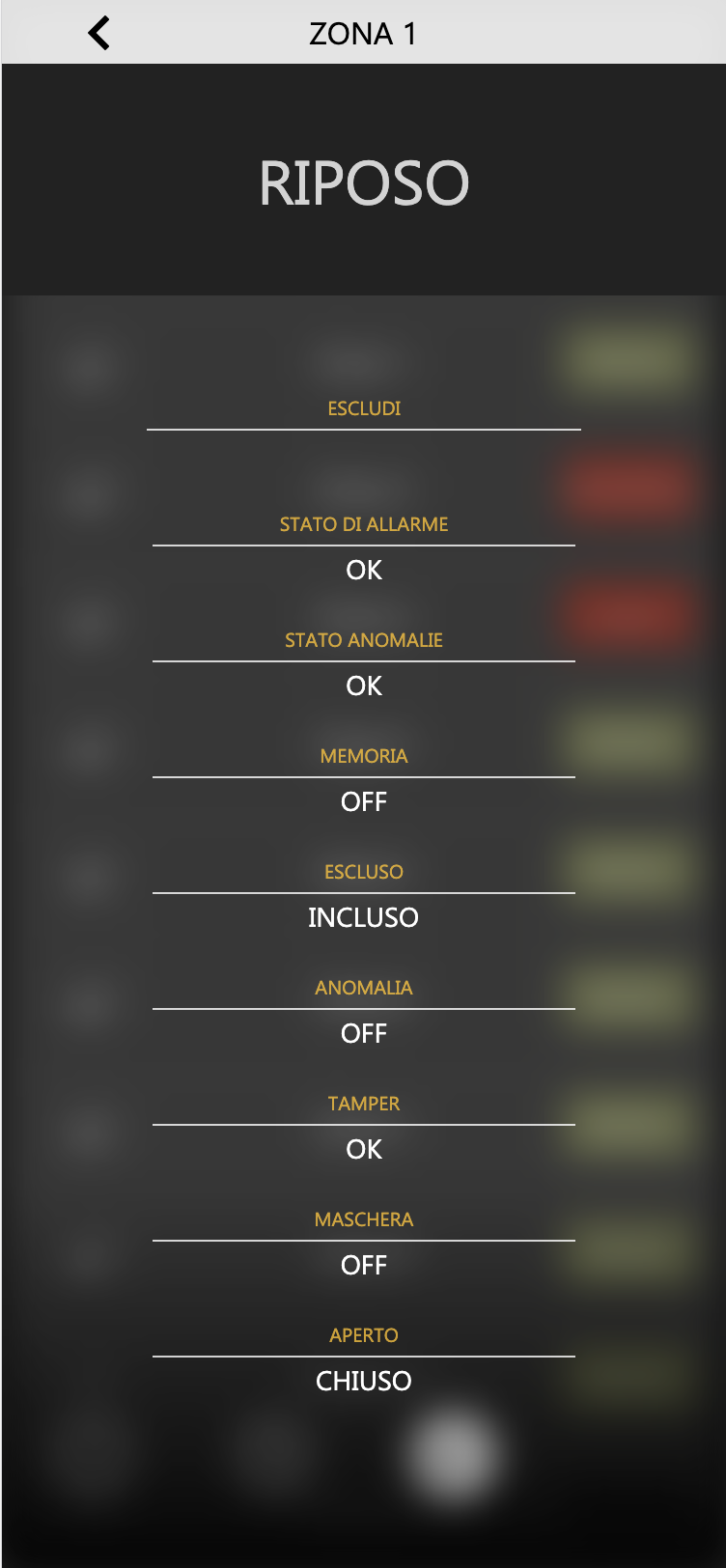
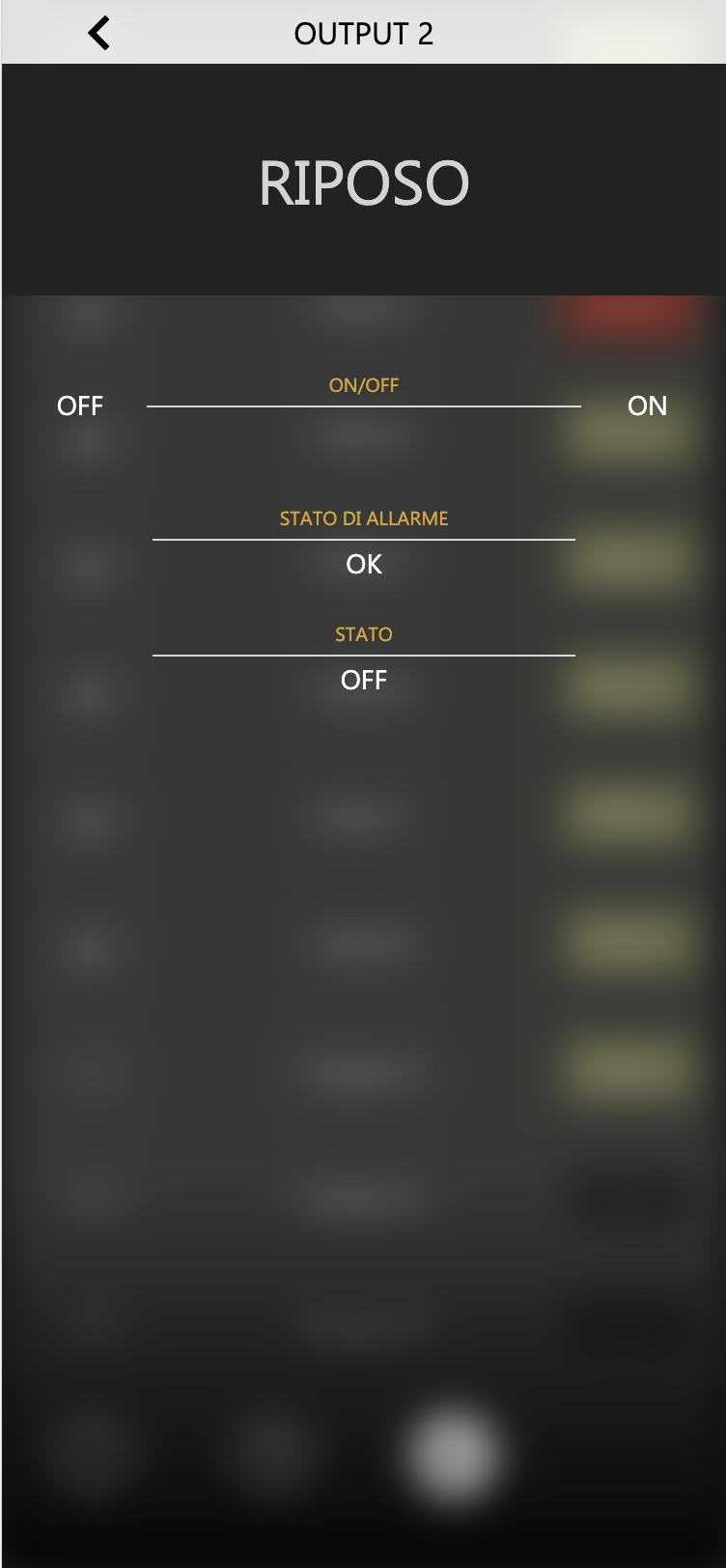
The PIN entered in the DELÉGO Visualization is validated by the webserver, based on what is set in the configuration sections seen previously. These PINs do not necessarily coincide with what is set at the control panel level.
VoIP Intercom
Introduction
This chapter contains all the information for the configuration of DELÉGO SERVER as a SIP server for IP phones and door intercom phones. In particular, a detailed description is given of the specific configuration of DICO, the multi-function intercom door station with face recognition by EKINEX.
Ekinex Studio
Starting from release 2.8.0 it is no longer recommended, as the primary solution for intercom applications, to use DELÉGO SERVER as the SIP server for DICO and the DELÉGO PANELs.
For an easier configuration of the door phone and the panels, which no longer requires a SIP server like DELÉGO SERVER, it is recommended to use the new EKINEX STUDIO software.
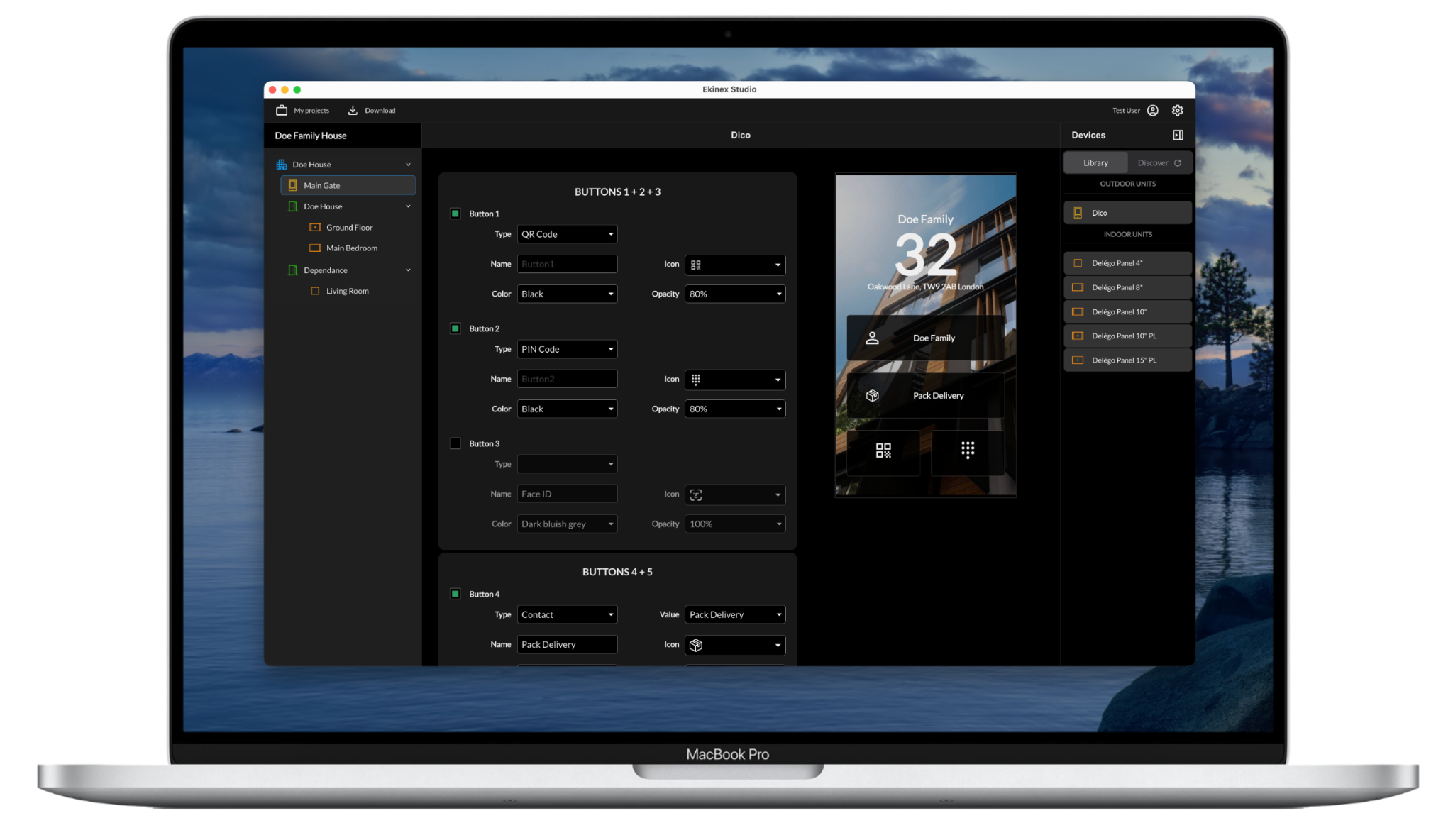
The functionalities described in this chapter remain available for special applications and for third-party devices, and for compatibility with installations created previously.
General overview
DELÉGO SERVER orchestrates the door entry system: DICO door stations, DELÉGO PANEL indoor units and third-party devices, whether door stations or IP phones. Audio and video calls are then handled together, and the same call can reach devices of different makes.
SIP protocol
The communication protocol used for the door entry management is called SIP; any third-party device to be integrated must comply with this standard. All the involved devices must be in the same local network; the DICO app for smartphones works with the Ekinex Cloud in a different way, and for this reason, it is not a topic for this chapter.
The SIP protocol requires a (single) server that coordinates all the other devices, acting as clients; in the
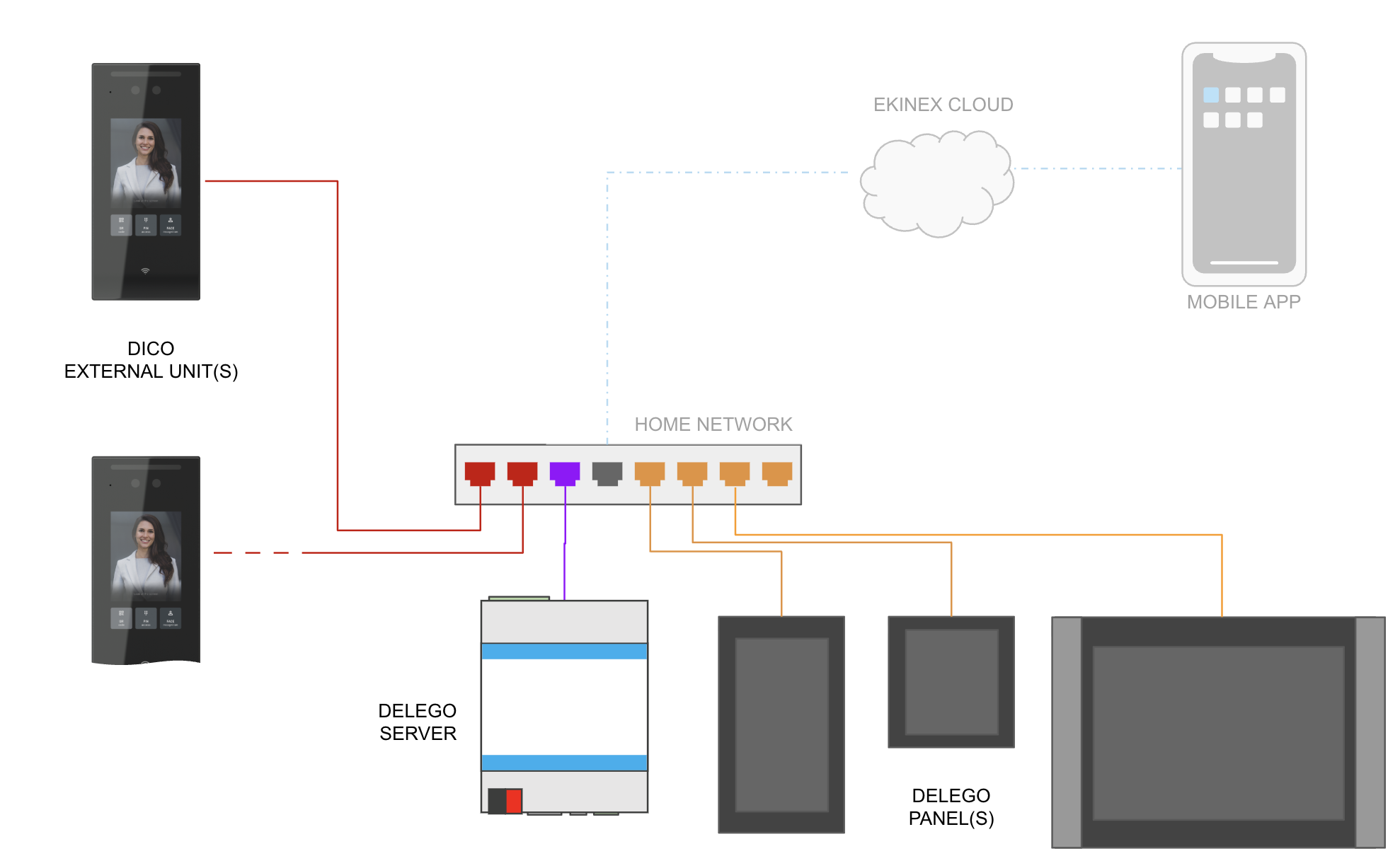
Ekinex solution, the SIP server can be the DELÉGO SERVER or a DELÉGO PANEL belonging to the SMART series (8” or 10”). This chapter covers the case of the DELÉGO SERVER as the SIP server.
In order to operate together, the SIP clients must register themselves to the SIP server, with a unique number (the username) and a password:
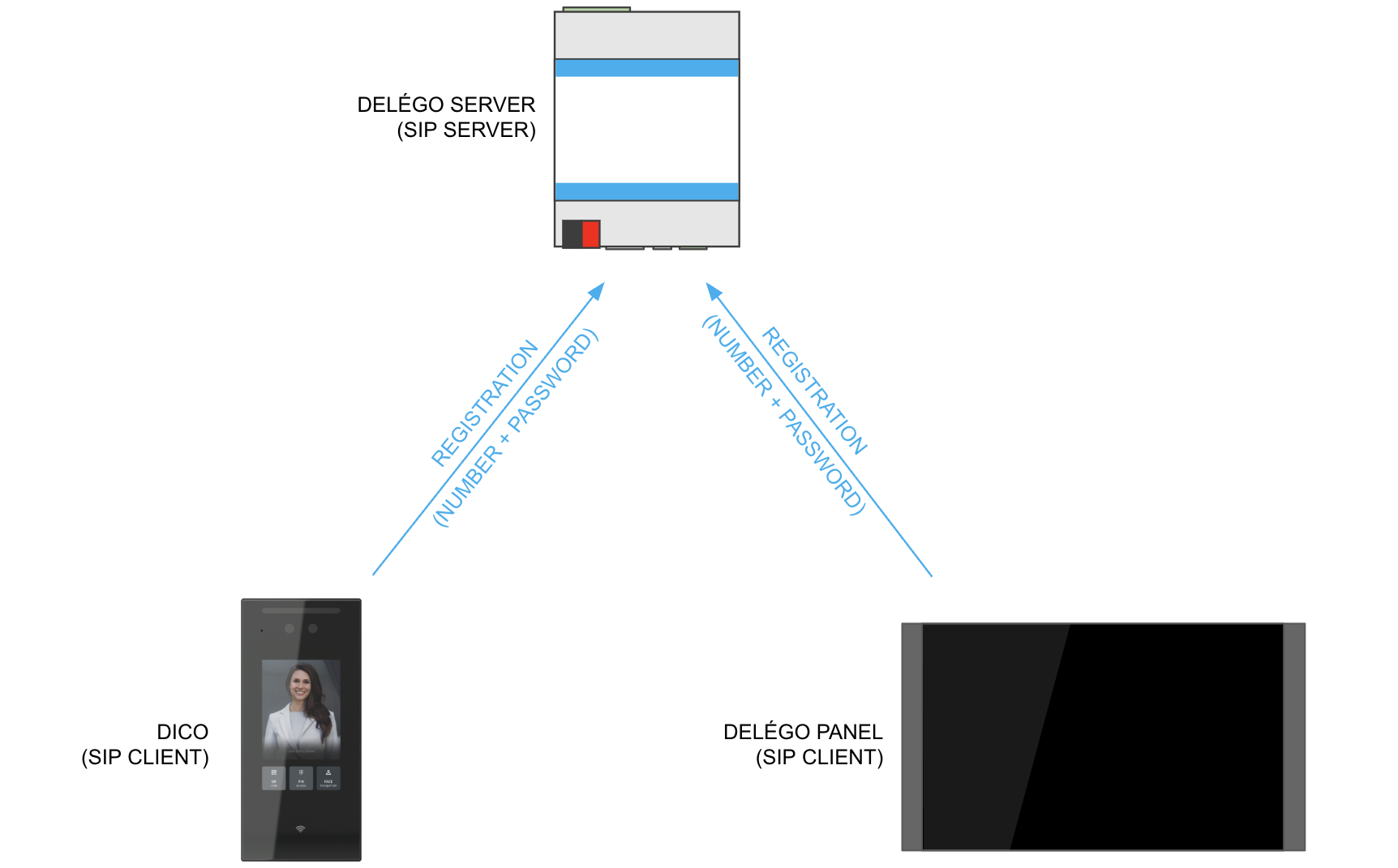
Once they are registered, they can originate calls, asking the server to be put in communication with a number, or receive calls from other devices, routed by the server.
The number called by a SIP client can be either another SIP client or a call group. In this second case the server makes every SIP client belonging to that group ring, and the first one to answer handles the call (and the other called parties stop ringing).
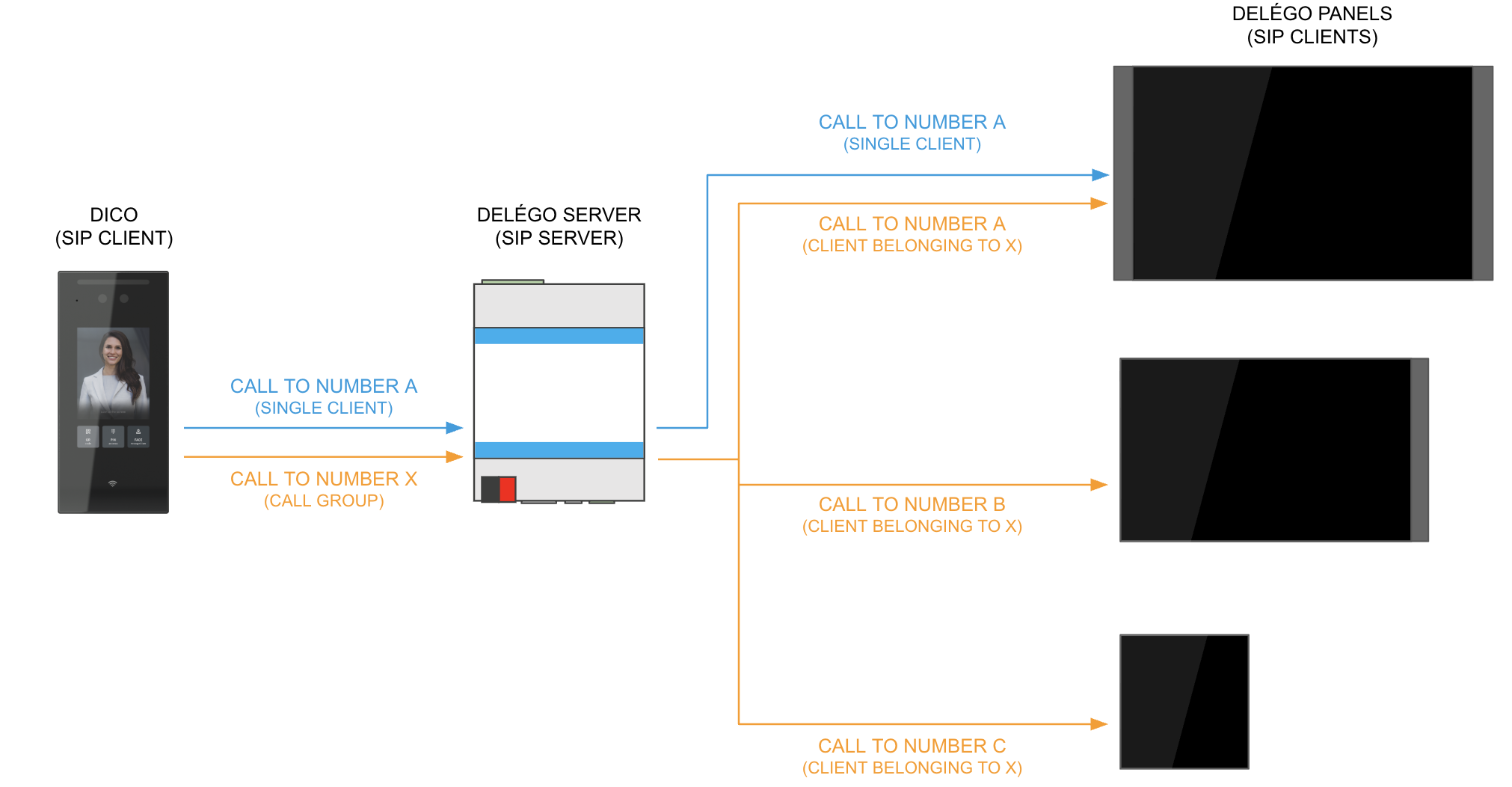
Due to these principles, the configuration requires the following steps to be followed:
- The SIP clients (DICO, DELÉGO PANEL or third-party devices) must be declared in DELÉGO SERVER by assigning a number and a password 2. The same number, password and the IP address of the SIP server, must be entered in the SIP account configuration of the clients, in order to instruct them how to register 3. One or more call groups must be created, if multiple calls have to be made (e.g. when a button is pressed on the display of the DICO door station)
Once these steps have been completed, all the interested devices can communicate together with audio and video calls. Normally, in order to complete the configuration, the following operations must be done on the outdoor unit(s) and the touch panel(s) - but they do not strictly affect the SIP communication coordinated by DELÉGO SERVER (and therefore are not covered by this chapter):
- The buttons on the display of DICO (or the physical buttons of third-party outdoor units, where present) must be assigned to the desired number to be called
- The DELÉGO PANELs must be instructed to send the appropriate commands for the opening of doors and gates
Indoor units
Delégo configuration
This section contains the instructions for the declaration of the DELÉGO PANELS, or any other third-party IP phone, to be used as indoor units to receive calls from the door station.
Open the following section of the bar
Integrations → SIP, node SIP phones
and use the Add action of the node in the context tree. Enter the new item details page, and fill in the following parameters:
| NAME | Description to identify the indoor unit (DELÉGO touch panel) |
| NUMBER | Assign a number that will be used to identify the indoor unit. Suggested number: 1000, 1001 etc… |
| PASSWORD | Assign an arbitrary alphanumeric password that will be required to access the indoor unit with the SIP protocol Suggested password: “abc1000”, “abc1001” etc… |
| Caller ID | Label displayed on the display of the recipient of a call from this IP phone. Leave blank to use the name/number set above. |
| DTMF PROTOCOL | It allows you to choose between the following protocols: ● RFC2833 ● INBAND (AUDIO) ● SIP INFO. Note: this option is available only when Expert mode is active. |
Once done, press the UPDATE CONFIG. button to apply the changes.
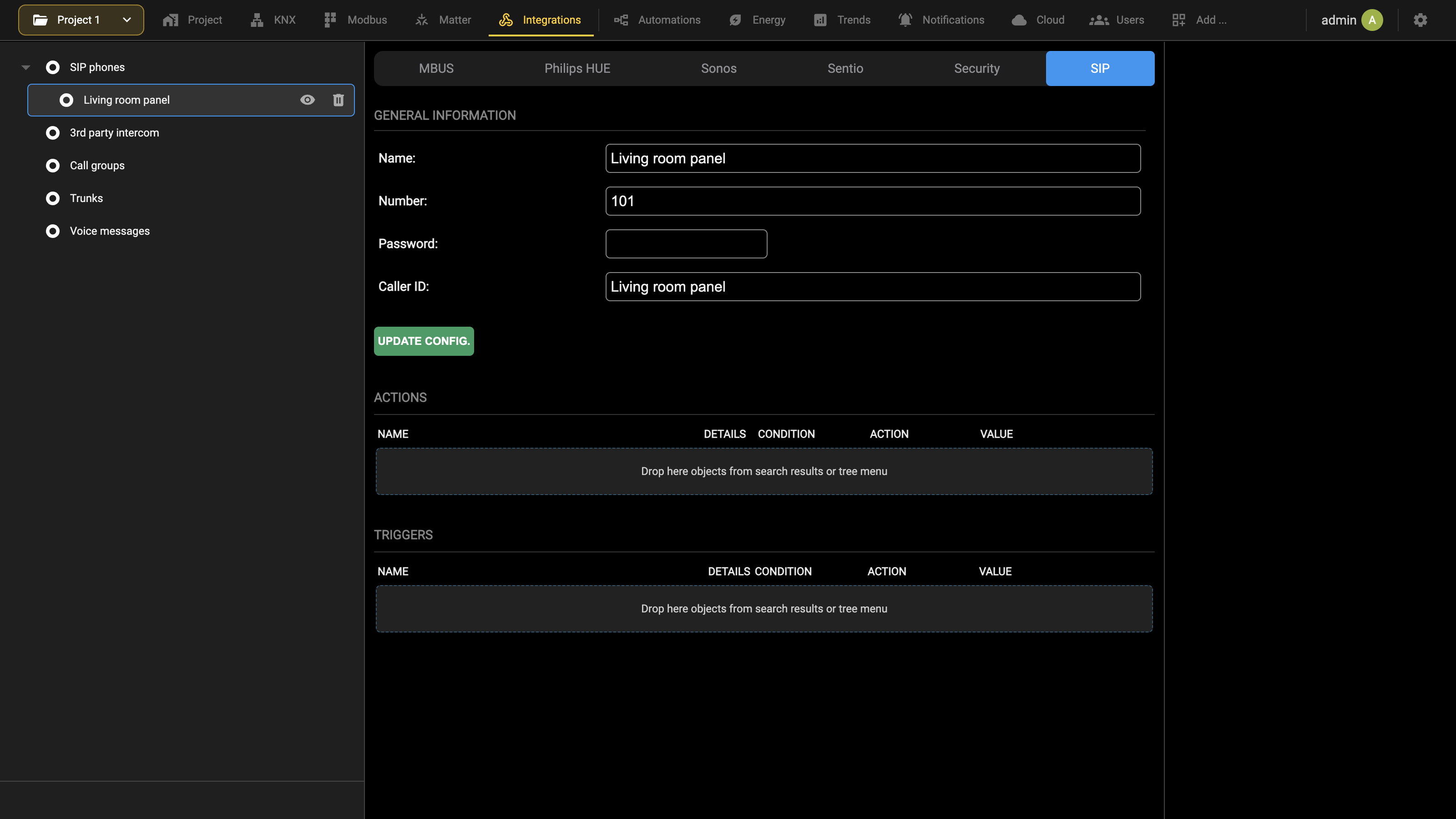
Delégo Panel configuration (Smart)
A DELÉGO PANEL SMART is configured entirely from its own web interface, both to work with DELÉGO SERVER and to work with DICO.
The instructions are in two separate documents:
- DELÉGO PANEL SMART configuration manual
- DICO integration guide
DICO
Preliminary operations
DICO IP address identification
To configure a DICO unit in DELÉGO SERVER it is necessary to enter its IP address. If it is not already known, proceed as follows:
- Touch the screen of the DICO video intercom to turn it on
- Press anywhere on the screen and hold your finger down until you are asked for a password
- Enter the administration password (default: “admin”) and confirm
- Select the NETWORK item (NETWORK if the device is set in English)
- Identify the IP address on the network configuration detail screen
Delégo Server configuration
General settings
To configure a DICO door station, select the menu item
Integrations → SIP, node Dico
and use the Add action of the node in the context tree. Enter the new item details page and fill in the following parameters:
NAME Description to identify the outdoor unit
| NUMBER | Assign a number that will be used to identify the outdoor unit. Suggested number: 900, 901 etc… |
| PASSWORD | Assign an arbitrary alphanumeric password that will be required to access the outdoor unit with the SIP protocol Suggested number: “abc900”, “abc901” etc… |
| HOST | Enter the IP address of the DICO outdoor unit you intend to interface. |
| DTMF PROTOCOL | It allows you to choose between the following protocols: ● RFC2833 ● INBAND (AUDIO) ● SIP INFO. Note: this option is available only when Expert mode is active. |
| ENABLE BADGE CONFIGURATION | Used by the GUEST ROOM MANAGEMENT module (refer to the dedicated manual for further information) |
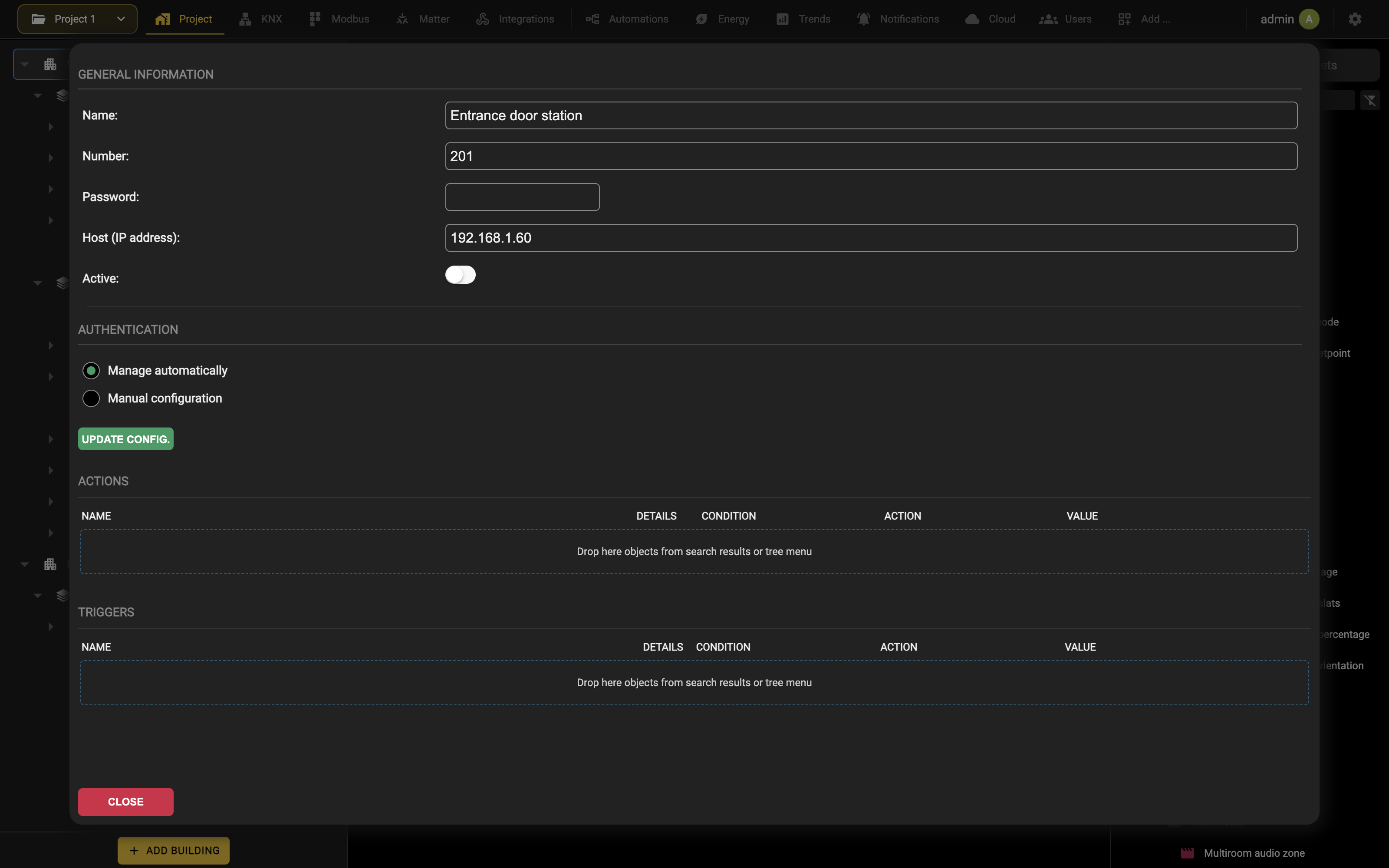
Authentication
AUTOMATIC MODE. With the default manage automatically option, DELÉGO SERVER assigns a strong username and password to the door station by itself and uses them for the communication. This is the recommended approach.
After saving, the username and password that were generated can be read on the card, to be copied into the web interface of the DICO: that interface is still where the parameters DELÉGO SERVER does not govern are configured.
MANUAL MODE. With manual configuration, the communication channel towards DELÉGO (called HTTP API) has to be enabled on the DICO unit first.
Then choose the authentication mode in the web interface of the DICO, among these:
| Nobody | No authentication. Not recommended, for obvious reasons. |
| Allow list | Up to five IP addresses of the devices allowed to call the HTTP API. When DELÉGO SERVER acts as the SIP server, its address goes in one of these fields. |
| Base | Username and password travel with every call, in the clear. |
| Digest | Username and password are exchanged as a digest rather than in the clear. Of the two, this is the one to prefer. |
| Token | Access granted through a token instead of a pair of credentials. |
Once the DICO is set, go back to DELÉGO SERVER and enter the same authentication method, username and password.
When everything is filled in, press UPDATE CONFIG. and wait a few seconds. If the data is right the Active selector turns on and the door station is ready to be configured as described below. If it does not turn on, check the IP address and the credentials.
Additional settings
Once communication has been established, the following additional settings can be configured; they are automatically saved into the DICO outdoor unit without the need to open its web interface.
RELAY
| TRIGGER DELAY | Time (in seconds) to keep the INTERNAL RELAY or the SECURITY RELAY active, before releasing it after an opening command. |
Press the TEST button to check interactively that it works.
LANGUAGE
Select the language used on the display of the DICO unit
LAN NETWORK
Select if the DICO unit must operate with an automatic address (DHCP) or in STATIC mode; in the second case, enter also the IP address, subnet mask and default gateway to be assigned to the unit.
AUDIO
| VOLUME | Adjust the volume of the voice feedback, of the microphone and of the integrated speaker respectively |
| ENABLE DOOR OPENING TONE | When selected, each time the RELAY is triggered, a sound effect is reproduced. |
LIGHT
| LIGHTING MODE | Select the strategy for the integrated LED to be switched ON: ● AUTOMATIC (triggered by the motion sensor at night) ● OFF (forced always OFF) |
| STATUS LIGHT INTENSITY | Brightness of the status LED light. |
VIDEO
| ENABLE RTSP | When selected, the integrated IP camera can be streamed to the DELÉGO app or to a third-party application in RTSP format |
| FORMAT | Select any one of the following formats: ● Horizontal ● Vertical (default) |
After any change to these parameters, press the SAVE button to send the new settings to the DICO unit.
DICO configuration
Set up SIP account 2 of the DICO following its own configuration manual: that is the account the door station uses to register with DELÉGO SERVER.
Third party outdoor units
Third-party door stations can be configured in DELÉGO SERVER as well, provided they speak SIP.
Delégo Server configuration
Enter the DELÉGO configuration section and select the menu
Integrations → SIP, node 3rd party intercom
Use the Add action of the node in the context tree, enter the details page and fill the following parameters:
| NAME | Description to identify the outdoor unit |
| NUMBER | Assign a number that will be used to identify the outdoor unit. Suggested number: 900 (901, 902… in case of multiple outdoor units) |
| PASSWORD | Assign an arbitrary alphanumeric password that will be required to access the outdoor unit with the SIP protocol Assign a sufficiently secure password to prevent possible intrusions. |
| HOST | Optional field. Allows you to set the IP address of the outdoor station; it is advisable to leave the field empty unless there are particular needs. |
| DTMF PROTOCOL | It allows you to choose between the following protocols: ● RFC2833 ● INBAND (AUDIO) ● SIP INFO. Note: this option is available only when Expert mode is active. |
Once setup is complete, press the button UPDATE CONFIG. to apply the changes.
Third party intercom configuration
Configure the SIP account of the third-party intercom following its own technical documentation, so that it registers with the IP address of DELÉGO SERVER using the credentials entered in the previous step.
Call groups
Multiple indoor units can be called when an incoming call is received by the DELÉGO SERVER; to do this, a call group containing those indoor units must be created, and the outdoor unit must be instructed to call the group.
To create a new call group, enter the section
Integrations → SIP, node Call groups
and use the Add action of the node in the context tree. Enter the details page and fill the following parameters:
| NAME | Name assigned to the group call |
| NUMBER | Number associated with the group call. When this number is dialed, all the members will ring. |
| TIMEOUT | Number of seconds for automatic hanging up when no indoor unit answers the call |
Once the new call group has been created, the indoor units to be associated must be dragged and dropped from the menu (or from the search results) into the Members of the queue section.
When finished, press the UPDATE CONFIG. button to apply the changes. The number associated with the call group can now be associated with the outdoor units to be called when the keys are pressed.
Phone lines
It is possible to connect DELÉGO SERVER to an external service / PBX based on SIP technology by configuring a phone line, called a Trunk in this version, on the SIP tab of the Integrations section.
In order to configure the items described in this chapter, a VoIP voucher must be acquired and the corresponding license entered in DELÉGO SERVER.
Delégo Server configuration
Phone lines are called Trunks in this version. Open the Integrations section in the bar, select the SIP tab, and add a trunk with the Add action of the Trunks node in the context tree. Then enter the following parameters in its card:
| NAME | Identifies the telephone line within DELÉGO SERVER |
| USERNAME | Username and password to be used both for registering a VOIP GATEWAY and for connecting to an external SIP PROVIDER. |
| PASSWORD | The password must be established as desired and entered both in DELÉGO and in the device in question, taking care to choose a strong password possibly made up of numbers, letters and special characters. |
| TYPE | Choose whether the line must use a GATEWAY or a SIP PROVIDER |
| HOST, PORT | Specify the address or domain name of the SIP provider or PBX, and the related communication port |
| ID | Label (without spaces or special characters) used by the system to manage the telephone line |
| PREFIX | Specify a number to precede external telephone numbers (e.g. “0”). |
| Phone number | Indicate the telephone number associated with the external line, including the area code |
| Call recipient | Specify who should ring when a call comes in via the external line: ● Number of an IP telephone ● Number of a call group ● Name of a user or their VoIP number |
| LEVEL | Specify the confidence level of the line, choosing between “FRIEND” (default), “USER” or “PEER”. If the default “FRIEND” setting is not adequate, use one of the alternatives, referring to the GATEWAY / PROVIDER documentation for interfacing with an “ASTERISK” system. |
If you choose a connection to a SIP PROVIDER as the TYPE, you must also specify the following additional information:
| HOST | IP address or domain name of the SIP PROVIDER |
| REGISTER | Specify whether the connection requires registration or not (usually yes, if you want to receive calls via the line) |
Voice messages
DELÉGO SERVER can answer a call with a message recorded beforehand, instead of ringing an indoor unit. The messages are held in the Integrations section, SIP tab, under the Voice messages node of the context tree, and each of them is an object of the project with a number of its own.
Use the Add action of the node to create a message, then open its card:
| Name | Identifies the message within the project. |
| VOIP number | The number that reaches the message. Calling it plays the recording back. |
| IP phone for recording | The SIP phone used to record, chosen from those declared in the project. |
The message itself is recorded by telephone, from the Recording group of the card: press Record, answer the call that arrives on the phone chosen above, and speak the message. Play calls the same phone back and plays what was recorded, so that the result can be checked before saving.
Once recorded, a message is used as the destination of a call, by choosing Recorded message from the destination types.
Video surveillance
Introduction
This chapter contains all the information for configuring and visualizing IP cameras inside the Visualization of DELÉGO SERVER.
IP Camera streaming
It is possible to integrate in the Visualization of DELÉGO SERVER one or more video streams from compatible IP cameras. The supported transmission protocols are:
- (M)JPG
- RTSP
The streaming from the IP camera to the client (DELÉGO app or web browser) can be handled in two different ways:
| DIRECT STREAMING (DEFAULT) | The video stream is retrieved directly by the app from the IP camera, without being processed by the webserver |
| IP CAMERA PROXY | The video stream is retrieved by the webserver from the camera, processed and re-streamed in the MJPG format |
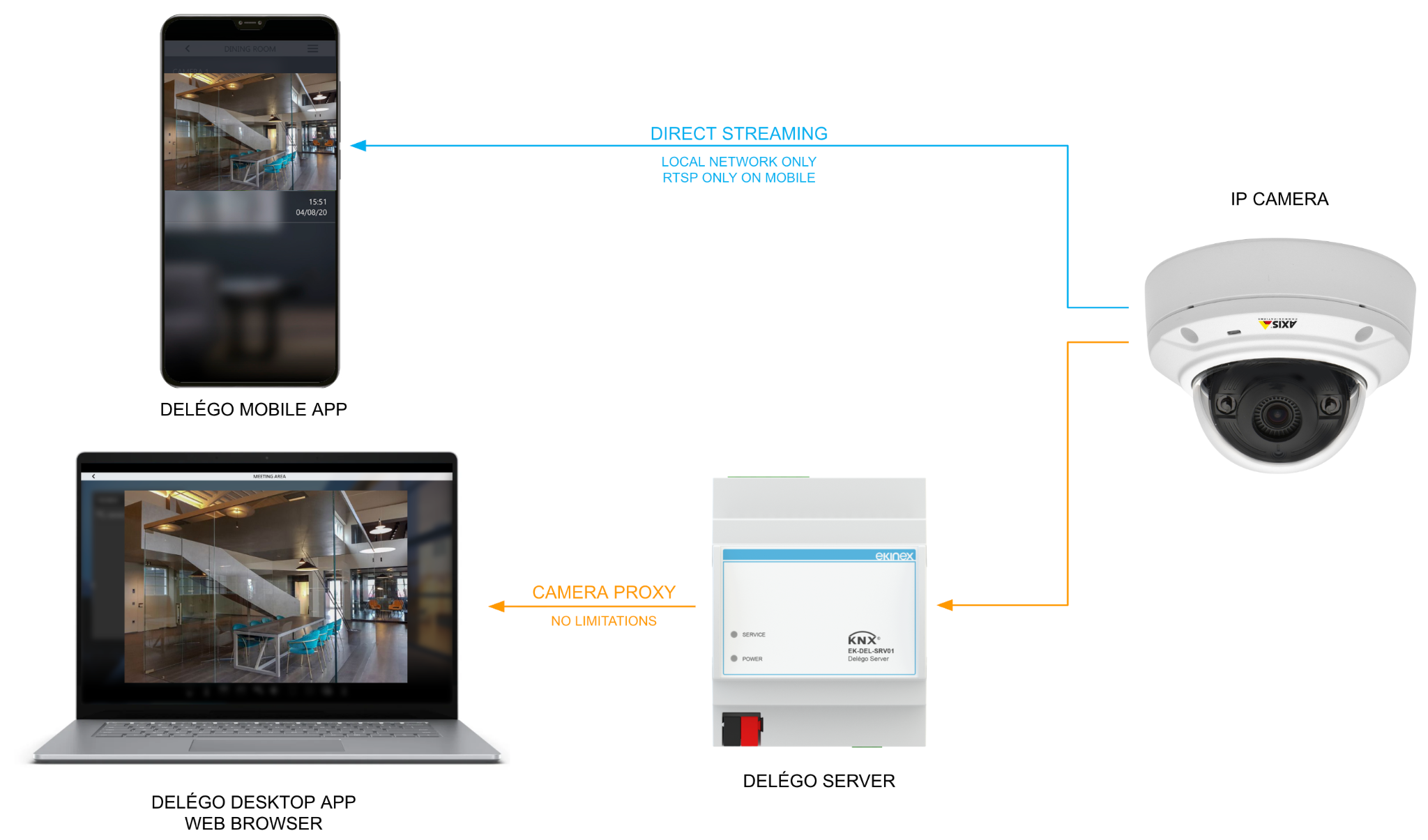
The advantages given by the IP CAMERA PROXY are:
- The IP cameras can be seen also remotely through the EKINEX cloud
- The original RTSP video streams can be seen also in the desktop version of the DELÉGO app or in a web browser, because the proxy converts them into the MJPG format (this limitation is not present in the mobile version of the app)
The side effects are:
- a higher CPU load on the webserver, each time a video stream is retrieved
- a limitation in the resolution of the video streaming due to the conversion
The camera proxy can be enabled or disabled on each configured IP camera, as better described in the next chapter.
Configuration
New IP camera
A new IP camera is declared in the Project section: open the Library panel on the right, find IP Camera among the object models, and drag it into the room where the camera is installed.
General properties
Once an IP camera has been created, it is first necessary to assign an identifying name and choose the type from those available: standard templates are available for the generic management of the following transmission protocols:
- JPG / Motion JPEG
- RTSP
and specific templates for some brands of cameras / NVRs / DVRs:
- Axis
- Mobotix
- Hikvision
- Elvox
It is also necessary to assign the camera to the room where it is installed, so that it can be correctly displayed in the Visualization.
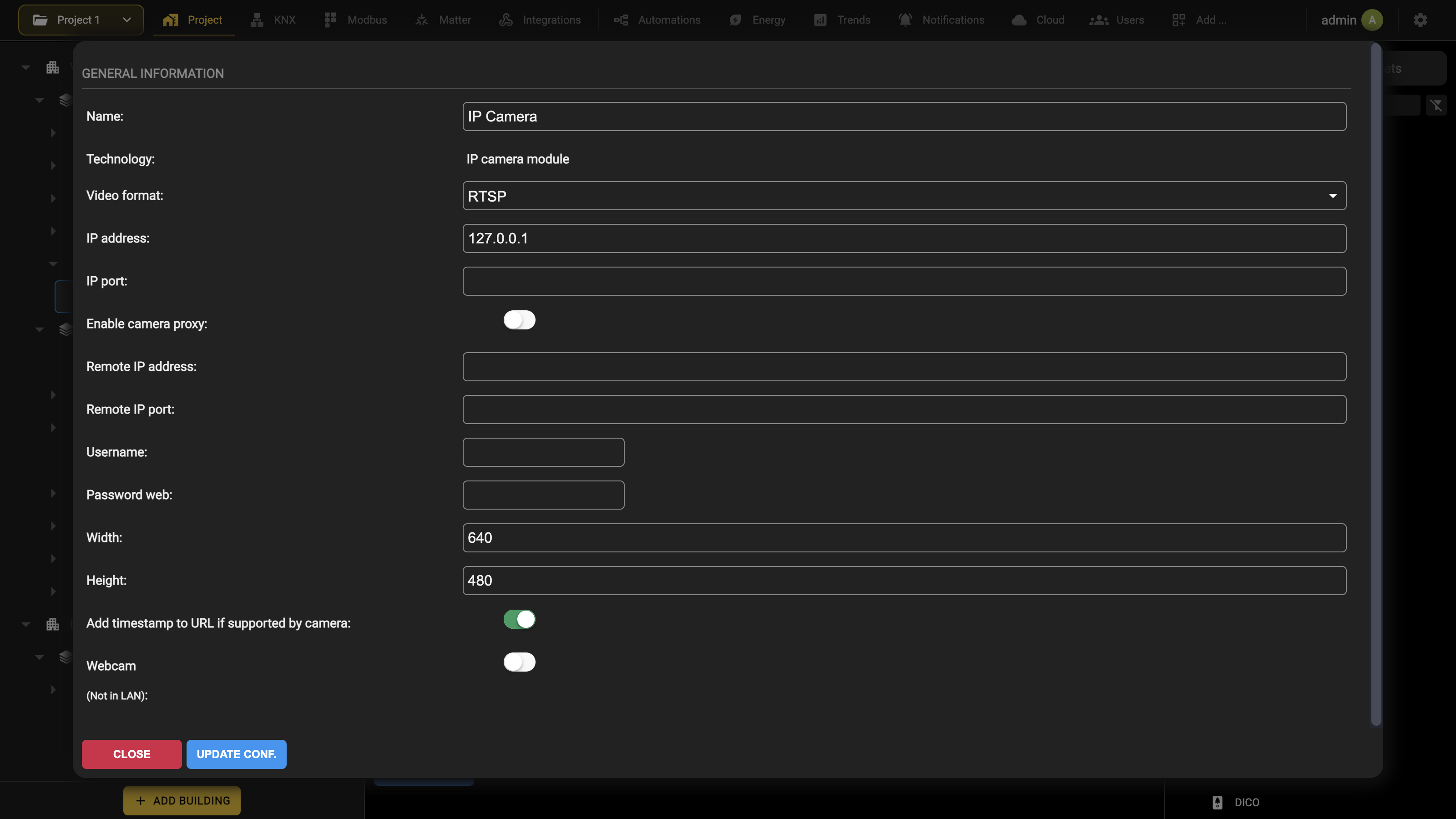
Once the template has been selected, a list of parameters is proposed which depends on the type of camera; the properties typically required to configure a camera are:
| Name | The name of the camera, also shown in the Visualization. |
| Technology | Reports the module the object belongs to, IP camera module. It is not editable. |
| Video format | The template, which decides every field below it. The list covers the generic protocols (RTSP, Generic (JPEG)) and the specific makes (Axis (MJPEG), Mobotix (MJPEG), Hikvision, Hikvision (DVR), Elvox, 2N Helios IP, Videotrend VKD, IPV-Camera, Dylog (DVR)). |
| IP address | Address followed by the path to the frame or the stream, without port and protocol, for example 192.168.0.10/image/current.jpg. |
| IP port | The port the images travel on. Specify it unless the camera says otherwise: 80 for HTTP, 443 for HTTPS, 554 for RTSP. |
| Enable camera proxy | With it on, the video is processed by the webserver instead of being streamed straight to the client. |
| Remote IP address | The address to use for remote access, without route, port or protocol. Left empty, DELÉGO uses its own public address. Not needed when the camera proxy is on. |
| Remote IP port | The port for remote access, when it differs from the local one. Not needed when the camera proxy is on. |
| Username, Password web | The credentials for the video stream, when the template and the camera provide them. |
| Width, Height | The size in pixels of the video box inside the DELÉGO pages. They come preset to 640 × 480. |
| Add timestamp to URL if supported by camera | Appends a timestamp to each request, which stops the browser serving a cached frame. On by default. |
| Webcam (Not in LAN) | For a camera that is not on the local network. |
| STREAMING TYPE | In the case of cameras based on the HTTP(S) protocol, specify whether the format is JPG (sequence of single frames) or MJPG (continuous streaming of frames). |
| WEBCAM | Specifies that the camera is not physically installed in the local network, and therefore its public address must always be used. |
| ADD TIMESTAMP TO URL IF SUPPORTED BY THE CAMERA | If the camera supports it, this option (on by default) appends the current timestamp to the image URL. Some cameras are not compatible with this option, so you can deselect it in these cases. |
Some additional properties, specific for particular video formats, are described in the following paragraphs. Here is an example of a configuration of a DICO device for video surveillance, using the RTSP string rtsp://admin:admin@192.168.1.115:554/live/ch0_00.
If the camera proxy is active (and also the first time it is enabled), it is necessary to press the UPDATE CONF. button after any change to the parameters.
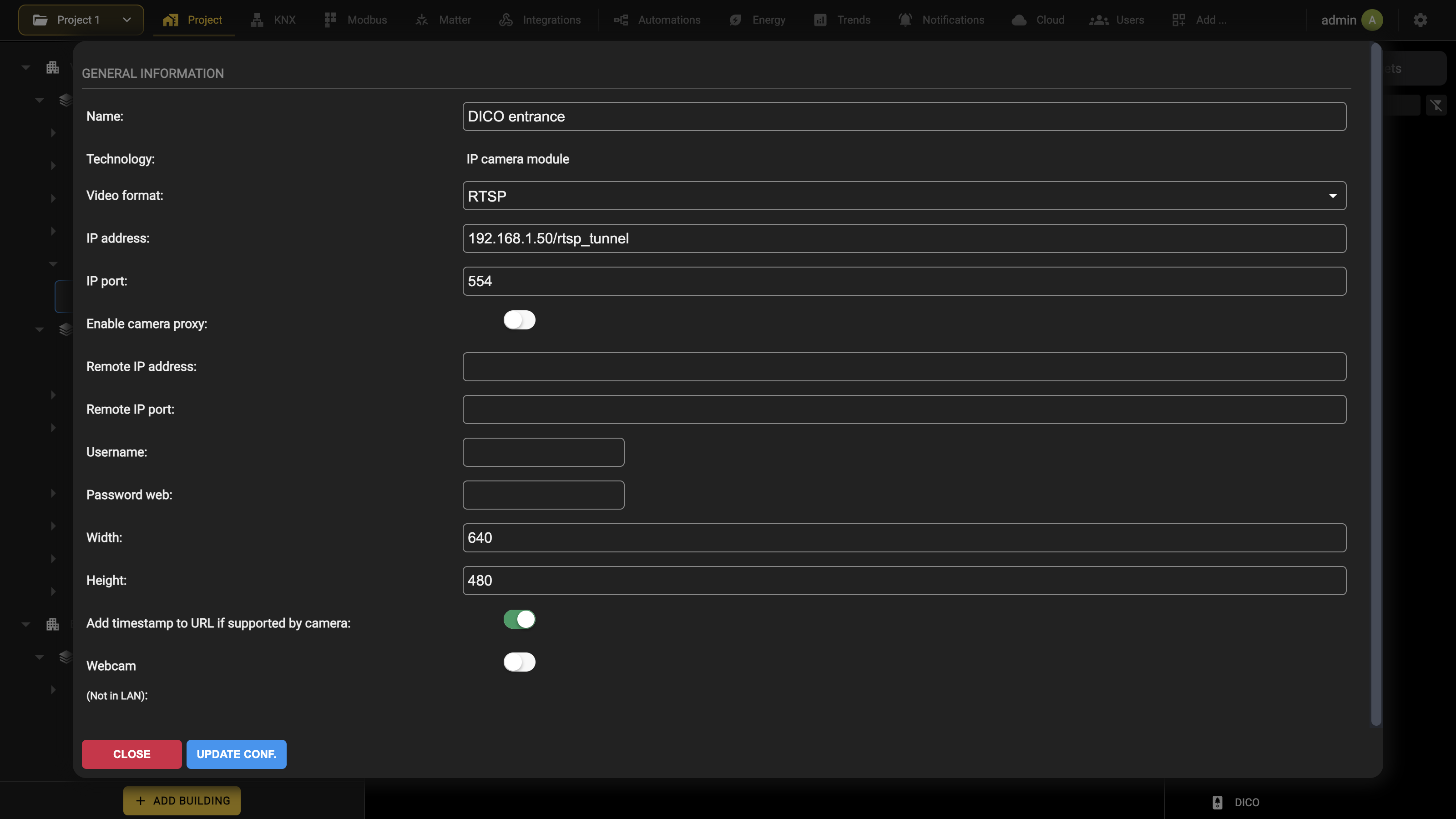
Specific formats
AXIS
DELÉGO natively supports all AXIS camera and video server models; for further details on the AXIS product catalog, please refer to the website https://www.axis.com.
This video format provides the following specific parameters, in addition to those seen previously:
| CHANNEL | Channel number to display; use this field only for video servers with more than one channel (in this case, a camera object must be created for each of the channels you intend to display) |
| RESOLUTION | Specify the resolution with which DELÉGO must request the video signal from the camera or video server. For a list of resolutions supported by the device it is necessary to consult the “SETUP” section of its web interface. |
MOBOTIX
DELÉGO natively supports all MOBOTIX camera models; for further details on the MOBOTIX product catalog, please refer to the website https://www.mobotix.com. This format does not include parameters other than the generic ones seen previously.
HIKVISION
DELÉGO natively supports all HIKVISION IP camera and DVR/NVR models that use RTSP streaming; for further details on the HIKVISION product catalog, please refer to the website https://www.hikvision.com.
This video format provides the following specific parameters, in addition to those seen previously:
| CHANNEL | Specify the stream channel to display. Default: 1 |
| STREAM | Specify whether to view the Primary or the Secondary stream (where supported by the camera) |
Visualization
Once a camera has been placed in a room it appears in the Security function, reachable both by walking through the floors and straight from the home page. The VIEW button next to the camera opens a popup with the live video stream.
Delégo mobile app
In the app for iOS and Android, selecting a camera shows its stream full screen; closing that window returns to the page the camera was opened from.
No third-party app has to be installed to watch the streams.
Web browser
From a browser only (M)JPG streams can be watched: selecting the camera opens a popup in the middle of the screen with the stream inside it.
An RTSP stream, as explained above, is only watchable with the camera proxy enabled, because the browser cannot play RTSP on its own.
Connections
Introduction
Since release 2.6.0 the relations between widgets and objects can be established with a visual editor, by creating one or more connections.
A connection is a visual representation of the relationships between the objects of the project: a relationship makes something happen automatically on one object (the destination) when the state of another one (the source) changes.
Unlike the Logics, described in the chapter of the same name, these relationships are not running permanently in the background of the webserver: they come into play only on the event, when one of the objects involved receives a new state or an incoming telegram from its field technology.
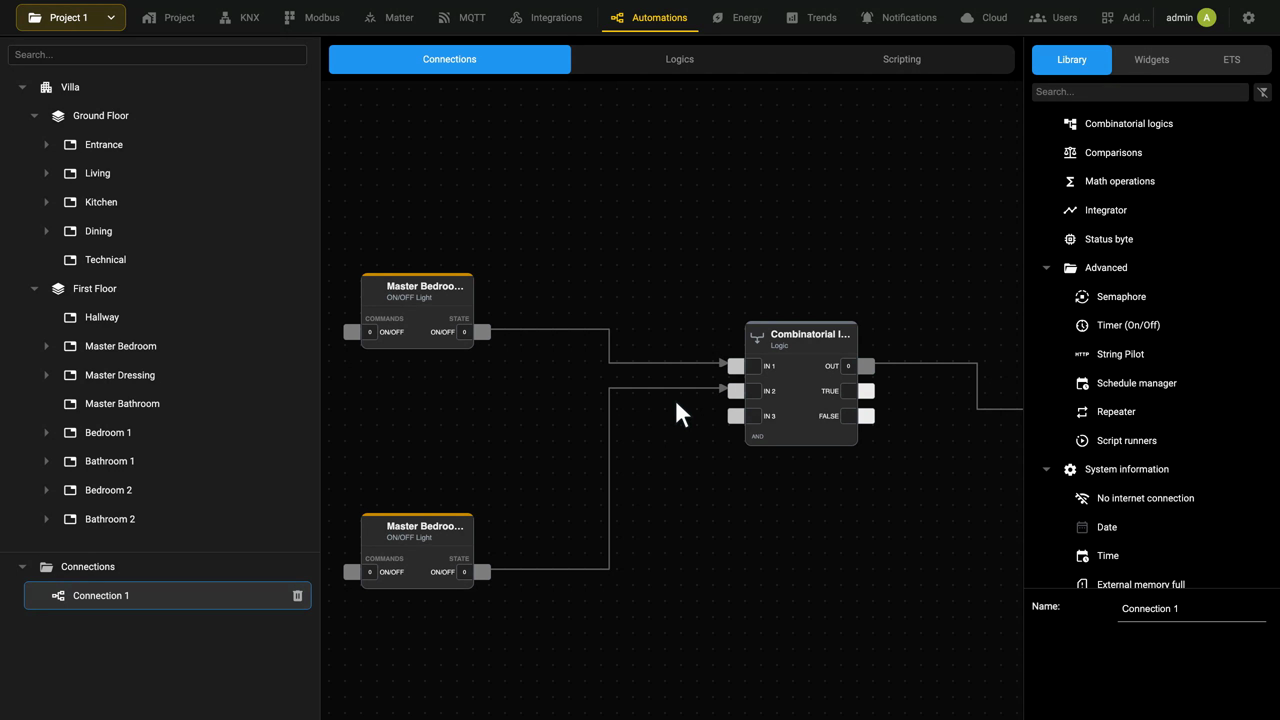
Creating a new connection
In the administration view navigate to the section
Automations → Connections
The connections of the project are listed in the lower part of the tree on the left, under the Connections folder. Hovering over that folder brings up its action icons: Add creates a new connection, which appears in the folder ready to be named. Selecting it opens an empty editor like the one in the following figure.
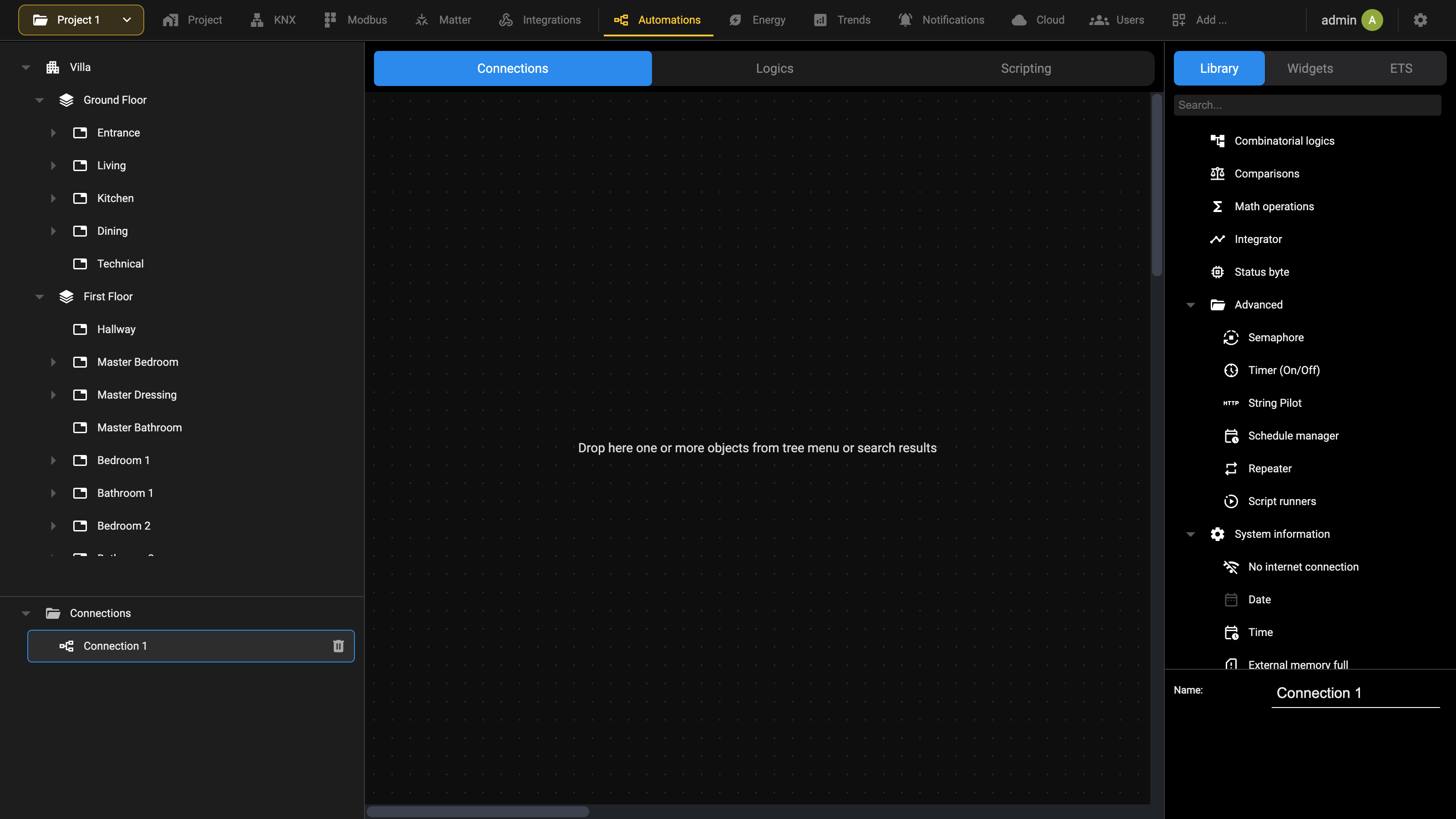
Any functional object of the project (widgets, scenes and so on) can be dragged into this editor from the Widgets panel, where it is drawn as a block with input and output nodes. Right-clicking a block opens a panel on the right with the Name and the Technology of the object.
The number and the kind of nodes depend on what has been dropped. Only objects that execute actions can be added to a connection: floors, rooms and the like cannot. The color and the numeric value of each node give a visual indication of its current state, and a node that has been wired to another turns grey while the free ones stay blue.
Relationships between nodes
Each object dropped into the editor becomes a block that carries its commands on the left and its states on the right.
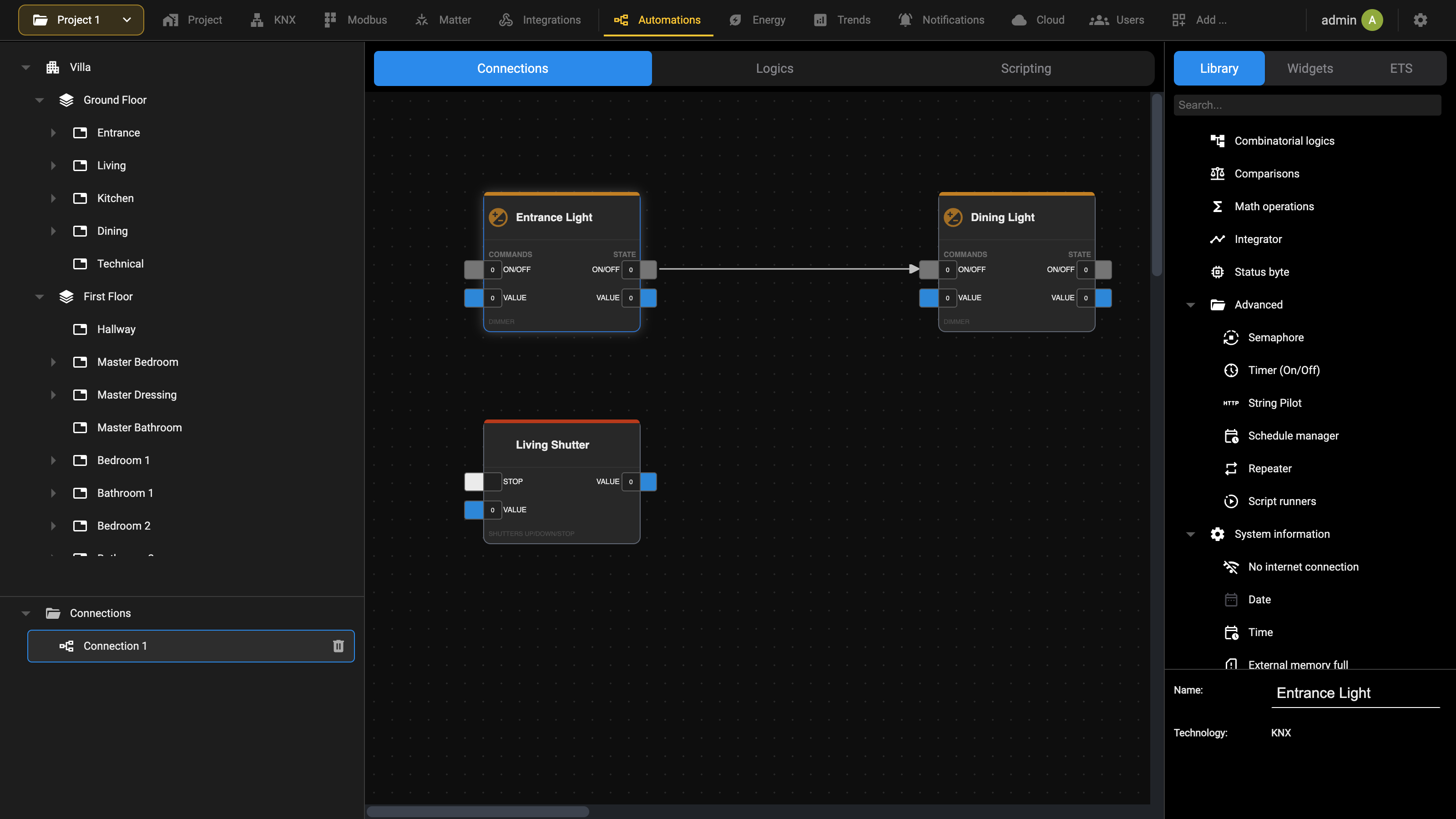
To connect two nodes (the output state of an item, on the right, and the input command of another item, on the left) press the mouse button on the starting node and draw an arrow by releasing the mouse over the destination node.
Boolean nodes (that can be only ON or OFF) can only be related with other boolean nodes, and not with numerical nodes. When drawing a new arrow, incompatible nodes are automatically disabled, to avoid a mismatching relation.
A node that has been connected changes color: its square turns grey, while the squares of the free nodes stay blue. That is the only mark the drawing carries, so the arrow itself has to be selected to read what it does.
Each arrow is an event-based relationship between the two items, meaning that each time the source object receives a status change (a new telegram from the KNX bus, a change of value on a Modbus register, and so on) the new value is evaluated and, if it matches the condition of the relation, the value the relation carries is delivered to the destination node.
Right-clicking the arrow selects it and brings its card up in the panel on the right. A red bin appears on the arrow at the same time, which is how the relation is deleted.
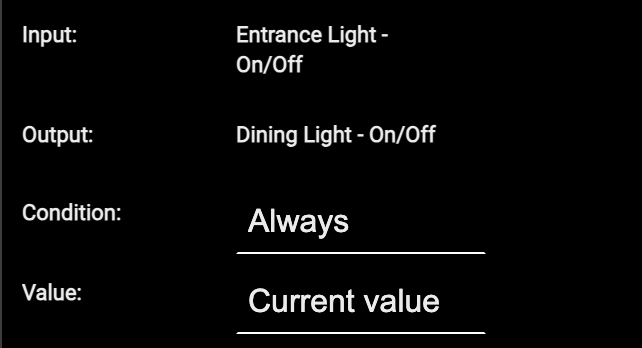
| Input | The source node, the one the arrow starts from, written as object - node. It is not editable: it is decided by the arrow. |
| Output | The destination node, the one the arrow ends on. Not editable either. |
| Condition | The filter on the value of the source node. If Off fires on a falling edge, If On on a rising edge, Always on every change of value, Never disables the relation without deleting it. |
| Value | What is delivered to the destination node when the condition is met: Off and On force a fixed value regardless of the source, Current value passes on the value that arrived, Inverted value passes its opposite. |
With Condition on If On and Value on On, for instance, the destination is switched on when the source goes on and is left alone when the source goes off. With Always and Current value the destination simply follows the source.
This topic is shown in the Automations video tutorial.
Event-based logics
It is possible to create complex relationships between objects. In this way and using also the models of the Library of Automations → Connections (for example combinatorial operators or mathematical operators), it is possible to program logics inside a CONNECTION, like in the following example:
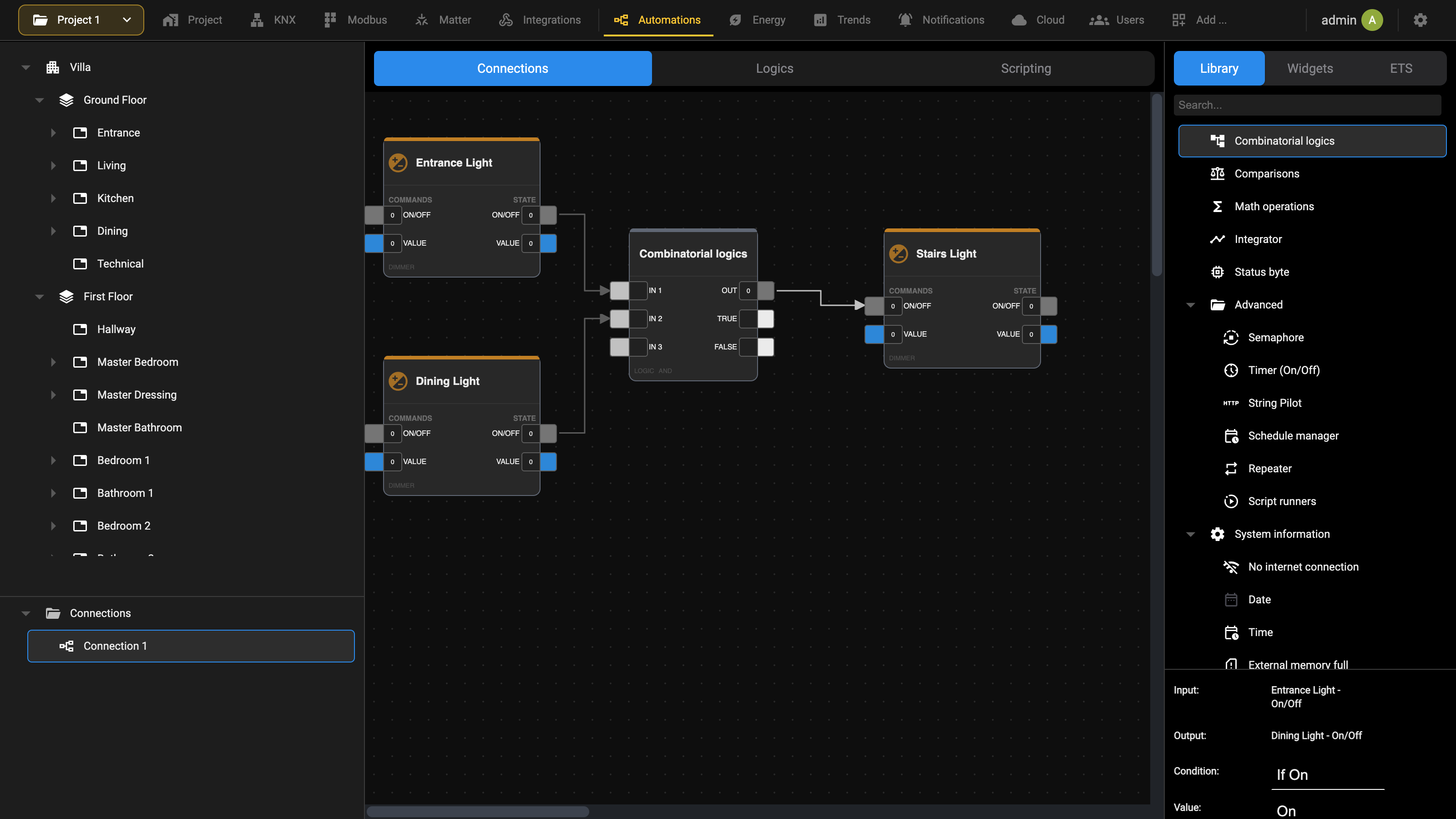
The operator arrives from the Combinatorial logics entry of the Library, which is a single model rather than one entry per operation: which operation it performs is decided afterwards, on the card of the block.
The following types of element are particularly suitable for this purpose:
| Combinatorial operators | Objects that perform an AND, OR or NOT operation among the connected inputs, and return in output the result of the operation. |
| Mathematical operators | Objects that perform an arithmetical operation among the connected inputs, and return the result in output. |
| Conditions | Objects that perform a comparison between two values and return a true/false result in output. |
| Integrators | Objects that calculate the integral over time of the input. Suitable, for example, as “time counters” when an ON/OFF input is connected. |
Even if the graphical editor of the connections is very similar to the one used for the logics, as described in more detail in Logics, the two concepts have a big difference that must be clear to the installer and to the system integrator.
Connections, on one side, visually represent relationships among objects, that instruct the software to do something when some event occurs. Logics, on the other hand, represent a routine continuously in execution in the background, which for that reason can also do actions along the time, even when the involved objects do not vary their state.
Connections are suggested for simple automations, whereas logics must be considered for more complex processing.
Library
This chapter describes the objects that the automations of DELÉGO SERVER are built out of. They are no longer a section of their own: they are models of the Library, in the source panel of Automations → Connections, and they are created by dragging the model into the workspace, like any other object.
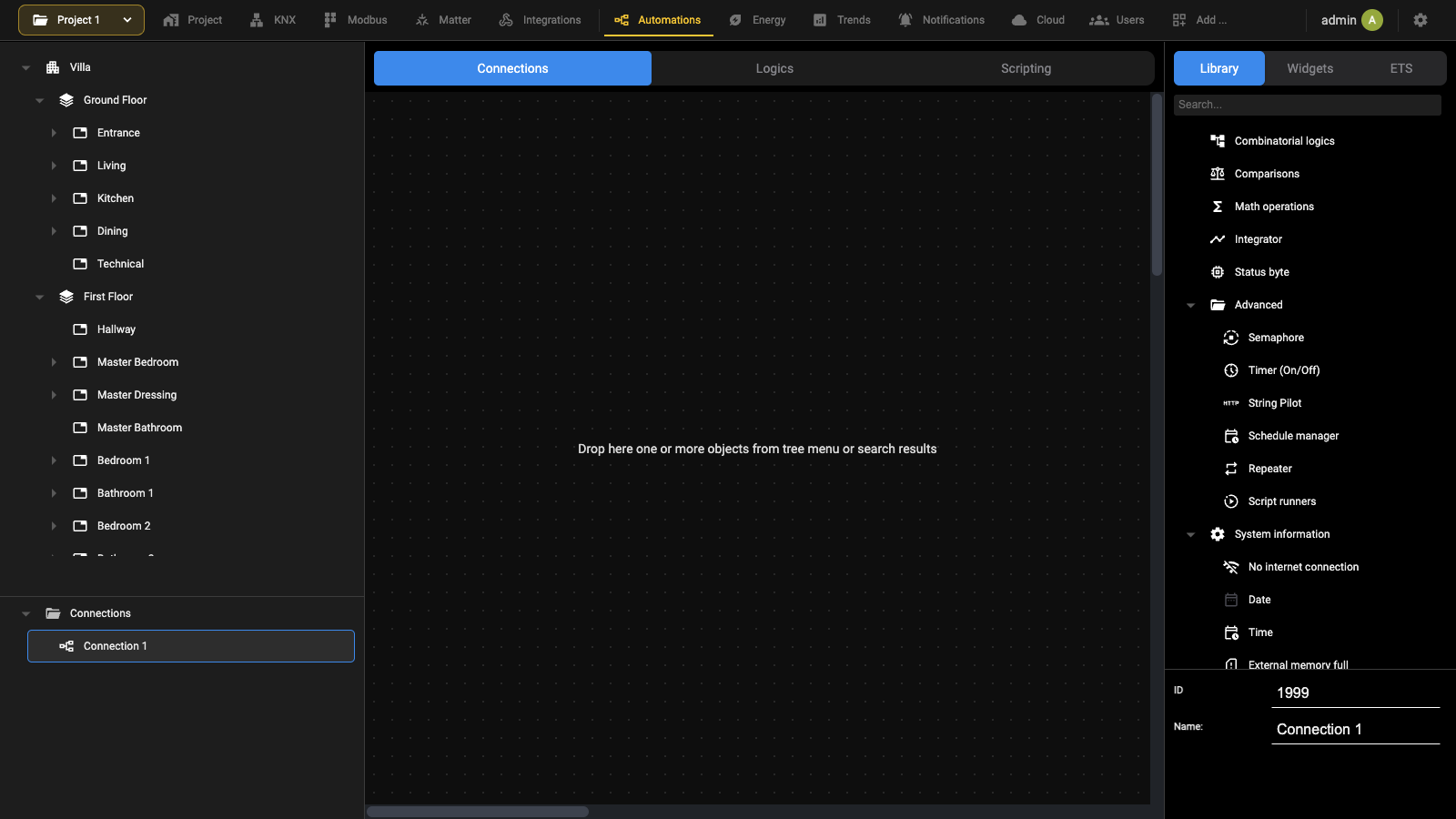
The Library groups them as follows:
| Combinatorial logics | The combinatorial operators. |
| Comparisons | The comparisons between values. |
| Math operations | The mathematical operators. |
| Integrator | The integrators. |
| Status byte | The decoding of a value into its single bits. |
| Advanced | Semaphore, Timer (On/Off), String Pilot, Schedule manager, Repeater and Script runners. |
| System information | No internet connection, Date, Time, External memory full, Presence simulator and Circadian. |
| Virtual Object | The generic virtual object. |
This topic is shown in the Automations video tutorial.
Combinatorial operators
Combinatorial operators are logical operators that perform the following operations on boolean variables (0 and 1, or TRUE and FALSE):
- AND.
- OR.
- NOT.
- Free expression (combination of the previous).
Combinatorial operators can be used in Connections or in Logics. Refer to the Creating a new connection chapter for further information.
Create a new operator
Open Automations → Connections and drag the Combinatorial logics model from the Library of the source panel into the workspace.
Add to a connection
To use an operator in a connection, open the Connection editor and drag and drop the operator in the editor, and then connect the first input node to the output node of another object; when connecting the first input of the combinatorial operator, a new input node will be displayed. The following example shows an AND operator that receives the state of an ON/OFF light as its input:
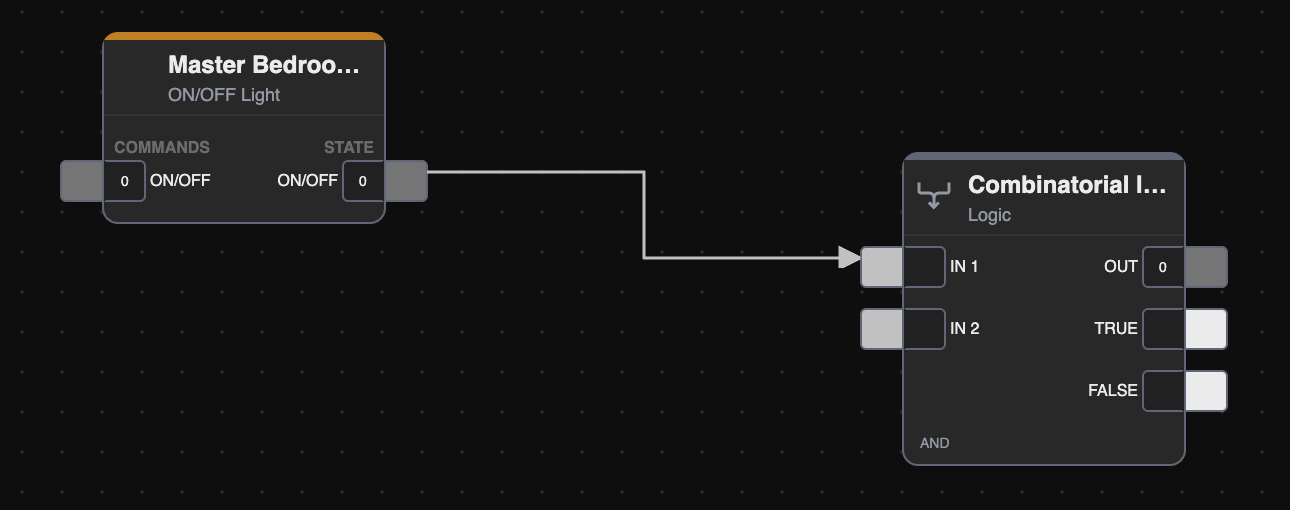
It is possible to modify the type of operator by right-clicking the operator and selecting the operator on the lateral toolbar that will be opened.
The output of the operator can be connected to another object (e.g., a KNX group address) to trigger some action (for example, if the light is on, the system can communicate the status of the light to the user by means of a push notification); the possible output nodes are the following:
| OUT | The result of the logic operation, as a numeric value (0 or 1). Normally used when there are two or more inputs. |
| TRUE, FALSE | The evaluation of the input, used when a single input is connected to the operator. Either one can be connected to another object, to trigger an action only when the result is TRUE or FALSE respectively. |
Manual configuration
The operator can also be configured from its own card, without opening the Connection editor.
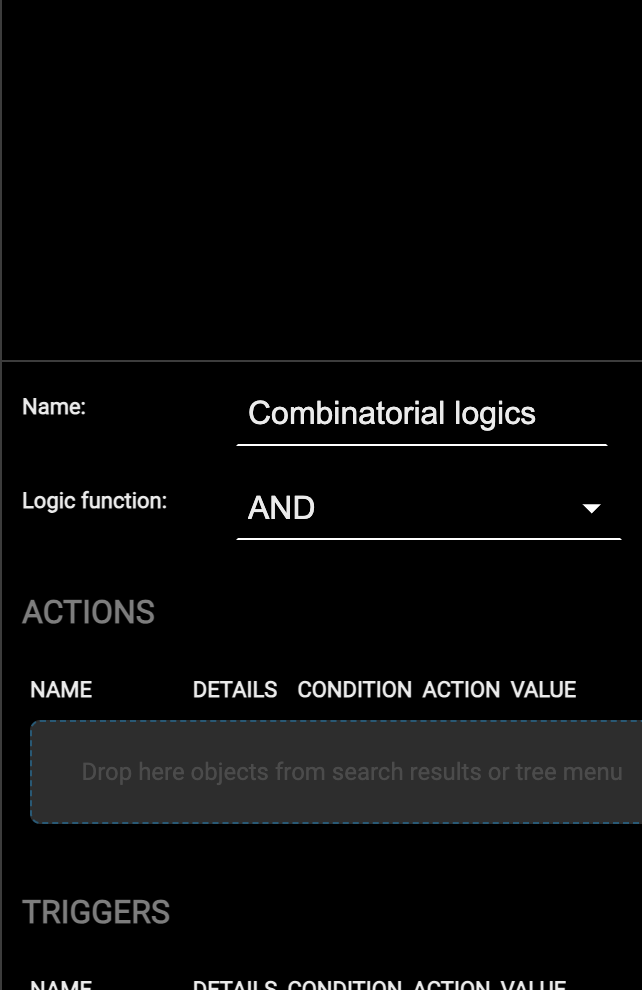
Choose the operation in Logic function, which offers AND, OR, NOT and Free expression; with the last one a Logic field appears, where the expression is written by hand.
The inputs of the operator are the arrows drawn in the Connection editor, so they are not set here. What is set here is what the operator commands: drop into ACTIONS the objects to be driven with the result, one row each, with the same CONDITION, ACTION and VALUE columns as the triggers of any other card.
Value comparisons
The operator compares two numerical values, integer or floating point. The Condition field offers five comparisons:
| Major than | The reference is greater than the value compared. |
| Minor than | The reference is smaller than the value compared. |
| Major or equal to | The reference is greater than or equal to the value compared. |
| Minor or equal to | The reference is smaller than or equal to the value compared. |
| Equal to | The two values are the same. |
Each side of the comparison can be dynamic, that is read from another object, or static, that is a fixed value written in the card.
Value comparison operators can be used in Connections or in Logics. Refer to the Creating a new connection chapter for further information.
Create a new comparison
Open Automations → Connections and drag the Comparisons model from the Library of the source panel into the workspace.
Add to a connection
To use a value comparison in a connection, open the Connection editor and drag the operator into it, then connect the REF node to the object that provides the reference value of the comparison. IN 1, IN 2 and the following ones are the inputs compared with the reference. The comparison itself is chosen by right-clicking the operator and picking the operation in the side toolbar that opens.
The output of the operator can be connected to another object (a KNX group address, for example) to trigger an action: if the temperature measured by a thermostat falls below a threshold, switch the heating on until the setpoint is reached. The output nodes are the following:
| OUT | The result of the comparison, as a numeric value, 0 or 1. Used when there are two or more inputs. |
| TRUE, FALSE | The outcome of the evaluation, used when a single input is connected to the operator. Connecting one of the two to another object triggers an action only when the result is true or false respectively. |
Manual configuration
The operator can also be configured from its own card, without opening the Connection editor.
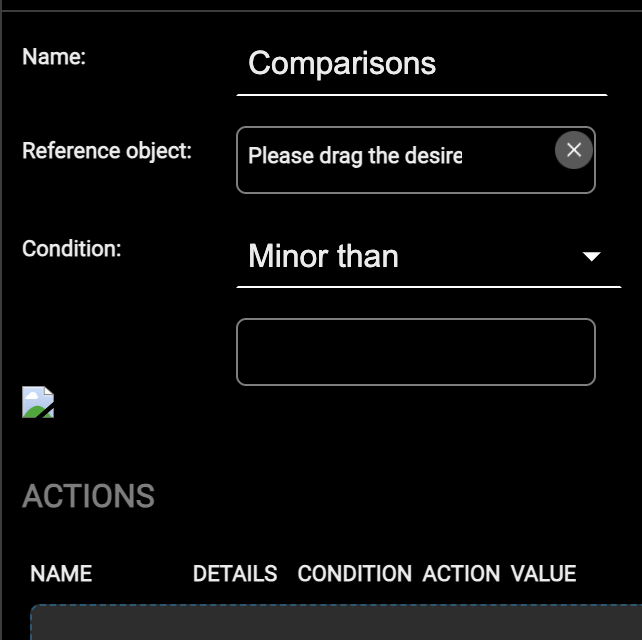
Drag the object that carries the reference value into Reference object, and choose the comparison in Condition, which offers:
| Major than | The reference is greater than the value compared. |
| Minor than | The reference is smaller than it. |
| Major or equal to, Minor or equal to | The same two, with equality included. |
| Equal to | The two coincide. |
modules/logic and the manual reproduces them as they appear on screen, but they are a defect of the interface, not of this documentation.The value the reference is compared with is set in the field below Condition, either by dragging an object or a sub-object onto it, or by typing a fixed number.
The objects to be commanded when the comparison is satisfied are dropped into the ACTIONS table at the foot of the card.
Math operators
The operator performs an algebraic operation between two or more numerical values, integer or floating point. The Operation field offers the four operations (+, -, x and :) and Free expression, which combines them in a formula written by hand. Each input can be dynamic, that is read from another object, or static, that is a fixed value written in the card.
Math operators can be used in Connections or in Logics. Refer to the Creating a new connection chapter for further information.
Create a new operator
Open Automations → Connections and drag the Math operations model from the Library of the source panel into the workspace.
Add to a connection
To use a math operator in a connection, open the Connection editor, drag the operator into it and connect its first input node to the output node of another object; as soon as the first input is connected, a further input node appears. The operation is chosen by right-clicking the operator and picking it in the side toolbar that opens.
The output of the operator can be connected to another object (another operator, for instance) to carry the calculation further: the result of a math operator can be the input of a value comparison. There is a single output node:
| OUT | Result of the operation, integer or floating point. |
Manual configuration
The operator can also be configured from its own card, without opening the Connection editor.
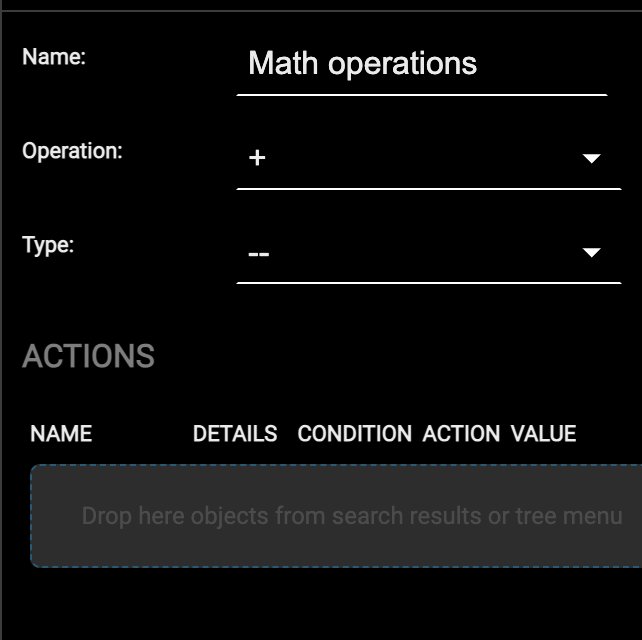
Choose the operation and whether the result is an integer or a floating point number. The operands come from the arrows drawn in the Connection editor; the object that is to receive the result is dropped into the ACTIONS table at the foot of the card.
Integrators
The operator computes the integral over time of its input, which must be a numerical value, integer or floating point. The typical use is to obtain a quantity from a rate: an energy from a power, a volume from a flow rate.
Integrators can be used in Connections or in Logics. Refer to the Creating a new connection chapter for further information.
Create a new integrator
Open Automations → Connections and drag the Integrator model from the Library of the source panel into the workspace.
Add to a connection
To use an integrator in a connection, open the Connection editor, drag the operator into it and connect its VALUE node to the output node of another object. The output can then be connected to another object (another operator, for instance) to carry the calculation further. There is a single output node:
| VALUE | Result of the integration, integer or floating point. |
Manual configuration
The operator can also be configured from its own card, without opening the Connection editor.
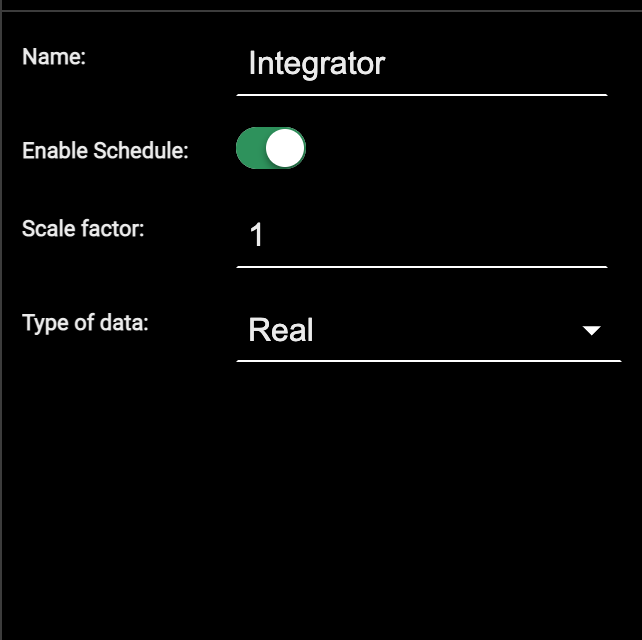
The settings to be configured are:
| Enable Schedule | Whether the integrator can be put on a schedule. |
| Scale factor | Multiplier applied to the calculation, when it has to be different from 1. |
| Type of data | Whether the calculated value is Real or Integer. |
The object to be integrated is not chosen on this card: it is the one at the other end of the arrow drawn into the integrator in the Connection editor. Only one object can be integrated, so the block accepts a single incoming arrow.
String pilots
It is possible to control devices via IP protocol by sending strings, using the String pilot objects. These objects, when triggered by an event, can open a TCP, UDP or HTTP connection with a device on the network and send a command string, for example a command to change the state of a device.
To configure a String pilot, open Automations → Connections and drag the String Pilot model from the Library of the source panel into the workspace. On its card, set the following information:
| NAME | Name of the String pilot in the Delégo project. |
| COMMUNICATION | Specify if the string will be sent through a network connection (e.g., ETH) or through a serial/USB cable. |
| IP ADDRESS, IP PORT | Specify the IP address and port of the device that must be controlled with the string. For an HTTP connection the port is normally 80; for HTTPS it is 443. |
| PROTOCOL | Select between HTTP, HTTPS, TCP or UDP |
| STRING | Enter the command string that must be sent to the device. |
For HTTP calls, the string must itself contain the IP address and the port; in this example, the string allows you to open a lock of a 2N IP video intercom:
http://192.168.1.123:80/api/switch/ctrl?switch=1&action=on
After the configuration it is possible to perform a test of the communication using the TEST button.
Status byte
STATUS BYTES are objects that can receive as input a value composed of several pieces of information, held in single bits or in groups of bits, which have to be separated and interpreted individually. This type of information is often used in both KNX and MODBUS environments.
To create a Status Byte, open Automations → Connections and drag the Status byte model from the Library of the source panel into the workspace. On its card it is possible to drag the value to be decoded (in the Inputs section) and the sub-objects that will host the sub-information of the value received in input (in the Outputs section). Alternatively, it is possible to add an Output.
For each of the Outputs, you can specify the following options:
| BOOLEAN | Indicates if the object is a boolean value (e.g., ON/OFF) |
| OFFSET | Index of the first bit (considering the MSB (Most Significant Bit)) from where the information must be read. |
| LENGTH | Number of bits from the offset to consider for the information reading. This information can be set only for non-BOOLEAN objects. |
After each configuration change, press the UPDATE button; the EXAMPLE column helps to identify which bits are taken into consideration by each sub-object, assuming that the input value is on a single byte. By simulating the sending of values to the input object from its STATUS column, you can check in real time that the sub-objects are decoded correctly.
Repeaters
In some situations it is useful to send the state of one or more objects to their technology again and again, so that what the field reports can be compared with what DELÉGO SERVER holds and the two do not drift apart. This is what a Repeater does: it reiterates the value of the objects listed in its Inputs section, either at a fixed interval or when a condition occurs.
For the first case, enable Execute in a loop and set a Loop time [ms]. It is advisable to enable Execute at startup as well, so that the repeater begins to run when the server is switched on. Once the parameters are set, the repeater is started with the START button, and Execution state reports whether it is running; Stop halts it.
When the loop is not enabled, drag an object into the Inputs section instead, where a filter on its state decides when the repeater runs.
In both cases Sleep time between commands [s] sets how long the repeater waits between one command and the next, which matters on buses that do not take a burst of telegrams well.
Semaphores
A semaphore watches a set of conditions on the objects given to it as inputs, and reports in one place whether things are as they should be. Depending on the outcome of the checks, it takes one of three states:
| OK, green | Everything that is being monitored is as expected. |
| Warning, yellow | One or more conditions are not satisfied. |
| Alarm, red | One or more conditions marked as Priority are not satisfied, or the semaphore has been in Warning for longer than the timer allows. |
The properties of the semaphore itself are:
| Name | Identifying label; it is the name shown on the input and output nodes of the objects the semaphore is connected to. |
| Logic function | The combinatorial operator applied to the conditions to determine the state: AND, when all of them have to be satisfied, or OR, when one is enough. It must always be set. |
| Timer in secs | When there are no priority conditions, the time that has to pass before the semaphore goes from Warning to Alarm. |
The objects to watch are dragged into the Monitor conditions section. Each of them carries three settings:
| Condition | The comparison to apply between the current state of the object and the value below: <, > or =. |
| Value | The value the state of the object is compared with. |
| Priority | When selected, the semaphore goes to Alarm as soon as this condition is not satisfied, without waiting for the timer. |
Once everything is configured, start the semaphore with the START button: from that moment it monitors the conditions and stays in OK as long as they hold.
Example
Consider a semaphore monitoring a motorized valve. In normal conditions the valve is either fully open or fully closed, and the corresponding limit switch is ON; the logic is therefore an OR, and the semaphore stays green as long as one of the two limit switches is active. While the valve travels, neither limit switch reports, and the semaphore goes yellow: which is normal, provided the travel finishes within the timer. If it stays yellow for longer, something has stopped the valve halfway: the semaphore goes red, and that state can be tied to an e-mail notification.
A second example is watching the lights of a building, this time with an AND: the condition is that every light is off before leaving. If the intruder alarm is armed and one light is still on, the semaphore is red; otherwise it is green.
Semaphores can be inserted in logic programs, so that their state drives actions on other objects of the supervision.
System information
The System information group of the Library, in Automations → Connections, offers the objects that represent the server’s state: No internet connection, Date, Time, External memory full, Presence simulator and Circadian. These objects can be used to supervise the server and trigger actions or notifications when, for example, there is no internet connection or the external memory (SD card or USB device) is full. Date and Time can also be used as inputs of other technologies.
Clocks
DELÉGO SERVER allows you to create one or more CLOCKS. This tool operates like schedules, but it can be inserted within a Connection, Logic or in a room; if the object belongs to a room it can be used to schedule several objects.
The options that distinguish these objects are:
| NAME | Name of the clock that is displayed in the Connections of the associated objects. |
| ENABLE PLANNING | Allows you to enable or disable a schedule on the clock. |
| ROOMS TO WHICH THE OBJECT BELONGS | List of rooms in which the clock is placed. |
| ACTIONS | List of objects affected by the clock planning. |
To configure a new Clock it is necessary to:
- Insert the objects to be commanded into the ACTIONS section.
- Choose the condition to perform an action at a specific time.
- Insert the clock into a room, connection or logic.
In the DELÉGO Visualization the clock is shown as a schedule.
CLOCKS can be inserted into LOGIC PROGRAMS in order to drive other logics based on their activation time.
Schedule managers
Schedules can be enabled and disabled automatically with a Schedule manager. Open Automations → Connections and drag the Schedule manager model from the Library of the source panel into the workspace. This object takes an event from another object (a logic, a scene, anything that changes state) and turns one or more schedules on or off.
Take an example: the schedules of the KNX widget named Bathroom temperature control, which commands the HVAC of an office bathroom, have to be active on working days only. The first step is to configure the schedule in the Visualization and give it a name, here WORKING DAYS: that name is what the schedule manager will refer to.
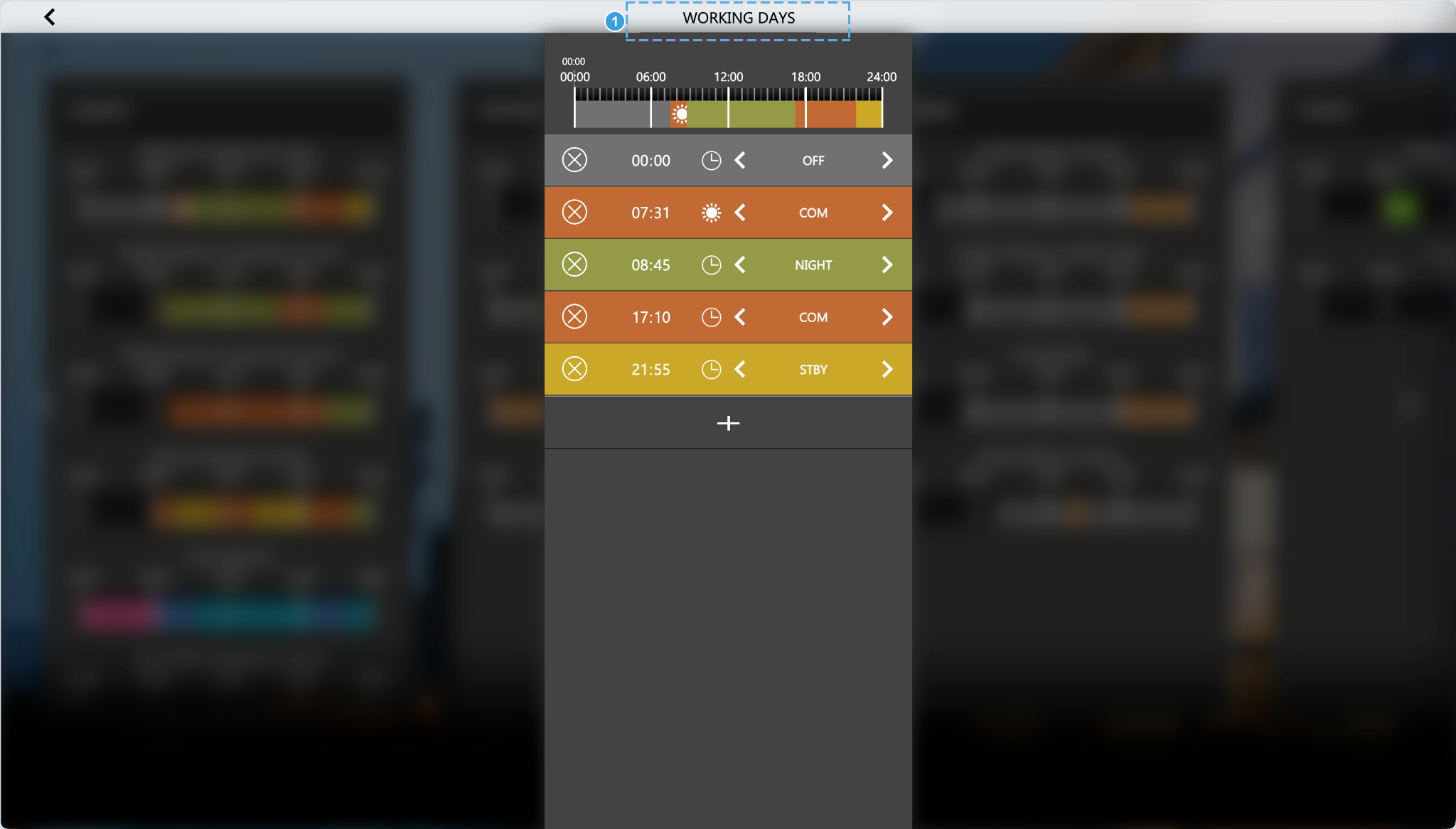
- The name of the schedule, edited directly in the title. This is the name that appears in the SCHEDULE list of the schedule manager, so it is worth choosing one that says what the schedule is for.
The second step is to bind the schedule manager to the objects the schedule belongs to. Create one as described above and drop into its Controlled object(s) section one or more objects of the project, turning on Expert mode if the hidden ones are needed too.
Each row of that list takes three settings:
| CONDITION | When the change has to be applied: every time the state of the schedule manager changes, or only when it goes to ON, or only when it goes to OFF. |
| SCHEDULE | Which schedule of that object is affected, by name, or All schedules to act on every one of them. In the example, Working Days. |
| VALUE | What to do with the schedules when the schedule manager changes state: always disable them (OFF), always enable them (ON), align them with the state of the manager (CURRENT VALUE), or align them with its opposite (VALUE DENIED). |
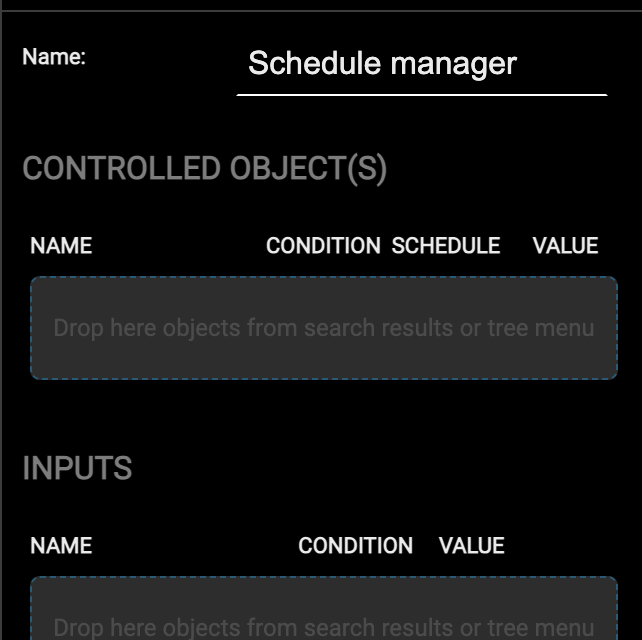
The last step decides when the manager enables or disables the schedules: drop one or more objects into its Inputs section, and their change of state drives it.
Presence simulator
It is possible to configure DELÉGO SERVER to simulate the presence of a person in a room or in the house with semi-random sequences of commands through a simulator that is configured in the following section:
Automations → Connections, model Presence simulator of the Library
The Presence Simulator is a sequence of actions (which are dragged and dropped into the ACTIONS section) which, unlike a normal sequence of a Scene, are interspersed with a timing that is not constant, but can change within a certain pre-established limit; in this way the sequence of actions is not always identical.
Furthermore, unlike a common Scene, the actions of the Presence Simulator are executed only if the object in the Enable section is enabled according to the conditions that are set up in the enable object; if the condition to perform the Presence Simulator is not valid, the timers between actions are still counted but the actions are not performed.
This allows you to set the presence simulation according to pre-established times and criteria, but then make it effective only when certain conditions are met, for example when the house owner is not at home. Like a Scene, the Presence Simulator can START and STOP if a TRIGGER condition is valid.
The following table lists the main options needed to configure a Presence Simulator:
| EXECUTE AT STARTUP | If enabled, the Presence Simulator will start at system startup.: |
| RANDOM FACTOR | NOTE this option is visible only if Expert mode is enabled. It allows you to specify the random factor in minutes that is applied to the “wait” between the actions of the sequence; this factor is used to make the simulation differ from one day to the next. |
Once these parameters are set, it is possible to set the actions to be performed by the simulator by dragging and dropping the objects in the ACTIONS section. You can set a waiting time between the actions by drag and drop of a WAIT object. As previously mentioned, the commands are actually sent only if the condition of the Enable object (pre-configured) is valid.
It is suggested to configure the Presence Simulator as follows:
- Do not run the Presence Simulator at startup, but plan the simulator to start after a condition is met, for example when night falls or the owner(s) exit the building.
- Set up a sequence that can last even longer than necessary, to allow for the case in which the random factor makes the sequence run too fast.
- Link the Enable condition to the presence of people in the building, for example the Enabling condition should consider the arming status of the burglar alarm.
- Configure the simulator so that it restores the home automation system to the state it had before the simulation (for example, all the lights off) as soon as the Enable condition is no longer valid, so that stopping the simulation returns the system to its default state.
The presence simulator can be inserted into a room to allow users to modify the sequence of actions using the mobile app, in the same way as scenes.
Circadian
DELÉGO SERVER can adjust the color temperature and the intensity of dimmable lights over the course of the day, following the circadian cycle, so that artificial light imitates the natural one. A project can hold several independent cycles, each with its own settings and its own lights.
To create one, open
Automations → Connections
and drag the Circadian model from the System information group of the Library into the workspace. On its card, set the following:
| Name | Name of the cycle within the project. |
| Cycle type | When the logic of the cycle runs: Fixed times, between two set hours of the day, or Astronomic, following sunrise and sunset with an offset. |
| Start time, End time | With Fixed times, the hours at which the regulation begins and ends. |
| Start offset [m\], End offset [m\] | With Astronomic, the offset applied to sunrise and to sunset, in minutes. Positive values stretch the cycle beyond sunrise and sunset, negative values shorten it. |
| Min temperature value, Max temperature value | The warmest and the coldest color temperature the cycle is allowed to reach. |
| Change intensity | When selected, the cycle also drives the brightness of the lights, and not their color temperature alone. |
| Min intensity value, Max intensity value | The lowest and the highest brightness the cycle is allowed to reach. |
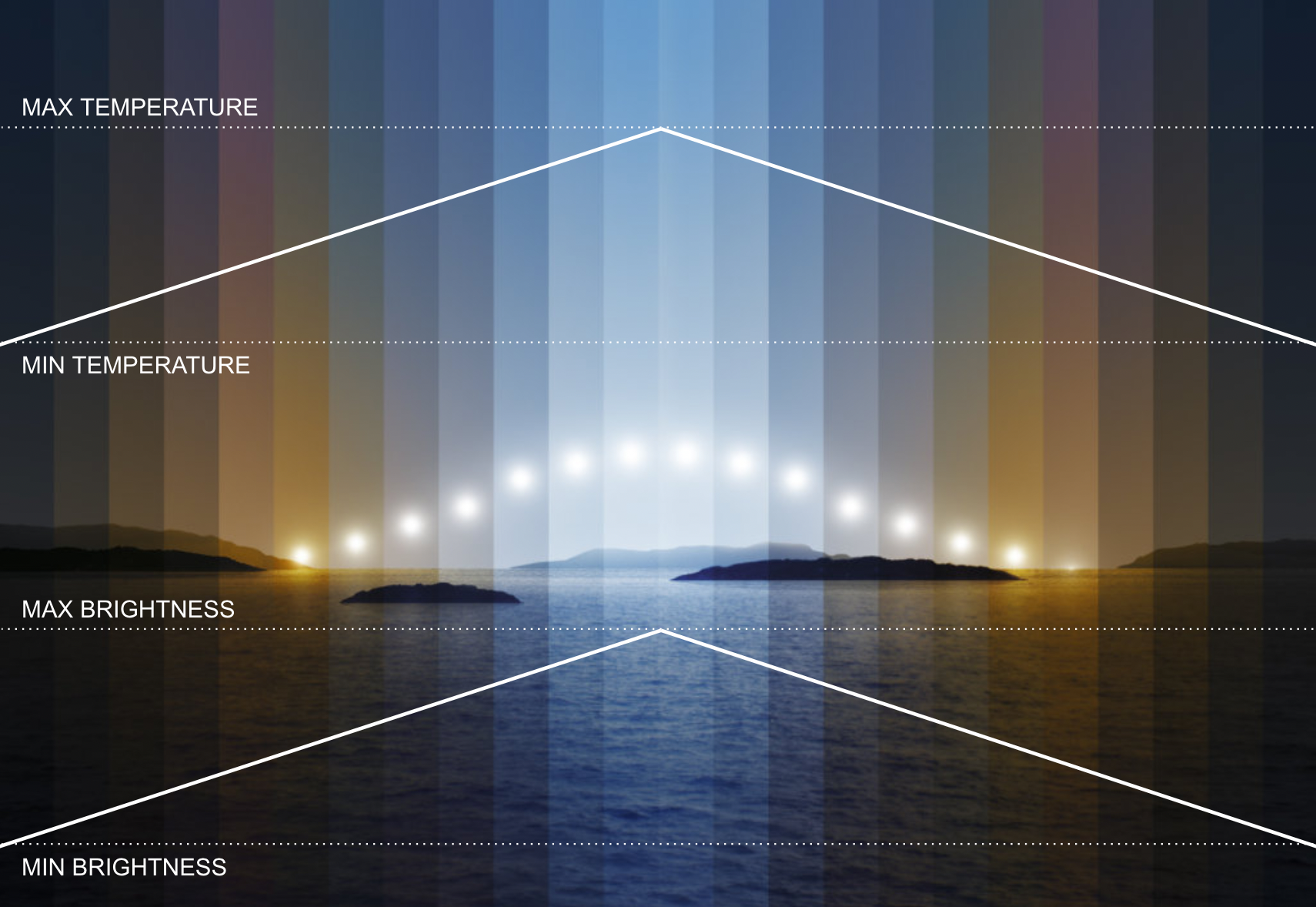
Once the cycle is configured, drag the KNX widgets of the dimmers it has to drive into its widgets section. If the control of the color temperature is disabled, only the brightness is applied to them. The START button sets the cycle running.
Virtual objects
Virtual objects can be used to simulate “real” objects by storing values. To create a virtual object navigate in the section
Automations → Connections, model Virtual Object of the Library
And use the Add action of the node in the context tree. The main properties to configure are:
| NAME | Identifies the variable within the supervision |
| DESCRIPTION | Optional description. |
| LIBRARY | Icon that is used to graphically represent the object in the Visualization.. It is possible to choose the appearance by clicking the icon and selecting or uploading a picture in the popup. |
| VALUE TYPE | Option that defines the type of value to store in the virtual object: • BOOLEAN VALUE. • NUMERIC - INTEGER. • NUMERIC - FLOAT. • STRING. |
| FUNCTION | Select the type of function of the virtual object (lighting, HVAC, and so on).. |
If Expert mode is enabled, the following additional options are displayed:
| FORMATTING | Allows you to set a custom format of the object value using the “sprintf” convention, for example: %s%% → Value followed by “%” symbol. %0.2f → Value rounded to 2 decimal places. %0.1f°C → Value rounded to 1 decimal place followed by “°C”. |
| VISIBLE | Enable or disable the visibility of the virtual object in the Visualization. |
| WRITE PERMISSION | If enabled, the object cannot be controlled by the end user. |
| ENABLE SCHEDULE | If enabled, the object can be affected by a programmed scheduler in the Visualization. |
| ENABLE PIN CONTROL | If enabled, the virtual object can be protected with an authentication method. |
Logics
Introduction
DELÉGO SERVER can build logics across objects created for different technologies. The integrated logic module rests on a LUA script, generated automatically from the graphical editor and kept running in the background. The script holds the output objects in the state the logic determines, following the rules described in this chapter.
This topic is shown in the Automations video tutorial.
Logic programs
It is possible to create one or more programs, also called “tasks”, each characterized by a graphic page in which to create a logical network; to create a new task, in the Administration navigate to
Automations → Logics, node Logic programs
and use the Add action of the node in the context tree. Each task is represented by a graphic page, into which it is possible to drag the objects of the project, taken from the Widgets tab of the source panel, and the logic blocks, taken from its Library tab.
Toolbar
When a task is opened, its graphical editor fills the workspace and a toolbar appears across the top of the editor, above the drawing area.
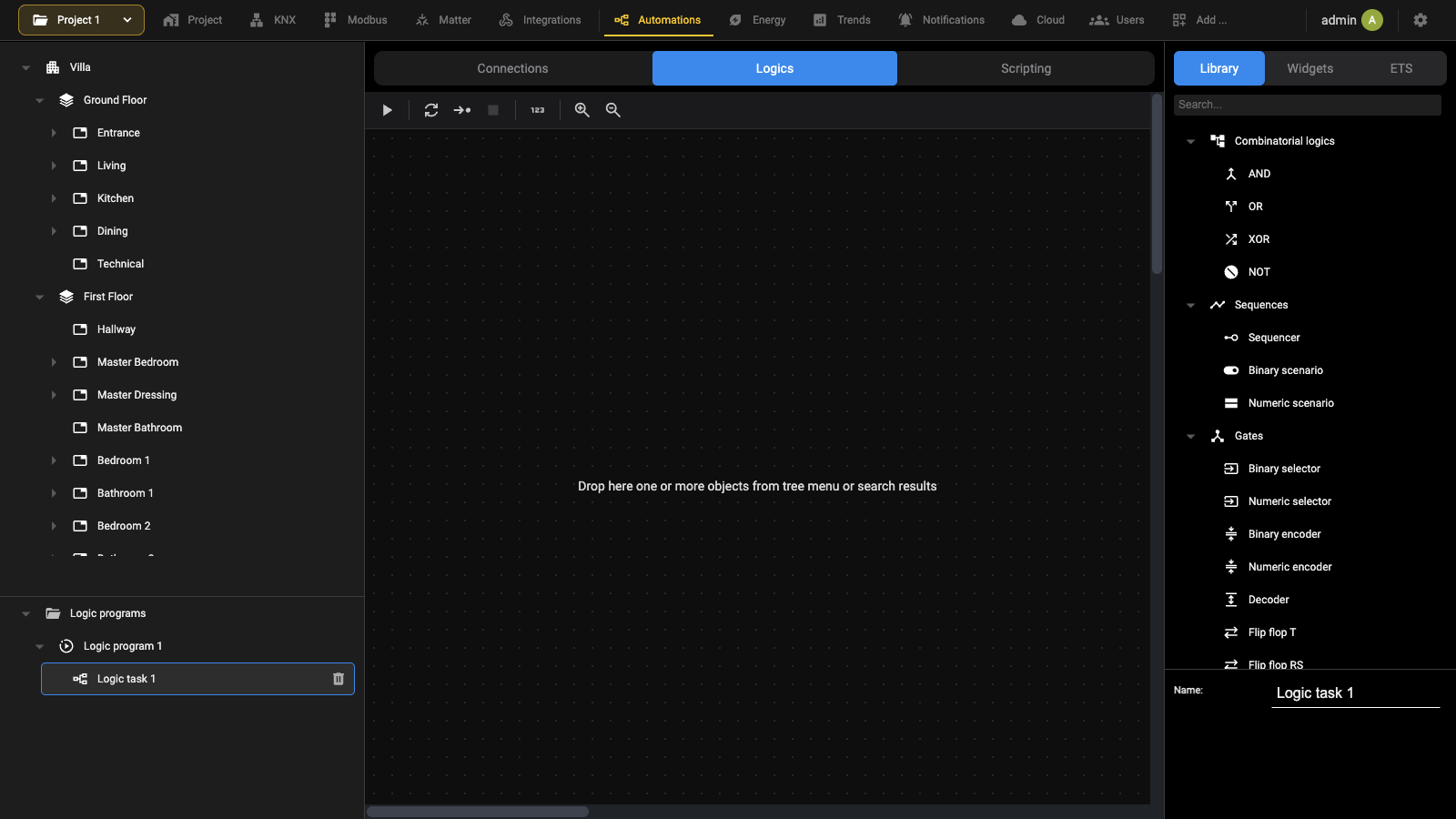
| Start/Stop | Starts or stops the program. |
| Continuous simulation | Starts the simulation in real-time mode. |
| Step-by-step simulation | Starts the simulation one step at a time. |
| Stop | Stops the current simulation. It is available only while a simulation is running. |
| Automatic blocks reorder | Rearranges the blocks in the drawing area, sorting them by position. |
| Zoom + | Enlarges the zoom factor of the work area. |
| Zoom - | Reduces the zoom factor of the work area. |
The blocks to be used in the task are taken from the Library of the source panel, on the right, where they are grouped by family: Combinatorial logics, Sequences, Gates and the others. They are added to the task by dragging them into the drawing area. The Widgets tab of the same panel holds the objects of the project, which are dragged in the same way to become the inputs and the outputs of the task.
Blocks
Technology widgets, when dragged into a task, are represented by a block.
The number and the type of the input and output nodes depend on the type of widget: the inputs command that technological function, the outputs publish its state. The same input node can be connected to multiple blocks, while the same output node cannot be connected to multiple blocks within the same task. Trigger nodes have a very specific role, which will be explained later.
The logic blocks, vice versa, are dragged from the Library of the source panel into the drawing area.
In some cases the block includes a variable number of nodes (input or output); in this case, the “+” button allows you to add nodes to the block, up to the maximum number (for example, an AND operator accepts at most 10 inputs).
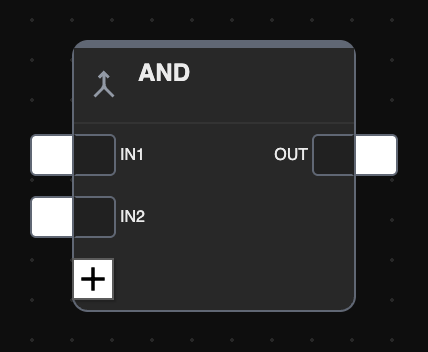
The logical function can only be executed correctly if the nodes are connected to other blocks. Not all nodes are strictly necessary for the correct execution of the logic; if an input node is not connected, its default value is used, which can be modified by selecting the node and opening the corresponding details panel (if it is not possible to set it, it means that the node must necessarily be connected).
Blocks can be moved in the drawing area, by single selection, or by selecting a rectangular area involving multiple blocks. To remove a block from the work area, select it and press the DELETE key. Connections can also be removed in the same way.
Execution order
During the simulation and compilation phases, the editor generates a Lua script which is executed cyclically. The tasks are concatenated in the script based on their ordering on the Logic programs page; within each task, the logical blocks also have their own execution order, indicated at the top right for each block.
Under normal conditions, blocks are assigned an ascending order based on the order in which they are inserted into the program; however, it is possible to force a different execution order as follows:
- Select the affected block
- Open the details panel
- Choose “MANUAL” as the sort order
- Enter an order number, taking care to enter a number that has not yet been used
Manually sorted blocks are highlighted in yellow. Finally, it is possible to reorder the blocks from top/left to bottom/right with Automatic blocks reorder, in the toolbar above the drawing area.
TRG
In ordinary conditions the logic module holds its output objects in the state the logic determines: as soon as one of them changes on its own (because a command arrived from the bus, from outside the logic) it is brought back to the state the logic says.
That is not always what is wanted. Sometimes an object has to be commanded when other objects change, and then be left alone if someone commands it from elsewhere. This is an event-based logic, and it is what the TRG nodes are for.
An input trigger emits a pulse (the value 1 for a single cycle of the script, then back to 0) every time a value arrives on the object it belongs to. An output trigger decides when a command is actually issued: every time a pulse reaches it, the value of the object is sent on the bus, even if it has not changed since the previous cycle.
To have the output object commanded whenever the inputs change, and yet free to take another state if commanded from outside:
- connect the TRG input nodes of the source objects to the TRG output node of the destination;
- make sure the command node has Trigger only as its output strategy, so that the command leaves only when the trigger arrives.
Connecting the output trigger sets the output strategy to Trigger only by itself, and the symbol on the output nodes changes to match.
The strategy can also be set by hand, to govern when the command has to go on the bus. A trigger can then be used to send the value of an output periodically, on top of sending it when it changes, by wiring a periodic logic upstream of it, much as many KNX devices do on their own.
On composite widgets, opening the side panel on a TRG node gives the Affected nodes selector, which filters which nodes generate the pulse, for an input trigger, or which ones the trigger acts on, for an output trigger.
Simulation
Once a logical task has been created, it is possible to simulate its operation within the editor, manually entering the status of the inputs and verifying the processing of the outputs in real time, also by means of the logic blocks which involve a variation of the outputs over time.
There are two types of simulation:
:
- Continuous simulation: task execution occurs in the background and is affected in real time by changes in the state of the nodes.
- Step-by-step simulation each task execution cycle must be launched manually, between one and the other it is possible to change the state of the nodes The first type allows a more realistic evaluation of the logical networks created, the second allows an in-depth and timely verification of each single passage of values between blocks, and offers a higher level of diagnostics.
By pressing one of the simulation buttons (continuous or step-by-step), the editor window undergoes the following changes:
- The main menu is limited to the PROJECT view only, allowing only switching between logical programs. It is not possible to create or delete programs.
- The details panel is closed to provide maximum working space for the simulation
- Any drag&drop, connection, modification or deletion of the contents of the logic programs is blocked
- The nodes take a color based on their state, and their value can be forced by hand (as detailed below)
The colors of the nodes follow this convention:
| Binary nodes | gray yellow | Value 0 (OFF) Value 1 (ON) |
| Numeric nodes | blue | Any value |
During the simulation, the editor reports in the message area information relating to the execution of the programs and manual or automatic changes of the logic state. During the step-by-step simulation some “debug” level messages are displayed
To manually set the state of a node during simulation:
- Double-click the node value (the label becomes editable)
- Delete the current value and enter the new value
- Press ENTER
The color of the node (if digital) changes according to the new value, and this is passed to the simulator, which propagates it instantly (in continuous simulation) or at the next execution cycle (in step-by-step mode). You can stop the simulation at any time with Stop, in the toolbar above the drawing area; that button is available only while a simulation is running.
Execution of logic programs
Once the implementation of the tasks has been completed, with the help of the simulation, it is necessary to execute the programs with Start/Stop, in the toolbar above the drawing area. During execution, tasks cannot be modified.
A task that is not ready to run can be disabled on the Logic programs page before the others are started.
Library
This section lists and describes the blocks available in the Library of the logics editor, the ones a logic program is built out of. They are grouped as they appear in the library itself: Combinatorial logics, Sequences, Gates, Comparisons, Math operations, Counters, Timers & schedules, Binary variables, Numeric variables and Constants.
For each block the description reports the nodes it exposes, on which side of the block each of them sits, and the options that govern its behavior.
Combinatorial logics
The Combinatorial logics group holds four blocks: AND, OR, XOR and NOT. The first three take from two to ten binary inputs and share the same geometry; only the operation performed on them changes.
AND
Performs the logical AND of two or more binary inputs, up to ten.
Preview:
| NODE | DESCRIPTION | |
|---|---|---|
| IN1 … IN10 | Input 1 to input 10: 0 off, 1 on. | Input |
| + | Adds another input to the block. | |
| OUT | Logic output: 0 off, 1 on. | Output |
OR
Performs the logical OR of two or more binary inputs, up to ten.
Preview:
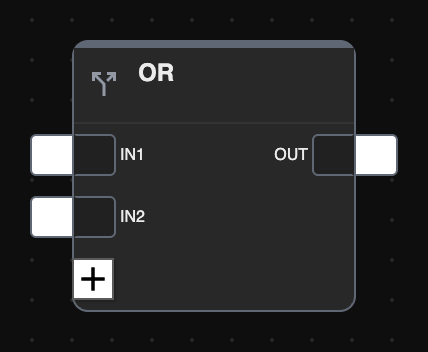
| NODE | DESCRIPTION | |
|---|---|---|
| IN1 … IN10 | Input 1 to input 10: 0 off, 1 on. | Input |
| + | Adds another input to the block. | |
| OUT | Logic output: 0 off, 1 on. | Output |
XOR
Performs the exclusive OR of two or more binary inputs, up to ten.
Preview:
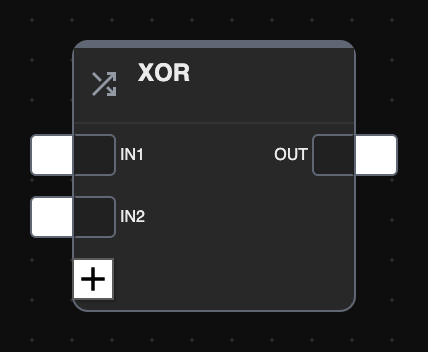
| NODE | DESCRIPTION | |
|---|---|---|
| IN1 … IN10 | Input 1 to input 10: 0 off, 1 on. | Input |
| + | Adds another input to the block. | |
| OUT | Output: 0 off, 1 on. | Output |
NOT
Performs the logical NOT of its single input. Unlike the other three it takes one input only, and has no button to add more.
| NODE | DESCRIPTION | |
|---|---|---|
| IN | Input: 0 off, 1 on. | Input |
| OUT | Output: 0 off, 1 on. | Output |
None of the four blocks has options.
Sequences
SEQUENCER
On a pulse at the IN input the block activates and deactivates up to ten boolean outputs one after the other, holding each of them active for a time that can be set step by step.
Preview:
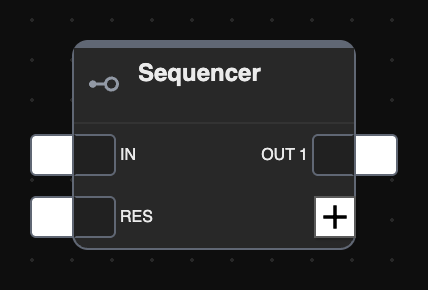
| NODE | DESCRIPTION | |
|---|---|---|
| IN | Sequence start: 0 off, 1 on. | Input |
| RES | Sequence reset: 0 off, 1 on. | Input |
| OUT 1 … OUT 10 | Output 1 to output 10: 0 off, 1 on. | Output |
| + | Adds another output to the sequence. |
Options:
| Cyclic sequence | Whether the sequence starts again once it has finished. |
| Delay of step 1 … 10 | How long each step lasts before the next one, as hh:mm:ss. The maximum is twelve hours. |
BINARY SCENARIO
On a pulse at the TRG input the block runs a sequence of boolean commands, each of them set in the options, spacing one command from the next by an interval common to all the outputs.
Preview:
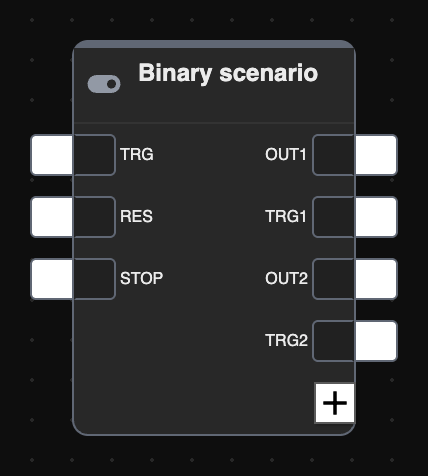
| NODE | DESCRIPTION | |
|---|---|---|
| TRG | Input trigger: 0 off, 1 on. | Input |
| RES | Scene reset: 0 off, 1 on. | Input |
| STOP | Scene stop: 0 off, 1 on. | Input |
| OUT1 … OUT10 | Output 1 to output 10: 0 off, 1 on. | Output |
| TRG1 … TRG10 | Trigger 1 to trigger 10, which fires the corresponding output. | Output |
| + | Adds another output, together with its trigger. |
Options:
| Outputs interval | Time between one output command and the next, from 1 to 60 seconds. |
| Output set 1 … 10 | The value each output is set to: 0 false, 1 true. |
NUMERIC SCENARIO
The same as the binary scene, except for what travels on the outputs: a numeric value instead of a boolean one.
Preview:
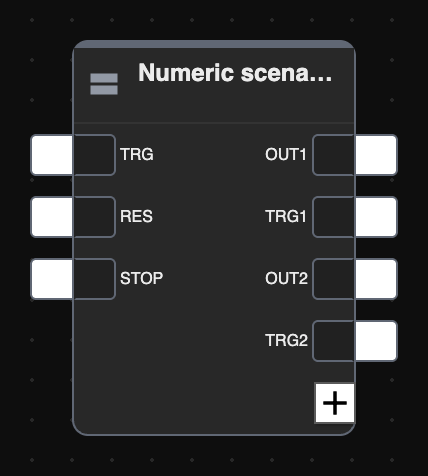
| NODE | DESCRIPTION | |
|---|---|---|
| TRG | Input trigger: 0 off, 1 on. | Input |
| RES | Scene reset: 0 off, 1 on. | Input |
| STOP | Scene stop: 0 off, 1 on. | Input |
| OUT1 … OUT10 | Output 1 to output 10. Any numeric value. | Output |
| TRG1 … TRG10 | Trigger 1 to trigger 10, which fires the corresponding output. | Output |
| + | Adds another output, together with its trigger. |
Options:
| Outputs interval | Time between one output command and the next, from 1 to 60 seconds. |
| Output set 1 … 10 | The value each output is set to. Any numeric value. |
Gates
The Gates group holds the blocks that route a value between several nodes, and the memory blocks. Selectors choose which input reaches the single output; encoders do the opposite, choosing which output receives the single input.
BINARY SELECTOR
Returns the value of one of its inputs according to SEL, which acts as the selector: with SEL false the output takes IN0, with SEL true it takes IN1.
Preview:
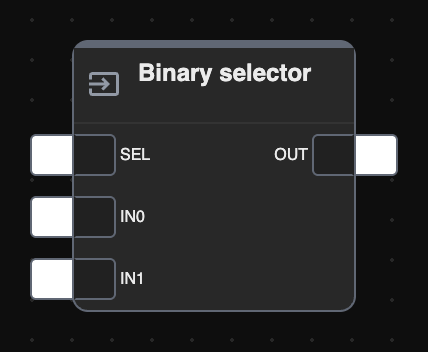
| NODE | DESCRIPTION | |
|---|---|---|
| SEL | Input select: 0 the output takes IN0, 1 it takes IN1. | Input |
| IN0, IN1 | Input 0 and input 1: 0 off, 1 on. | Input |
| + | Adds another input to the block. | |
| OUT | Output: 0 off, 1 on. | Output |
NUMERIC SELECTOR
The same as the binary selector, except that the two inputs and the output carry a numeric value.
Preview:
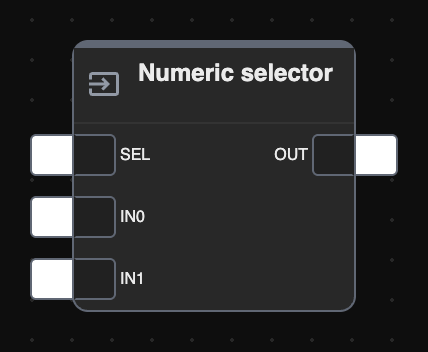
| NODE | DESCRIPTION | |
|---|---|---|
| SEL | Input select: 0 the output takes IN0, 1 it takes IN1. | Input |
| IN0, IN1 | Input 0 and input 1. Any numeric value. | Input |
| OUT | Output. Any numeric value. | Output |
BINARY ENCODER
Places the value of IN on one of its two outputs, according to SEL.
Preview:
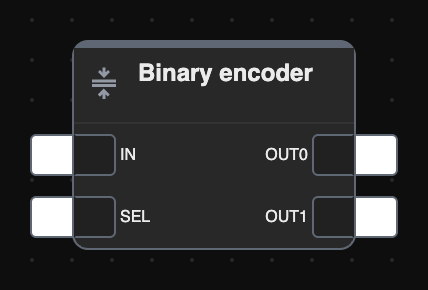
| NODE | DESCRIPTION | |
|---|---|---|
| IN | Input: 0 off, 1 on. | Input |
| SEL | Output select: 0 sends IN to OUT0, 1 sends it to OUT1. | Input |
| OUT0 | Output taken when the select is 0. | Output |
| OUT1 | Output taken when the select is 1. | Output |
NUMERIC ENCODER
Places the value of IN on one of its outputs, according to the numeric value of SEL. The outputs go from three up to eleven, OUT0 to OUT10, added one at a time with the [+] button.
Preview:
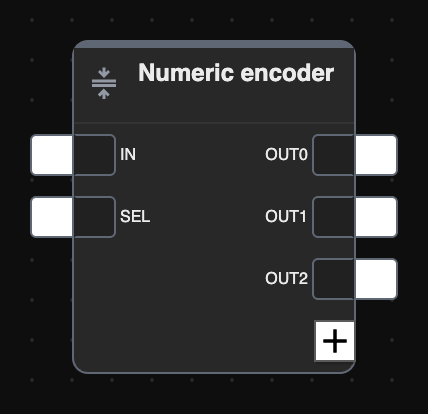
| NODE | DESCRIPTION | |
|---|---|---|
| IN | Input: 0 off, 1 on. | Input |
| SEL | Output select: the value picks the output the input is sent to. | Input |
| OUT0 … OUT10 | Output 0 to output 10: 0 off, 1 on. | Output |
| + | Adds another output to the block. |
DECODER
The counterpart of the numeric encoder: it returns the value of one of its inputs according to the numeric value of SEL. The inputs go from two up to eleven, IN0 to IN10, added one at a time with the [+] button.
Preview:
| NODE | DESCRIPTION | |
|---|---|---|
| SEL | Input select: the value picks the input that reaches the output. | Input |
| IN0 … IN10 | Input 0 to input 10: 0 off, 1 on. | Input |
| + | Adds another input to the block. | |
| OUT | Output: 0 off, 1 on. | Output |
FLIP-FLOP T
A T-type flip-flop, which behaves like a step-by-step relay: at every rising edge on TRG the output changes state. While LCK is at 1 the trigger has no effect and the output stays where it is. While PRT is at 1 the output takes the value set in the options.
A corridor light is the typical use: the light responds to the trigger only while the brightness is below a threshold, so what goes into LCK is the condition that has to block it (brightness above the threshold) and is on regardless during the night, with the night flag wired to PRT.
Preview:
| NODE | DESCRIPTION | |
|---|---|---|
| TRG | Trigger: 0 off, 1 on. | Input |
| LCK | Freezes the current state: 0 off, 1 on. | Input |
| PRT | Priority flag: 0 off, 1 on. | Input |
| OUT | Output signal: 0 off, 1 on. | Output |
Options:
| Priority value | The value the output takes while the priority flag is active: true or false. |
FLIP-FLOP RS
An RS-type flip-flop, an elementary memory: it is loaded by SET and cleared by RES. When both are at 1, the one named in the options prevails.
It suits an alarm signal: wire the alarm contact to SET, and once that has gone to 1 the block holds the output at 1 until RES clears it, so the information survives even when the alarm returns to normal.
Preview:
| NODE | DESCRIPTION | |
|---|---|---|
| SET | Set: 0 off, 1 on. | Input |
| RES | Reset: 0 off, 1 on. | Input |
| OUT | Output signal: 0 off, 1 on. | Output |
Options:
| Select priority | Which input prevails when both are at 1: Set or Reset. |
FLIP-FLOP D
A D-type flip-flop. It works like the D latch, with the difference that it acts on the edge of CLK: the data on DAT reaches OUT only at the rising edge of the clock, and stays there until the next one. The block is, in effect, a memory cell.
Preview:
| NODE | DESCRIPTION | |
|---|---|---|
| DAT | Data: 0 off, 1 on. | Input |
| CLK | Clock: 0 off, 1 on. | Input |
| OUT | Output: 0 off, 1 on. | Output |
Options:
| Priority selection | DAT or CLK. |
BINARY D LATCH
The input IN is propagated to OUT while the enable ENA is at 1. When the enable drops, the output keeps the last state; when it rises again, the last value read at the input is sent out. With ENA at 0, in other words, the block stores the last value read and releases it when the enable comes back. Input and output carry a boolean.
Preview:
| NODE | DESCRIPTION | |
|---|---|---|
| IN | Input: 0 off, 1 on. | Input |
| ENA | Enable output: 0 off, 1 on. | Input |
| OUT | Output: 0 off, 1 on. | Output |
Options:
| Priority selection | IN or ENA. |
NUMERIC D LATCH
The same as the binary latch, with the input and the output carrying a numeric value.
Preview:
| NODE | DESCRIPTION | |
|---|---|---|
| IN | Input. Any numeric value. | Input |
| ENA | Enable output: 0 off, 1 on. | Input |
| OUT | Output. Any numeric value. | Output |
Options:
| Priority selection | IN or ENA. |
Comparisons
COMPARISON OPERATORS
The block compares the values of its two inputs and puts out a true or false according to the operator. The Comparisons group of the library offers one block per operator:
| Greater | The first input is greater than the second. |
| Greater than or equal | The first input is greater than or equal to the second. |
| Minor | The first input is smaller than the second. |
| Minor or equal | The first input is smaller than or equal to the second. |
| Equal | The two inputs carry the same value. |
| Different | The two inputs carry different values. |
The nodes are the same for all six:
| NODE | DESCRIPTION | |
|---|---|---|
| IN1 | Input 1. Any numeric value. | Input |
| IN2 | Input 2. Any numeric value. | Input |
| OUT | Logic output: 0 false, 1 true. | Output |
The block has no options: which comparison is made is decided by the block chosen from the library, not by a setting.
Math Operations
MATHEMATICAL OPERATORS
The block performs a mathematical operation on its inputs. The Math operations group of the library offers one block per operation: Maximum, Minimum, Average, Sum, Subtraction, Multiplication, Division, Absolute value, Log10, Integrator and Range. The last two are described further on.
Preview:
| NODE | DESCRIPTION | |
|---|---|---|
| IN1, IN2 … | Input 1, input 2 and the following ones. Any numeric value. | Input |
| + | Adds another input to the block. | |
| OUT | Result of the operation. Any numeric value. | Output |
A block takes at most ten inputs, and some operations take fewer: a multiplication and a division work on two, an absolute value and a logarithm on one only.
The blocks that work on a single value name their nodes after what they carry: Absolute value has IN signed value and OUT absolute value, Log10 has IN input value and OUT logarithm base 10.
RANGE
The block performs a linear interpolation of the value at its input against a mapping (also called a characteristic) given by two pairs of values (X, Y). The input is placed between X0 and X1, and the same proportion is applied between Y0 and Y1 to obtain the output. Its typical use is converting a value from one quantity to another.
Preview:
| NODE | DESCRIPTION | |
|---|---|---|
| IN | Input. Any numeric value. | Input |
| FPR | Enable priority: 0 no priority, 1 priority, and the priority value is returned instead of the interpolated one. | Input |
| ACT | Direct or reverse: 0 direct operation, 1 reverse operation. | Input |
| OUT | Output. Any numeric value. | Output |
Options:
| X 0, Y 0, X 1, Y 1 | The two pairs of points that define the characteristic. Any numeric value. |
| Priority value | The value returned while FPR is active. |
Counters
The Counters group of the library holds three blocks: Count, Countdown and Up/Down Counter. The first two share the same nodes and differ only in the direction they move; the third is built differently and is described separately below.
COUNT, COUNTDOWN
The block counts the pulses arriving on its trigger, raising its value at each one, or lowering it, in the case of Countdown.
Preview:
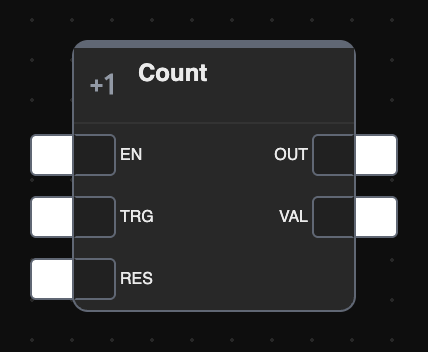
| NODE | DESCRIPTION | |
|---|---|---|
| EN | Enable: 0 not enabled, 1 enabled. While it is off the pulses are ignored. | Input |
| TRG | Trigger: the counter moves on each pulse, that is on each transition to 1. | Input |
| RES | Reset: a pulse brings the counter back to the preset value. | Input |
| OUT | Output: 0 or 1. | Output |
| VAL | Current value of the count. Any numeric value. | Output |
Options:
| Preset | The value the counter starts from: it is applied on a reset and when the logic starts. Any numeric value. |
UP/DOWN COUNTER
Counts in both directions, with the direction decided by an input rather than by the choice of the block, and reports when it reaches its limits.
| NODE | DESCRIPTION | |
|---|---|---|
| CLK | Clock: the counter moves on each pulse. | Input |
| EN | Enable: while it is off the pulses are ignored. | Input |
| RES | Reset: brings the count back to its starting value. | Input |
| DIR | Direction: it is this input that decides whether the counter goes up or down. | Input |
| VAL | Current value of the count. Any numeric value. | Output |
| HILIM | Upper limit reached. | Output |
| LOLIM | Lower limit reached. | Output |
Options:
| Max limit | The value at which the count stops going up, and which HILIM reports. |
Timers & schedules
TIMER
Delays the value received at the input by a set time. When a 1 arrives on IN, a rising edge, an internal counter runs for the rising edge delay and only then is the output brought to 1. On a 0, a falling edge, the block waits the falling edge delay before setting the output to 0.
| NODE | DESCRIPTION | |
|---|---|---|
| IN | Input ON/OFF signal: 0 off, 1 on. | Input |
| OUT | ON/OFF output signal, delayed by the timer: 0 off, 1 on. | Output |
Options:
| Rising edge delay | Delay applied to a rising edge received at the input, as hh:mm:ss. The maximum is twelve hours. |
| Falling edge delay | Delay applied to a falling edge received at the input, as hh:mm:ss. The maximum is twelve hours. |
TRIGGER, NUMERIC TRIGGER
Generates a trigger (a pulse lasting one cycle) on an edge detected at the input. On a 1 the output goes to 1 for a single processing cycle and then back to 0, which is how a pulse is produced for the blocks that need one, such as scenes and sequencers.
| NODE | DESCRIPTION | |
|---|---|---|
| IN | Input edge. | Input |
| OUT | Pulse lasting one cycle. | Output |
Options:
| Edge | On the Trigger block: which edge is detected at the input, rising or falling. |
| Condition | On the numeric trigger, the value against which the block generates the pulse. |
ASTRONOMICAL CLOCK
Produces information that depends on the time and the position: whether it is day or night, how high the sun is and its azimuth.
| NODE | DESCRIPTION | |
|---|---|---|
| DAY | Day or night, from the twilight threshold: 1 is night. | Output |
| ELEV | Height of the sun. | Output |
| AZI | Azimuth. | Output |
Options:
| Latitude | Latitude of the installation, from -90 to 90, with the point as decimal separator. |
| Longitude | Longitude of the installation, from -180 to 180. |
| Threshold | The day and night threshold: how far below the horizon the sun has to be before DAY switches. |
| GMT Offset | Offset of the installation from GMT. |
| DST mode | How daylight saving time is handled: Disable, Automatic or Manual. |
| DST | With Manual, which of the two applies: Standard time or Daylight saving time. |
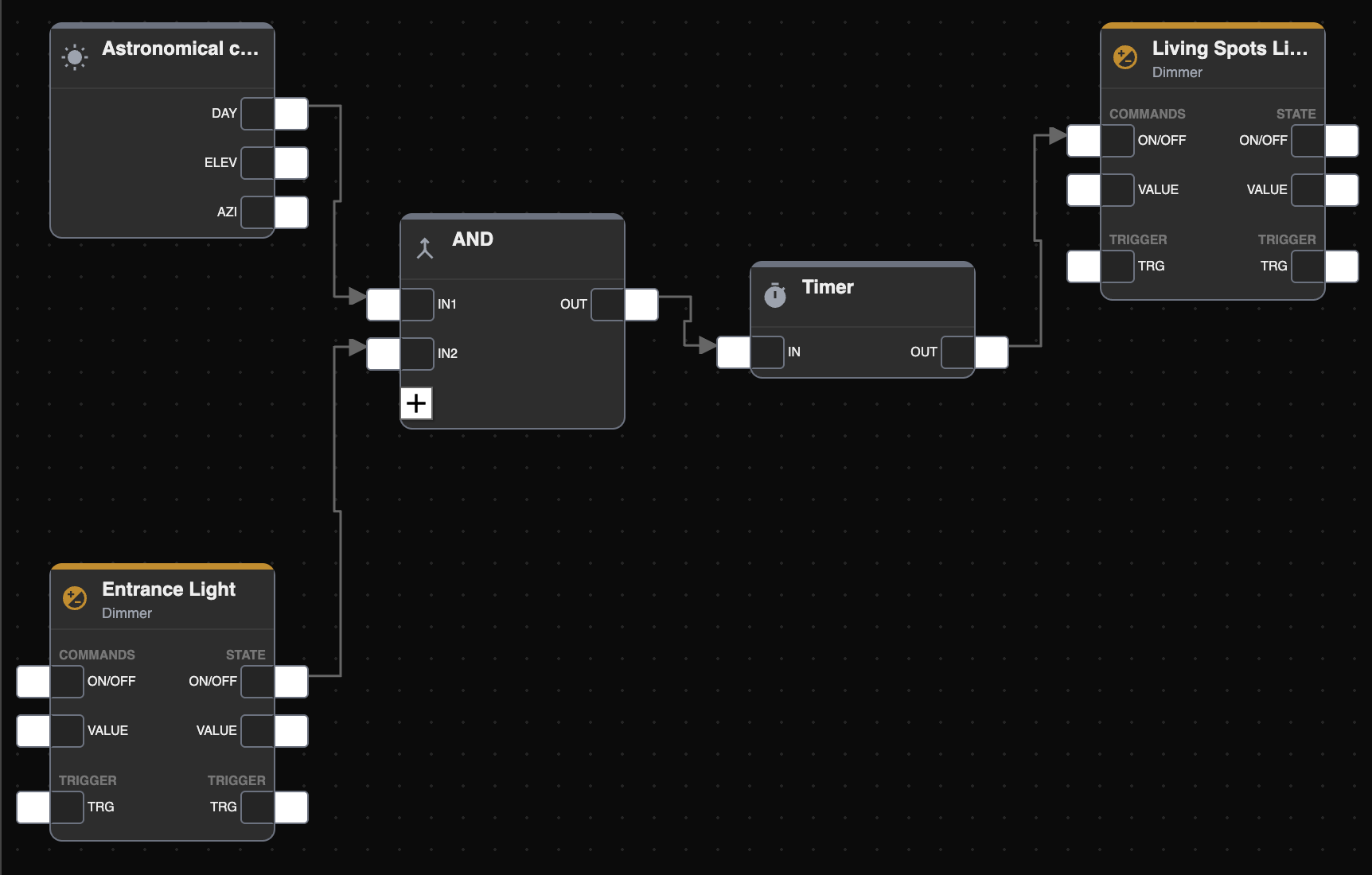
DATE/TIME
Returns the current time of the system, each component on its own node.
Preview:
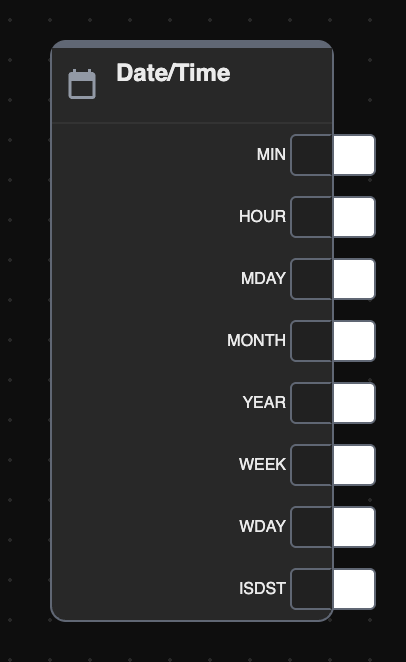
| NODE | DESCRIPTION | |
|---|---|---|
| MIN | Minute. | Output |
| HOUR | Hour. | Output |
| MDAY | Day of the month. | Output |
| MONTH | Month. | Output |
| YEAR | Year. | Output |
| WEEK | Week number. | Output |
| WDAY | Day of the week. | Output |
| ISDST | Whether daylight saving time is in force: 1 yes, 0 no. | Output |
Options: the same Latitude, Longitude, Time zone and DST mode as the astronomical clock, the last one taking Disabled, Auto or Manual.
COMMAND REPEAT
Carries two trigger nodes: when a trigger arrives on the input, the block produces N+1 triggers on the output, spaced by a configurable interval.
| NODE | DESCRIPTION | |
|---|---|---|
| TRG | Trigger input. | Input |
| TRG | Trigger output, repeated as many times as the options say. | Output |
Options:
| Interval (s) | Seconds between one output trigger and the next. |
| Repetitions | How many triggers to generate beyond the first. |
PULSE
Generates a trigger cyclically, on the time set in the options. It works as a clock for whatever has to happen at a regular interval: connected to the TRG output node of one or more objects, for instance, it forces the periodic emission of their value on the field even when it has not changed.
| NODE | DESCRIPTION | |
|---|---|---|
| TRG | Output trigger, raised cyclically when the timer expires. | Output |
Options:
| Timer | Cyclic time between one output trigger and the next. |
Variables
Variables carry values from one logic program to another. A variable has to exist before it can be used: create it with the Add action of the node in the context tree, then drag it into the programs that have to read it or write it.
The same variable can appear in several programs. A program that writes the variable connects its input node, one that reads it connects the output node: this is what lets a program hand a value to another one.
BINARY VARIABLES
Carry a boolean value between programs. The library group is Binary variables.
| NODE | DESCRIPTION | |
|---|---|---|
| VAL | Value to be set to the variable: 0 off, 1 on. | Input |
| VAL | Current value of the variable: 0 off, 1 on. | Output |
NUMERIC VARIABLES
Carry a numeric value between programs. The library group is Numeric variables.
| NODE | DESCRIPTION | |
|---|---|---|
| VAL | Value to be set to the variable. Any numeric value. | Input |
| VAL | Current value of the variable. Any numeric value. | Output |
Neither kind has options.
Constants
A constant feeds a block with a value that cannot change while the program runs. As with variables, a constant has to be created before it can be used: use the Add action of the node in the context tree, then drag it into the task.
CONSTANTS
Set a fixed numeric value and connect it to the other logic blocks. The library group is Constants.
| NODE | DESCRIPTION | |
|---|---|---|
| VAL | Value to be set to the constant. Any numeric value. | Input |
| VAL | Current value of the constant. Any numeric value. | Output |
The block has no options: the value is the one given to the constant when it was created.
Drawing Tools
To keep a logic program readable (which matters as soon as the network of blocks grows) the editor offers a few drawing tools, for adding notes and for marking out areas of the program.
They are in the Drawing tools group of the library, and are inserted into the program by dragging, exactly like any other kind of object. The group holds three of them: Label, Area and Reminder.
None of them takes part in the logic: they are drawn on the program and change nothing in how it runs.
Labels
A Label puts free text into a program, and a program may carry as many of them as needed. Once dragged in, a label is customized from the details panel:
| Text | The text shown in the logic program. |
| Color | Color of the text. |
| Font size | Size of the text. |
A label is removed with the DELETE button of the details panel, or by selecting it and pressing the DELETE key.
Rectangular areas
An Area marks out one or more portions of a logic program, by dragging in as many colored rectangles as needed. Once an area is in the program it is possible to:
- resize it, by dragging the handle in its bottom right corner;
- change the color of its border, with the color picker of the details panel.
Areas are always drawn underneath the blocks and their connections, so they never hide the program.
They do not support multiple selection, unlike blocks and labels: to customize one or to remove it, click it on its own and use the tools of the details panel, the color picker and the DELETE button.
Scripting
Introduction
This chapter contains all the information to create your own scripts in DELÉGO SERVER using the LUA programming language.
Overview
Scripts
Scripts are files of code, created and kept on the flash disk of DELÉGO SERVER through the Scripting tab of the Automations section, where an integrated editor allows creating them, changing them and deleting them.
The files live on the disk of the server and survive a reset to factory settings. They are not part of the backup of the database, though: to move a project to another webserver they have to be exported, and imported again, separately.
Scripts have to be written following what this chapter describes, using the libraries and the functions the scripting engine provides. Code that goes beyond those may compromise the correct operation of DELÉGO SERVER.
DELÉGO SERVER already carries a set of examples that give a complete picture of what the scripting system can do. They are not meant to be modified or executed as they are: duplicate one and work on the copy, where there is no restriction.
Runners
Once a script has been created (from scratch or by duplicating and modifying an example), it is necessary to associate it with one or more objects of the “script runner” type; these particular objects have the task of executing the code contained in the script to which they are associated, when connected to other objects in the project.
The SCRIPTS cannot therefore be executed directly, but only through a SCRIPT RUNNER, which behaves in a completely analogous way to other types of object. The advantage of having a structure based on separate SCRIPTS and SCRIPT RUNNERS is twofold:
- The same script can be associated with more than one runner object, each placed in a different logic, event or scenario, and therefore able to work on different data.
- Ability to export, import and share scripts regardless of the project created
Once created, a runner still has to be placed in the project: take it from the Widgets tab of the source panel and drag it into a connection (Automations → Connections) or into a task of a logic program (Automations → Logics). There the runner is shown as a graphic block, drawn according to the model of its script, whose nodes are connected to the other objects of the project.
The following diagram outlines the interactions between a SCRIPT RUNNER and the associated objects via EVENTS, or its command via the RUNTIME pages of the webserver:
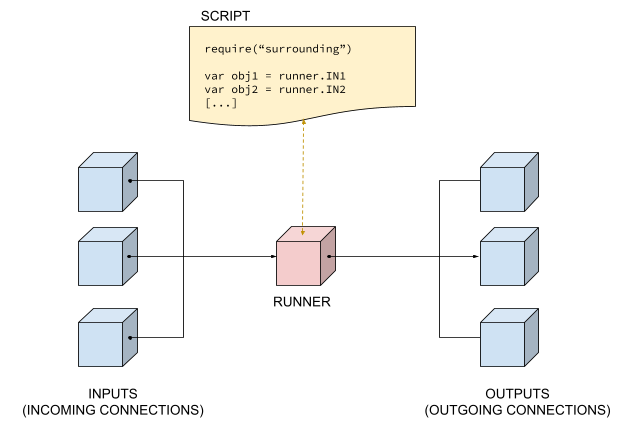
Libraries
DELÉGO SERVER ships a set of libraries offering ready-made tools for the things the scripting engine deals with. They are not included automatically: each one has to be loaded with the LUA require function
require(<library name>)for example:
require("messages")Including a library costs processing time, so it is worth requiring only the ones the script actually needs. Libraries may depend on other libraries; there is no need to include those as well, since the library that depends on them pulls them in on its own.
The libraries available are the following, and each has its own section in this chapter:
| Library | Description |
|---|---|
| objects | Loads the objects of the supervision and interacts with them: search, properties, commands. It pulls in the object library, which is what gives each loaded object its methods. |
| surrounding | Gives access to the script runner that is executing the script, and to the objects connected to it as inputs and outputs. It builds on objects. |
| messages | Sends notifications on screen and by e-mail. |
| json | Encodes and decodes JSON strings. |
| url | Calls an external URL and returns the response. |
Inputs and Outputs
A script runner always receives an input value when it is executed. Where that value comes from depends on what started the execution:
- when the command comes straight from the Visualization, the value is the one the user provided, typing it in a text box, pressing a button, and so on, depending on the graphical form chosen for the runner;
- when the execution follows the change of state of one of the objects connected as inputs, the value is the one the relation itself defines: either the value of the object that changed, or a fixed value written in the Administration.
Either way, the input value is read inside the script with:
input()val = input()The function returns an empty string when the runner was executed without an input value, never nil: a script that has to tell the two apart should test for the empty string.
Together with it, the identifier of the object that caused the execution is available with:
callerid()which returns the ID of the calling object, or an empty string when there is none. It is what tells apart several inputs wired to the same runner. Inside a runner in a loop the same information arrives with the event, as event.caller; see the chapter on the loop.
At the end of its execution a script can return an output value to the environment. If the runner has objects connected as outputs, the value is set on them:
output(<VALUE>)output(1)The value is converted to the type each output object expects, according to its VALUES_TYPE.
Calling output() ends the execution: any line of code after it is ignored. This is a property of the function, not of the position it is written in: an output() inside a branch ends the script just the same.
The function takes an optional second argument, the exit code with which the script terminates:
output(1,0)The default is 0, which means the execution completed correctly. A code other than zero marks the execution as failed in the debug of the runner.
If nothing has to be passed back to the calling environment, call the function without arguments:
output();In that case no value is set on the script runner and the actions (the objects connected as outputs) are not executed.
Inclusion of scripts
One script can include another, which makes it possible to use a script written earlier as a sort of private library. The include function is the same one used for the libraries:
require("scriptName")where scriptName is the name of the script to include, without the extension:
require("trial")The name is the one the script has in the Scripting tab. As with the libraries, a script already included is not read twice: including it again costs nothing.
Variable inspection
The value of a variable, and the content of a code object, can be inspected with:
printall
printall(variable)The function prints the content of the variable or of the object; when it is a structured one, its content comes out on several lines. What it prints appears in the Debug section of the runners page, described later in this chapter.
For plain strings the system function is enough:
print(string)Four more functions write into the same debug output, each with its own severity, which is what makes a long log readable afterwards:
| system.debug(msg) | A message meant for development. |
| system.info(msg) | An ordinary message about the progress of the script. |
| system.warn(msg) | Something unexpected that did not stop the script. |
| system.err(msg,code) | An error. It ends the execution, with the exit code given as the second argument. |
system.info("Cycle started")
system.warn("Object not found, using the default value")Tables
Tables are the flexible structure of the LUA language, roughly what other languages call an array. They also accept strings and other non-numeric keys as indices, which makes them closer to the objects of a language like JavaScript.
Many of the scripting libraries use tables to return lists of items, so the syntaxes below come up constantly.
Number of elements
tablelength(<TABLE>)Cycling through the elements
for k,v in pairs(<TABLE>) do
   -- k is the key of the element
   -- v is the element itself
end
For example, to go through a list of objects, keep only those of a given type and work on them:
require("objects")

-- looking for every light in the project
OBJECTS = objM.findObjs("Light","NAME",false)
for k,v in pairs(OBJECTS) do
   -- keeping only the KNX ones
   if (v.TYPE == "EIBOBJECT") then
      -- k is the ID of the object, v is the object itself
      system.debug("Light with ID " .. k .. " has name " .. v.DB.NAME)
   end
end
Note the two dots of the concatenation operator, ..: a single dot is the field access operator and produces a different error entirely.
Some of the lists returned by the libraries carry an extra len key with the number of elements, as runner._PARENTS and runner._CHILDS do. A loop over those has to skip it, otherwise it treats a number as though it were an object:
for k,v in pairs(runner._PARENTS) do
   if (tostring(k) ~= "len") then
      -- v is an object here
   end
end
For more on the subject, see the Objects Library and Surrounding Library sections of this chapter.
Scripts
This section explains how to create, edit, delete and export custom scripts on DELÉGO SERVER, in the Scripting tab of the Automations section.
What follows applies to both PHP and LUA scripting, except where an instruction or an example is specific to one of the two languages.
List
The scripts of the project live in the context tree of
Automations → Scripting
under the Scripts folder, and the runners that execute them under Runners.
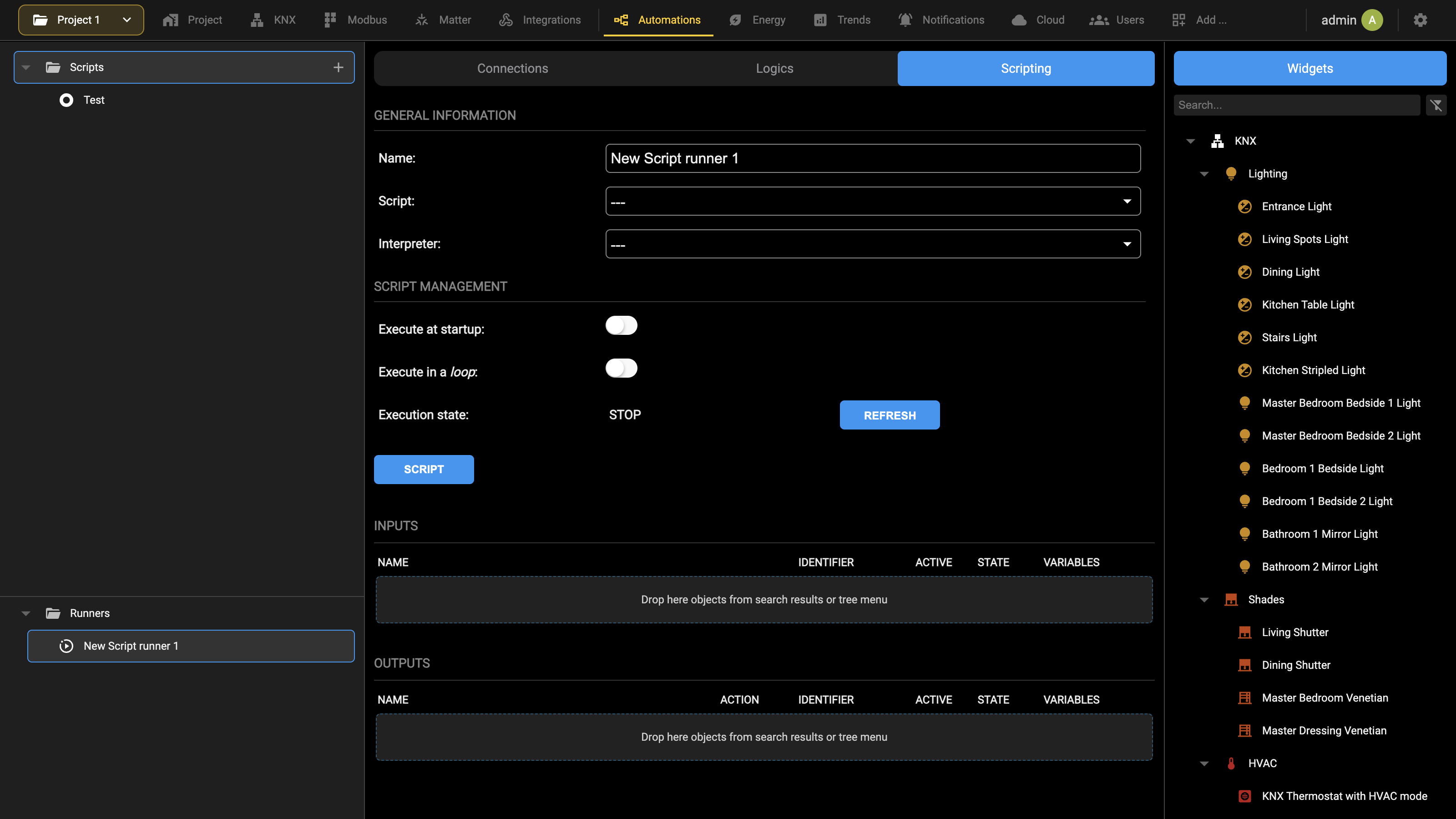
Hovering over a node brings up its actions:
| Add, on the Scripts folder | Creates a new script, asking for the name to give it. |
| Clone, on a script | Creates a copy of it under another name. It is the quickest way to start from something that already works. |
| Rename | Changes the name of the file on the disk of DELÉGO SERVER. |
| Open | Opens the script in the editor described in the next section. |
| Delete | Removes the file from the disk of DELÉGO SERVER, irreversibly. |
[Example]. To start from one of them, select it on a runner, open the editor and save the code under a name of your own.Editor
By selecting the EDIT button of a script or an example, a page containing the code that makes up the script itself is shown; in the case of the examples, the code cannot be modified.
In the case of a new script, the code carries comments that give the first pointers on how to write the script, as described in more detail in this chapter.
The following figure shows the edit page of a new script:
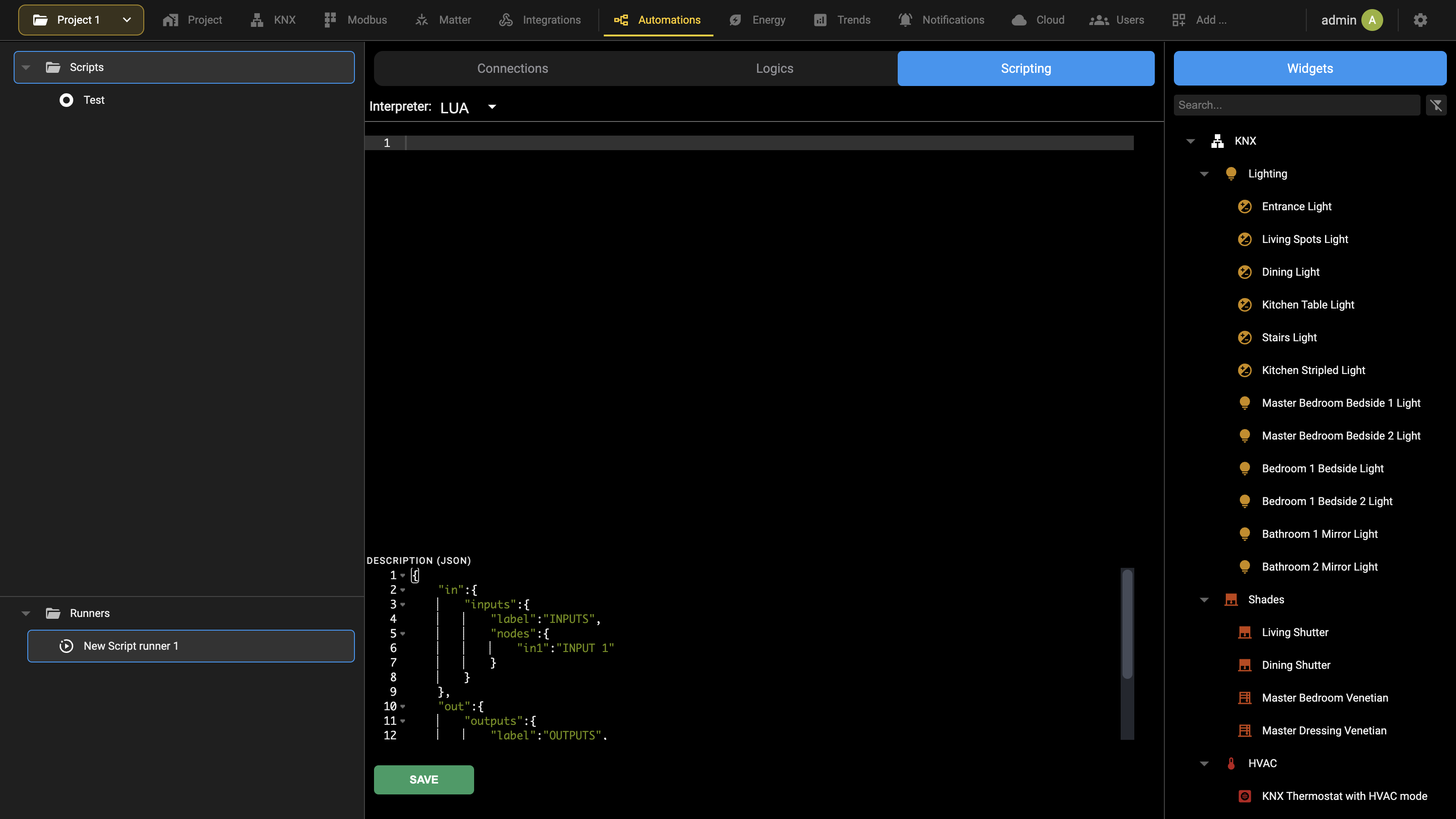
The page has three parts:
| Interpreter | The language of the script, which decides the syntax highlighting. |
| The code area | The script itself, with line numbers. On an example the code is shown but cannot be modified. |
| DESCRIPTION (JSON) | Declares what the script expects and what it returns: an in block with the input nodes and their labels, an out block with the output ones. It is what lets the card of a runner show the inputs and outputs by name instead of by position. |
For further information on how to write a script, in particular on the libraries available, refer to the following sections. When the changes are complete, press SAVE to save them; leaving the editor without saving loses them.
Examples
Unless stated otherwise, the rest of this chapter uses the following example, which simply returns the value it received as input, after writing that same value in a debug message:
value = input()
system.debug("Received as input the value " .. value)
output(value)
The debug message is visible while the execution is being simulated, as shown further on, and in the Debug section of the card of the runner.
Runners
This section explains how to create and manage the objects of type script runner, which are what actually executes a script inside the supervision of DELÉGO SERVER: a script on its own is only a file, and never runs until a runner is bound to it.
Once created, a runner still has to be placed in the project: take it from the Widgets tab of the source panel and drag it into a connection (Automations → Connections) or into a task of a logic program (Automations → Logics). There the runner is shown as a graphic block, drawn according to the model of its script, whose nodes are connected to the other objects of the project.
What follows applies to both PHP and LUA scripting, except where an instruction or an example is specific to one of the two languages.
Adding a new runner
To create a new SCRIPT RUNNER:
- log in to DELÉGO SERVER with an administrative user and open the Administration;
- open Automations → Scripting and select Runners in the context tree;
- use the Add action of that node;
- select the object just created in the context tree to open its card.
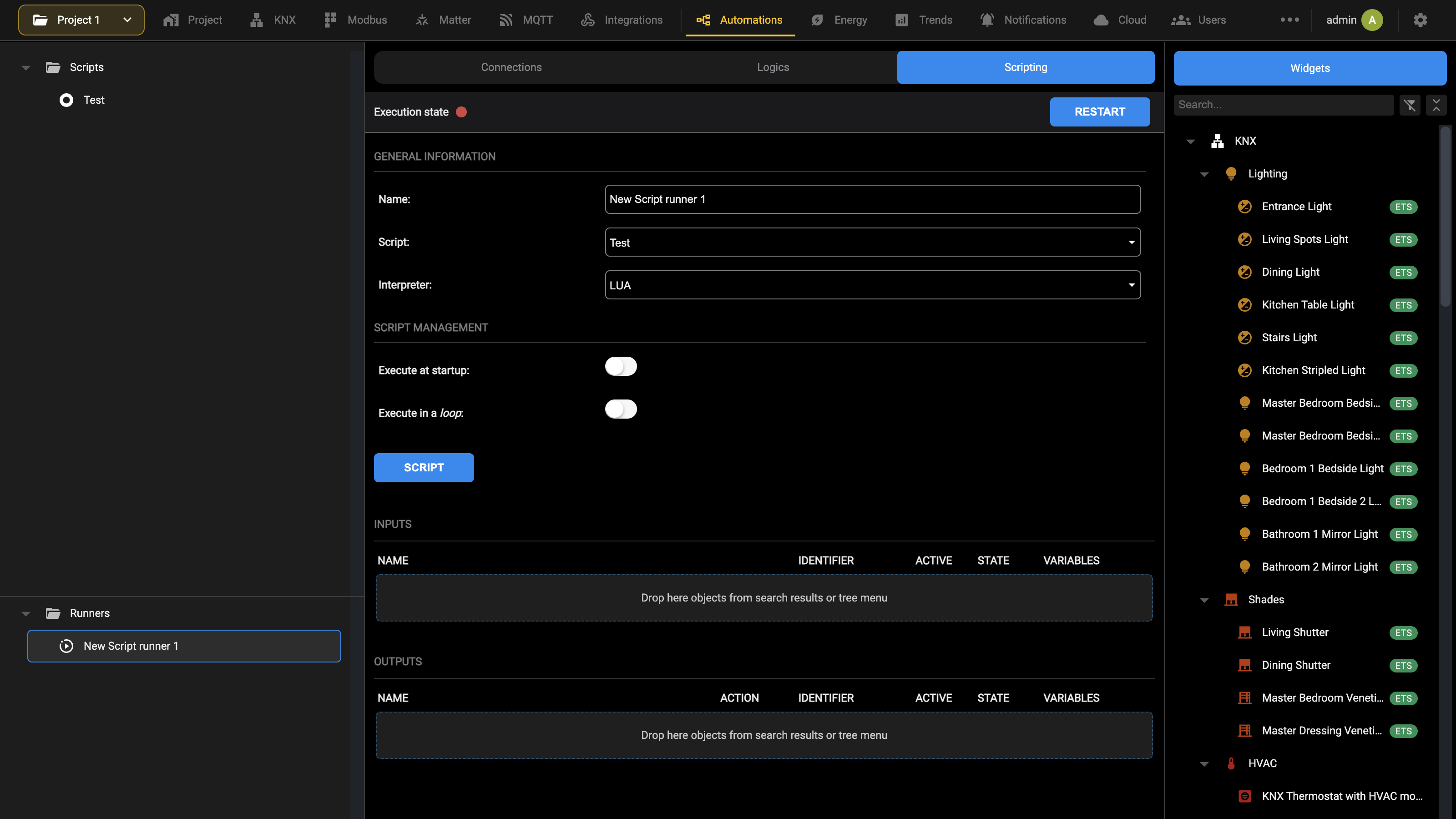
In addition to assigning a name to the SCRIPT RUNNER, it is also necessary to select which script will be executed, choosing it in the appropriate drop-down menu.
It is also possible to specify the following options for the SCRIPT RUNNER:
| EXECUTE AT STARTUP | By selecting this flag, the SCRIPT RUNNER is automatically executed when the webserver starts |
| EXECUTE IN A LOOP | By selecting this flag, the SCRIPT RUNNER is executed iteratively for an indefinite number of times, until it is stopped manually or via an EVENT. For further details, see the Loop section below |
| LOOP TIME | Appears when Execute in a loop is on: the duration in milliseconds of each iteration. |
The status bar at the top of the card reports the Execution state of the runner as a coloured dot, and RESTART runs it again with the current settings; changing the script, the interpreter or the execution flags stops the runner and turns the dot red, and RESTART starts it again with the new settings (see Workspace).
Inputs
Drag into the INPUTS section the objects whose change of state has to run the script runner.
Once an object has been dragged into this list, decide which value is passed to the script runner whenever that object changes state.
Unlike other parts of the software, where this choice is guided by drop-down menus, here the value has to be typed. The field is visible only with Expert mode active, and can contain the following values:
| $VAL | The current value of the object is passed to the SCRIPT RUNNER as an input value. Default option. |
| $NVAL | The inverted value of the object is passed to the script runner as an input value; it only makes sense for boolean values. |
| Any numeric value or string | The value is passed to the SCRIPT RUNNER as an input value, regardless of the state of the object itself |
In any case, the value is available within the script through the call
input()already described above. Also, in the case of scripts associated with more than one input object, it is possible to obtain the ID of the object that has changed (and which is passing the input value) through the function call
callerid()The value indicated in this field is not the only way to access, within the SCRIPT, the value of the related object as an input. Through the surrounding library in fact, as better described below, it is possible to know the status of all the inputs and carry out operations on them; for further details, refer to the chapter dedicated to this library.
Outputs
In the same way, the objects dragged into the OUTPUTS section are executed at the end of the script.
For each object it is necessary to specify which action to execute and (if the object takes one) which value to pass at the end of the execution of the SCRIPT RUNNER; in the latter case, choose STATE to pass to the object the value returned in output from the SCRIPT with the command
output(...)As highlighted above, the automatic execution of the objects associated as outputs can be inhibited by calling the function output() without passing any value to it.
In this case, the possible command of the associated objects as outputs is entrusted to the SCRIPT code itself, as better detailed in the chapter dedicated to the library “surrounding”.
The outputs can be given an identifier as well: it is the name the script uses to refer to that output.
Loop
A script can be kept running in the background by turning on Execute in a loop on the card of the script runner. It is usual to turn on Execute at startup as well, so that the code starts again by itself if the system reboots.
Cyclic execution
In loop mode the following function is called over and over:
main_loop()and it is the script that has to define it:
function main_loop()  -- main program, called at every cycle
  system.debug("Cyclic execution")
end
Between one call and the next the runner waits for the time set in Loop time, in milliseconds. The shorter that time, the quicker the runner reacts and the heavier the load on the CPU of the webserver.
Execution on an event
A second function can be defined, which is called whenever one of the inputs changes state:
function event_loop(event)  -- called when the state of an input changes
  printall(event)
end
Its argument is a table carrying the following:
| caller | ID of the input object that changed state. |
| value | Value received from that object. |
| hashcode | The PIN passed by the caller, when there is one; otherwise the string NO-HASHCODE. |
| optionals | The attributes of the relation between that object and the runner, concatenated. When an identifier has been given to the input object, it arrives here in the tag_complex_element attribute. |
This is what printall prints for that argument:
(TABLE)
___[optionals]= tag_complex_element='KITCHEN'
___[hashcode]= NO-HASHCODE
___[value]= 1
___[caller]= 123
which reads: the object with ID 123, whose identifier in the runner card is KITCHEN, has taken the value 1, and passed no PIN.
The surrounding library, presented later in this chapter, makes this considerably more comfortable: it turns the ID into the identifier and gives direct access to the input object.
Debugging
A script can write messages meant to be read while it runs: debug messages, to follow what the code under construction is doing; info messages, about the ordinary progress of the work; warnings, for something unexpected that did not stop anything; and errors, for the anomalies that make it pointless to carry on.
Each severity has its own function:
system.debug("This is a debug message")
system.info("This is an info message")
system.warn("This is a warning message")
system.err("This is an error message")
The messages appear in the Debug section of the card of the runner, colored according to their severity, which is what makes a long log readable.
The content of a variable or of a structured object goes to the same place with printall, described earlier in this chapter:
printall(runner.INPUTS)Models
Since release 2.8 a script can be given a model, which declares in advance the inputs and the outputs that the runners bound to that script will carry. This brings two advantages:
- on the card of a runner, the identifier of an object associated as input or output is picked from a drop-down menu instead of being typed by hand;
- the runner can be placed in a connection or in a logic task like any other object.
Models are, in other words, the way to extend the webserver with blocks of one's own: fully integrated in the graphical editor of the automations, and with the behavior written in code.
A model can be exported together with the script it refers to, and imported into another project, which also makes it possible to share it with other users.
Creating a model
To create a new MODEL for a SCRIPT, do the following steps:
- Enter the SCRIPTS list and press the button to ADD a new one
- The model must have exactly the same name as the script it refers to.
- The extension must be .json instead of .lua
example.lua → example.json
in / out structure described below, and a single SAVE button for the whole page; no .json file shows up in the tree under Scripts. Whether the separate file is still supported alongside the panel has not been confirmed: until it is, write the model in the panel of the script it belongs to, and read the description that follows as the reference for its content.When entering the editor, the following example is displayed:
{
      "in":{
            "inputs":{
                  "label":"INPUTS",
                  "nodes":{
                        "in1":"INPUT 1",
                        "in2":"INPUT 2",
                        "in3":"INPUT 3"
                  }
            }
      },
      "out":{
            "outputs":{
                  "label":"OUTPUTS",
                  "nodes":{
                        "out1":"OUTPUT 1",
                        "out2":"OUTPUT 2"
}
}
}
}When a runner associated with this script is dropped into an automation, the in section builds the left-hand side of the block and the out section the right-hand one, while each list inside them becomes a group of nodes with its own label above.
The JSON structure is organized in two SECTIONS, one for the input nodes (in), the other for the outputs (out).
Each SECTION can contain one or more LISTS of nodes; each list has a label displayed on top of the contained NODES. In the following example, of a hypothetical HVAC appliance, more lists have been added on both the IN and OUT sections:
{
"in":{
"setpoints":{
"label":"SETPOINTS",
"nodes":{
"set1":"SET 1",
"set2":"SET 2",
"set3":"SET 3"
}
},
"sensors":{
"label":"SENSORS",
"nodes":{
"sens1":"SENSOR 1",
"sens2":"SENSOR 2",
"sens3":"SENSOR 3",
"sens4":"SENSOR 4",
}
},
"enables":{
"label":"ENABLES",
"nodes":{
"en1":"EN 1", "en2":"EN 2"
}
}
},
"out":{
"commands":{
"label":"COMMANDS",
"nodes":{
"cmd1":"CMD 1",
"cmd2":"CMD 2"
}
},
"alarms":{
"label":"ALARMS",
"nodes":{
"al1":"ALARM 1",
"al2":"ALARM 2"
                  }
            }
      }
}In the connection editor the block then carries three lists on the input side and two on the output side. The nodes keep the order in which the lists are declared, so grouping them is also the way to arrange a block that carries many connections.
In the edit page of the RUNNER(s) associated to the script, the identifier of the inputs and the outputs can be selected from a list that uses the definition contained in the JSON: the IDENTIFIER column is no longer typed by hand, and the drop-down offers the node names declared in the model, in the order of the lists.
It is possible to manually override the MODEL associated to a SCRIPT for a specific runner (or add a node declaration when the script has no model). In the edit page of the runner, enable the
MANUAL NODES DECLARATION
Flag and enter the desired JSON in the textarea that appears.
Objects Library
The objects library offers the methods for interacting with the objects of the supervision project: loading them, reading their properties, searching for them, commanding them and editing their fields.
It is also the foundation of the surrounding library, which gives easy access to the inputs and the outputs of the runner and is the subject of the next section of this chapter.
Inclusion
To use the library, put this line at the beginning of the script:
require("objects")The inclusion provides the object manager, reached through the keyword
objM
whose methods are described below. The library pulls in the object library on its own, which is what gives each loaded object its set and refresh methods: there is no need to require it separately.
Loading Objects
To load a single object of the supervision into a LUA variable, call:
<OBJ> = objM.getObj(<ID>,<ADD TO COLLECTION>)where <ID> is the numeric identifier of the object and <OBJ> any variable name.
The second argument is optional and boolean: it decides whether the object returned is added to the internal collection of the script, which makes every later use of it cheaper. The default is true.
KITCHEN_LIGHT = objM.getObj(123)If the object has already been loaded, the method hands back the instance already in the collection; otherwise it queries the project database, assigns the object to the variable and stores it in the collection for the next requests.
Several objects can be loaded at once with:
<ARRAY> = objM.getObjs(<array of IDs>)which takes an array of identifiers:
OBJECTS = objM.getObjs({123,456,789})The function returns an array whose index is the identifier of each object, so a single object is read back as:
KITCHEN_LIGHT = OBJECTS[123]Objects obtained this way can also be picked up afterwards with the single-object method:
KITCHEN_LIGHT = objM.getObj(123)without any further reading of the project database, since they are already in the internal collection.
Object Properties
An object loaded with the methods above carries a set of properties, listed below. Their names are case sensitive, and have to be written exactly as they appear here.
| <OBJ>.ID | Unique identifier of the object. |
| <OBJ>.TYPE | Functional type of the object, the one the communication services use. For example EIBOBJECT for a KNX object, VIRTUALOBJECT for a variable, SCENARIO for a scene, CSCMD for a script runner. The complete list is in the appendix. |
| <OBJ>.PHPCLASS | Graphical type of the object, the one the web interface uses: dpadEibObject for a KNX object, dpadVirtualObject for a variable, dpadScene for a scene, dpadScriptRunner for a script runner. |
| <OBJ>.VALUES_TYPE | Data type of the value carried by the object. How this field is encoded depends on the TYPE. |
| <OBJ>.DB | The whole set of database fields of the object; see below. |
| <OBJ>.status | State of the object. It only means something for scenes: 1 is a stopped scene, 2 a running one. |
| <OBJ>.value | Current value of the object. It means something for every type of object that has a state, scenes excluded. |
The DB collection holds every database field of the object, read with:
<OBJ>.DB.<FIELD>
for example:
KITCHEN_LIGHT = objM.getObj(123)
LIGHT_NAME = KITCHEN_LIGHT.DB.NAME        -- returns for example "Kitchen Light"
The main fields are the following:
| NAME | Name of the object. |
| DESCRIPTION | Description of the object. |
| MSP | Main attribute of the object. What it holds depends on the TYPE, and it usually is the address: the KNX group address, for instance. |
| UNIT | Unit of measurement, where the object has one. |
| IS_WRITABLE, IS_READABLE | Permission flags for commanding the object and for reading it. |
| IS_VISIBLE | Visibility flag of the object. |
| IS_STOPPABLE | Permission to stop the object; it only applies to scenes. |
| IS_BOOLEAN | Whether the object is boolean, that is whether it only takes the values 0 and 1. |
| IS_PROTECTED | Protection against changes made from the user interface. |
| ENABLE_FLAG | General enable flag: it governs the operation of the object and its interaction with the others. |
| TRACK_FLAG | Whether the object is tracked in the logging database. |
The value in MSP is also what objM.getObjByAddr searches on, which is why an object can be found by its KNX group address.
Finally, the options of the object are reached with:
<OBJ>.DB.options.<FIELD>
for example:
KITCHEN_LIGHT = objM.getObj(123)
CATEGORY = KITCHEN_LIGHT.DB.options.category     -- returns for example "lighting"
Which options exist, and what they hold, depends strongly on the type of object. To see all of them for a given object, inspect it with printall.
Commands
A command is sent to an object by setting a new value on it:
<OBJ>:set(<VALUE>,<NOW>)| <VALUE> | The new value for the object. Calling the method without a value clears the value of the object instead of setting one. |
| <NOW> | Boolean. With true the command leaves immediately, which is what is normally wanted. With false, or with the argument left out, it is carried out at the next iteration, which only makes sense for a runner in a loop. |
KITCHEN_LIGHT = objM.getObj(123)
KITCHEN_LIGHT:set(1,true)     -- switches the light on straight away
The method returns true when the command has been handed over to the system and false when it has not: because the object has no ID, or because the system refused it. It is worth testing the result when the script has to react to a command that did not go through.
An object also offers:
<OBJ>:refresh()which reads the value of the object from the system again and updates <OBJ>.value. Use it in a runner that stays in a loop, when the value may have been changed by something other than the script itself; it returns false if the object has no ID.
Searching for objects
Objects can be searched for on any of the database fields listed above. For a single object:
<OBJ> = objM.findObj(<KEY>,<FIELD>,<EXACT_MATCH>,<ADD TO COLLECTION>,<HIDDEN TYPES>)| <KEY> | The keyword to look for, as a string. |
| <FIELD> | Name of the database field to search in. |
| <EXACT_MATCH> | Boolean. With true the field has to be exactly the keyword; with false it is enough that it contains it. |
| <ADD TO COLLECTION> | Optional boolean: whether the object found is added to the internal collection of the script. The default is true. |
| <HIDDEN TYPES> | Optional boolean; see the note below. The default is false. |
KITCHEN_LIGHT = objM.findObj("Kitchen Light","NAME",true)The method returns the first object that matches. To obtain all of them:
<ARRAY> = objM.findObjs(<KEYS>,<FIELD>,<EXACT_MATCH>,<HIDDEN TYPES>)<KEYS> may be a single keyword, passed as a string, or an array of keywords. In the second case <EXACT_MATCH> decides how the array is used:
| true | Loads every object whose <FIELD> is exactly one of the values in <KEYS>. |
| false | Loads every object whose <FIELD> contains at least one of the keywords in <KEYS>. |
-- every object with a keyword in the name
LIGHTS = objM.findObjs("Light","NAME",false)

-- a specific list of objects, by name
LIGHTS = objM.findObjs({"Kitchen light","Living room light"},"NAME",true)
Note that findObjs, unlike findObj, has no argument for the internal collection.
Search by address
To look for an object by its address (the KNX group address, for instance) there is a shorthand for findObj:
<OBJ> = objM.getObjByAddr(<ADDR>,<ADD TO COLLECTION>)myObj = objM.getObjByAddr('1/0/1')The method searches the MSP field, which is where the address of an object is kept, with an exact match, and returns the first object that carries it. As with getObj, it first looks in the internal collection of the script and only queries the database if the object is not already there.
Editing objects
The value of a database field of an object can be changed from a script:
<RESULT> = objM.updateFieldObj(<ID>,<FIELD>,<VALUE>)| <ID> | Identifier of the object to change. |
| <FIELD> | Name of the database field to change. |
| <VALUE> | New value for the field, to be passed as a string. |
The method returns true when the change went through and false when it failed.
objM.updateFieldObj(123,"NAME","Kitchen light")If the object is already in the internal collection of the script, the field is updated there as well, so the change is visible to the rest of the script without loading the object again.
Surrounding Library
The surrounding library gives a script easy access to the script runner that is executing it, and to the objects wired to that runner as inputs and outputs. It extends and specializes the methods of the objects library, which it includes on its own.
Inclusion
To use the library, put this line at the beginning of the script:
require("surrounding")From the line that follows, the script has:
runner
the object that represents the script runner executing the script, described in the next sections. Since the library builds on objects, the object manager objM is available as well without requiring it separately.
Inputs and Outputs
The runner object carries the objects connected to it in the card of the script runner, in two collections:
runner.INPUTS    -- objects connected as inputs
runner.OUTPUTS   -- objects connected as outputs
Inside them each object is reached by its identifier, when it has one, and otherwise by the name OBJ_XXX, where XXX is its ID:
runner.INPUTS.KITCHEN     -- input object whose identifier is KITCHEN
runner.INPUTS.OBJ_123     -- input object with ID 123 and no identifier
These are objects of the objects library, and offer all the properties and the methods described in the previous section, including set, so an output can be commanded straight from the script.
Two more properties describe the runner itself:
| runner.ID | Identifier of the script runner that is executing the script. |
| runner.DB | The database fields of the runner, read like those of any other object: runner.DB.NAME and so on. |
Beyond the properties of the object itself, each of these carries a collection describing its relation with the runner:
<OBJ>.RELATION
whose fields are:
| ACTION | Action carried out on the destination object of the relation. When the relation defines none, the field reads NO-ACTION. |
| ACTION_VALUE | Value passed to the destination object. When the relation defines none, the field reads NO-VALUE. |
| OPTIONAL | The optional attributes of the relation, as the single string they are stored in. |
| options | The same attributes, already split into a collection. The identifier of the object is here, under tag_complex_element. |
require("surrounding")

KITCHEN = runner.INPUTS.KITCHEN
system.debug("Action of the relation: " .. KITCHEN.RELATION.ACTION)
KITCHEN:set(1,true)Identifier
Each object connected to a runner can be given an identifier (a string without spaces or special characters) which makes it easy to refer to inside the script. An object whose identifier is TEST is then available as:
runner.TESTas well as inside runner.INPUTS or runner.OUTPUTS.
The identifier of an object whose ID is known is obtained with:
runner.getIdentifierById(id)             -- searches inputs and outputs
runner.getIdentifierById(id,"INPUTS")    -- searches the inputs only
runner.getIdentifierById(id,"OUTPUTS")   -- searches the outputs only
The function returns the identifier of the object; when the object exists but has no identifier it returns OBJ_XXX, built from its ID; and it returns nil when no object with that ID is connected to the runner. A script that builds a message out of the result should be ready for the nil.
Inside a runner in a loop this is what turns the event into something readable:
require("surrounding")

function event_loop(event)
   local IDENTIFIER = runner.getIdentifierById(event.caller,"INPUTS")
   system.debug("Input " .. IDENTIFIER .. " changed to the value " .. tostring(event.value))

   local OBJ = objM.getObj(event.caller)
   system.debug("Object name: " .. OBJ.DB.NAME)
end
Note that the name of an object is read from OBJ.DB.NAME: NAME is a database field, and lives in the DB collection, not directly on the object.
Messages library
The messages library sends notifications on screen and by e-mail straight from a script, without having to create the corresponding objects in the supervision project.
Inclusion
To use the library, put this line at the beginning of the script:
require("messages")From the line that follows, the script has the message manager:
msgM
whose two methods are described below.
Video notifications
A notification can be raised on screen while a script runs, without creating any object for it:
msgM.sendVideoMsg(<MSG>,<LEVEL>)| <MSG> | The text of the message. |
| <LEVEL> | Severity of the message: 0 alarm, 1 warning, 2 information. Optional; when it is left out the message goes out as an alarm. |
msgM.sendVideoMsg("Received input value " .. input(), 2)The message is written in the notification log of the server, from where the Visualization picks it up, and is marked as coming from a script.
Mail notifications
In the same way, an e-mail can be sent from within a script:
msgM.sendEMailMsg(<MSG>,<TO>,<SUBJECT>,<CC>,<BCC>,<ATTACH>,<FROM>)| <MSG> | Body of the message. |
| <TO> | Address, or addresses, the message goes to. Separate several of them with “;”. |
| <SUBJECT> | Subject of the message. Optional. |
| <CC> | Addresses in copy. Optional. |
| <BCC> | Addresses in blind copy. Optional. |
| <ATTACH> | Reserved, see the note below. |
| <FROM> | Sender of the message, when it has to be different from the one configured on the server. Optional. |
msgM.sendEMailMsg("The tank is empty.","service@example.com","Irrigation")The function returns true when the message has been handed over to the sending service, and false in the two cases where it cannot: when <TO> is empty, and when the message could not be written to the temporary file on disk. It is worth testing the result, because a script that sends an e-mail and carries on regardless will not notice that nothing left.
The message travels through the sending method configured in the E-MAIL group of Settings → Options, so a server that cannot send mail from the Administration will not send it from a script either. Check that configuration first when messages do not arrive.
JSON library
The json library handles strings in JSON format, turning them into LUA table structures and back. It is what makes the answer of a web service usable inside a script.
Inclusion
To use the library, put this line at the beginning of the script:
JSON = require("json")Unlike the other libraries, this one does not install a manager of its own: it returns its methods, which have to be assigned to a variable. The name JSON used here is only a convention, and any other name works just as well: the methods below are then called on that name.
Decoding
Once the library has been included and assigned, a string in JSON format is turned into a LUA table with the method
<TABLE> = JSON.decode(<JSON_STRING>)Example:
JSON.decode('[1,2,3,{"x":10}]') -- returns { 1, 2, 3, { x = 10 } }The elements of the result are then read with the syntaxes described in the section on tables.
Encoding
The other way round, a LUA table is turned into its JSON representation inside a string with the method
<JSON_STRING> = JSON.encode(<TABLE>)Example:
JSON.encode({ 1, 2, 3, { x = 10 } }) -- returns '[1,2,3,{"x":10}]'Credits
This library is an open-source project not developed by EKINEX. DELÉGO SERVER carries version 0.1.2 of json.lua by rxi, released under the MIT license; the copyright notice travels with the file itself, on the server.
For further details:
https://github.com/rxi/json.lua
URL library
The url library calls an address and hands back the answer. It is what a script uses to invoke an HTTP or HTTPS API with a GET and then decode the result, from JSON, for instance, with the library described in the previous section.
Inclusion
To use the library, put this line at the beginning of the script:
require("url")The inclusion provides the URL manager, reached through the keyword
urlM
Getting URLs
To fetch a URL with a GET and assign the answer to a variable:
<RESPONSE> = urlM.get(<URL>)The method returns the body of the answer as a string, line by line, each terminated by a newline.
JSON = require("json")
require("url")

-- returns the public address in JSON format
-- for example: {"ip": "150.60.100.80"}
response = urlM.get("http://ip.jsontest.com")
my_address = JSON.decode(response)["ip"]
system.debug("My public IP address is " .. my_address)Appendices
Functional types
The table below lists the functional types of the objects of DELÉGO SERVER, the ones the communication services use to carry out the work of the webserver in the background. This is what a script reads in <OBJ>.TYPE.
For each type the table also gives the actions available, the ones that can be called with the methods for commanding objects seen earlier.
| TYPE | DESCRIPTION | ACTIONS |
|---|---|---|
| VIRTUALOBJECT | Variable | SETVALUE → sets a value on the object |
| SCENARIO | Scene | EXECUTE → runs the scene STOPEXECUTION → stops the execution |
| LOGIC | Logic | EVALUATE → evaluates the logic |
| CONDITION | Comparison | CALCULATE → computes the comparison between the values |
| CLIENTBROWSER | Client | REDIRECT → makes the client jump to a page VOIPCALL → places a VoIP call to the address of the client |
| NOTIFY_VIDEO | Notification on screen | INSERT → creates a message on screen |
| NOTIFY_EMAIL | E-mail notification | SENDMAIL → sends an e-mail message |
| INTEGRATOR | Integrator | INTEGRATE → updates the computation of the integrator RESET → brings the value of the integrator back to 0 |
| EIBOBJECT | KNX object | SETVALUE → sets a value on the corresponding KNX group address GETVALUE → puts a read request on the KNX bus to get the current state |
| CSCMD | Script runner | RUN → executes the script QUIT → ends the execution of the script |
| USER | User | REDIRECT → makes every client where the user is signed in jump to a page VOIPCALL → places a VoIP call to every client where the user is signed in |
| USERGROUP | User group | |
| USERPERMISSION | Access permission | |
| CONTAINER | Composite object | |
| CAMERA | IP camera | |
| PBXELEMENT | IP telephone, IP video door station, VoIP call group | VOIPCALL → places a VoIP call to the object |
Beyond those above, the server uses a few types of its own that ordinary scripts do not deal with: SYSCMD, TRIGGER_OBJECT, EIBGROUP, EIBDEVICE, LUAFUNCTION, FLOWCHARTTOOLS, EVENT and TUTONDO_SOURCEMANAGER. The search methods of the objects library skip all of them by default; see the section on searching for objects.
Web types (phpclass)
The table below lists the types of object as the web interface knows them. This is what a script reads in <OBJ>.PHPCLASS.
For each of them the corresponding functional type is given. More than one phpclass may map to the same type, and some have none at all: that happens for the web types with a purely graphical purpose (rooms, links and so on) which the communication services never see.
| PHPCLASS | DESCRIPTION | TYPE |
|---|---|---|
| dpadObject | Generic object * | |
| dpadGroup | Room, or folder in the general sense | |
| dpadUrl | Link | |
| dpadSysCmd | System command * | SYSCMD |
| dpadSysCmdWait | Wait command of a scene | SYSCMD |
| dpadUser | User | USER |
| dpadUserGroup | User group | USERGROUP |
| dpadUserPermission | Access permission of a user group | USERPERMISSION |
| dpadTriggerObject | System trigger on a database change * | TRIGGER_OBJECT |
| dpadContainer | Composite object | CONTAINER |
| dpadVirtualObject | Variable | VIRTUALOBJECT |
| dpadScene | Scene | SCENARIO |
| dpadPbxExtension | IP telephone | PBXELEMENT |
| dpadPbxTrunk | VoIP telephone line | PBXELEMENT |
| dpadPbxQueue | VoIP call group | PBXELEMENT |
| dpadPbxDoorOpener | IP video door station | PBXELEMENT |
| dpadLogic | Logic | LOGIC |
| dpadCondition | Comparison | CONDITION |
| dpadClientBrowser | Client | CLIENTBROWSER |
| dpadNotifyVideo | Notification on screen | NOTIFY_VIDEO |
| dpadNotifyEmail | E-mail notification | NOTIFY_EMAIL |
| dpadIntegrator | Integrator | INTEGRATOR |
| dpadEibObject | KNX object | EIBOBJECT |
| dpadCamera | IP camera | CAMERA |
| dpadScriptRunner | Script runner | CSCMD |
| dpadLoadControl | Load control | CSCMD |
\ types of object that are not normally used, or not available in the web interface.*
The last two rows show why both fields are needed: a script runner and a load control share the functional type CSCMD, and telling them apart takes the phpclass.
Energy
Introduction
This chapter contains all the information regarding the energy management and load control functionalities of DELÉGO SERVER (the recording of data over time and the charts are described in the Trends chapter), the multiprotocol webserver for the connected buildings by EKINEX. These functions work the same way whatever the communication technology with the devices that measure the consumption (KNX, MODBUS, MBUS).
This set of functionalities has been strongly reviewed and improved in release 2.7.0. Read carefully the instructions contained in this chapter in case of update of the project from previous versions.
Energy diagrams
DELÉGO SERVER can monitor the consumption and production of electric energy measured by meters based on different technologies:
- KNX
- Modbus
- M-bus
Starting from release 2.7.0, it is possible also to retrieve energy data directly from supported inverters and storage systems such as SolarEdge, through their public APIs, without having to install additional equipment.
Whatever the measurement technology, a meter has to be created in DELÉGO SERVER for each energy value; it is a special widget dedicated to the energy monitoring, carrying at least the following information:
- Power (instant consumption or production)
- Energy (overall amount of the consumption or production along time)
These meters must be created in the respective field technology by following the specific instructions contained in the dedicated chapter (KNX, MODBUS, M-Bus respectively). The data to be entered is different among the several technologies, but the result is similar.
When all the meters have been configured and assigned properly to their “role”, DELÉGO SERVER offers the customer a detailed overview of the energy flows in the building:
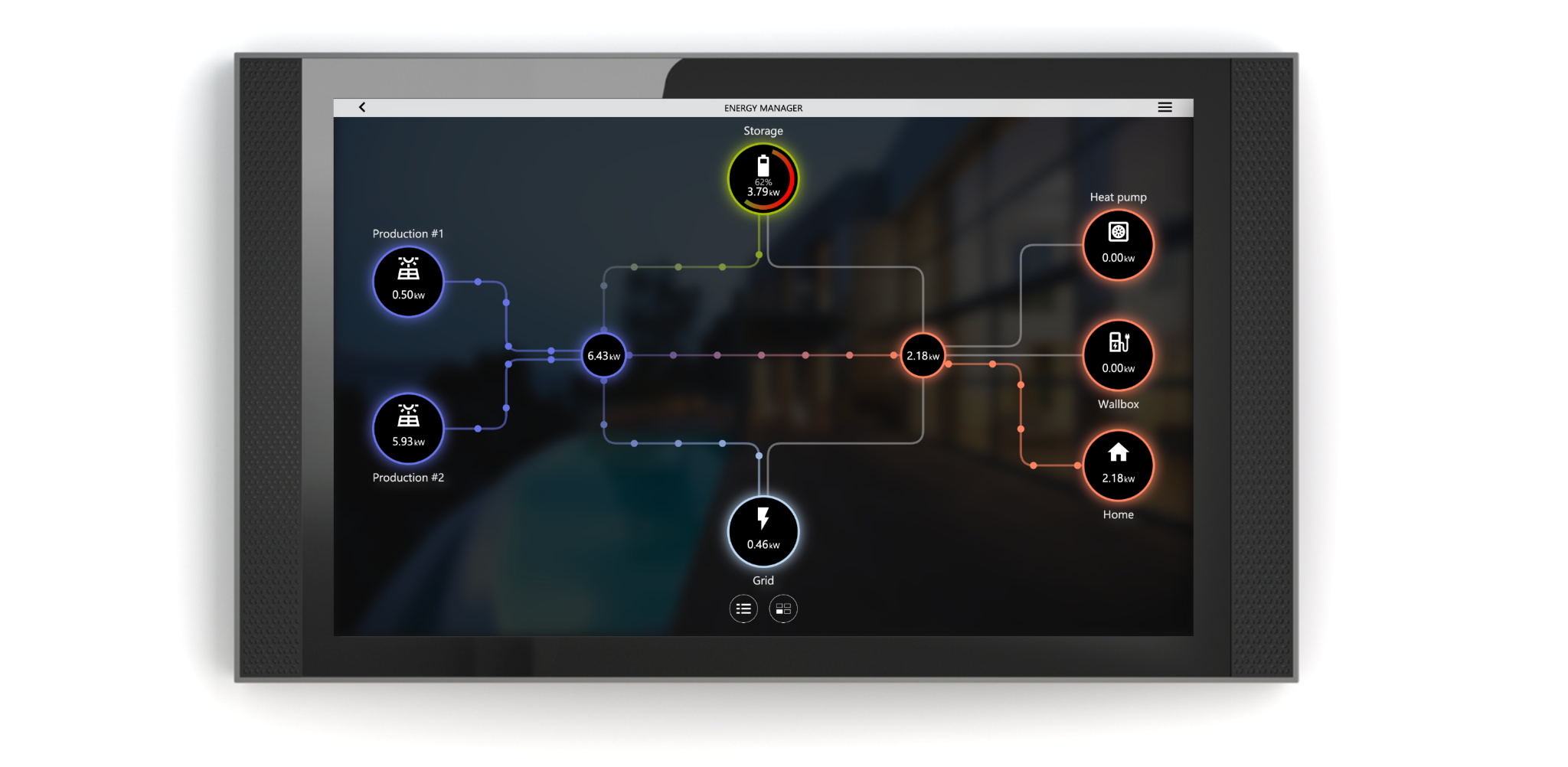
It also keeps track over time of the energy consumed and produced, and lets it be analyzed with charts that are generated automatically, as in the following example:
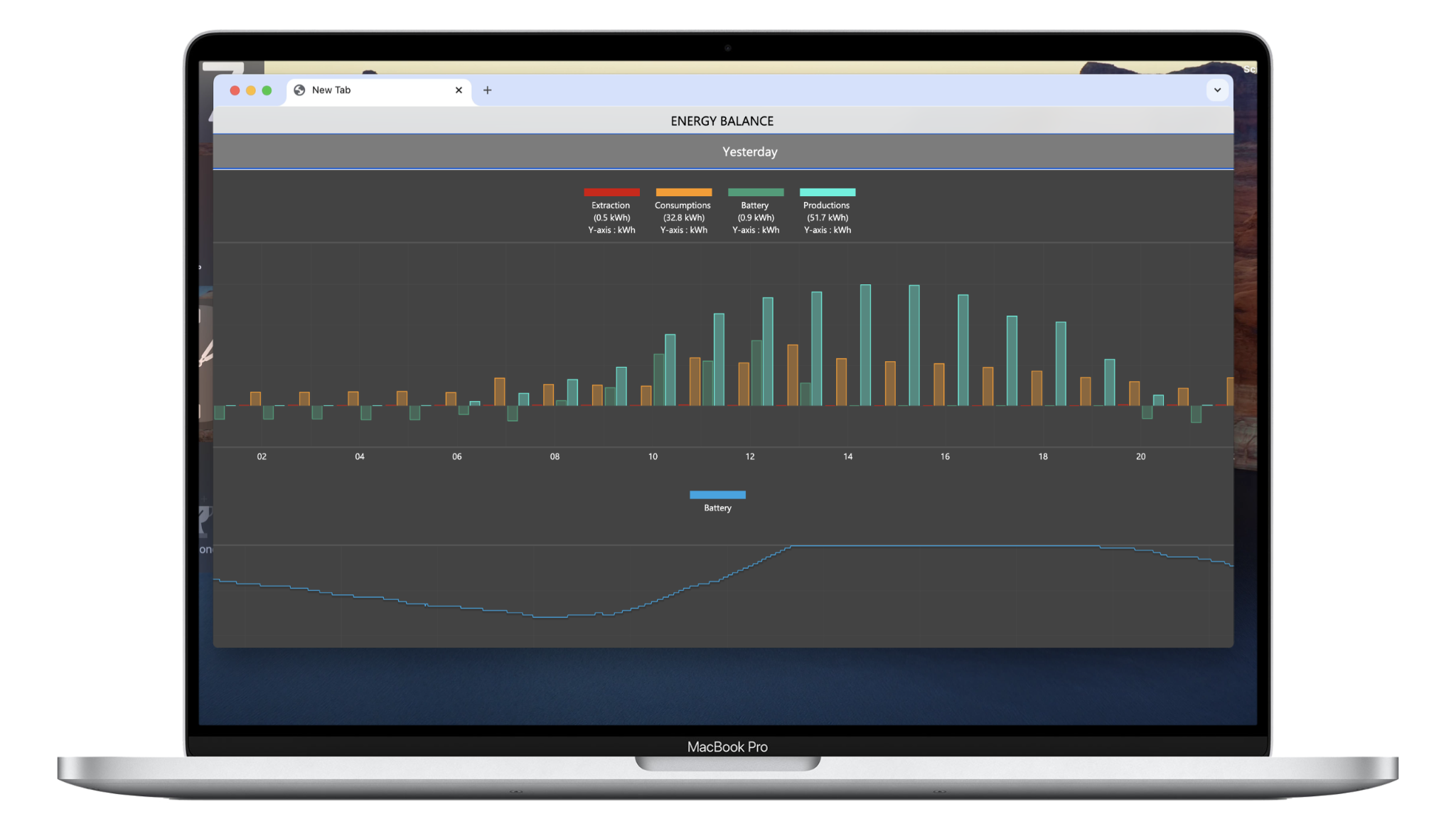
In case of third-party APIs integration like SOLAREDGE, the meters are created automatically, as better explained in the dedicated section of this chapter.
Meters
KNX meters
To create a new KNX energy meter, open the KNX section in the bar and select Energy in the context tree.
If a project has been imported from ETS and contains an Ekinex meter, the corresponding widgets are already under Energy; a new one is created by dragging Energy meter from the Library onto the category.
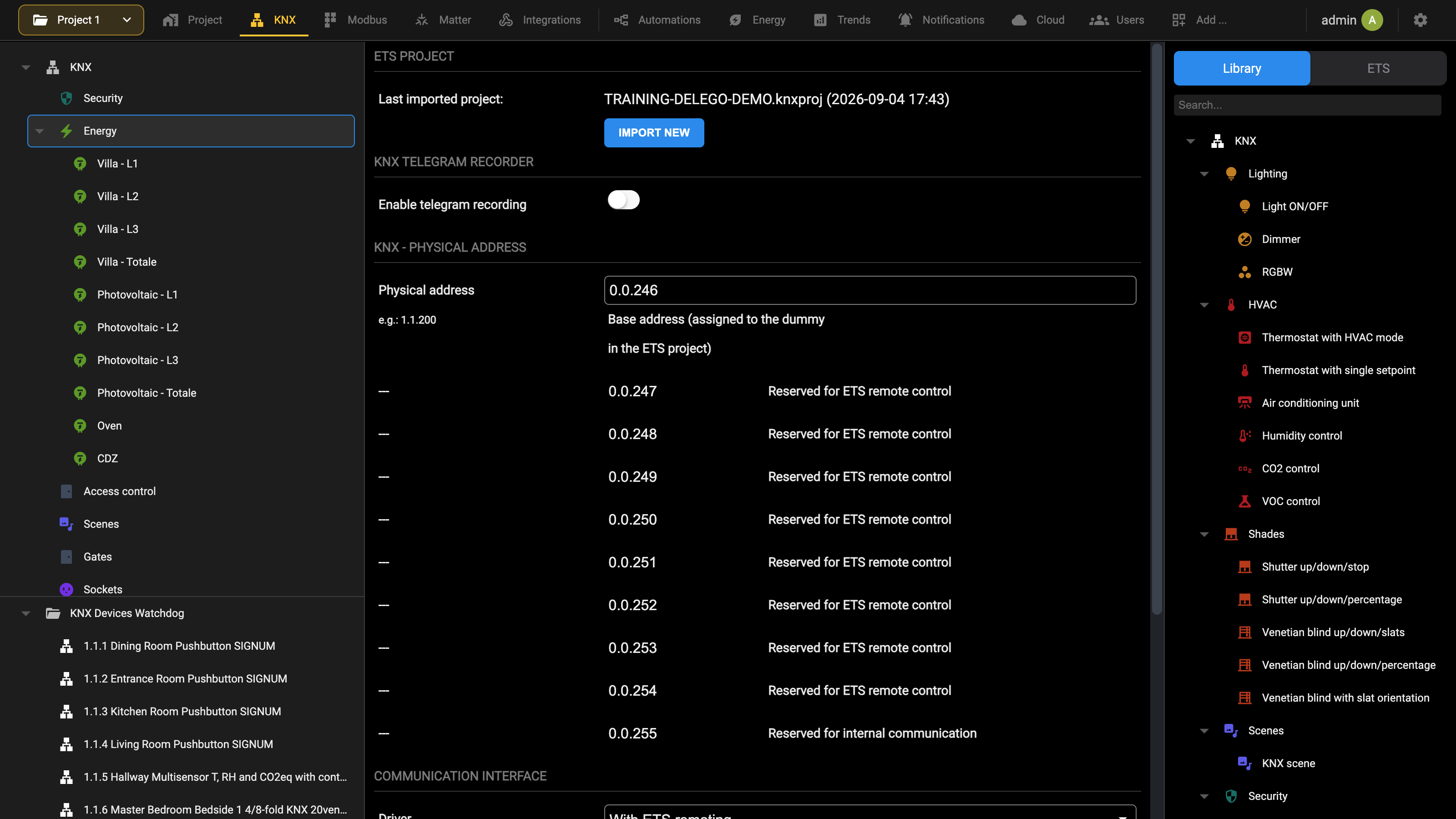
By entering the details of a meter, the following information can be entered in the general settings section:
GENERAL INFORMATION
| Name | Meter name. It is what identifies the meter in the Visualization. |
| Description | Free description, shown only with Expert mode active. |
| Technology | The bus the meter speaks, here KNX. Not editable. |
| Unit | The unit of the measured energy, Wh or kWh. The choice depends on the size of the values read from the device; the default is kWh. |
| Power unit | In the same way, the unit of the power, W or kW. The two are chosen independently of each other. |
| Type | The kind of meter, Energy meter or Volume meter, decided when it was created. Not editable afterwards. |
POWER
| MINIMUM POWER | Range of the power measured by the meter, expressed in kW. |
| MAXIMUM POWER | These limits are used to scale the display graphics. |
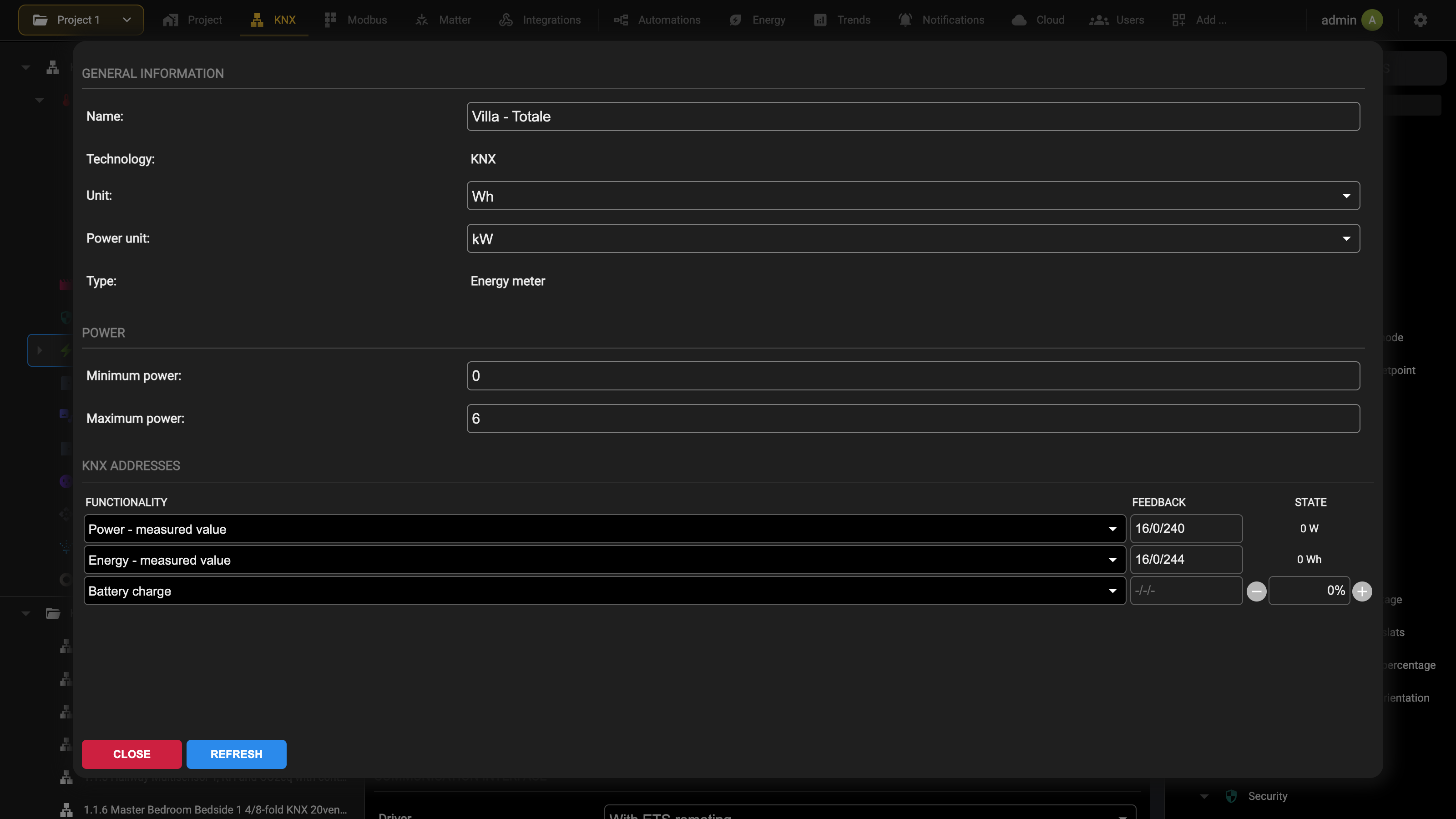
In the KNX ADDRESSES section, in much the same way as for any other type of KNX widget, it is possible to specify the group addresses assigned in ETS to the power and the energy values; these values are expected to be sent to the KNX bus by the equipment, cyclically or upon a change. The group addresses can be entered manually or dropped from the ETS project (by opening it with the button on top of the list).
If the meter belongs to a device that also reports a charge percentage, a battery storage for instance, an item can be added by hand for it: press ADD and choose Battery charge as the FUNCTIONALITY, then fill in the corresponding KNX group address. The row is empty until the functionality is picked, and once picked it takes a percent value and joins the two measured ones, as the third row of the figure above shows.
Modbus meters
To create a new MODBUS energy meter, open the Modbus section in the bar, where the context tree shows Modbus master with the Modbus lines below it. Create, if necessary, a Modbus line, which instructs DELÉGO SERVER how to connect to the devices collecting the power and energy data.
Open the Library panel on the right, where the Modbus templates are grouped into HVAC, Energy and Other, and drag Energy meter, in the Energy group, onto the line in the context tree. The widget is created under that line; select it to open its card.
By entering the details of a meter, the following information can be entered in the general settings section:
GENERAL INFORMATION
| NAME | Meter name. It is used in the Visualization to identify it. |
| DESCRIPTION | Free description, shown only with Expert mode active. |
| UNIT | Specify the unit for the measured energy, by choosing between Wh and kWh. The choice depends on the size of the values read from the device; the default is kWh. |
| POWER UNIT | In a similar way, specify the unit for the power between W and kW. |
| TYPE | Indicates the type of meter (Energy or Volume) selected at the moment of the creation. |
POWER
| MINIMUM POWER | Range of the power measured by the meter, expressed in kW. |
| MAXIMUM POWER | These limits are used to scale the display graphics. |
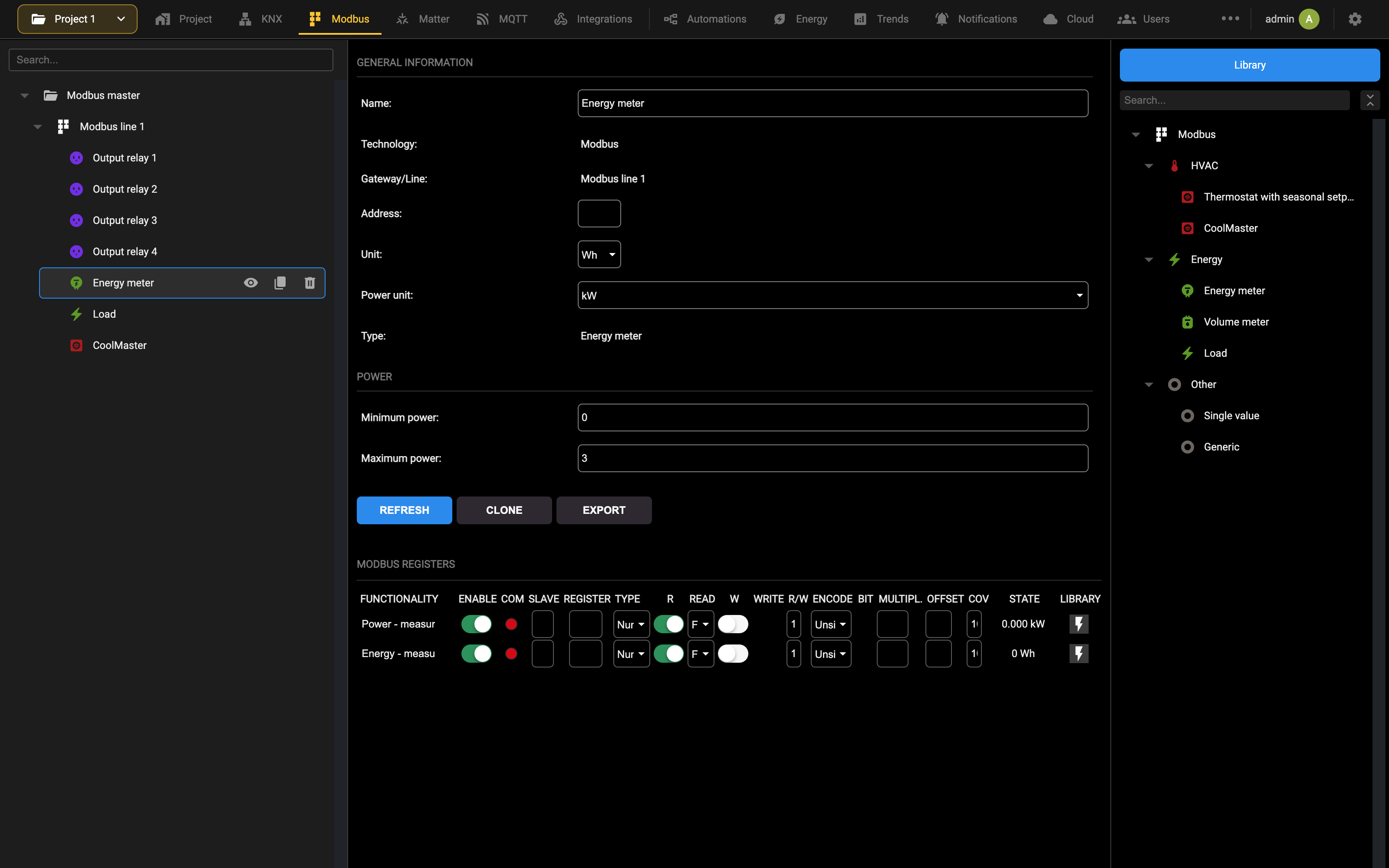
In the MODBUS REGISTERS it is possible to fill the data necessary to retrieve the information from the device; some attributes are already filled with default values, but they can of course be changed according to the documentation of the manufacturer. If the configuration is right, the “COM” indicator becomes green.
If the meter is associated to a device which gives also a charge percent state, like a battery storage, it is possible to add manually an item for it, by pressing the ADD button and selecting “BATTERY CHARGE” as its FUNCTIONALITY (and filling the necessary attributes of the corresponding register, of course).
For more information about the configuration of the MODBUS registers, please refer to the MODBUS chapter.
Energy manager
When all the meters have been configured, each of them is assigned to a role in the energy balance of the building. This is done on the Energy Manager tab of the Energy section, which shows the balance as a diagram instead of a list of categories.
Energy → Energy Manager
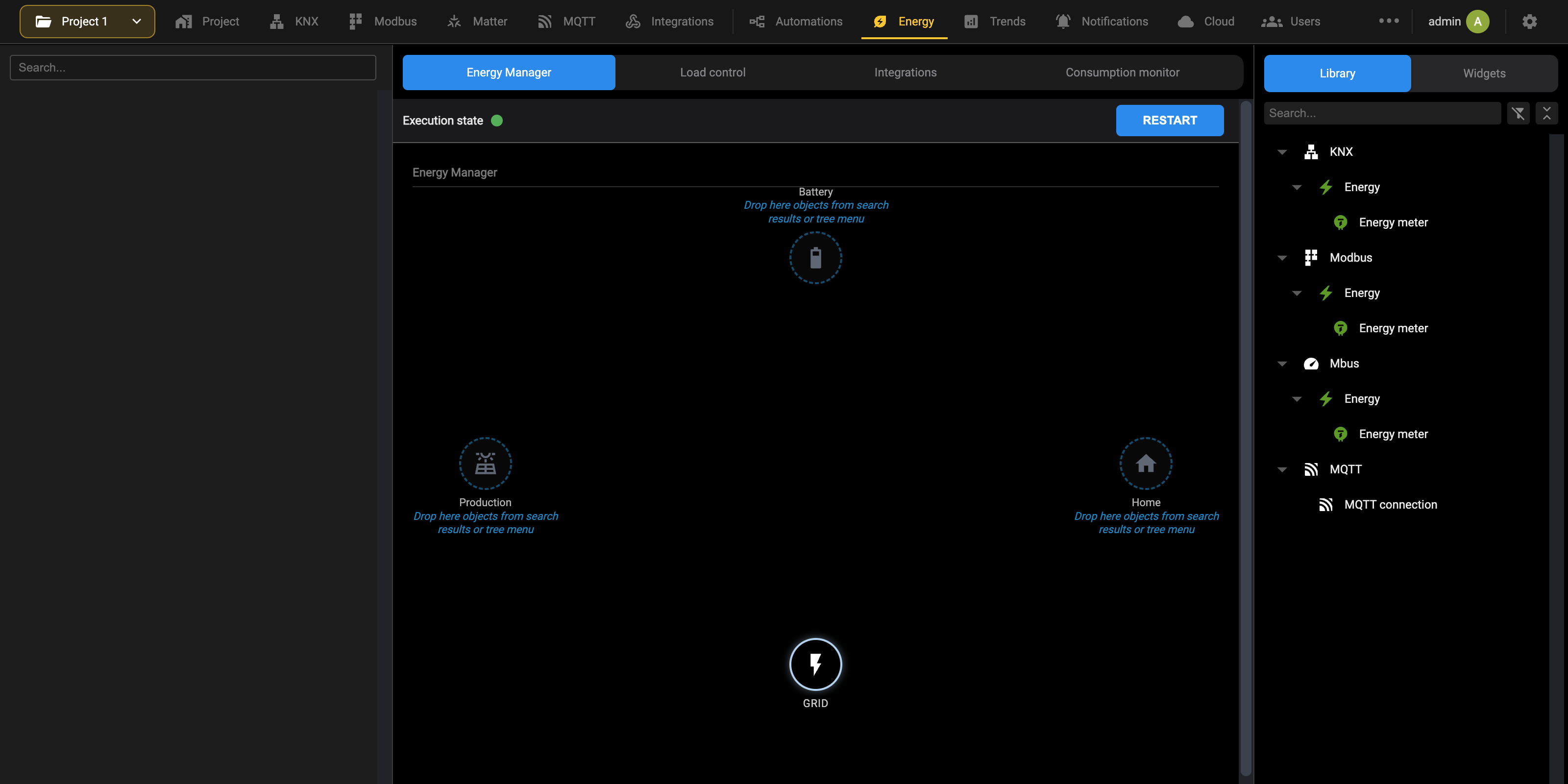
The diagram has three drop areas, one for each role, arranged around the GRID node: Battery at the top, Production on the left and Home on the right. A meter is assigned by dragging it from the source panel into the area of the role it belongs to; the Library lists the energy meters available for each technology (KNX, Modbus and M-Bus) and the MQTT connections, Widgets the meters already present in the project.
| Production | The photovoltaic inverters, or any other green energy production system. |
| Battery | The storage systems. They are charged when the production exceeds the demand of the building, and then discharged to cover it, before or instead of drawing energy from the grid. |
| Home | The consumption meters of the building. |
| Grid | The exchange with the external grid. It is not a drop area: the value is calculated automatically, as the difference between the produced and the consumed power, taking into account the power of the storage, positive during the charge, negative in discharge. |
The status bar at the top of the tab reports the Execution state of the energy manager, with RESTART to start it again after a change, as described in Workspace.
Solaredge
It is possible to integrate a SOLAREDGE production system in the energy management of DELÉGO SERVER; the webserver retrieves automatically the energy data from Solaredge cloud API, without having to install dedicated meters. An internet connection is required.
To add a new SOLAREDGE system, select the menu item
Energy → Integrations
The integration is added from the tree of that tab, with the Add action of the SolarEdge folder. On the card of the new element, under the SOLAREDGE heading, enter:
| Site code | The numeric identifier of the SolarEdge installation. |
| API key | The secret key SolarEdge issues for its cloud APIs. The field is masked, and the eye button beside it reveals what has been typed. |
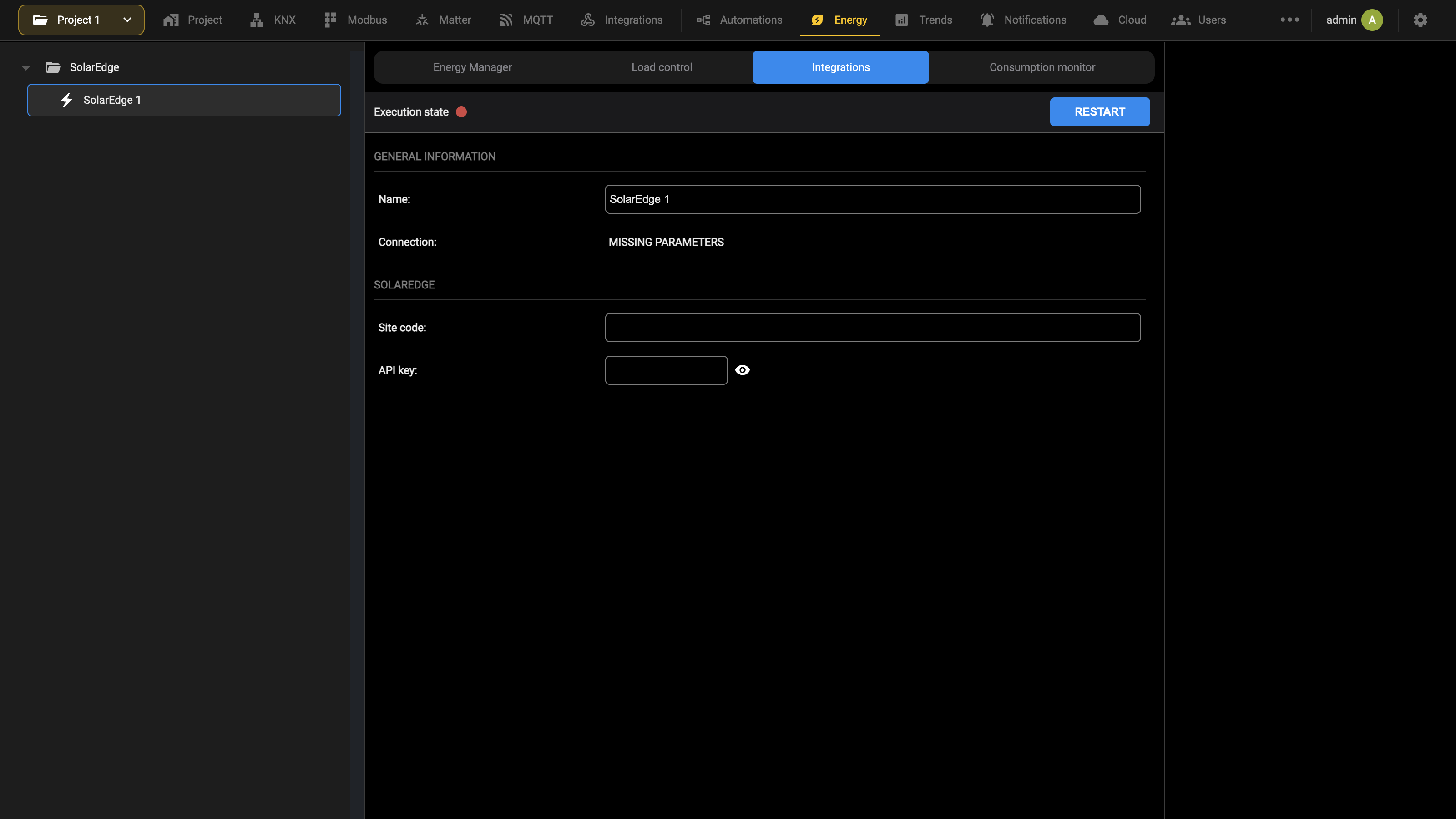
Connection reports whether the cloud is answering, and the status bar at the top of the card whether the integration is running. Entering or changing the site code or the API key stops the integration and turns the dot red: press RESTART in the status bar to start it again with the new values (see Workspace).
With Expert mode active it is also possible to set the interval between the calls to the cloud. A higher frequency means more accurate data but a heavier use of the SolarEdge APIs, which cap the number of calls allowed per day.
Start the communication; after a few seconds, one or more meters are automatically created, according to the configuration of the connected system (if it has, for example, a storage or not). The meters appear immediately in the Energy Manager too, already assigned to the appropriate role, and start displaying data in the energy diagrams.
Load control
DELÉGO SERVER can watch the consumption of a building and switch certain appliances off by itself when the power drawn becomes excessive.
The appliances to be controlled are created as widgets of a particular kind (the loads) in the technology that commands them: KNX, Modbus and so on.
Each load is given a priority, and the priority decides the order in which they are switched off: the higher the priority, the later the load is switched off if the excess consumption persists. The chapters that follow describe how the algorithm uses it.
Algorithm
If at least one load is defined, DELÉGO SERVER checks continuously if the power requested from the GRID exceeds a given RED THRESHOLD; the check is done every 5 seconds, or another CHECK INTERVAL that can be set with Cycle time [s] on the Load control tab.
Normally the algorithm is in an IDLE condition. When the consumption exceeds the RED THRESHOLD, the check is repeated for a certain amount of times (the CYCLES UNTIL BREAK parameter, 3 by default); if the alarm condition persists for the so-called ON TIME ...
ON TIME = CHECK INTERVAL x CYCLES UNTIL BREAK
Once that time has elapsed, the priority is increased to 1 and the corresponding loads are switched OFF. The check goes on and, as long as the power drawn stays above the RED THRESHOLD, the priority is raised again at every ON TIME.
This phase is called BREAK.
If, at a certain moment, the grid power returns under the RED THRESHOLD, until it remains over another YELLOW THRESHOLD, nothing is done. This phase is called WATCH.
Only if the consumption also goes under the YELLOW THRESHOLD does the algorithm invert the priority, reducing it after an OFF TIME given by the Cycle time multiplied by the Cycles until restart parameter (which is 60 by default).
OFF TIME = CHECK INTERVAL x CYCLES UNTIL RESTART
This phase is called RESTART.
The following diagram shows in a graphical way the load control algorithm:
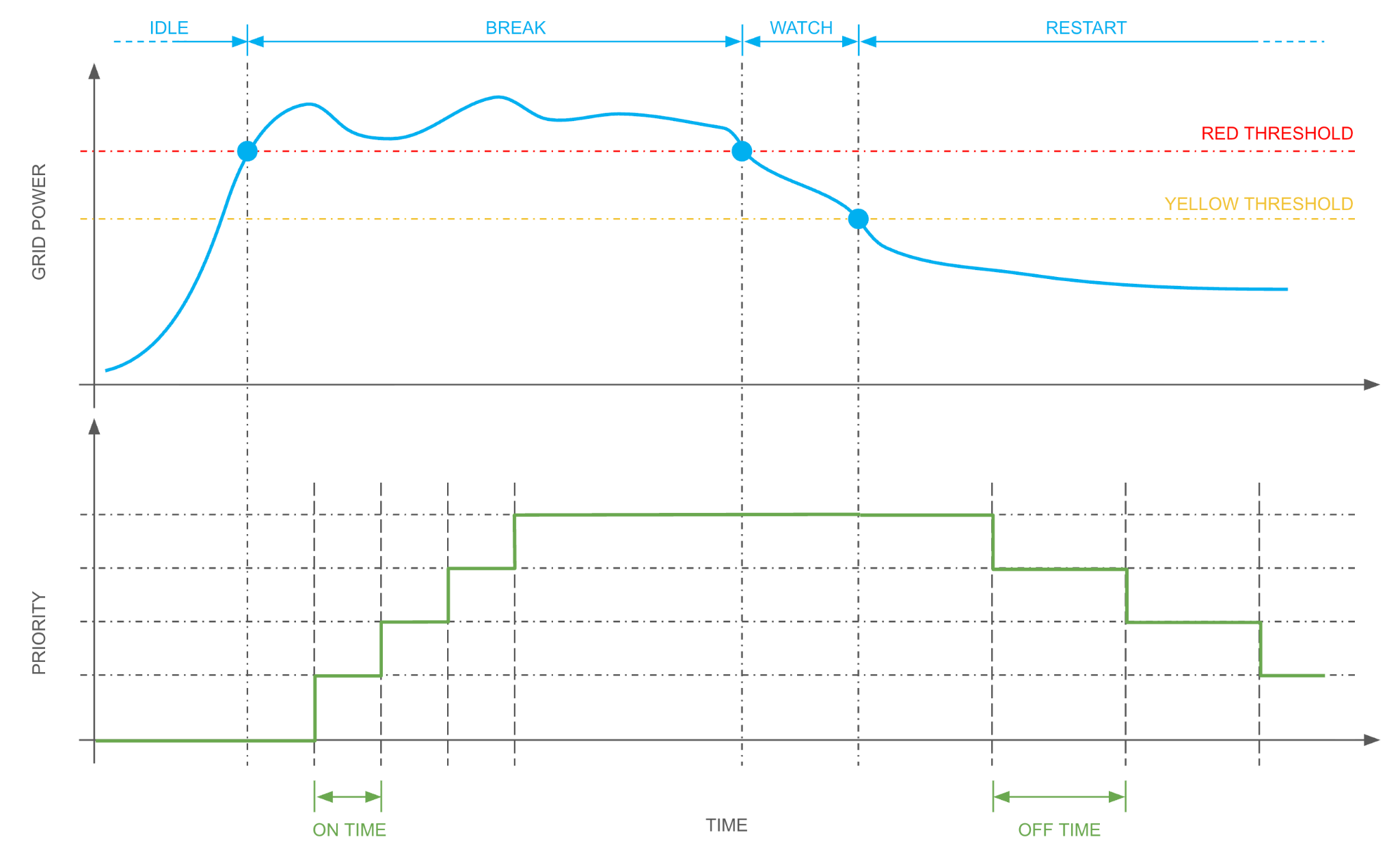
Loads
KNX loads
To create a new KNX load, open the KNX section in the bar and select Energy in the context tree, then add the load.
By entering the details of a load, it is possible to associate the following group addresses:
| ON/OFF | KNX group address to be used to switch the load ON or OFF |
| OVER LIMIT | Optional KNX group address where DELÉGO SERVER sends a 1 value if the load is switched OFF by the load control |
Additionally, the following virtual items are also available (they can be set on this page and from the Visualization, as described below):
| AUTO/MAN | If set to MANUAL, a load is no longer managed by the load control, until it returns back to AUTO |
| PRIORITY | The priority level of the load; the lowest is 1: a load with priority 1 is the first to be switched off when the consumption is excessive. |
Modbus loads
To create a new MODBUS load, open the Modbus section in the bar, where the context tree shows Modbus master with the Modbus lines below it. Create, if necessary, a Modbus line, which instructs DELÉGO SERVER how to connect to the devices collecting the power and energy data.
Open the Library panel on the right and drag Load, in the Energy group, onto the line in the context tree; the widget is created under that line. Select it to open its card, where the following information must be entered:
| Name | Load name. It is what identifies the load in the Visualization. |
| ADDRESS | The MODBUS address of the slave on the line |
The load card lists four functionalities instead of the two of a meter, and three of them are written as well as read: the state of the load, the automatic or manual selection and the priority. The fourth one is read only and reports whether the device is over its own limit.
In the MODBUS REGISTERS it is possible to fill the data necessary to retrieve the information from the device; some attributes are already filled with default values, but they can be obviously changed according to the documentation of the manufacturer. If the configuration is right, the “COM” indicator becomes green.
For more information about the configuration of the MODBUS registers, please refer to the MODBUS chapter.
Options
The LOAD CONTROL group of the Load control tab carries the options that govern the load control algorithm. Above it, LOADS lists the loads under control: a load is added by dragging it from the source panel into the list. The panel at the bottom right, under the source panel, sets the power limits of the load control, with Minimum power and Maximum power.
Energy → Load control
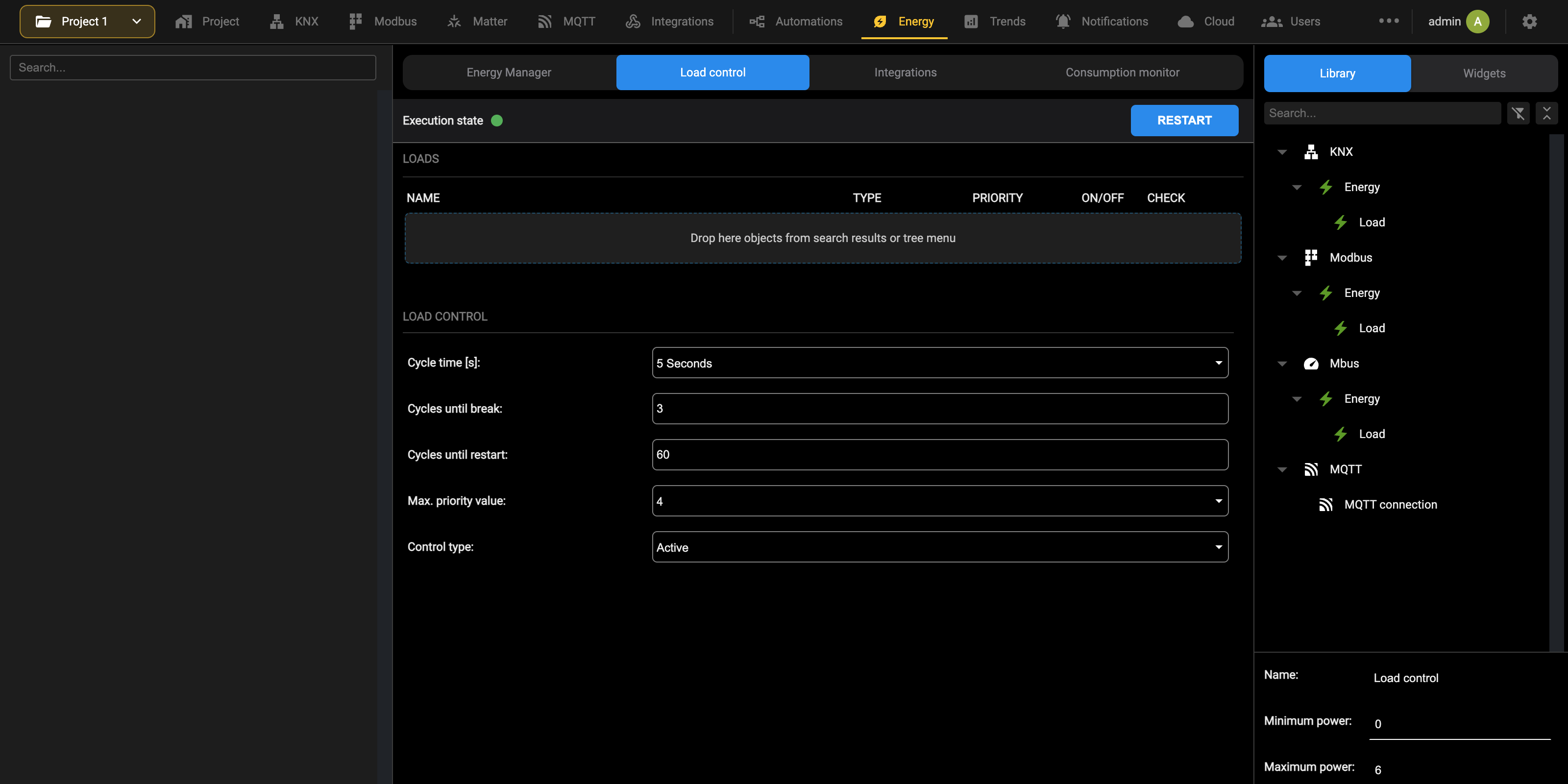
| Control type | Active hands the load control to the integrated algorithm; Passive (managed by external device) leaves it to a device outside the server, which the server then only follows. |
| Cycle time [s] | Seconds between one check of the consumption and the next. |
| Cycles until break | How many cycles the system waits, while the consumption stays above the red threshold, before raising the priority, and so disconnecting the loads of the next priority. |
| Cycles until restart | How many cycles it waits, once the consumption is back below the threshold, before lowering the priority and restoring the loads. |
| Max. priority value | The highest priority the load control handles. It does not go beyond this number, so loads with a priority higher than this value are never switched off by the load control. |
Usage
In the Energy page of the Visualization, by pressing the left button in the bottom part of the screen, a popup with the list of loads is shown.
By pressing on a load, it is possible to:
- Switch it manually ON or OFF (buttons on the top)
- Set it to MANUAL or AUTO (bottom button)
- Assign a new PRIORITY
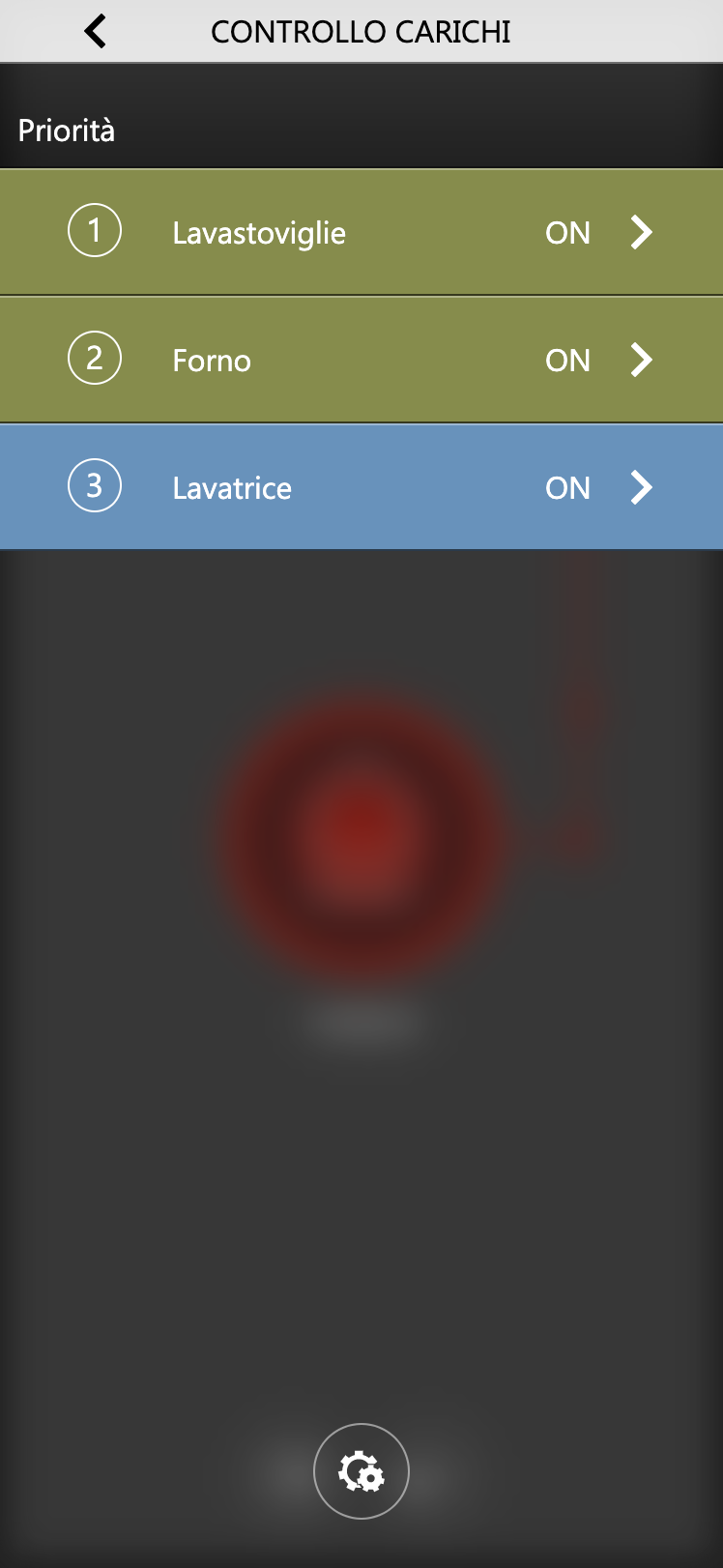
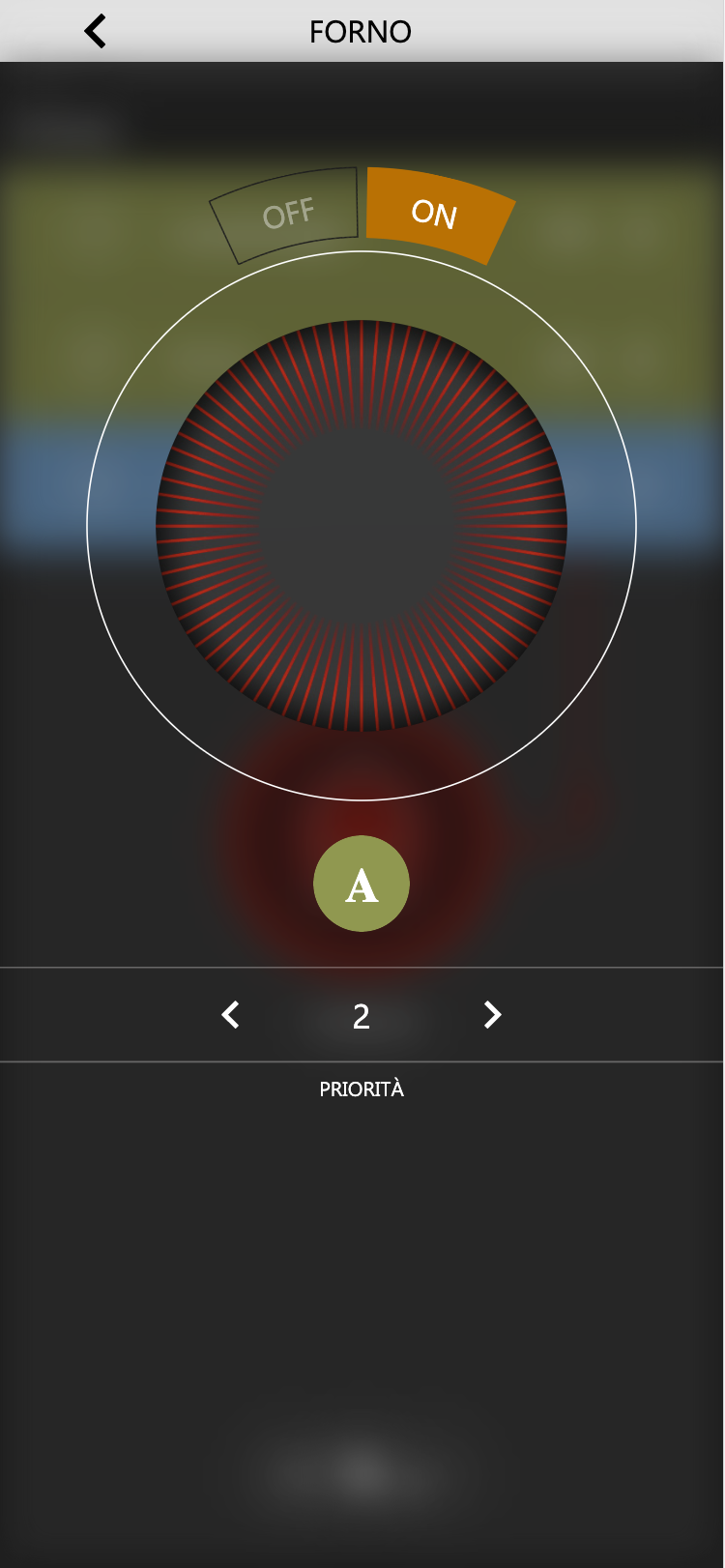
By pressing the bottom button, it is possible to adjust the RED THRESHOLD and the YELLOW THRESHOLD, and to see which priority the algorithm has reached.
Consumption monitor
DELÉGO follows the consumption of a building through a monitoring module of its own, which works with meters of different technologies and kinds. This section covers what there is to configure and to manage:
- the consumption categories the monitor handles;
- the assignment of the meters to those categories;
- the custom comparisons;
- how the information collected is presented in the Visualization.
The module needs meters to work with, configured beforehand in DELÉGO on one of the supported technologies:
- KNX
- Modbus
- M-Bus
See the Meters and Load control sections of this chapter.
General information
The consumption monitor allows you to manage different categories of consumption within the building.
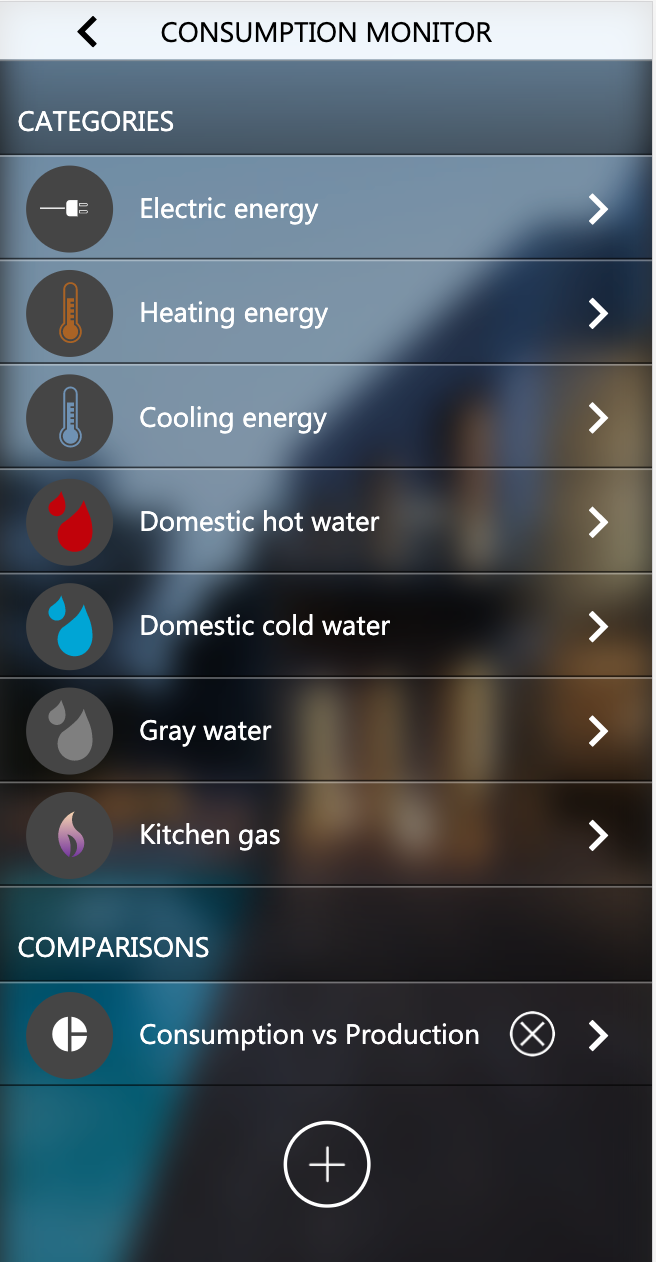
For each of the categories it is possible to monitor, on one or more meters, both the values detected in real time and the trend over time, comparing the energy performance with other previous periods, on the basis of a few parameters the user can set from the app:
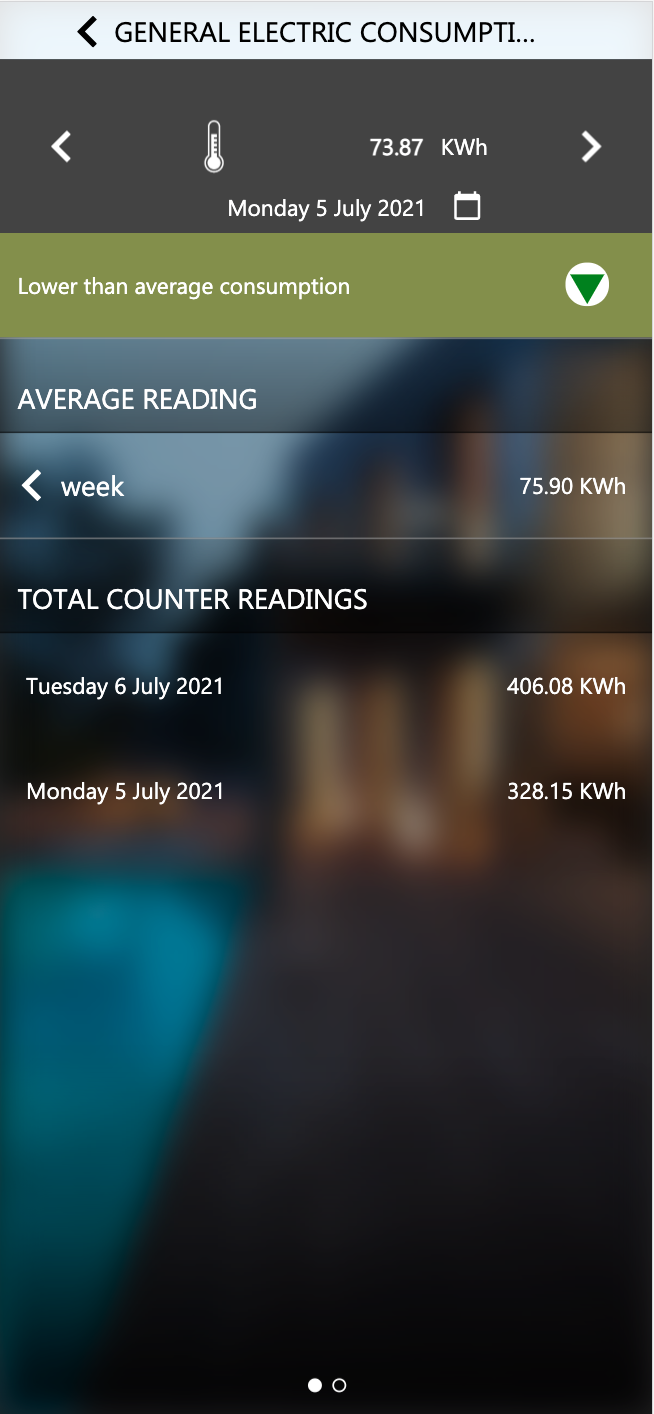
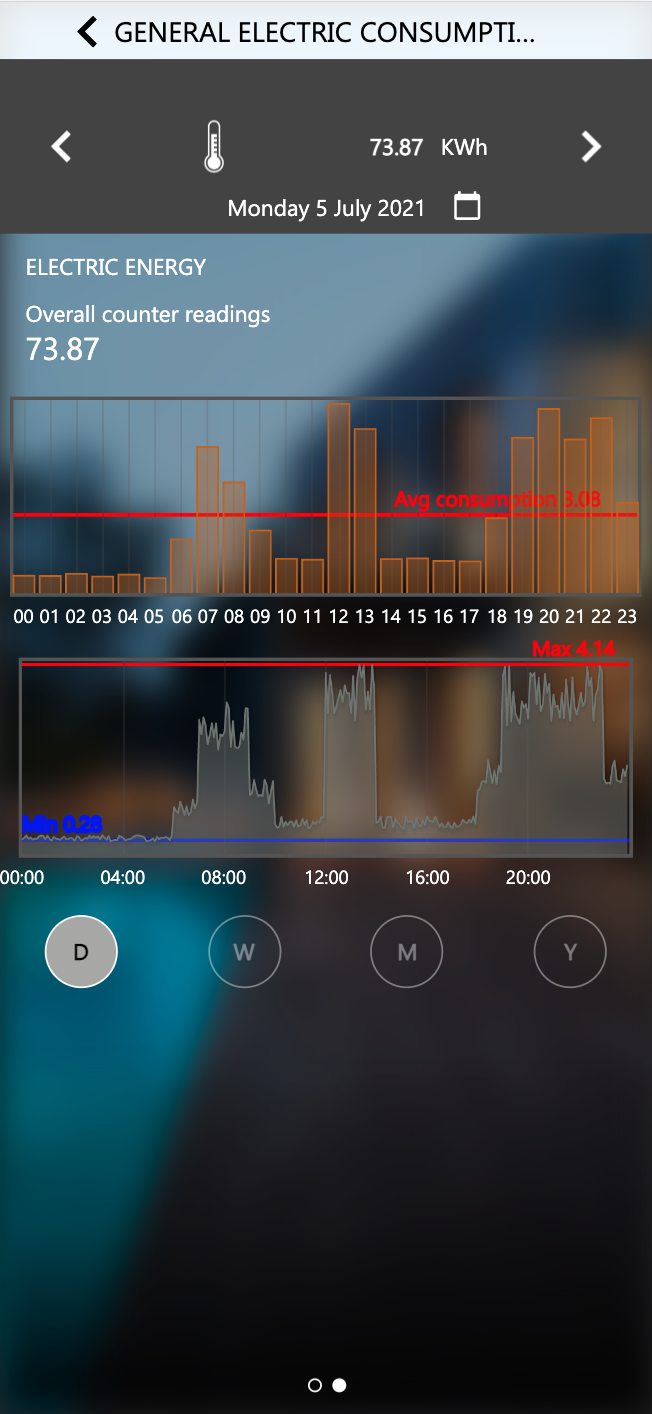
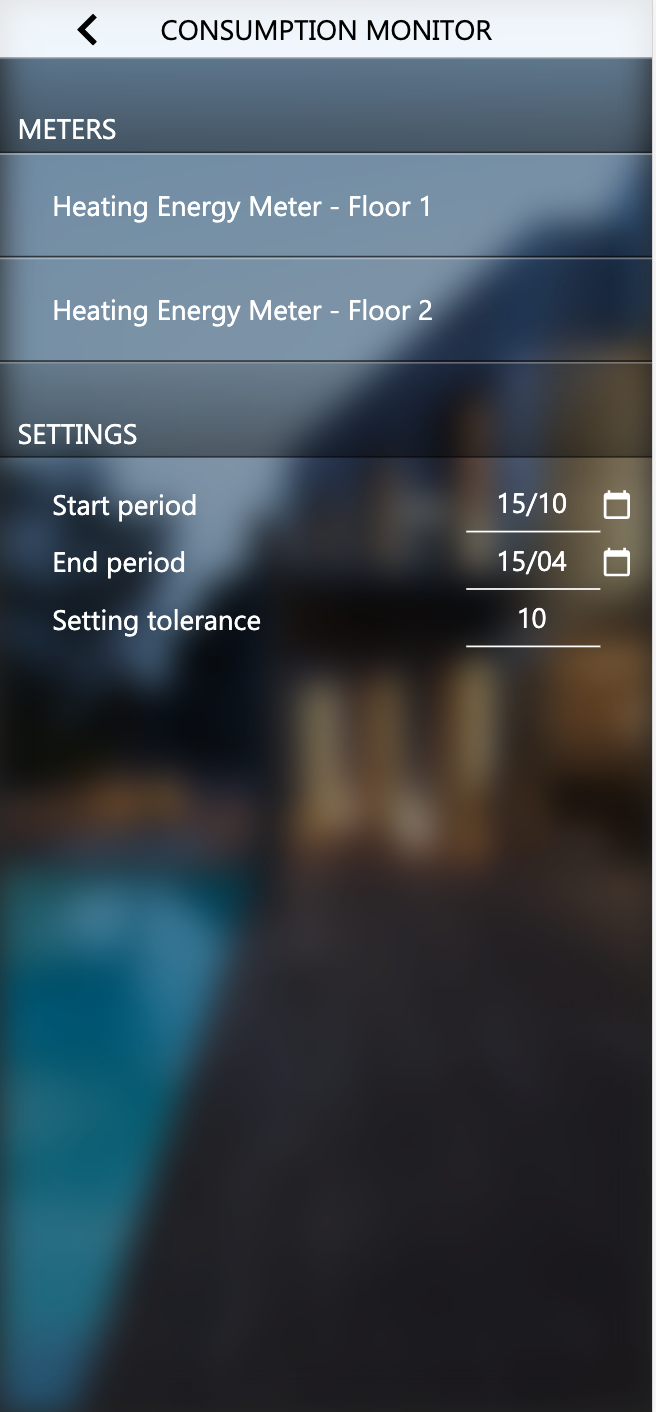
The user can also compare the consumption of multiple meters, creating personalized comparisons, which allow immediate comparison, both in real time and over time:
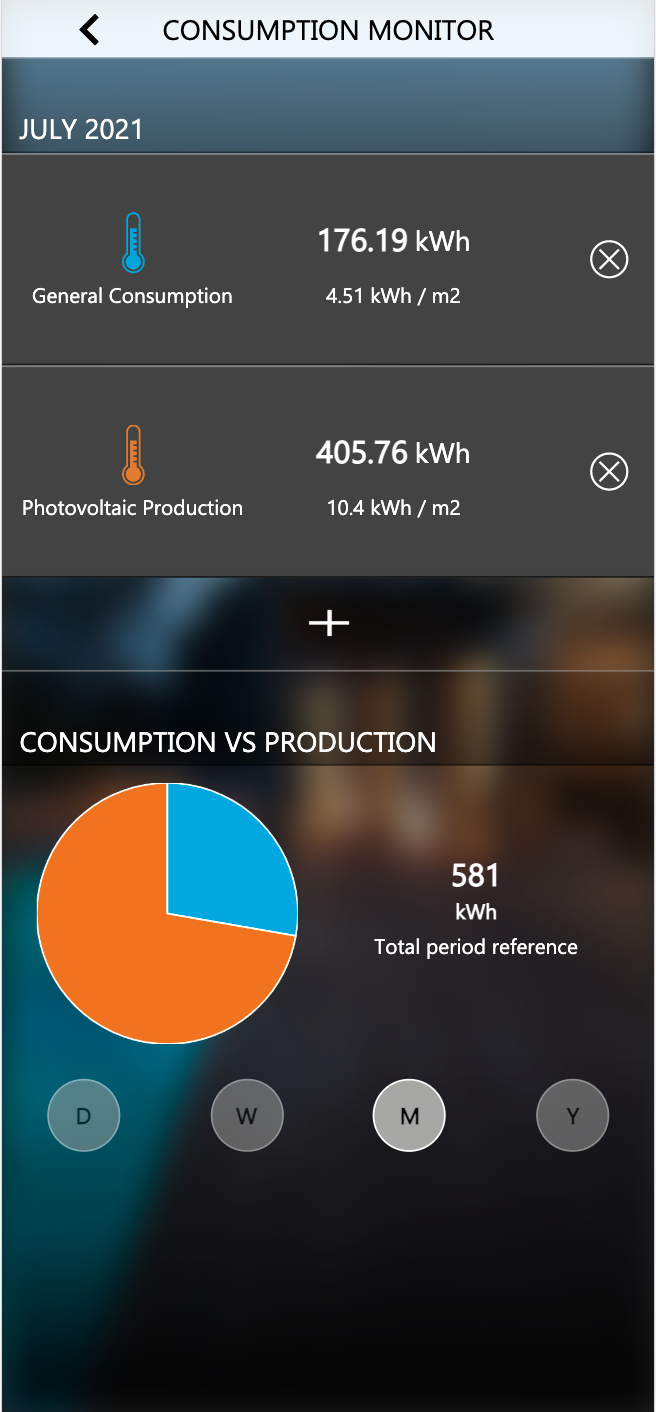
Categories
The consumption monitor handles the following categories of consumption, or of production:
- Electric energy
- Heating energy
- Cooling energy
- Domestic hot water
- Domestic cold water
- Gray water
- Kitchen gas
Each category can hold one or more meters, created beforehand in the section of DELÉGO SERVER dedicated to the technology they work on: KNX, MODBUS or M-Bus. This chapter covers the configuration of the categories, and how their data is customized and displayed.
Enabling
The categories can be enabled for viewing by accessing the section in the configuration environment
Energy → Consumption monitor
The tree of that tab lists the categories: they are predefined and cannot be created or deleted: Electric energy, Heating energy, Cooling energy, Domestic hot water, Domestic cold water, Gray water, Kitchen gas and Comparisons. A category with no meters can be left hidden, so that the user does not walk into an empty section.
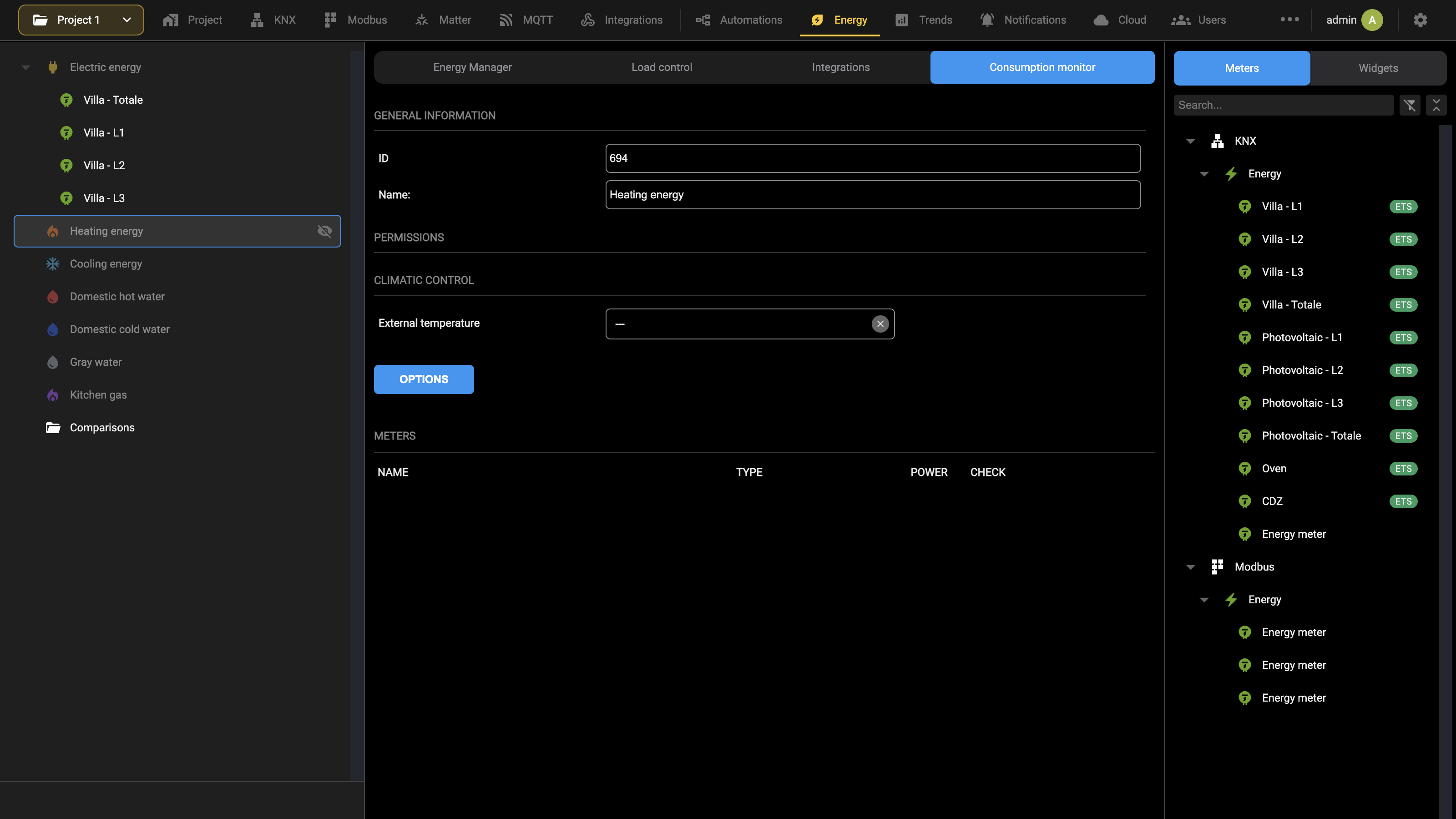
Options
Some categories offer the possibility of modifying certain options, which regulate the functioning of the procedures for extracting data from the history and comparing it with previous periods. In particular, the following table lists the options available for the different categories:
| CATEGORY | OPTION | DESCRIPTION |
|---|---|---|
| HEATING, COOLING | Season start date, season end date | They determine the period of the year in which the thermoregulation system is considered active. The calculations of the reference averages refer only to this period; any consumption outside the period is not taken into consideration. |
| Tolerance | Percentage tolerance in comparison with the reference periods, to establish whether current consumption is in line, or lower/higher |
To set these parameters, press OPTIONS on the card of the category concerned, and fill in the proposed fields appropriately. The HEATING and COOLING categories also allow you to associate an object that represents the external temperature; to do this, proceed as follows:
| 1. | Identify the object in the context tree, or by filtering the source panel (in the case of KNX technology, it can be either the single object that represents the temperature itself, or a widget that contains it) |
| 2. | Drag it into the External temperature field of the CLIMATIC CONTROL group of the category card |
In this way, as better illustrated below, the temperature trend will be represented in overlap with that of energy consumption, thus offering an overall view and the possibility of interpreting the consumption data in the light of the climatic conditions outside the building.
Adding meters
To add a meter within a category, it is necessary to have previously configured it in the reference technology. In summary, the procedures for creating the different types of meters are reported below. For further details, please refer to the documentation of the different technologies, and to the section of this chapter regarding LOAD CONTROL. Then open Energy → Consumption monitor, select the Meters tab of the source panel, which lists the meters of every technology, and drag the meter onto the node of the category in the context tree. The meter appears under the category in the tree and in the METERS table of its card, and in the Visualization without any further step.
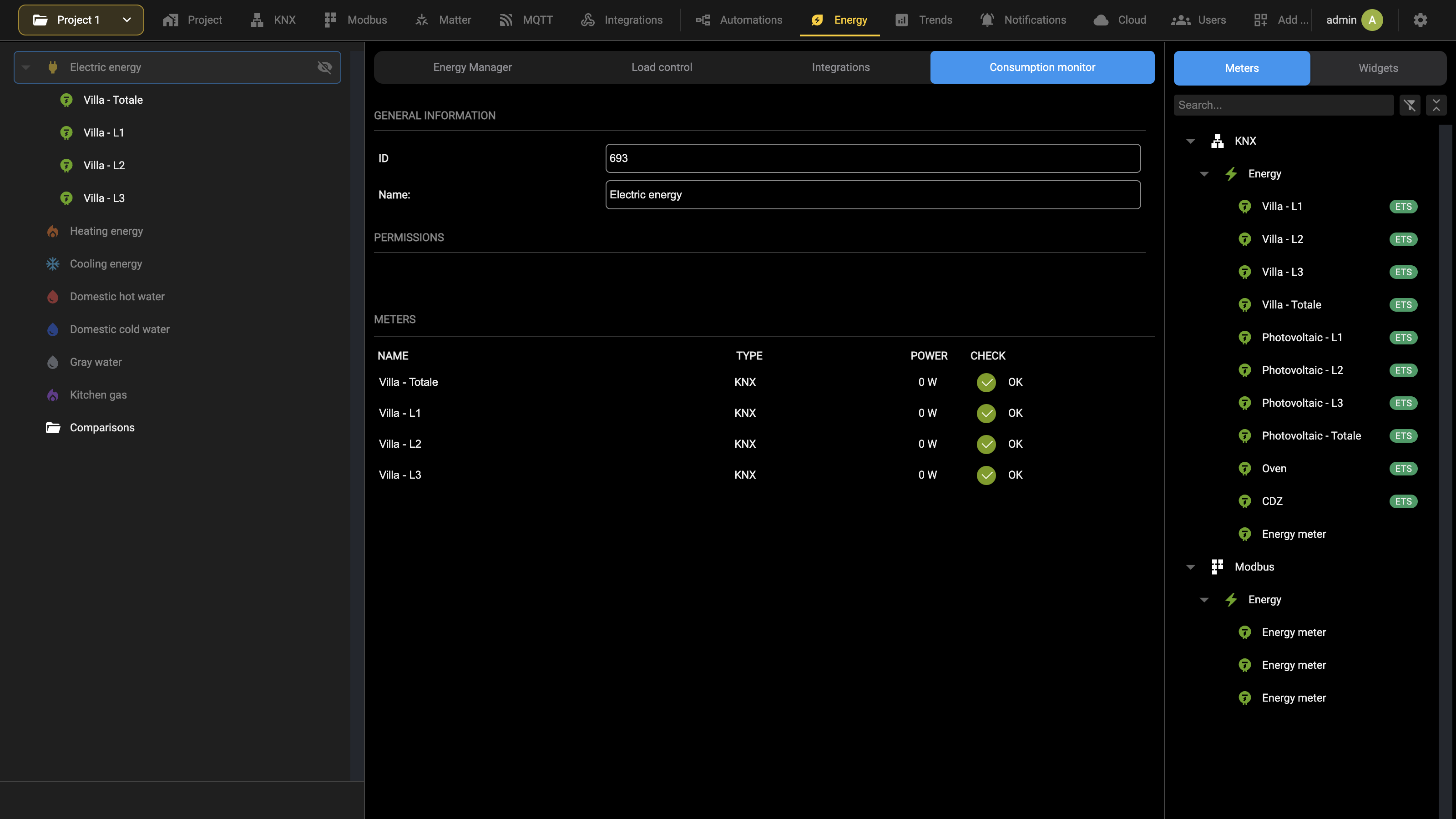
The list of energy meters offers the following information:
| NAME | Meter identifier |
| TYPE | Reference technology |
| POWER | Instantaneous power data detected |
| CHECK | Configuration consistency check. The indicator is red when the configuration of the sub-objects is incomplete; when it is yellow, open the detail tab to see what is missing. |
For categories that include volume-based meters, the information displayed is slightly different, as exemplified in this figure:
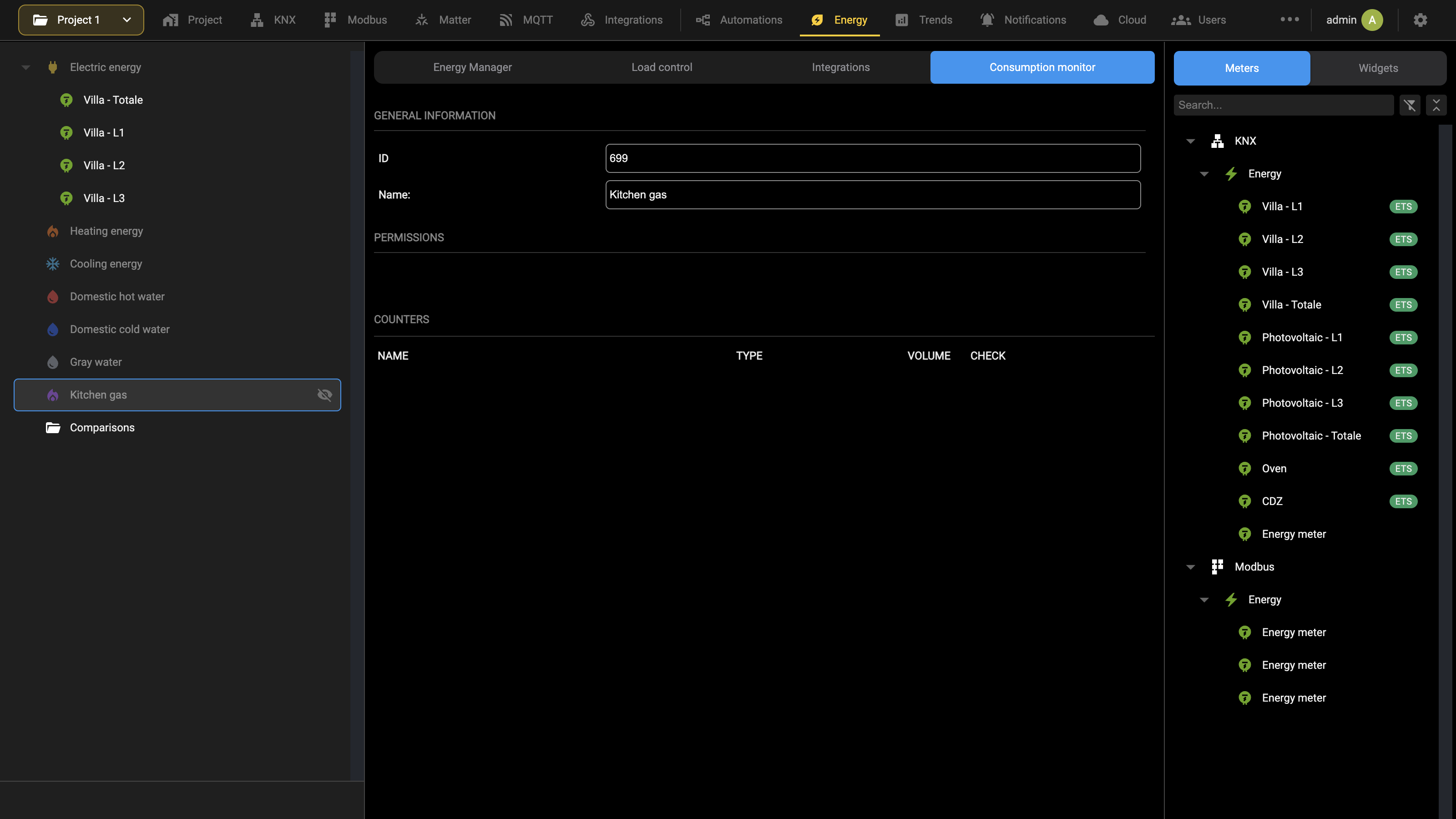
Also in this case, by pressing the edit button of a meter, you directly access the detail sheet, regardless of the technology on which it is based.
KNX
- Open the KNX section in the bar 2. Select Energy in the context tree 3. Select the type of meter (whether energy or volume, suitable for measuring water or gas) and press ADD
- Access the detail sheet and enter the corresponding group addresses, for power and energy (in the case of energy meters) or the volume data 5. If necessary, drag these group addresses from the ETS PROJECT using the appropriate button 6. Press RESTART when configuration is complete to make the changes effective
Modbus
- Open the Modbus section in the bar 2. If not already done previously, create a new LINE with the Add action of the Modbus master node, then select it to open its card 3. Identify the METER section 4. Select the type of meter, whether energy or volume (for water and gas) and press ADD 5. Enter the slave address of the device in the appropriate ADDRESS field 6. Access the detail sheet, and enter for each of the sub-objects, the information necessary to access the registers containing the power and energy information, or volume (depending on the type of meter) 7. Press UPDATE when finished to make the changes effective
M-Bus
- Open the Integrations section in the bar and select the MBUS tab 2. If not already done previously, create a new LINE with the Add action of the MBUS node, then select it to open its card 3. Carry out, if not done previously, a DISCOVERY of all connected devices 4. Select the devices you intend to add to the project, and press the CONFIGURE button 5. If the devices are already suitable for inclusion in the consumption monitor (this can be deduced from the presence of the SUB-OBJECTS FOR CONSUMPTION MONITOR section), drag them directly into the desired category 6. If not, create a generic meter, and drag the quantity detected by the MBUS device into its tab
Generic
- Access the LOAD CONTROL page 2. Identify the METER section 3. Press the ADD button 4. Access your card 5. Drag the object of the reference technology that represents the quantity to be measured into the SUB-OBJECTS section
Visualization
Once the categories have been configured and the relevant meters associated, they can be viewed in the Visualization, in a browser or in the app, from its CONSUMPTION MONITOR section. The first navigation level contains the list of categories; in the example below all the categories are listed, but as seen previously, the list depends on how many categories have been enabled in the configuration, based on the types of meters installed in the system.
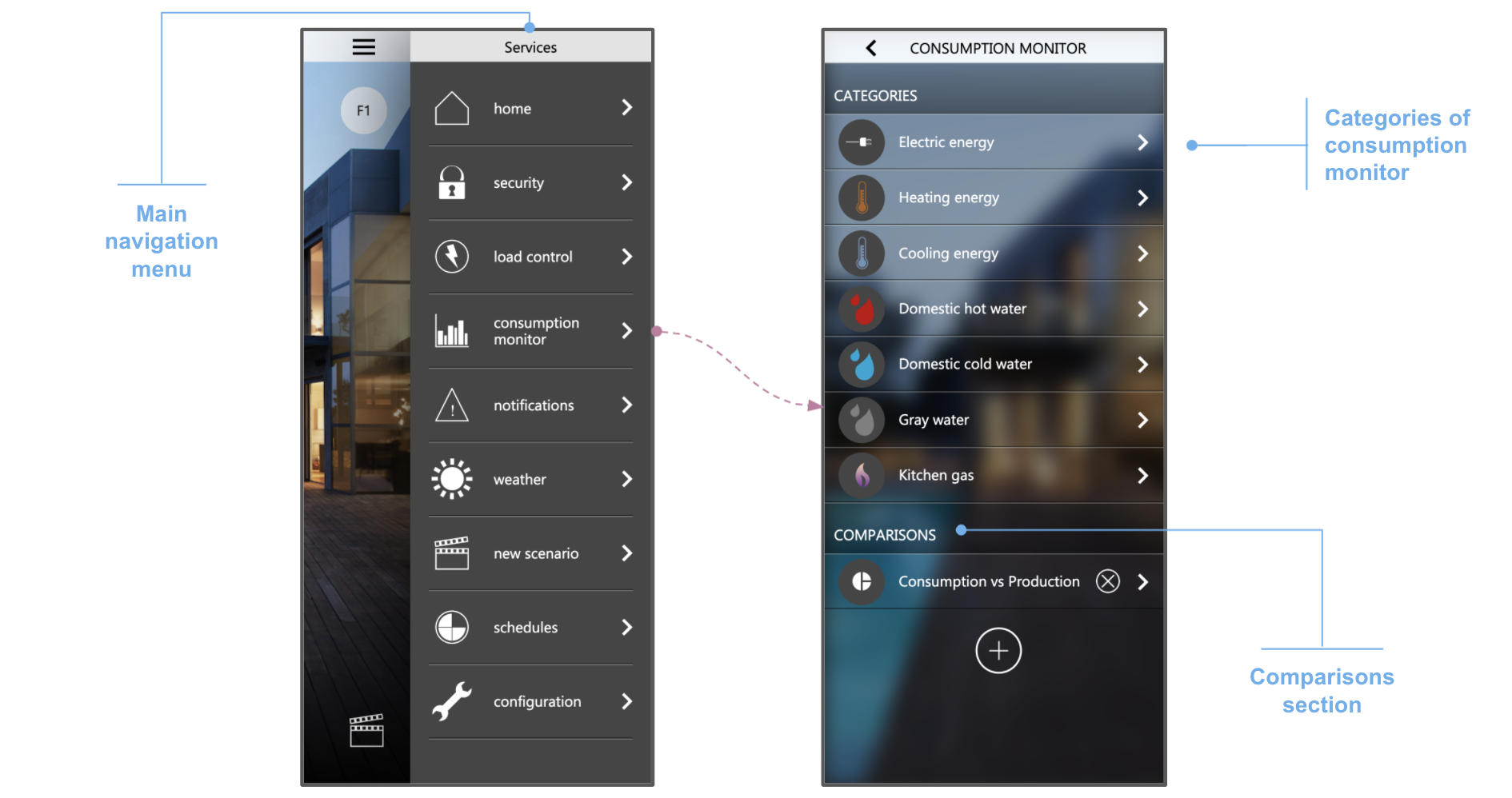
Finally, by selecting a category, the list of associated meters is displayed, as in the following example; furthermore, in the case of categories that provide it, it is also possible to customize the options already seen previously:
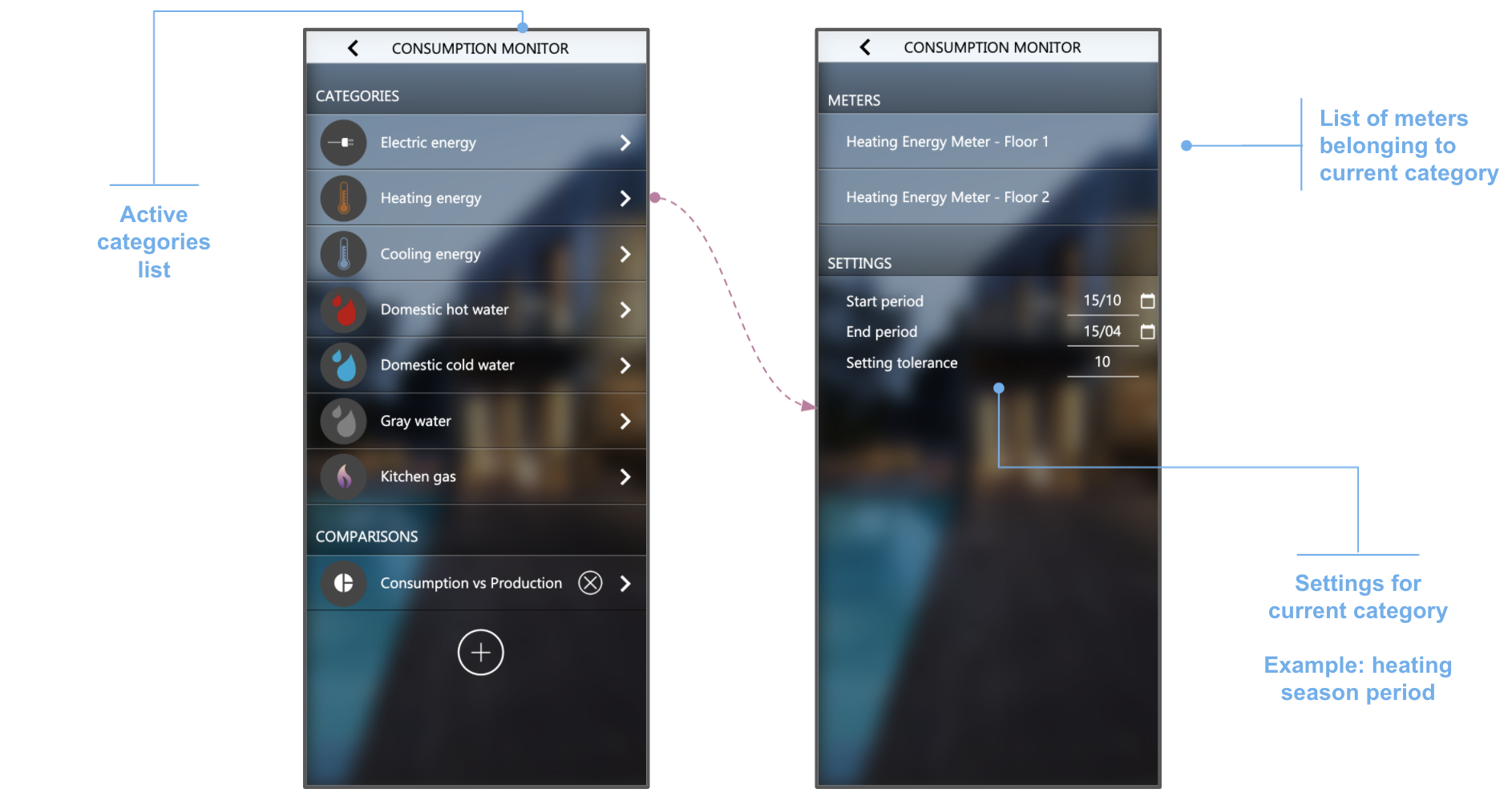
Finally, by selecting a meter, the detail sheet is shown:
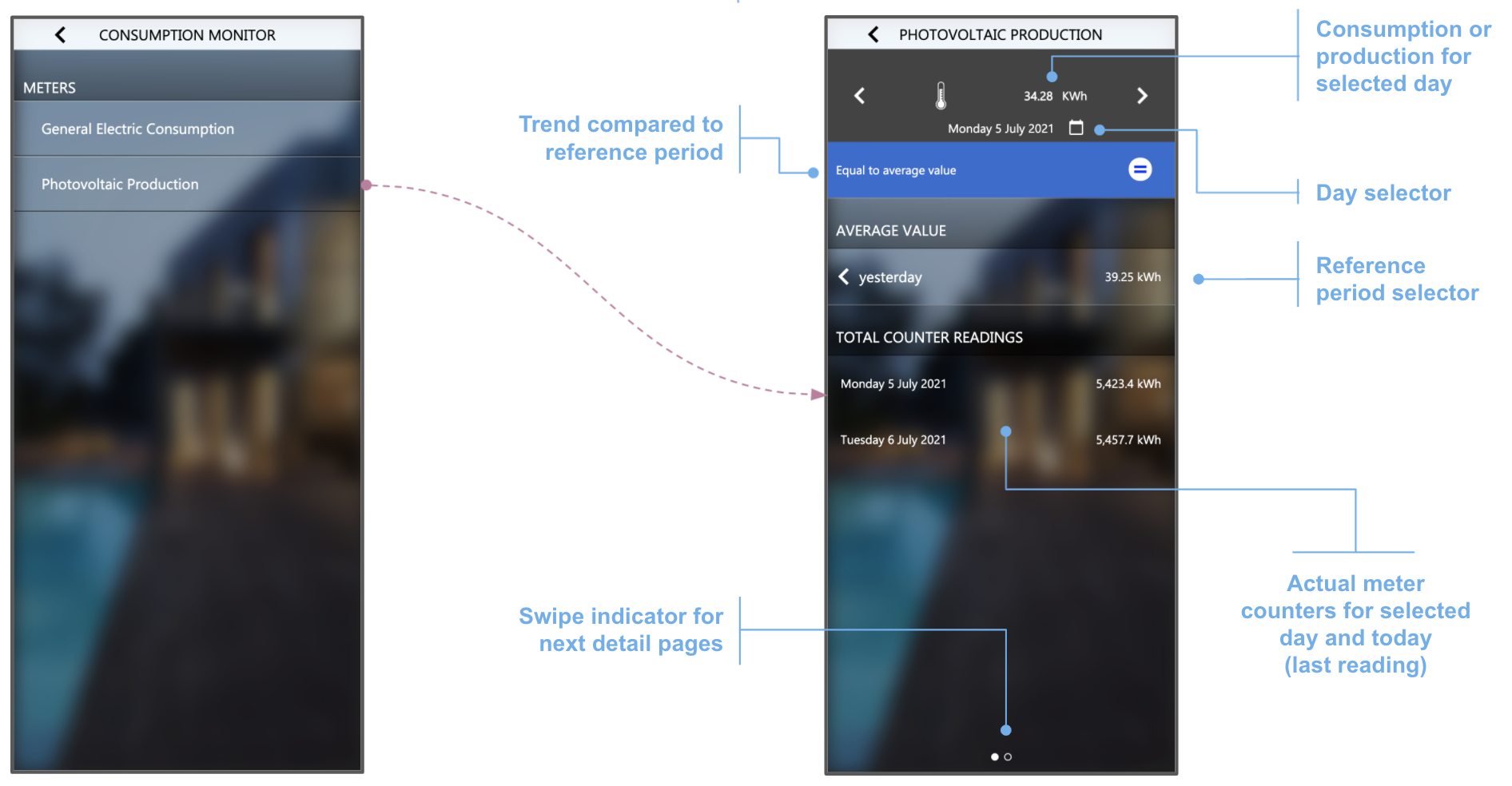
As highlighted in the figure, this screen contains the following information:
| DAY SELECTOR | Allows you to select the current day, for which the measurement data are displayed and against which comparisons are made. |
As an alternative to selecting a day on the calendar, it is possible to move sequentially day by day, using the side arrows at the top of the screen.
| CONSUMPTION (OR PRODUCTION) CURRENT DAY | The data shown at the top, above the day selector, represents the consumption (or production) of the selected day |
| COMPARISON WITH REFERENCE PERIOD | Colored band under the header section, which represents the comparison of the current value with the daily average of the reference period, selected below |
| REFERENCE PERIOD SELECTOR | Compared to the current day selected above, it allows you to select the period in which to calculate the average, with which to make the comparison. Possible values: ● Yesterday (previous day) ● Week ● Month ● Year, or season (in the case of categories that require it) |
| Counter readings | The last readings of the meters (the running total shown on the meter itself): one for today, meaning the day on which the page is being consulted, and one for the day selected above. |
Based on the outcome of the comparison, the colored band can assume one of the following states, depending on whether the current day's consumption is higher, in line or lower than the average of the reference period:
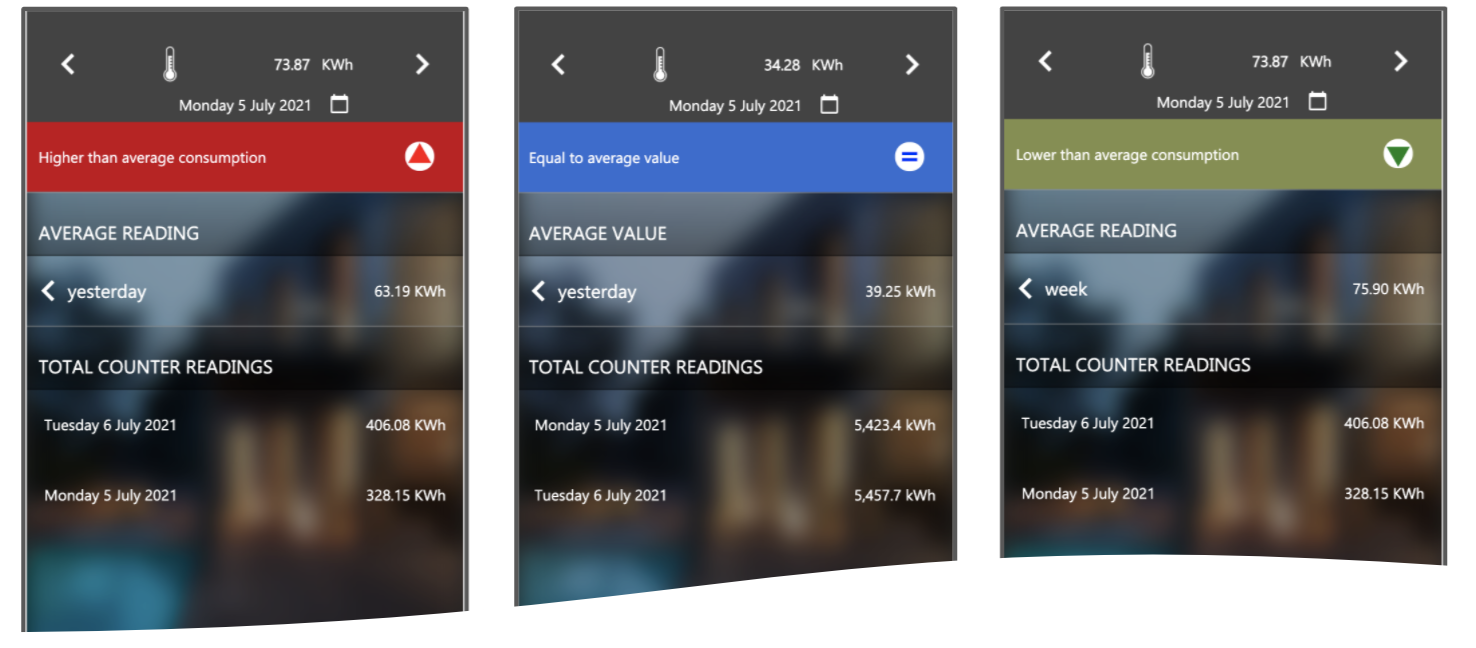
Today's consumption is taken as being in line with the reference average within the Setting tolerance margin, set in the options of the category. By swiping horizontally in the detail pop-up of a meter, you switch to viewing the historical trends:
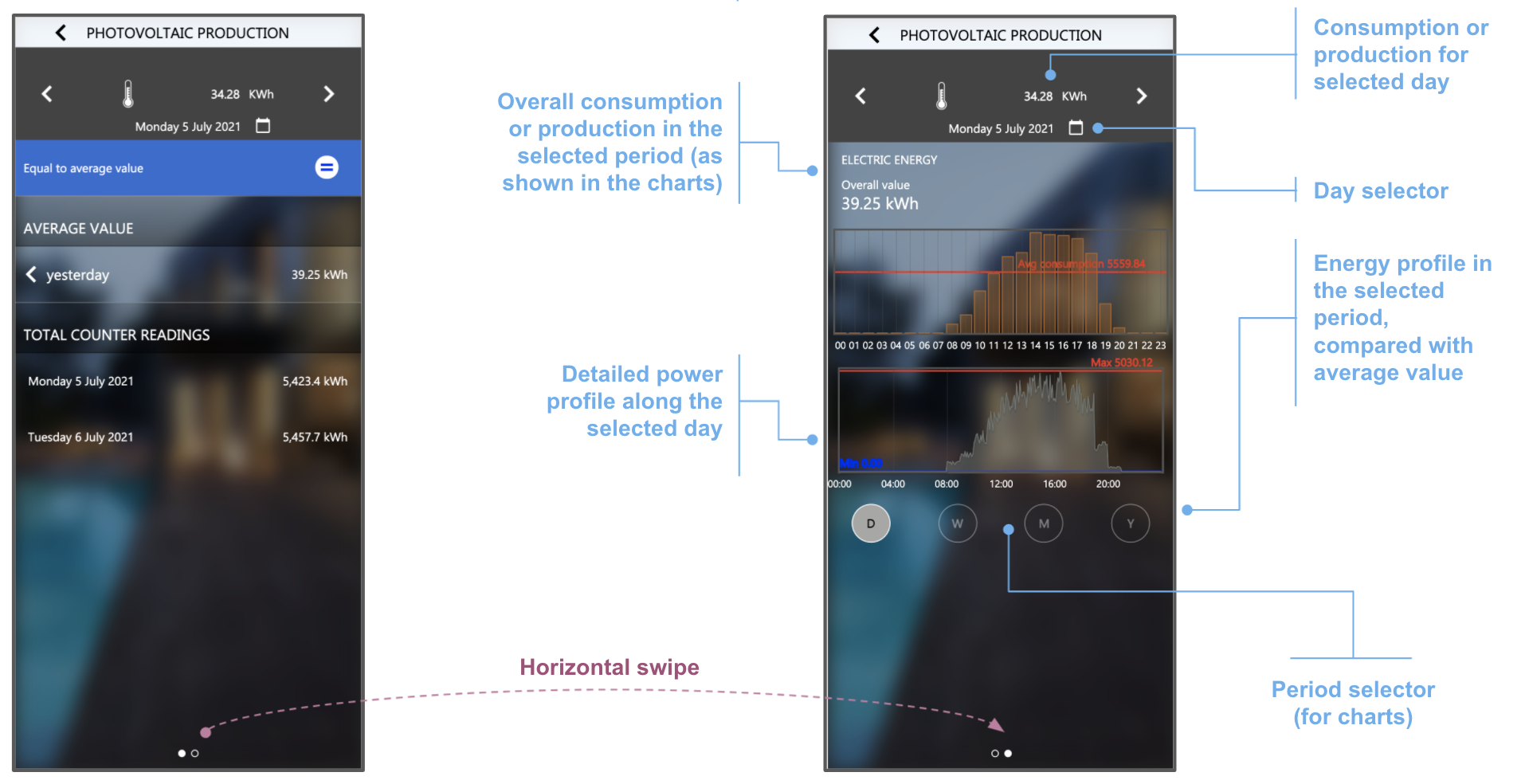
The section at the top, which does not scroll, continues to display the data relating to the current day and allows you to change the date. In the lower portion the user can choose the reference period (day, week, month or year); based on this choice, the relevant data from the history is loaded and displayed in the bar graph immediately under the day selector. The graph also shows the average value relating to the reference period, in the form of a comparison line superimposed on the histogram. In the case of day view and for some specific categories, under the consumption graph, a graph is also drawn which contains the detail (not aggregated for now) of the following quantities:
| CATEGORY | DESIGNED QUANTITY |
|---|---|
| ELECTRICAL ENERGY | Measured electrical power This graph allows you to precisely observe the absorption trend in a timely manner, and shows exactly all the data received over a 24-hour period. The visual overlap with the energy graph allows not only to correlate the two trends, but also to highlight any peaks or specific behaviors that are not appreciable in the aggregate consumption bars on an hourly basis. |
| HEATING | Outside temperature |
COOLING This graph allows you to compare the consumption trend with the climatic conditions outside the building.
To view this graph, it is necessary to first associate an object to the category that contains the temperature data, as seen previously.
Comparisons
The consumption monitor allows the user to configure one or more comparisons between the meters present in the system. Comparisons can be set both in the Administration and in the Visualization; the procedure described below is the one in the Visualization, the two being practically identical.
New comparison
In the main pop-up of the consumption monitor, under the list of categories, the button to add a new comparison is available (and, subsequently, this section contains the list of comparisons created previously):
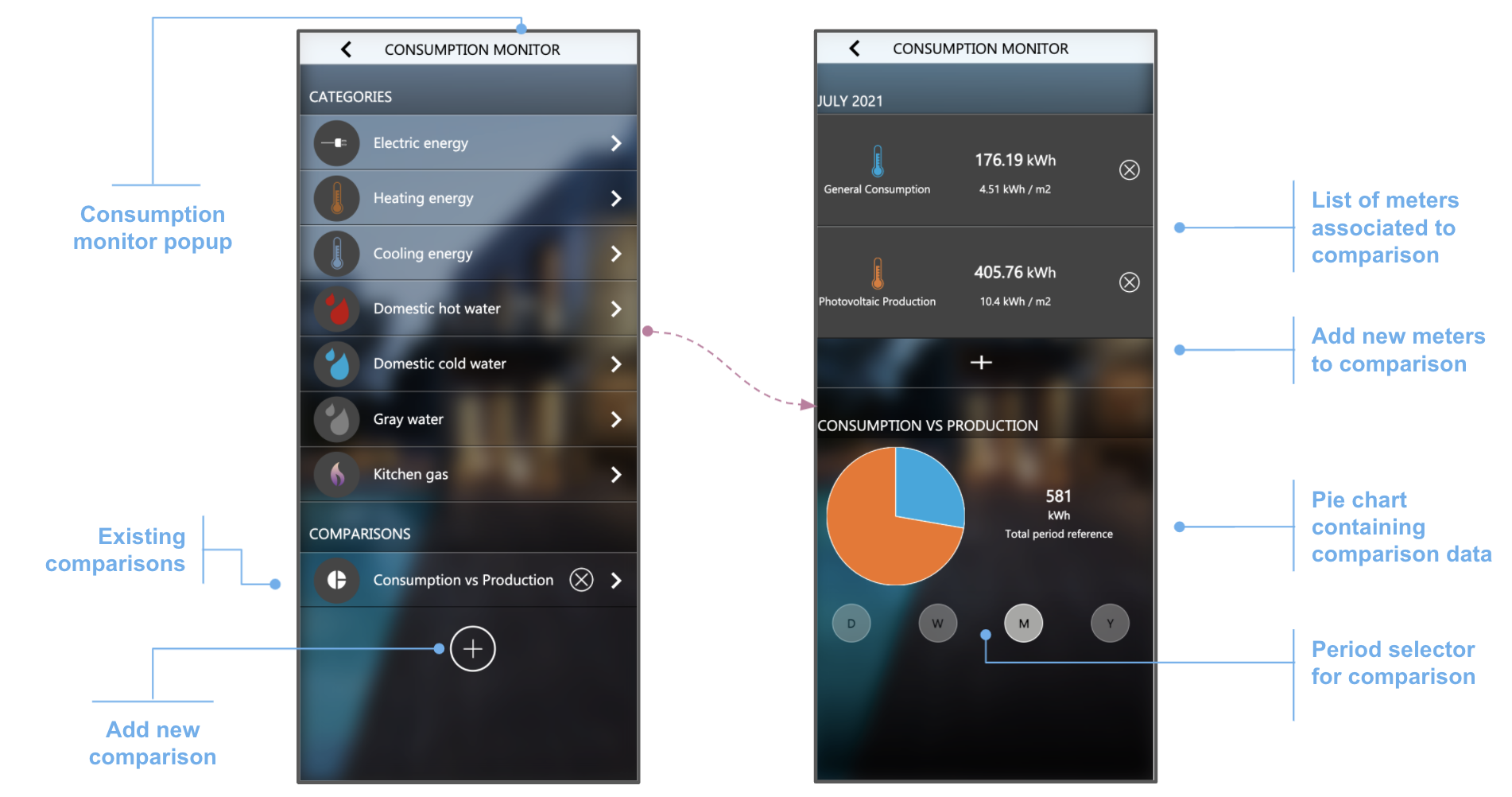
When accessing the detail view of a comparison, the screen is initially empty; pressing the button that adds meters brings up a list of all compatible meters:
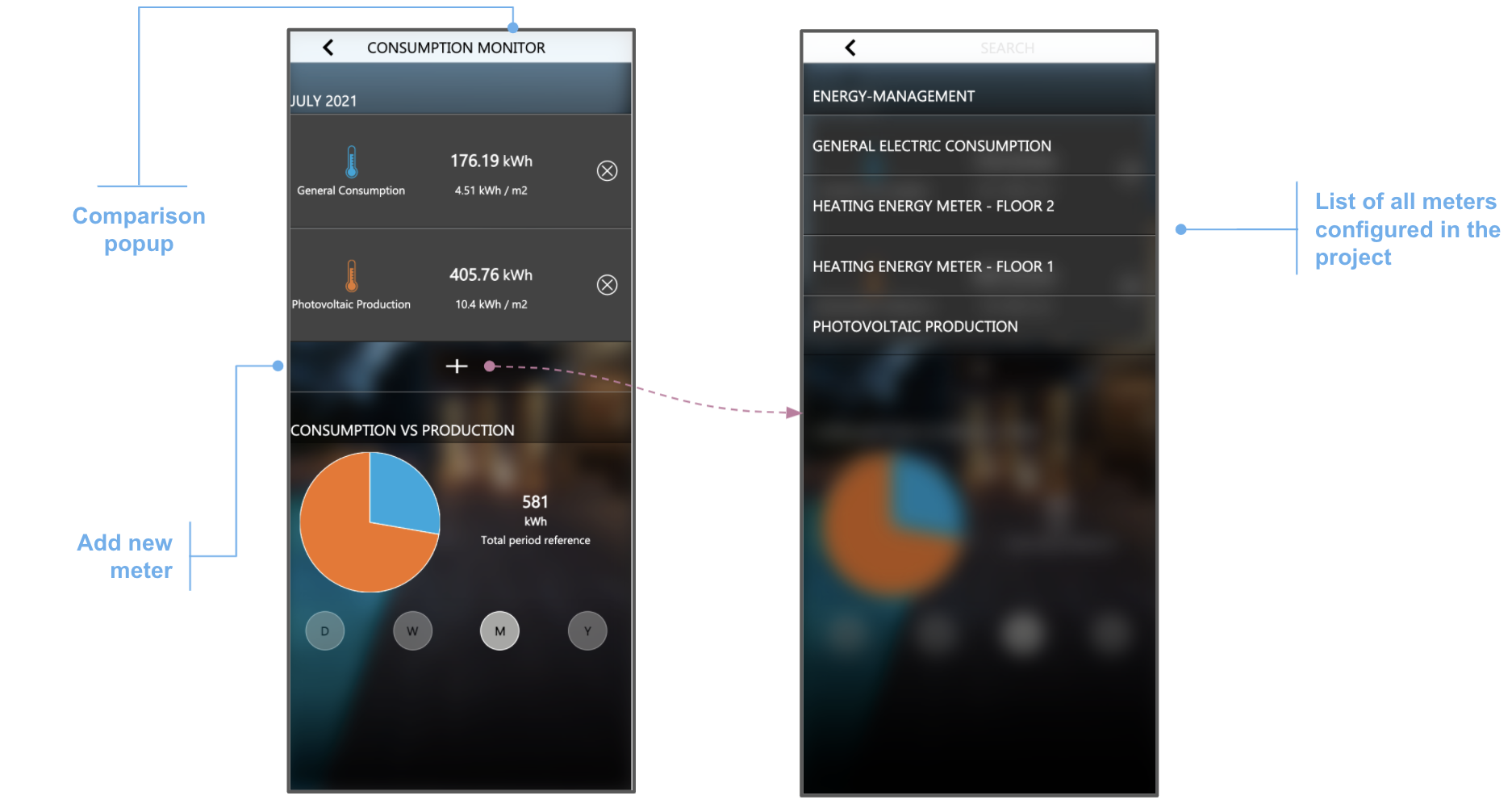
By repeating the operation several times, you can insert all the meters you want to compare. In the top section of the sheet, the list of meters is shown, each with the relative consumption data (both in absolute value and in relation to the surface area of the property, set at the general configuration level). In the lower part, it is possible to select the period for which you are interested in obtaining data from the history (in a similar way to what was seen for the display of the meters) and, consequently, generate the comparison pie chart.
Editing and deleting
To remove a comparison, press the corresponding button in the list of comparisons.
To change one, open its card:
- remove a meter: press the delete button on its row;
- add a meter: repeat what was done when the comparison was created;
- rename the comparison: press its name and type the new one.
Trends
The consumption monitor displays what the meters report, in a form decided in advance. When the trend of a quantity that has nothing to do with consumption has to be followed, DELÉGO allows a generic chart to be built instead. Trends is the section of the bar where those charts live.
This chapter covers all of it: how a chart is created and configured, how the objects to be plotted are added to it as data series, how it is consulted in the Visualization, and where the recorded data is kept.
New graph
To create a new custom chart, open the Trends section of the bar and use the Add action of the node in the context tree. Once the new graph has been created, select it in the tree to open its card, which appears as in the following figure:
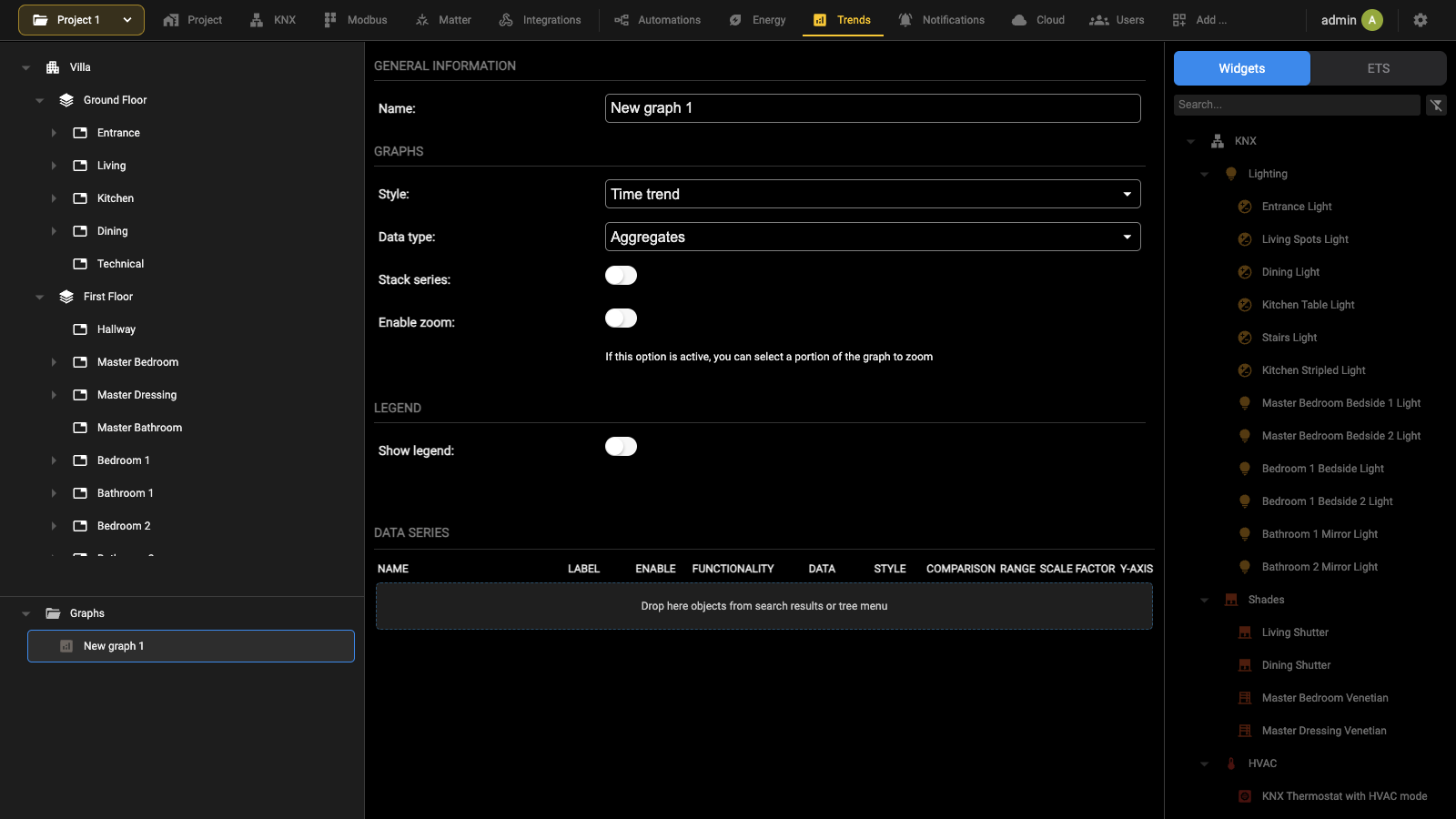
| Name | Label that identifies the graph. |
| Style | The shape of the chart: Time trend, Cake, Donut or Radar. |
| Data type | Aggregates or Detailed, according to whether the graph shows consolidated values or every single sample. |
| Stack series | Piles the series one on top of the other instead of drawing them side by side. |
| Enable zoom | Allows a portion of the graph to be selected and enlarged. |
| Show legend | Shows the legend of the series below the chart. |
The Data series table lists the quantities drawn on the graph, each with its name, its Label and the Enable flag.
General settings
The main section of the tab offers the following:
| Name | Identifies the chart within the project. |
| Style | The kind of chart: Time trend, Pie, Donut or Radar. |
| Data type | Whether the chart works on the data as it arrives from the field, the RAW data, or on the data processed every hour, day, week and month. |
| Stack series | On a time trend chart, whether the series are drawn side by side, which is the default, or stacked one on top of the other. |
| Show legend | Whether the legend is shown. |
| Enable zoom | With this on, the reader can zoom into the chart by selecting a rectangle, both on a computer and on a mobile device. |
Turning on Advanced mode adds the further options described in the chapters that follow.
Legend
The Legend group governs where the legend of the chart goes and how it is laid out:
| Position | Which corner of the chart the legend occupies: Top-Right, Top-Left, Bottom-Right or Bottom-Left. |
| Columns | How many columns the entries are arranged in. Left empty, the arrangement is automatic. |
Primary Y axis / Secondary Y axis
| MINIMUM VALUE, MAXIMUM VALUE | They allow you to force the limits of the values on the axes. If not specified, they are calculated automatically |
| LABELS | It allows you to specify, in JSON format, the list of labels to use for the graph, instead of the automatic numerical indications. Example: to force the labels to the values 0,25,50,75 and 100, associating them respectively with the words “0%”, “25%” … “100%”, use the following wording: [[0,“0%”],[50,“50%”],[100,“100%”]] |
Data series
Once the general properties of the graph have been defined, it is necessary to add at least one object, whose historical data will be used as the same number of data series. It is possible to associate up to 3 objects for each graph. To add an object to a chart:
- Identify it in the context tree, or filter the source panel with its search field
- Drag it into the “DATA SERIES” section
In the case of widgets, you need to drag onto the graph the specific sub-object you want to plot. To this end, we therefore recommend:
- Access the detail sheet of the sub-object (if accessible), enable ADVANCED mode and identify its ID
- Filter the source panel by entering its ID or, alternatively, its name or a unique attribute (e.g. its KNX address)
Once an object has been associated as a data series, it is necessary to specify the following options, in order to set the criteria with which the chart should extract and use the object's data:
| LABEL | Text to use to identify the object within the legend |
| ENABLE | Check this box to enable the data series. If this item is not selected, the data series is not visible |
| FUNCTIONALITY | Choose the data set number corresponding to the object, from 1 to 3 (each object must have a unique data set number) |
| DATA | Specify which data in the historical database should be used for representation in the graph, choosing between: ● Average value ● Minimum value ● Maximum value ● Sum ● Counter ● Difference ● Integral. Note: this field is only available for charts with aggregated data; in the case of detailed data, in fact, the data received are used directly, and not their aggregation (with one of the functions in question) |
| STYLE | Select (in the case of “time trend” type graphs) which graphic appearance the data series should have, choosing between: ● Lines ● Points ● Lines and dots ● Curve ● Steps ● Bars ● Area |
| COMPARISON | Select this option to overlay the average values calculated over previous historical periods on the data series |
| RANGE | Select this option to superimpose a colored band on the data series that identifies the range (between minimum and maximum) of values collected in previous historical periods |
| SCALE FACTOR | If necessary, specify a scale factor to multiply with the historical values before representing them in the graph |
| Y-AXIS | In the case of “time trend” type graphs, specify whether the data series should use the main or secondary Y axis |
Example of temperature type objects associated with a graph:
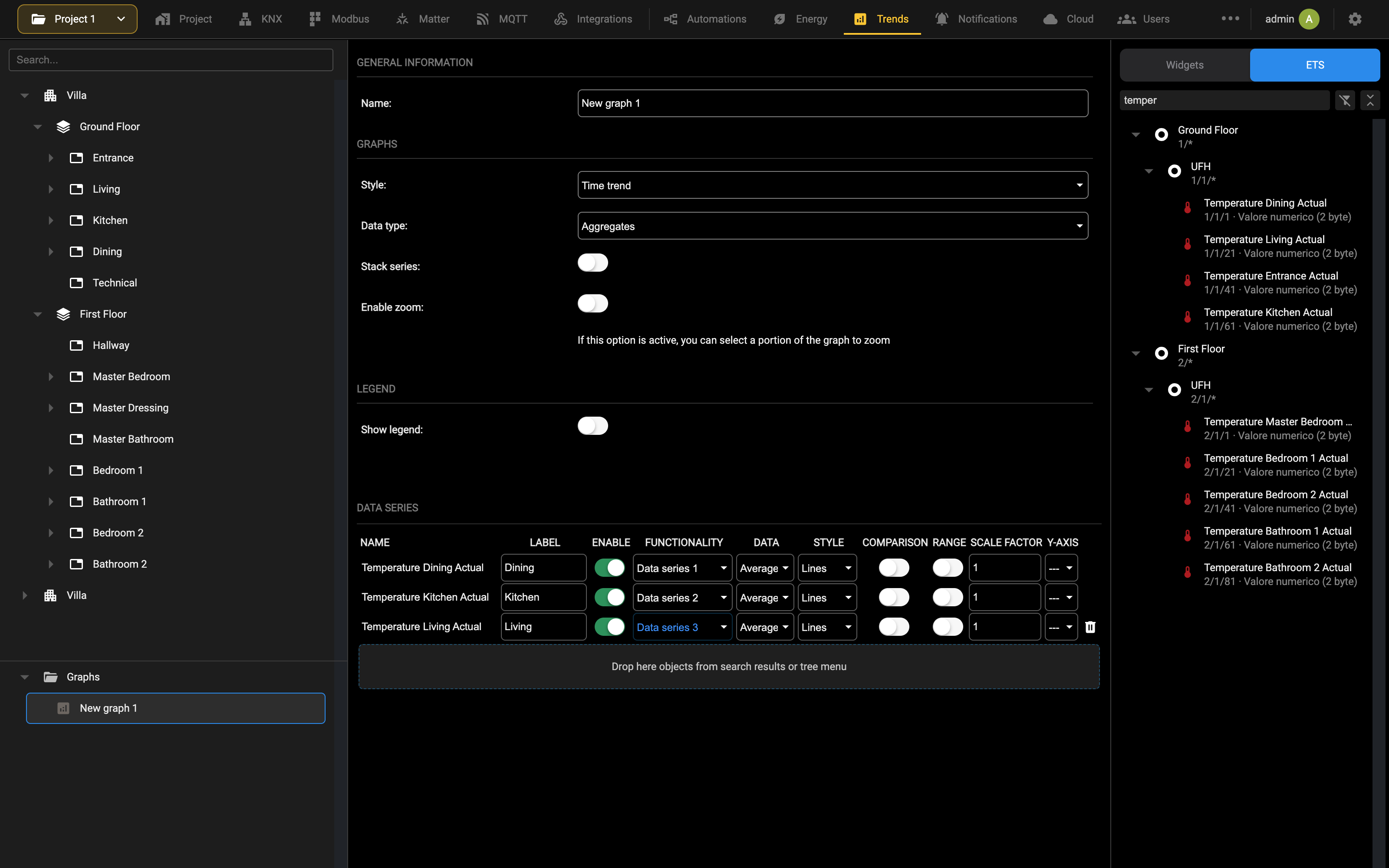
In the case of graphs with aggregated data, the choice of the type of data to associate with a data series is fundamental for the correct representation of the desired information and depends on the type of values that are stored by DELÉGO.
If numerical values arrive from the field that you want to represent directly in the graph, you typically choose “average value” or, alternatively, “minimum value” (if you want to show the lowest value within the selected period, for example a time) or “maximum value”.
If, on the other hand, the object is a pulse output, i.e. one that periodically sends a value (for example, every kWh of electricity or m3 of gas/water), the “counter” type should be chosen, because it is precisely the number of times in which data is received (and not the data itself, which is typically always the same, for example “1”) to represent the data to be displayed. Alternatively, the “sum” data type is suitable, for example, if values “0” and “1” pass through, and you want to count only the “1s”.
In the case of energy data (or more generally, a cumulative value that grows indefinitely over time), vice versa, the most significant information is the difference between the value received at the beginning of the period and the final one, rather than the value in an absolute sense (which, in the case of an energy meter for example, represents the consumption since the meter was activated). Finally, if an energy has to be worked out from a power measurement, or from a 0/1 value you want to calculate the time in which the object was at 1, use the integral data type, which calculates the mathematical integral of the reference data.
Visualization
The graphs are consulted in the Visualization, in its Graphs section. A popup containing the list of configured graphs is shown; by selecting a graph, it is shown as in the following example:
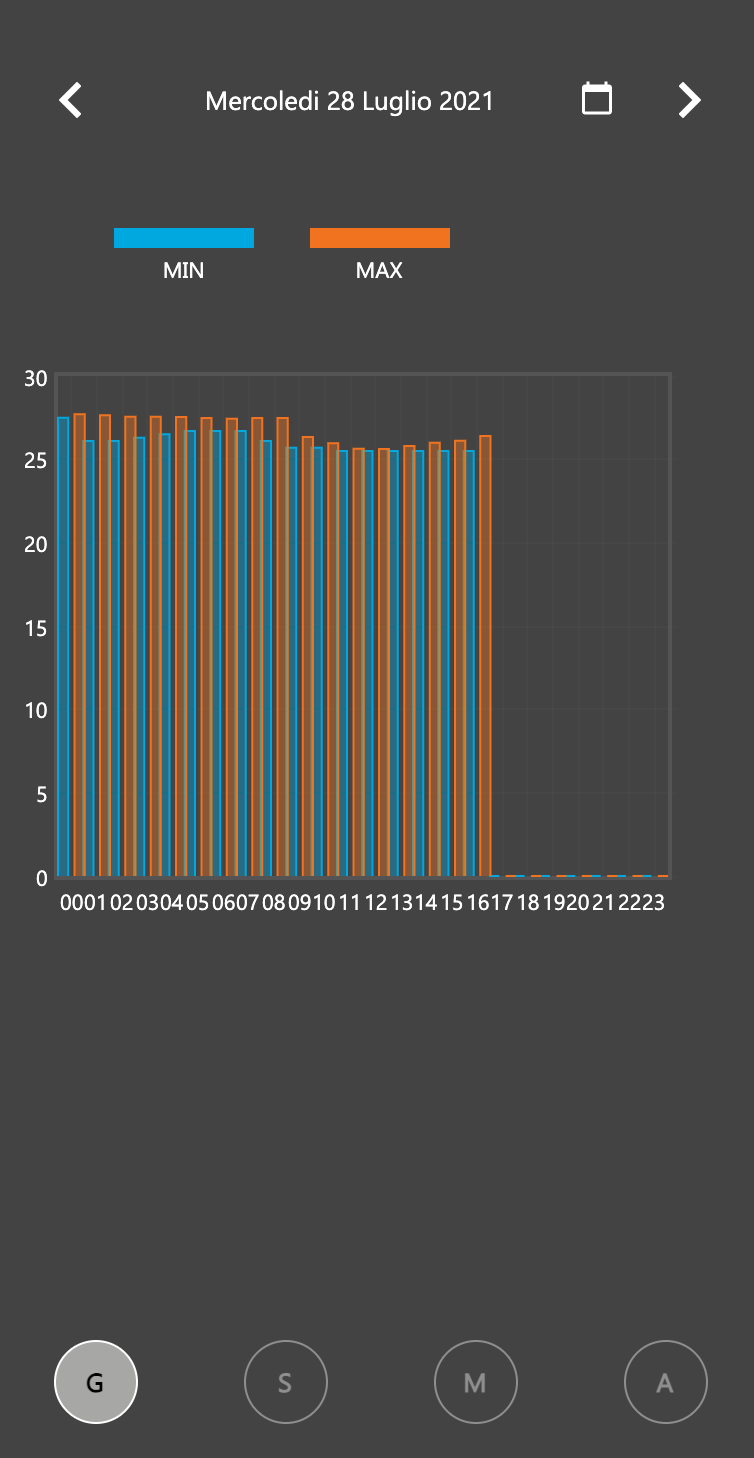
The section at the top of the popup allows you to change the reference date. Immediately below sits the legend, with one entry per series, carrying the Label given during the configuration and the color assigned to it (based on the order of the series) in the graph itself. At the bottom of the popup, you can change the graph's reference period; the available options depend on the type of data: in the case of detailed data, in fact, it is possible to represent only daily graphs, not over several days.
Below are some examples of different types of graphs:
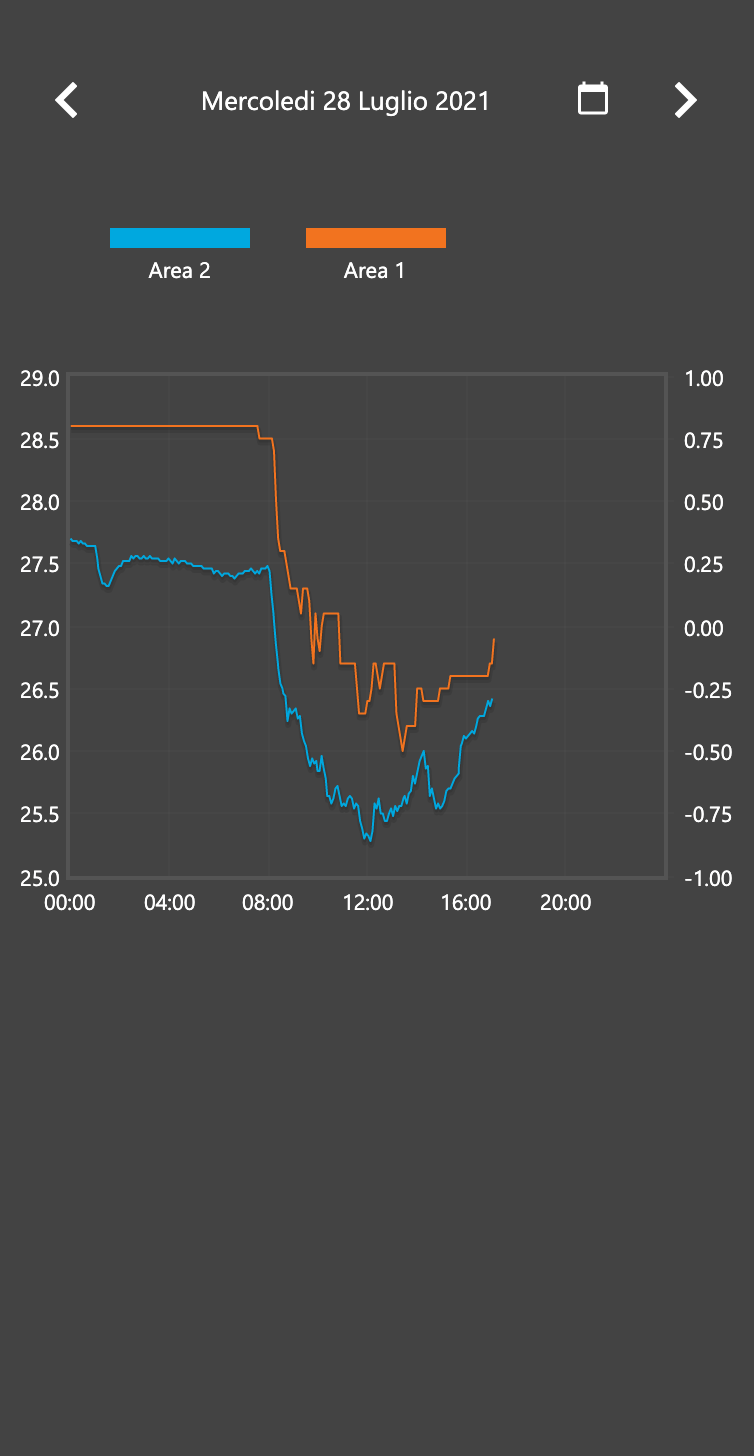
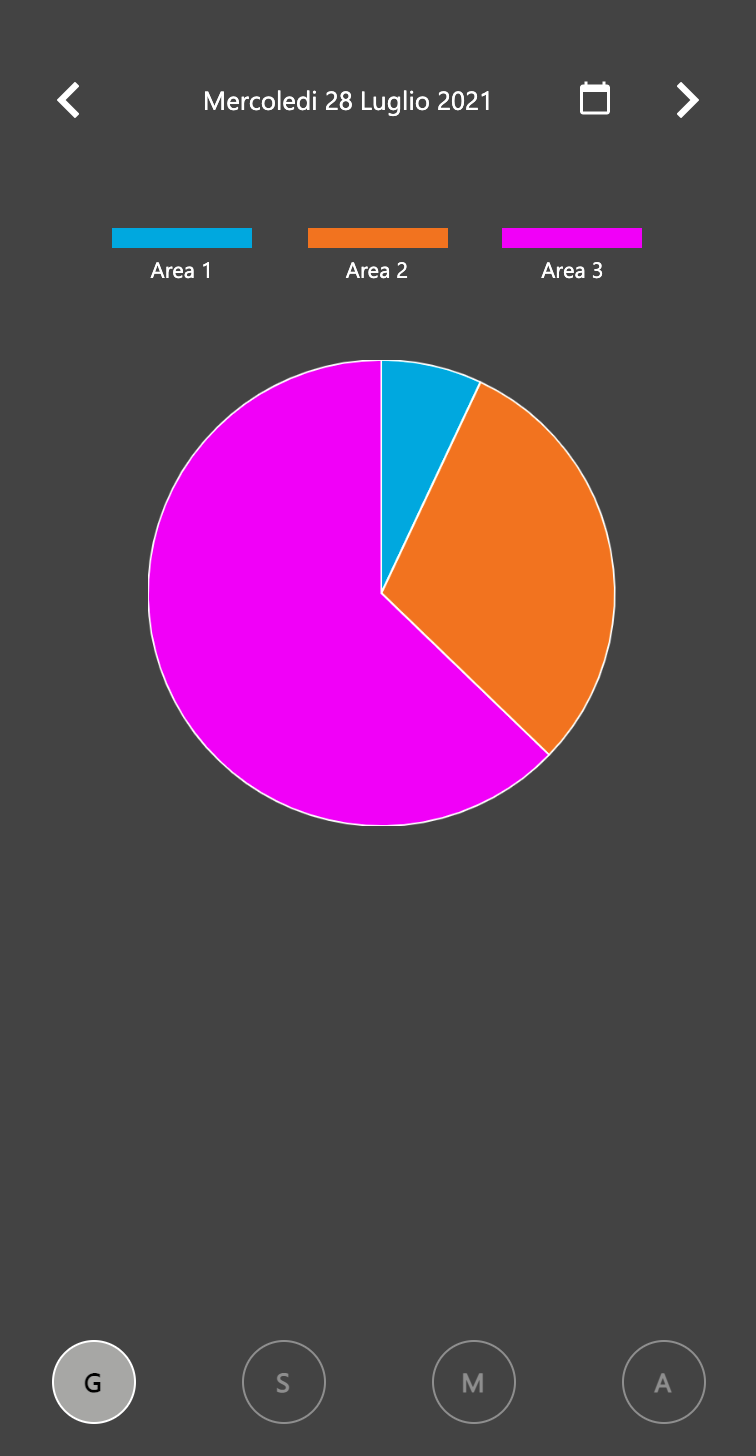
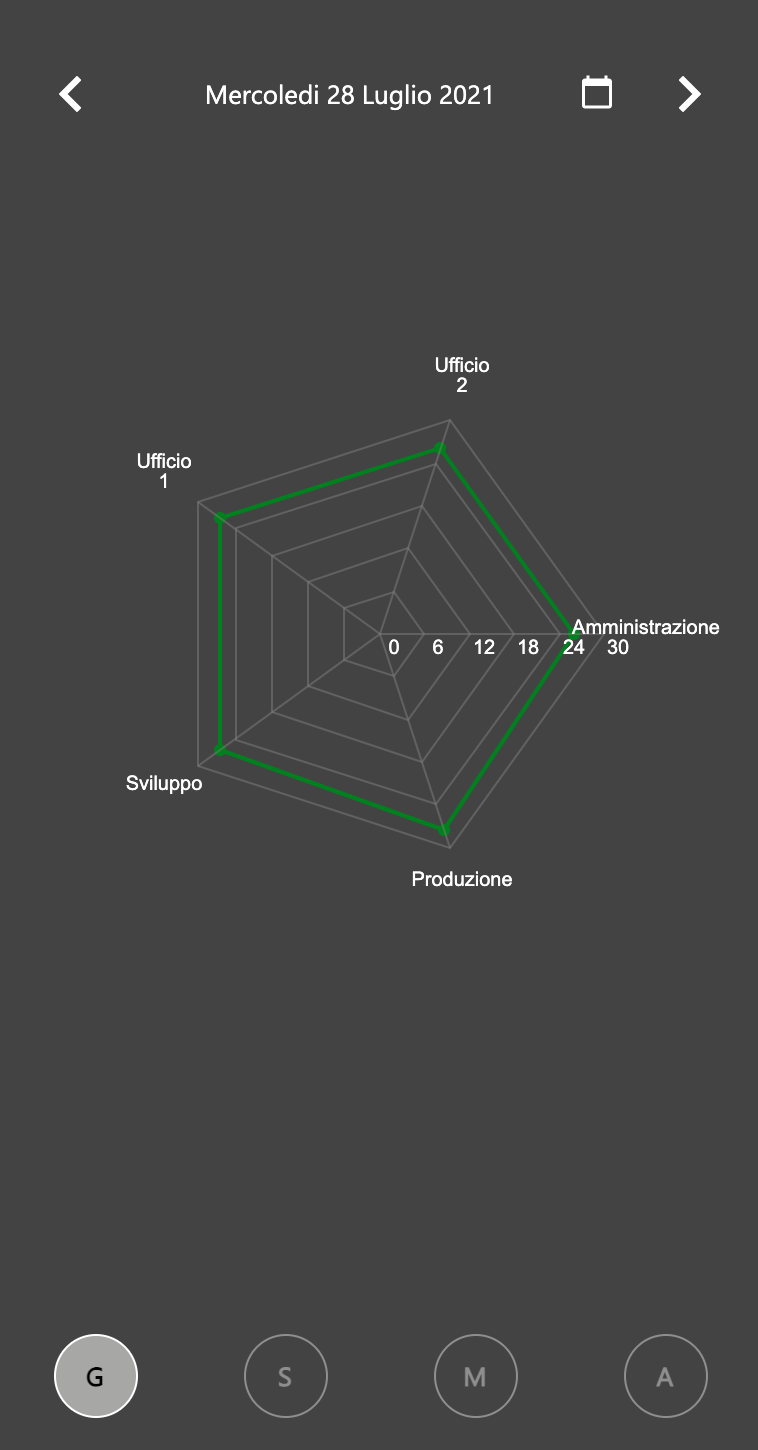
Data storage
The logging behind the consumption monitor and the generic charts rests on a database of its own inside the DELÉGO webserver, dedicated to trend data and therefore distinct from the project database.
To keep it from eating into the resources of the system, what that database may hold is limited. The way past the limits is an external SD or USB memory, fitted to the webserver and enabled for the purpose.
This chapter sets out the limits of the internal storage and how to configure DELÉGO SERVER to write its data to the external memory instead.
Tracking flag
During the operation of the webserver, not all the status data of the entities configured in the project are saved in the history. Only the objects inserted inside a meter, or associated with a chart, are marked in the project with the so-called “tracking flag”. In some specific screens, it is also possible to set this flag (marked with the label “TRACK”). Once an object has the tracking flag, every time the webserver receives a state change from the field, in addition to the normal update of the graphics (and the execution of any logics associated with this state change) a record is inserted in the history database, with the object reference, date/time and received value.
Data organization
The data stored inside the history database is organized in two different tables:
| TABLE | DESCRIPTION |
|---|---|
| RAW DATA | Contains all the state changes of the objects marked to be tracked in the history. |
| PROCESSED DATA | The summaries computed in the background, hour by hour, from the RAW table. |
The detail (RAW) data is processed, every hour, to calculate a series of summary data, which summarizes the trend of the object over the hour:
- Initial value (at the beginning of the hour)
- Final value (at the end of the hour)
- Difference (between final and initial value)
- Minimum
- Maximum
- Sum ▪ Counter (number of state changes)
- Integral
These same indicators are also calculated on a daily, weekly, monthly and yearly basis. All the chart generation or history data processing functionalities, except for specific exceptions, refer to the processed data table, since it is not necessary to go back to the detail of the single data received from the field.
Limits
Once the summary data has been calculated, the RAW data is kept in the main database for 48 hours and then deleted, in order to limit the size of the database, and therefore cannot be consulted afterwards. The processed data is not kept indefinitely in the main database either; in particular, the data aggregated on an hourly basis is kept for 14 days, the daily data for 12 months and the monthly data for 10 years; these settings can be modified in the CHARTS group of Settings → Options, reached from the Configuration menu, with Delete hourly data after... [days], Delete daily data after... [months] and Delete yearly data after... [years], although it is not recommended to alter them, since an excessive number of records in the main database (especially in projects with a high number of objects with the tracking flag) could compromise the correct operation of the system.
Memory expansion
It is possible to overcome the limits on the internal data storage by inserting an external memory; DELÉGO SERVER supports the following memories, depending on the version:
- 2 DIN rail modules version: USB flash memory
- 4 DIN rail modules version: micro SD memory or USB flash memory
By appropriately enabling the storage of history data on it, the system copies the main database onto it once a day, so that data which would otherwise have been deleted can still be retrieved later.
For this purpose it is necessary to insert the external memory and access the following page:
Settings → External SD
The EXTERNAL MEMORY group shows the following information:
| Type | Where available (4 DIN modules hardware version only), the type of memory to be used: SD or USB. |
| Inserted memory | Indicates whether a memory has been detected or not. |
| Activated memory | Indicates whether the memory is active and available for the system or not. |
| Size | Overall size of the detected memory. |
| Used space | Space in use on the memory. |
| Free space | Space still available on the memory. |
| Write enable | If the memory is active, indicates whether it is possible to write on it or not. |
If the memory is not active (for example because it was inserted after starting the system), press the ACTIVATE button to make it available; at the end of the operation, the status fields are updated, according to the information read. Similarly, to remove the memory without switching off the system, press DEACTIVATE. Without a memory inserted, the page shows only the EXTERNAL MEMORY group; the other settings described below appear once a memory is active:
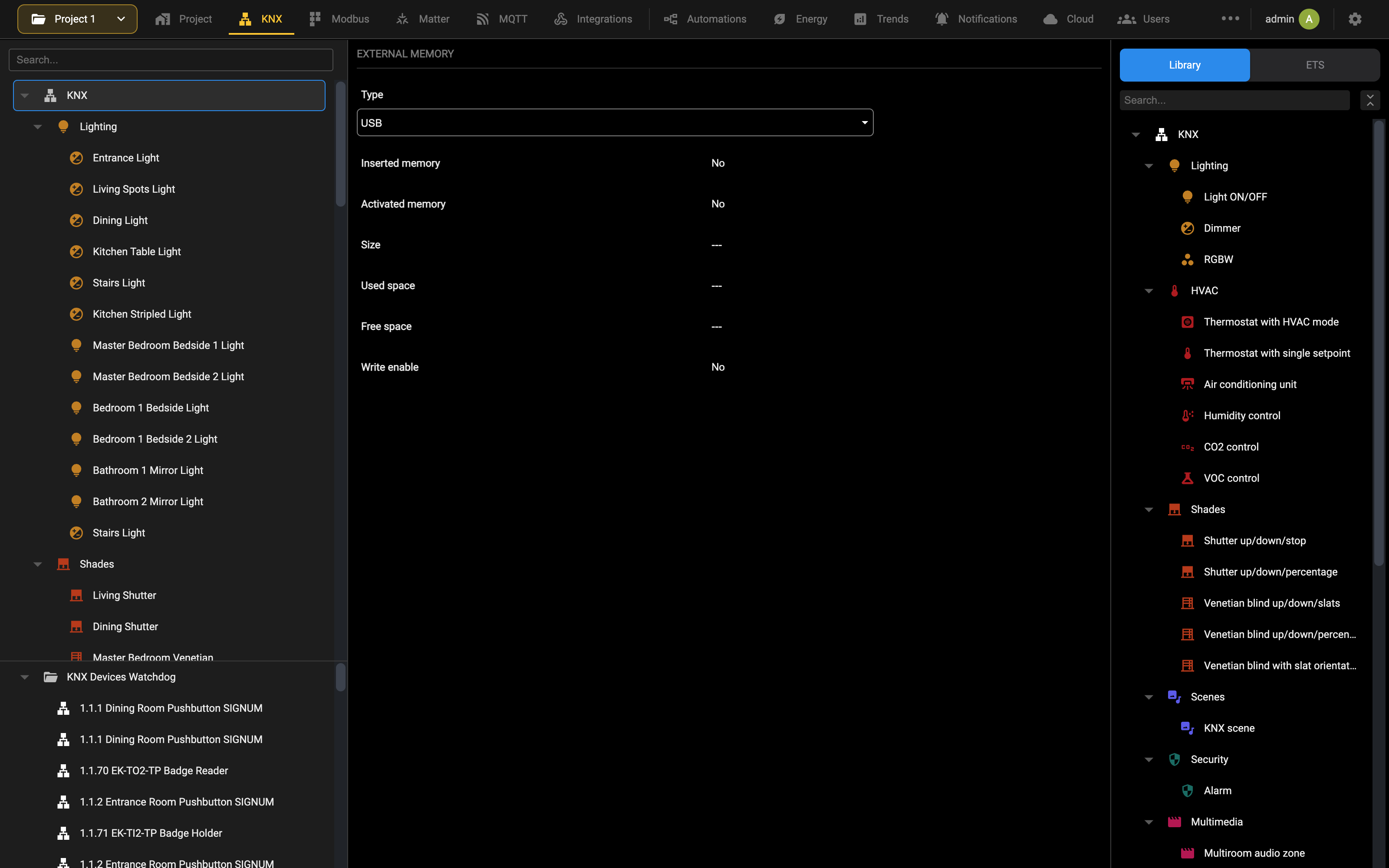
It is possible to persistently save the DELÉGO operating system logs on the USB memory, by enabling the corresponding flag; use this method if requested by technical support (it is not recommended under normal conditions, since this slows down the system performance). To start saving the history data on the external memory, enable the corresponding flag; the on-screen calendar highlights for which days data is already available on the external memory, and (by clicking on it) allows to download the data for that day in CSV format. It is not recommended to save the DELÉGO operating system logs on the external memory, unless strictly requested by technical support: this option slows down the system performance.
Import/export
It is possible to export the history data stored inside DELÉGO through the page
Data log > Import / Export
By choosing the “EXPORT” entry, it is possible to filter the data to be exported:
| DATA TYPE | Specify whether to export all data, or only hourly, daily, monthly or yearly data |
| DATE FROM, DATE TO | Specify the period for which to export the data. |
| OBJECT | Optionally filter the history for a single object. |
If a large amount of data is tracked in the history, the export of the entire database may time out. In these cases, it is necessary to apply filters to reduce the amount of data to be exported, and thus allow the export procedure to work correctly.
Once the filters have been set, pressing the RUN button starts the export procedure which, at the end, downloads a CSV file to your PC or Mac containing all the history information. This file can be processed with a spreadsheet, or imported into another DELÉGO to load the history data into it (which is not contained in the normal backup of the supervision project). To import into DELÉGO the history data previously exported (possibly from another DELÉGO), select the “IMPORT” entry, select the CSV file and press the RUN button; at the end of the procedure, a confirmation message is shown.
Guest Room Management
Guest room management is the access control module of DELÉGO SERVER. It manages the rooms and the common gates of a hospitality structure, the guests and the staff who may open them, and the devices that open the doors: DICO, ACCÉDO KEY, the EKINEX KNX badge readers and holders and third-party KNX keypads.
The module is configured in the Guest room management view of the Administration, and it is used day to day from the guest room management page of the Visualization, or through a PMS connected to the server. This part describes the architecture of the system, every section of the view, the configuration of the devices and the daily use of the Visualization pages.
Overview
DELÉGO SERVER can act as an access control manager, with its integrated Guest Room Management System, in combination with the following products of the EKINEX catalogue:
- DICO, the video intercom door station;
- ACCÉDO KEY, the numeric keypad;
- the EKINEX KNX badge readers and holders.
Third-party KNX numeric keypads are also supported, with some limitations compared to the EKINEX products.
Architecture
The following diagram shows the architecture of a typical installation, where DELÉGO SERVER coordinates DICO, ACCÉDO KEY and the KNX access control devices to regulate the entrance to the rooms and to the gates of the common areas:
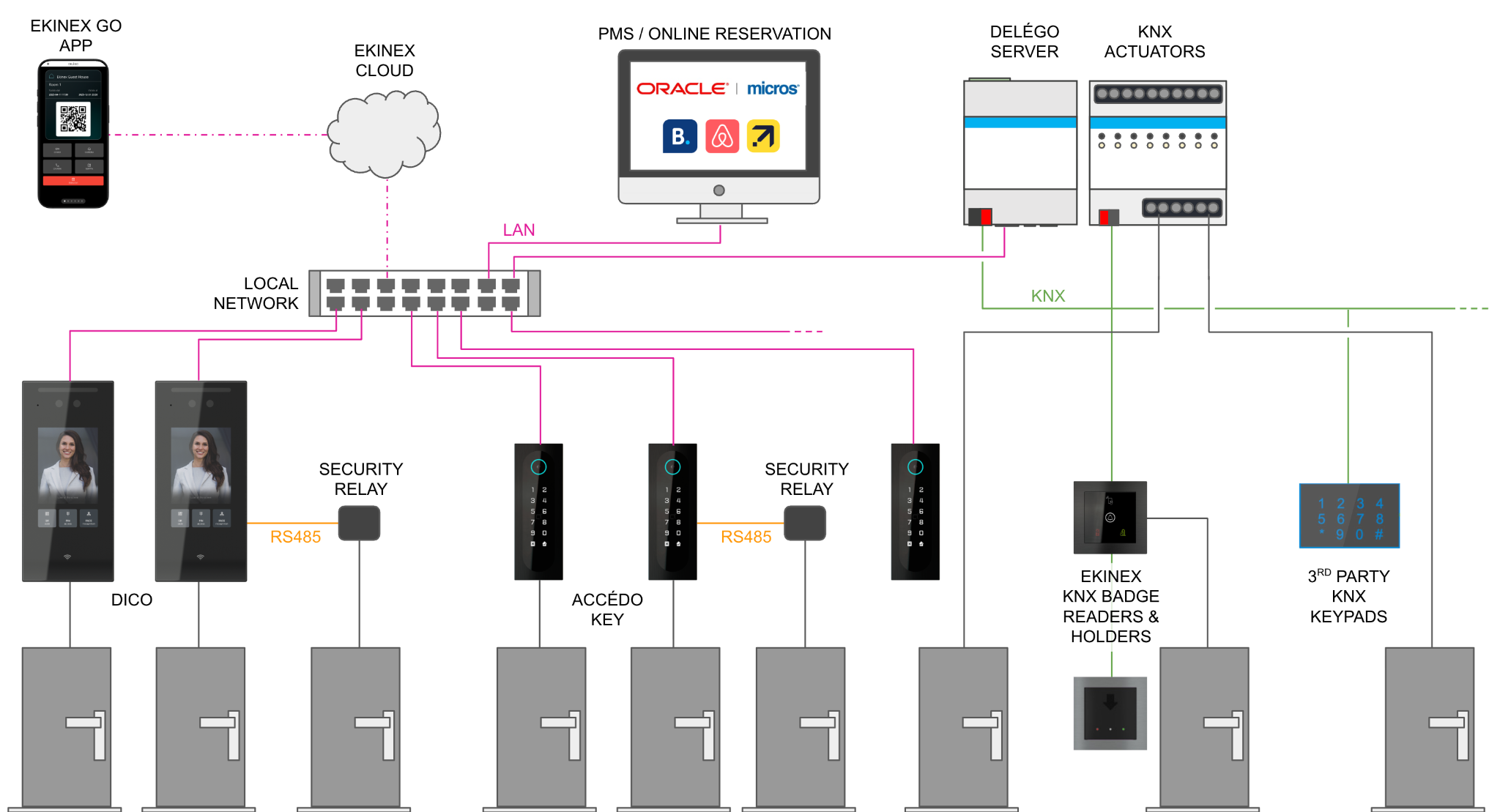
DELÉGO SERVER manages rooms and gates independently, with an integrated approach. A room is a space "owned" exclusively by a guest during a specific period of time, while a gate is an access point to the building or to a common area, for example the pool, the SPA or a warehouse.
How a door is opened
The lock of a door under the control of DELÉGO SERVER can be opened in one of the following ways:
- the internal relay of a DICO door station, or a security relay connected to it via RS485;
- the internal relay of an ACCÉDO KEY, or a security relay connected to it via RS485;
- one of the internal relays of an EKINEX KNX badge reader or holder;
- the relay of a KNX actuator, for example commanded by a third-party KNX keypad.
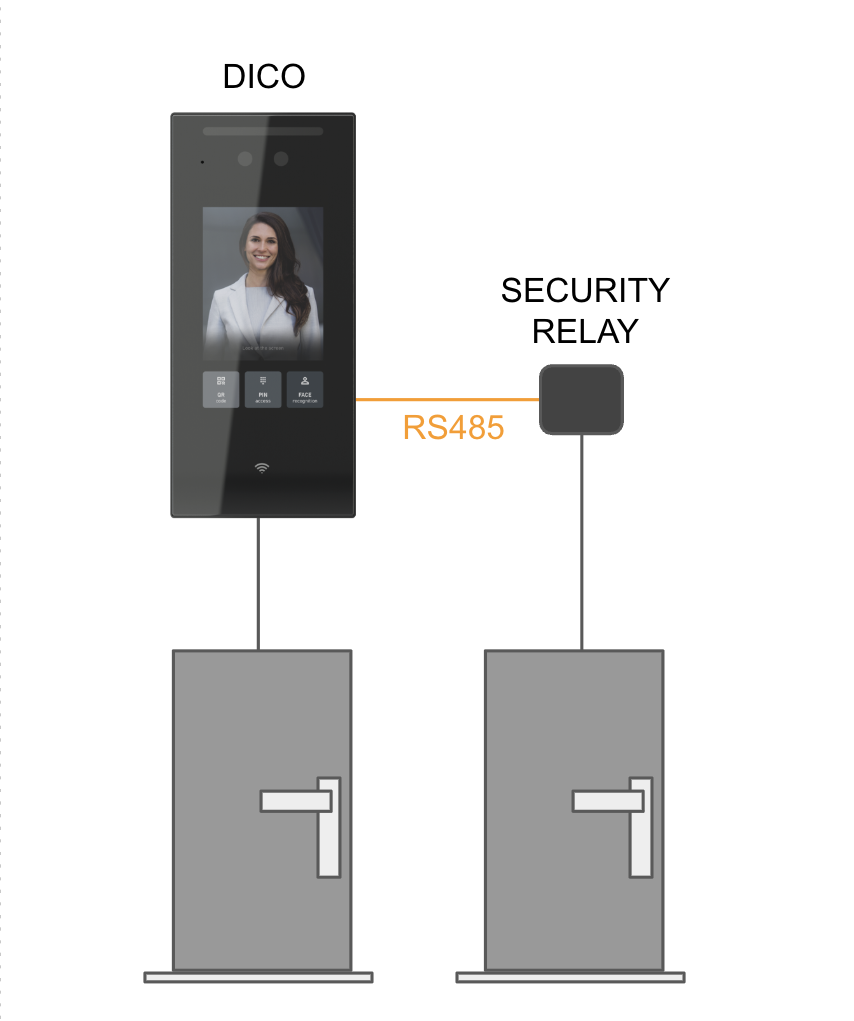
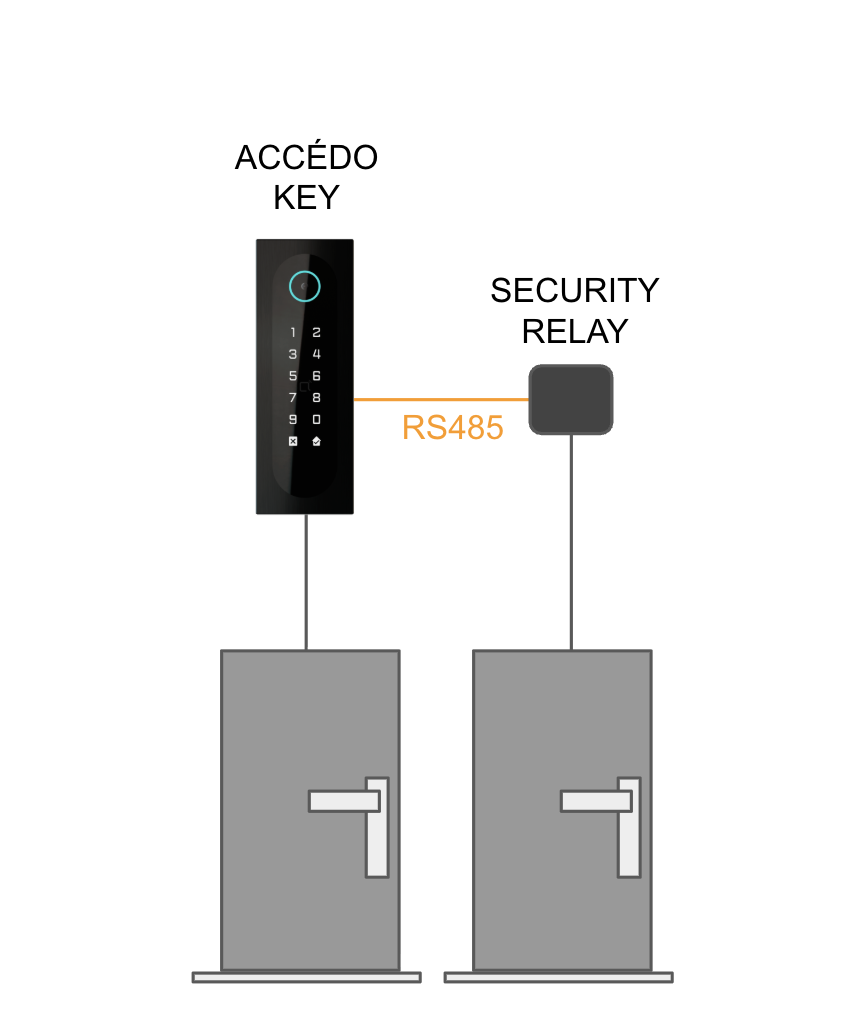
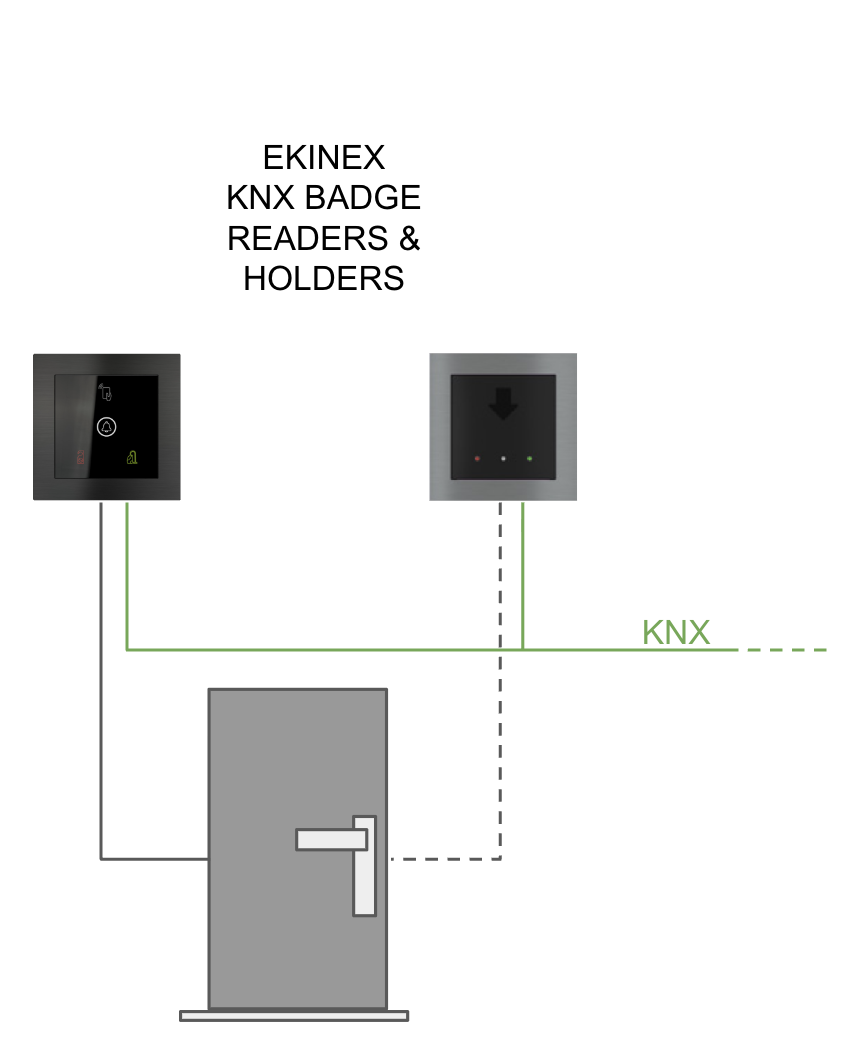
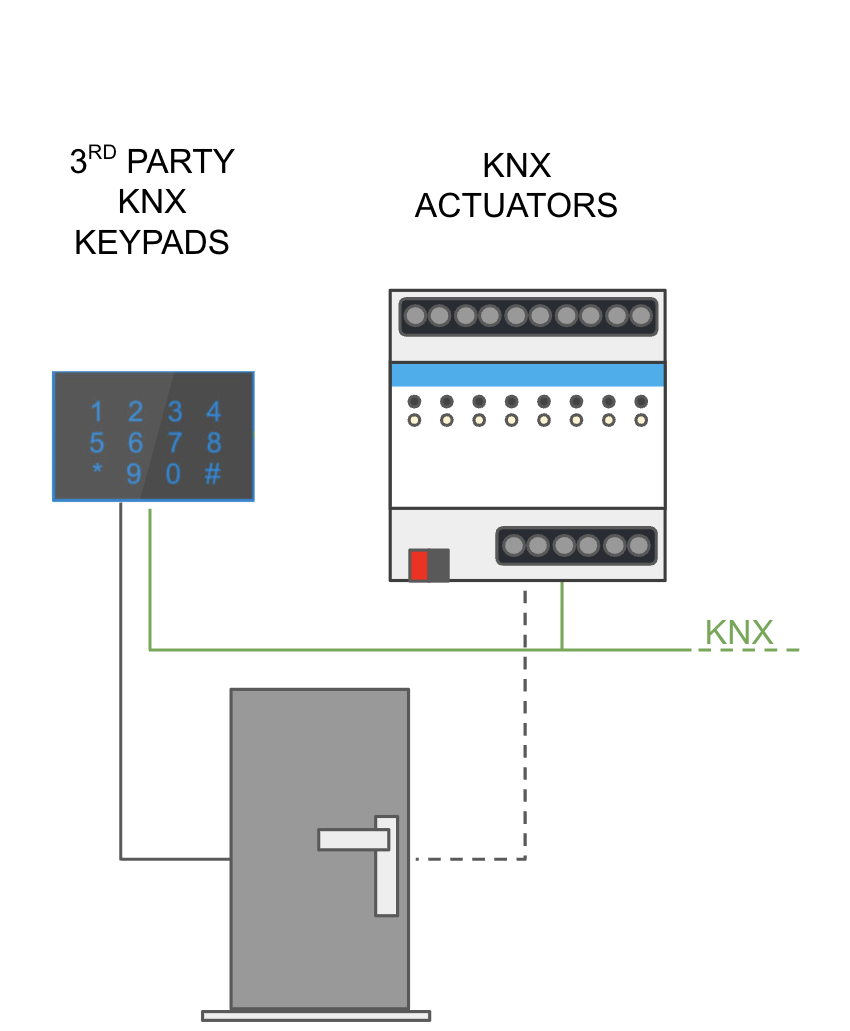
Authorizations and access methods
DELÉGO SERVER gives a person the authorization to open a specific door according to the validity period of the user and to the association of the user with the corresponding rooms and gates. This concept applies both to guests and to staff members.
A user can typically open the doors with several access methods, which depend on the device installed at the door:
| Access method | DICO | ACCÉDO KEY | EKINEX KNX badge readers / holders | Third-party KNX keypads |
|---|---|---|---|---|
| Numeric PIN | ● | ● | ● | |
| QR code | ● | ● | ||
| RFID badge | ● | ● | ● |
In addition, users can open the doors they are allowed to with the EKINEX GO app, without any physical interaction with the door.
Who manages the guests
The guest room management (creating, editing and deleting users, assigning validity periods and authorizations, controlling the state of the rooms and so on) can be done in different ways:
- from the guest room management interface of DELÉGO SERVER, on a desktop or mobile device;
- from a compatible PMS (Property Management System);
- from an online reservation system, supported by a compatible channel manager.
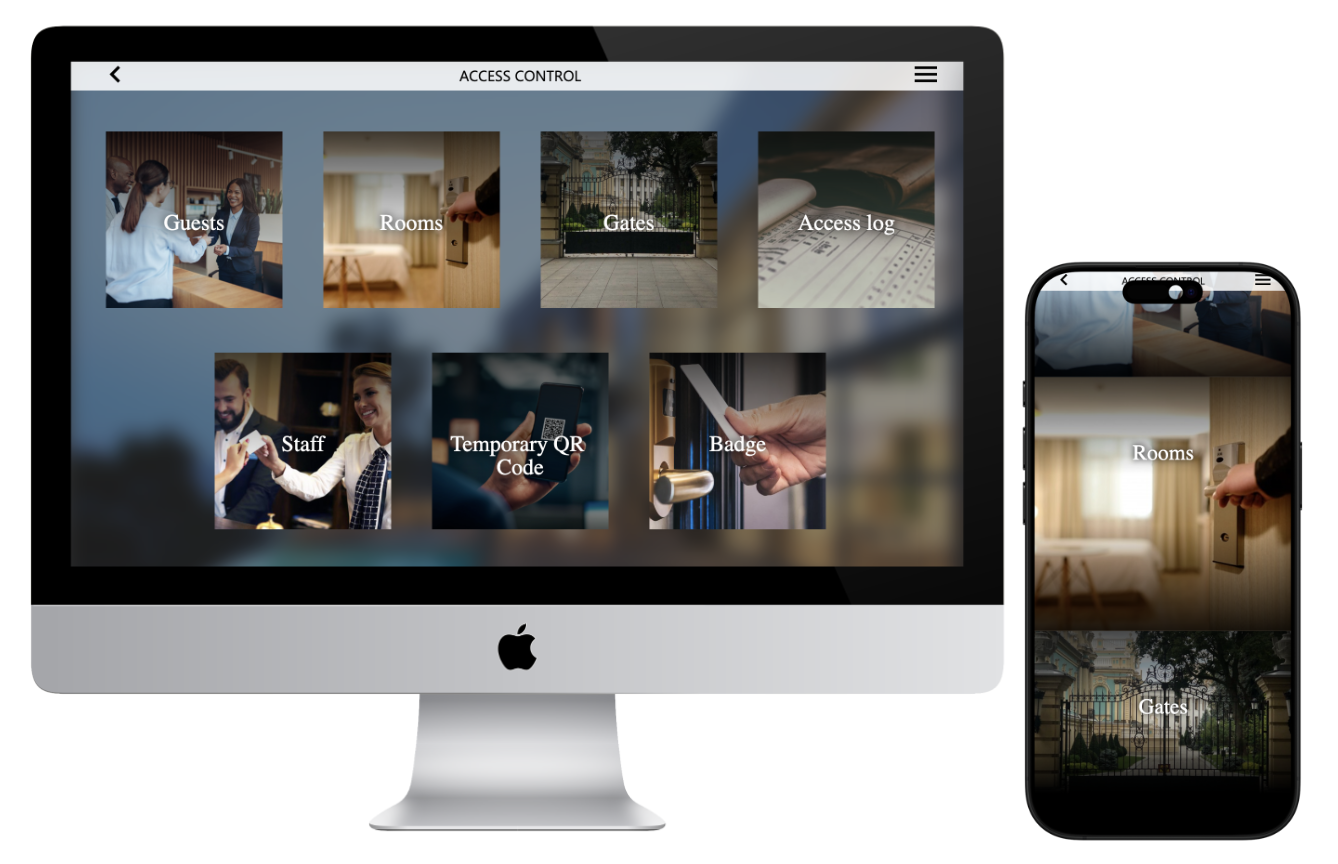
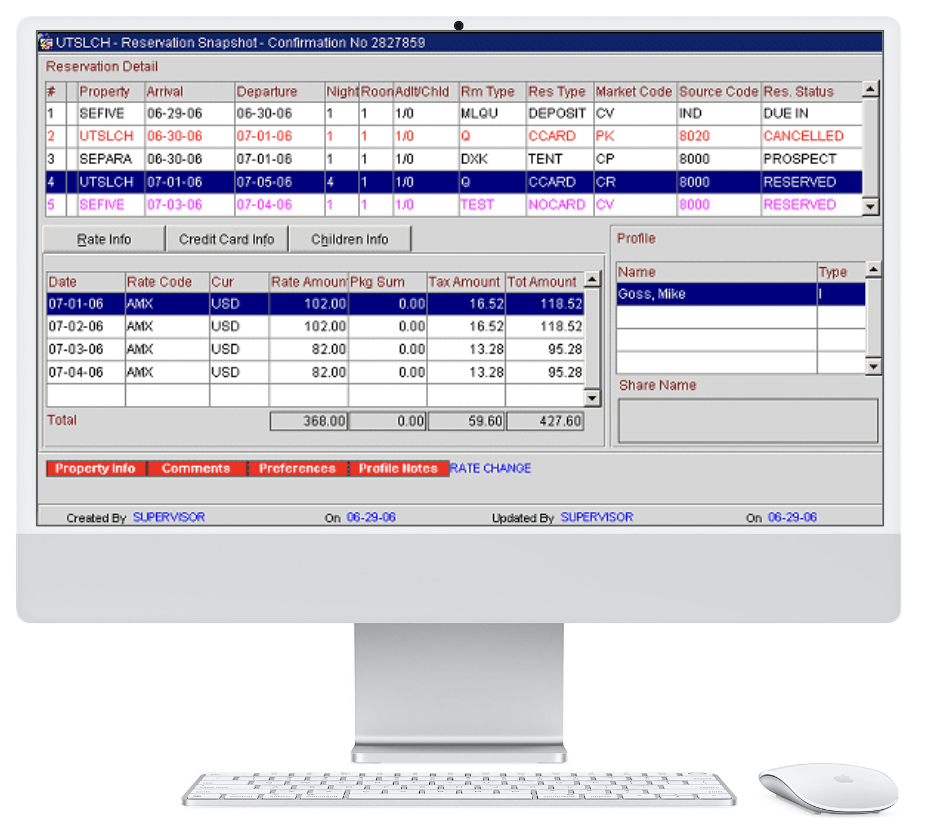
The interfaces with PMS and channel managers are described in FIAS and in PMS.
Usage
The managers of the building handle the bookings of the rooms and assign the access permissions to guests and service personnel in one of the following ways:
- from the guest room management page of the Visualization, opened in a browser pointing to DELÉGO SERVER (typically on the PCs of the reception) from the navigation menu, under Services → guest room management; its use is described in Guest room management utilization;
- from the DELÉGO mobile app, installed on their smartphones or tablets;
- from the interface of a supported PMS (Property Management System) connected to the server. The connection to a PMS that uses the FIAS protocol is configured in the FIAS section of the Guest room management view, see FIAS; online PMS are integrated through a cloud service, see PMS.
When a new guest or a new member of the service personnel is created and assigned to a room, or given the permission to open one or more gates, a welcome message can be sent to their e-mail address. The message contains:
- general information about the structure, for example its address;
- the instructions to access the structure: room number and gates;
- the information about the access methods: PIN, QR code, and the link to use the EKINEX GO app.
The same instructions can also be handed over on paper, with the text set in Print message.
On arrival, the guest can access the structure in the following ways:
- by entering the PIN on the display of DICO, on the ACCÉDO KEY devices and on any third-party KNX keypads installed;
- by showing the personal QR code in front of the DICO and ACCÉDO KEY devices;
- with an RFID card received at the reception, which is read by DICO, ACCÉDO KEY and the EKINEX KNX badge readers;
- with the EKINEX GO app installed on the smartphone.
Configuration
For the access control module to work, the installer or system integrator has to configure it in the Administration of the webserver, in the Guest room management view (see Guest room management view). Check first that the license covers the number of rooms needed, see Licensing.
The configuration normally requires the following steps:
- General settings: the Structure information and the Access methods, with the options of the Ekinex devices and of the Mobile app.
- The messages for the guests: Welcome e-mail and, when the mobile app is used, Print message.
- The tiles shown to the managers in the Visualization: Structure management page.
- Rooms and gates.
- The door devices, their configuration and their association with rooms and gates: Accédo Key, Dico, Ekinex KNX badge readers / holders.
- The connections between rooms, gates and the devices that open the doors: Automations.
The following optional aspects can be configured, according to the needs of each installation:
- user groups and timetables: Guests and timetables;
- Virtual presence;
- the integration with a PMS: FIAS or PMS.
Once the system is configured, it is used as described in Guest room management utilization.
Licensing
The Guest Room Management System has a specific licensing model, based on the number of rooms to be managed. The license in use is shown in Settings → Vouchers, reached from the Configuration menu, on the line GRMS Rooms, which reports the state of the license and the rooms in use out of those allowed, for example Valid license (2/4 Rooms).
To increase the number of rooms:
- Buy one or more license vouchers for the Guest Room Management System.
- Redeem each voucher on the EKINEX voucher portal, https://voucher.ekinex.com, creating a license for the serial number of the DELÉGO SERVER.
- Open Settings → Vouchers and paste the license in the field of the GRMS Rooms line.
- Press SAVE and wait for the page to reload, then check the number of rooms reported on the GRMS Rooms line.
The integration with third-party PMS is also subject to a license. Proceed in the same way: buy the license voucher for the PMS integration, redeem it on the voucher portal for the serial number of the server, and enter the license in Settings → Vouchers.
For further information about the licenses and vouchers of DELÉGO SERVER, see Licenses and vouchers and Vouchers, or contact your EKINEX sales representative.
Guest room management view
The whole configuration of the access control module is done in a dedicated view of the Administration, the Guest room management view. To open it:
- Click the arrow of the Project button, the first entry on the left of the navigation bar (it shows the name of the project, for example Project 1, with a caret).
- Choose Guest room management view in the list.
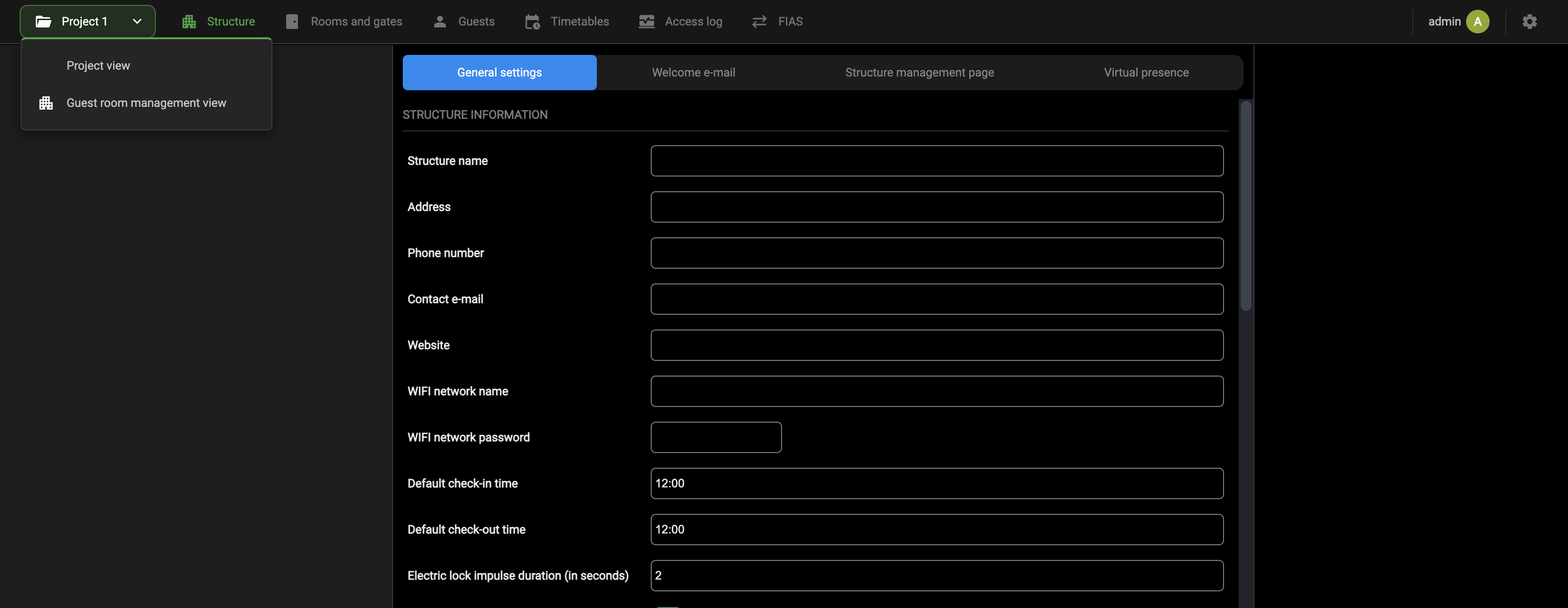
The navigation bar of the Administration is replaced by the bar of guest room management. To return to the normal Administration, open the arrow of the Project button again and choose Project view. The user menu and the Configuration menu stay on the right of the bar in both views.
The bar holds the following sections, from left to right:
| Structure | The general settings of the structure, the guest messages, the page of the Visualization and the virtual presence. See Structure. |
| Rooms and gates | The rooms and the gates, with the door devices associated with each of them. See Rooms and gates. |
| Guests | The user groups and the guests that belong to them. See Guests and timetables. |
| Timetables | The timetables that restrict when rooms and gates can be opened. See Timetables. |
| Access log | The log of the accesses, with its search filter. See Access log. |
| FIAS | The connection to the FIAS server of a PMS. See FIAS. |
The sections use the same three-panel layout as the rest of the Administration, described in Administration: the context tree on the left, the card of the selected element in the middle, and the source panel on the right. The source panel holds, depending on the section, the Library of the EKINEX devices and the Widgets of the project (in Rooms and gates), or the rooms, gates and user groups to be dragged into a timetable (in Timetables).
Structure
The Structure section of the Guest room management view holds the settings that apply to the whole structure. Its pages are shown as tabs across the top of the workspace:
- General settings: the information about the structure and the access methods, see General settings;
- Welcome e-mail: the templates of the message sent to new guests, see Welcome e-mail;
- Print message: the text printed and handed to the guest, shown only when the access methods that use it are active, see Print message;
- Structure management page: the tiles of the guest room management page of the Visualization, see Structure management page;
- Virtual presence: the process that manages the virtual presence in the rooms, described in the chapter Virtual presence.
General settings
To set the general information of the structure, open the Structure section of the Guest room management view and select the General settings tab. The page is divided into the groups STRUCTURE INFORMATION, ACCESS METHODS and one group of options for each access method switched on (MOBILE APP, EKINEX DEVICES).
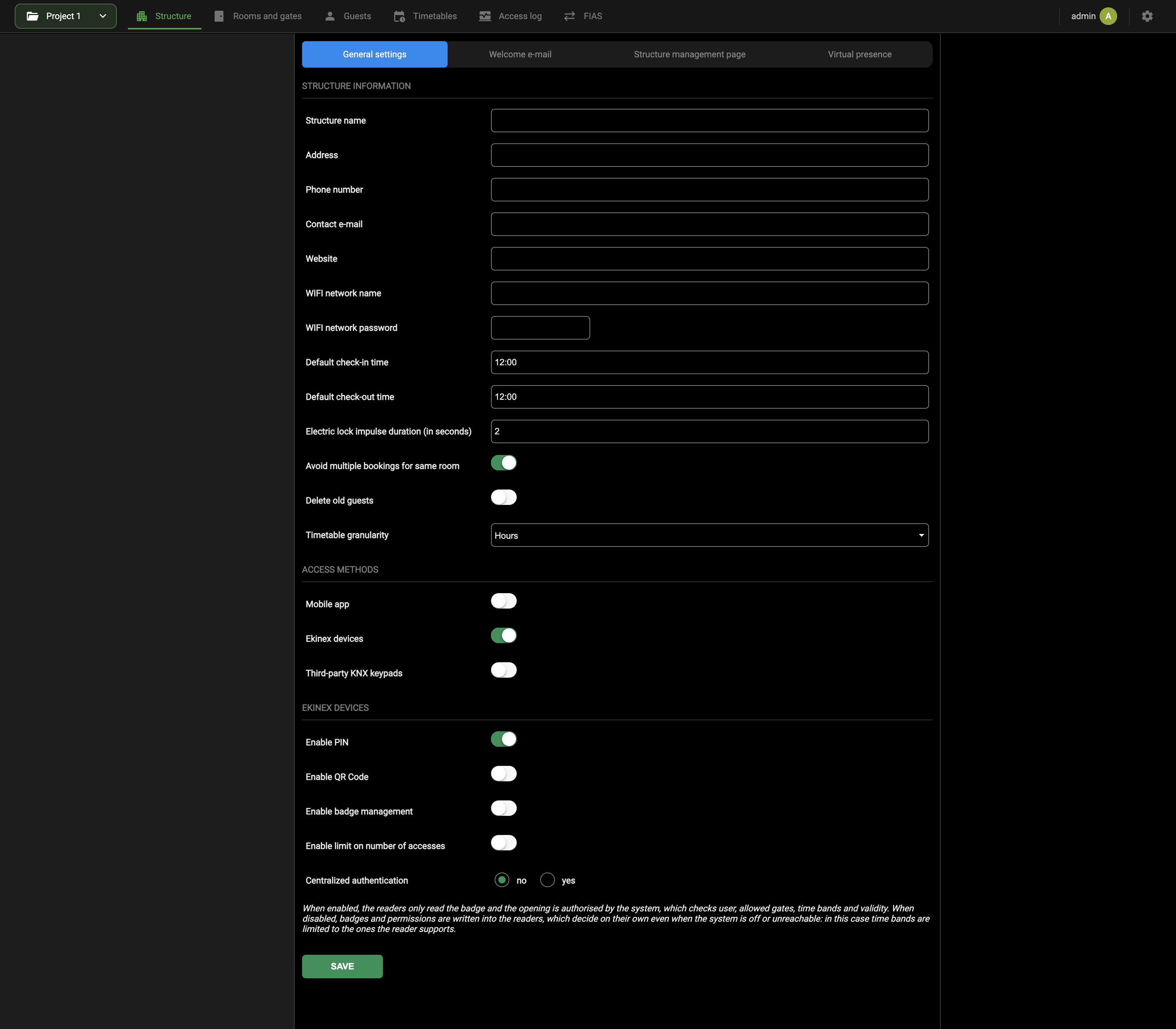
The groups of the page are described in the following chapters.
Structure information
The STRUCTURE INFORMATION group holds the data of the structure, most of which is inserted in the messages to the guests through the dynamic tags (see Dynamic tags), and some general rules of the bookings.
| Structure name | The name of the building or hospitality structure. It is used in the messages sent to the guests. |
| Address | The address of the structure. |
| Phone number | The phone number of the structure, shown in the welcome e-mail. |
| Contact e-mail | The e-mail address of the structure, shown in the welcome e-mail. |
| Website | The URL of the website of the structure, shown in the welcome e-mail. |
| WIFI network name | The WIFI network the guests can use to access the internet. It can be added to the guest messages. |
| WIFI network password | The password of that WIFI network. It can be added to the guest messages together with the network name. |
| Default check-in time | The default start time of the validity of a guest (12:00 by default). It can be changed when the guest is created. |
| Default check-out time | The default end time of the validity of a guest (12:00 by default). It can be changed when the guest is created. |
| Electric lock impulse duration (in seconds) | The duration of the impulse given to the electric locks to open the doors (2 seconds by default). |
| Avoid multiple bookings for same room | When on (the default), before a room is granted to a new guest the server checks that no other booking exists for the same room in the same check-in and check-out dates. |
| Delete old guests | When on, the guests that are no longer active are deleted automatically after some days, to keep the system performing well. Off by default. |
| Timetable granularity | Hours (the default) or Minutes: the unit of the start and end times of the timetables. |
With Hours the timetables are compatible with all the access methods. Minutes gives more flexibility in the definition of the time slots, but it is compatible only with the centralized authentication (see Ekinex devices) and does not work with third-party KNX keypads.
Access methods
The ACCESS METHODS group decides in which ways guests and service personnel can access the structure. Each method has its own switch, and the methods can be combined freely:
| Mobile app | Enables the access of guests and staff members with the EKINEX GO app. When on, the MOBILE APP group appears below, see Mobile app. |
| Ekinex devices | Enables the access with the EKINEX devices: KNX badge readers and holders, DICO and ACCÉDO KEY. When on, the EKINEX DEVICES group appears below, see Ekinex devices. On by default. |
| Third-party KNX keypads | Enables the management of third-party KNX numeric keypads. It has no group of options of its own on this page. |
Like all the switches of the page, these are saved as soon as they are toggled.
Switching the access methods on also adds the Print message tab to the Structure section, see Print message.
Ekinex devices
When the Ekinex devices access method is on, the EKINEX DEVICES group offers the following options:
| Enable PIN | Enables the authentication of the guests with a personal PIN, generated automatically and sent in the welcome e-mail. On by default. |
| Enable QR Code | Enables the authentication of the guests with a personal QR code, sent with the welcome e-mail. |
| Enable badge management | Enables the access to rooms and gates with an RFID card. |
| Enable limit on number of accesses | Enables a limit on the number of accesses of each guest during the stay. When on, 2 further switches appear: Enable limit for Pin and Enable limit for QR Code, which apply the limit to each of those methods separately. |
| Centralized authentication | no (the default) or yes. See below. |
Centralized or decentralized authentication
The page explains the two options with this help text, shown below Centralized authentication:
In practice:
- with yes, DELÉGO SERVER authenticates every access centrally. This strategy is the more flexible one, and it is required by a Timetable granularity in Minutes, but it generates a higher load on the webserver and is less suitable for large buildings; the doors cannot be opened by the badge readers while the server is off or unreachable;
- with no, the default since version 2.8, the authentication is decentralized: badges and permissions are written into the devices that support it (the KNX badge readers and holders), which keep working without the server, within the number of time slots they support.
The decentralized authentication is compatible with the KNX BADGE READER (EK-TO2-TP) and HOLDER (EK-TI2-TP) only from the following versions, which introduce the WHITELIST function:
- firmware: 2.0.0;
- ETS library: 0.2.
If your products have a lower version, update them or set Centralized authentication to yes. The two strategies are described in detail in Access control strategy.
Mobile app
When the Mobile app access method is on, the MOBILE APP group appears below ACCESS METHODS, with the options specific to the EKINEX GO app:
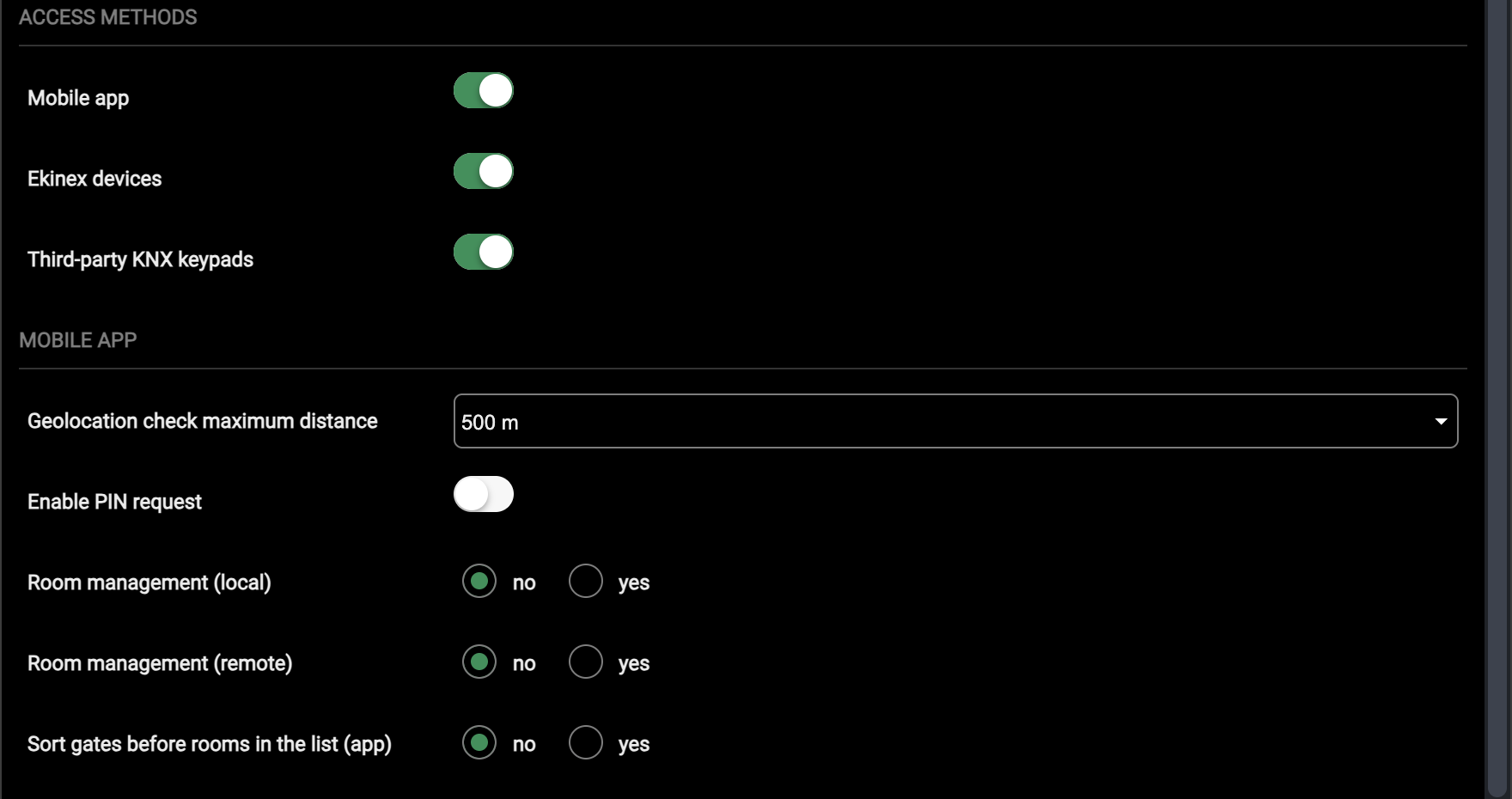
| Geolocation check maximum distance | The maximum distance from the structure at which the app lets the user interact with rooms and gates: 500 m, 1 Km, 2.5 Km or 5 Km. If the phone is farther away, the app does not open the doors or control the room automation. Choose --- to disable the geolocation check. |
| Enable PIN request | When on, the app asks the user for an additional PIN before opening a door or a gate. |
| Room management (local) | no or yes: whether the app users can control the room automation when connected to the local network of the structure. |
| Room management (remote) | no or yes: whether the app users can control the room automation remotely. |
| Sort gates before rooms in the list (app) | no or yes: the order of rooms and gates in the list of the app. With no, the rooms are listed before the gates. |
The two Room management options are independent: for example, set Room management (local) to yes and Room management (remote) to no to let the guests control their room only while they are inside the structure.
Welcome e-mail
The Welcome e-mail tab of the Structure section holds the templates of the message sent to new guests and staff members. The templates are the nodes of the context tree under Welcome e-mail: a new project has one, Default welcome e-mail.
Default welcome e-mail
The default template is the message sent by e-mail to new guests or staff members, to give them information about the structure, how to access it, and their personal PIN and QR code. To edit it, open the Welcome e-mail tab of the Structure section and select Default welcome e-mail in the context tree.
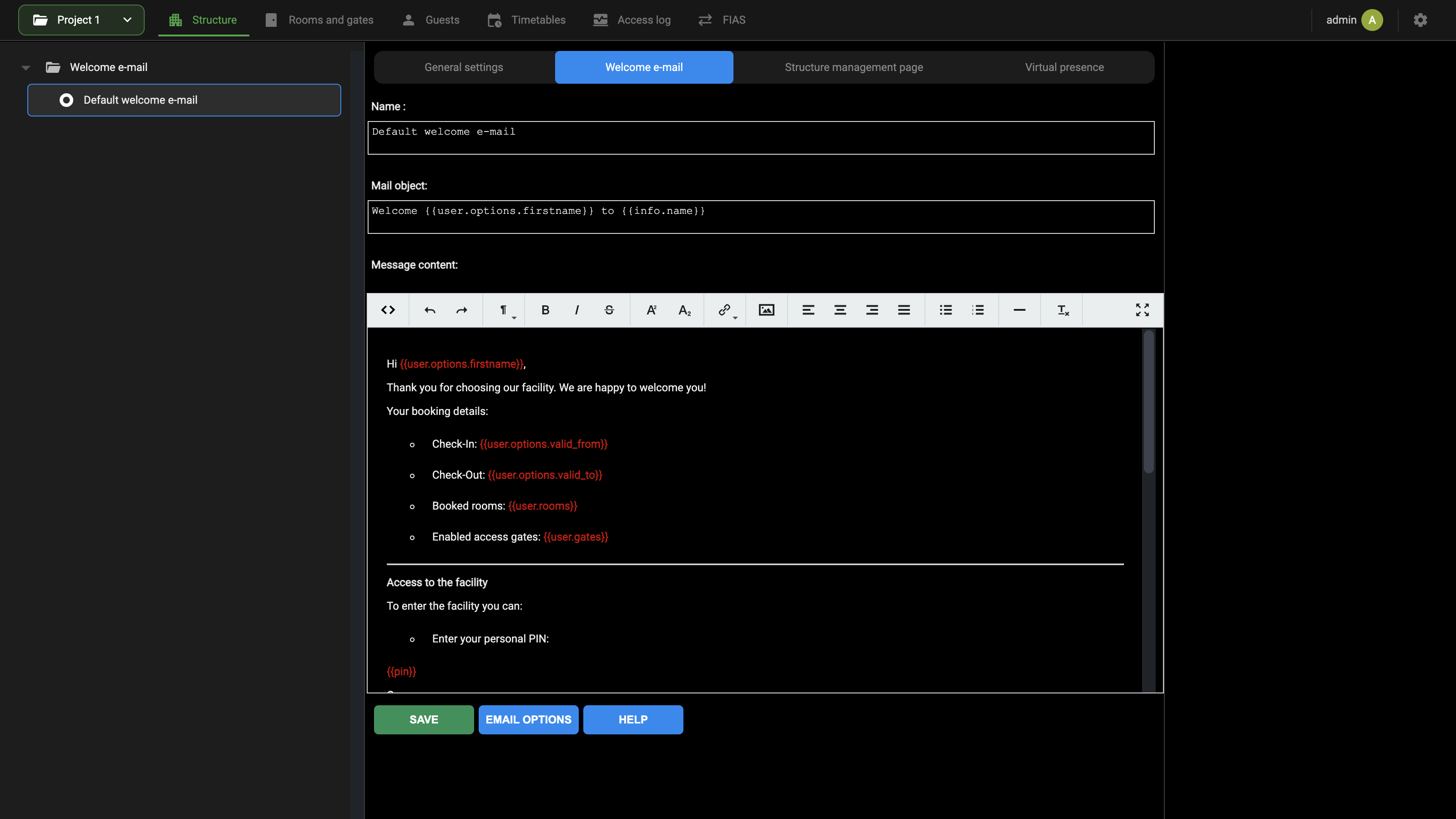
The card holds the following fields:
| Name | The name of the template, as shown in the context tree. |
| Mail object | The subject of the e-mail. By default Welcome {{user.options.firstname}} to {{info.name}}. |
| Message content | The body of the e-mail, in a rich-text editor. |
The toolbar of the editor offers, from left to right: the view of the source code, undo and redo, the paragraph style, bold, italic, strikethrough, superscript, subscript, link, image, the 4 alignments, bulleted and numbered list, horizontal rule, clear formatting and full screen. Use the source code view to check or edit the HTML of the message directly.
The default text is divided into these parts:
- the booking details: check-in, check-out, booked rooms and enabled access gates;
- the access to the facility: the personal PIN, or the QR code to be shown to the readers;
- the access via app: the EKINEX GO app, with the access PIN, the QR code and the controls to access the facility and the room, followed by the download link and the booking code;
- the help contacts: phone, e-mail and website of the structure.
Remove the parts that do not apply to your structure, for example the QR code when Enable QR Code is off, or the app section when the Mobile app access method is not used (see General settings).
The buttons below the editor are:
| SAVE | Saves the name, the subject and the body of the template. |
| EMAIL OPTIONS | Opens the sending options of the e-mail. The method used to send e-mails (cloud service or custom SMTP server) is set in the E-MAIL group of Settings → Options, see Email settings. |
| HELP | Opens the help of the page, with the list of the dynamic tags. |
The values between double braces are the dynamic tags, replaced with the data of the guest and of the structure when the message is sent. They are listed in Dynamic tags.
Dynamic tags
The subject and the body of the e-mail templates, and the text of the print message, can contain dynamic tags: keywords between double braces that are replaced automatically with the data of the guest and of the structure. Type a tag exactly as shown, braces included; the editor shows the tags in red.
The following tags are used in the default texts of the Welcome e-mail and of the Print message.
Guest information
| {{user.options.firstname}} | The first name of the guest. |
| {{user.options.valid_from}} | The start of the validity period of the guest in the structure (check-in). |
| {{user.options.valid_to}} | The end of the validity period of the guest in the structure (check-out). |
| {{user.rooms}} | The rooms assigned to the guest. Several rooms (only for service personnel) are separated by commas. |
| {{user.gates}} | The gates the guest can open, separated by commas. |
Structure information
These tags take their value from the fields of STRUCTURE INFORMATION, see Structure information.
| {{info.name}} | The name of the structure (Structure name). |
| {{info.phone}} | The phone number of the structure (Phone number). |
| {{info.email}} | The e-mail address of the structure (Contact e-mail). |
| {{info.www}} | The website of the structure (Website). |
| {{info.wifi_ssid}} | The name of the WIFI network (WIFI network name). |
| {{info.wifi_pwd}} | The password of the WIFI network (WIFI network password). |
Access information
| {{pin}} | The personal PIN to be typed on the keypads. |
| {{qr_code}} | The image of the QR code to be shown in front of the DICO and ACCÉDO KEY devices. |
| {{badge_link}} | The link to download the EKINEX GO app, with the booking code to be redeemed in it. |
| {{app.name}} | The name of the app to download, used in the print message. |
The help of the page also lists the following tags, which are not used in the default texts:
| {{user.name}} | The complete name of the guest. |
| {{user.options.lastname}} | The last name of the guest. |
| {{info.location}} | The address of the structure (Address). |
Additional mail templates
Besides the default one, further templates can be created, for example one for each language spoken by the guests, or one for each category of guests. To add a template:
- Open the Welcome e-mail tab of the Structure section.
- Point to the Welcome e-mail node in the context tree and use its Add action.
- Select the new node and edit it as described for the default template in Default welcome e-mail, then press SAVE.
Give each template a Name that makes clear what it is for, since the name is what identifies it in the tree.
Print message
The Print message tab of the Structure section holds the text that the operator can print and hand to the guest, for example at the reception. It is new in version 2.9 and is used above all to print the instructions for using the app, which the guest should in any case have already received with the welcome e-mail.
The message is printed from the Visualization frontend, with the dedicated button of the popup that manages a guest. Printing is available only if the access with the app is active.
For the same reason, the tab is not present in the default configuration. It appears between Welcome e-mail and Structure management page once Mobile app is switched on in General settings.
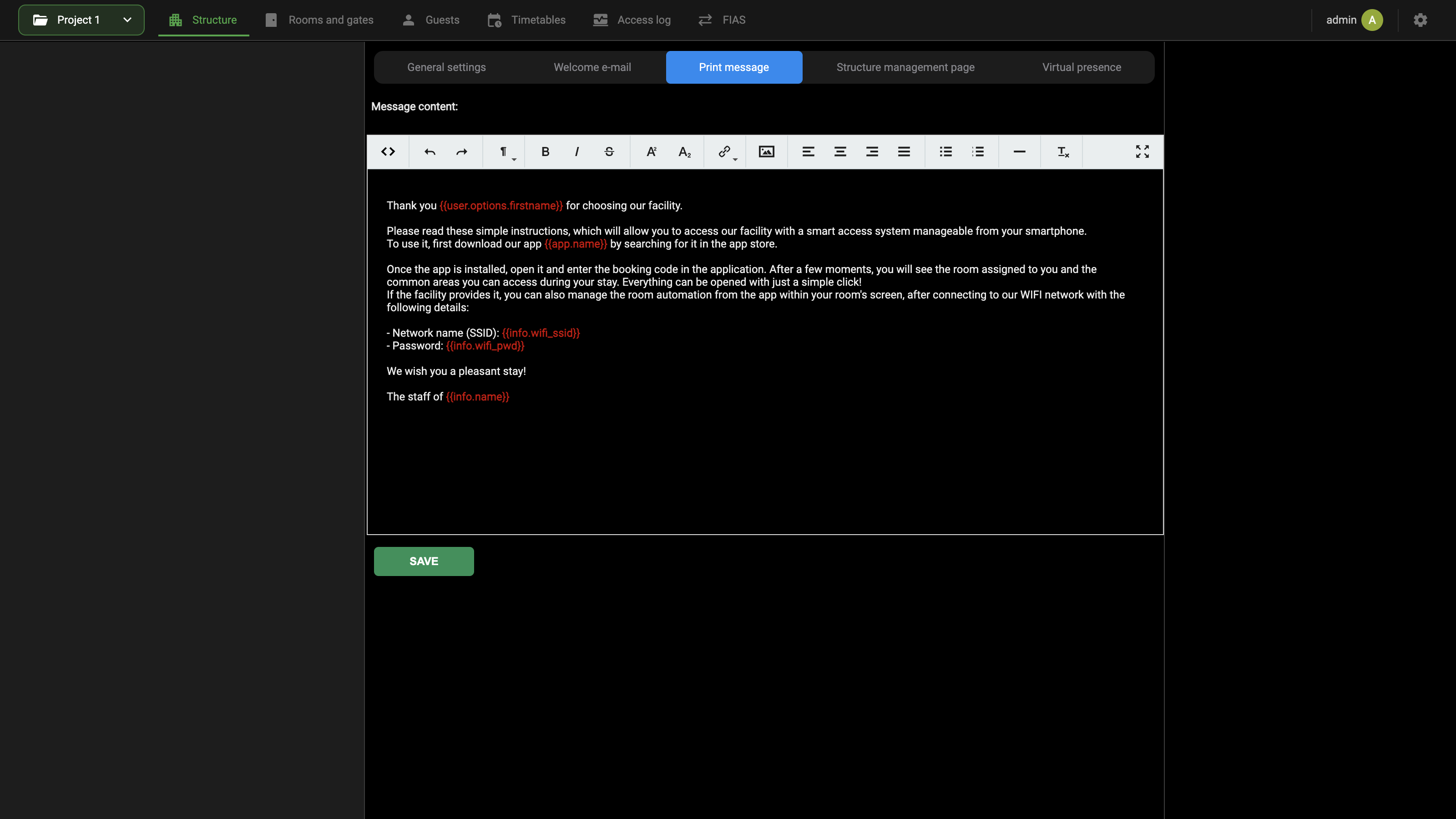
The page holds a single field, Message content, with the same rich-text editor as the welcome e-mail (see Default welcome e-mail), and the SAVE button that stores the text.
The default text thanks the guest and explains, in order:
- how to download the app, whose name is inserted with {{app.name}}, by searching for it in the app store;
- how to enter the booking code in the app, after which the guest sees the assigned room and the common areas that can be opened during the stay;
- how to manage the room automation from the app, where the structure provides it, after connecting to the WIFI network, whose name and password are inserted with {{info.wifi_ssid}} and {{info.wifi_pwd}};
- the signature, "The staff of" followed by {{info.name}}.
The message can use the same dynamic tags as the welcome e-mail, see Dynamic tags. If the structure does not let the guests control the room from the app (see Mobile app), remove the paragraph about the room automation and the WIFI network.
Structure management page
The Structure management page tab of the Structure section decides what the managers of the structure see in the Visualization, on the guest room management page reached from the navigation menu under Services → guest room management.
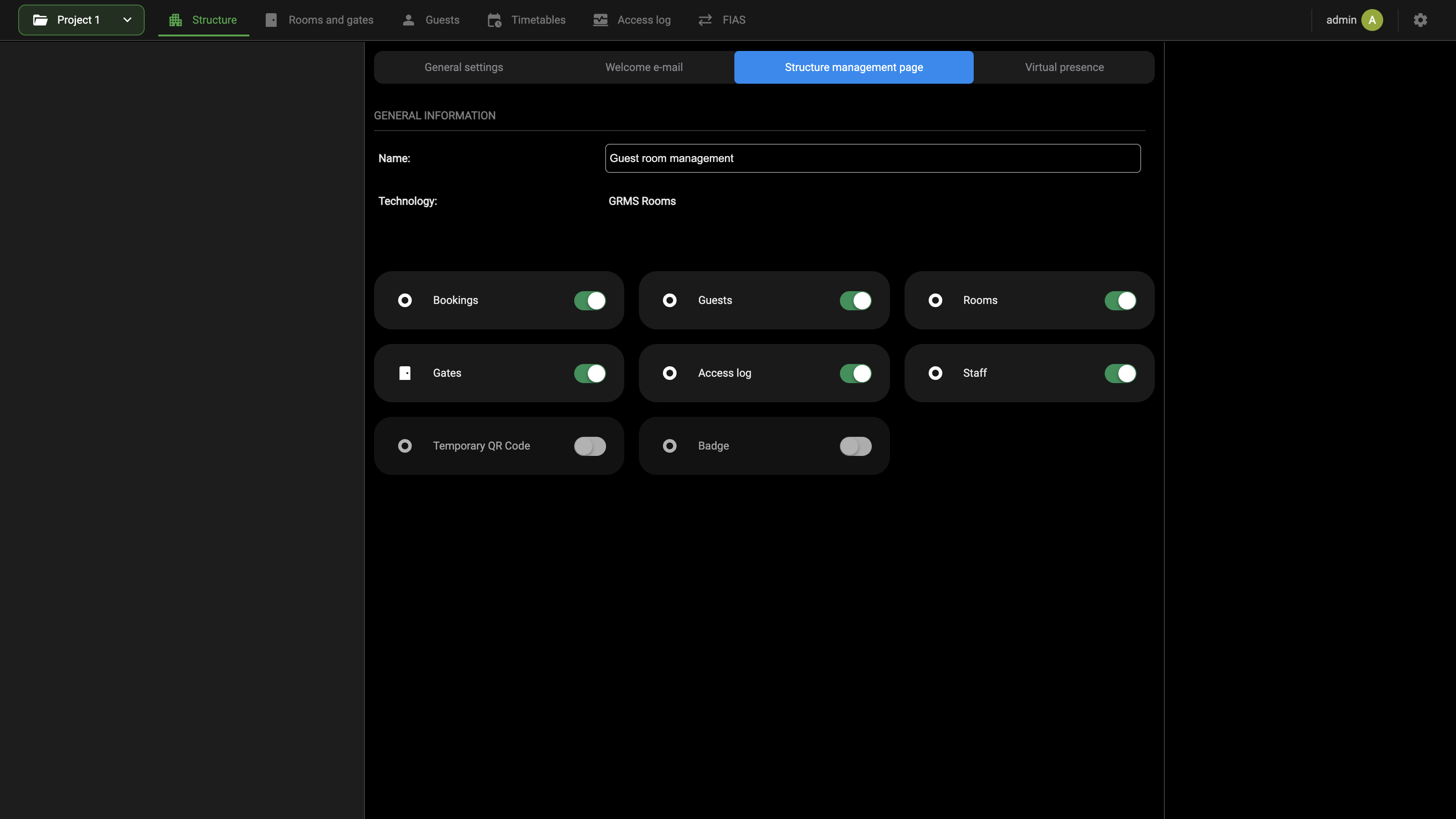
The GENERAL INFORMATION group holds:
| Name | The name of the page in the Visualization, Guest room management by default. |
| Technology | Read-only. It identifies the object, GRMS Rooms. |
Below it, 8 tiles correspond to the 8 functions offered to the managers in the Visualization: Bookings, Guests, Rooms, Gates, Access log, Staff, Temporary QR Code and Badge. The switch on each tile decides whether the function is shown on the Visualization page: switch off the functions the structure does not need. By default the first 6 are on and Temporary QR Code and Badge are off.
With the default settings, the page of the Visualization shows the following 6 tiles:
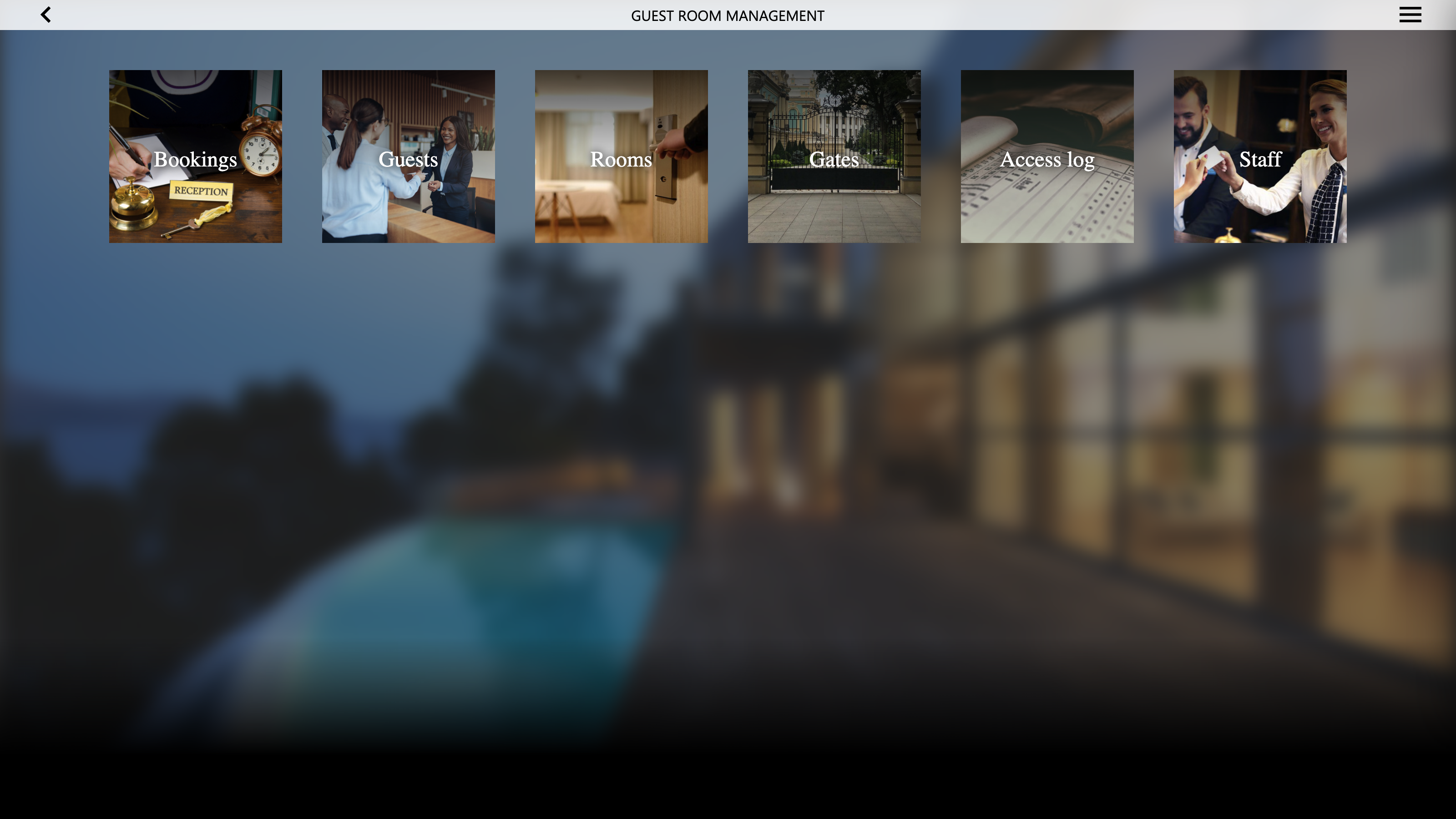
Each function of the Visualization page is described in Guest room management utilization.
Rooms and gates
In the terminology of the Guest Room Management System, a room is a space protected by one or more doors under the control of the access control module of DELÉGO SERVER. Normally a room is occupied by one guest at a time.
A gate is a door under the control of the webserver that grants access to the building itself (from outside) or to an internal common area, for example a SPA.
Normally a guest is associated with only 1 room at a time, but can have the right to open more than 1 gate.
Both are managed in the Rooms and gates section of the bar. The context tree on the left holds 2 nodes:
- Rooms, which lists the rooms of the structure;
- Gates, which lists the gates.
The door devices associated with a room or a gate (ACCÉDO KEY, DICO, EKINEX KNX badge readers and holders) appear in the tree as children of that room or gate. Selecting a node opens its card in the middle.
The source panel on the right has 2 tabs:
| Library | The group Ekinex devices, with KNX Badge reader, KNX Badge holder, Accédo Key and DICO. Dragging one of them onto a room or a gate of the tree creates the device and associates it with that room or gate. |
| Widgets | The widgets of the project, grouped by technology (KNX, Matter, Modbus, Philips HUE, Scenes, Weather Services and so on), to be used in the automations of the rooms and gates. |
On some nodes, for example a KNX badge reader, the panel also shows the ETS tab, with the group addresses of the imported ETS project.
Rooms
Selecting the Rooms node of the context tree opens the card of the whole set of rooms: GENERAL INFORMATION holds its Name (Rooms), and the ROOMS table lists every room of the structure, with the columns FIRST NAME (the name of the room) and ENABLED.
Creating a new room
To create a new room:
- Open the Rooms and gates section of the bar.
- Use the Add action of the Rooms node in the context tree, which appears on the node itself when the pointer is over it.
- Select the new room in the tree to open its card.
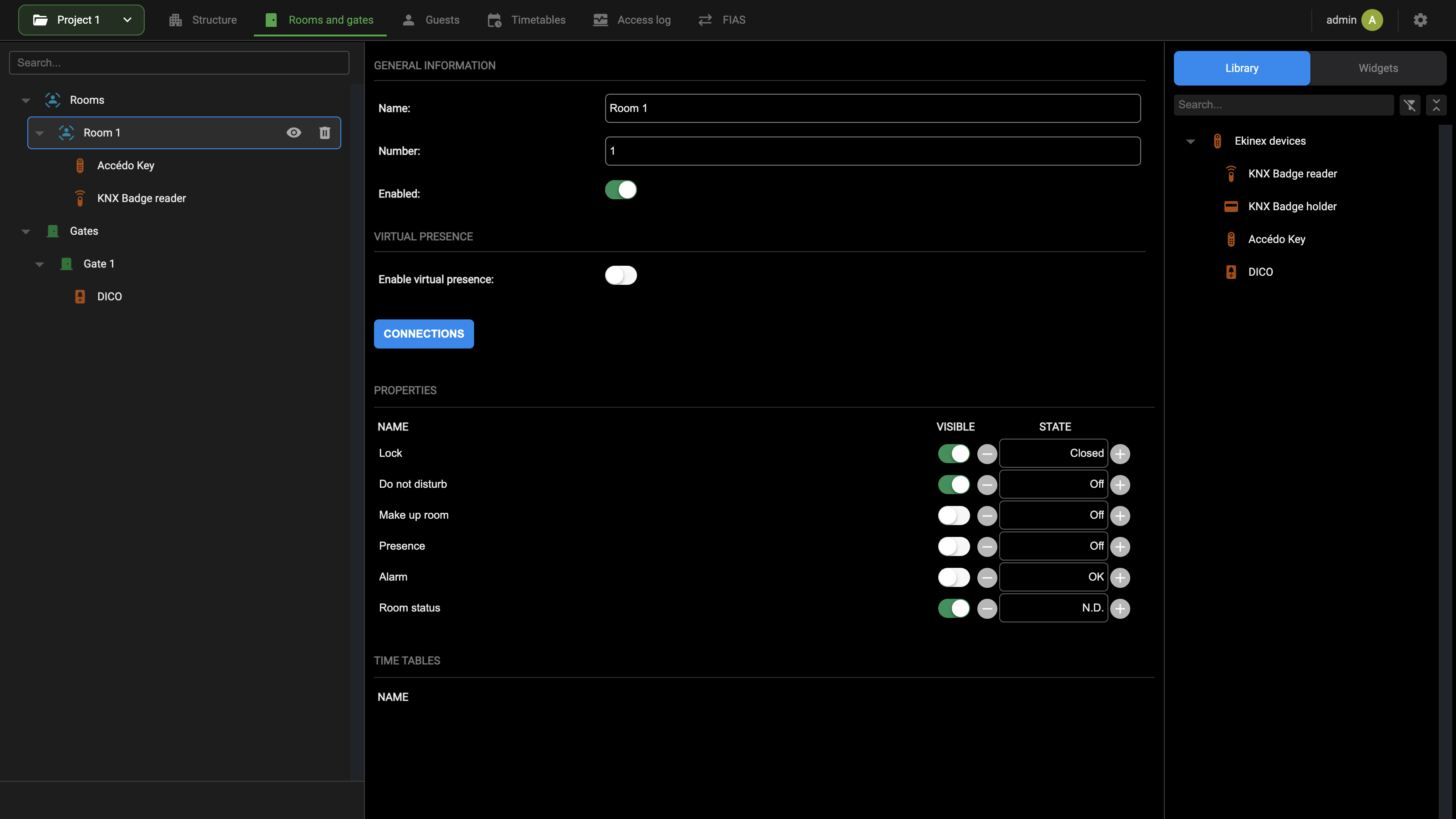
GENERAL INFORMATION identifies the room:
| Name | Label that identifies the room. |
| Number | Numeric identifier of the room. |
| Enabled | When off, the room is not offered in the list of rooms that can be assigned to guests, and no access is possible. |
VIRTUAL PRESENCE holds Enable virtual presence. When it is on, the virtual presence is calculated for this room, to determine whether at least one guest is inside. The algorithm has to be active for the structure as well; see Virtual presence.
Fields shown in Expert mode
With Expert mode active, the card of the room shows some more fields:
| ID | In GENERAL INFORMATION, the internal identifier of the room, needed when it is referenced from a script or an automation. |
| Background image | In the APPEARANCE group: a picture uploaded for the room and shown in the Visualization when the pop-up of the room is opened. |
| Virtual presence status | In VIRTUAL PRESENCE: the state of the algorithm that determines the presence in the room. |
| GUESTS | A table after TIME TABLES, which lists the guests who have access to the room; see Other info. |
CONNECTIONS opens the connection editor of the room, where its properties are related to the door devices and to the other objects of the project. See Automations.
The PROPERTIES table and the TIME TABLES table are described in Room properties and Other info.
To delete a room, use the bin icon that appears on its node in the tree when the pointer is over it.
Room properties
The PROPERTIES table of the room card lists the dynamic attributes of the room. They can be set by hand (here or in the Visualization) or related to other objects by means of connections or triggers, as explained in Automations.
Each row has 3 columns:
| NAME | The name of the property. |
| VISIBLE | When off, the property is hidden in the Visualization. |
| STATE | The current value of the property. The − and + buttons on either side change it, which is a quick way to test the automations related to the property. |
A room has the following properties:
| Lock | Closed or Open. It is set automatically to Open when a guest or a member of the staff opens the door with a valid PIN, QR code or RFID card, and keeps that value for the Electric lock impulse duration set in Structure information. For the door to actually open, the property must be related to the object that commands the lock, as explained in Automations. |
| Do not disturb | Off or On. On when the guests ask not to be disturbed by the staff during the stay, even for the cleaning of the room. |
| Make up room | Off or On. On when the guests ask for an additional cleaning of the room. |
| Presence | Off or On. The presence of at least one guest inside the room. It can come from a physical sensor, for example an RFID card holder, or be calculated by the virtual presence algorithm. In both cases the property can be related to an object to be commanded while somebody is in the room: the relay of the room loads, the air conditioning, a light and so on. |
| Alarm | OK or Warning. Warning when an alarm is triggered, for example a smoke detector or the pull cord in the shower. |
| Room status | The current status of the room, which changes with the operations done by the guest. See the table below. An action on other objects (scenes, KNX widgets and so on) can be triggered when the status changes. |
Room status takes one of the following values; the numeric value is the one carried by the GENERAL node of the room in the connection editor.
| Room status | Description | Numeric value |
|---|---|---|
| Free | Available for booking by a guest. | 1 |
| Booked | Booked for a guest who has not yet entered the structure (before the start of the validity period). | 2 |
| Assigned | Given in exclusive use to a guest who is not inside the room at the moment, but is in the structure or anyway within the validity period of the stay. | 3 |
| Occupied | The guest is inside the room. | 4 |
| Service | Under cleaning or maintenance. | 5 |
| N.D. | None of the previous statuses. | 0 |
The door sensor and the motion sensors required by the virtual presence algorithm are not listed among the properties; see Room configuration.
Other info
Besides its own card, a room gathers other information in 2 places.
In the context tree, the door devices associated with the room are listed under it: the ACCÉDO KEY and DICO devices that open its door and the EKINEX KNX badge readers and holders installed at the room. Selecting one of them opens the card of the device. Devices are added by dragging them from the Library onto the room, as described in the chapters that follow:
On the card, the TIME TABLES table lists, under NAME, the timetables that include the room, that is the access limitations along the week that apply to specific user groups. A room is added to a timetable from the card of the timetable itself; see Timetables.
With Expert mode active, the card also shows the GUESTS table, which lists the guests who have access to the room, with the columns LAST NAME, FIRST NAME, GENDER, EMAIL ADDRESS, VALID FROM, VALID TO and STATE. It is a quick way to check, from the room, who can open it and until when.
The guests who can open the room are assigned in the Visualization, when the guest or the booking is created; see Guest room management utilization.
Gates
Gates are similar to rooms, except that a gate has only the lock. To create a new gate, use the Add action of the Gates node in the context tree of the Rooms and gates section, which appears on the node itself when the pointer is over it, then select the new gate to open its card.
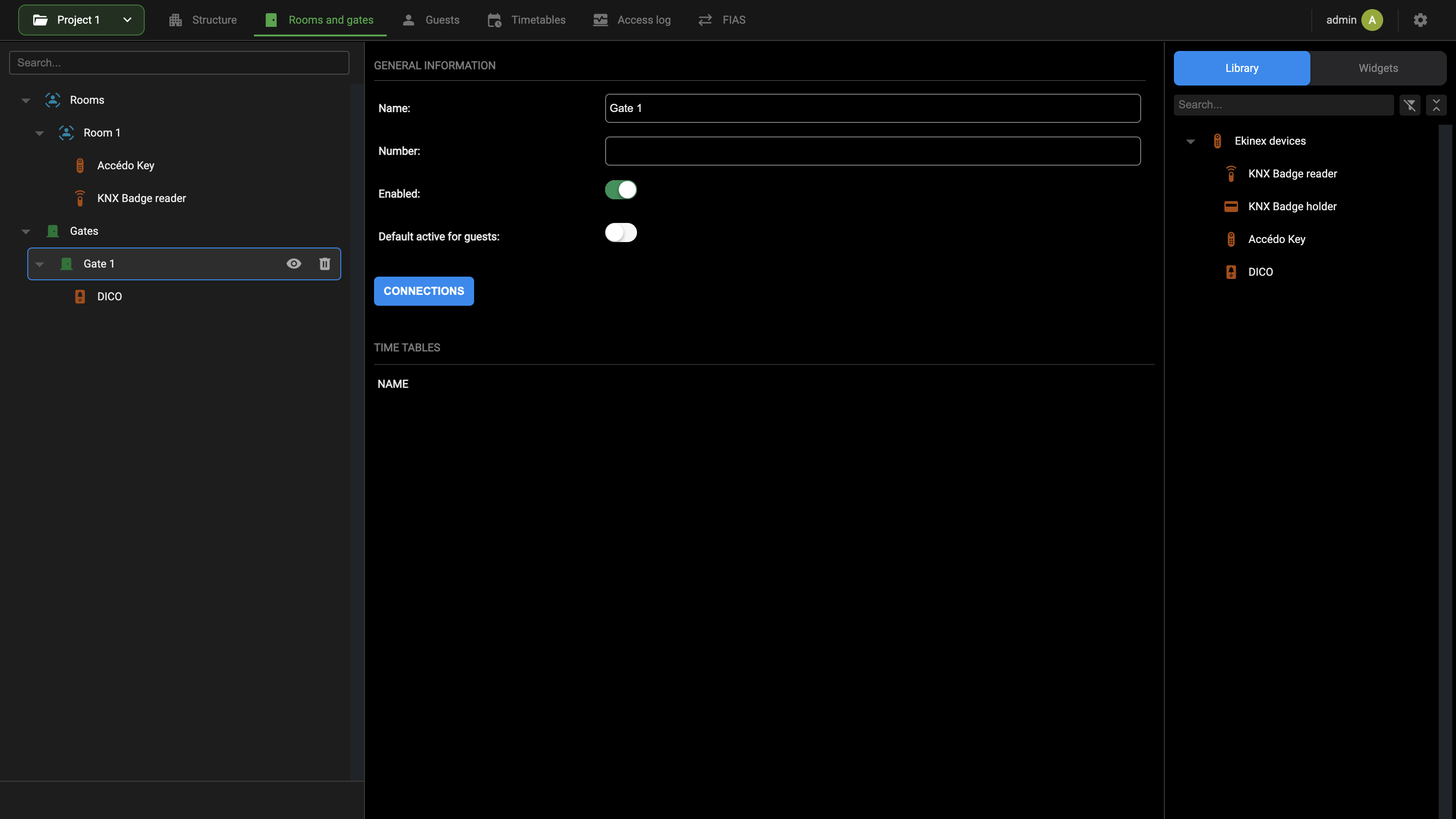
GENERAL INFORMATION holds the following fields:
| Name | Label that identifies the gate. |
| Number | Numeric identifier of the gate. |
| Enabled | When off, the gate is not offered in the list of gates that can be assigned to guests, and no access is possible. |
| Default active for guests | When on, the gate is selected by default in the Visualization when a new guest is created. Turn it on for the gates every guest needs, such as the main entrance. |
With Expert mode active, the card of the gate also shows:
| ID | In GENERAL INFORMATION, the internal identifier of the gate. |
| PROPERTIES | A table with the columns NAME and STATE and a single row, Lock (Closed or Open), the only property of a gate. It behaves as the Lock of a room; see Room properties. |
| AUTHORIZED GUESTS | The guests allowed to open the gate, with the columns LAST NAME, FIRST NAME, GENDER, EMAIL ADDRESS, VALID FROM, VALID TO and STATE. |
CONNECTIONS opens the connection editor of the gate; see Gates connections. The TIME TABLES table lists the timetables that include the gate, as for rooms.
Door devices are associated with a gate exactly as with a room, by dragging them from the Library onto the gate node, and they appear as children of the gate in the tree.
Accédo Key
An ACCÉDO KEY is an IP-based numeric keypad that can also scan a QR code and read an RFID card. It is powered either through a PoE network cable or by a dedicated power supply.
It can open an electric lock in 2 ways:
- wired directly to its internal relay;
- wired to a security relay, connected through the integrated RS485 port.
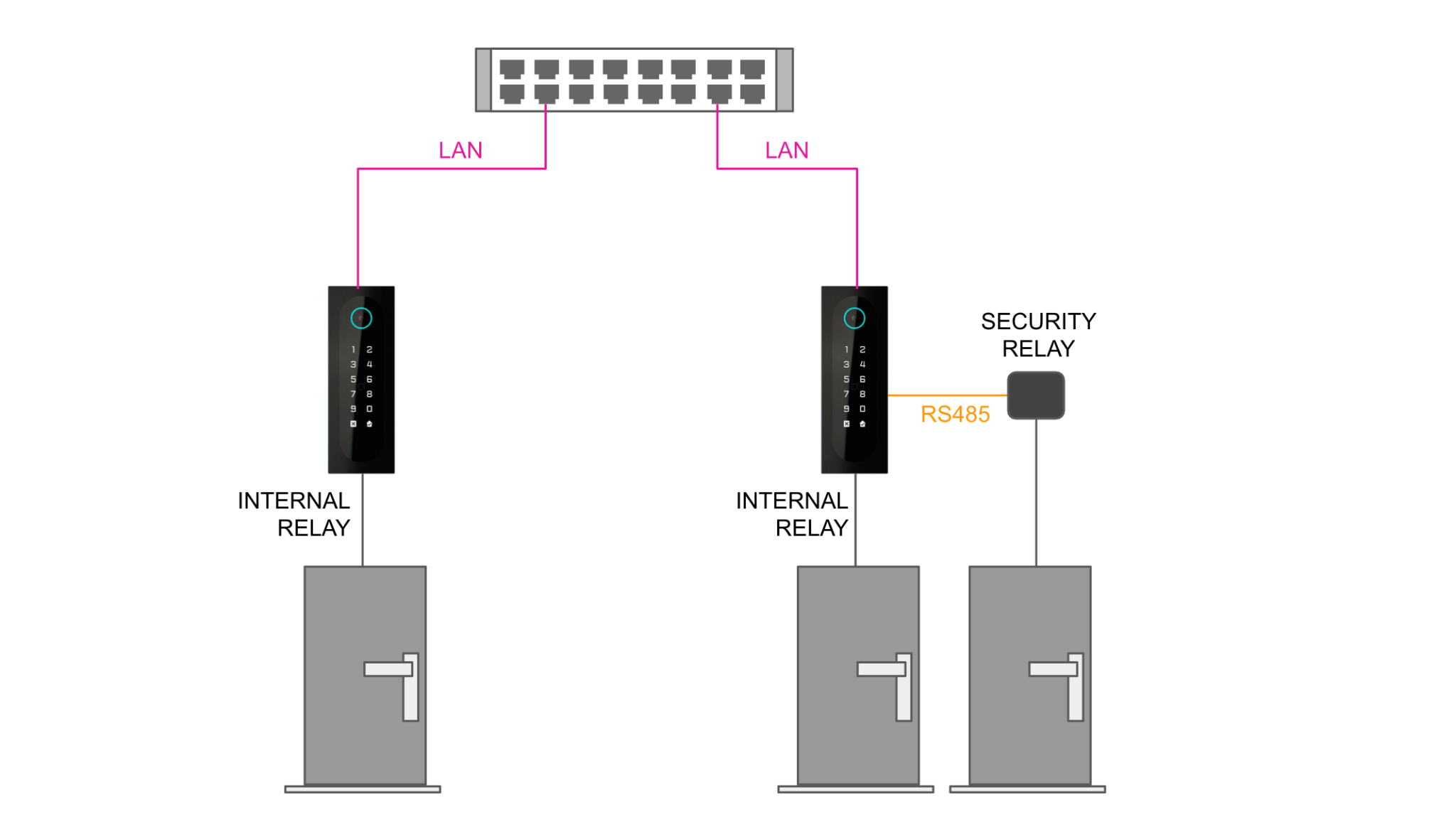
Preliminary operations
To use an ACCÉDO KEY with DELÉGO SERVER for access control:
- Connect it to the lock or locks to be opened.
- Connect it to the LAN with an RJ45 cable.
- Connect the power supply, if it is not powered through a PoE network cable.
- Identify the IP address assigned to it by the DHCP server.
To find out the current IP address of an ACCÉDO KEY, press the RESET button on the back of the device: a voice reads out the IP address, in English.
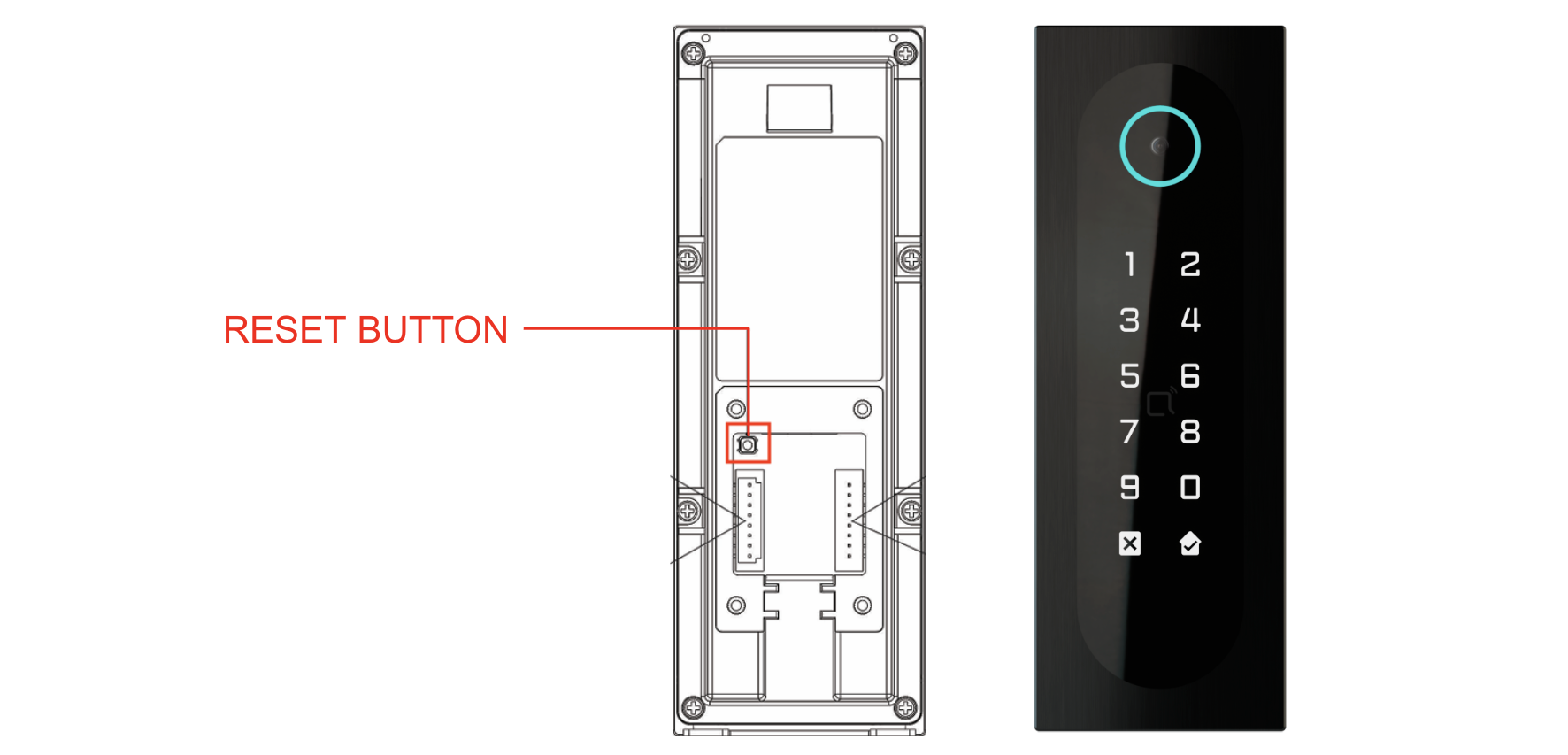
For further details, refer to the technical documentation and to the application manual of the product, in its section of the EKINEX website.
Create a new device
An ACCÉDO KEY is created directly on the room or gate it serves:
- Open the Rooms and gates section of the bar.
- In the source panel on the right, open the Library tab and expand the group Ekinex devices.
- Drag Accédo Key onto the room or the gate in the context tree.
The device is created, associated with that room or gate, and listed under it in the tree. Select it to open its card.
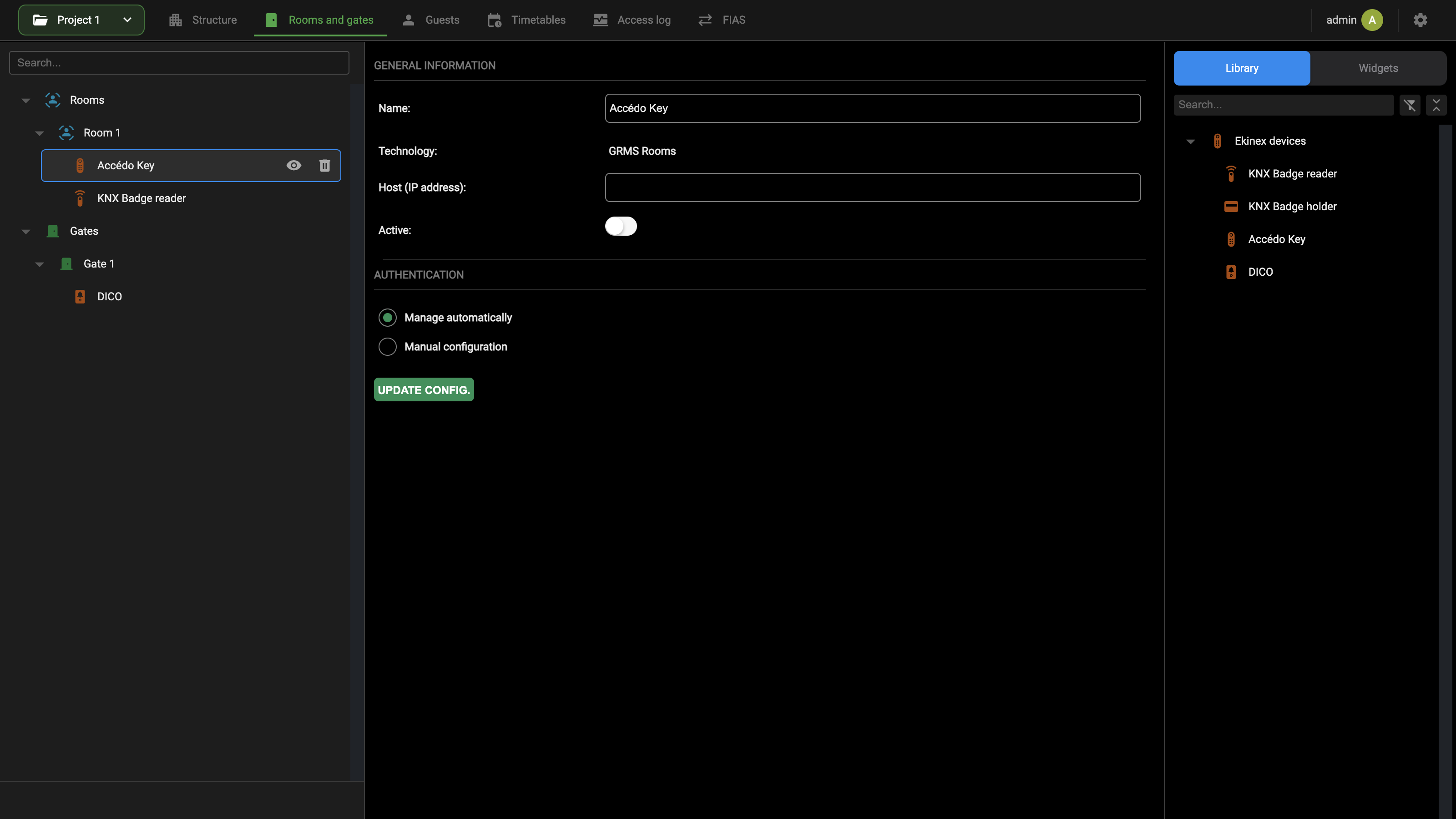
GENERAL INFORMATION holds the following fields:
| Name | Label that identifies the ACCÉDO KEY. |
| Technology | The technology of the object, GRMS Rooms. It is not editable. |
| Host (IP address) | The IP address of the ACCÉDO KEY in the local network, found as described in Preliminary operations. |
| Active | Read-only state: it turns on only when the ACCÉDO KEY has been configured successfully. |
AUTHENTICATION decides how the secure communication between the keypad and the server is set up:
| Manage automatically | DELÉGO SERVER manages the configuration of the ACCÉDO KEY by itself and provides the username and the password used for the secure communication between keypad and server. Recommended in most cases, because it is both more secure and simpler than the manual configuration. See Automatic authentication. |
| Manual configuration | The secure communication is set up by the user, who configures the device first and then enters the same authentication method and credentials in DELÉGO SERVER. See Manual authentication. |
With Expert mode active, the card also shows:
| ID | In GENERAL INFORMATION, the internal identifier of the device. |
| Description | In GENERAL INFORMATION, a free description of the device. |
| ACCÉDO KEY RELAYS | A table (NAME) listing the 2 relays of the device as objects of the project: Accédo Key - Relay, the internal relay, and Accédo Key - Security Relay, the security relay on the RS485 port. These are the objects related to the Lock of the room or gate; see Assigning to rooms and gates. |
With either option, the configuration is completed with UPDATE CONFIG., as described in Save and check connection.
Automatic authentication
With Manage automatically, DELÉGO SERVER manages the authentication of the ACCÉDO KEY centrally and sets the following parameters of the device by itself:
- the credentials for the web access;
- the credentials for the HTTP API communication, and the corresponding enable flag;
- the credentials for the relay command over the network, and the corresponding enable flag.
No preliminary step is needed on the device: enter the Host (IP address) and press UPDATE CONFIG..
Manual authentication
With Manual configuration, prepare the device before configuring it in DELÉGO SERVER.
Open a browser and enter the IP address of the ACCÉDO KEY to open its web page.
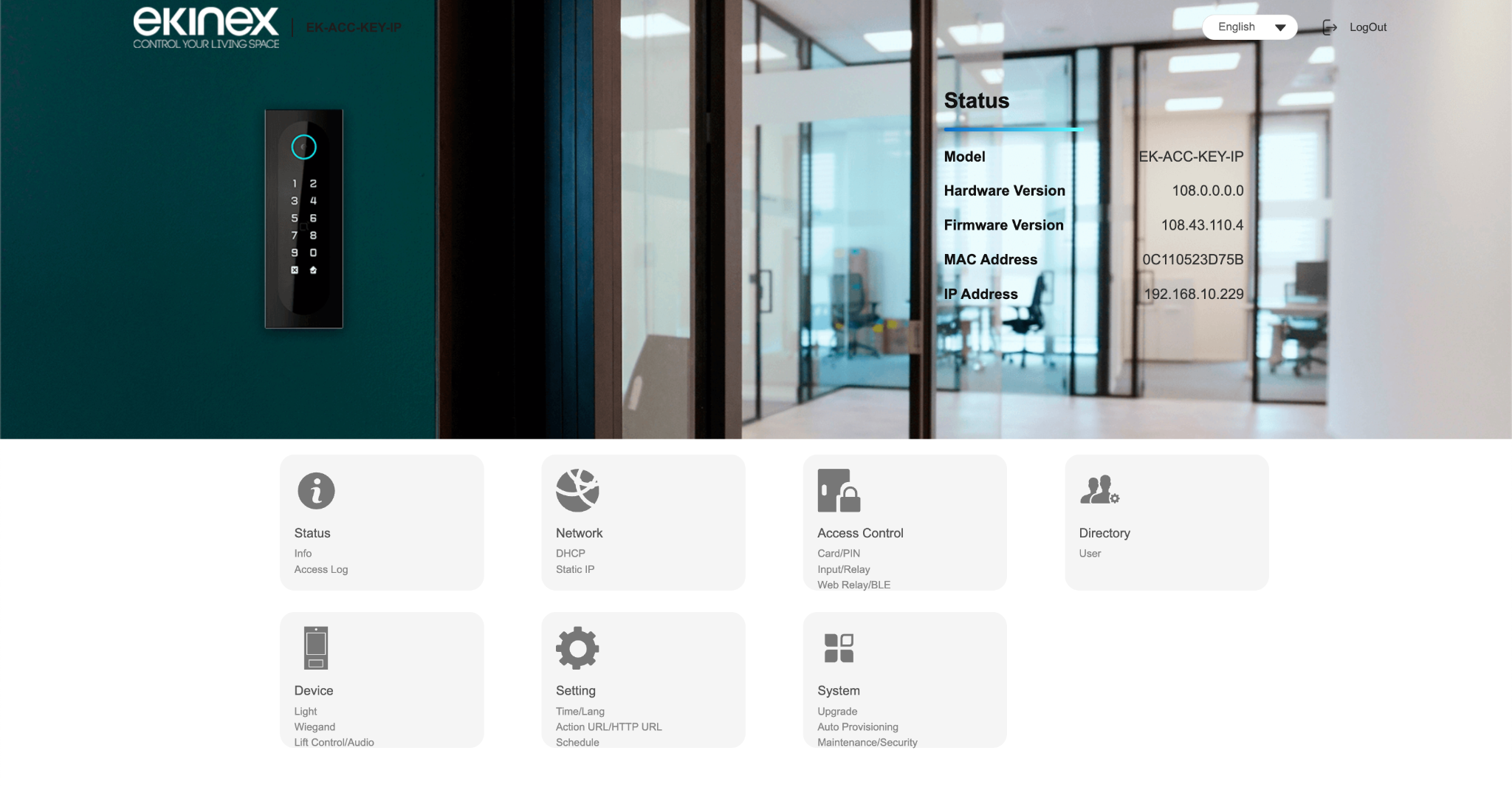
If this is the first access to the web page, log in with the factory credentials (username admin, password admin) and change them straight away, for security reasons.
Open Setting → HTTP API and:
- select HTTP API enable;
- choose an authentication method (Digest is recommended);
- enter the username and the password to be used for the communication between the device and DELÉGO SERVER (or third-party software);
- confirm with Submit.
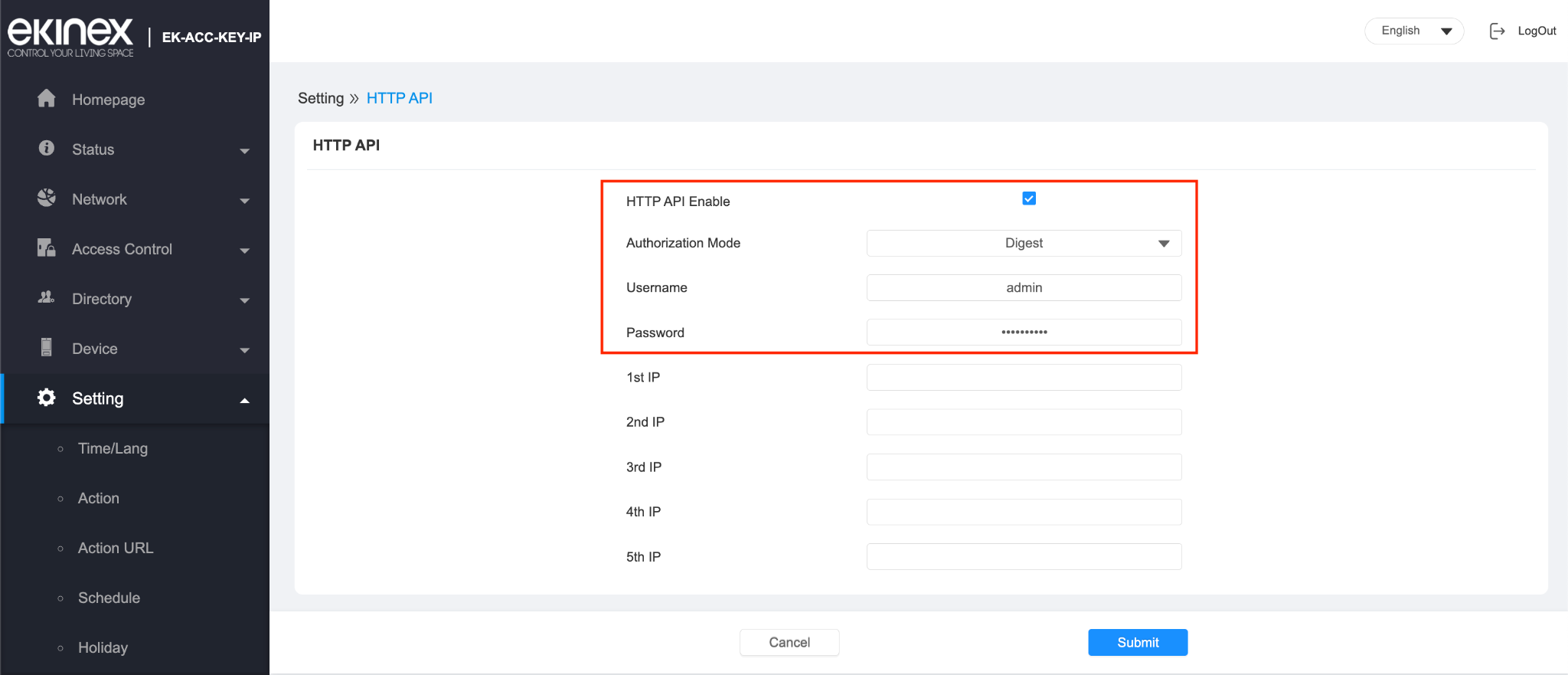
Open Access Control → Relay and, in Open Relay Via HTTP:
- select Enabled;
- enter the same username and password set in the HTTP API page;
- confirm with Submit.
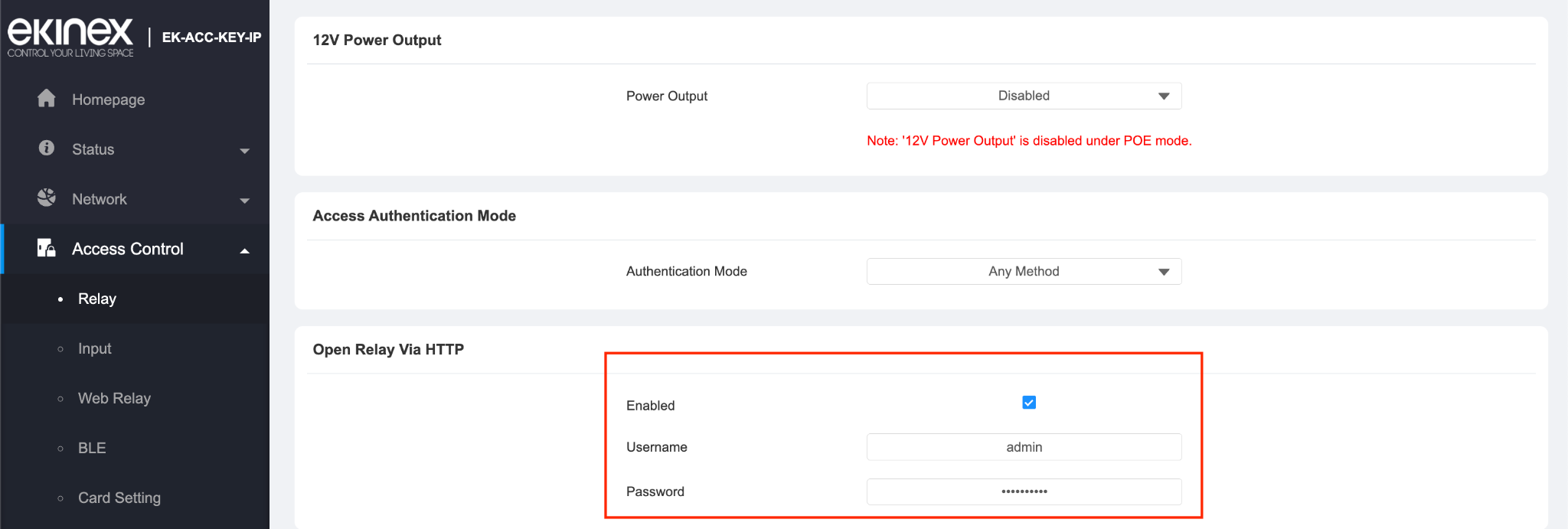
Then go back to the card of the ACCÉDO KEY in DELÉGO SERVER, select Manual configuration and enter the same data:
| Authentication type | The same authentication method set in the web interface of the device. |
| Username | The username for Digest or Basic authentication. |
| Password | The password for Digest or Basic authentication. |
Save and check connection
Whatever the authentication method, complete the configuration with UPDATE CONFIG.. DELÉGO SERVER tries to establish a communication channel with the device and, if it succeeds:
- Active turns on;
- with the automatic configuration, the card shows the credentials generated by the server: Username, Password API, Password web and Pin device. Pin device is the PIN that protects the settings on the display of a DICO: the card of the ACCÉDO KEY shows it too, but the keypad does not use it. The passwords and the PIN are masked: the eye button next to each field shows them;
- the additional settings of the device are shown below, as described in Additional settings.
With the automatic configuration, the message Automatic device configuration completed successfully. confirms the result at the bottom of the page.
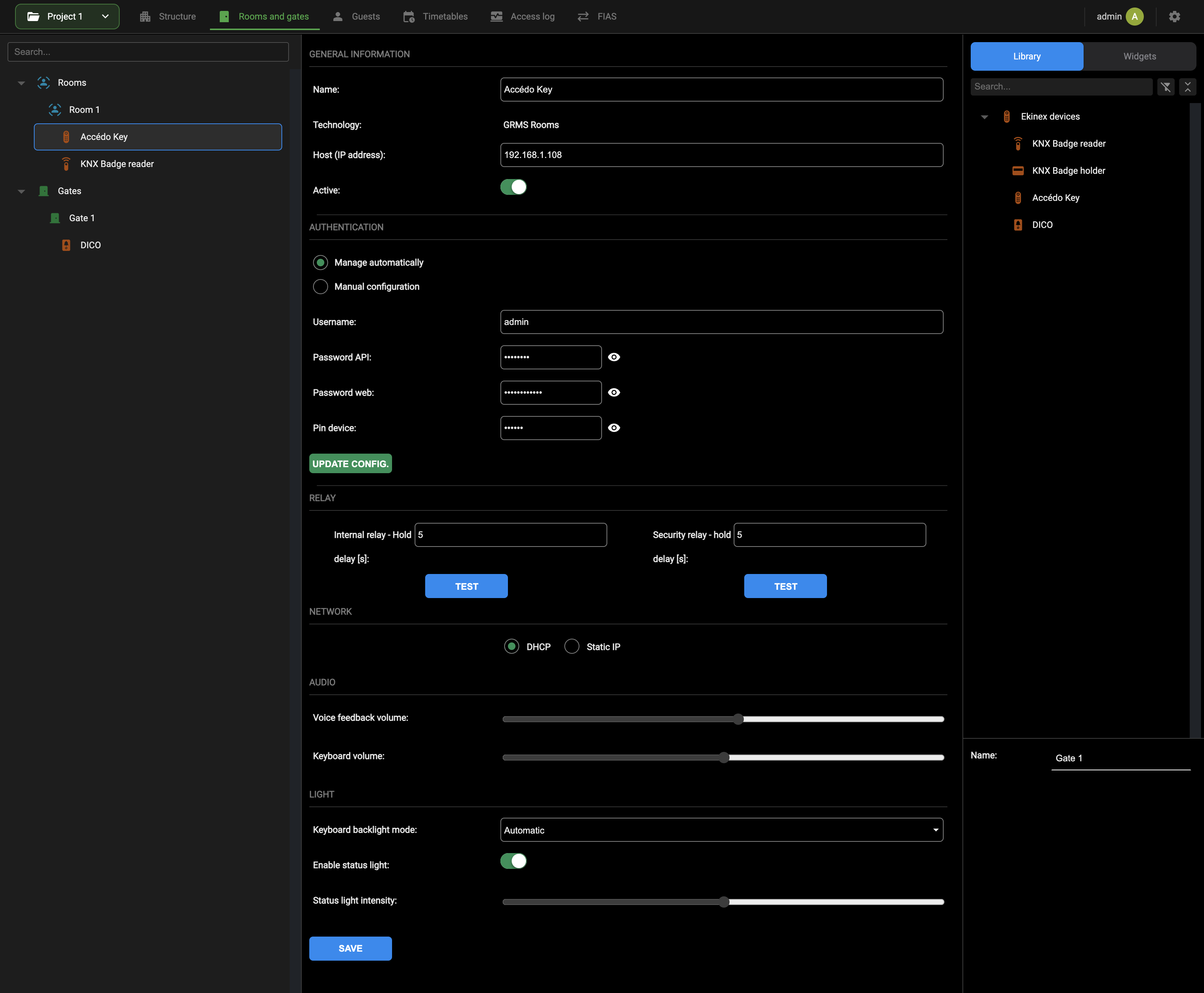
If the configuration does not succeed, an error message is shown at the top of the page. The possible causes are:
- the Host (IP address) field is empty;
- the IP address entered is not the one of the device, or its format is not valid (usually it is of the form 192.168.XXX.YYY);
- with the manual configuration, the preliminary steps on the device were not completed correctly;
- with the manual configuration, the authentication data entered does not match the one set in the web page of the ACCÉDO KEY.
Additional settings
Once the communication with the device has been established, the card of the ACCÉDO KEY shows its additional settings. They are written into the device by DELÉGO SERVER, without the need to open its web page. After changing any of them, press SAVE to send the new settings to the device.
RELAY holds the timing of the 2 relays, the internal relay and the security relay connected to the RS485 port:
| Internal relay - Hold delay [s] | How long the internal relay stays active, that is how long the lock of the room or gate is kept open, from 0 to 60 seconds. |
| Security relay - hold delay [s] | As above, for the security relay. |
The TEST button under each field activates that relay, to check that the internal relay and the security relay work correctly.
NETWORK decides how the device is addressed:
| Network mode | DHCP (automatic address, the recommended default) or Static IP. |
| IP address, Subnet mask, Default gateway, Primary DNS, Secondary DNS | With Static IP, the parameters of the static address. |
AUDIO:
| Voice feedback volume | Volume of the voice feedback. |
| Keyboard volume | Volume of the feedback when a key of the numeric keypad is pressed. |
LIGHT:
| Keyboard backlight mode | When the backlight of the numeric keypad is switched on: Off (never), On (always) or Automatic (when the proximity sensor detects a movement). |
| Enable status light | Switches the light around the camera on or off. |
| Status light intensity | Brightness of the light around the camera. |
Assigning to rooms and gates
An ACCÉDO KEY is associated with a room or a gate when it is created, by dragging Accédo Key from the Library onto that room or gate, as described in Create a new device. The device then appears as a child of the room or gate in the context tree: that is the association, and no further step is needed on the card of the room.
With this association, the internal relay of the ACCÉDO KEY (the object Accédo Key - Relay) is linked to the Lock property of the room or gate. The relation can be checked and changed in the connection editor, opened with CONNECTIONS on the card of the room or gate; see Door lock opening with DICO or ACCÉDO KEY.
One ACCÉDO KEY can serve more than 1 room or gate, for example a keypad at the end of a corridor that gives access to several doors. When a guest or a member of the staff enters a valid PIN, QR code or RFID card, the system opens only the door of the room or gate assigned to that user.
To serve a further room or gate with an ACCÉDO KEY that already exists, do not drag it from the Library: the Library always creates a new device. Open the Widgets tab of the source panel instead, find the ACCÉDO KEY already created and drag it onto the new room or gate. The same device then appears under both.
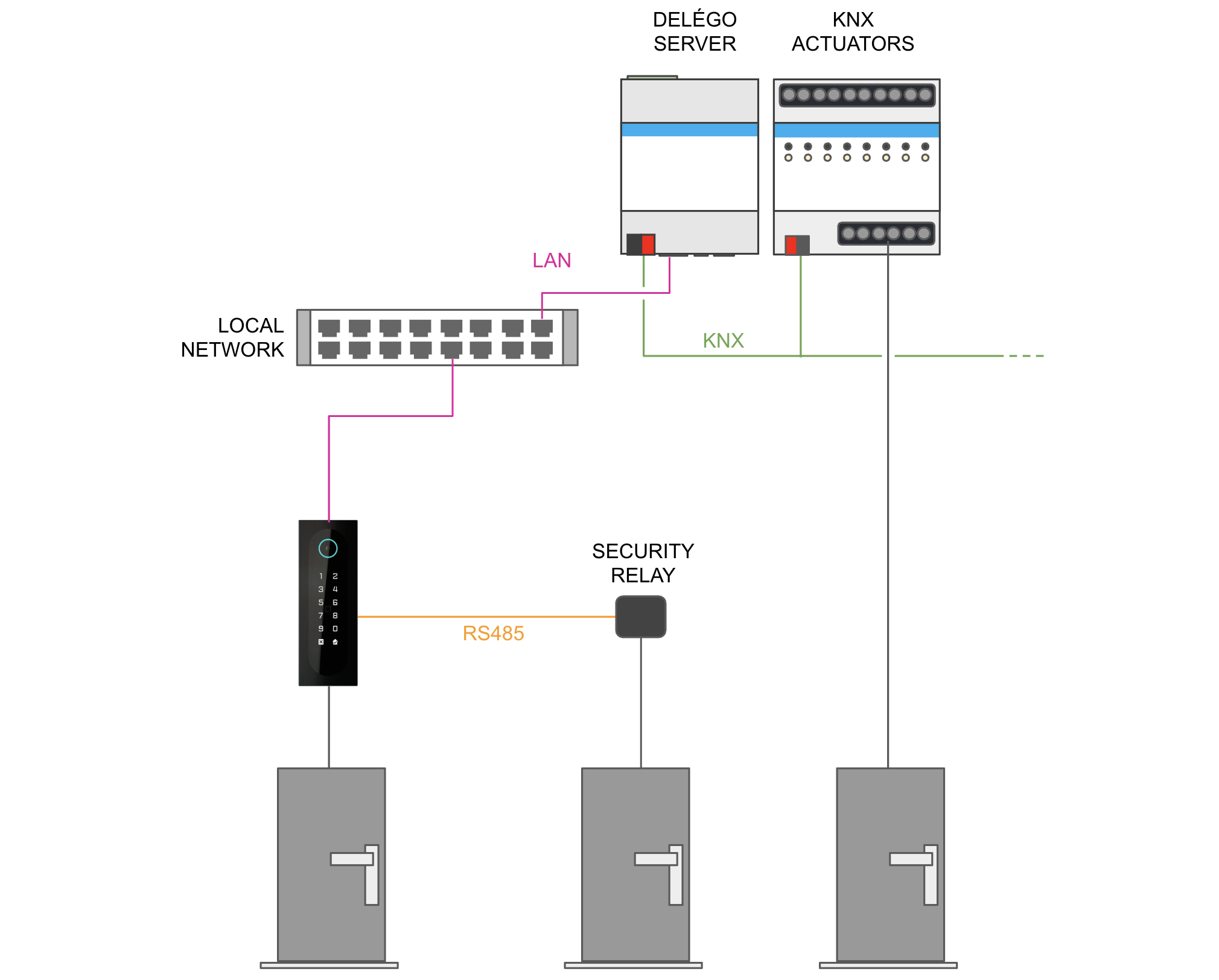
In this kind of configuration, relate the Lock of each room or gate to the right output:
- the internal relay (Accédo Key - Relay in the ACCÉDO KEY RELAYS table of the card, visible with Expert mode);
- the security relay (Accédo Key - Security Relay);
- a KNX actuator.

Dico
DICO is an IP-based video intercom on which a user can type a PIN on the display, show a QR code to the integrated camera or present an RFID card. It is powered either through a PoE network cable or by a dedicated power supply.
Like the ACCÉDO KEY, it can open an electric lock in 2 ways:
- wired directly to its internal relay;
- wired to a security relay, connected through the integrated RS485 port.
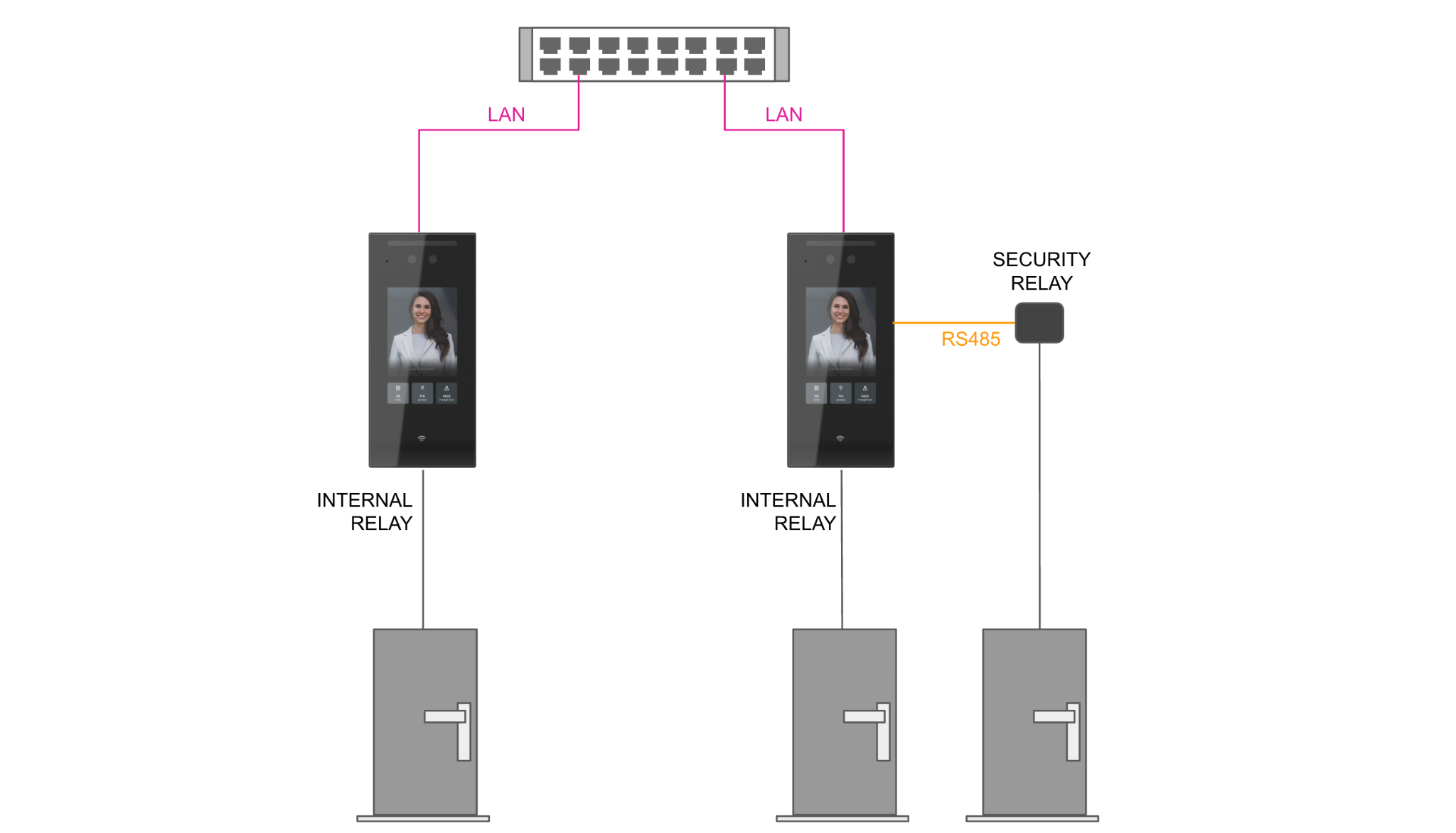
As a video intercom, the DICO is also described in the part dedicated to intercoms; see DICO.
Preliminary operations
To use a DICO with DELÉGO SERVER for access control:
- Connect it to the lock or locks to be opened.
- Connect it to the LAN with an RJ45 cable.
- Connect the power supply, if it is not powered through a PoE network cable.
- Identify the IP address assigned to it by the DHCP server.
To find out the IP address of a DICO, open the settings of the video intercom:
- Press anywhere on the screen of the DICO and hold your finger down for more than 10 seconds, until a password is asked.
- Enter the administration password (factory default admin) and confirm. Change the factory password as soon as possible, for security reasons.
- Select Network.
- Take note of the IP address of the outdoor unit.
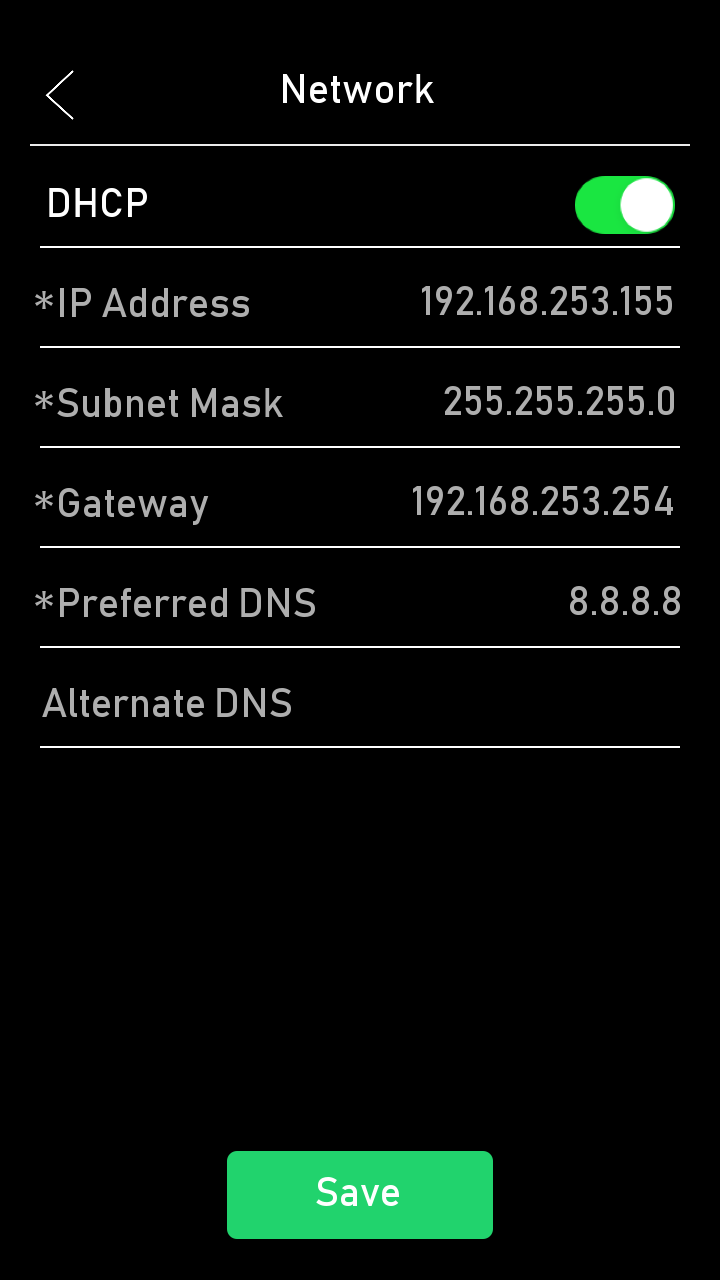
The same procedure is described in DICO IP address identification. For further details, refer to the technical documentation and to the application manual of the product, in its section of the EKINEX website.
Create a new device
A DICO used for access control is created directly on the room or gate it serves:
- Open the Rooms and gates section of the bar.
- In the source panel on the right, open the Library tab and expand the group Ekinex devices.
- Drag DICO onto the room or the gate in the context tree.
The device is created, associated with that room or gate, and listed under it in the tree. Select it to open its card.
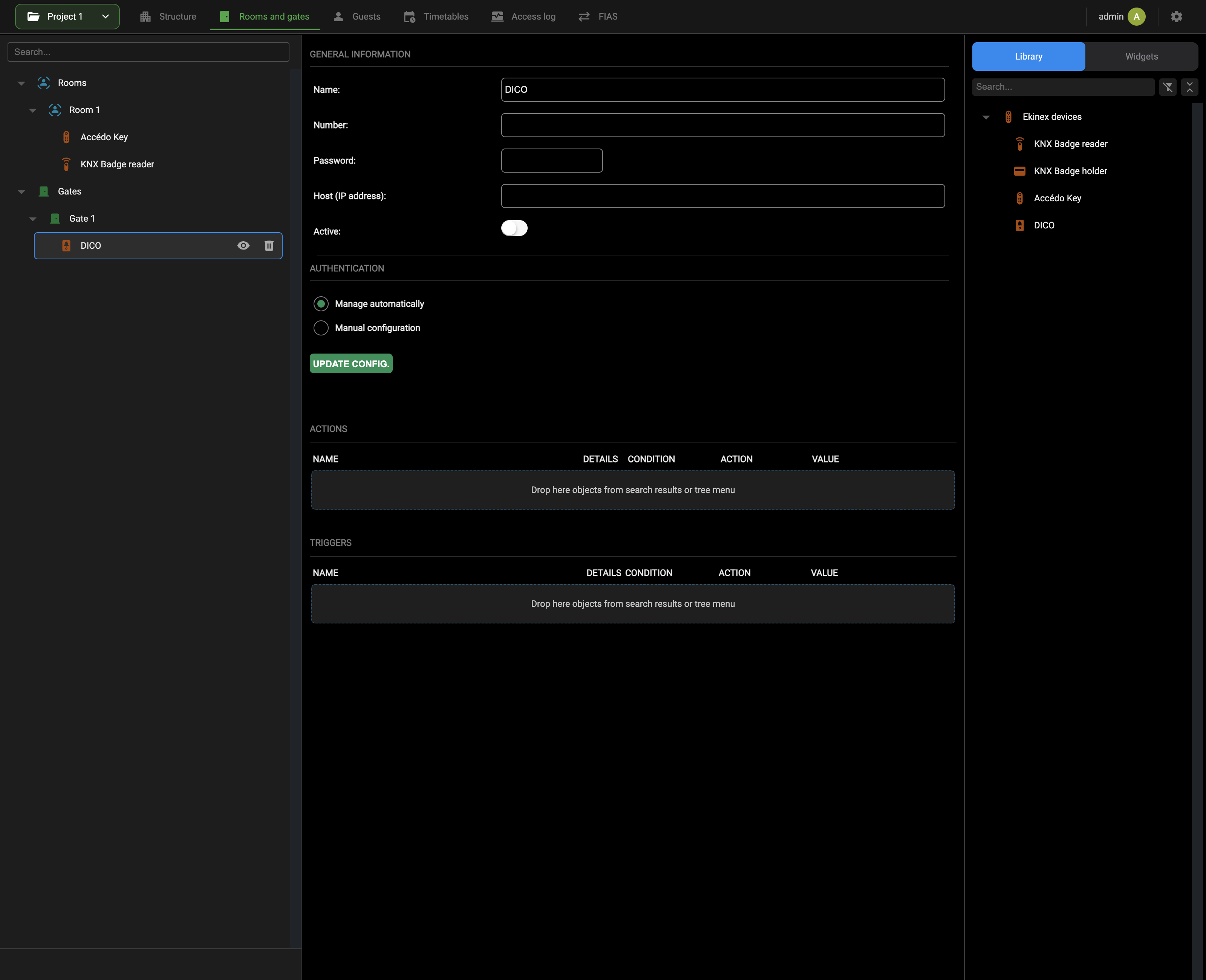
GENERAL INFORMATION holds the following fields:
| Name | Label that identifies the DICO. |
| Number | VoIP number used to call the DICO. To be filled in only if DELÉGO SERVER is the SIP server; for access control alone it can be left empty. |
| Password | Password that protects the VoIP function. To be filled in only if DELÉGO SERVER is the SIP server; for access control alone it can be left empty. |
| Host (IP address) | The IP address of the DICO in the local network, found as described in Preliminary operations. |
| Active | Read-only state: it turns on only when the DICO has been configured successfully. |
AUTHENTICATION decides how the secure communication between the intercom and the server is set up:
| Manage automatically | DELÉGO SERVER manages the configuration of the DICO by itself and provides the username and the password used for the secure communication between intercom and server. Recommended in most cases, because it is both more secure and simpler than the manual configuration. See Automatic authentication. |
| Manual configuration | The secure communication is set up by the user, who configures the device first and then enters the same authentication method and credentials in DELÉGO SERVER. See Manual authentication. |
With Expert mode active, the card also shows:
| ID | In GENERAL INFORMATION, the internal identifier of the device. |
| DTMF mode | In the DTMF group, the protocol used for the DTMF tones in VoIP calls. It matters only when the DICO is used as a door station; see General settings. |
| DICO RELAYS | A table (NAME) listing the relays of the device as objects of the project, the internal relay and the security relay. These are the objects related to the Lock of the room or gate; see Assigning to rooms and gates. |
With either option, the configuration is completed with UPDATE CONFIG., as described in Save and check connection.
Actions and triggers
The ACTIONS and TRIGGERS tables relate the DICO to the other objects of the project. Each of them is a drop zone: drag an object into it from the Widgets tab of the source panel, or from the search results, and a row is added.
Both tables have the same columns:
| NAME | The name of the object dropped into the table. |
| WIDGET | The widget the object belongs to. |
| DETAILS | The sub-object of the widget concerned. |
| CONDITION | The condition on the value that makes the row fire. |
| ACTION | What the row does when the condition is met. |
| VALUE | The value delivered. |
The rows follow the same logic as the triggers of the Automations; see Connections for the meaning of conditions, actions and values.
Automatic authentication
With Manage automatically, DELÉGO SERVER manages the authentication of the DICO centrally and sets the following parameters of the device by itself:
- the credentials for the web access;
- the credentials for the HTTP API communication, and the corresponding enable flag;
- the credentials for the relay command over the network, and the corresponding enable flag.
No preliminary step is needed on the device: enter the Host (IP address) and press UPDATE CONFIG..
Manual authentication
With Manual configuration, prepare the device before configuring it in DELÉGO SERVER.
Open a browser and enter the IP address of the DICO to open its web page.
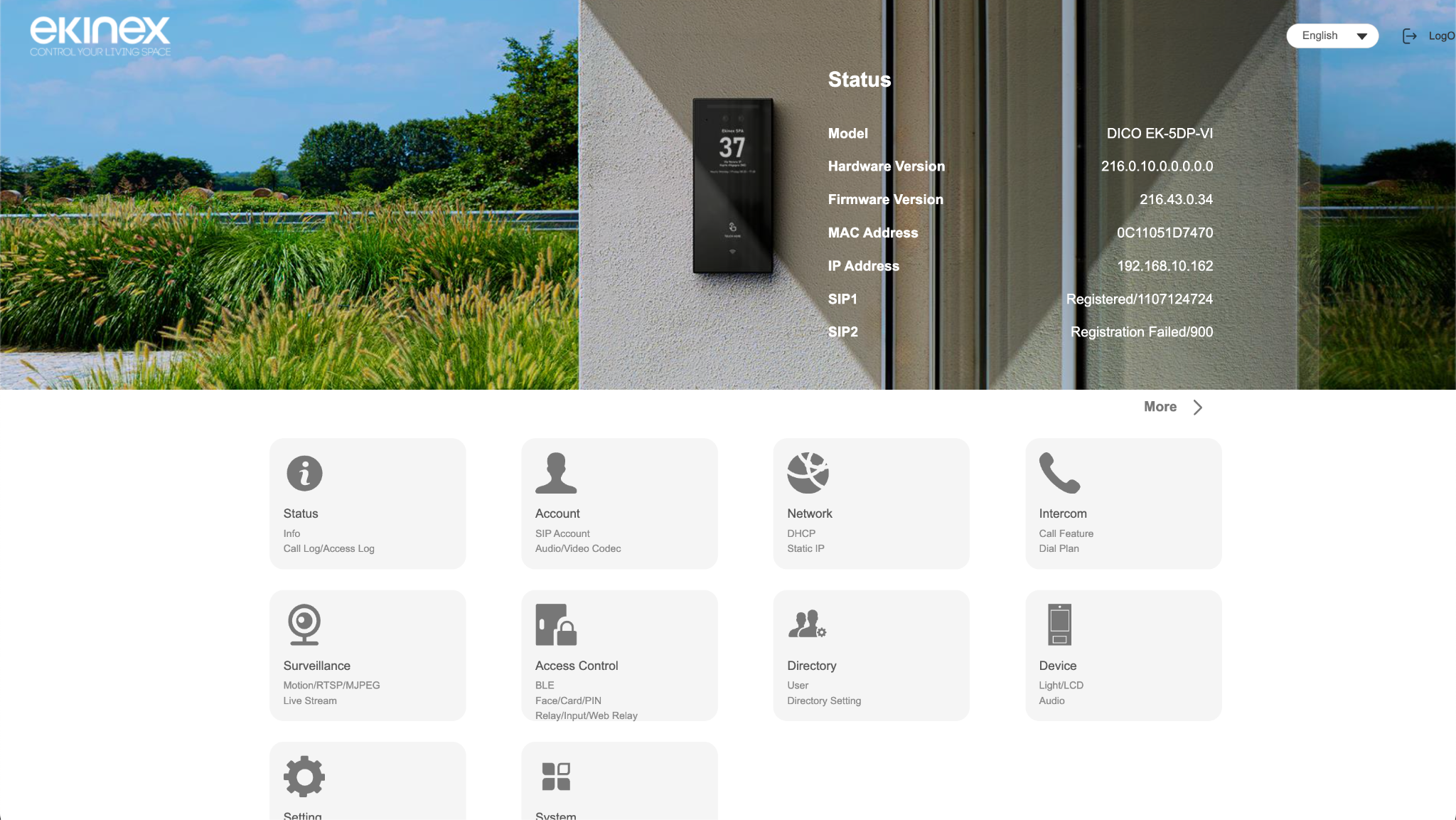
If this is the first access to the web page, log in with the factory credentials (username admin, password admin) and change them straight away, for security reasons.
Open Setting → HTTP API and:
- select HTTP API enable;
- choose an authentication method (Digest is recommended);
- enter the username and the password to be used for the communication between the device and DELÉGO SERVER (or third-party software);
- confirm with Submit.
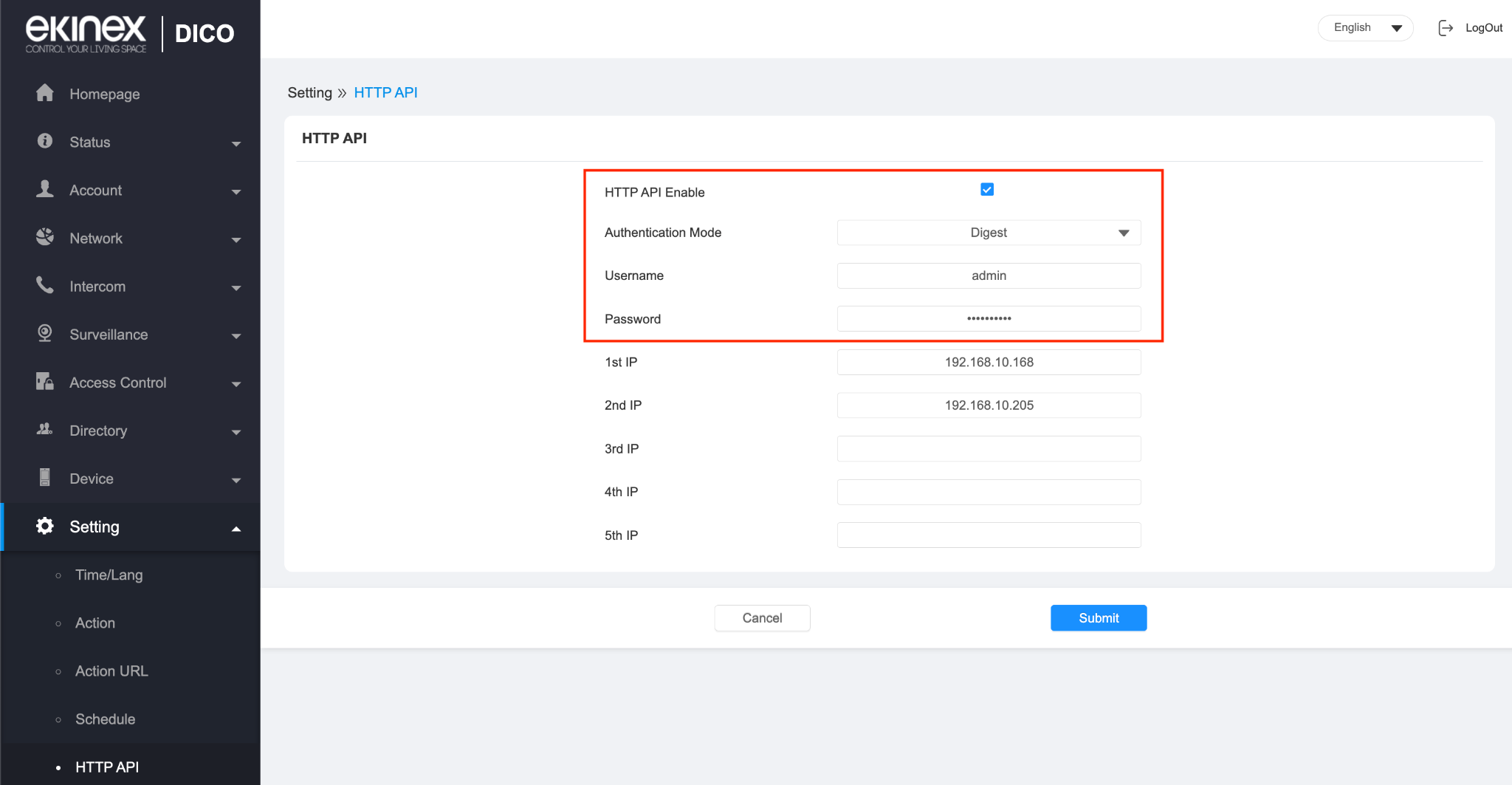
Open Access Control → Relay and, in Open Relay Via HTTP:
- select Enabled;
- enter the same username and password set in the HTTP API page;
- confirm with Submit.
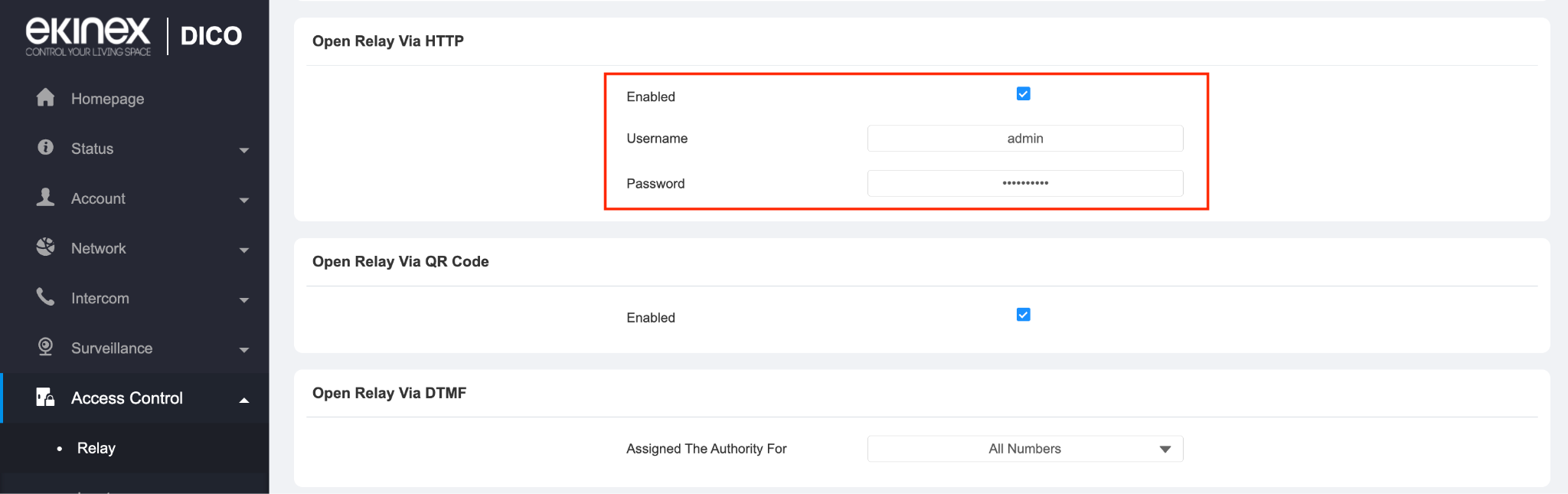
Then go back to the card of the DICO in DELÉGO SERVER, select Manual configuration and enter the same data:
| Authentication type | The same authentication method set in the web interface of the device. |
| Username | The username for Digest or Basic authentication. |
| Password | The password for Digest or Basic authentication. |
The authentication methods offered by the web interface of the DICO are described in Authentication.
Save and check connection
Whatever the authentication method, complete the configuration with UPDATE CONFIG.. DELÉGO SERVER tries to establish a communication channel with the device and, if it succeeds:
- Active turns on;
- with the automatic configuration, the card shows the credentials generated by the server: Username, Password API, Password web and Pin device. Pin device is the PIN that protects the settings on the display of the DICO. The passwords and the PIN are masked: the eye button next to each field shows them;
- the additional settings of the device are shown in the lower part of the card, as described in Additional settings.
With the automatic configuration, the message Automatic device configuration completed successfully. confirms the result at the bottom of the page.
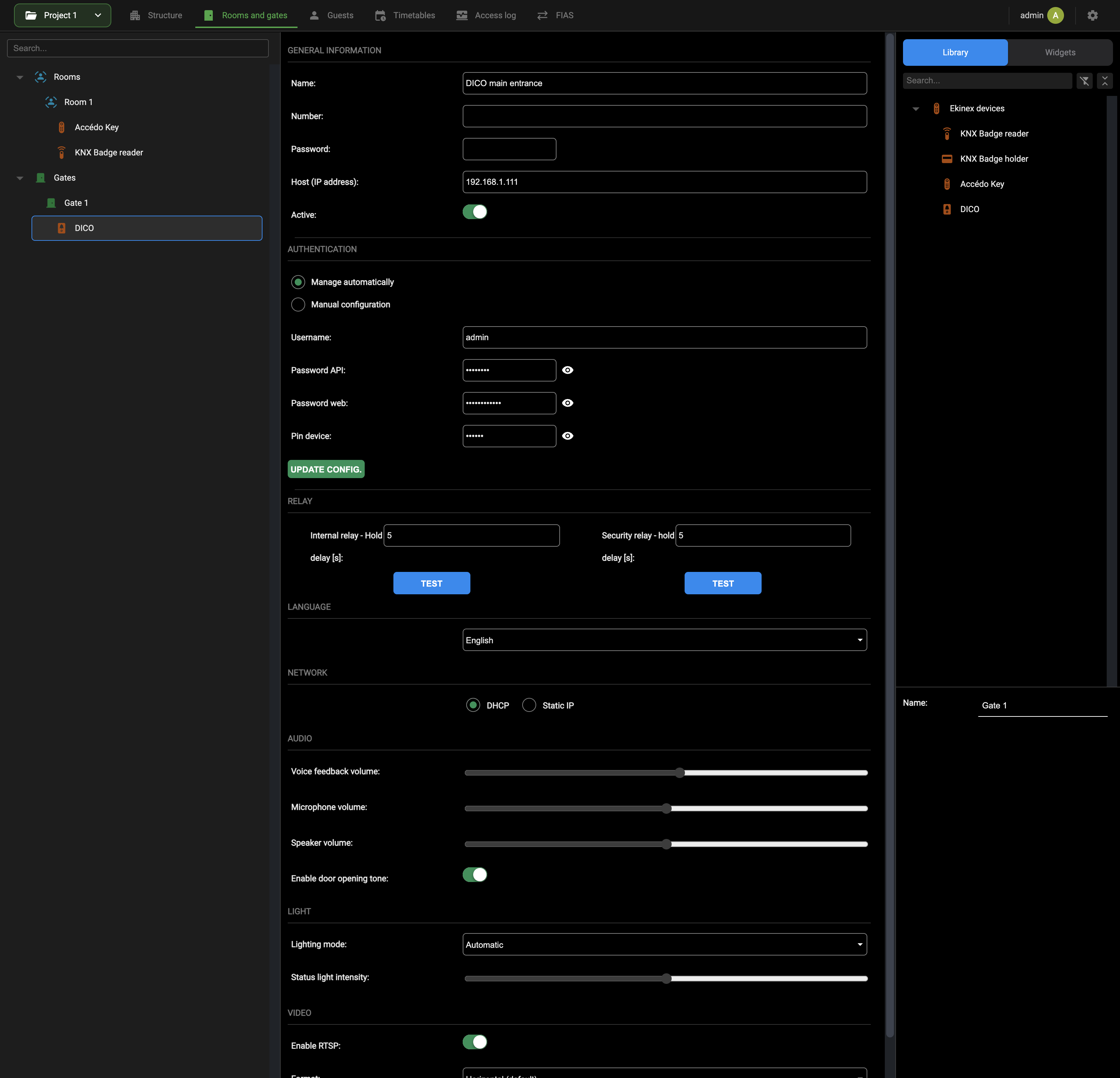
If the configuration does not succeed, an error message is shown at the top of the page. The possible causes are:
- the Host (IP address) field is empty;
- the IP address entered is not the one of the device, or its format is not valid (usually it is of the form 192.168.XXX.YYY);
- with the manual configuration, the preliminary steps on the device were not completed correctly;
- with the manual configuration, the authentication data entered does not match the one set in the web page of the DICO.
Additional settings
Once the communication with the device has been established, the card of the DICO shows its additional settings. They are written into the device by DELÉGO SERVER, without the need to open its web page. After changing any of them, press SAVE to send the new settings to the device.
RELAY holds the timing of the 2 relays, the internal relay and the security relay connected to the RS485 port:
| Internal relay - Hold delay [s] | How long the internal relay stays active, that is how long the lock of the room or gate is kept open, from 0 to 60 seconds. |
| Security relay - hold delay [s] | As above, for the security relay. |
The TEST button under each field activates that relay, to check that the internal relay and the security relay work correctly.
LANGUAGE sets the language of the DICO: English, Italian, French or German.
NETWORK decides how the device is addressed:
| Network mode | DHCP (automatic address, the recommended default) or Static IP. |
| IP address, Subnet mask, Default gateway, Primary DNS, Secondary DNS | With Static IP, the parameters of the static address. |
AUDIO:
| Voice feedback volume | Volume of the voice feedback of the DICO when the room or gate is accessed. |
| Microphone volume | Volume of the integrated microphone. |
| Speaker volume | Volume of the speaker during a call. |
| Enable door opening tone | Plays a sound effect each time the relay is opened. |
LIGHT:
| Lighting mode | When the LED on the top of the product is switched on: always off, or automatic with the proximity and brightness sensor. |
| Status light intensity | Brightness of the LED. |
VIDEO:
| Enable RTSP | Enables the video streaming of the integrated camera, for calls. |
| Format | The cropping of the video stream: Horizontal (default) or Vertical (original). |
The same settings are described for the DICO used as a door station in Additional settings.
Assigning to rooms and gates
A DICO is associated with a room or a gate when it is created, by dragging DICO from the Library onto that room or gate, as described in Create a new device. The device then appears as a child of the room or gate in the context tree: that is the association, and no further step is needed on the card of the room.
With this association, the internal relay of the DICO is linked to the Lock property of the room or gate. The relation can be checked and changed in the connection editor, opened with CONNECTIONS on the card of the room or gate; see Door lock opening with DICO or ACCÉDO KEY.
Like an ACCÉDO KEY, a single DICO can serve more than 1 room or gate. When a guest or a member of the staff uses a valid PIN, QR code or RFID card, the system opens only the door of the room or gate assigned to that user.
To serve a further room or gate with a DICO that already exists, do not drag it from the Library: the Library always creates a new device. Open the Widgets tab of the source panel instead, find the DICO already created and drag it onto the new room or gate. The same device then appears under both.
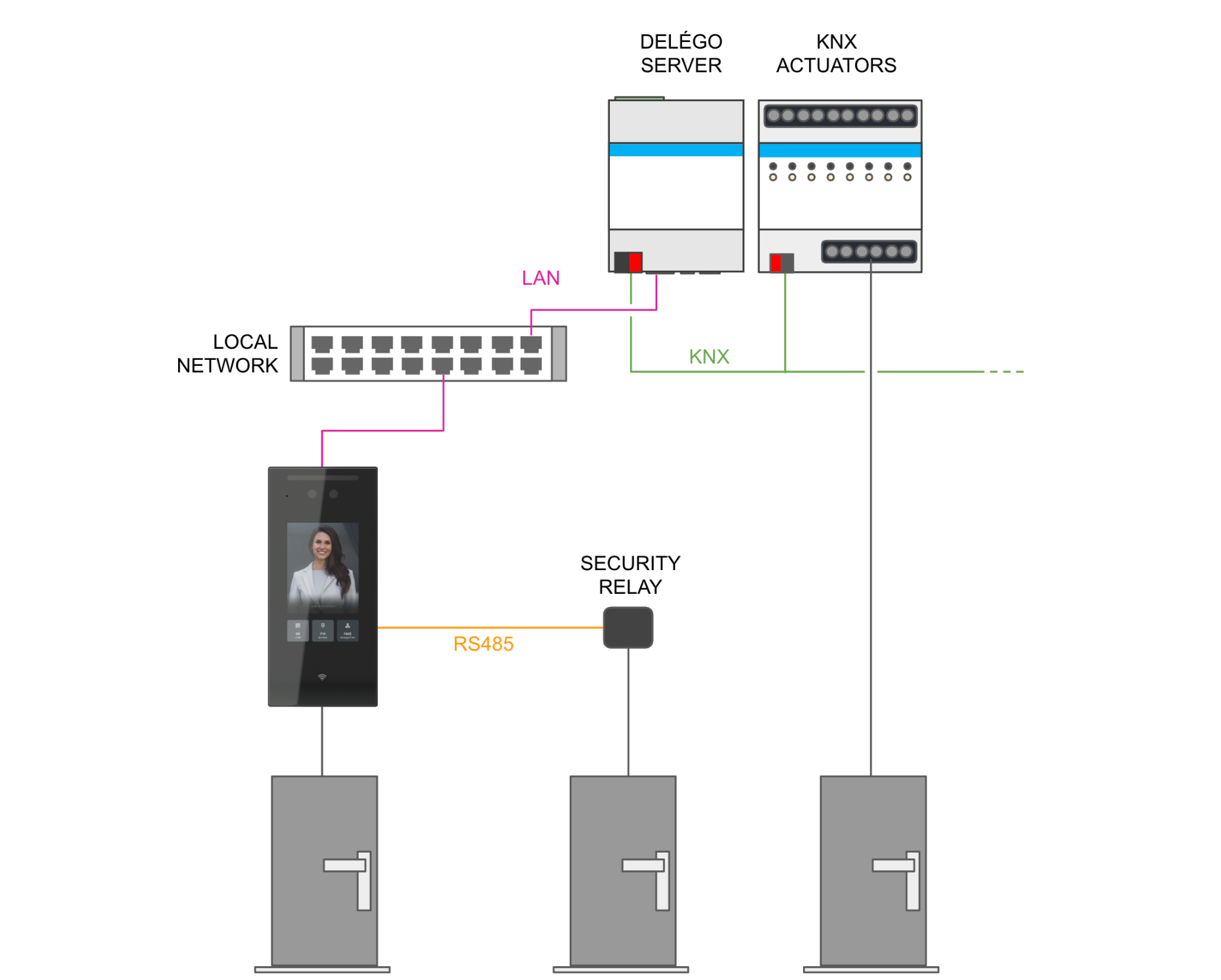
In this kind of configuration, relate the Lock of each room or gate to the right output:
- the internal relay of the DICO;
- its security relay;
- a KNX actuator.
The 2 relays of the DICO are listed, as objects of the project, in the DICO RELAYS table of its card, visible with Expert mode. They take the name of the device, followed by Relay and Security Relay.

Ekinex KNX badge readers / holders
The EKINEX badge readers and holders based on KNX technology can be integrated in the guest room management of DELÉGO SERVER.
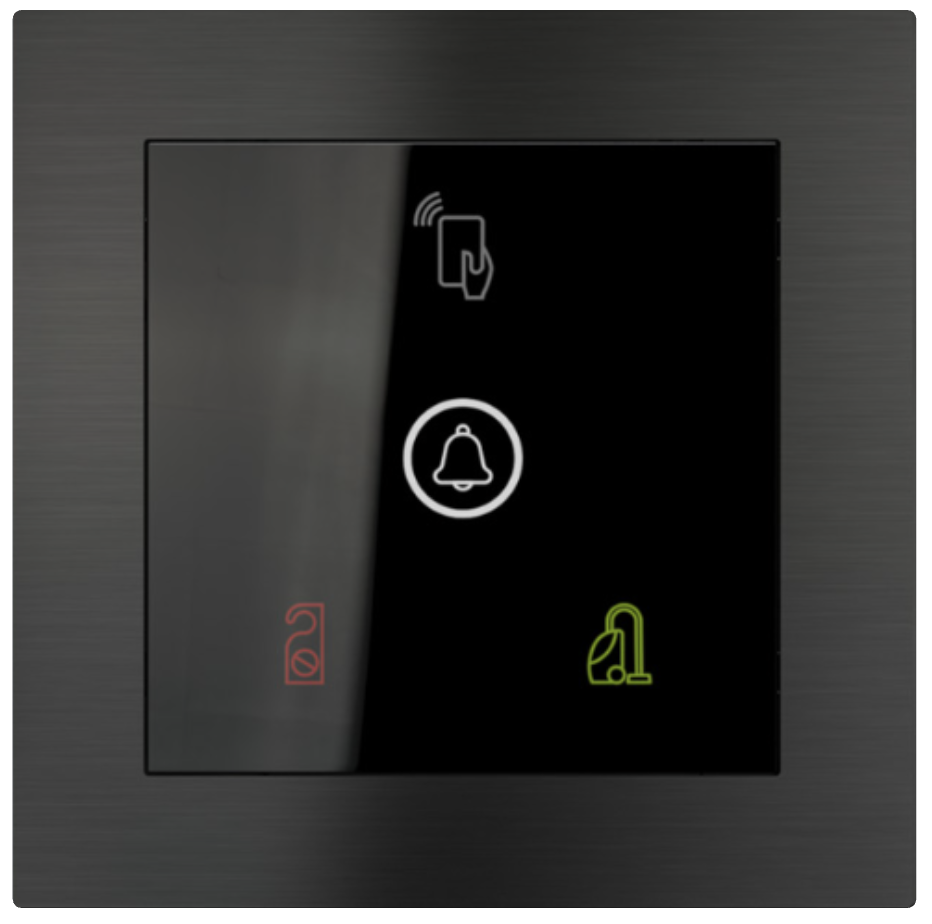
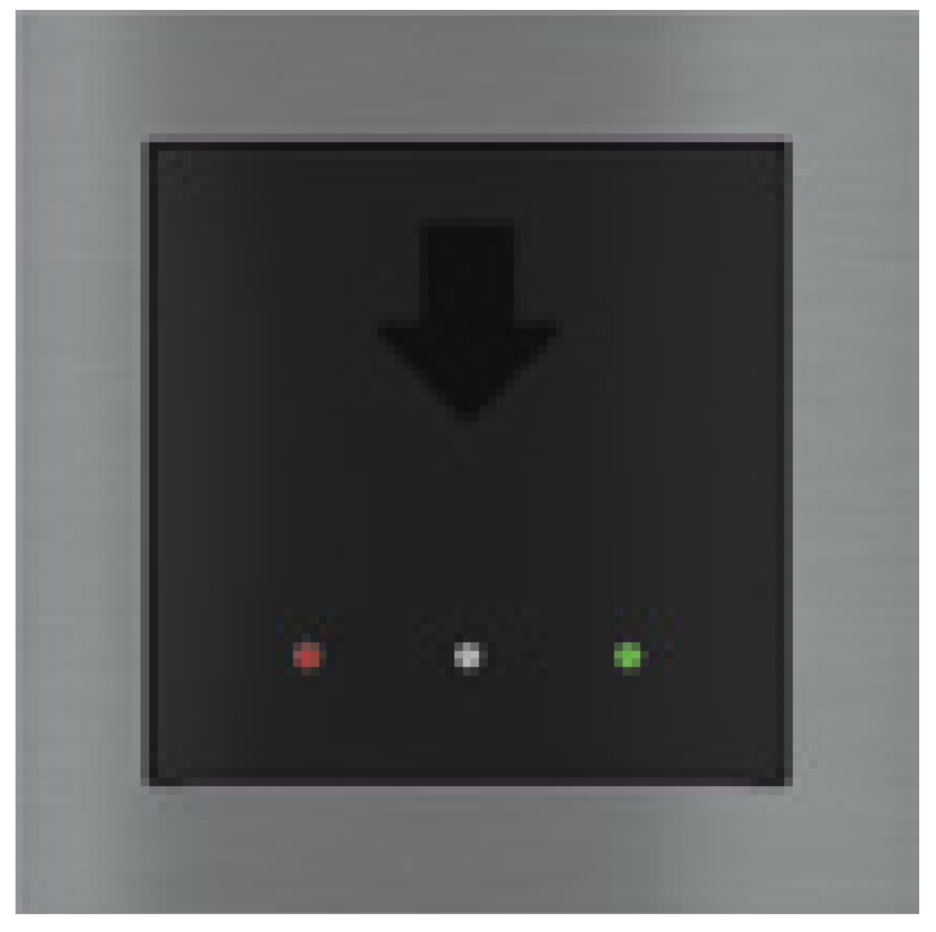
The badge readers protect the access to rooms and common areas: they read an RFID badge and check whether it is allowed to open the corresponding door. They are normally installed outside the space whose access must be restricted.
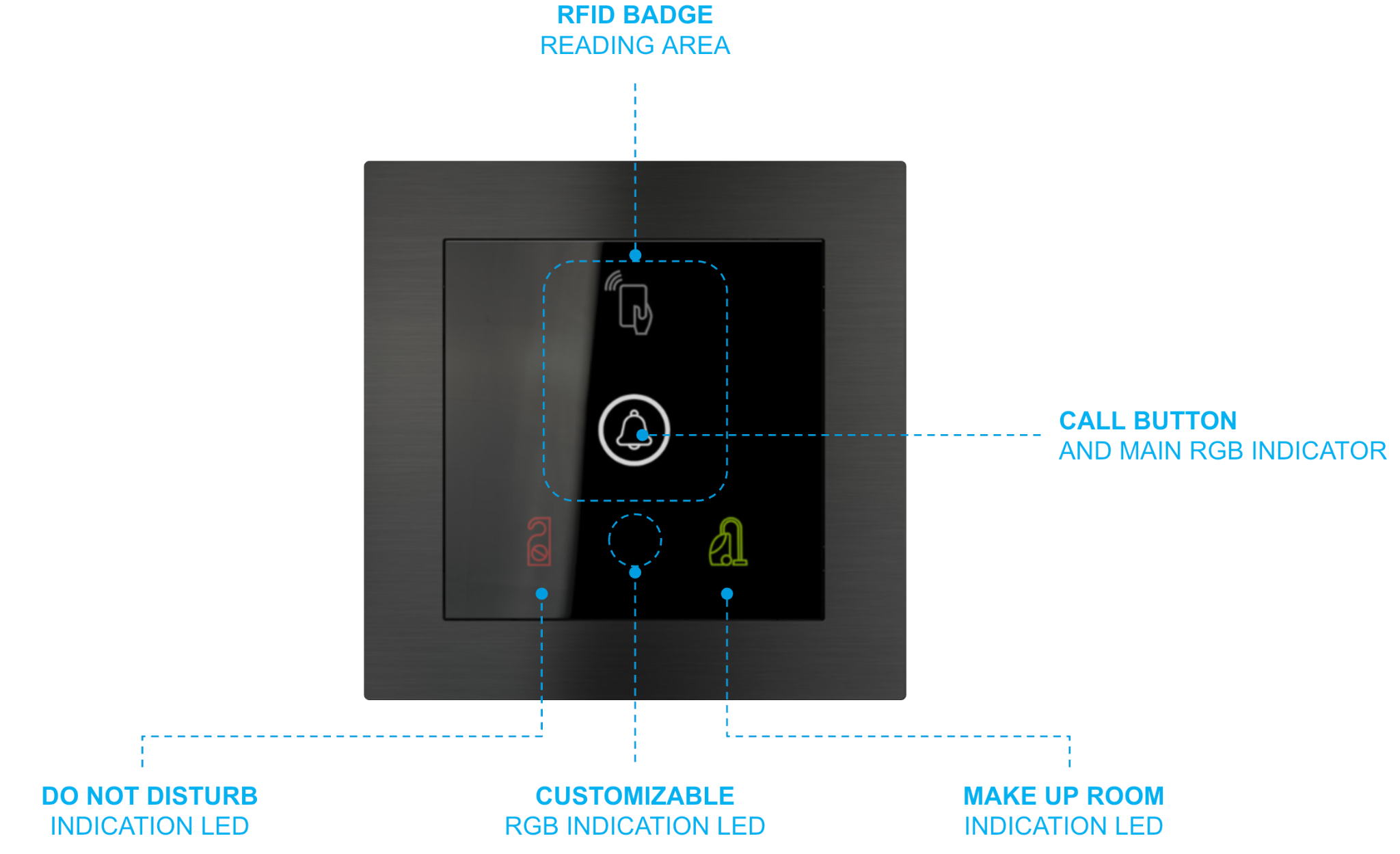
The badge holders are installed inside a room or a common area. When a badge is inserted, the presence information is given to the system, and the corresponding actions can be taken: enabling the loads or the air conditioning, running scenes and so on.
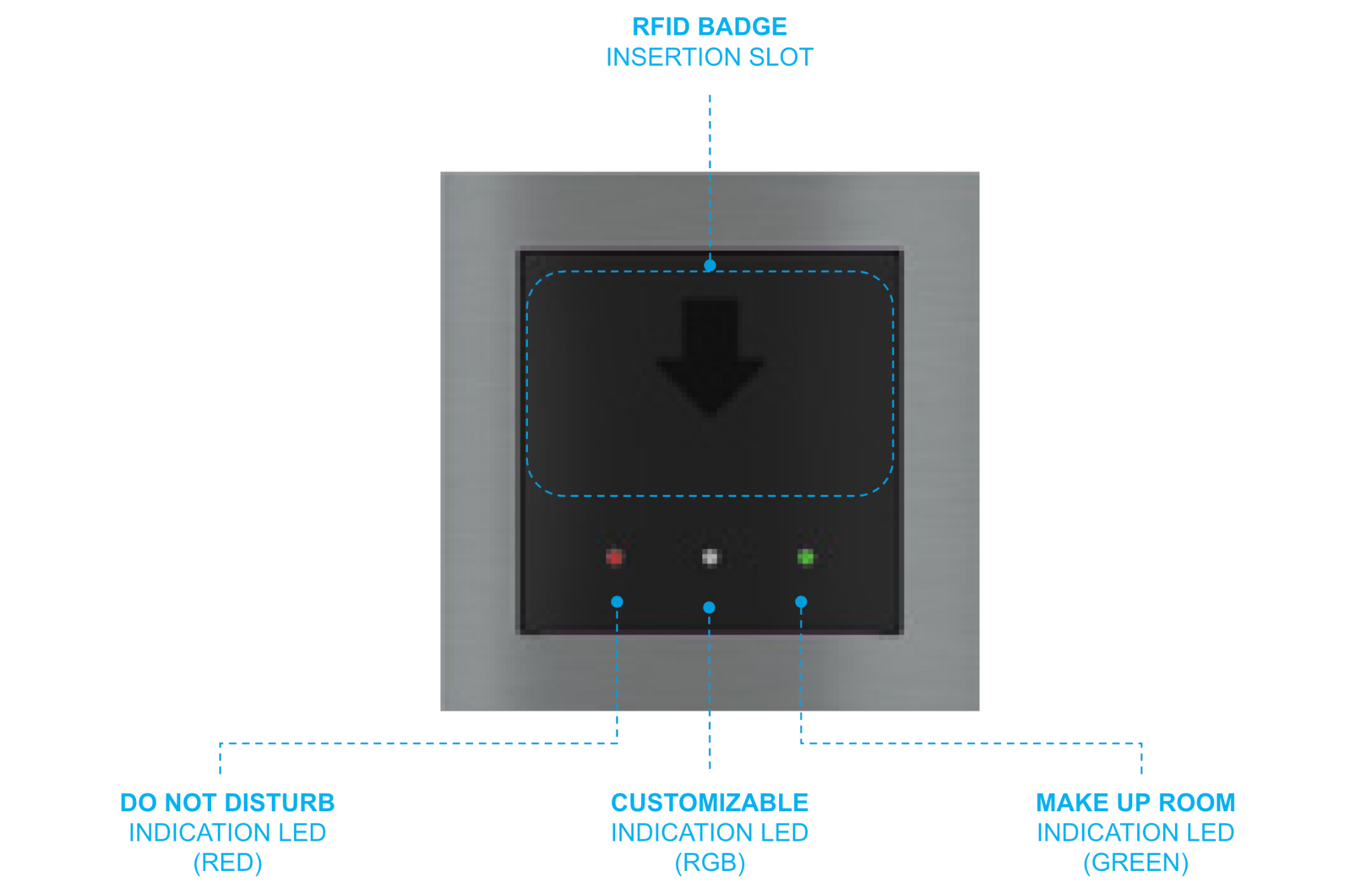
Both readers and holders have 2 integrated relays that can be used for several purposes, for example:
- opening the door;
- switching a courtesy light on and off;
- enabling and disabling the room loads or the HVAC.
Access control strategy
DELÉGO SERVER can regulate the access to the doors protected by the EKINEX badge readers with 2 different strategies. The strategy is chosen for the whole structure with Centralized authentication; see Ekinex devices.
Centralized
When a badge is presented to a reader, the reader sends a Transit telegram on the KNX bus. DELÉGO SERVER checks the authorizations valid at that moment and decides whether the badge is entitled to open the door.
- If it is, an On command is sent to the Access granted address of the reader: the reader itself activates the relay connected to the lock, and its main LED turns green for a few seconds.
- If it is not, the command is sent to the Access denied address: the relay is not activated, and the LED turns red for a few seconds.
Decentralized
At the beginning and at the end of the validity period of a badge, and after any change to its authorizations, DELÉGO SERVER sends to the readers concerned the permissions of that badge, which are stored in the Whitelist of each reader. When the badge is presented to a reader, the reader grants or denies the access on its own (setting the LED colour and, if the access is granted, activating the relay connected to the lock) and sends the Transit telegram on the bus, which in this case also tells whether the transit was valid.
The decentralized strategy works even when DELÉGO SERVER is off or unreachable, but the time bands are limited to the ones the reader supports. It requires the following minimum versions of the badge reader (EK-TO2-TP) and holder (EK-TI2-TP):
- firmware: 2.0.0;
- ETS library: 0.2.
| Centralized | Every access is decided by DELÉGO SERVER. More flexible, but it loads the webserver more and the doors cannot be opened while the server is unreachable. |
| Decentralized | Every access is decided by the reader, on the basis of the whitelist written by DELÉGO SERVER. Suitable for large buildings; requires firmware 2.0.0 and ETS library 0.2 or later. |
Readers and holders widget creation
EKINEX badge readers and holders are KNX devices, so they are normally already in the project, created by the import of the ETS project (see ETS import). In this case there is no need to create them again: drag them from the Widgets tab onto the room or gate they serve.
- Open the Rooms and gates section of the bar.
- In the source panel on the right, open the Widgets tab and expand KNX → Access control. The devices imported from ETS carry the ETS tag.
- Drag the badge reader or holder onto the room or the gate in the context tree.
The device is listed under that room or gate, with the name it has in the project.
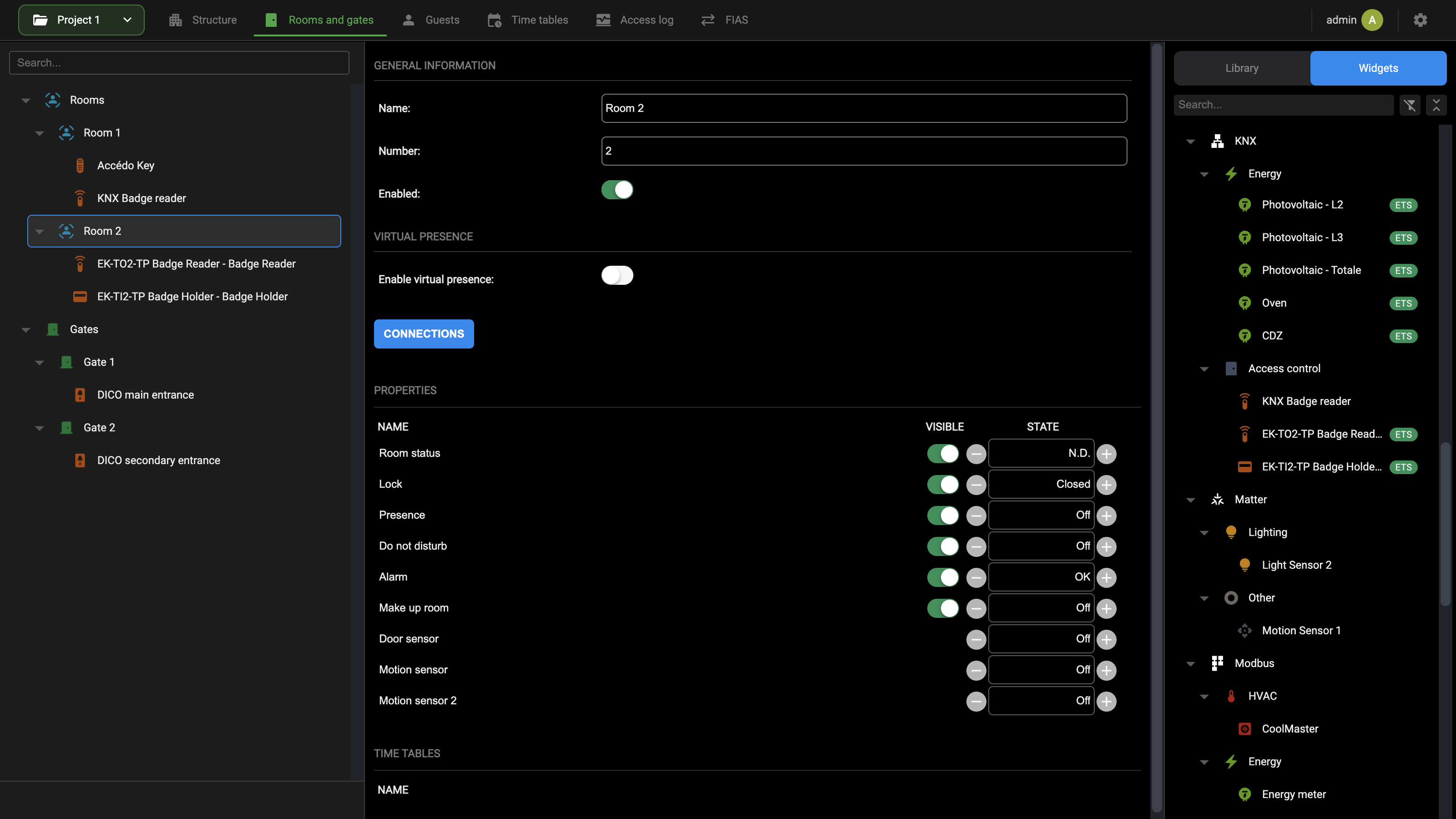
If a reader or holder is not in the project yet, it can be created directly on the room or gate it serves:
- Open the Rooms and gates section of the bar.
- In the source panel on the right, open the Library tab and expand the group Ekinex devices.
- Drag KNX Badge reader or KNX Badge holder onto the room or the gate in the context tree.
The device is created, associated with that room or gate, and listed under it in the tree. Select it to open its card.
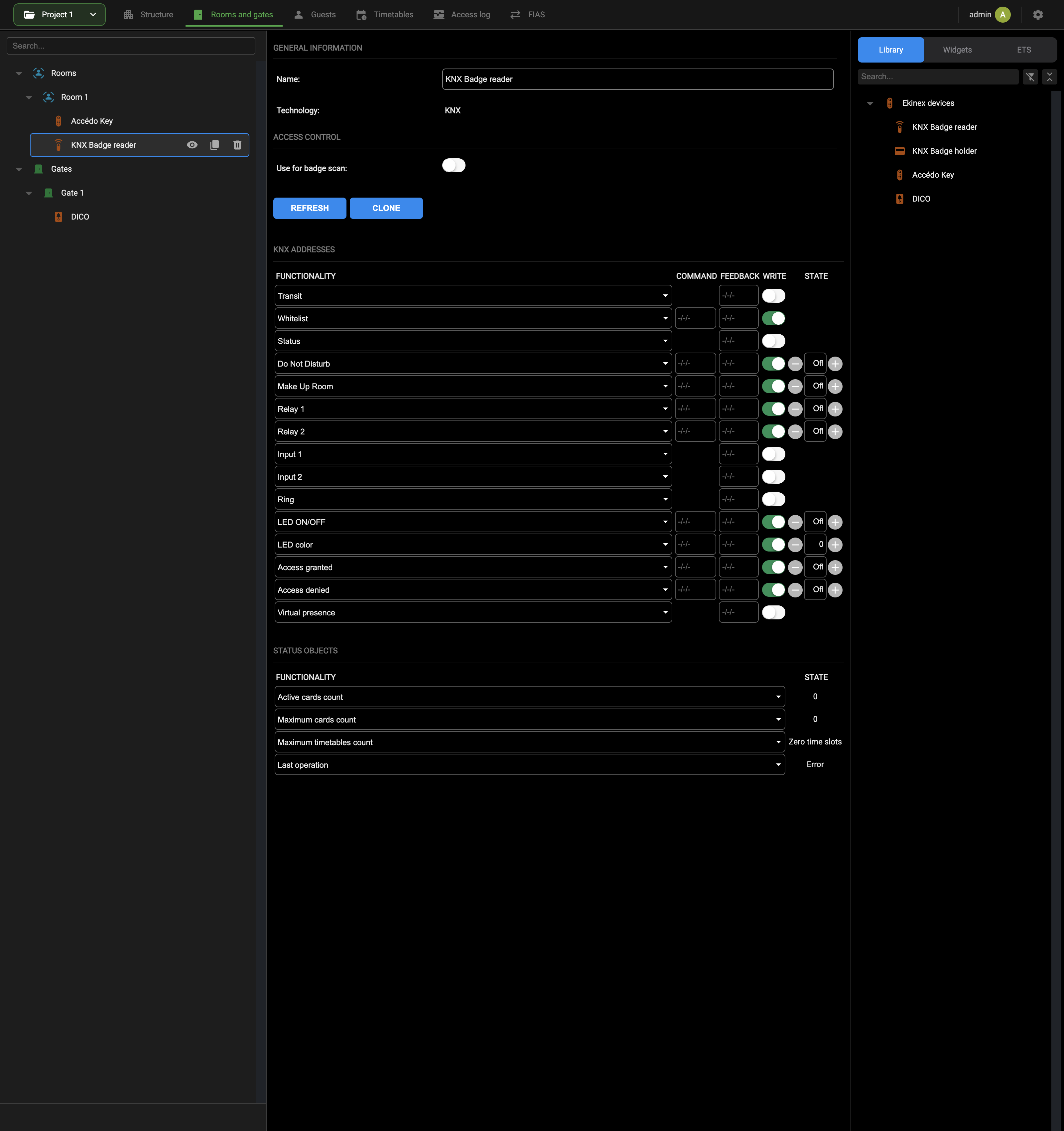
GENERAL INFORMATION holds the Name of the device and its Technology (KNX), which is not editable.
ACCESS CONTROL holds Use for badge scan. When it is on, this reader can be chosen to read a new RFID card when the card is registered with the SCAN function of the Visualization; see Badge.
REFRESH re-reads the state of the device from the bus; CLONE duplicates it.
KNX ADDRESSES relates each sub-object of the device to its KNX group addresses. Each row carries the following columns:
| FUNCTIONALITY | The sub-object of the device the row refers to. |
| COMMAND | The group address DELÉGO SERVER writes to send a command to the device. Only the sub-objects that can be commanded have it. |
| FEEDBACK | The group address on which the device reports its state. |
| WRITE | Whether DELÉGO SERVER may write on that address. |
| STATE | The value read from the bus in real time; on writable sub-objects the − and + buttons send a test command. |
The group addresses can be typed in the fields or dragged from the ETS tab of the source panel, as for any KNX widget; see Creating a new KNX widget. Which sub-objects need an address depends on how the device has been configured in ETS: they are described in Badge readers sub-objects and Badge holders sub-objects.
Badge readers sub-objects
The following table lists the sub-objects of the model of the EKINEX badge reader in DELÉGO SERVER, as they appear in the KNX ADDRESSES table of its card. They are normally related to 1 or more KNX group addresses, for the bidirectional communication between the webserver and the device.
| Transit | When a badge is read, its unique ID and other additional information are sent to the KNX bus on this address. DELÉGO SERVER monitors it to detect the transit of a badge at each installed reader. Feedback only. |
| Whitelist | Required by the decentralized authentication strategy: the webserver uses it to add badges to the internal whitelist of the device and to remove them. |
| Status | Status information of the device. When this sub-object has an address, the STATUS OBJECTS table below is meaningful. It can be given an address only if the whitelist has been enabled in ETS. Feedback only. |
| Do Not Disturb | When on, the corresponding LED of the reader is lit: the guests inside the room do not want to be disturbed by the staff, for example for the daily cleaning. |
| Make Up Room | When on, the corresponding LED of the reader is lit: the guests want an additional cleaning of the room. |
| Relay 1, Relay 2 | The first and the second integrated relay, when they have been configured in ETS to be controlled independently, and not tied to a function such as the door lock. |
| Input 1, Input 2 | The first and the second integrated digital input, when they have been configured in ETS to be monitored independently, and not tied to a function such as Do Not Disturb or Make Up Room. Feedback only. |
| Ring | Set temporarily to On when the ring button is pressed, if it is enabled in ETS; normally Off. Feedback only. |
| LED ON/OFF | Switches the customizable LED on or off. |
| LED color | Sets the customizable LED to a colour of a palette, where each colour has a numeric value. |
| Access granted | Set to On when the presented badge is valid to unlock the door; the relay configured in ETS is then activated for the time set in ETS. |
| Access denied | Set to On when the presented badge is not valid to unlock the door. |
| Virtual presence | If enabled in ETS, the virtual presence calculated by the internal algorithm of the device. It is an alternative to the virtual presence calculated centrally by the webserver; see Virtual presence. Feedback only. |
Which of the 2 LED sub-objects is used depends on the configuration in ETS.
Status objects
The STATUS OBJECTS table reports the state of the whitelist of the reader. It is meaningful only when Status has an address, which in turn requires the whitelist (decentralized authentication) to be enabled in ETS.
| Active cards count | The number of badges currently in the whitelist, authorized to open the door. |
| Maximum cards count | The maximum number of badges that can be stored in the whitelist. |
| Maximum timetables count | The maximum number of timetables that can be stored in the device for a user group. Normally there is no limit, so each weekday can have its own timetable for each group. The ETS library can limit the number of time slots (for example 2 per week) to increase the number of badges the whitelist can hold; in that case, keep the number of timetables within the limit. |
| Last operation | The result of the last operation on the whitelist. |
Badge holders sub-objects
The following table lists the sub-objects of the model of the EKINEX badge holder in DELÉGO SERVER. They are normally related to 1 or more KNX group addresses, for the bidirectional communication between the webserver and the device.
| Transit | When a badge is inserted, its unique ID and other additional information are sent to the KNX bus on this address. |
| Whitelist | If the whitelist is enabled in the ETS library, enter its group address here. DELÉGO SERVER then writes the badges allowed in a room not only into the readers but also into the holders, so that other badges cannot enable the room loads. |
| Presence | Set to On when a badge is inserted, and kept in that state until the badge is removed. |
| Relay 1, Relay 2 | The first and the second integrated relay, when they have been configured in ETS to be controlled independently, and not tied to a function. |
| Input 1, Input 2 | The first and the second integrated digital input, when they have been configured in ETS to be monitored independently, and not tied to a function such as Do Not Disturb or Make Up Room. |
| LED ON/OFF, LED color | Take control of the customizable LED: on and off, or a colour of a palette where each colour has a numeric value. Which of them is used depends on the configuration in ETS. |
| Do Not Disturb | When on, the corresponding LED is lit, to show inside the room that the Do Not Disturb function is active. |
| Make Up Room | When on, the corresponding LED is lit, to show inside the room that the Make Up Room function is active. |
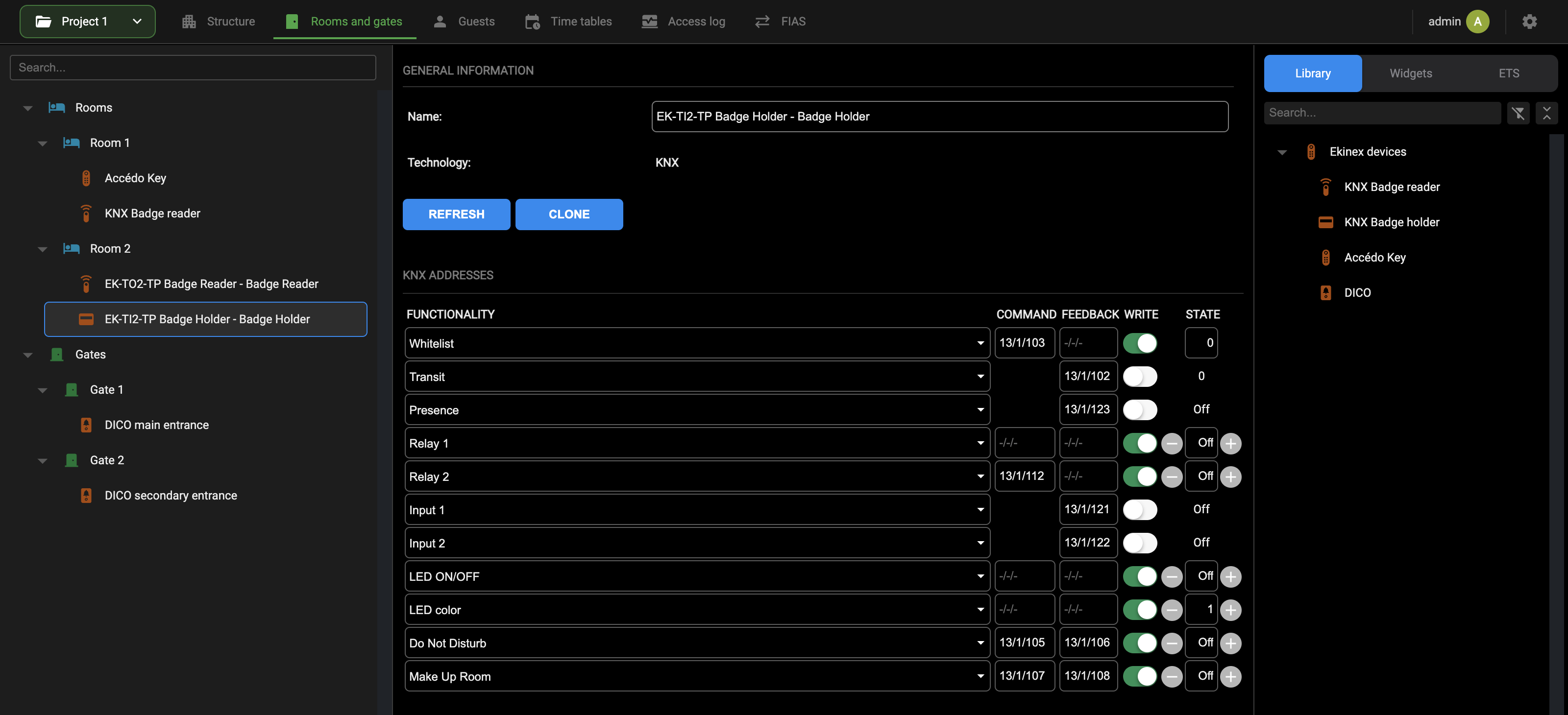
The card of a holder has the same layout as the card of a reader, described in Readers and holders widget creation.
Binding to rooms and gates
A badge reader or holder is bound to a room or a gate when it is dragged onto that room or gate, from the Widgets tab if it was imported from ETS or from the Library to create a new one, as described in Readers and holders widget creation. The device then appears as a child of the room or gate in the context tree: that is the binding, and no further step is needed on the card of the room.
When a reader is bound to a room or a gate, it is used automatically to validate the RFID badges presented at that door, and the relations it needs are created in the connection editor of the room or gate. For instance, binding a KNX Badge reader to a room creates by itself the arrow from the LOCK node of the room to the reader. These relations are described in Automations.
Automations
When a guest uses a valid PIN, QR code or RFID card, the Lock property of the corresponding room or gate is set to Open for the Electric lock impulse duration set in Structure information. The result of the access, granted or denied, is also reported by the room.
These are virtual objects, which represent the lock of the door and the result of the access. To actually open the door, they must be related to the real object that commands the relay physically connected to the electric lock. That object can be:
- the integrated relay of a DICO or ACCÉDO KEY;
- a security relay connected to a DICO or ACCÉDO KEY through RS485;
- a relay of an EKINEX KNX badge reader or holder;
- the channel of a KNX actuator, represented by a KNX widget in DELÉGO SERVER.
The relation can be made in 3 ways:
- with a connection;
- with a trigger;
- with a logic.
For general information on these automations, see the Connections chapter.
To make these relations easier to set up, the card of each room and each gate offers its own connection editor, opened with CONNECTIONS; see Rooms and Gates. Some relations are created automatically when a door device is associated with the room or gate, as described in the chapters that follow.
Room connections
Press CONNECTIONS on the card of a room to open its connection editor. The editor already holds the block of the room and the blocks of the door devices associated with it, with the relations created automatically.
The block of the room carries its input nodes on the left and its output nodes on the right, grouped as follows:
| FUNCTIONS | LOCK, DND, MUR, PRESENCE and ALARM, on both sides: the properties Lock, Do not disturb, Make up room, Presence and Alarm of the room. An input sets the property; an output reports its changes. |
| SENSORS | On the left: the inputs of the sensors used by the virtual presence of the room. |
| ACCESS | On the right: the result of the accesses to the room. |
| STATUS | GENERAL, FREE, BOOK, ASSIGN, OCCUPIED and SERVICE, on both sides. GENERAL is the numeric value of Room status (see Room properties); the other nodes are on while the room is in that status. |
Arrows are drawn and deleted as in any connection: drag from an output node to an input node to relate them, and right-click an arrow to select it and bring up its card and its bin. See Relationships between nodes.
Door lock opening with DICO or ACCÉDO KEY
When a DICO or an ACCÉDO KEY is associated with a room (see Assigning to rooms and gates for the ACCÉDO KEY and Assigning to rooms and gates for the DICO), its internal relay is related to the LOCK output of the room. When a guest or a member of the staff accesses the room through that device, the door opens with no other configuration.
Open the connection editor with CONNECTIONS and check that the arrow from LOCK to the internal relay of the device is there; if it is not, draw it.
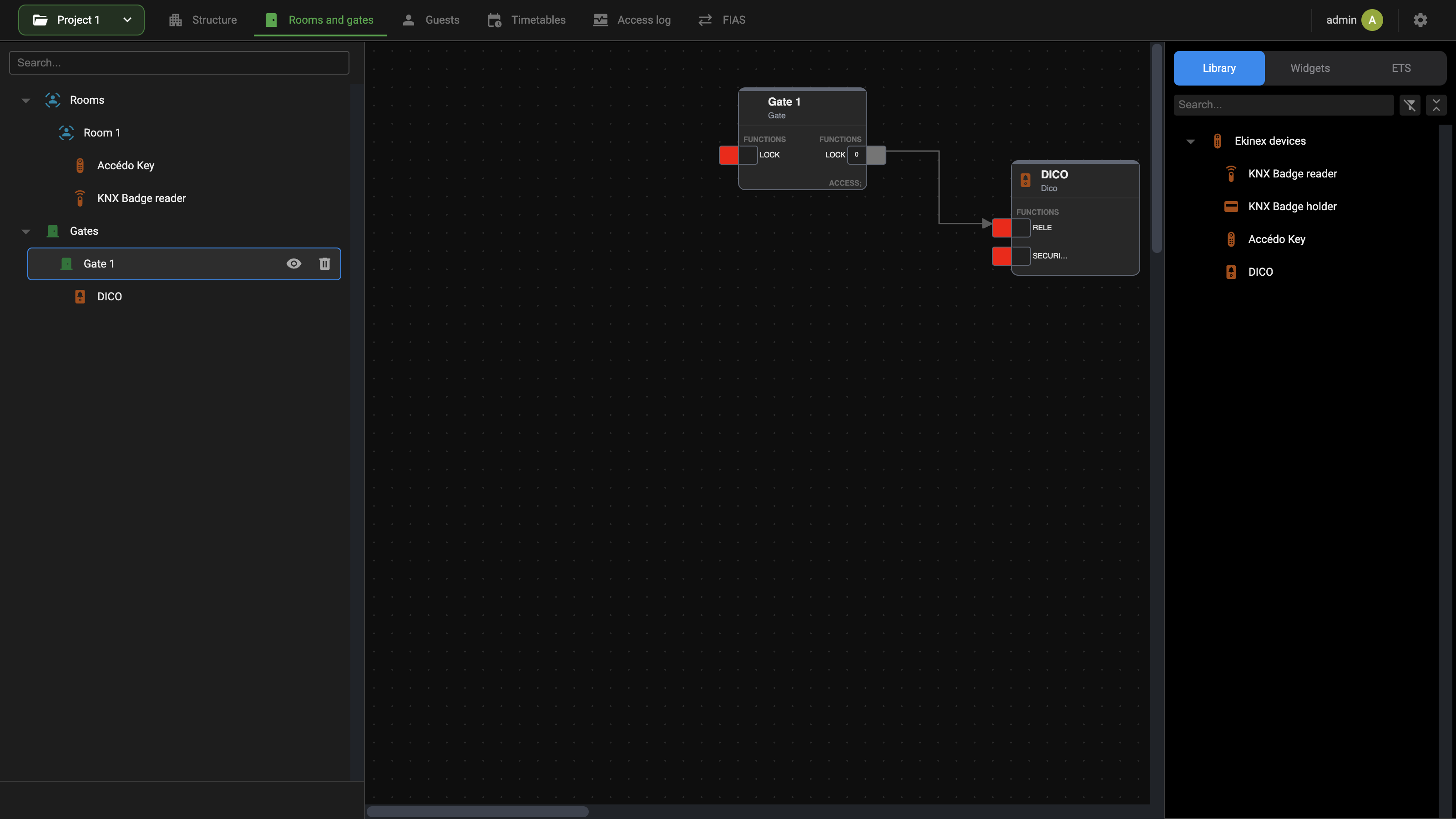
The relays of the device are the objects listed in the ACCÉDO KEY RELAYS or DICO RELAYS table of its card, visible with Expert mode: for an ACCÉDO KEY, Accédo Key - Relay (internal relay) and Accédo Key - Security Relay.
If the door is not wired to the internal relay of the device, change the relation. With a security relay connected to the ACCÉDO KEY or DICO, for example:
- Right-click the arrow that goes from LOCK to the internal relay and delete it with its bin.
- Draw a new arrow from the LOCK output node, on the right of the room block, to the security relay node of the device.
If the door is opened by a relay of another DICO or ACCÉDO KEY:
- Drag the other device into the connection editor from the source panel.
- Move it to a free area of the editor, because it is initially placed over the previous one.
- Delete the arrows that are no longer needed.
- Draw an arrow from LOCK to the relay of the device that opens the door.
Ekinex badge readers and holders (centralized authentication)
When an EKINEX KNX badge reader or holder is associated with a room or a gate and Centralized authentication is on (see Ekinex devices), relations are created automatically to obtain bidirectional automations:
| Presence | The presence of a badge in the holder is reported to the room: the Presence property of the room follows it, and Room status is set to Occupied when the badge is in the holder and to Assigned when it is not. |
| Do not disturb, Make up room | The Do not disturb and Make up room properties of the room are sent to the corresponding sub-objects of the reader, to switch the LEDs on its front on and off. |
| Access granted, Access denied | When the reader presents a valid badge, DELÉGO SERVER sends a pulse, lasting the Electric lock impulse duration, to the Access granted address: by default the front LED turns green for a few seconds. When the badge is not valid, the pulse goes to Access denied, and by default the LED turns red. |
A relation is created only if the corresponding sub-object of the reader or holder has a group address: the relations of Do Not Disturb, Make Up Room, Access granted and Access denied are missing when those addresses are not set.
Some further relations are worth drawing by hand, for example from the MUR and DND outputs of the room to the green and red LEDs of the holder, so that the holder shows the requests inside the room.
In specific cases, the LOCK output of the room or gate can also be related directly to one of the relays (1 or 2) of the reader or holder.
Ekinex badge readers and holders (decentralized authentication)
When an EKINEX KNX badge reader or holder is associated with a room or a gate and Centralized authentication is off, the default (see Ekinex devices), the relations created automatically are those of the presence and of the Do not disturb and Make up room LEDs, as in the centralized case.
DELÉGO SERVER no longer sends any command to Access granted and Access denied: the access is granted by the reader itself for the badges in its whitelist.
When the reader has its own virtual presence active, a holder is usually not installed, because the virtual presence algorithm of the reader takes its place. In that case the Virtual presence sub-object of the reader is related to the presence of the room, and the room status follows it as with a holder.
In the connection editor, a KNX Badge reader bound to a room also shows an arrow from the LOCK output of the room to the reader, created automatically when the reader is associated.
Door lock opening with a KNX actuator
When the door or gate is opened by a KNX actuator, relate the lock of the room to a KNX widget that commands that actuator:
- In the Project view, open the KNX section and create a Single value widget under Other, by dragging it from the Library of the source panel; see Creating a new KNX widget and Single value.
- Give the widget a meaningful name, for example "Room X door lock".
- On its card, enter the group address of the actuator channel in COMMAND, or drag it from the ETS tab of the source panel.
- Go back to the Guest room management view, open the room and press CONNECTIONS.
- Find the widget in the Widgets tab of the source panel, by name or with the search field, and drag it into the connection editor.
- Draw an arrow from the LOCK output of the room to the input node of the widget.
A KNX widget created only for an automation, as in this example, does not need to be placed in a room of the project structure, because it is not commanded directly from the app. Assigning it to a function is optional as well.
Connection example: Welcome scene at room status change
Another useful automation runs a "welcome scene" when a room is assigned to a guest, that is when the validity period of the guest starts and the guest is about to arrive at the structure.
- Create a new scene and add the actions it needs, for example starting the heating or cooling and setting shades and lights to a given state; see Scenes.
- Open the room in the Rooms and gates section and press CONNECTIONS.
- Drag the scene into the connection editor from the Widgets tab of the source panel.
- Draw an arrow from the ASSIGN output node of the room to the input node of the scene that runs it.
The same approach works with the other status nodes: OCCUPIED for a scene when the guest enters, FREE for a scene that switches everything off at check-out.
Gates connections
The connections between a gate and its DICO, ACCÉDO KEY or badge reader are managed as described for rooms in Room connections. Press CONNECTIONS on the card of the gate to open its connection editor.
The difference is that a gate has only the lock: its block offers the LOCK node, to be related to the relay or to the KNX actuator that opens the gate.
Guests and timetables
Who can enter which room or gate, and when, is set in 2 sections of the bar of the Guest room management view: Guests, which holds the user groups and the guests that belong to them, and Timetables, which restricts the access of one or more user groups to certain rooms and gates on given days and hours.
User groups
User groups define the access rules for several guests, or staff members, with similar needs. Every guest belongs to 1 user group.
Open the Guests section of the bar. The context tree shows the node User groups, with the 2 predefined groups under it:
| Services | Staff of the structure. |
| Guests | Visitors of the structure. |
Each group lists its guests as children in the tree. To create an additional group (for example VIP or Cleaning), use the Add action of the User groups node, which appears on the node itself when the pointer is over it.
Select a group to open its card:
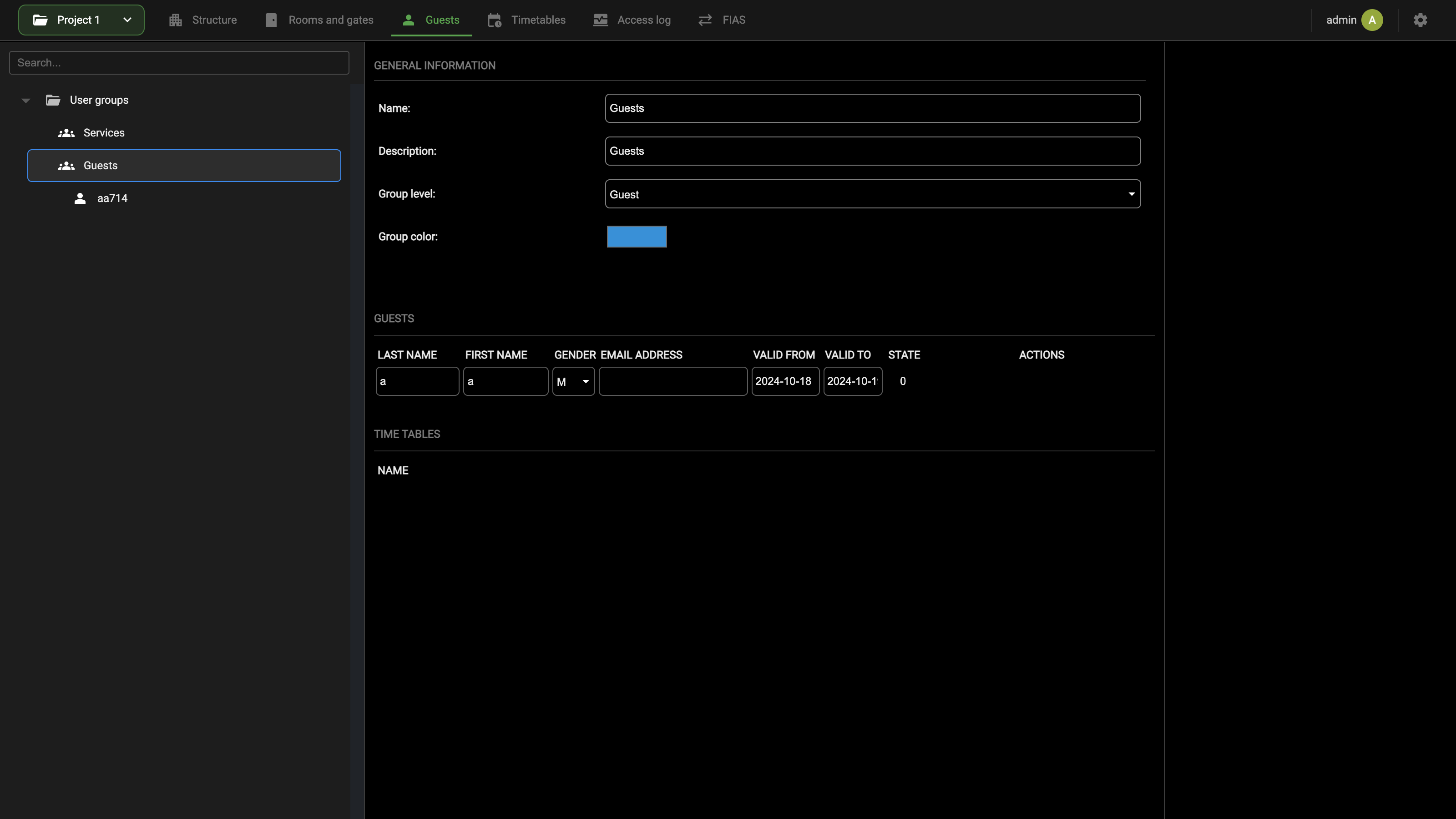
The GENERAL INFORMATION group holds the following fields:
| Name | Label of the user group (for example VIP, Cleaning). |
| Description | Optional additional description. |
| Group level | The badge level associated with the group: Guest, Service, Maintenance, Installer, Security, Assistance or Administrator. See below. |
| Group color | The colour used in the Bookings page of the Visualization to show the reservations of the users of this group. |
Below, the GUESTS table lists the guests of the group, with the columns LAST NAME, FIRST NAME, GENDER, EMAIL ADDRESS, VALID FROM, VALID TO, STATE and ACTIONS. The TIME TABLES table lists the timetables in which the group is used; the association is made on the timetable, as described in Timetables.
Group level
The selection of Group level has a practical effect only on the Ekinex KNX badge readers and holders working with decentralized authentication (WHITELIST mode). In that case the level of the group is the badge level written in the WHITELIST of the reader. Each badge level can be enabled or not on the reader (statically with parameters, or dynamically with group objects) and can trigger different welcome or goodbye actions, as specified in the ETS application of the device. See Access control strategy.
With the other access methods, or with centralized authentication, the level has no effect on the access.
Guests
In the Guests section of the bar each guest appears in the context tree under the user group to which it belongs. Guests are normally created and managed by the staff of the structure from the Visualization, in the Guests or Bookings page (see Adding a new guest); the administration shows the same guests, so that the installer can check and correct them.
Select a guest in the tree to open its card:
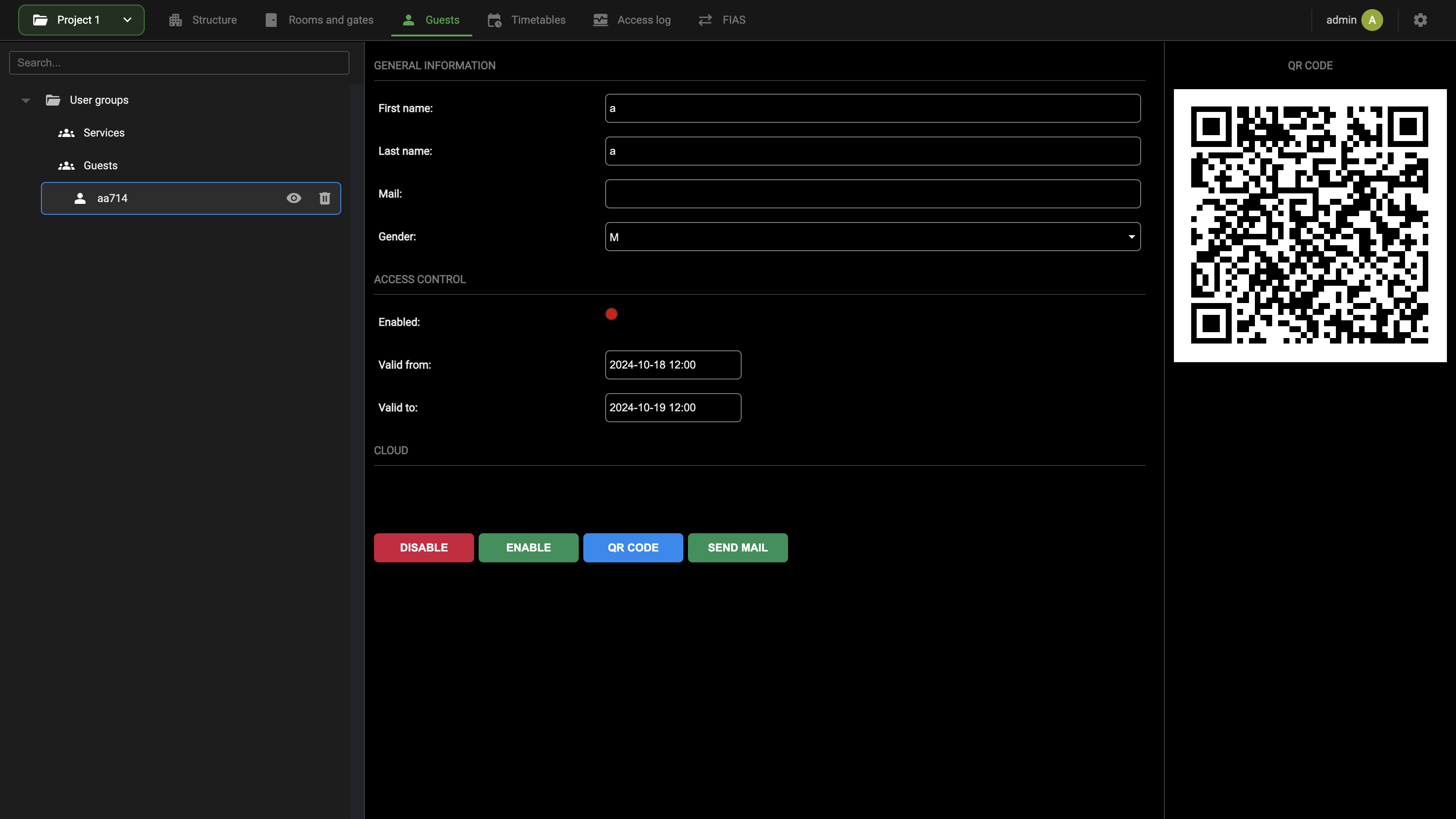
The GENERAL INFORMATION group holds the personal data:
| First name | Name of the guest. |
| Last name | Surname of the guest. |
| E-mail address of the guest, used to send the welcome e-mail. | |
| Gender | ---, M or F. |
The ACCESS CONTROL group holds the validity of the guest:
| Enabled | Coloured dot: green when the guest is enabled, red when it is not. A guest whose validity period has ended shows the red dot. |
| Valid from | Date and time of the start of the validity period. |
| Valid to | Date and time of the end of the validity period. |
The card also has a CLOUD group, and the following buttons at the bottom:
| DISABLE | Disables the guest immediately, even during its validity period. |
| ENABLE | Enables the guest again. |
| QR CODE | Acts on the QR code of the guest, which the right panel of the card shows. |
| SEND MAIL | Sends the welcome e-mail to the address in Mail (see Welcome e-mail). |
Timetables
Timetables restrict the access to one or more rooms and gates to specific days of the week and time ranges, for the users of one or more user groups. They are managed in the Timetables section of the bar.
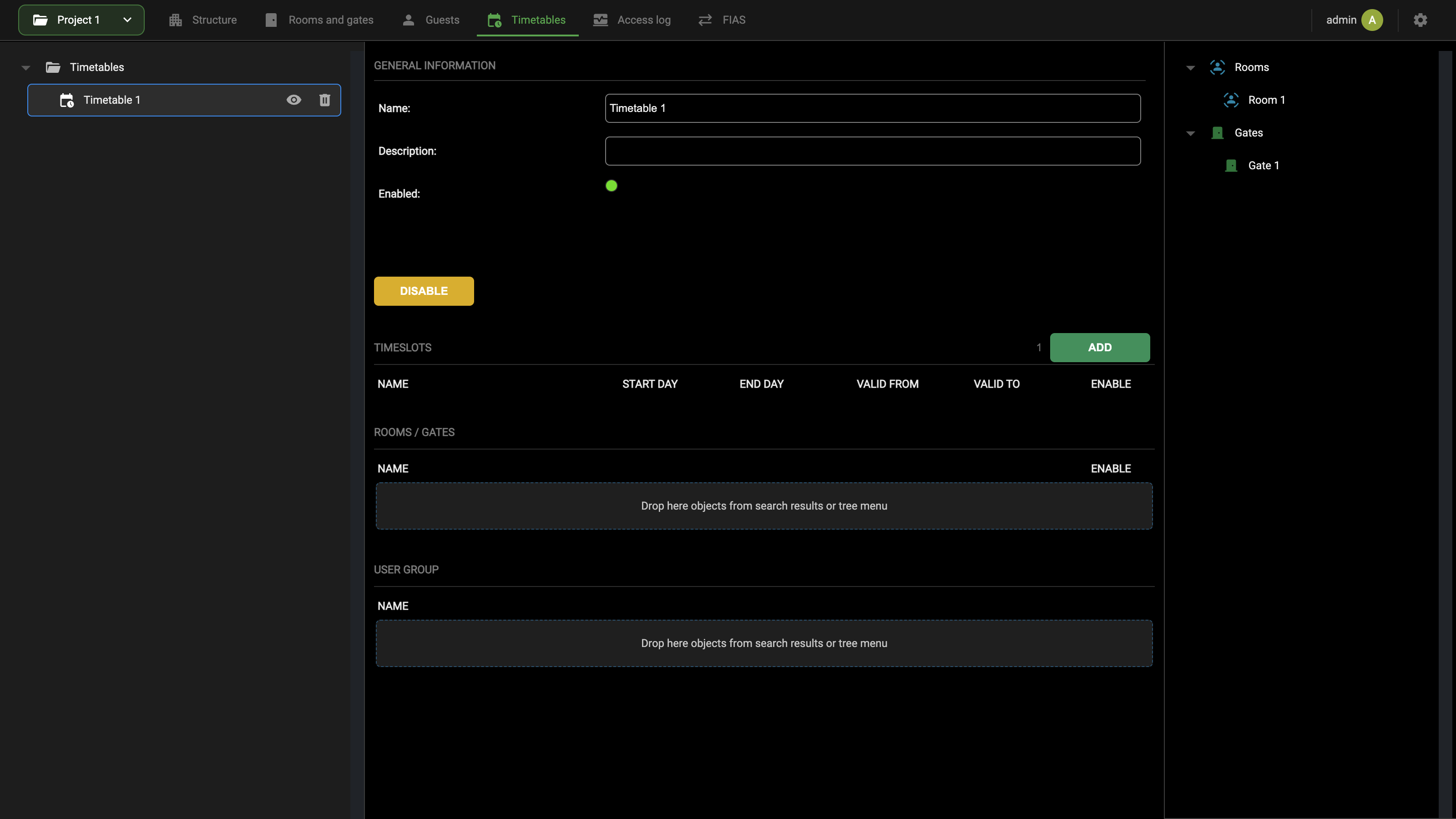
Create a new timetable
To create a new timetable, proceed as follows:
- Open the Timetables section in the bar
- Select Timetables in the context tree
- Use the Add action of that node, which appears on the node itself when the pointer is over it
The new timetable is added under Timetables. Select it to open its card. The GENERAL INFORMATION group holds the following fields:
| Name | Label of the timetable. |
| Description | Optional additional description. |
| Enabled | Coloured dot: green when the timetable is in use, red when it is not. |
Press DISABLE to stop using the timetable without deleting it, and ENABLE to use it again.
Timeslots
A timetable grants the access in one or more timeslots. In the TIMESLOTS table, press ADD to add a new timeslot, then fill in its columns:
| NAME | Label of the timeslot. |
| START DAY | First weekday of validity of the timeslot. |
| END DAY | Last weekday of validity of the timeslot. |
| VALID FROM | Start time of the timeslot. |
| VALID TO | End time of the timeslot. |
| ENABLE | Whether the timeslot is active or not. |
How the times are entered depends on Timetable granularity, set in Structure → General settings (see Structure information):
- with Hours (the default), the times are chosen from a drop-down list, from 00:00 to 24:00, where 00:00 and 24:00 are the start and the end of the day;
- with Minutes, an hour and minutes can be entered.
A timetable with several timeslots grants the access in all of them: the resulting access window is the union of the timeslots. For example, a timeslot from Monday to Friday 08:00 to 12:00 and a second one from Monday to Friday 14:00 to 18:00 leave the lunch break out.
Restrictions
A timetable applies to the rooms and gates listed in its card, when a user of one of the listed user groups attempts the access. Both lists are filled by dragging from the source panel on the right of the card:
- drag the rooms and gates from the Rooms and Gates tree onto the ROOMS / GATES table. The ENABLE column of each row includes or excludes that room or gate without removing it;
- drag the user groups (for example Services or Guests) onto the USER GROUP table.
Both tables show Drop here objects from search results or tree menu while they are empty.
Once associated, the timetable is also listed in the TIME TABLES table of the room or gate card (see Rooms and gates) and of the user group card (see User groups).
Access log
The Access log section of the bar shows the log of the activity of the access control devices: every access, and every refused attempt, to a room or a gate. The same log is available to the staff of the structure in the Access log page of the Visualization (see Access log in Guest room management utilization).
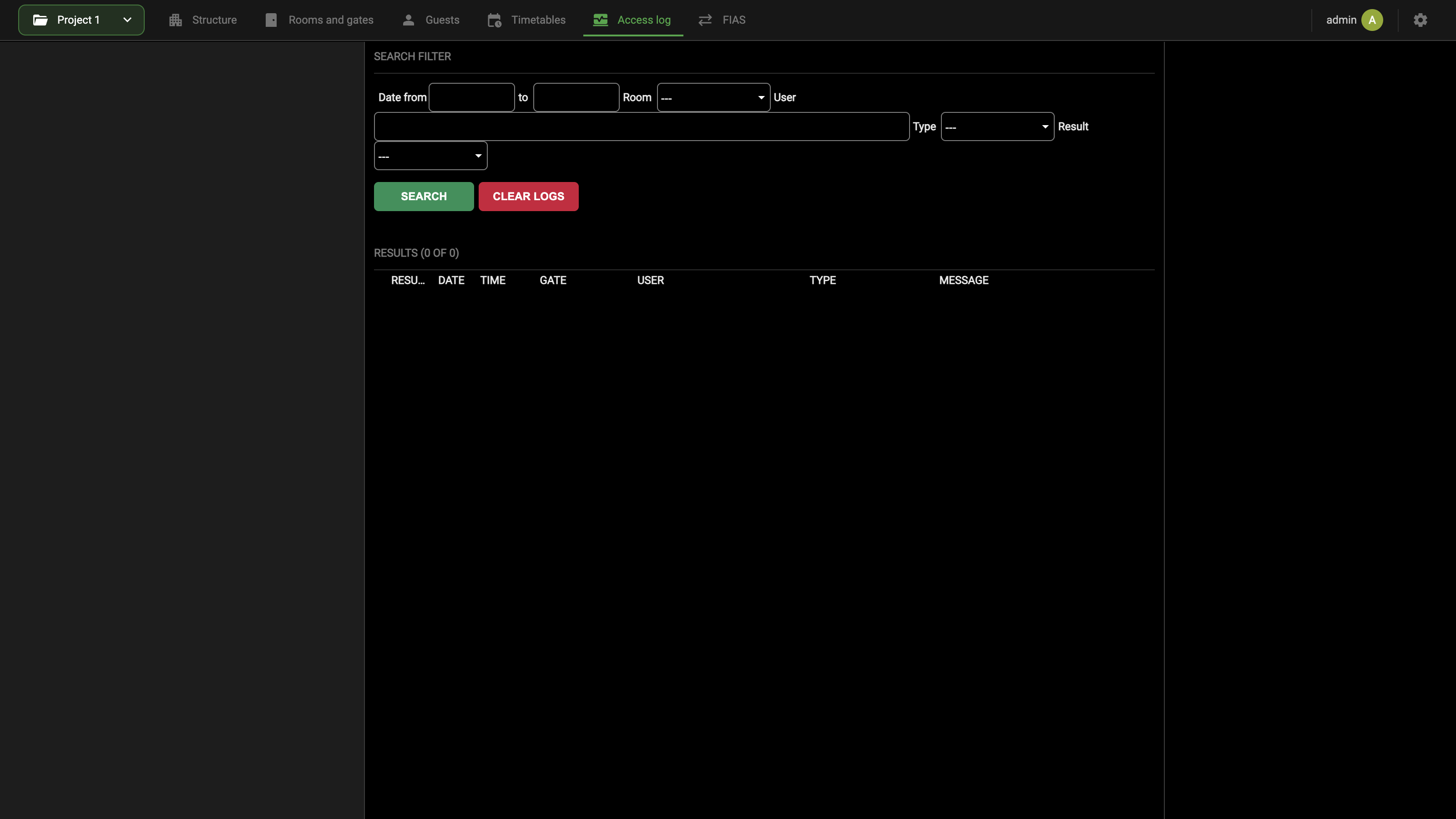
The SEARCH FILTER group restricts the results with one or more of the following filters:
| Date from, to | Range of dates of the search. |
| Room | A specific room to restrict the log to. |
| User | The user to restrict the log to. |
| Type | A specific access method: QR Code, Ekinex GO, Ekinex GO (Pin), Third-party KeyPad, DICO, Accedo key or Ekinex KNX Device. |
| Result | The result of the access: Ok or Error. |
Press SEARCH to apply the filters. RESULTS reports how many entries match out of the total (for example RESULTS (0 OF 0)) and lists them with the columns RESULT, DATE, TIME, GATE, USER, TYPE and MESSAGE.
CLEAR LOGS empties the log.
Refusal messages of the KNX badge readers
With the Ekinex KNX badge readers working with decentralized (WHITELIST) authentication, the MESSAGE of a refused access also gives the reason why the badge was not allowed:
| INVALID BADGE | The badge is not associated with the reader or the room. |
| INVALID TIME / WEEKDAY | The badge is associated with the reader or the room, but the transit is outside the allowed timeslots. |
| INVALID LEVEL | The badge belongs to a user of a user group whose level is not allowed on the reader. |
| ACCESS LIMIT EXCEEDED | The badge is valid, but the allowed number of transits has been reached. |
Virtual presence
DELÉGO SERVER can determine whether one or more guests are present in a room by evaluating the state of the door and motion sensors, with an algorithm called virtual presence.
The algorithm is started once for the whole structure, on the Virtual presence tab of the Structure section, and then enabled only on the rooms that need it: it is not necessary to enable it on every room. For each of these rooms, the sensors must be connected to the room in its connection editor. The next chapters describe how the algorithm works and its states, then the 3 steps: starting the algorithm, enabling it on the rooms and connecting the sensors, and finally how to check it.
The virtual presence is supported only by the 4 DIN-rail module hardware version of DELÉGO SERVER.
How the algorithm works
The algorithm evaluates, room by room, a sequence of events: a valid access, the opening and closing of the door, the detections of the motion sensors. Each wait has a timeout, set in the parameters of the Virtual presence tab (see Activation and parametrization); the state the algorithm is in at any moment is shown in the Virtual presence status field of the room card. The following diagram shows the whole sequence:
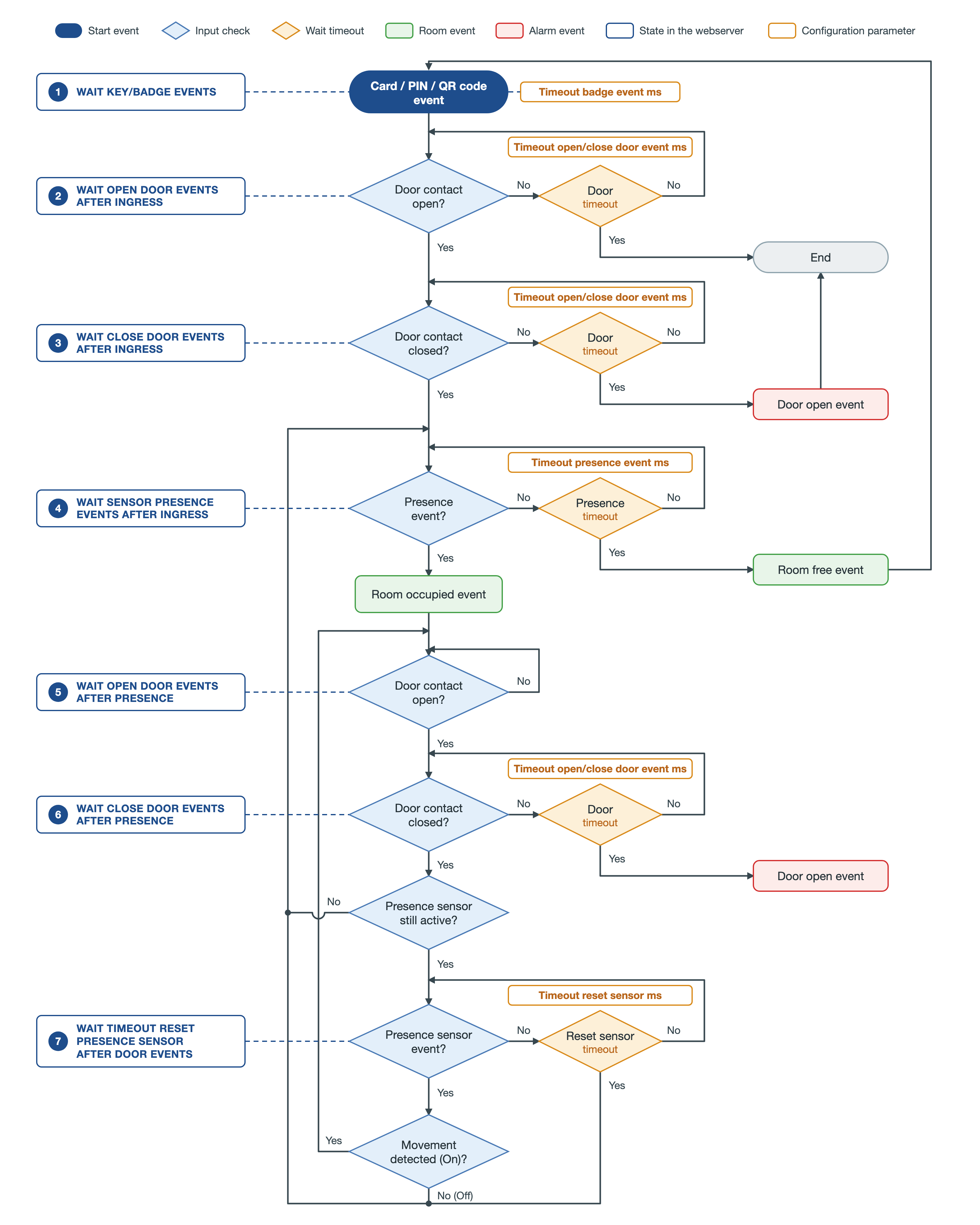
Reading the diagram from the top:
- Access. The management starts from a valid access event: RFID card, PIN or QR code.
- Door opening. The algorithm waits for the door to be opened. If the door contact does not open within the timeout, the management ends and the room keeps its previous state.
- Door closing. After the opening, it waits for the door to be closed. If the door stays open beyond the timeout, the door open event is generated.
- Presence check. With the door closed, it waits for a detection from the motion sensors. Without detections within the timeout the room is declared free and the algorithm goes back to waiting for a new access; if a movement is detected, the room is declared occupied.
- Room occupied. The algorithm waits, without timeout, until the door is opened again.
- Possible exit. At the new opening it waits for the door to be closed (with timeout and door open event). With the door closed again it checks the motion sensor: if it is already at rest it goes straight to the presence check (step 4), if it is still active it waits for its reset (step 7).
- Sensor reset. The active sensor may refer to the guest who has just left, so the algorithm waits for its next event. A new movement (On) means that the guest is still in the room: the room stays occupied and the algorithm goes back to step 5. The reset of the sensor (Off), or the expiry of the reset timeout, brings back to the presence check (step 4), which decides whether the room is free or occupied.
The outcome is written in the properties of the room, and can therefore be used to command other objects through connections or triggers (for example the load relay of the room, the air conditioning or the lights):
| Room occupied | The Presence property of the room goes to On. |
| Room free | The Presence property goes to Off; the algorithm goes back to waiting for a new access. |
| Door open | Signals a door left open beyond the expected time. |
States of the algorithm
The current state of the algorithm for each room is shown in the room card, in the Virtual presence status field (see Monitoring and check). The table lists the text shown by the webserver, with the same number used in the block diagram.
| 1 WAIT KEY/BADGE EVENTS | The algorithm waits for the reading of a valid RFID card (or an access with PIN / QR code). Timeout: Timeout badge event ms. |
| 2 WAIT OPEN DOOR EVENTS AFTER INGRESS | After a valid access the algorithm waits for the door to be opened. If the door is not opened within the timeout it returns to state 1 and the room stays not occupied. Timeout: Timeout open/close door event ms. |
| 3 WAIT CLOSE DOOR EVENTS AFTER INGRESS | The door has been opened after the access: the algorithm waits for it to be closed. If the door is not closed within the timeout, the door open event is signalled and the room stays not occupied. Timeout: Timeout open/close door event ms. |
| 4 WAIT SENSOR PRESENCE EVENTS AFTER INGRESS | With the door closed the algorithm waits for a detection from the motion sensor. Without detections within the timeout the room is free and the algorithm returns to state 1, otherwise the room becomes occupied. Timeout: Timeout presence event ms. |
| 5 WAIT OPEN DOOR EVENTS AFTER PRESENCE | The presence has been detected: the room is occupied and the algorithm stays idle until a door open event occurs. |
| 6 WAIT CLOSE DOOR EVENTS AFTER PRESENCE | The door has been opened again with the room occupied: the algorithm waits for it to be closed. With the door closed it returns to state 4 to check whether the guest is still in the room. If the door stays open beyond the timeout, the door open event is signalled. Timeout: Timeout open/close door event ms. |
| 7 WAIT TIMEOUT RESET PRESENCE SENSOR AFTER DOOR EVENTS | If at the closing of the door (state 6) the motion sensor is still active, the algorithm waits for the sensor to reset before checking the presence again (state 4). If the sensor detects a new movement the room stays occupied (state 5). Timeout: Timeout reset sensor ms. |
Activation and parametrization
The algorithm is started from Structure → Virtual presence:
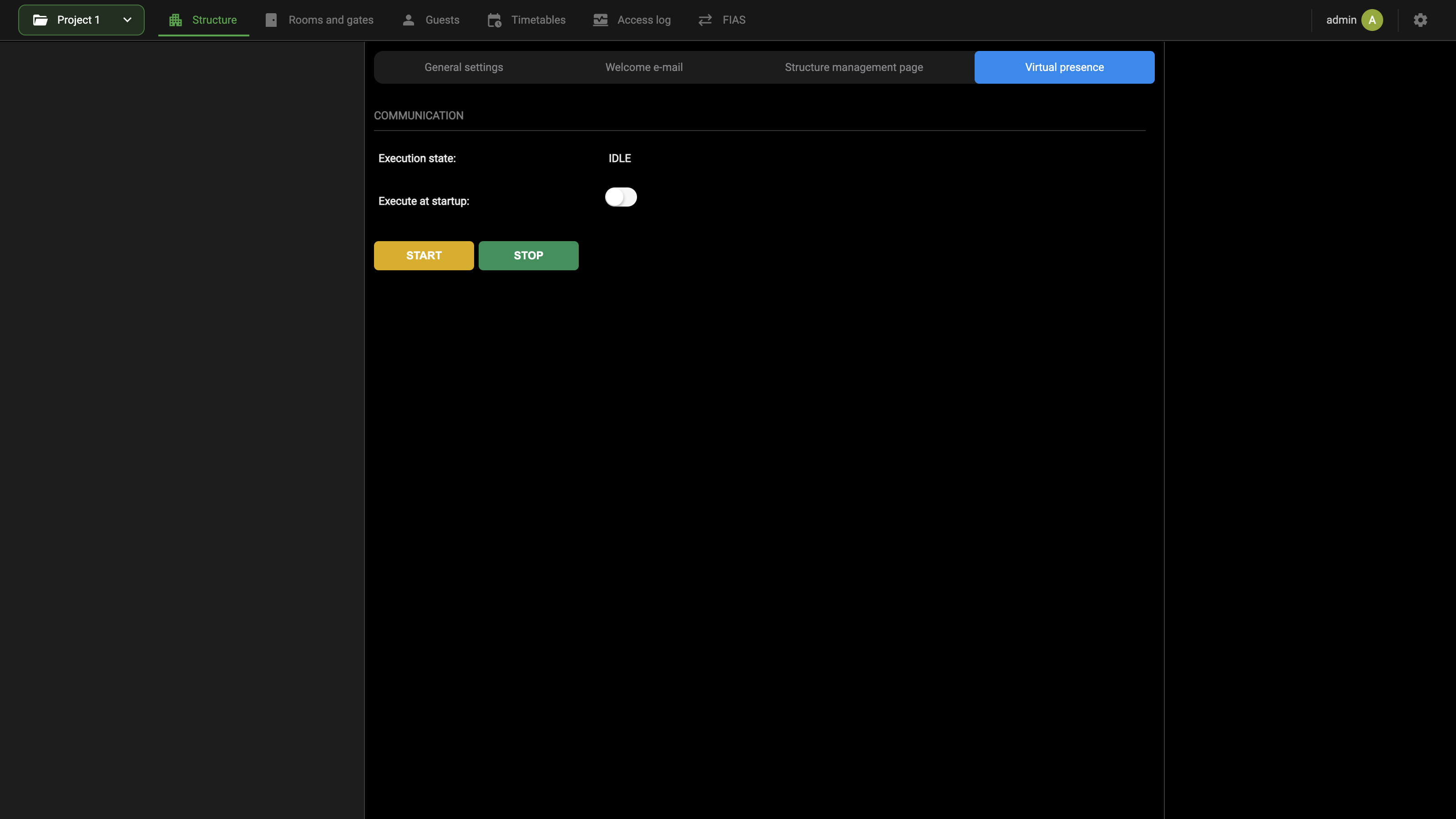
The COMMUNICATION group holds the following controls:
| Execution state | The state of the algorithm, as text: IDLE while it is not running, RUNNING while it is running. |
| Execute at startup | Starts the algorithm automatically when DELÉGO SERVER is powered up. Switch it on in every installation that uses the virtual presence. |
| START | Starts the algorithm. |
| STOP | Stops the algorithm. |
With Expert mode active, the COMMUNICATION group also shows the four timeouts that tune the algorithm. A field left empty uses the default value, 20000 ms.
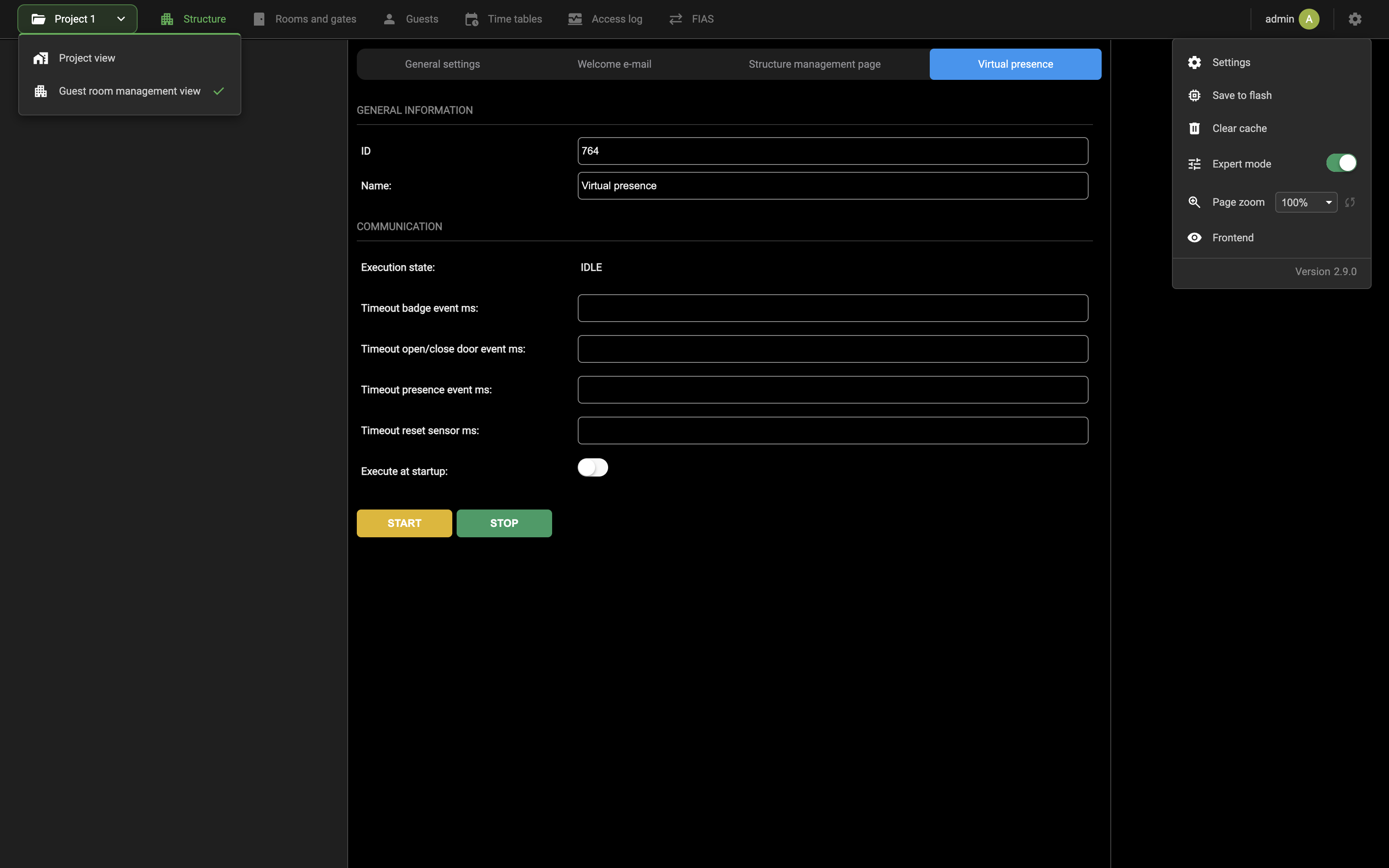
| Timeout badge event ms | Time to wait for an RFID card before the next scan. Default 20000 ms. |
| Timeout open/close door event ms | Time to wait for the door to be opened or closed after the RFID card has been read (the door timeout blocks of the diagram). If the event does not come within this time, the algorithm goes back to waiting for a card. Default 20000 ms. |
| Timeout presence event ms | Time to wait for a detection of the motion sensor after the door has been closed (presence timeout block). If the sensor detects no movement within this time, the room becomes free and the algorithm goes back to waiting for a card. Default 20000 ms. |
| Timeout reset sensor ms | Time allowed for the motion sensor to reset after a presence has already been detected; set a value consistent with the fall-back time configured in the sensor. Default 20000 ms. |
Once the parameters are set, switch on Execute at startup, press START and check that Execution state changes from IDLE to RUNNING. Save the configuration with Save to flash in the Configuration menu, then enable the algorithm on the rooms, as described in Room configuration.
Room configuration
To enable the algorithm on a room, open the Rooms and gates section, select the room in the context tree and switch on Enable virtual presence in the VIRTUAL PRESENCE group of its card (see Rooms).
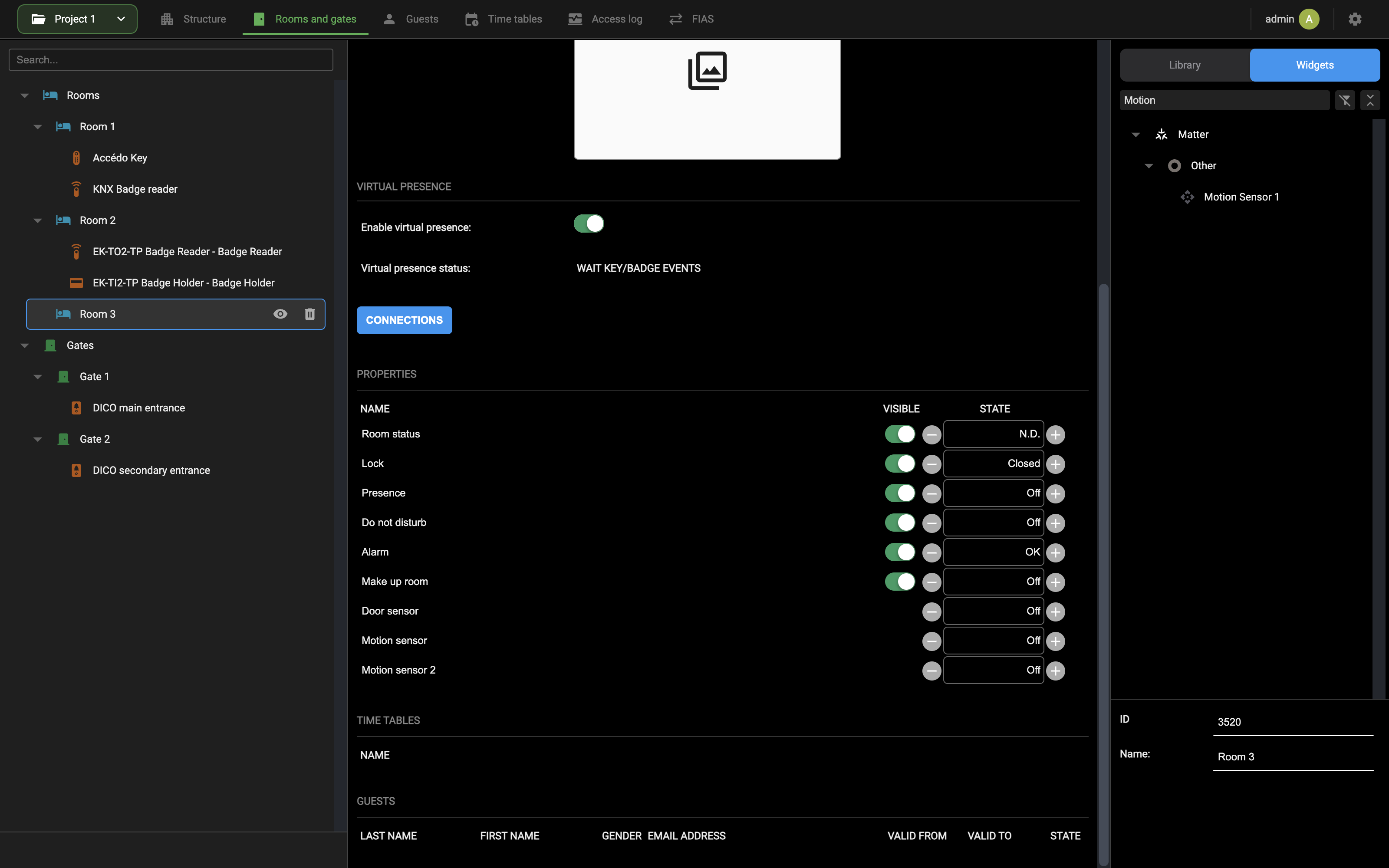
With the algorithm enabled, the PROPERTIES list of the card shows, with Expert mode on, three more rows that are not visible in the Visualization: Door sensor, Motion sensor and Motion sensor 2. They are the inputs of the algorithm, together with the Presence property, which is its output.
The algorithm determines the presence of a guest in the room from the signals of a door sensor and of the motion sensors. The more sensors are connected, the more accurate the result.
The sensors are connected to the room by drawing relationships with the corresponding nodes of the room block, in the connection editor opened with CONNECTIONS on the room card (see Room connections). The nodes involved are the following:
| Node | Required | Description / notes |
|---|---|---|
| LOCK | Yes | State of the electric lock (FUNCTIONS group). It is implicit in the command that opens the door, so it needs no connection. |
| DOOR | Yes | State of a sensor on the door (SENSORS group): 1 (ON) when the door is open, 0 (OFF) when it is closed. |
| MOTION 1 | Yes | State of a motion sensor in the room (SENSORS group): 1 (ON) when a movement is detected, 0 (OFF) after a certain time without detection. |
| MOTION 2 | No | As the previous one, for a second sensor if present (for example in the bathroom). |
The sensors are widgets of any technology that expose the state of the contact or of the movement: for a KNX sensor, a Single value widget created in the KNX section with the group address of the sensor (see Single value); for a MATTER sensor, the widget created by its commissioning. Then proceed as follows:
- In the Rooms and gates section, select the room and press CONNECTIONS
- Open the Widgets tab of the source panel and find the widget of the sensor with the search field
- Drag the widget into the connection editor: its block appears with the output node of the state
- Draw an arrow (relationship) from that node to the corresponding node of the SENSORS group of the room block: the door contact to DOOR, the motion sensors to MOTION 1 and MOTION 2
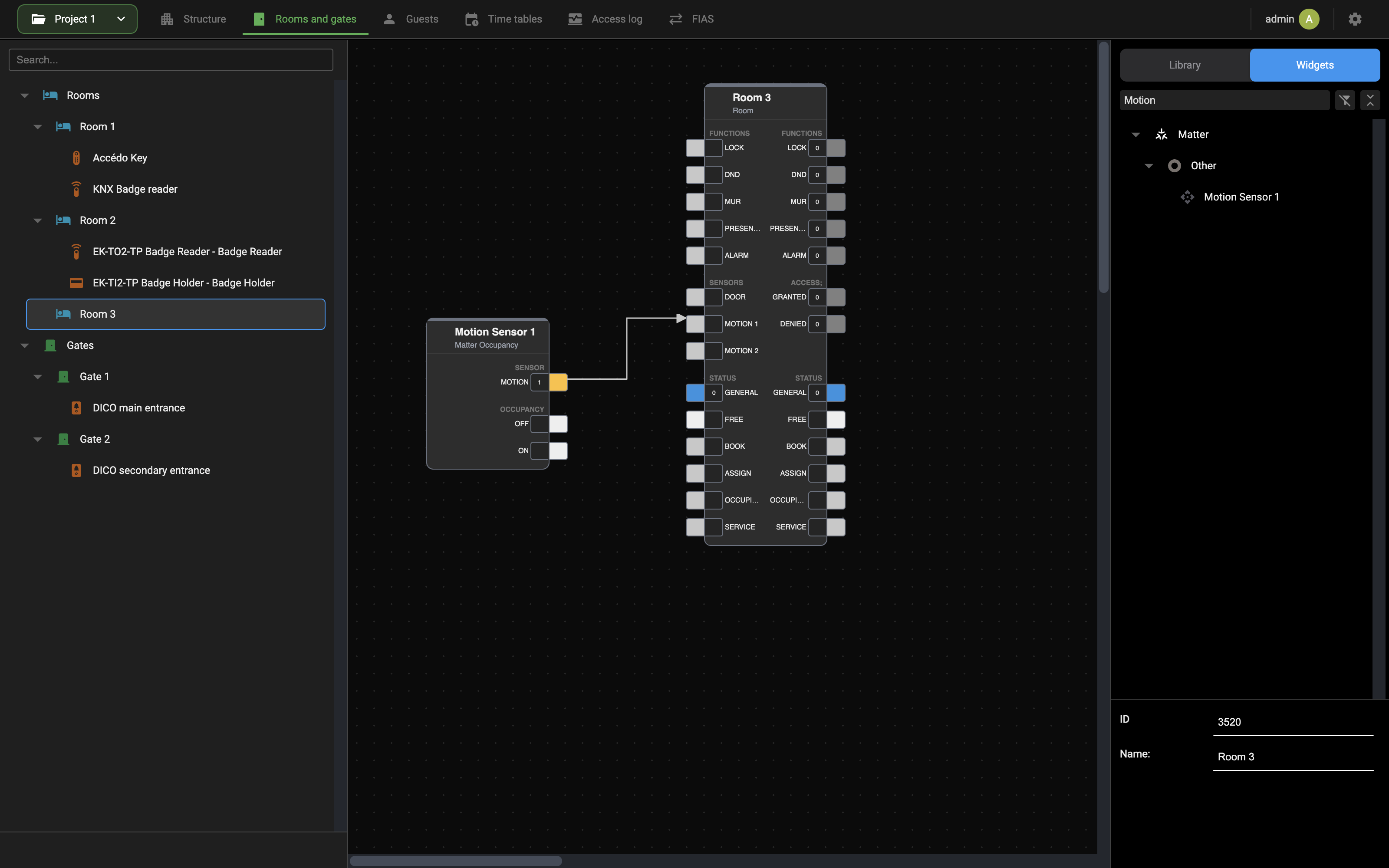
Save the configuration with Save to flash when the connections are done.
Monitoring and check
In the VIRTUAL PRESENCE group of the room card, the Virtual presence status field shows which state the algorithm is in (see States of the algorithm). With the room free and no access in progress the state is WAIT KEY/BADGE EVENTS (state 1).
In the Visualization, the list of the rooms shows the room status and the configured pictograms (virtual presence, do not disturb, alarm, room cleaning): see Rooms.
To check the algorithm on a room, run the following tests and compare the result with the expected one:
| # | Test | Expected result |
|---|---|---|
| 1 | Access with a valid card, open and close the door, enter the room. | States 2 → 3 → 4, then 5; Presence = On. |
| 2 | Access with a valid card without opening the door. | When the door timeout expires, back to state 1. |
| 3 | With the room occupied, leave and close the door. | Sensor already at rest: states 6 → 4; when the presence timeout expires the room is free (Presence = Off). |
| 4 | With the room occupied, open and close the door while staying in the room. | States 6 → 4 → 5; the room stays occupied. |
| 5 | Leave the door open beyond the timeout. | Door open event. |
| 6 | With the room occupied, leave and close the door while the motion sensor is still active. | States 6 → 7; at the reset of the sensor (or when Timeout reset sensor ms expires) state 4, then room free. |
Guest room management utilization
The staff of the structure works in the Visualization of DELÉGO SERVER, on a PC, a Mac, a tablet or a smartphone. To reach the guest room management, open the navigation menu ≡ and choose Services → guest room management. The page shows 1 tile for each area:
Each tile opens the page described in the next chapters: Guests, Bookings, Rooms, Gates, Access log, Staff, Temporary QR code and Badge.
Which tiles appear is decided by the installer or system integrator in the administration, with the switches of the 8 tiles in Structure → Structure management page (see Structure management page). In the figure above Temporary QR Code and Badge are switched off, so their tiles are hidden.
The page adapts to the size of the screen, and on a smartphone the tiles are stacked in a single column:
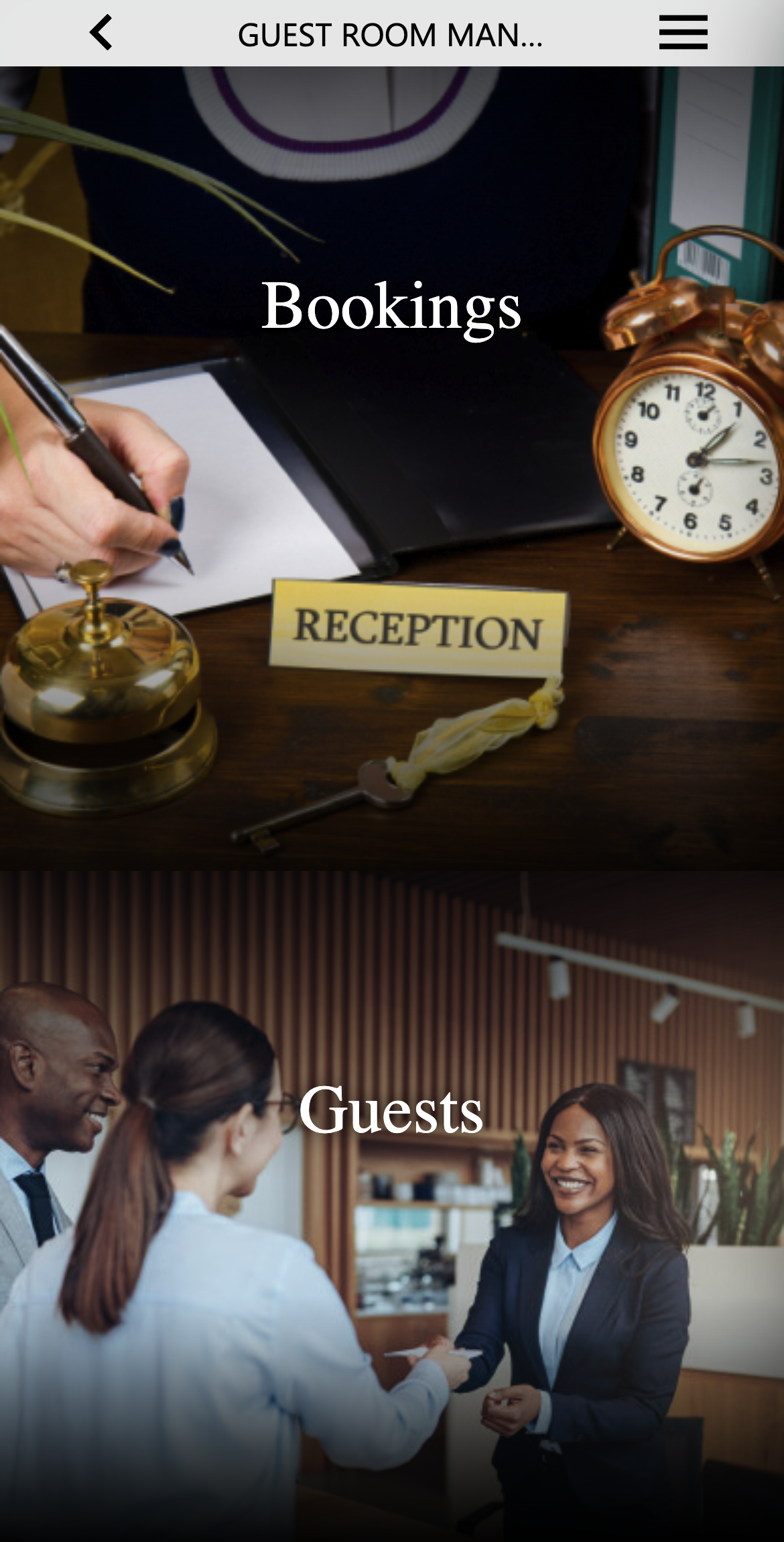
Guests
In this page the staff creates and edits the guests of the structure and manages their permissions. It is the core page of the guest room management.
Guests list
The page opens on the list of the guests of the structure, if any. The list can be filtered by one or more of the following criteria:
| FILTER BY NAME | One or more keywords (name and surname) to search for. |
| FILTER BY ROOM | The number of the room assigned to the guest. |
| STATUS | Drop-down list with the state of the guests to show: Enabled, Disabled or All. |
The results can be sorted with 2 drop-down lists:
| SORT BY | Date or Name. |
| SORT ORDER | Ascending or descending. |
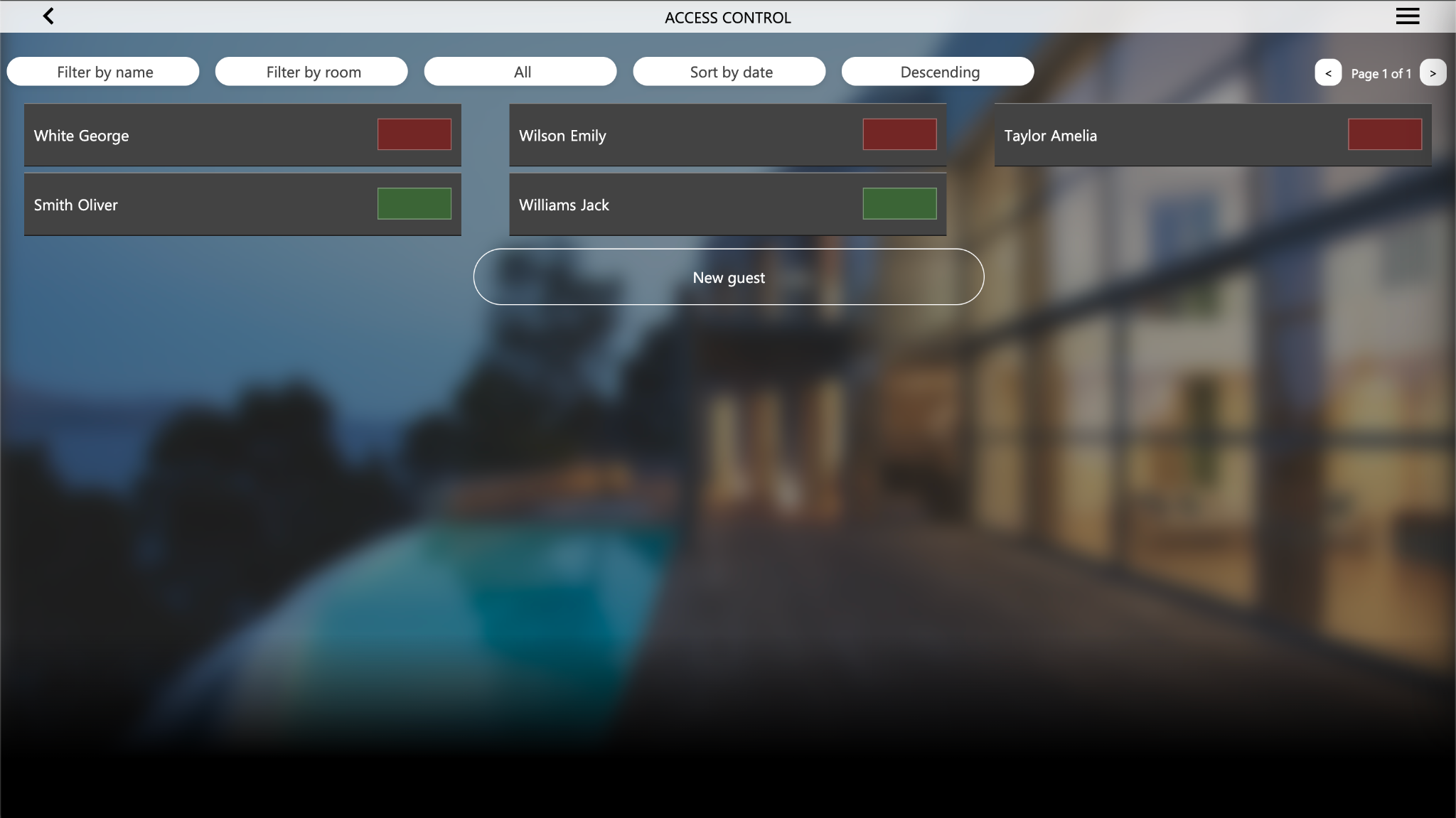
Adding a new guest
Press NEW GUEST to open the pop-up in which the data of the new guest are entered. The pop-up has 3 windows.
REGISTRY
| FIRST NAME | Name of the guest. |
| LAST NAME | Surname of the guest. |
| GROUP | The user group to which the guest belongs (see User groups). The group determines the permissions of the guest and the timetables that may restrict its access to certain rooms and gates. |
| EMAIL ADDRESS | A valid e-mail address of the guest. |
| PHONE NUMBER | The phone number of the guest, without spaces or punctuation. |
| GENDER | M (male) or F (female). |
AUTHORIZATIONS
| ACTIVE FROM NOW | Yes: the guest is valid from the current date and time, and only the end must be set. No: both the start and the end of the validity period must be set. |
| VALID FROM | Date and time of the start of the validity period. The guest can enter the structure only from this moment. |
| VALID TO | Date and time of the end of the validity period. From this moment the guest can no longer enter the structure. |
| RFID CARD INFO | Visible only when Enable badge management is switched on (see Ekinex devices). Lets the staff assign an RFID card to the guest, or scan one for the guest. |
ACCESS
| ROOM | Drop-down list to assign 1 of the available rooms to the guest. A guest can also have no room. |
| GATES | List of the available gates, to choose the ones the guest can pass. A guest can also have no gate. |
| REMAINING | Visible when Enable limit on number of accesses is switched on (see Ekinex devices). Sets, for each room or gate, how many times the guest can still enter it. |
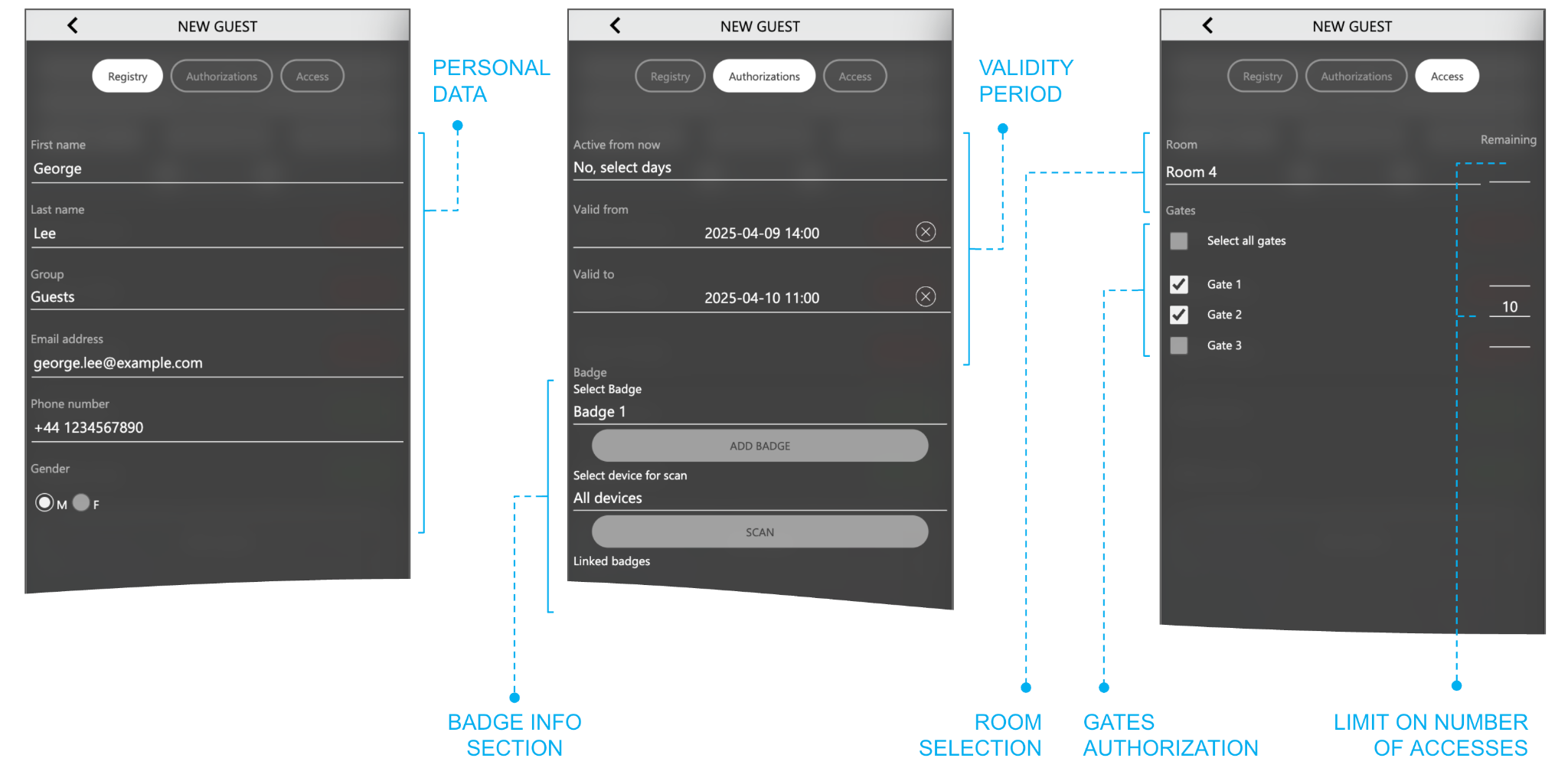
Press CREATE to add the guest to the system. The guest is enabled if the dates set in AUTHORIZATIONS are valid. If the guest has no room and no gate, a pop-up message warns that the guest has been created but has access to no room or gate.
After the creation, the AUTHORIZATIONS window shows a random 6-digit PIN and a QR code assigned to the guest, according to the access methods chosen for the structure:
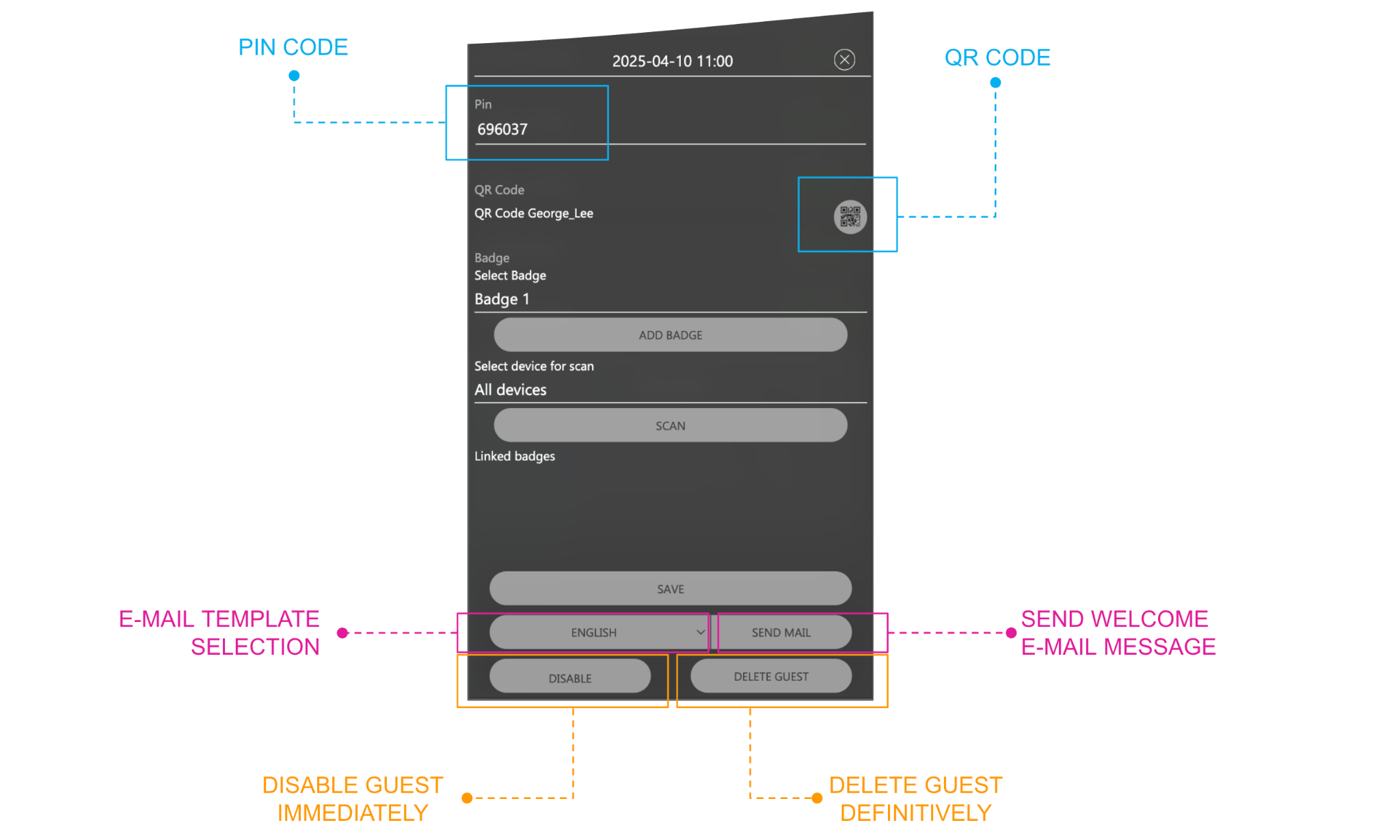
The PIN can be replaced with another sequence of 6 digits. Press SAVE after changing it, then send the welcome e-mail if needed.
After the creation, the pop-up also shows the following elements:
| E-MAIL TEMPLATE SELECTION | When more than one e-mail template exists (for example, one per language), selects the one to send. |
| SEND MAIL | Sends the welcome e-mail to the guest. |
| DISABLE | Disables the guest immediately, even during its validity period. |
| DELETE GUEST | Removes the guest from the system permanently. |
For the access with an RFID card, see Badge.
Welcome e-mail
When SEND MAIL is pressed, DELÉGO SERVER sends a welcome e-mail to the guest, built on the template chosen in E-MAIL TEMPLATE SELECTION. The templates are prepared in the administration, in Structure → Welcome e-mail (see Welcome e-mail); when the e-mail is sent, their dynamic tags are replaced with the data of the guest and of the structure.
According to the configuration of the administration and to the access methods, the e-mail contains the information needed for the access:
- the numeric PIN, to be typed on the DICO or the ACCÉDO KEY;
- the QR code, to be shown (printed or on the smartphone) to the camera of the DICO or the ACCÉDO KEY.
Bookings
This page manages the reservations of the rooms in a calendar view. It gives an overview of the occupancy of the rooms and is the quickest way to create new guests.
The calendar always shows 2 weeks, starting from the day before the current one; each row of the calendar is a room:
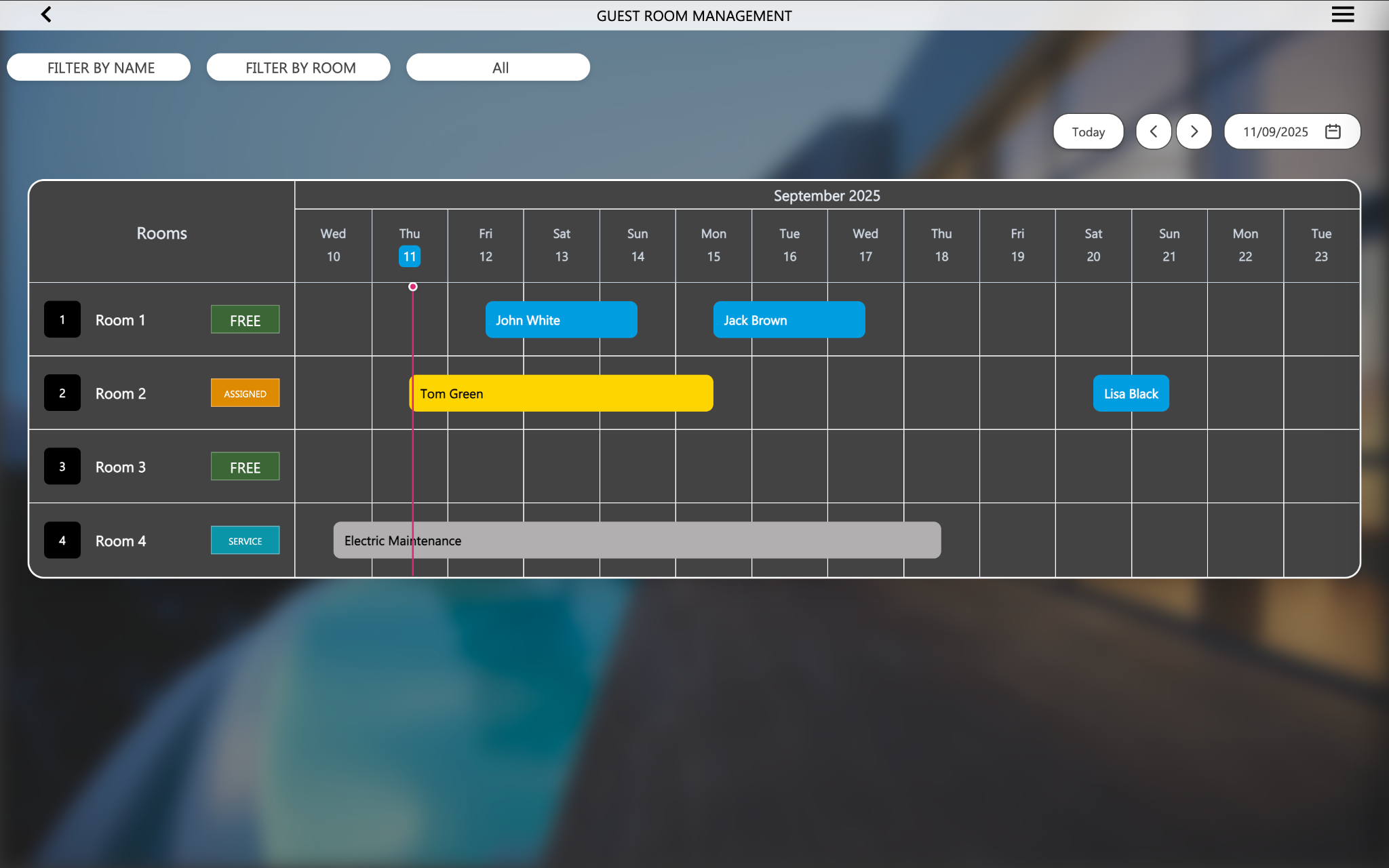
Scroll week by week with the arrow buttons, or select a specific date; TODAY brings back the default view at any moment.
To create a new reservation, click a cell (a given day for a given room), or drag from it to the day on which the stay must end. The pop-up for a new guest opens (see Adding a new guest), already filled in with the start and end dates and the room.
The start and end dates of a reservation can be changed later by stretching it with the handles that appear when the pointer is on its left or right side.
The colour of a reservation is the Group color of the user group of the guest, or of the staff member. The predefined groups are blue (Guests) and grey (Services); the colours are changed in the administration (see User groups). Give each new user group a different colour, so that it can be recognised at a glance.
The elements at the top left of the page filter the calendar by guest name, room number or user state, which is useful especially in large structures.
Rooms
This page lists the rooms configured in the administration (see Rooms). Each room shows its name and, for the properties set as VISIBLE in the PROPERTIES table of the room card, the related pictograms: presence, do not disturb, alarm, make up room and room status.
Click a room to open a pop-up with the details of all its properties:
| Room status | The state of the room, see the table below. |
| Lock | The state of the electric lock, normally closed. |
| Presence | The presence of guests in the room. |
| Do not disturb | The request of the guest not to be disturbed by the staff. |
| Alarm | The state of the internal alarm sensor (for example in the bathroom). |
| Make up room | The request of the guest for an additional cleaning of the room. |
Room status can take the following values:
| FREE | Available for new guests. |
| BOOKED | Reserved for a guest whose validity period has not started yet. |
| ASSIGNED | Reserved for a guest in the validity period, who is expected to be in the structure. |
| OCCUPIED | The guest is inside the room. |
| SERVICE | The room is to be cleaned, or in maintenance. |
| N.D. | None of the previous. |
The following properties can be commanded directly from the pop-up:
- Lock, to open the door remotely;
- Do not disturb;
- Make up room.
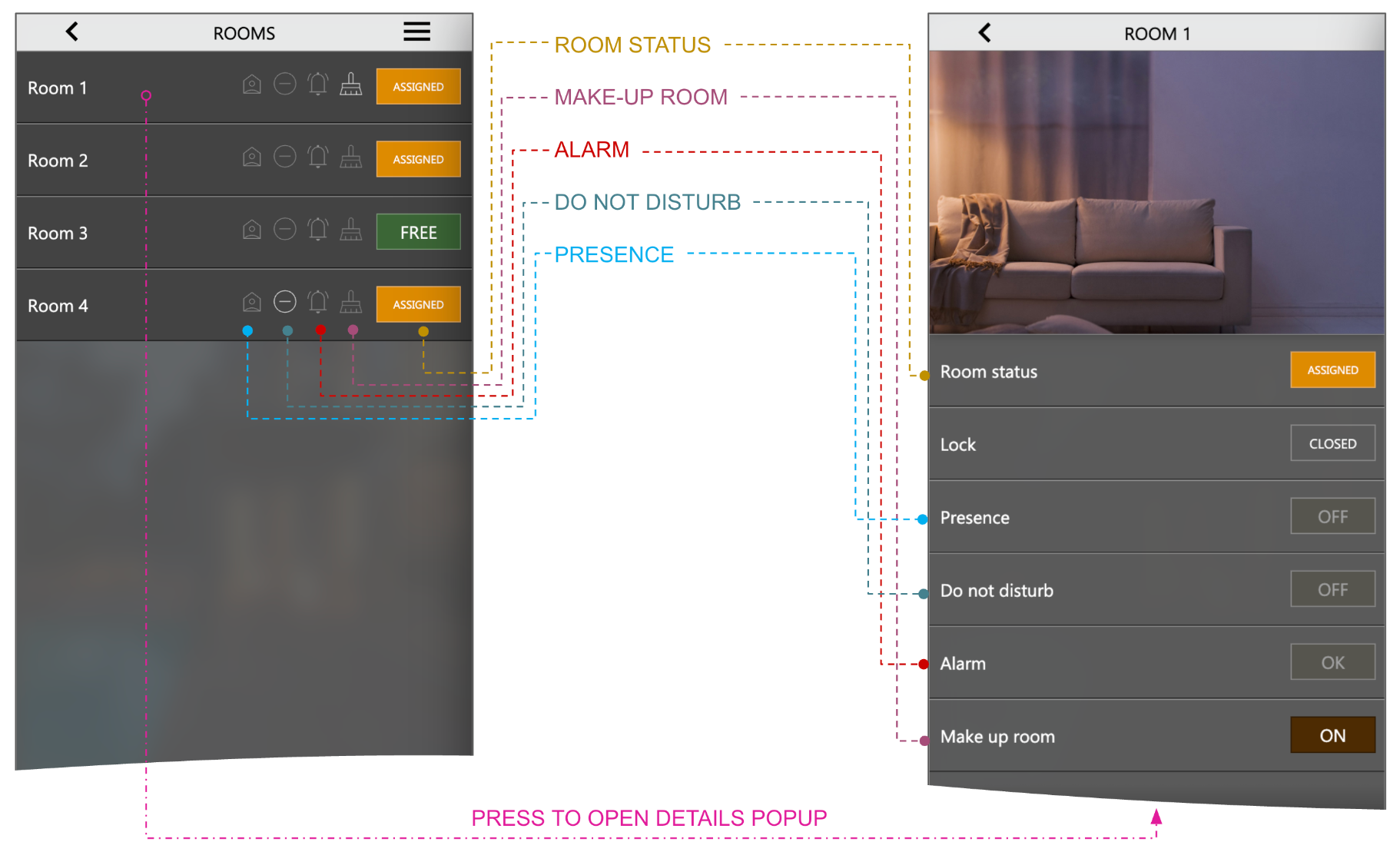
Gates
This page is similar to Rooms, but lists the gates. Here the door is opened directly by pressing the rectangular element of the gate in the list.
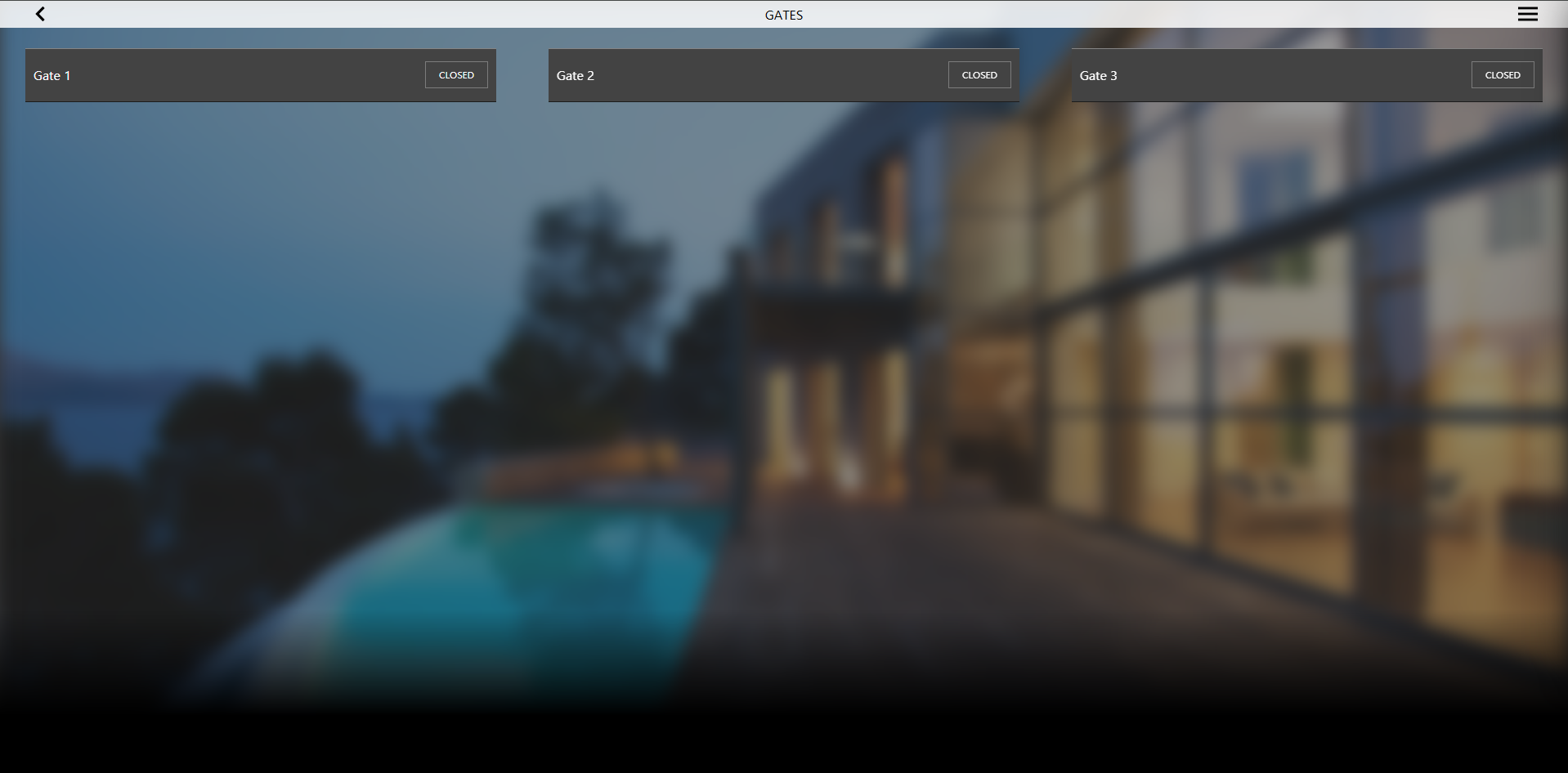
Access log
This page holds the history of all the accesses to rooms and gates. It is the same log shown in the administration (see Access log). The following filters can be applied:
| DATE FROM, DATE TO | Range of dates of the search. |
| USERNAME | One or more keywords (name and surname) of the guest to search for. |
| ACCESS POINT | Drop-down list to restrict the log to an access point (a room, a gate, or all). |
| TYPE | The access method used for the access, or for the attempt: QR code, RFID card or PIN. |
| RESULT | Restricts the search to successful or failed transits (ok or error). |
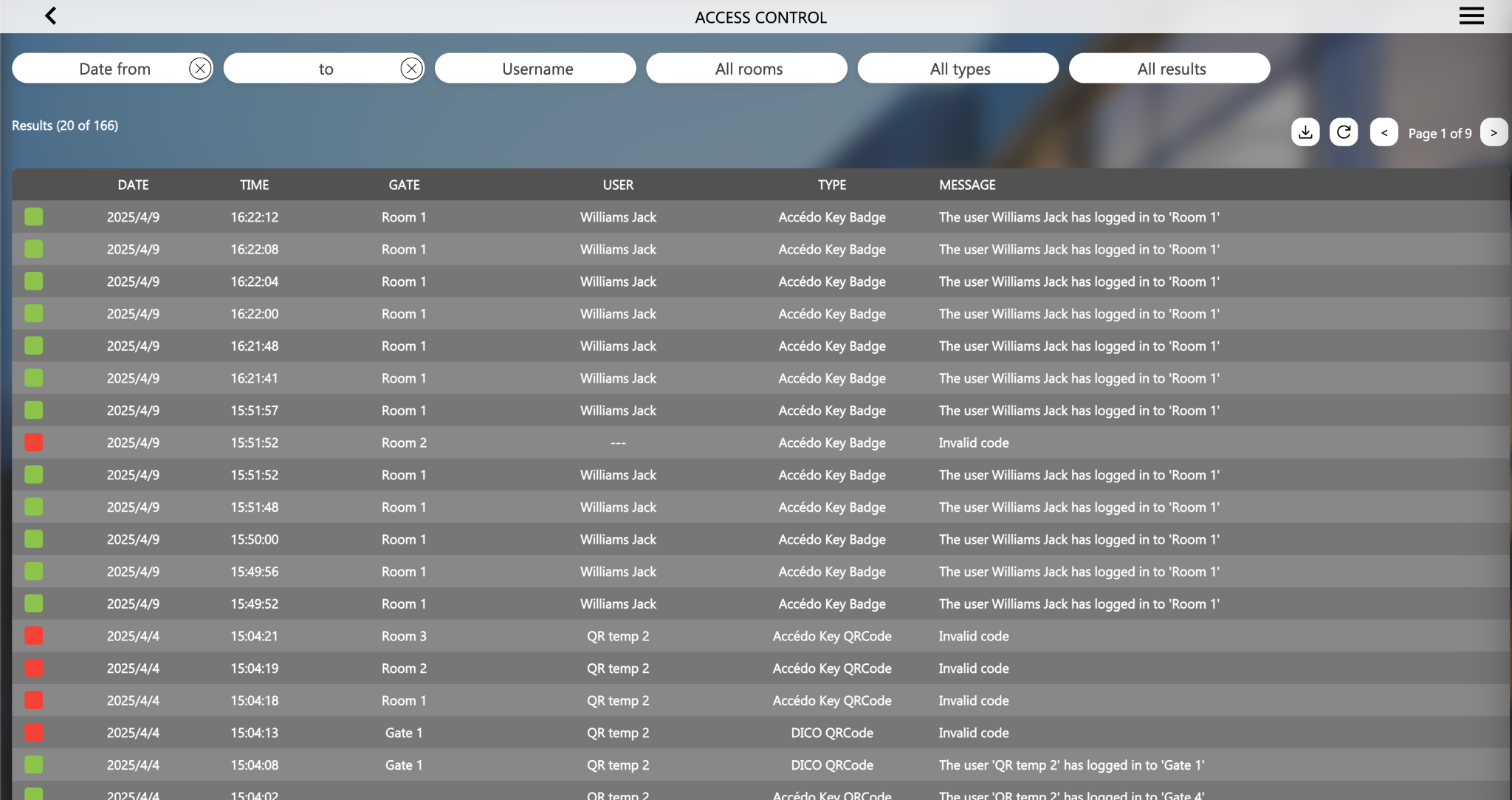
Staff
This page is similar to Guests, but is dedicated to the service personnel of the structure. Unlike a guest, a staff member can be associated with several rooms, so that it can enter all of them.
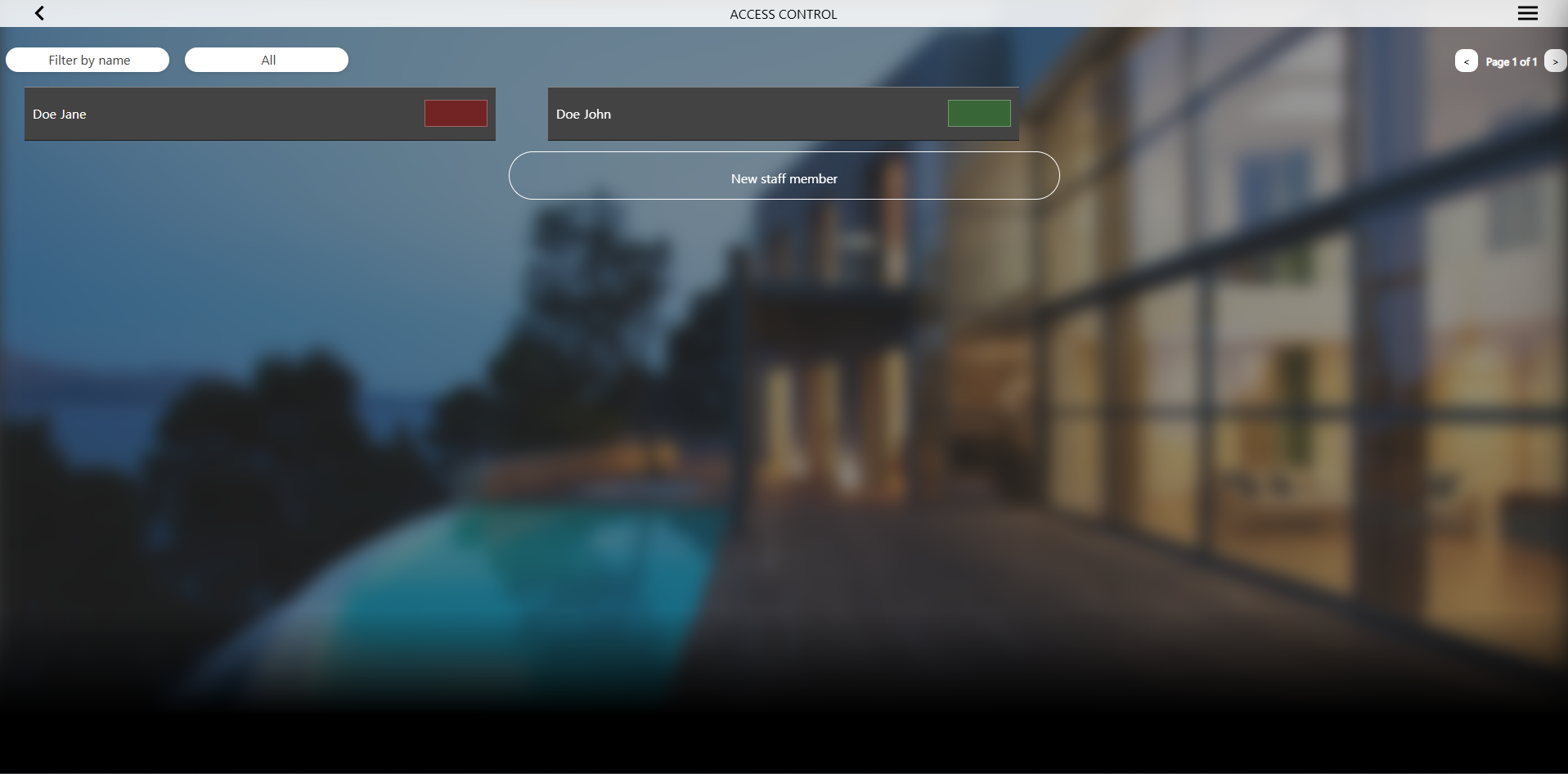
Temporary QR code
This page creates QR codes that are not bound to a guest or a staff member and can be used only for a limited period, for example by maintenance personnel who need to enter one or more rooms of the structure.
Press CREATE QR CODE and fill in the pop-up:
| NAME | Label that identifies the QR code. |
| EMAIL ADDRESS | The address to which the QR code is sent, if desired. |
| VALID FROM | Date and time of the start of the validity period of the QR code. |
| VALID TO | Date and time of the end of the validity period of the QR code. |
| ROOM | Checkboxes of the rooms that the QR code opens. |
| GATES | Checkboxes of the gates that the QR code opens. |
Press CREATE to create the QR code. The following buttons then become available:
| SAVE | Confirms and saves the QR code. |
| SEND QR CODE VIA MAIL | Sends the QR code to the address entered in EMAIL ADDRESS. |
| Opens a new browser tab with the QR code ready to be printed. | |
| DELETE QR CODE | Deletes the QR code. |
The tile of this page appears only when Temporary QR Code is switched on in Structure → Structure management page (see Structure management page).
Badge
This page shows all the RFID cards created and lets the staff add new ones. The RFID cards are MIFARE cards at 13.56 MHz. The access with an RFID card is enabled in the administration with Enable badge management (see Ekinex devices); the tile of this page appears only when Badge is switched on in Structure → Structure management page (see Structure management page).
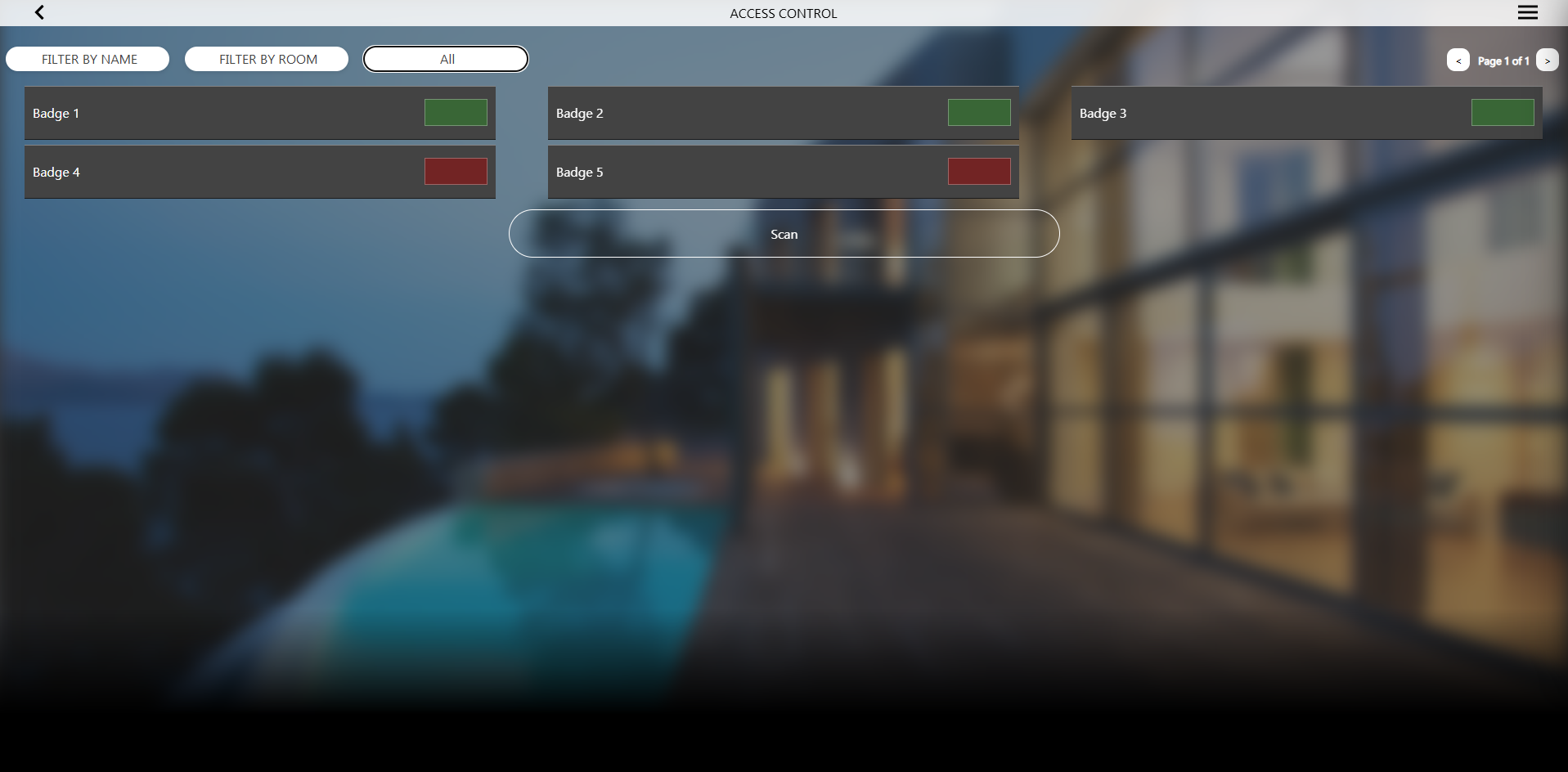
To add a card, proceed as follows:
- Press SCAN: a pop-up asks which device (DICO or ACCÉDO KEY) must read the card
- Choose the device and press SCAN again: a message asks to swipe the card on the device
- Swipe the card: when it is read, a message asks to confirm
- Confirm: the card is added to the list
An RFID card can also be given to a guest or a staff member while creating or editing them, in the Badge part of the pop-up, the RFID CARD INFO of the AUTHORIZATIONS window (see Adding a new guest). A guest or staff member can have more than one card. That part of the pop-up holds the following sections:
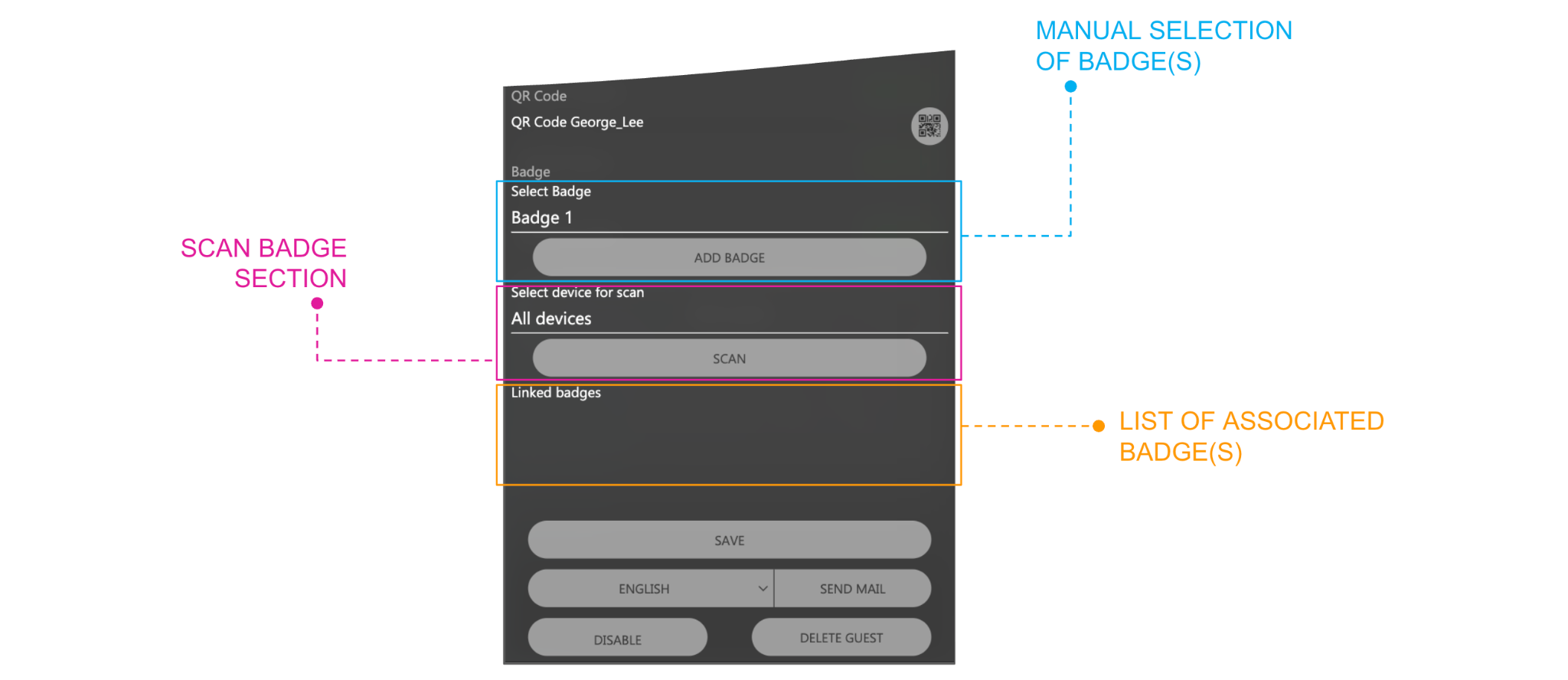
| MANUAL SELECTION OF BADGE(S) | When this section is enabled in the administration, the Select Badge drop-down list offers all the RFID cards created before. Select one and press ADD BADGE to add it to the Linked badges list. This method suits structures with a limited number of cards. |
| SCAN BADGE SECTION | If more than one ACCÉDO KEY is enabled for the scan, select the device in Select device for scan before scanning, or leave All devices. Press SCAN and hold the card in front of the device: when detected, it is added to the Linked badges list. If the card is already in the system, an error message is shown. |
| LIST OF ASSOCIATED BADGE(S) | Linked badges: the RFID cards associated with the guest or staff member. |
FIAS
DELÉGO SERVER works with Oracle® Micros® Opera™ Hotel Property Management System through the FIAS protocol, the Fidelio Interface Application Specification.
A FIAS server has to be reachable from DELÉGO SERVER, and has to meet these requirements:
| PMS | Opera 5, on-premise or hosted; Opera Cloud; Fidelio Suite8. |
| Interface | Key Services System, the door locking family. |
| Vendor system version | 1.10 |
| Connectivity | TCP/IP |
The FIAS section
FIAS (Fidelio Interface Application Specification) is the interface protocol of Oracle Hospitality OPERA, used by many hotel property management systems (PMS) to exchange data with the external systems of the structure. The FIAS section of the bar connects DELÉGO SERVER to the FIAS server of the PMS.
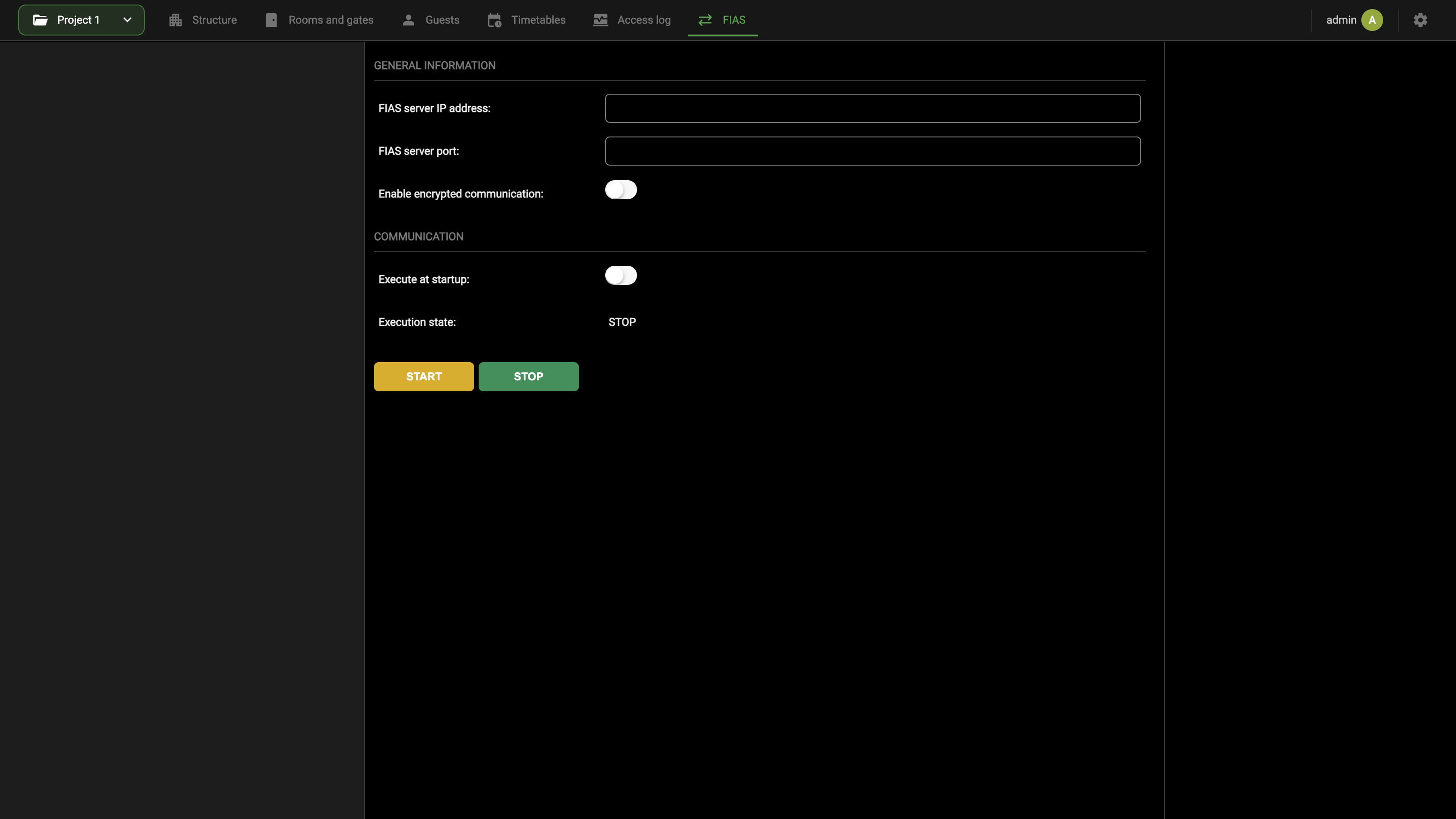
The GENERAL INFORMATION group holds the connection parameters:
| FIAS server IP address | Address of the FIAS server of the PMS. |
| FIAS server port | Port on which the FIAS server accepts the connection. |
| Enable encrypted communication | Encrypts the communication with the FIAS server. Switch it on when the FIAS server requires an encrypted connection. |
With Expert mode active, the same group shows four more settings:
| Keep-alive message sending interval (sec) | How often DELÉGO SERVER sends a keep-alive message to the FIAS server. Default 60. |
| Operation timeout time (sec) | How long DELÉGO SERVER waits for the answer of the FIAS server to an operation. Default 30. |
| Send confirmation message immediately | Sends the confirmation of each message received from the PMS as soon as it arrives. |
| Enable log | Records the exchange with the FIAS server in the log, for diagnosis. |
The COMMUNICATION group controls the connection:
| Execute at startup | Starts the connection automatically when DELÉGO SERVER is powered up. |
| Execution state | The state of the connection, as text: STOP while it is stopped. |
| START | Starts the connection. |
| STOP | Stops the connection. |
To connect to the PMS, enter the address and the port given by the PMS provider, set the encryption as required, switch on Execute at startup and press START. Then check that Execution state no longer reads STOP.
Like the Virtual presence tab, this section shows its state as text and keeps the separate START and STOP buttons, instead of the status bar with RESTART.
Supported operations and commands
The following operations coming from the PMS are supported:
| BOOKING | Assigns a guest to one or more rooms in advance, before the validity period begins. |
| CHECK-IN | Enables a guest straight away for the access to one or more rooms. |
| MODIFY | Changes the rooms and the validity period of a guest that already exists. |
| CHECK-OUT | Disables a guest and removes them from the authorization list of the rooms previously assigned. |
Of the FIAS protocol, DELÉGO SERVER supports the three commands below. Any other command, and any other field, is ignored.
KR – Key Request, used for a booking and for a check-in:
| FIELD | DESCRIPTION |
|---|---|
| KC | Key Coder. Mandatory in the FIAS protocol, but unused. |
| WS | Workstation ID. Mandatory in the FIAS protocol, but unused. |
| DA | Current date. |
| TI | Current time. |
| KT | Key Type: N creates a new RFID card, D makes a duplicate of the card of the given reservation, when one already exists. |
| RN | Room number. |
| SI | Additional rooms (Suite Info). |
| GA | Guest arrival date. |
| GD | Guest departure date. |
| G# | Reservation number. |
KD – Key Delete, used for a check-out:
| FIELD | DESCRIPTION |
|---|---|
| KC | Key Coder. Mandatory in the FIAS protocol, but unused. |
| WS | Workstation ID. Mandatory in the FIAS protocol, but unused. |
| DA | Current date. |
| TI | Current time. |
| RN | Room number. |
| SI | Additional rooms (Suite Info). |
| G# | Reservation number. |
KM – Key Data Change, used for a modification:
| FIELD | DESCRIPTION |
|---|---|
| KC | Key Coder. Mandatory in the FIAS protocol, but unused. |
| WS | Workstation ID. Mandatory in the FIAS protocol, but unused. |
| DA | Current date. |
| TI | Current time. |
| RO | Old room number. |
| RN | Room number. |
| UO | Old additional rooms, the suite information of the old room. |
| SI | Additional rooms (Suite Info). |
| GA | Guest arrival date. |
| GD | Guest departure date. |
| G# | Reservation number. |
Configuration
Open the Guest room management view (see Guest room management view) and select FIAS in the navigation bar; the section is described at the beginning of this chapter. In this page, the following settings can be configured; some of the following information requires Expert mode to be active (those fields are shown here in parentheses):
GENERAL INFORMATION
| FIAS SERVER IP ADDRESS | IP address of the FIAS server |
| FIAS SERVER PORT | Listening port of the FIAS server |
| ENABLE ENCRYPTED COMMUNICATION | When selected, the communication is encrypted. |
| (TLS CERTIFICATE) | Only if the “Enable encrypted communication” flag is set. If using encrypted connection, a TLS certificate is required. With this option the certificate generated by the PMS can be uploaded to the server. |
| (KEEP-ALIVE MESSAGE SENDING INTERVAL (sec)) | Defines how many seconds will pass between a keep-alive message and another. It is suggested to keep the default value (60 seconds). |
| (OPERATION TIMEOUT TIME (sec)) | Defines how many seconds the integration will consider the requested operation failed before sending an error message to the PMS. It is suggested to leave the default value (30 seconds). |
| (SEND CONFIRMATION MESSAGE IMMEDIATELY) | If the option is flagged, an OK message to the PMS will be sent right after the command has been received. Otherwise, a response will be sent only when the entire operation has been completed. It is suggested to keep the default value (not flagged). |
(ENABLE LOG) Enable debugging logs. Used by technical assistance.
COMMUNICATION
| EXECUTE AT STARTUP | Flag this checkbox in order to start the FIAS gateway with the webserver |
| EXECUTION STATE | Reports the state of the FIAS gateway (STOPPED or EXECUTING). |
Press the START button to enable and start a FIAS communication with the server.
In order for the integration to work properly, it is important that the NUMBER of the ROOM(s) configured in DELÉGO SERVER matches the number in the PMS. Please check this aspect before starting the communication with the PMS.
Usage
Once the integration module is configured and enabled, it connects to the PMS software and waits for the commands it issues.
Configure DELÉGO SERVER and the card readers (ACCÉDO KEY, DICO, EKINEX KNX badge devices and third-party ones) following the procedures in the Guest Room Management chapter.
What happens when a command arrives from the PMS:
- Booking, check-in, or a request to duplicate a card. The webserver waits for an RFID card to be placed on one of the enabled readers. Once the card is enabled, the guest uses it to reach their room and the gates for the whole of their stay.
- Modification of a booking. The card associated with the guest is changed accordingly: moving a guest from room 2 to room 3 makes their card open room 3, and stop opening room 2.
- Check-out, or deletion of a booking. Every card associated with the guest stops working on every lock.
PMS
DELÉGO SERVER can be integrated with online PMS (Property Management Systems) and channel managers, so that the reservations received online assign the rooms and the access permissions that go with them. The integration is provided by a dedicated cloud service, which interfaces DELÉGO SERVER with the online PMS and is documented in a separate manual.